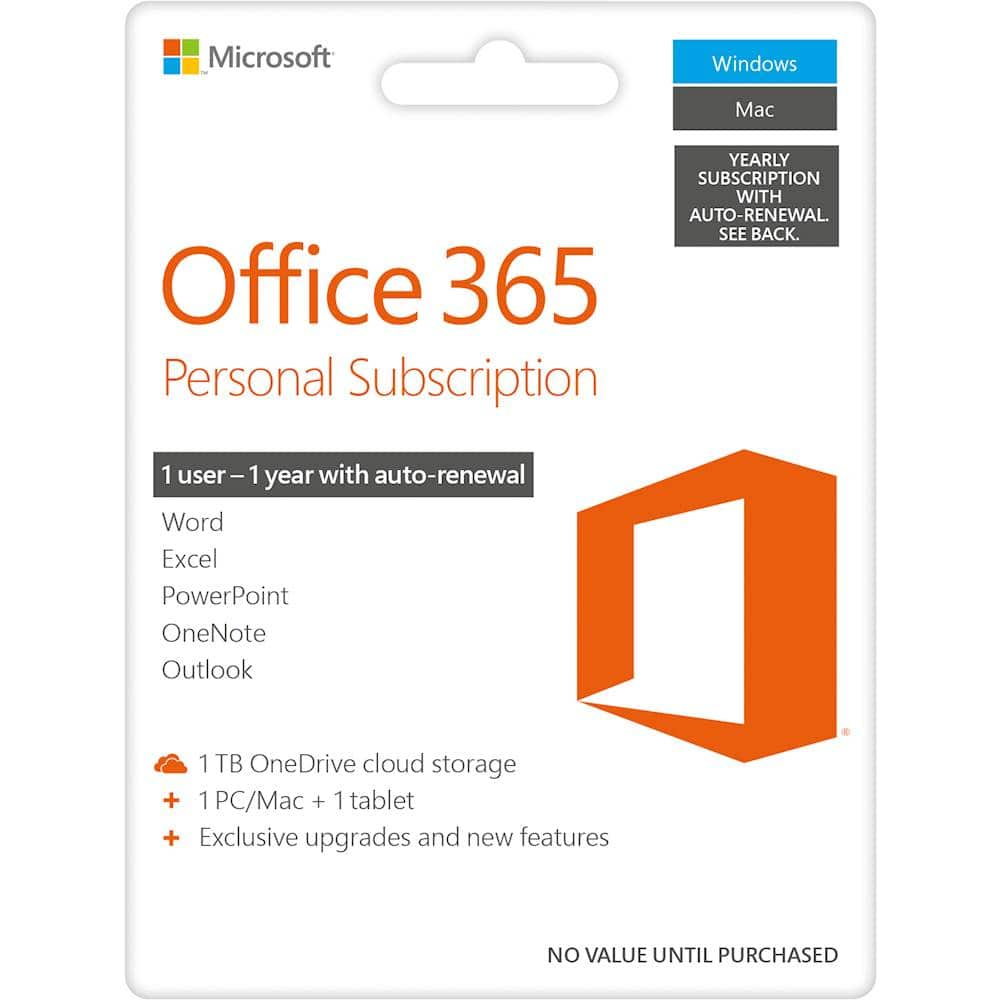
A:AnswerYes! You can upgrade from Microsoft 365 Personal to the Family plan at any time. The Family plan allows up to 6 users and provides the same apps, features, and 1 TB of cloud storage per person. You can upgrade through your Microsoft account online.
A:AnswerYou would go to your iOS.. go to setting -(name or profile)-subscriptions then push on cancel. Your subscription will not be fully cancelled until 15 days after the date your subscription was set to renew.
Then after this time has passed, go to Settings - name or profile - Subscriptions to purchase a Microsoft Family subscription
A:AnswerI share one and as far as I know it is only one address, I use my email address under someone else's shared account so I guess yes if you share the original subscription to other emails/ computers as needed. The way I use to figure out which I use to login is I try them till one works.
A:AnswerI'm assuming if your referring to ur best buy account name or userids there, it's easily updated by you using edit option once j login to ur best buy acct. If your referring to ur MS Office name on the Office Suite that'll probly be someplace in your Microsoft cct you created when you setup your office subscription i.e. go to www. Microsoft.com and login there to see your acct editing options which I'm pretty sure they allow this by user if not you can request they make the change & after waiting a short frace period of like 14 days or something close to that it will update & email you confirmation.
A:AnswerI don't like auto renewal. When it comes up, I refuse. I asked this question when I purchased the product and the sales person told me it shouldn't be a problem as my credit card I used will expire before the year is up.
A:AnswerGreat question! Users are free to manage and make adjustments to their subscriptions at any time by visiting their Microsoft profile page. For a full set of detailed, step-by-step instructions, visit here: https://support.microsoft.com/en-us/office/cancel-a-microsoft-365-subscription-46e2634c-c64b-4c65-94b9-2cc9c960e91b