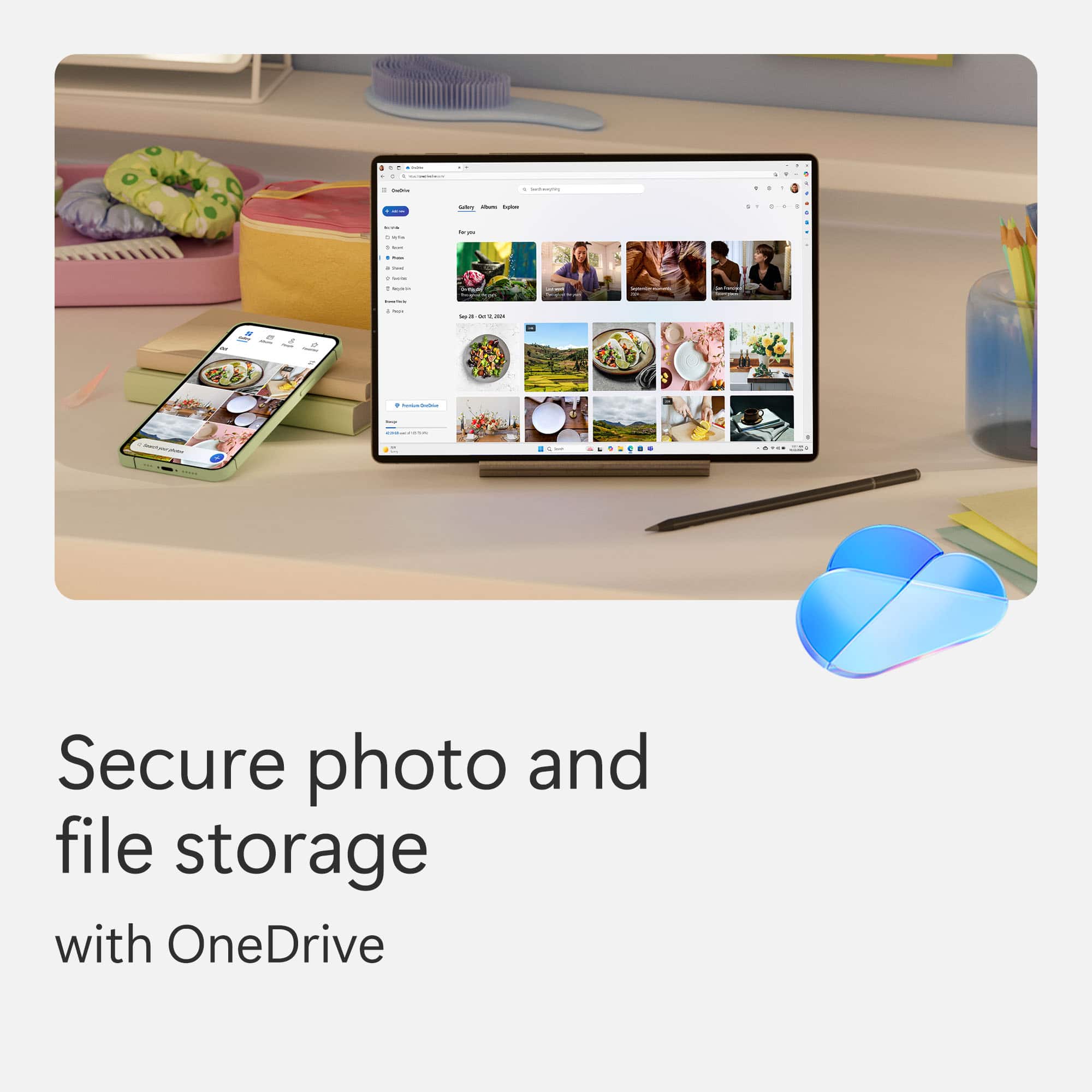
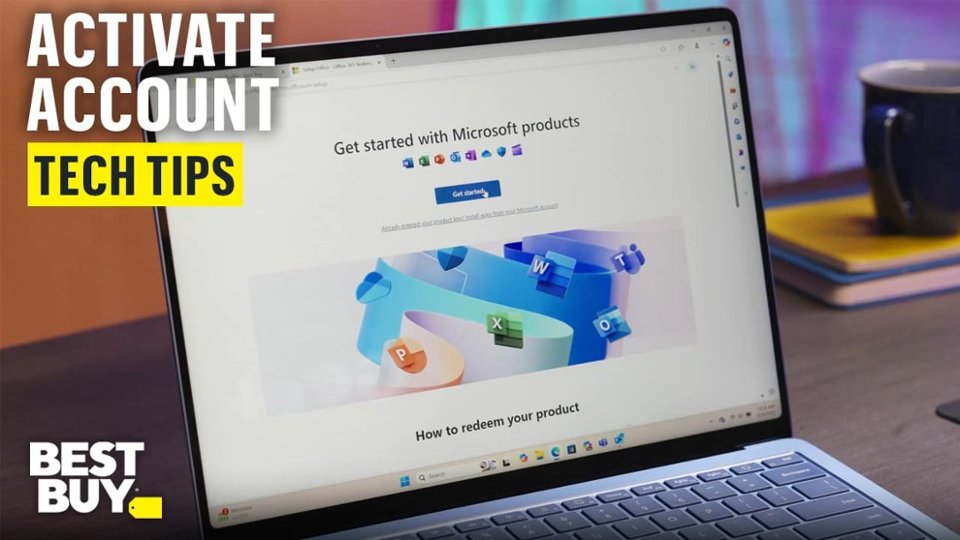
A:AnswerYes, after activation or installing the package, open new word doc and it will ask you to auto face to one drive and just make sure you say yes .
A:AnswerIn response to the 2 answers - So how does someone that it using more than 1 computer (ONLY 1 USER) install on multiple computers without a 'internal network' ? Disabled person using more than 1 computer and we always get a computer with a Disc Drive or we do not buy it.
A:AnswerI don't know if this will answer your question as I don't have MS personal 365 but I know home 365 does have a feature that allows you add it on to multiple platforms by opening up the office program and clicking on install. I'm not really sure how it works as I don't have any other windows 10 platforms or a tablet plus I don't have an immediate use for installing it on my google pixel
A:AnswerYes, you can. You can learn bout how to change your saving experience here: https://support.office.com/en-us/article/customize-the-save-experience-in-office-786200a7-f5f2-4d26-a3ae-b78c60dd5d3b.
A:AnswerThis is a full program and accessible from anywhere internet is able. Office 365 for students, I do believe, is owned by the institution. Meaning, if they want, they can use your files and upload anywhere because you don't rightfully own it (didn't pay for it). Check with your university on rights of the software.
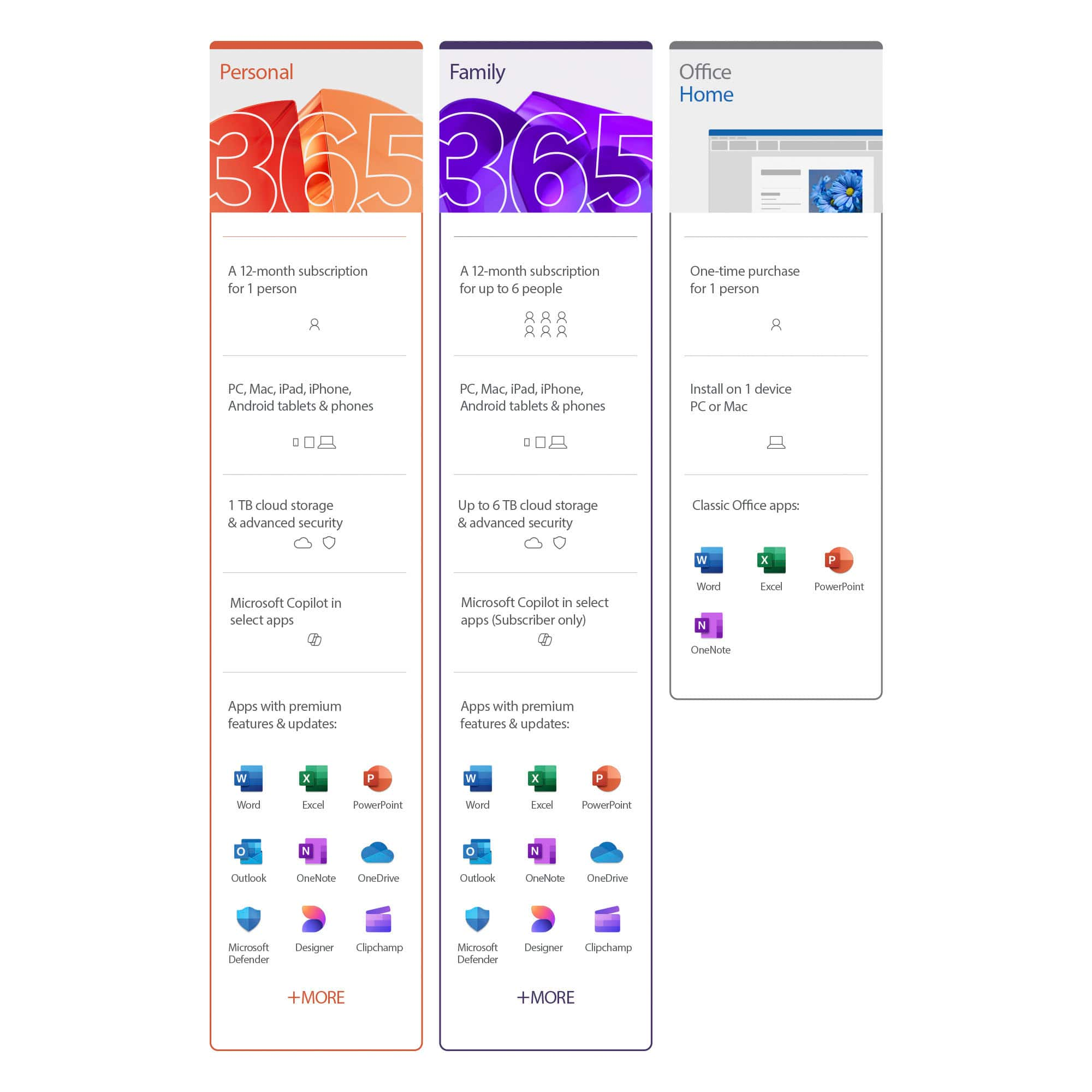
A:AnswerYou only use the license to install Office on one device. Once you have done that you can install it on other devices by logging into your Microsoft Account on the new device and following the steps outlined in our help page here: https://aka.ms/AA4rq32.
A:AnswerIf you are all using the same computer you can have the 1 user version. That would just mean that everyone will use the same account so all files and documents attached to that account will be available to anyone who uses the device.
A:AnswerYes, you can install Office 365 Personal on multiple devices. To install Office 365 Personal on any device after the first you don't need the activation code, you simply log into your Microsoft Account on the new device and follow the instructions in our help page here: https://aka.ms/AA4rq32. You can also connect your Microsoft Account to the Office Apps on Android so that your files can sync across all your devices.
A:AnswerYou can install Office 365 Personal on multiple computers but you can only use it on one device at a time. If you want to be able to share your subscription with others you will need to purchase Office 365 Home.
A:AnswerYou only need internet if you want to sync your files with OneDrive. You can always work on the files and they will sync the next time you use the internet.
A:AnswerOffice 365 is a subscription based version of Office but we do have a student version. Learn more about it here: https://www.microsoft.com/en-us/education/products/office.