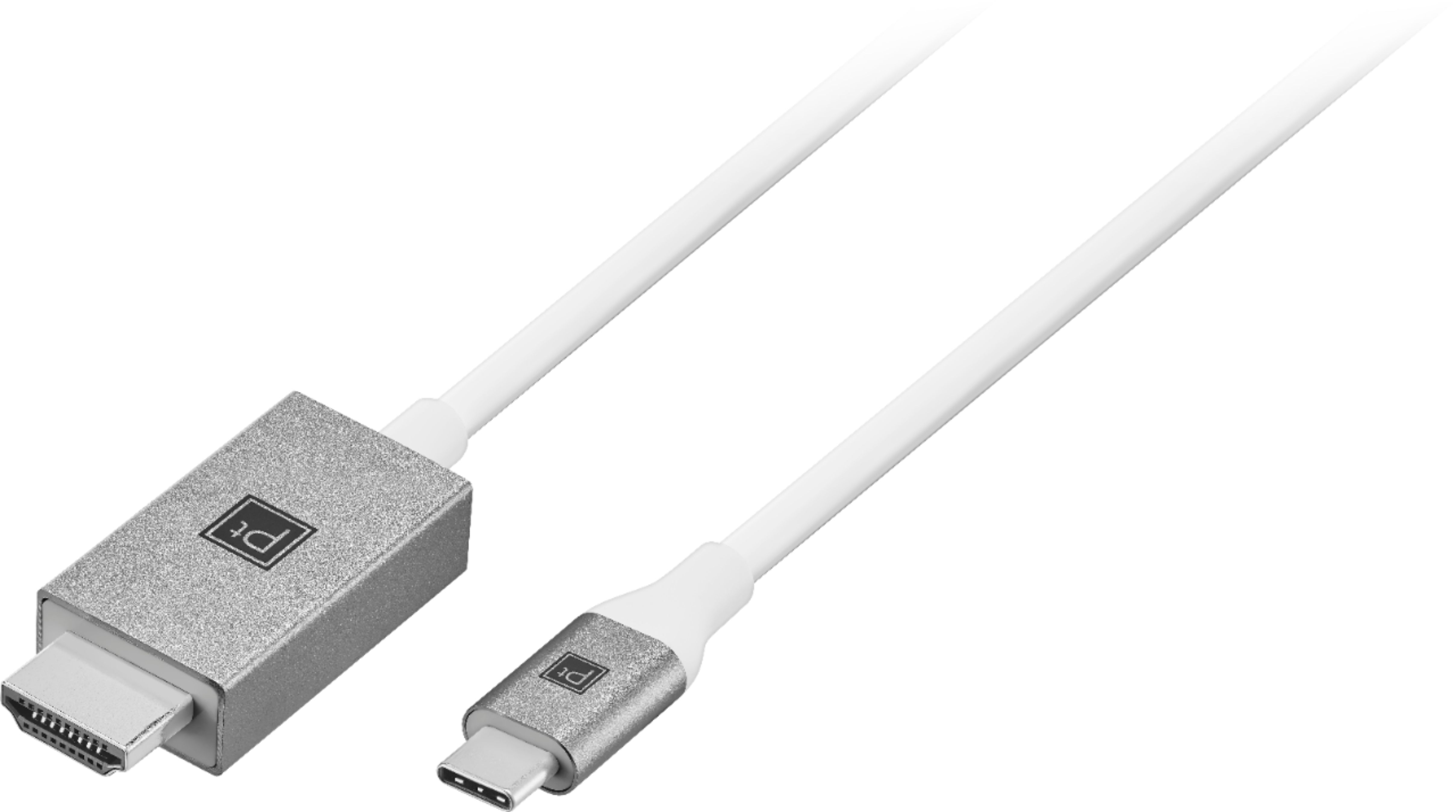
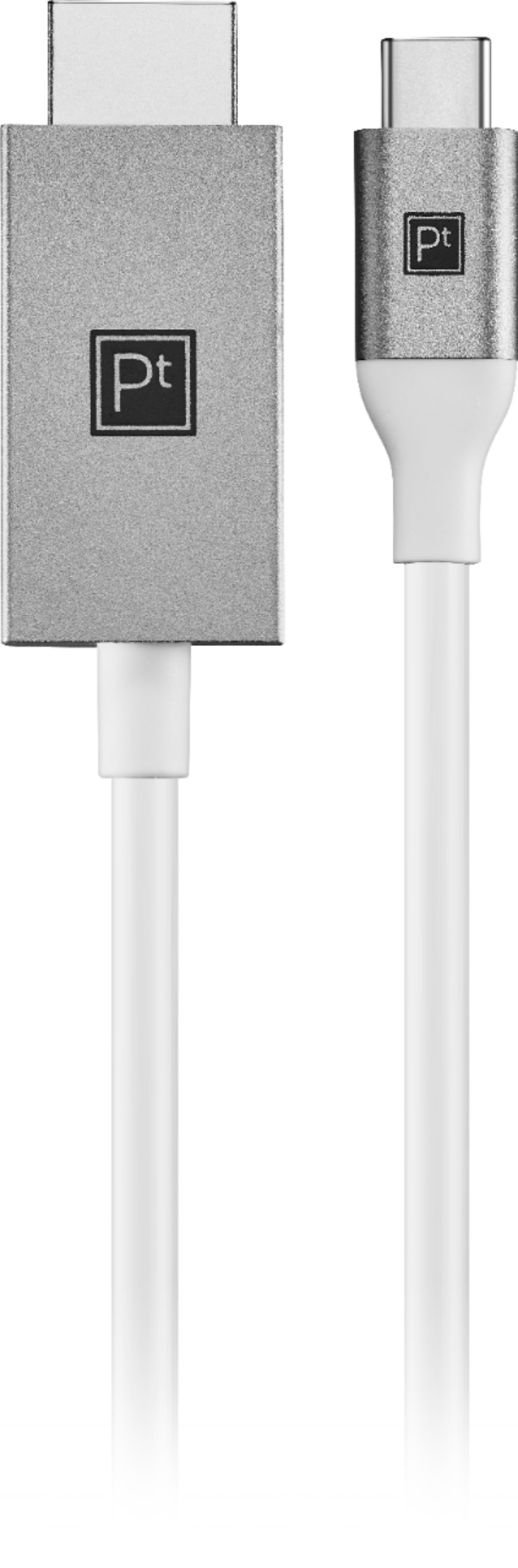
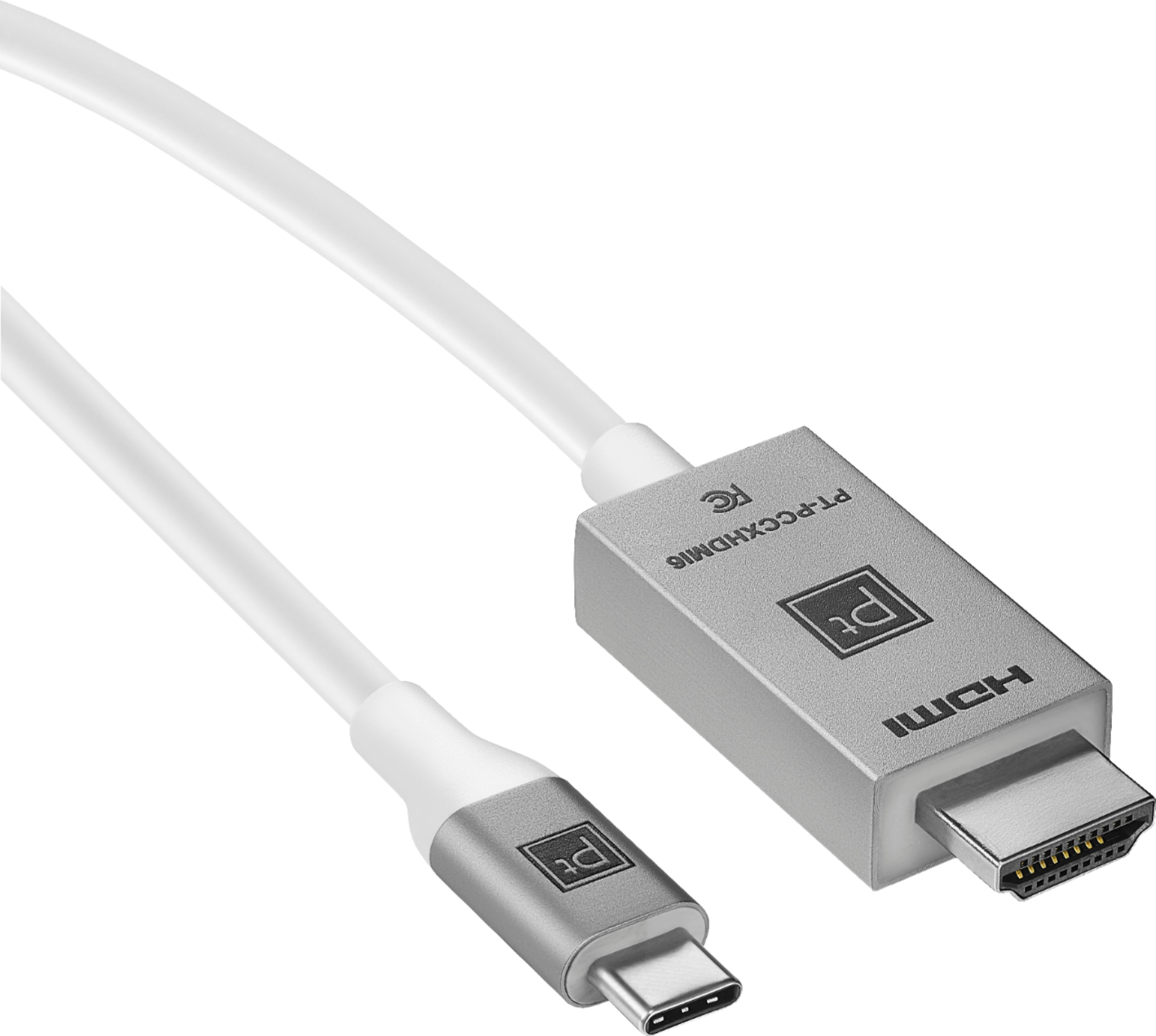
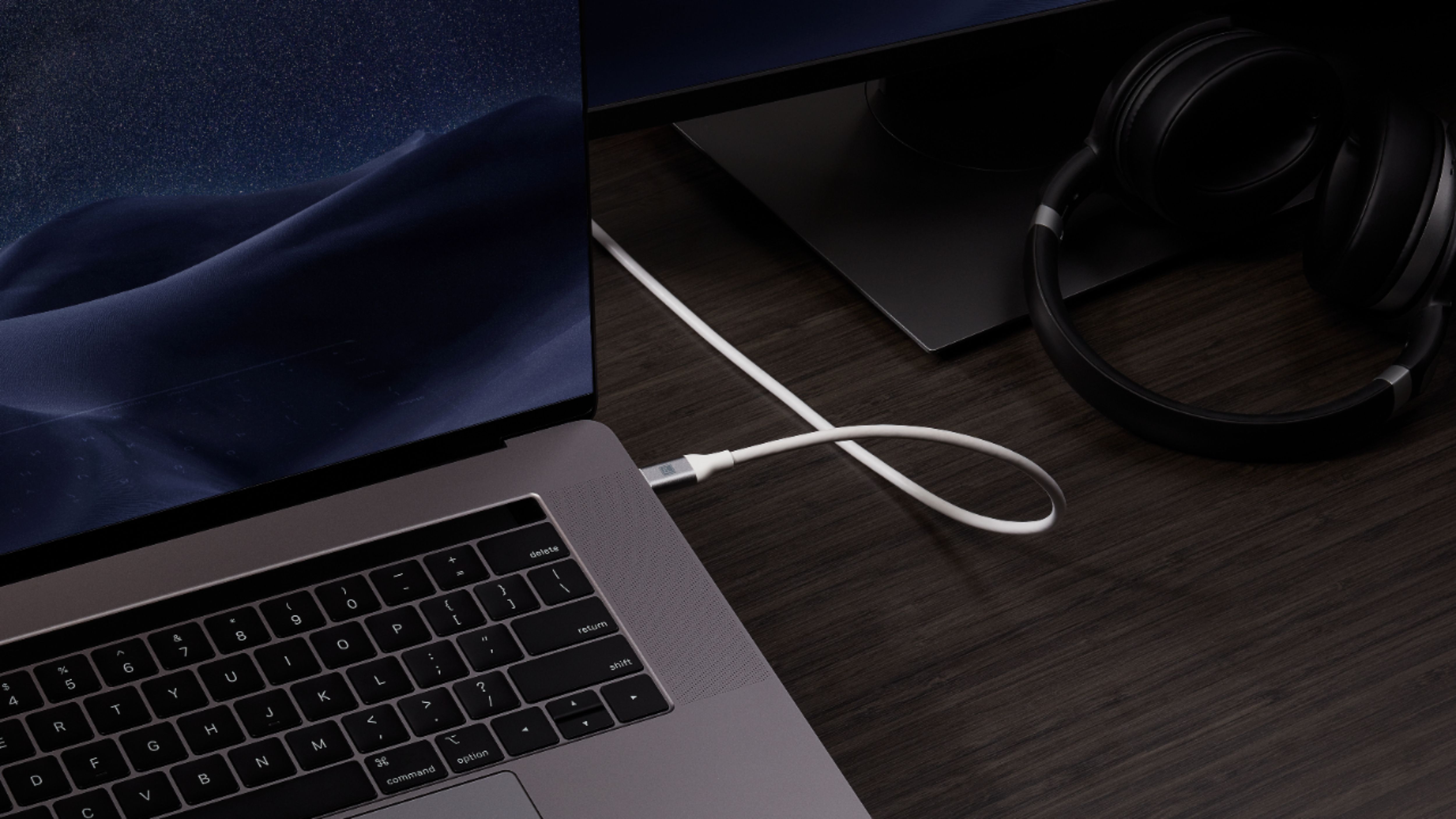
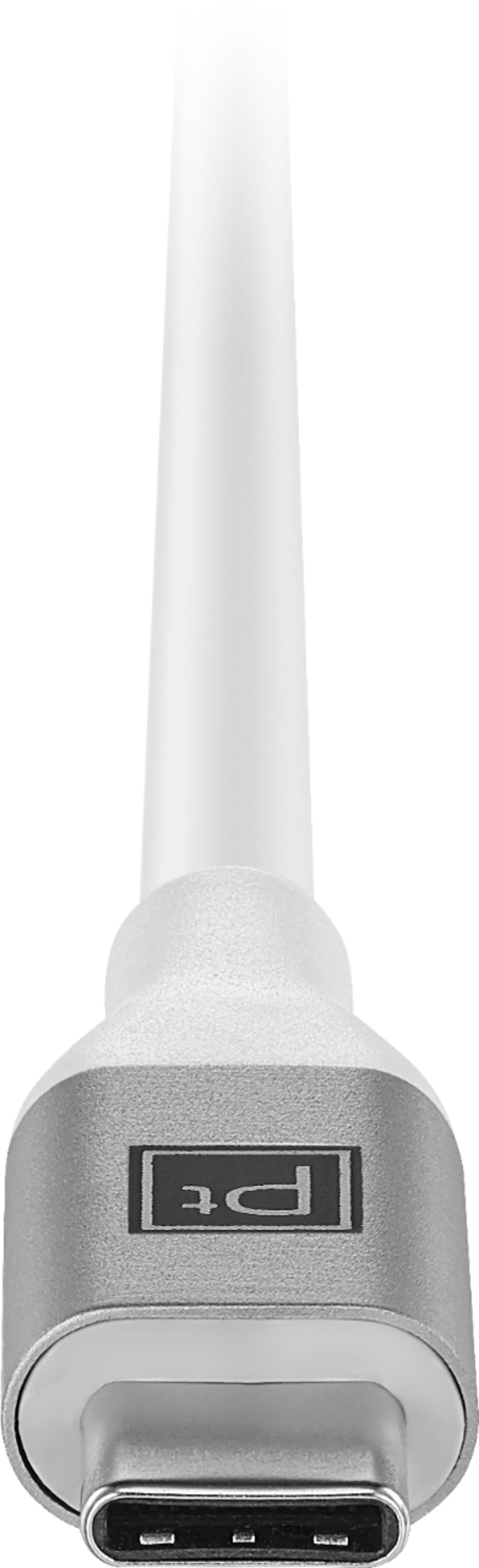
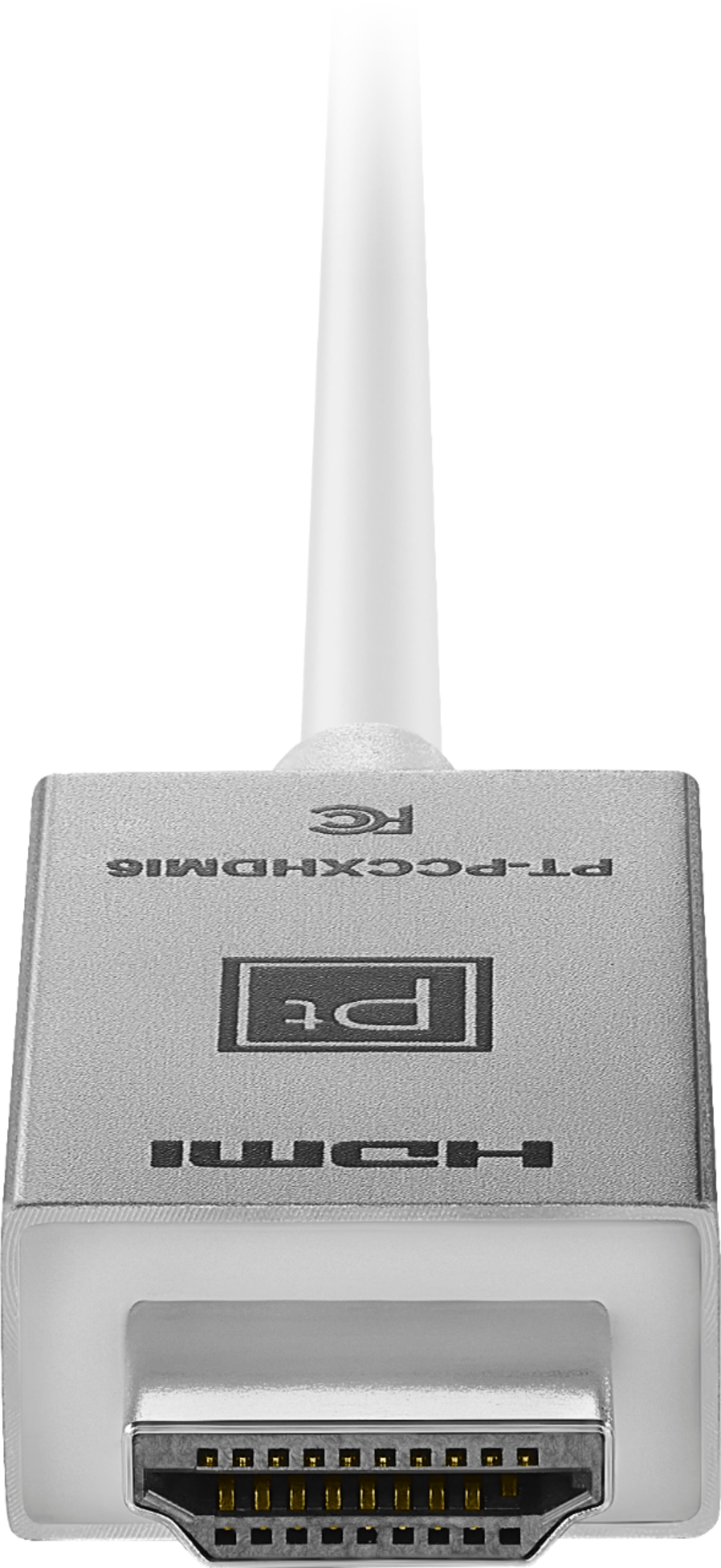
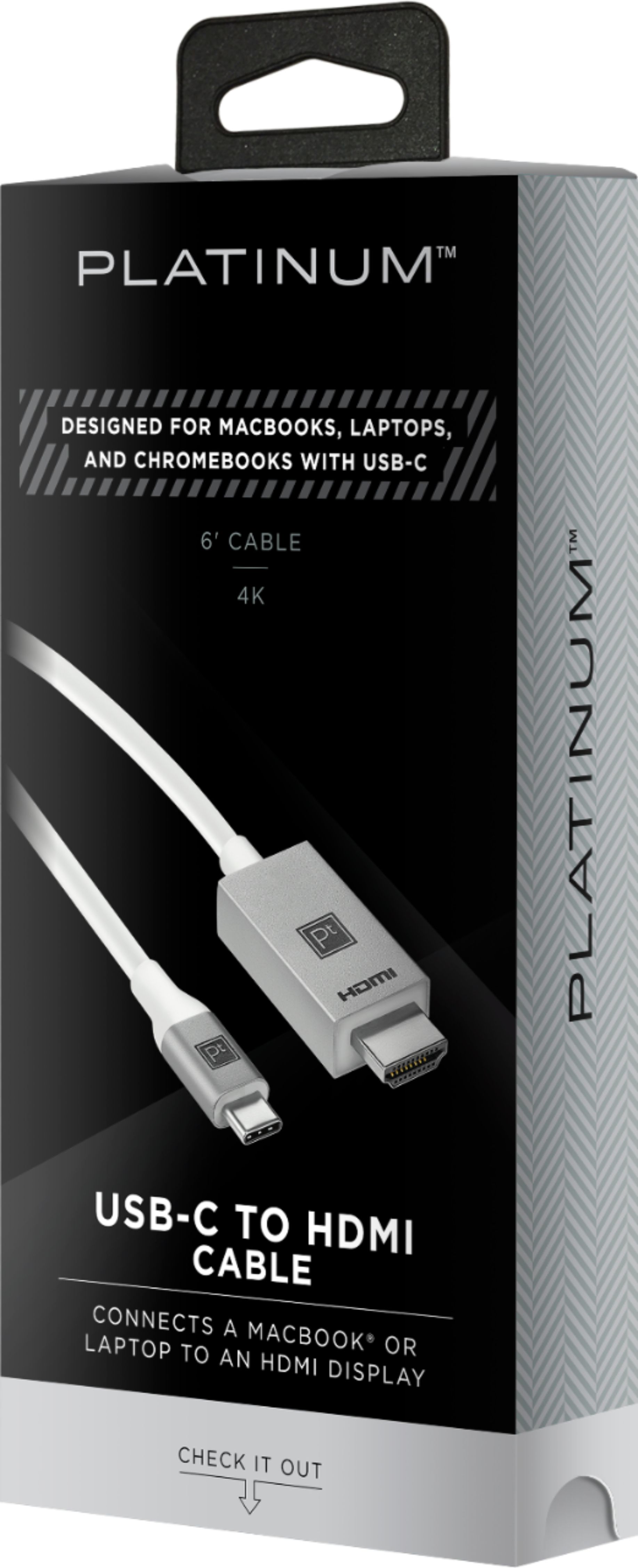
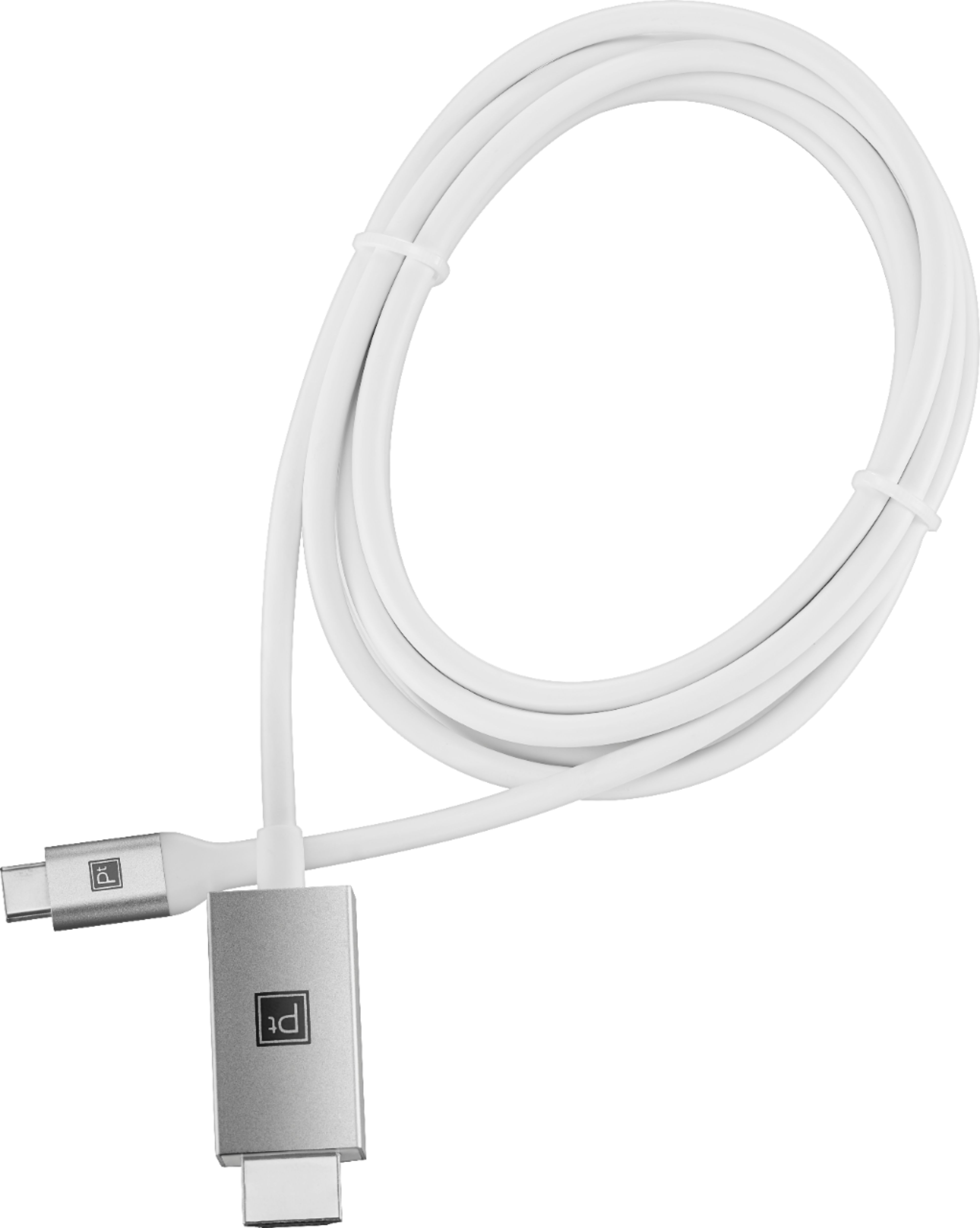
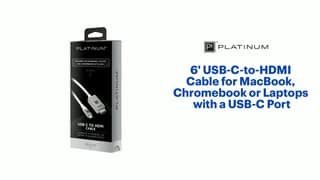
A:AnswerYes, the small USB-C does fit the Chromebook. It has been around 20 years since we've used a monitor. Since then it's always been Mac all in ones or laptops, so I can't say what sort of connections monitors have, but the cable works great for connecting to the TV. Be sure to go into settings on your Chromebook, advanced settings, display and then choose to mirror Chromebook. At least that's how it goes for mirroring on the TV.
A:AnswerI'm not an expert, but I do not believe you could connect your laptop to a printer using this cable. But it certainly should be easy to make the connection to the printer, just not with this cable. Do a Google search for connecting your Chromebook to a printer. That should give you two choices, one is wireless, the other connected via a USB/Printer cable. My Chromebook has only one USB connection. If that is true with your Chromebook, you may already be using that connection for a mouse. If that is true buy a "HUB". You then unplug the the mouse dongle from your one USB port, plug in the new HUB. Now you have 3 to 6 more USB connections. Plug your mouse dongle into the new HUB and the USB end of your newly bought HUB into the one USB port of your Chromebook. Then plug into the new HUB, the USB end of your newly bought USB-Printer cable into the HUB. Now your Chromebook should quickly connect to your printer. That is a sure connection. The wireless connection is a little more involved but also pretty easy, especially if your printer is fairly new. One of our printers is a bit too old, so we haven't been able to connect it, but the other, newer laser printer made a quick, wireless connection.
A:AnswerIt works with my LG G8 ThinQ on Android 9 - I have two cameras on the back. I think there is a model with 3 cameras on the back and I don't know about that one.