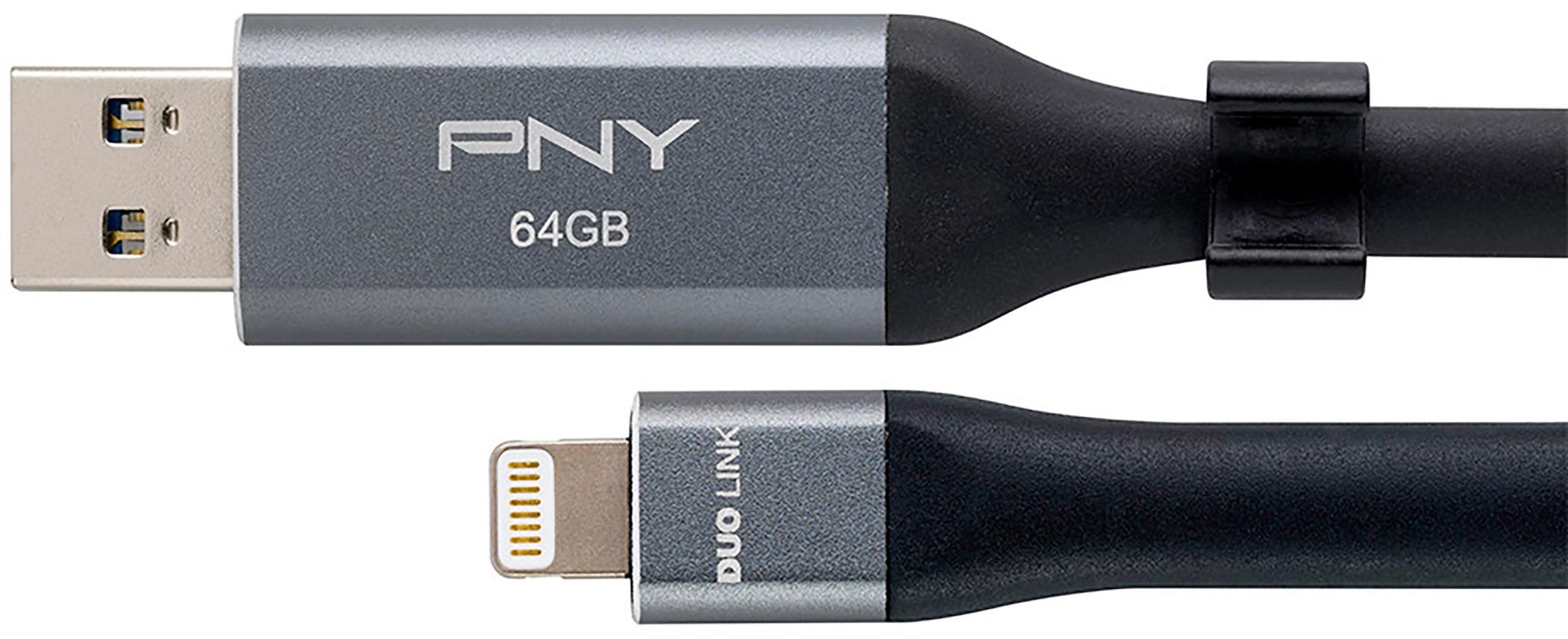
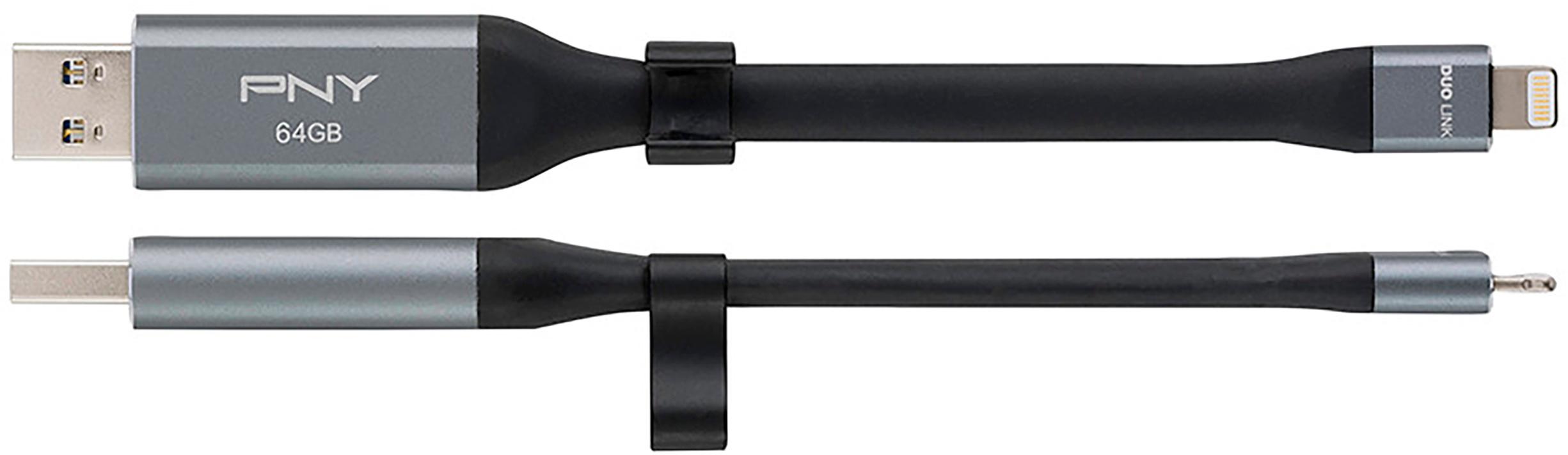
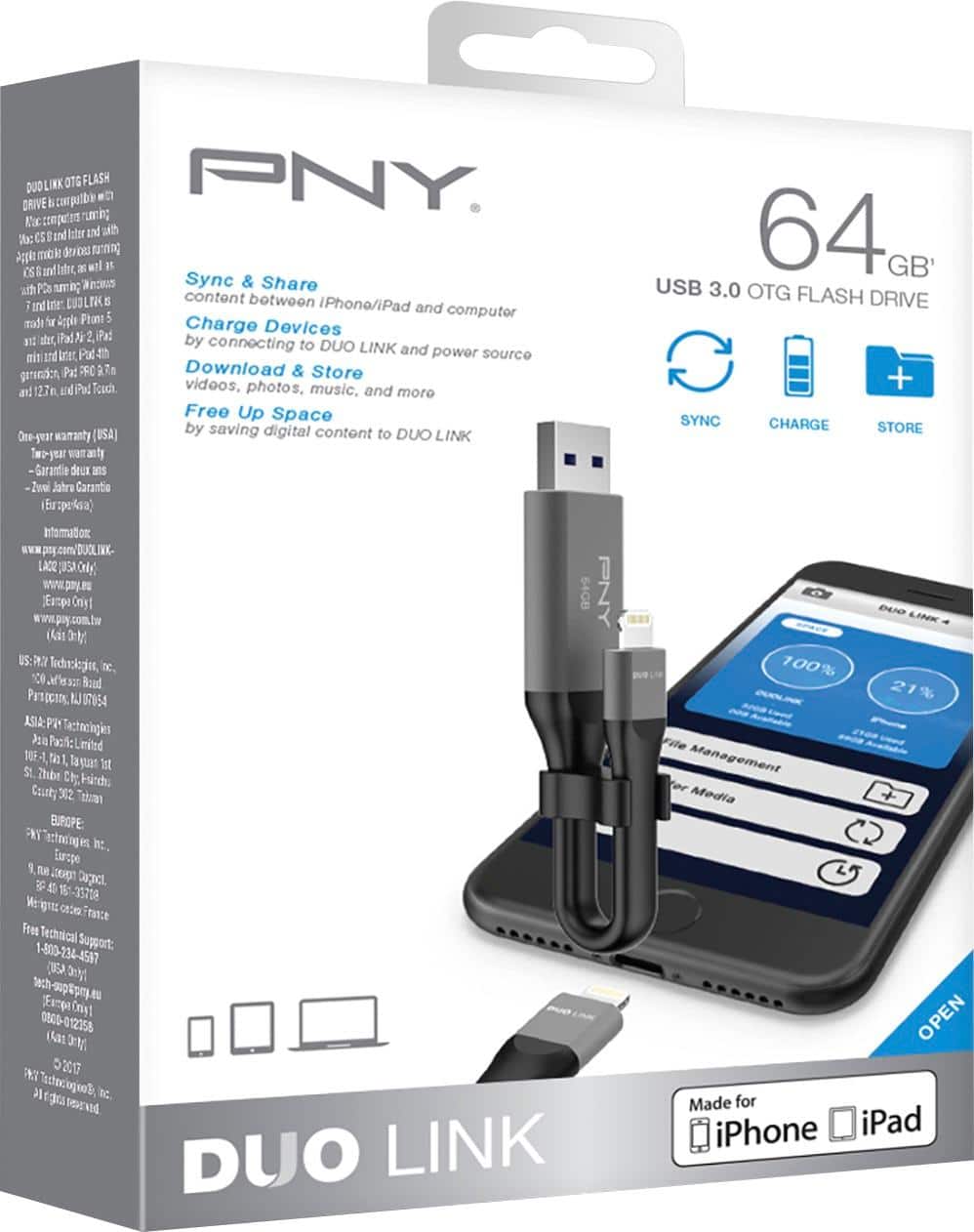
A:AnswerIt depends on the file size you are shooting. Presuming that all photos are taken on most iPhones are JPG files sizes, which is around 3mb per picture. But now the iPhone 12 has the ability to shoot RAW imagines, which can take up around 25mb per picture. 64GB translates to 512,000mb so approx 170,665 JPG images or 20,480 RAW images. In case you where curious videos will definitely take more space. Most iPhones can record 4K video, which 10mins is roughly 1.7GB. So storage will fill up faster with videos at a higher quality. By reducing the quality in the settings for both photos and videos the less space both will take up. Happy picture taking!
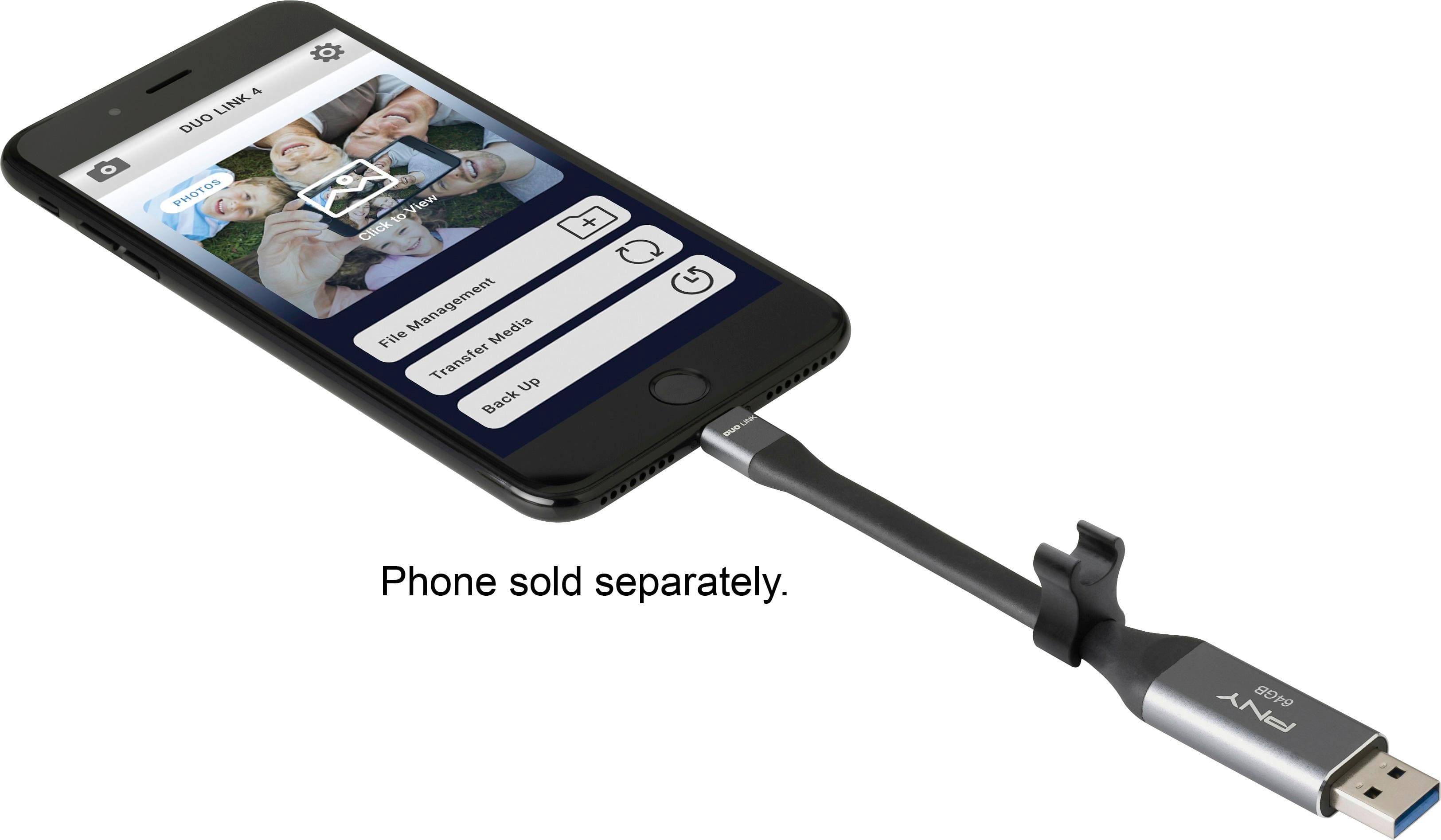
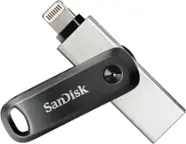
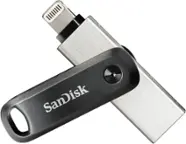
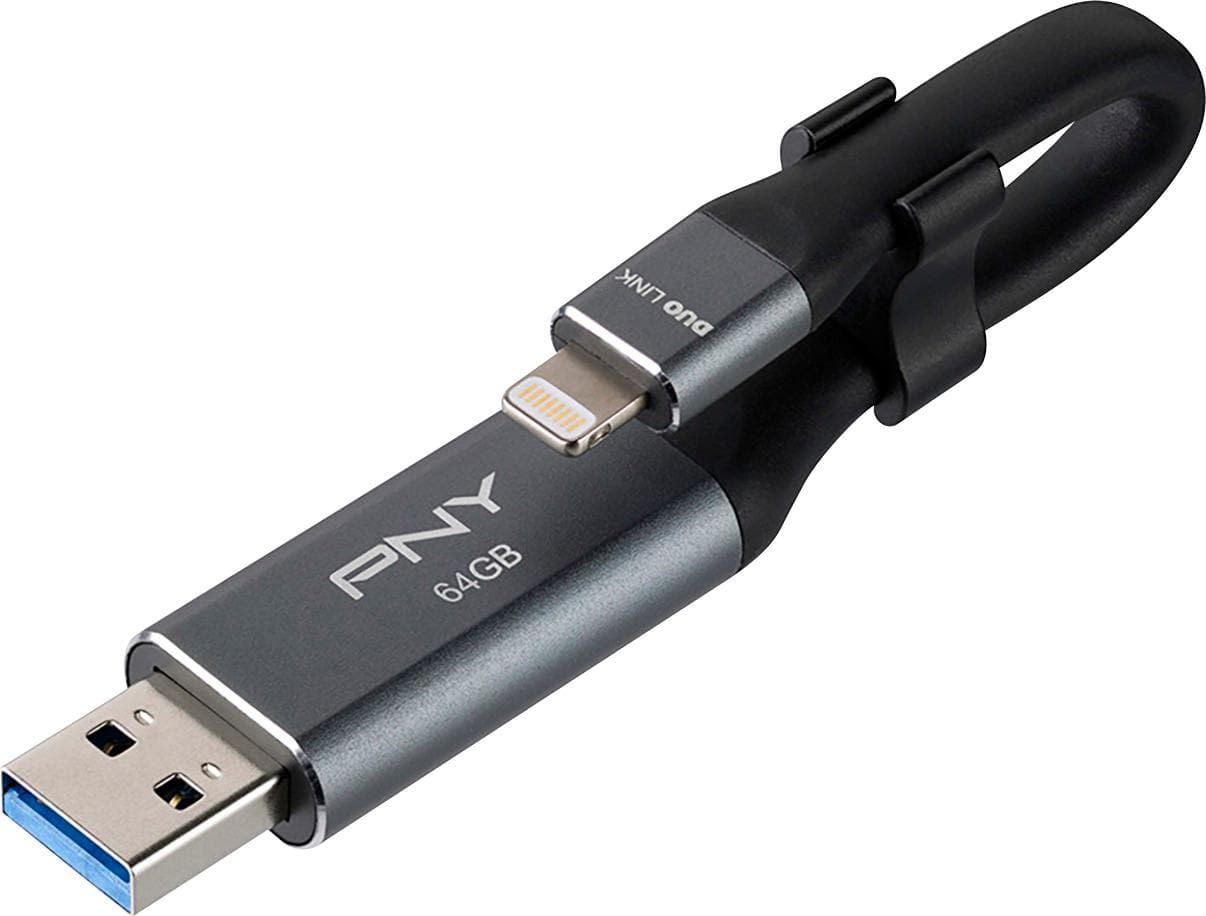
A:AnswerYou select the files that you want to copy from your phone. It then copies them to the USB of this device, then you just plug it into your computer and use it like a normal USB
A:Answerhmmm, iPhone software seems to put photos into viewing folders that File Management sees. Inside iPhone photos you will see (among others) my photo stream, recents, live photos, and screenshots. Open one of these viewing folders, select Multiselect, then chose Select All. Now you can grab lots of photos and copy them to the drive. Repeat with the other viewing folders and you should deal with all 3k pictures in short order. Transfer Media is not as helpful in this situation. It is better when you want to select photos yourself, ie not mass copies.
A:AnswerI use my MacBook Air to transfer files from a portable hard drive. Once your computer recognize the drive I drag the file to it from portable drive instead of trying to sync.
A:Answerthis app is not the easiest picture transfer, but it gives you lots of control. I use transfer media, create folders on the drive, then move pictures into the desired folder. once copied, I then reselect the pictures and delete from the phone. I still have to go to PHOTOS app on my phone and clear the recently deleted items folder there. Safety comes from multiple chances to save an accidentally deleted pic.