A:AnswerHi PedsNurse,
The DIRECTV app is available for download in the built-in App Store on the Media Home Screen. From there, you can use your subscription to access DIRECTV.
~Samsung Advisor
A:AnswerHi DavO,
Yes, you can use a USB drive to display pictures or video content on the F6000F TV. For file types please refer to the user manual: https://www.samsung.com/us/support/downloads/
~Samsung Advisor
A:AnswerHi,
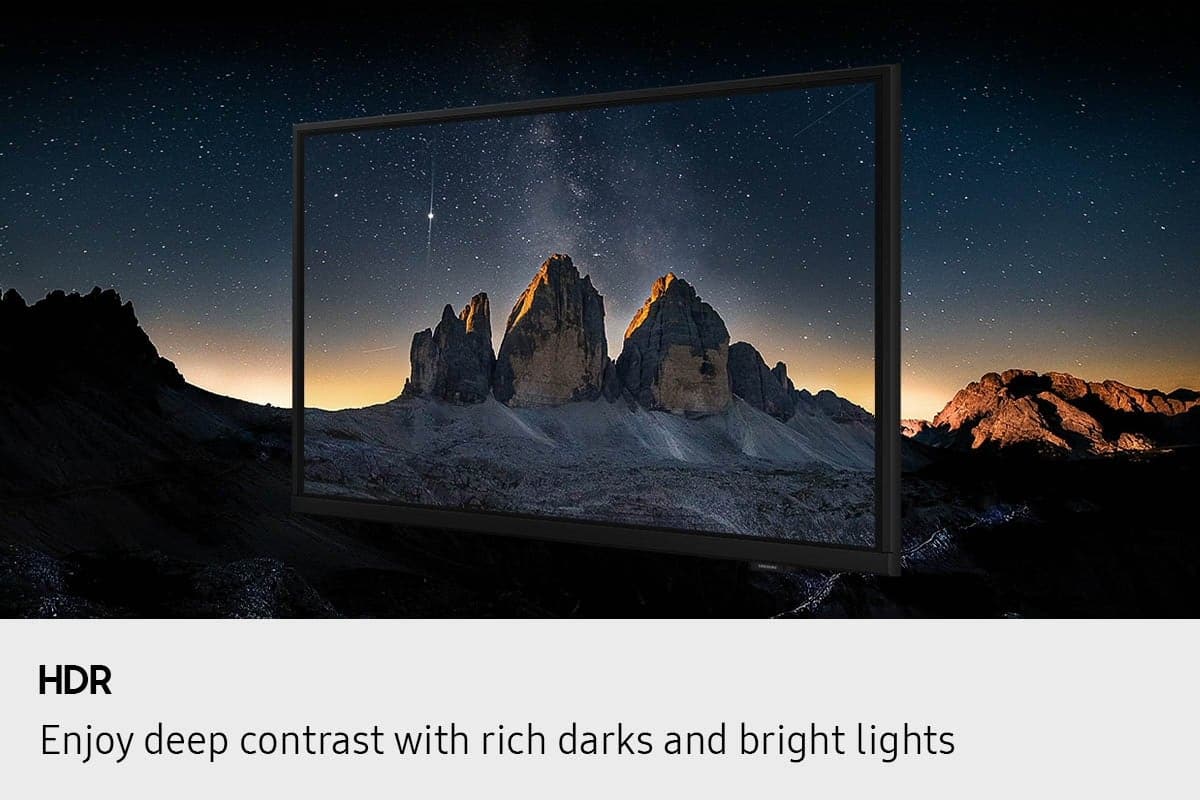
The F6000F TV supports HDR content and will display it in High Definition; otherwise, it will be displayed in Standard Definition. If you are looking for a TV able to accurately upscale content from all connected and streaming sources to stunning 4K resolution, we recommend our Crystal UHD TV Series, the U8000F and U79000F.
~Samsung Advisor
A:AnswerHi,
Yes, the Spectrum app is available for download on the built-in app store.
Regarding energy usage: Our TVs provide a balance of high-quality display technology and energy efficiency. We offer several features on our TVs to deliver an optimal viewing experience, while contributing to energy consumption reduction. Anticipated energy costs are available in the Energy Guide label for each model.
~Samsung Advisor
A:AnswerHi Setnup,
For more information and guides on setting up your TV, please check out our website: https://www.samsung.com/us/support/answer/ANS00062199/
~Samsung Advisor
A:AnswerHi Rob,
When stepping up to the U8000F, it introduces the Crystal Processor 4K with 4K upscaling, Color Booster, HDR10+, and Motion Xcelerator (60Hz) for sharper detail, richer color, and smoother playback.
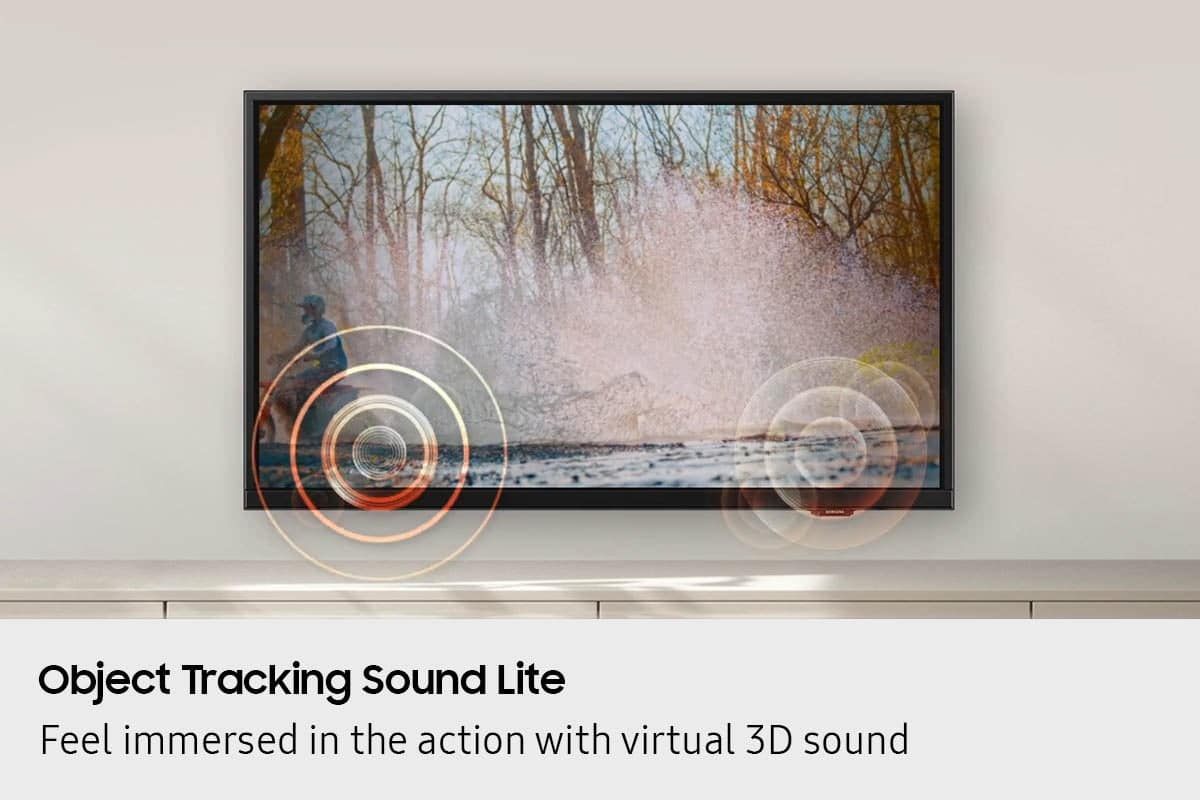
The F6000F includes 2-channel, 10W sound (20W on 40”) with Object Tracking Sound Lite and Q-Symphony. The U8000F builds on that with 20W, 2-channel audio and the same Object Tracking Sound Lite and Q-Symphony pairing for more immersive sound when connected to compatible Samsung soundbars.
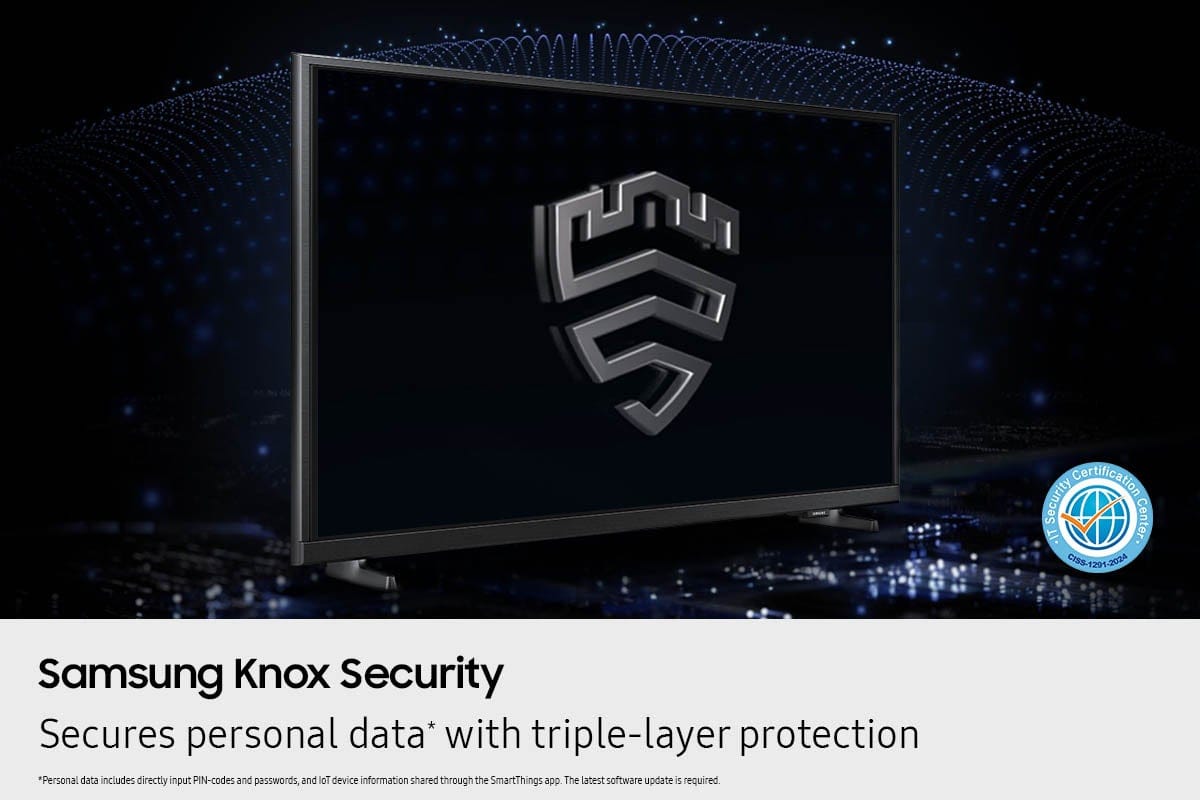
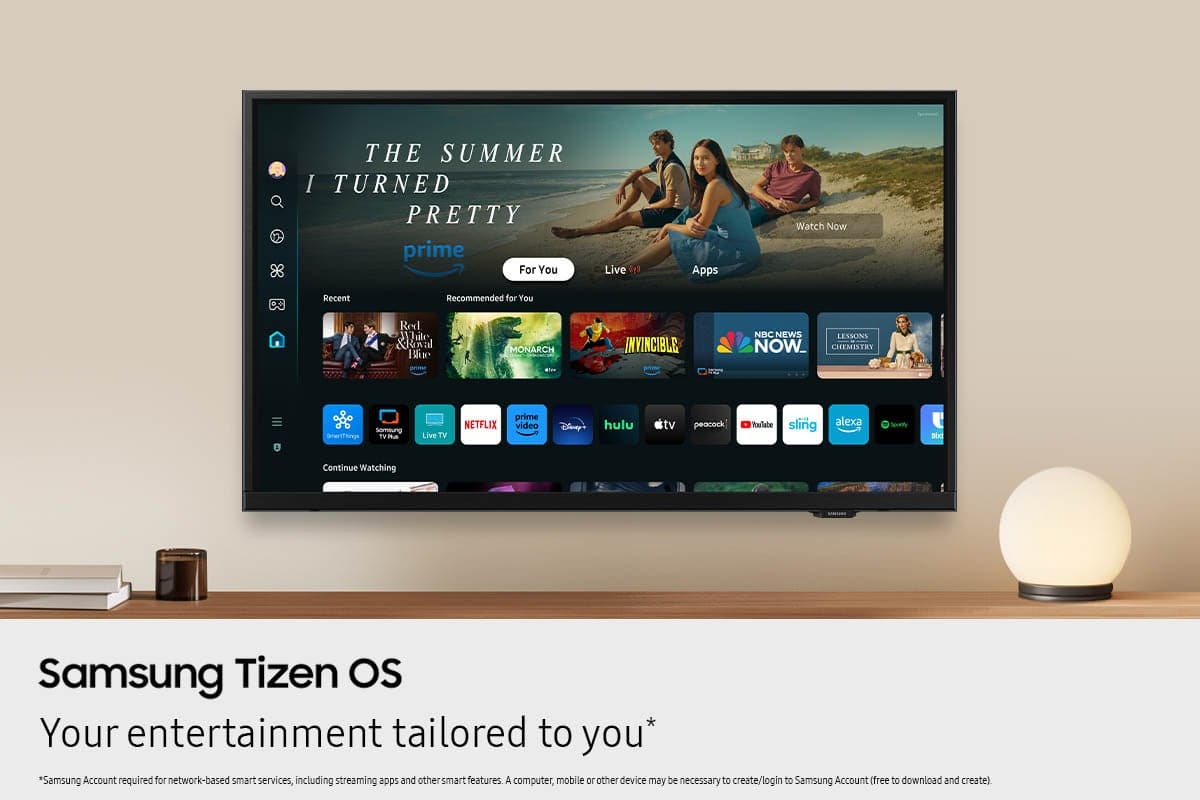
Both models use Samsung’s Tizen platform with Samsung TV Plus, screen mirroring, and Samsung Knox Security. The U8000F adds expanded IoT functionality, Daily+, and voice assistant support (Bixby, Alexa, Google Assistant) for a more connected experience.
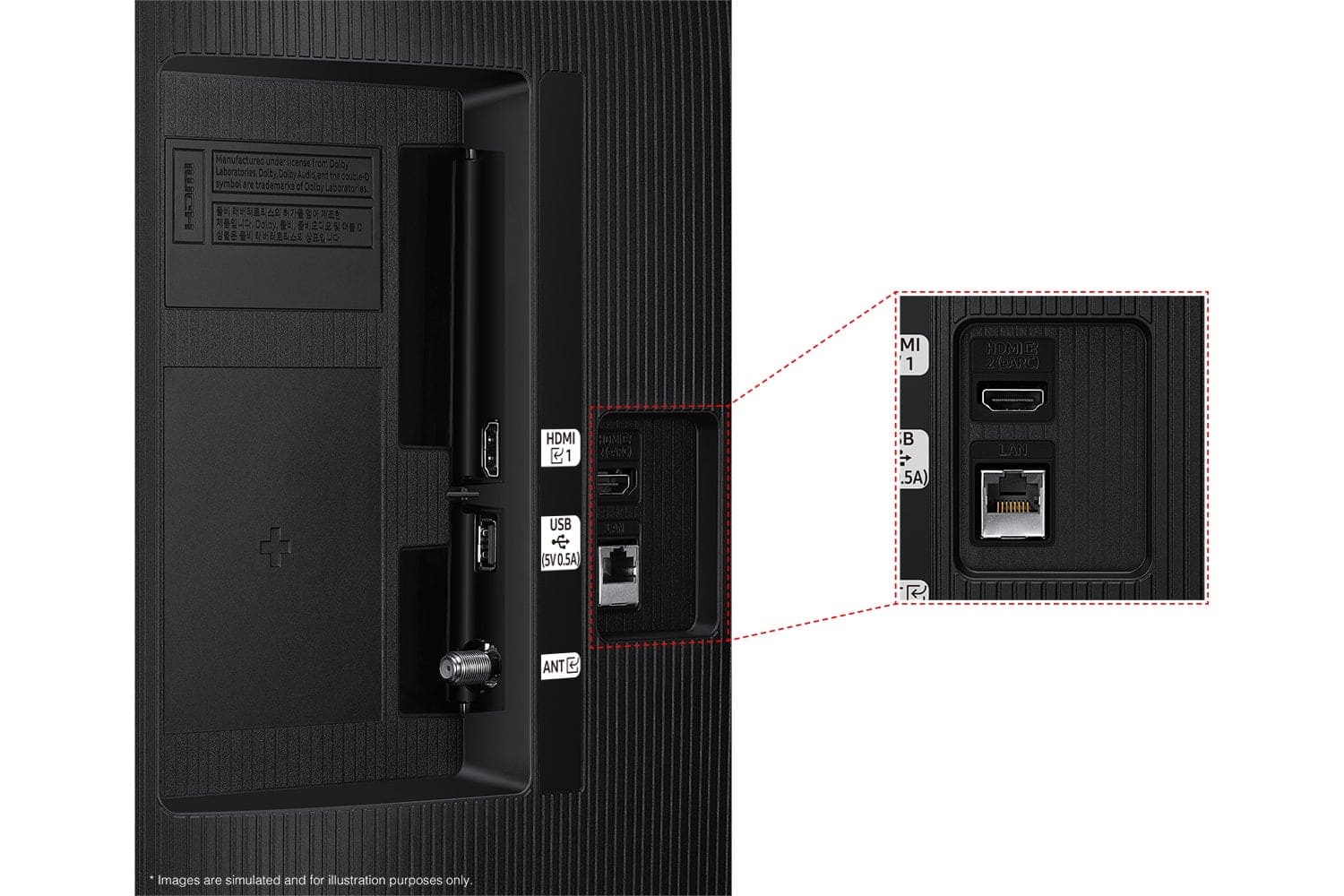
Finally, the U8000F upgrades to three HDMI ports (compared to two), Wi-Fi, and advanced SmartThings connectivity for more device flexibility.
I hope this helps!
~Samsung Advisor