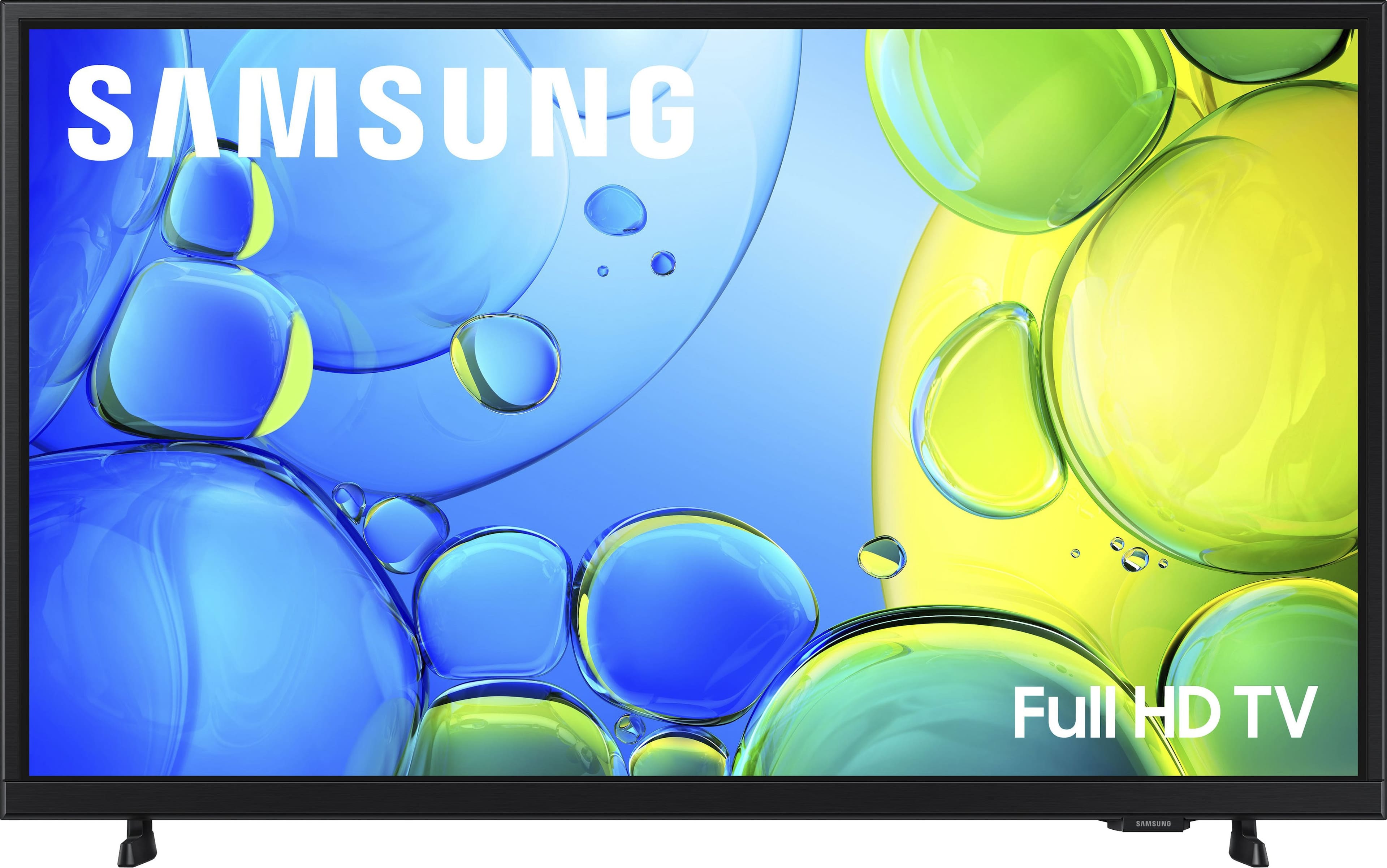
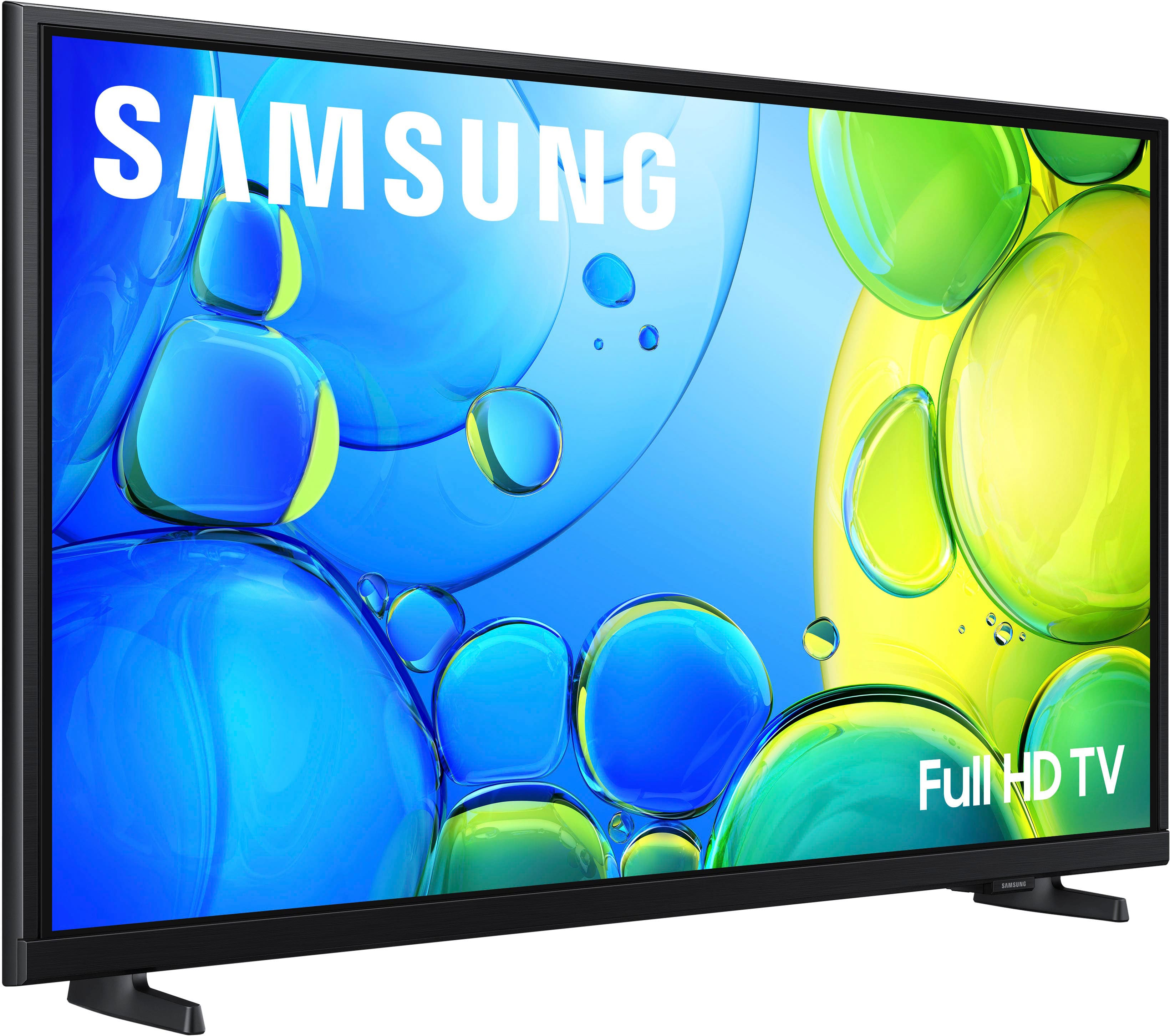
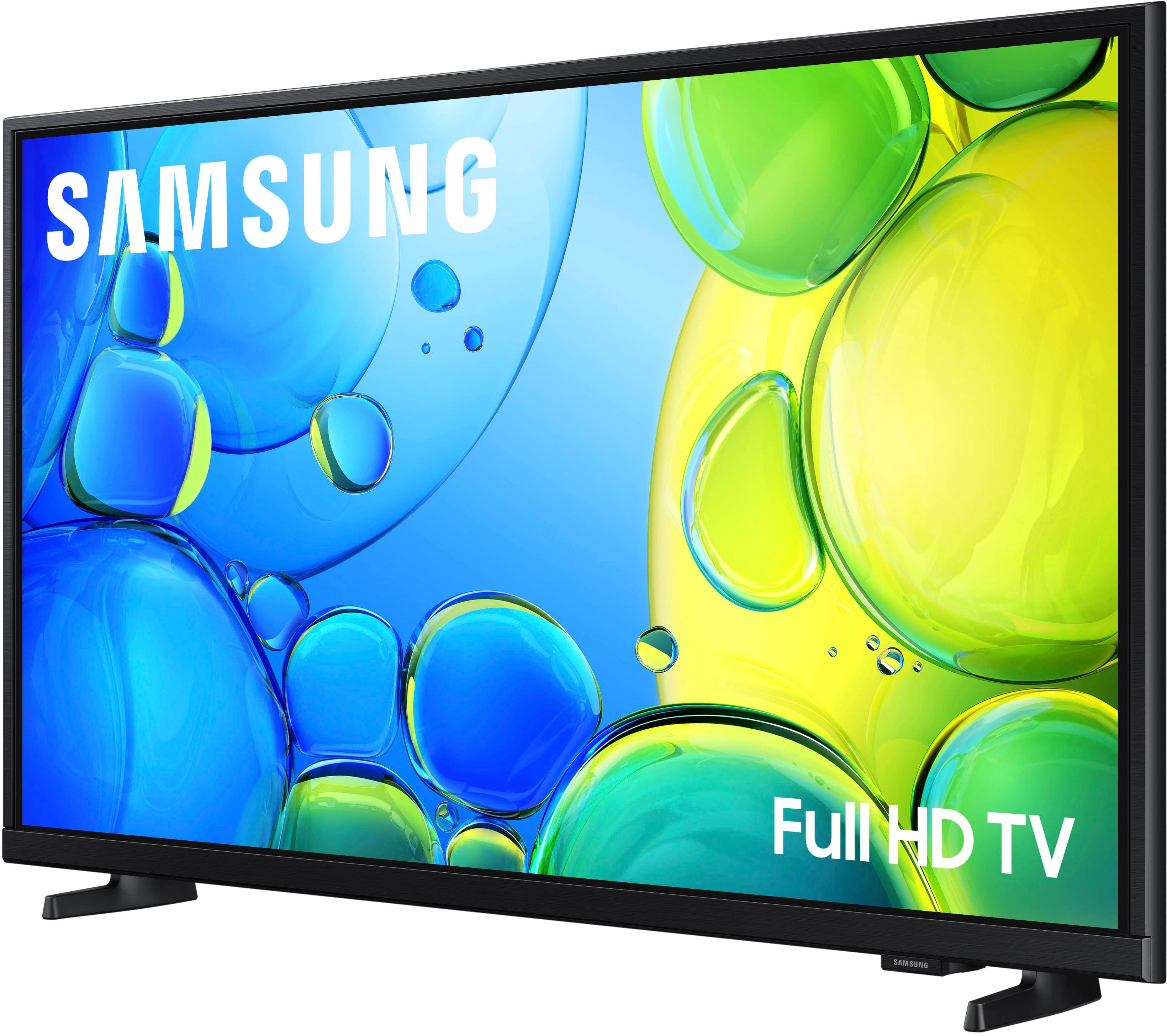
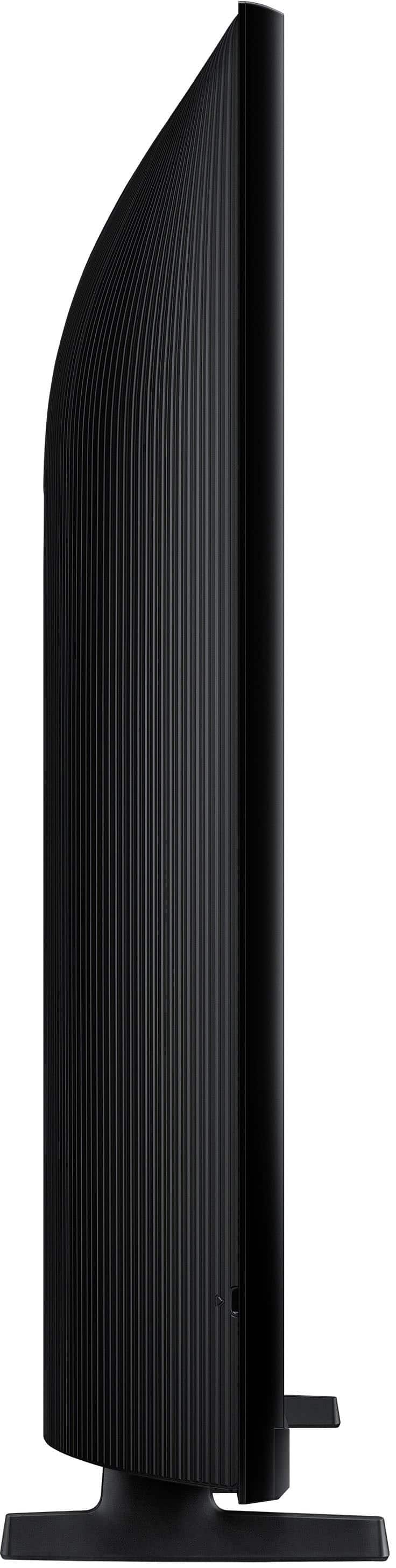
A:AnswerIf you are using a Peloton device with a built-in screen, such as a Peloton Bike or Bike+, you can stream directly from your Peloton to the F6000F TV. As long as you have the Peloton App and a Galaxy phone, you can also use your phone to stream workouts to the TV.
~ Samsung Advisor
A:AnswerHi SuzQ,
The Ring Door Bell app support, begins with our U8000F TV Series and above. Please note that the original Ring Doorbell and Ring Doorbell 2 models do not support live video feeds; the Ring Doorbell Pro is required.
~Samsung Advisor
A:AnswerHi Margocurry - The Spectrum app is now available to install on Samsung 2025 TVs. We appreciate your patience as we worked to optimize this app for our new models!
~ Samsung Specialist
A:AnswerHi Mcgillz,
For optimal performance, please ensure your F6000F TV is running the latest firmware. You can check this by going to: Home > left directional key > Settings > Support > Software Update
To further optimize performance, try running Device Care, which checks memory, clears unused cached data, and closes background apps: Home > left directional key > Settings > Support > Device Care > Start Device Care
If issues continue, please reach Samsung Support at 1-800-SAMSUNG, available 8AM – 9PM EST Mon – Fri, 8AM – 6PM Sat – Sun. LiveChat is also available via the ‘Support’ link on our website.
~ Samsung Advisor
A:AnswerHi,
Thank you for sharing your concerns. To best assist you, please contact us at 1-800-SAMSUNG between 8AM - 12AM EST, any day of the week. You can also reach our LiveChat team by selecting the ‘Support’ link on our website.
~ Samsung Advisor
A:AnswerHi Charito,
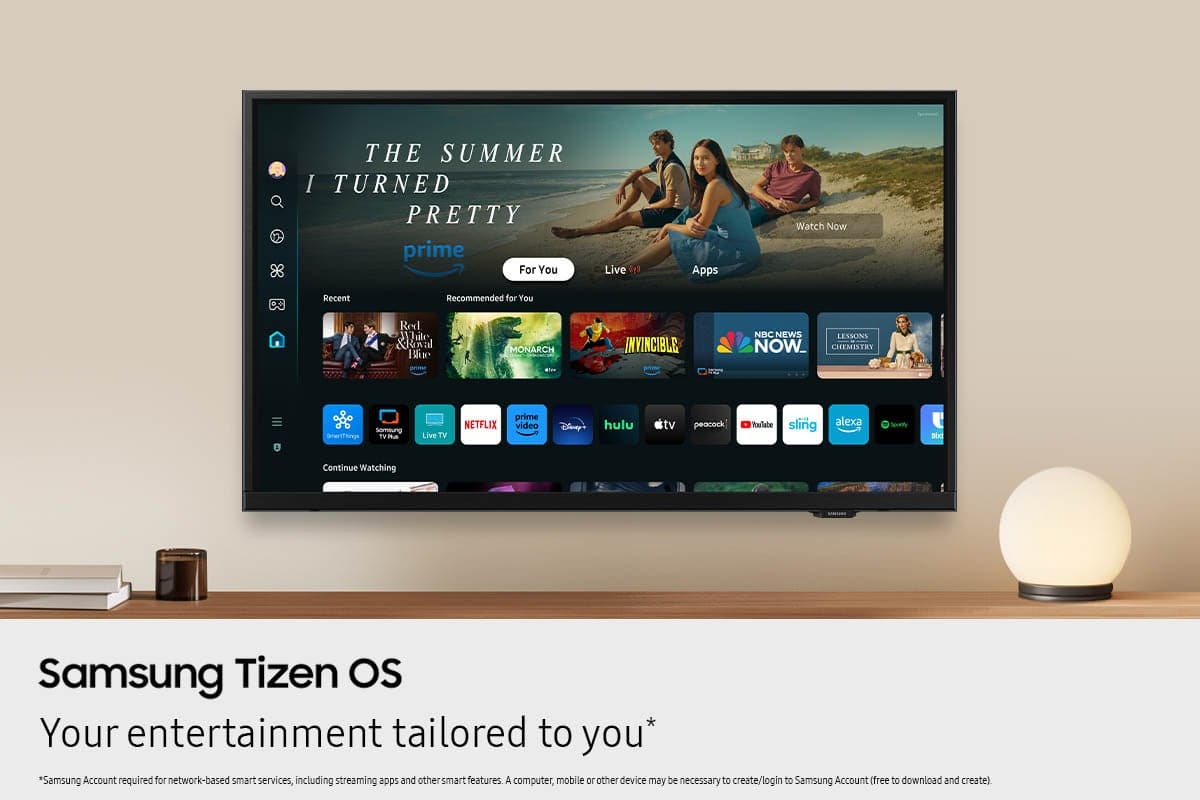
A Samsung Account is required to access Smart Hub, which powers core smart features like app access (Netflix, YouTube), service updates, and content personalization. Without signing in and accepting the Terms and Conditions, the TV will operate in a basic mode - allowing use of external devices (HDMI, antenna), but without access to streaming apps or Smart Hub services. We understand this may not suit every user, but it’s necessary to unlock the full range of Samsung’s smart features and connected services.
~ Samsung Advisor
A:AnswerHi,
The F6000F currently defaults to Samsung TV Plus when powered on, however, you can customize what your TV does at startup by adjusting the Start Screen Options. Go to Settings > All Settings > Advanced Features > Start Screen Option and choose from the following:
1. Start with Smart Hub Home – Automatically launches Smart Hub when the TV is turned on. You can enable or disable this option based on your preference.
2. Autorun Multi View Casting – If you cast YouTube content from your mobile device, the TV will automatically display the content using Multi View.
3. Autorun Multi View Mirroring – When you screen mirror your mobile device, Multi View will automatically open to show your device’s screen.
~Samsung Advisor
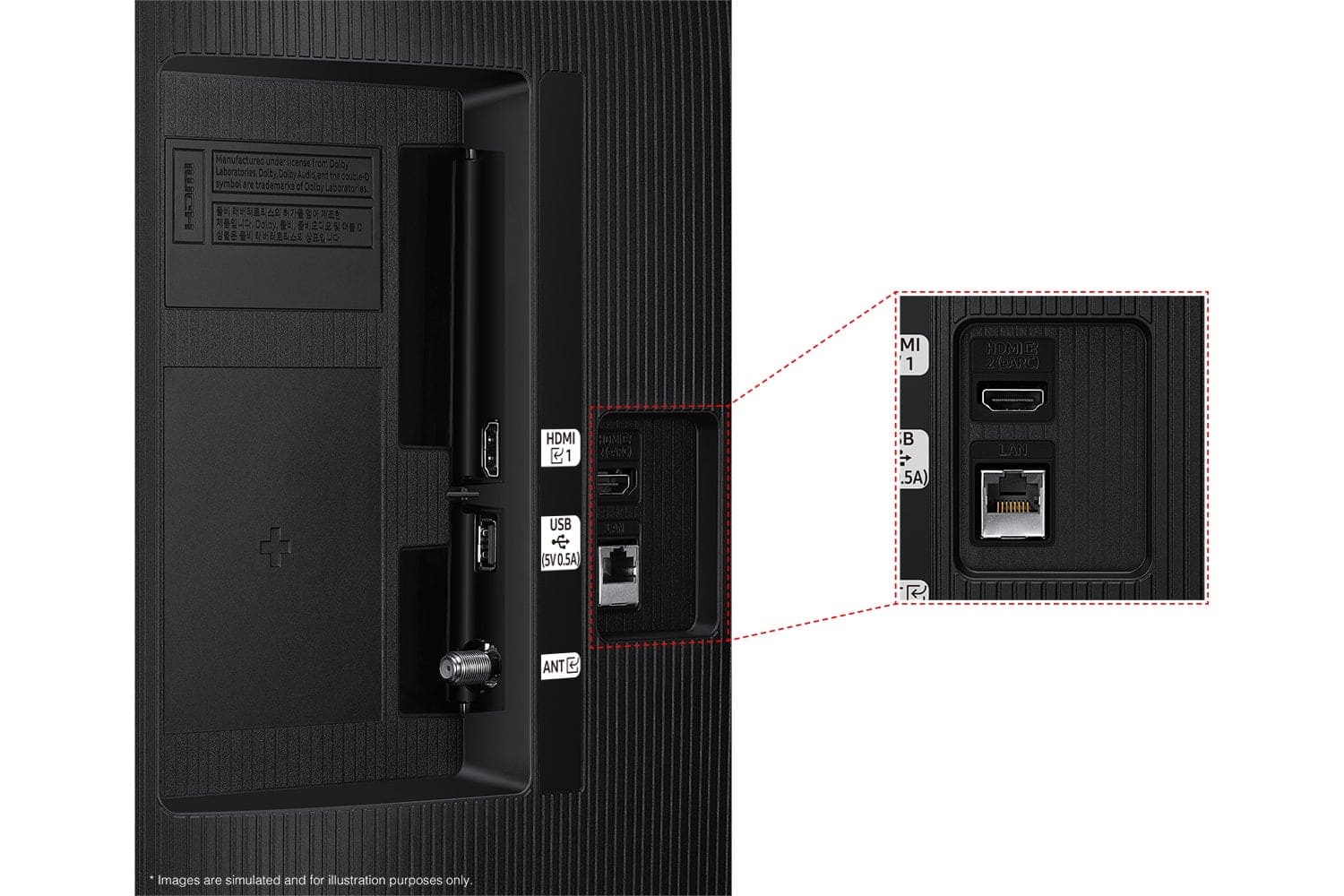
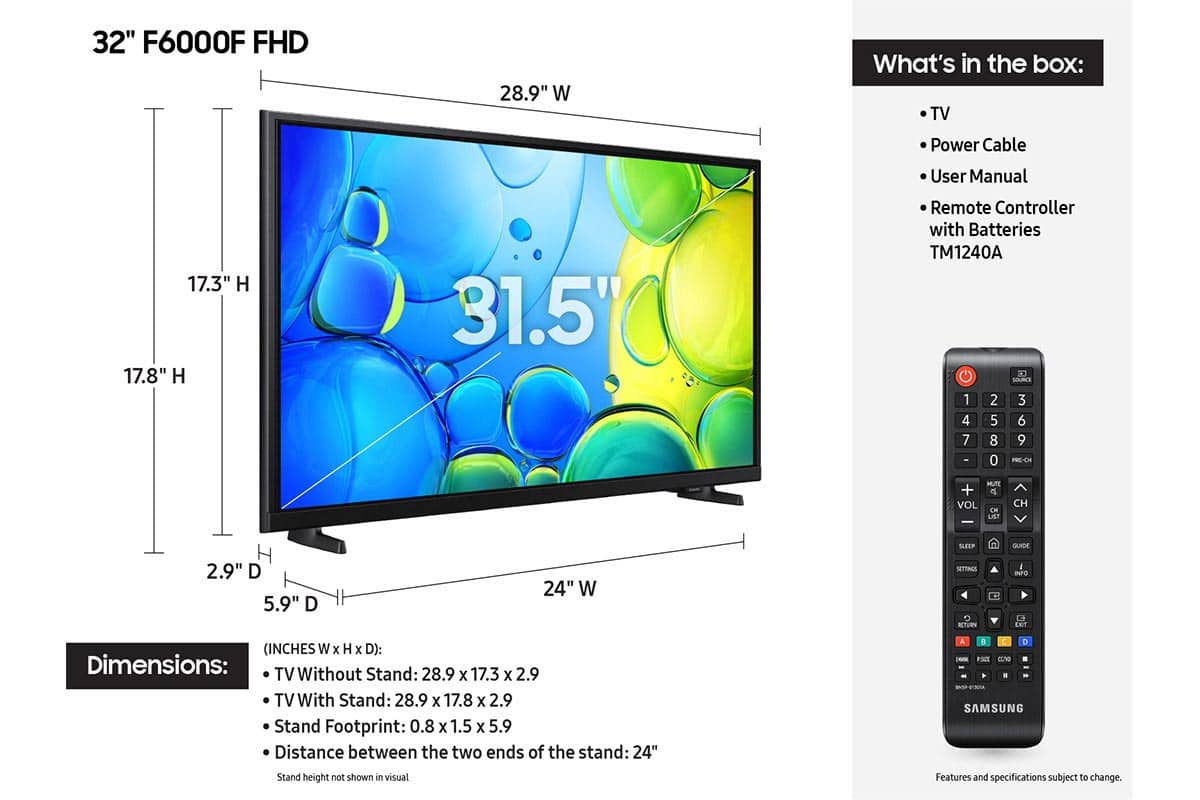
A:AnswerI also had a really hard time installing the feet. I ended up holding a long-handled flashlight between by jaw and shoulder, and using the right sized philips screwdriver, was able to get the screws started. Once you get a few threads to catch, on the first screw, the others are easy to install. This is definitely something that Samsung should improve on this model.