A:AnswerHi Gene,
The 43" AU8000 is compatible with Ring Doorbell 3 and Ring Doorbell Pro. You can use your Ring Doorbell with your Samsung Smart TV to view your front door from your TV. This will allow you to see visitors when they ring the bell or take a look to see what's happening outside when motion is detected.
To use the Ring Doorbell, you will need to connect the Doorbell through the Ring and SmartThings apps and then select the options you want to use on your smart TV.
Please note that Ring Doorbell Pro and Ring Doorbell 3 can be integrated with SmartThings Video. The Ring Doorbell and Ring Doorbell 2 are not compatible.
I hope this helps!
~Samsung Advisor
I hope this helps!
~Samsung Advisor
A:AnswerTV has Asian channels and content.
I’m sorry I’m trying to guess at the language. I’m guessing it is Cantonese. But I may be mistaken.
I am not aware of subtitles that are in Korean language.
I apologize if this was not helpful.
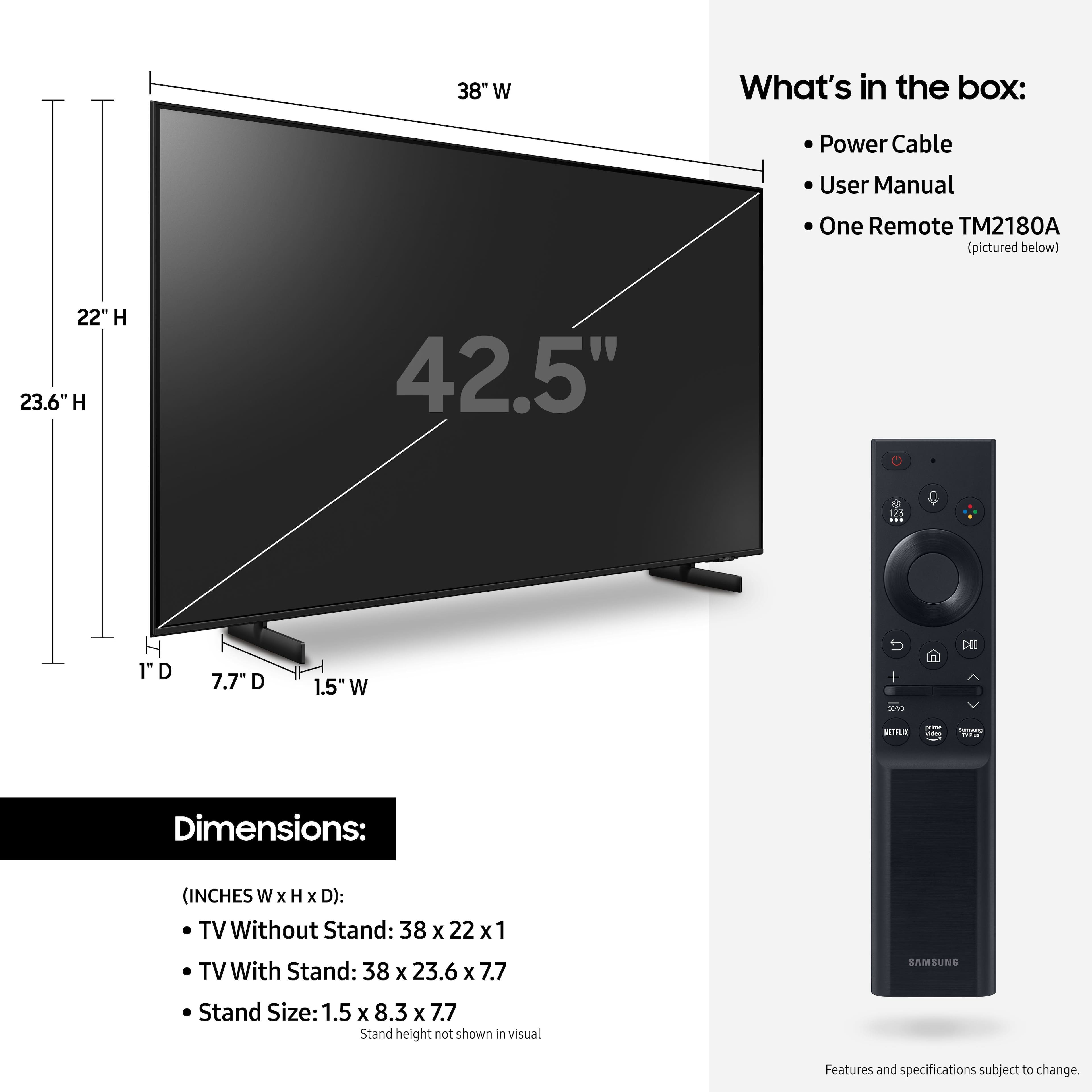
A:AnswerYou can also use a standard remote part number BN59-01301A. It is the traditional remote and allows you to access all of the functions except for voice commands.
A:AnswerHi there,
Yes, the AU8000 not only has built-in Voice Assistants (Amazon Alexa, Bixby, Google Assistant) with a voice button on your OneRemote, but it is also compatible with external Amazon Alexa devices.
~Samsung Advisor
A:AnswerHi Virgusa,
The Volume level to be able to hear normally usually all depends on your personal preferences. Also, some sources have their own volume control, which might be set too low or too high. Please check the volume control of the external device (cable box or satellite box, DVD, Blu-ray, etc.) connected to your TV. Also, check the cable connection between an external device and the TV and then try the cable connection again.
There are also a few Volume Features that you may want to review to improve your experience:
1. Auto Volume automatically adjusts the sound to a certain level when changing channels or switching to another external input. Go to Settings > Sound > Expert Settings > Auto Volume = On.
2. Adaptive Sound automatically adjusts to a specific volume level while watching TV. The TV analyzes your volume usage history by time period to automatically adjust the volume when you use an app or switch to an external input source. Go to Settings> Sound> Sound Mode> Adaptive Sound.
3. Several Sound Modes are likewise available to meet your personal preferences: Home > Settings > Sound > Sound Mode.
I hope this helps! For more assistance, please call us at 1-800-SAMSUNG, 8 AM - 12 AM EST, seven days a week.
~Samsung Advisor
A:AnswerHi Searcher,
We do not have a 43" Curve TV available. However, we do have a 55" available at BBY: https://www.bestbuy.com/site/samsung-55-class-tu8300-curved-led-4k-uhd-smart-tizen-tv/6424751.p?skuId=6424751
Or alternatively, we have a 49" Curved Monitor:
https://www.bestbuy.com/site/samsung-55-class-tu8300-curved-led-4k-uhd-smart-tizen-tv/6424751.p?skuId=6424751
~Samsung Advisor