A:AnswerFabioLosAngeles - While there is no specific feature to allow you to magnify specific images, you can adjust the picture size and/or position with the Zoom and Position Settings in your TV. Go to: Home > Settings > Picture > Picture Size Settings. ^Gina
A:AnswerHi Screenmirror! AirPlay is a feature that is already included in your TV - you will not need to download an app to utilize this feature! You can access AirPlay settings on your TV by going to HOME > Settings > General > Apple AirPlay Settings. ^Gina
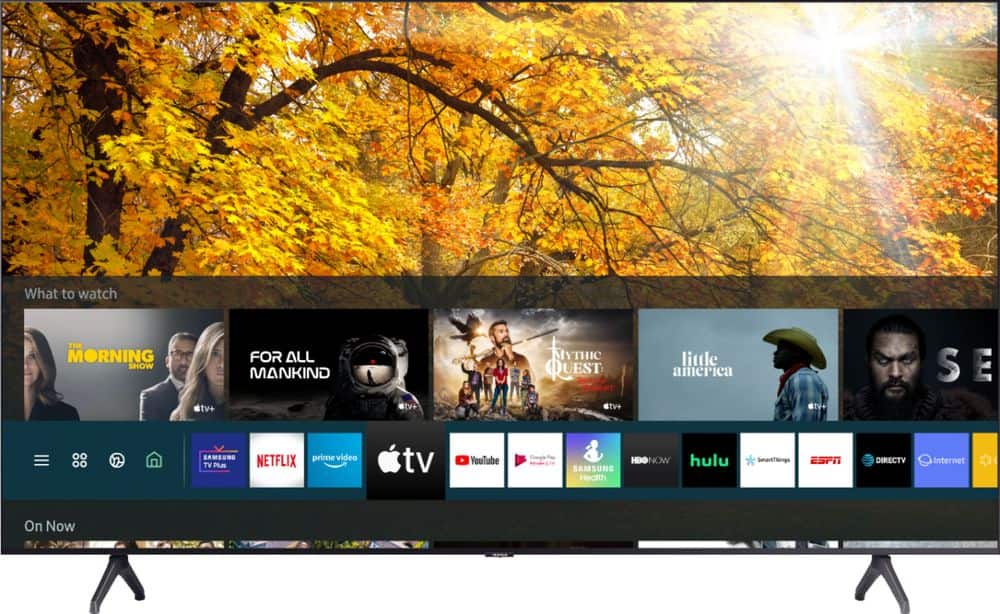
A:AnswerHi Jane - Upon setting up the TU7000, you will see AppleTV+, Google Play Movies & TV, Hulu, Internet Web Browser, Netflix, Prime Video, Samsung TV Plus, SmartThings, VUDU, and YouTube preinstalled in your TV's App Launcher. From your TV's built-in App Store, you can choose from and download hundreds of other apps such as Disney+, ESPN+, HBO Max, PBS, SlingTV, YouTube TV, and many more. ^Gina
A:AnswerHi CJSSEW! Yes, the TU7000 features a Sleep Timer. You can activate this feature by going to Settings > General > System Manager > Time > Sleep Timer, and then select the amount of time you would like the TV to stay on before powering itself off. You can set the sleep timer up to 180 minutes, after which the TV will turn off. ^Gina
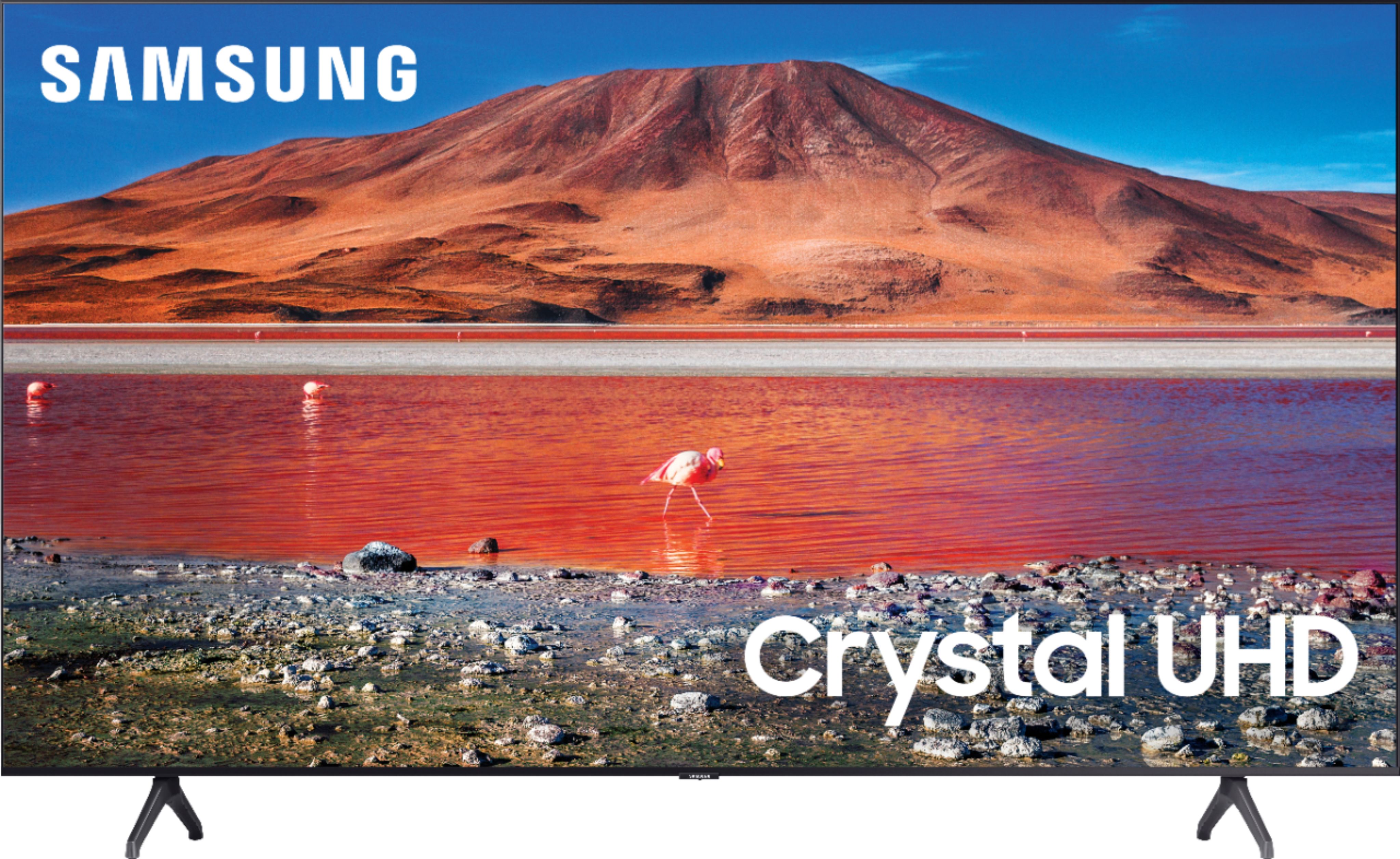
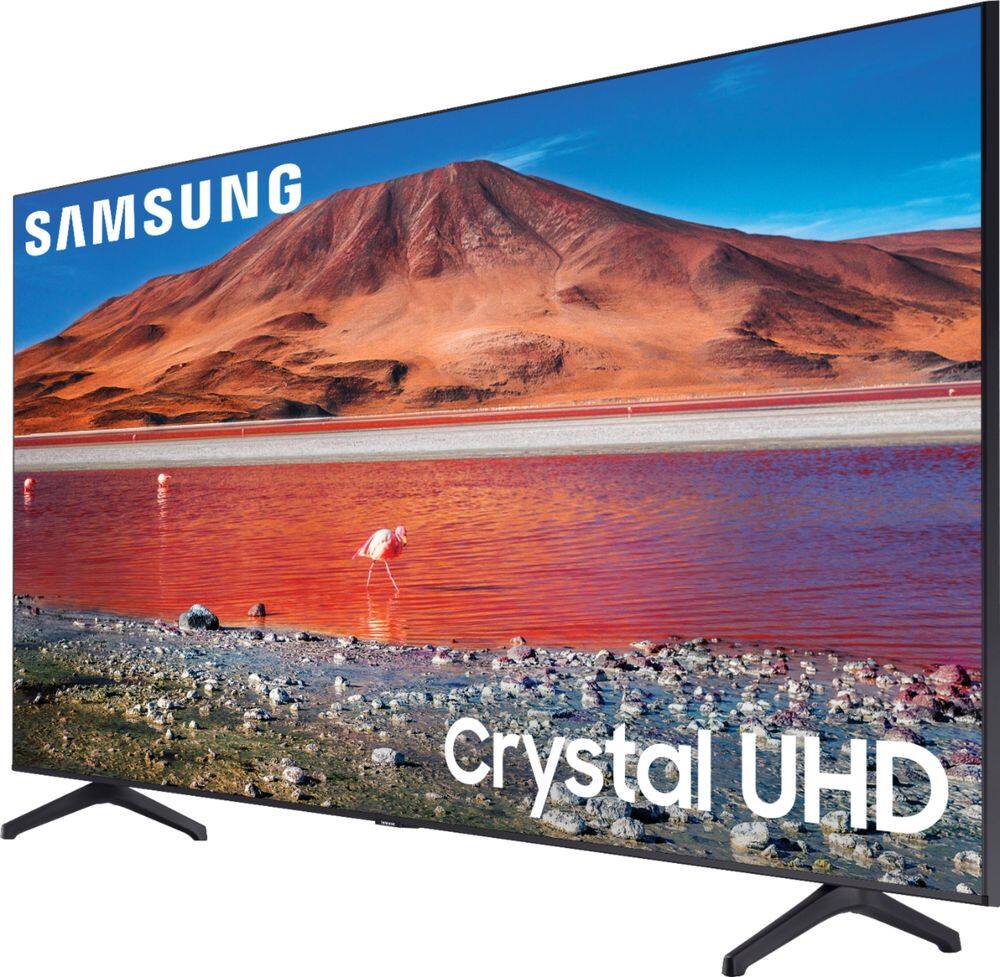
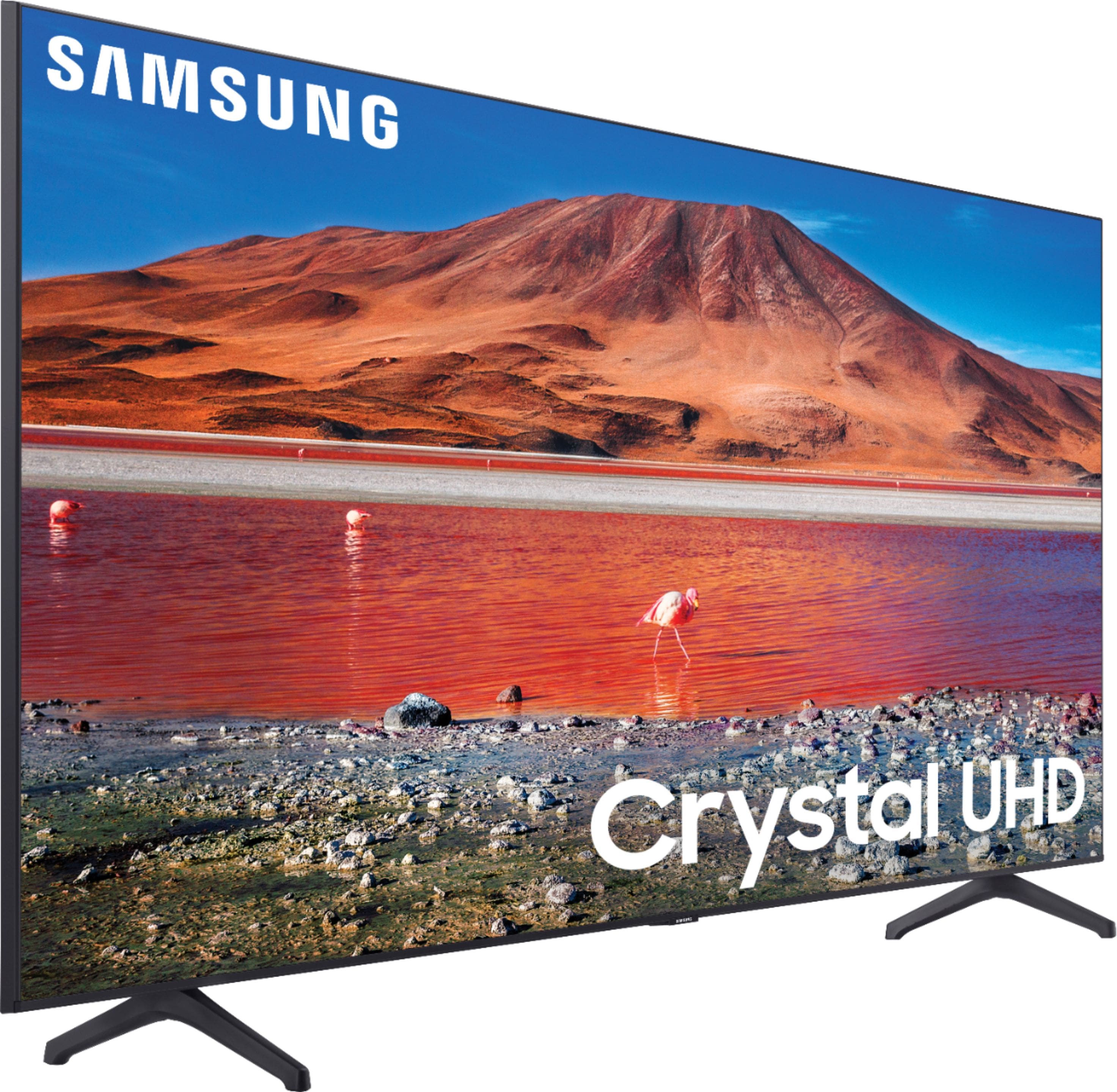
A:AnswerHi bill! The TU7000 introduces our Crystal Display which gives you crystal-clear colors that are fine-tuned to deliver a naturally crisp and vivid picture, and our Crystal UHD Processor, which brings stunning clarity to everything you already watch and powerfully upscales 4K to ensure that you always get life-like 4K resolution no matter the source. When stepping up to the TU8000, you will have all the benefits of Crystal UHD, and will also gain Ambient Mode and built-in Voice Assistants (Amazon Alexa, Bixby, Google Assistant) with a Voice button on your OneRemote. The TU8000 also offers one Composive (AV) input, and an additional HDMI and USB port. ^Gina
A:AnswerHi Nonnie! The Frndly App is not available in Samsung TV's App Store; however, you can stream this app from a mobile device or tablet directly to your TV using screen mirror capabilities. You can screen mirror from an Android device via Smart View or the SmartThings app, and you can screen mirror from an iOS device via AirPlay 2. ^Gina
A:AnswerHi Abe! You absolutely can connect Bluetooth headphones to the TU7000. Refer to your headphone's user manual for how to pair. Once paired to the TV, press HOME on the TU7000 remote. Then go to Settings > Sound > Sound Output > Bluetooth Speaker List. Choose the headphones you wish to use for sound output. ^Gina
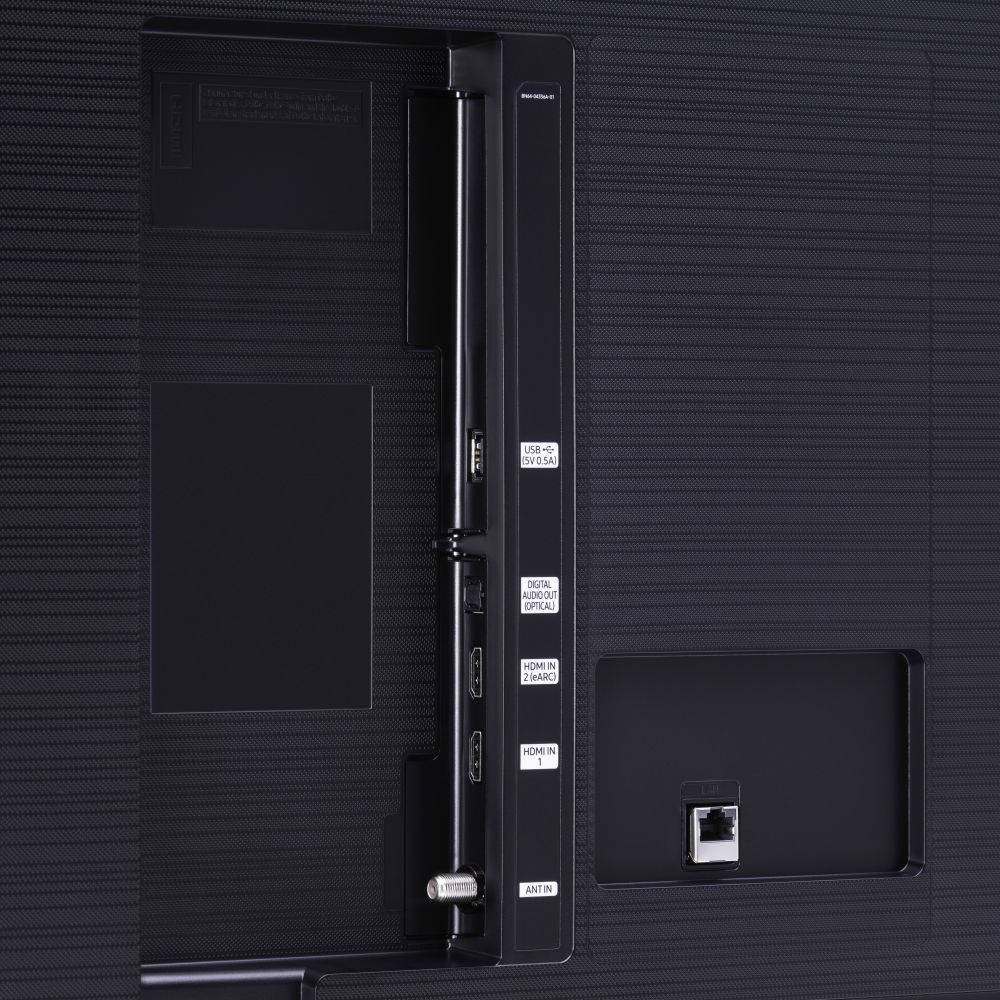
A:AnswerHi there! Thank you for considering this TV. Because HDMI 2.1 is a complicated spec, we hope that focusing on TV features will be more helpful to you when deciding on the best model for your usage scenario. Our TU7000 has 2 HDMI ports, both of which support HDR10+ and Auto Low Latency Mode (ALLM/Auto Game Mode). The “HDMI In 2” port also supports eARC.
If you are looking for a model that also offers 4K@120fps (FRL), please consider our QLED Q70T Series, which has FRL on HDMI 4. All Samsung 2020 model year QLED TVs 55” and bigger starting from the Q70T Series are capable of 4K@120fps, as well as offer Variable Refresh Rate (VRR) and FreeSync. ^Gina
A:AnswerHi Luis1655, If the sound is coming from the back of the TV, the expansion and contraction of the TV's outer casing may cause a popping noise. This does not indicate a product malfunction. If you think it is coming from the speakers or inside the TV, please reach out to Samsung Support for assistance. 1-800-SAMSUNG (Available 8AM - 12AM EST, 7 days a week), LiveChat, or Email: https://www.samsung.com/us/support/#contact_us_for_support ^Val
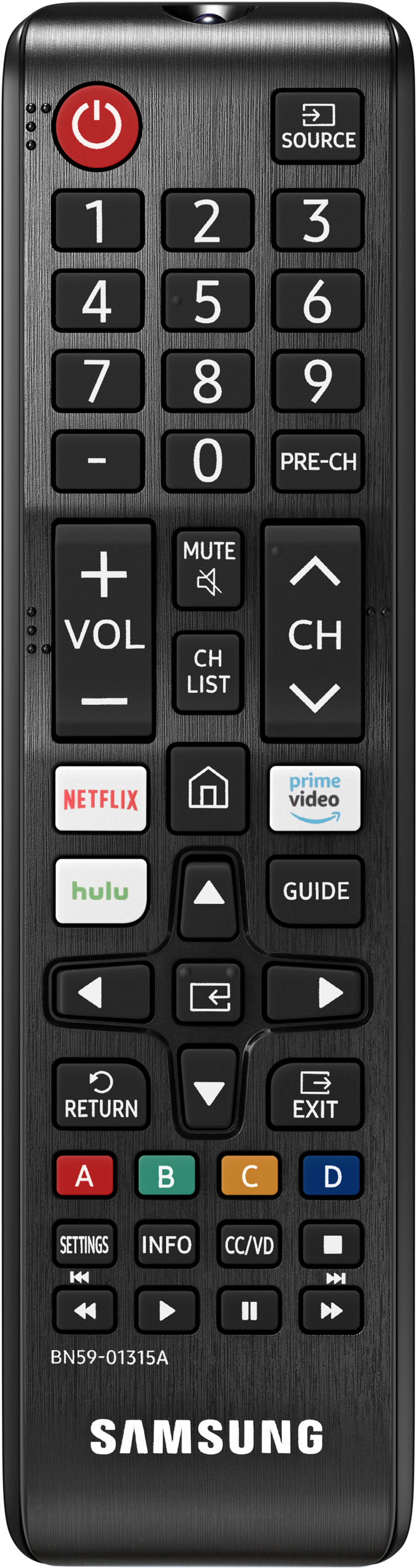
A:AnswerThis TV has the old style remote with digits and button to maneuver easily between reg TV and internet programming. You can also set it to be controlled by your phone, too.
A:AnswerHi Jeff, the Dish Anywhere app is not available at this time. In order to watch your Dish channels, you will need to connect your Dish receiver. ^Val