A:AnswerHi Edward, often you may want to change the size of the image on your screen. Your TV comes with several screen size options, each designed to work best with
specific types of video input.
• 16:9 : Sets the picture to 16:9 wide mode.
• Zoom1 : Magnifies the size of the picture on the screen.
• Zoom2 : Magnifies the size of the picture bigger than Zoom1.
• Wide Fit : Enlarges the aspect ratio of the picture to fit the entire screen.
• 4:3 : Sets the picture to 4:3 normal mode.
• Screen Fit : Use the function to see the full image without any cutoff when HDMI (720p/1080i/1080p), Component (1080i/1080p) or DTV (1080i) signals are input.
I hope this helps, ^Scott
A:AnswerHi Peeps! The TU7000 is compatible with headphones supporting Bluetooth technology. If your Bose headphones support Bluetooth, you can connect them to the TV. Put the headphones into Bluetooth pairing mode and make sure they are discoverable. See the product's user manual for how to do this, if needed. Using the TV remote navigate to Home > Settings > Sound > Sound Output > Bluetooth Speaker List and select the Bluetooth headphones you would like to use. ^Tim
A:AnswerHi Pua! You can turn on Anynet+ (HDMI-CEC) in the TV's settings: Home > Settings > General > External Device Manager > Anynet+ (HDMI-CEC). ^Gina
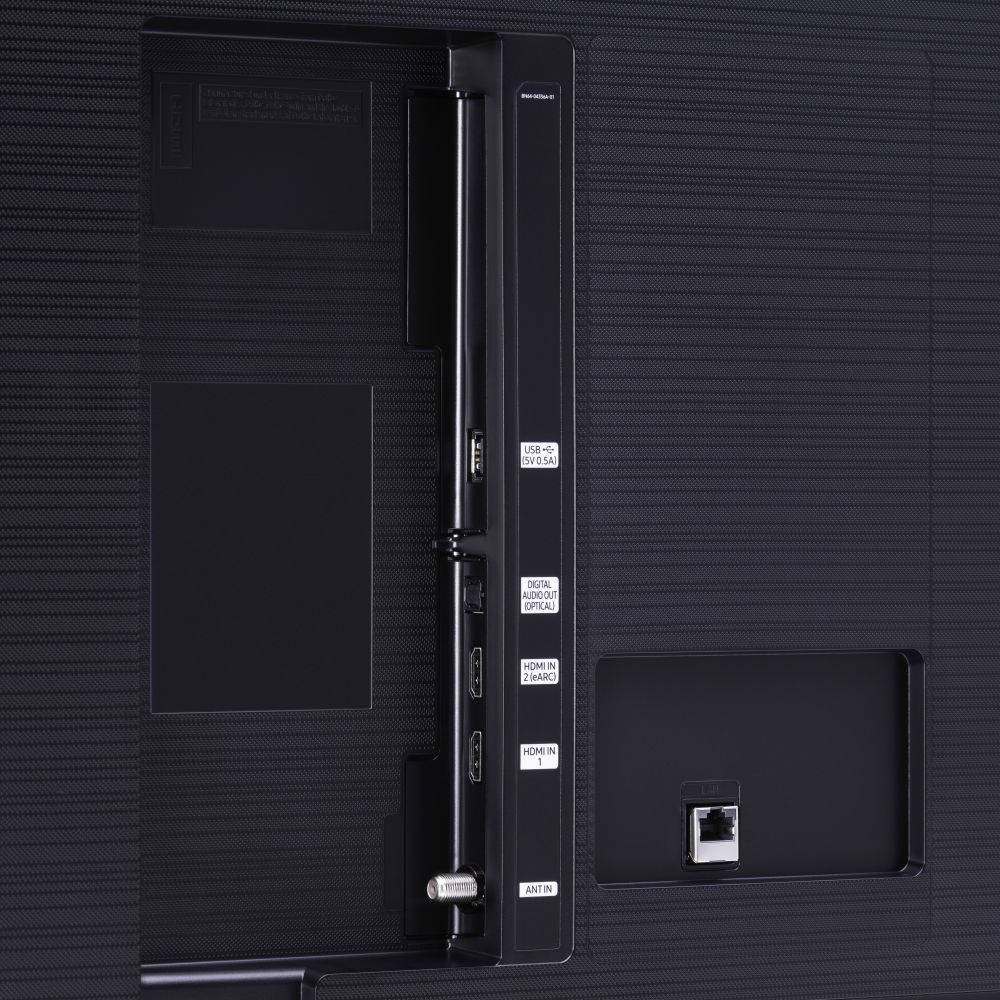
A:AnswerHi Cmokon! No, the TU7000 does not feature a 3.5mm or headphone connection. The TU7000 features HDMI ARC, digital optical audio, and Bluetooth audio technology for connecting to external audio devices. ^Tim
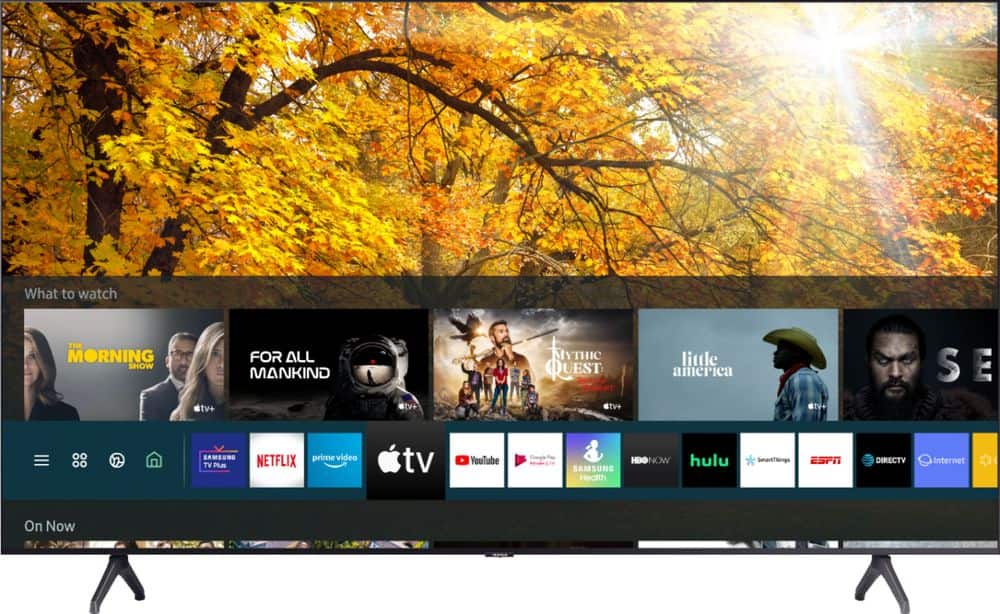
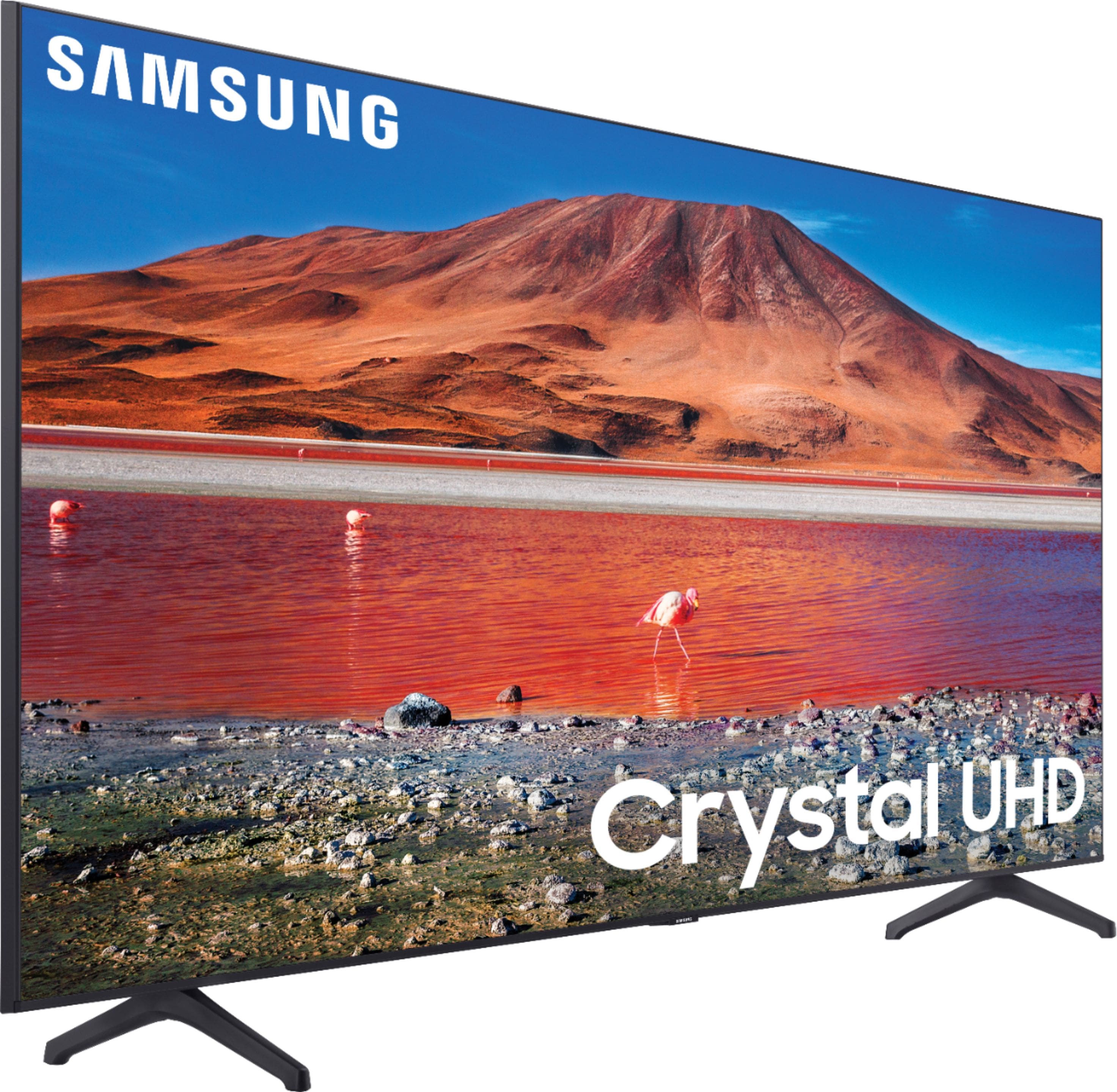
A:AnswerHi Jay! Samsung TVs feature a user friendly smart system built in called Tizen allowing you to access all of your favorite streaming content including the Roku Channel, a built in web browser, free TV with Samsung TV Plus, and a wide range of other great smart features. If you would like to connect an external streaming device, the 50TU7000 supports two HDMI ports for compatible devices to connect. ^Tim
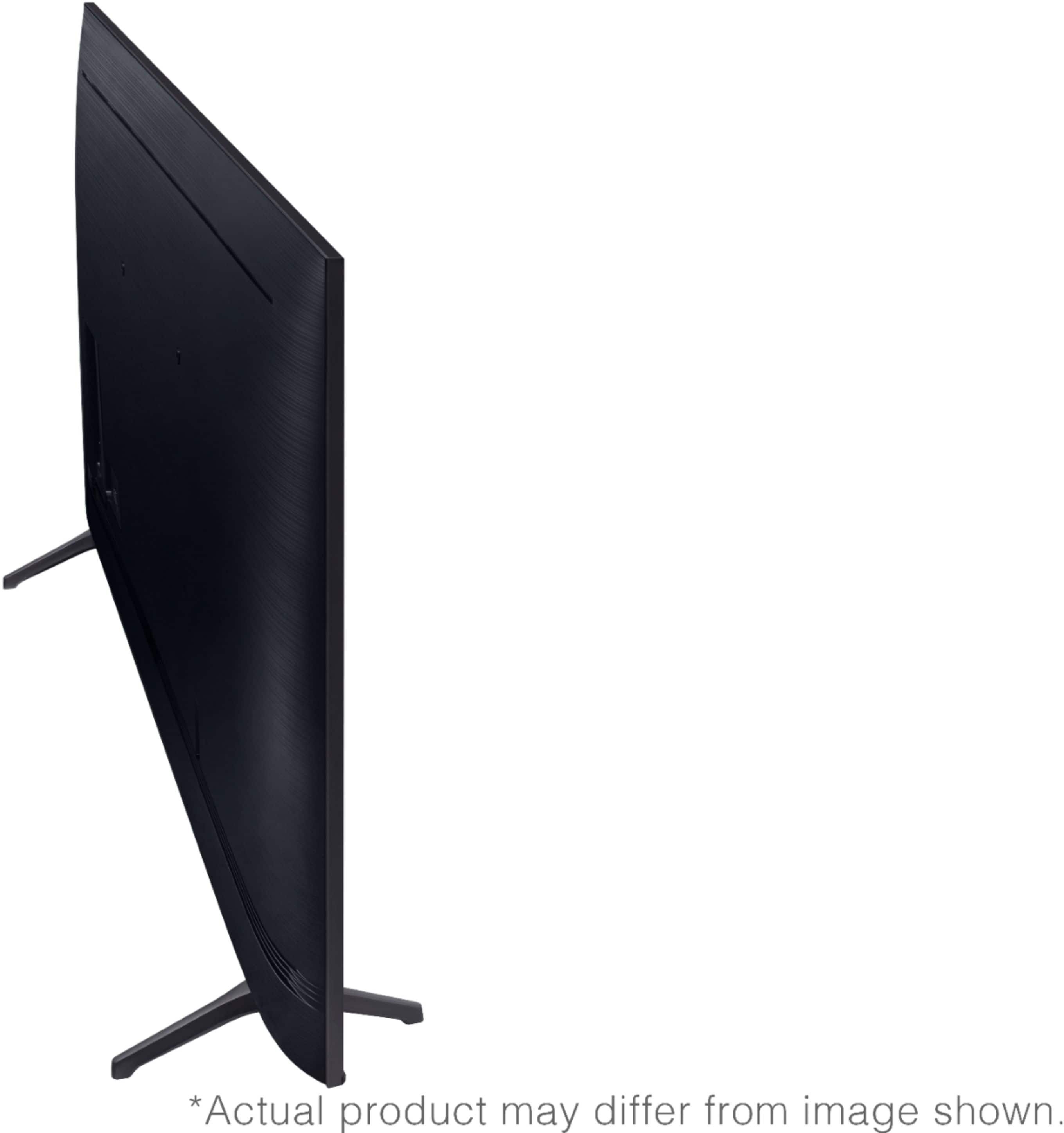
A:AnswerHi sjc42 - here are the full dimensions of the 50TU7000: DIMENSIONS (INCHES W x H x D):
• TV WITHOUT STAND: 44 x 25.4 x 2.4
• TV WITH STAND: 44 x 28.1 x 9.8 ^Gina
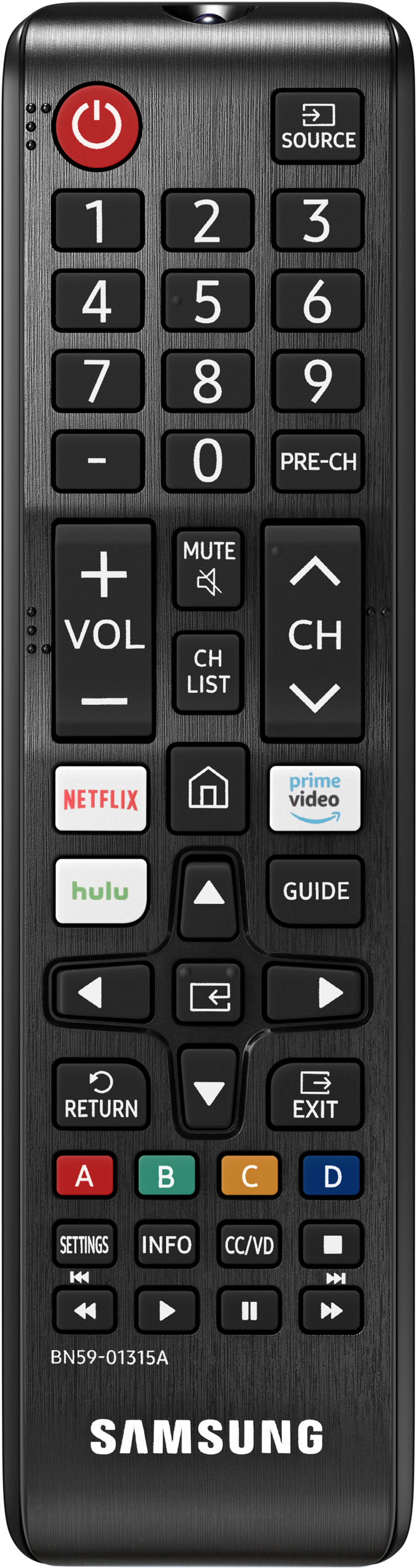
A:AnswerHi Kat! The included Samsung one remote allows you to control all your connected devices by using the TV remote. If you would like to pair your existing universal remote to the Samsung TV, consult the remotes user manual for pairing instructions and the remote codes available for Samsung TVs. ^Tim
A:AnswerYes, the YoutubeTV application is available on the TU7000. To access this application, along with a wide range of other apps and streaming services, utilize the search feature through the built in app store. Check out the following link from Samsung for additional information on installing and managing applications: https://www.samsung.com/us/support/answer/ANS00062169/ ^Tim
A:AnswerHi Linda, the 7 series supports Bluetooth devices up to Bluetooth version 4.2. So, it will support virtually any wireless Bluetooth headsets. Great question! ^Scott
A:AnswerHello brian,
Here are the dimensions for the 50TU7000. DIMENSIONS (INCHES W x H x D):
• TV WITHOUT STAND: 44 x 25.4 x 2.4
• TV WITH STAND: 44 x 28.1 x 9.8
• SHIPPING: 49.8 x 30.7 x 5.9
• STAND FOOTPRINT: 1.6 x 7.4 x 9.8
^Cristian
A:AnswerHi Roland! I’m sorry to see that you are having issues with the Bluetooth connection on the TV.
So that we can better troubleshoot towards a solution, please reach out to Samsung TV Support at:
― Phone: 1-800-SAMSUNG / Available 8 AM - 9 PM EST, Mon - Fri
― LiveChat or Email: https://www.samsung.com/us/support/#contact_us_for_support
We look forward to hearing from you.
^Tim
A:AnswerIf you go into SETTINGS > SOUND > EXPERT SETTINGS >
Check “digital output audio delay which adjusts delay time between audio and video tracks. Otherwise, reset sound. Really not even sure why that’s a setting.
A:AnswerHi Jerry, the 50TU7000 has 2 HDMI inputs, and 1 USB port. It does not have the AV or Ad composite. If you were looking for a TV with AV Composite inputs, check out the TU8000, as this does include AV inputs: https://www.bestbuy.com/site/samsung-50-class-8-series-4k-uhd-tv-smart-led-with-hdr/6401436.p?skuId=6401436 ^Celina
A:AnswerMelB, the instructions for the remote will be located in your TV's User Manual. If you have further questions regarding your OneRemote, please reach out to Samsung Support via any of these options:
Phone: 1-800-SAMSUNG
Available 8 AM - 12 AM EST 7 days a week
LiveChat or Text: https://www.samsung.com/us/support/contact/
Facebook Messenger: https://www.facebook.com/samsungsupport
Twitter: https://twitter.com/SamsungSupport
The Samsung TV Community is also a great resource for getting help from Samsung moderators and customers: https://us.community.samsung.com/ ^Gina