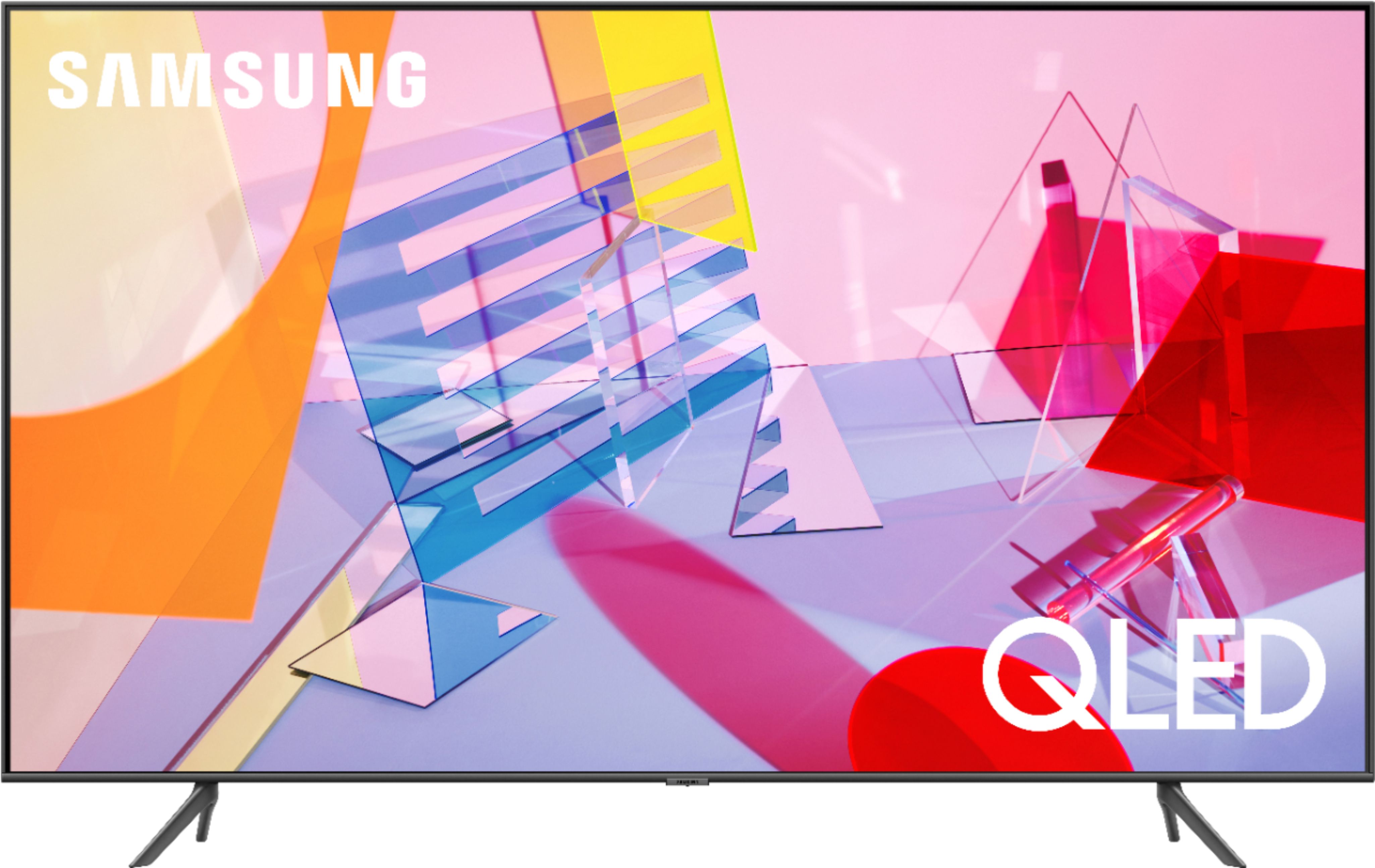
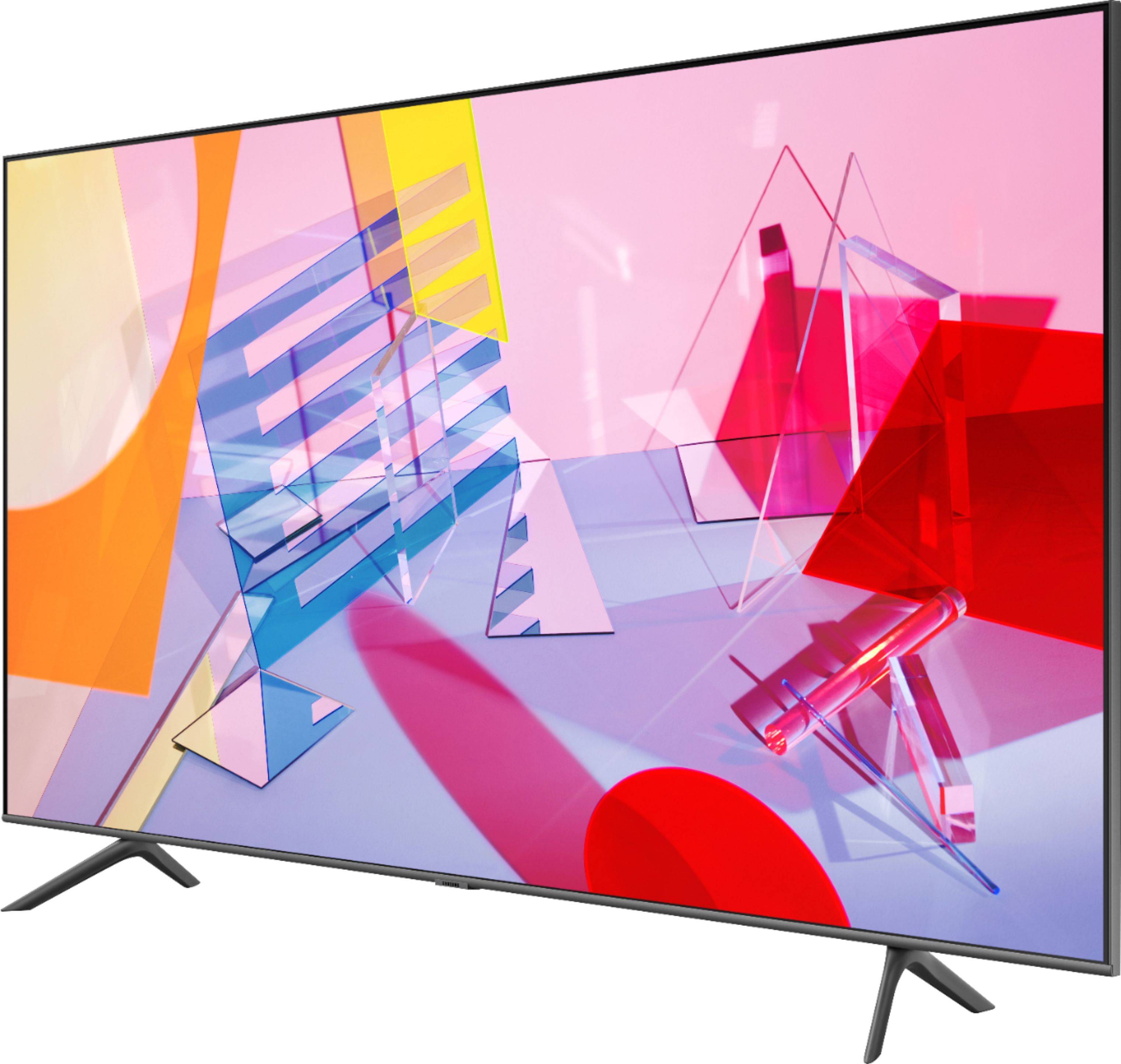
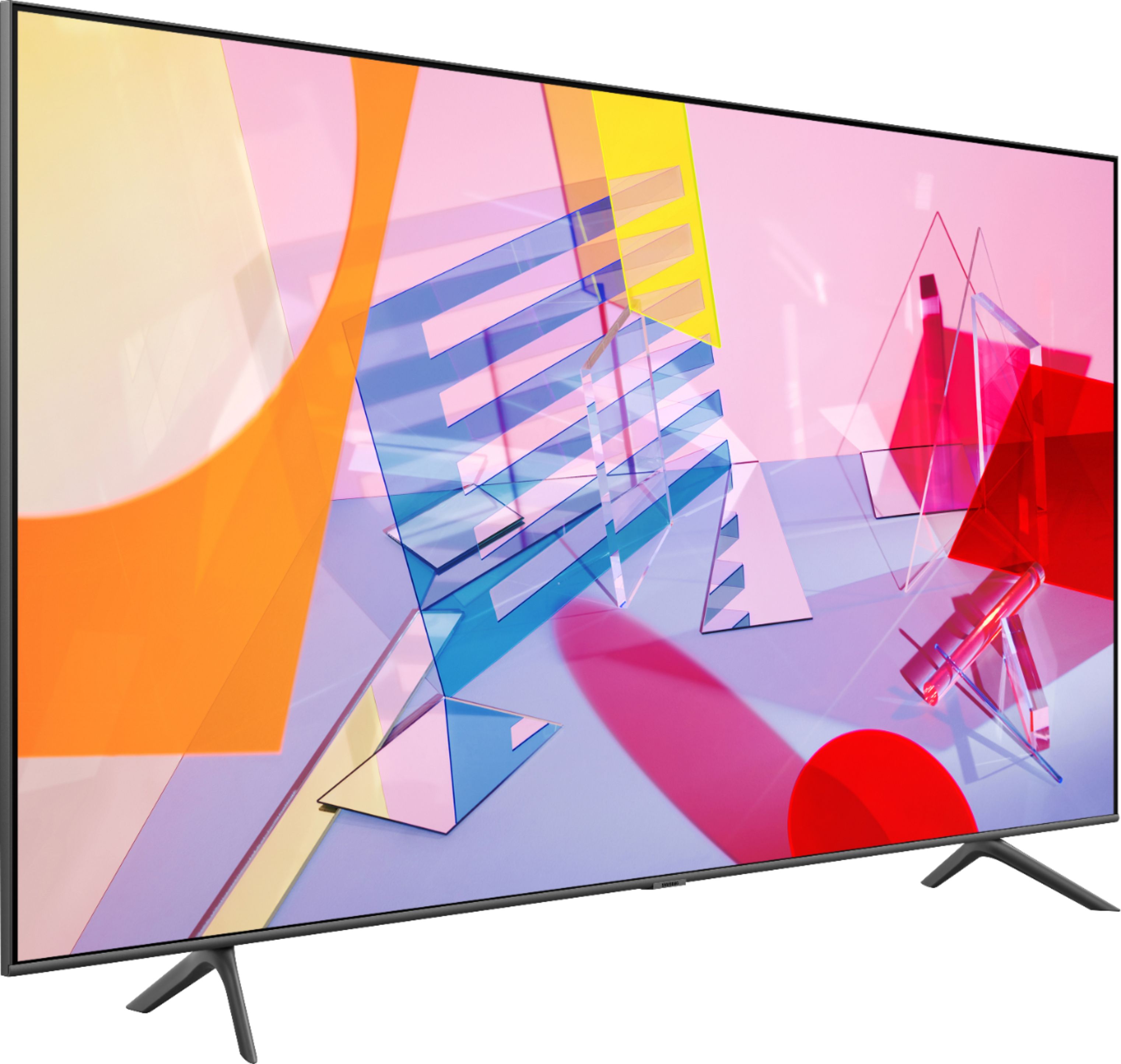
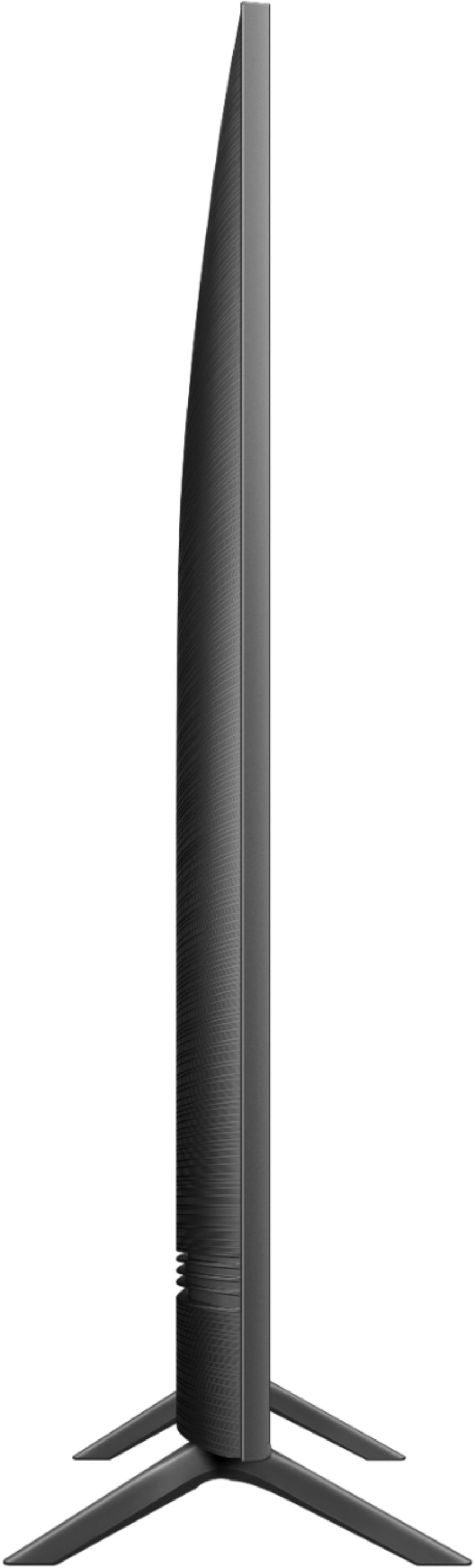
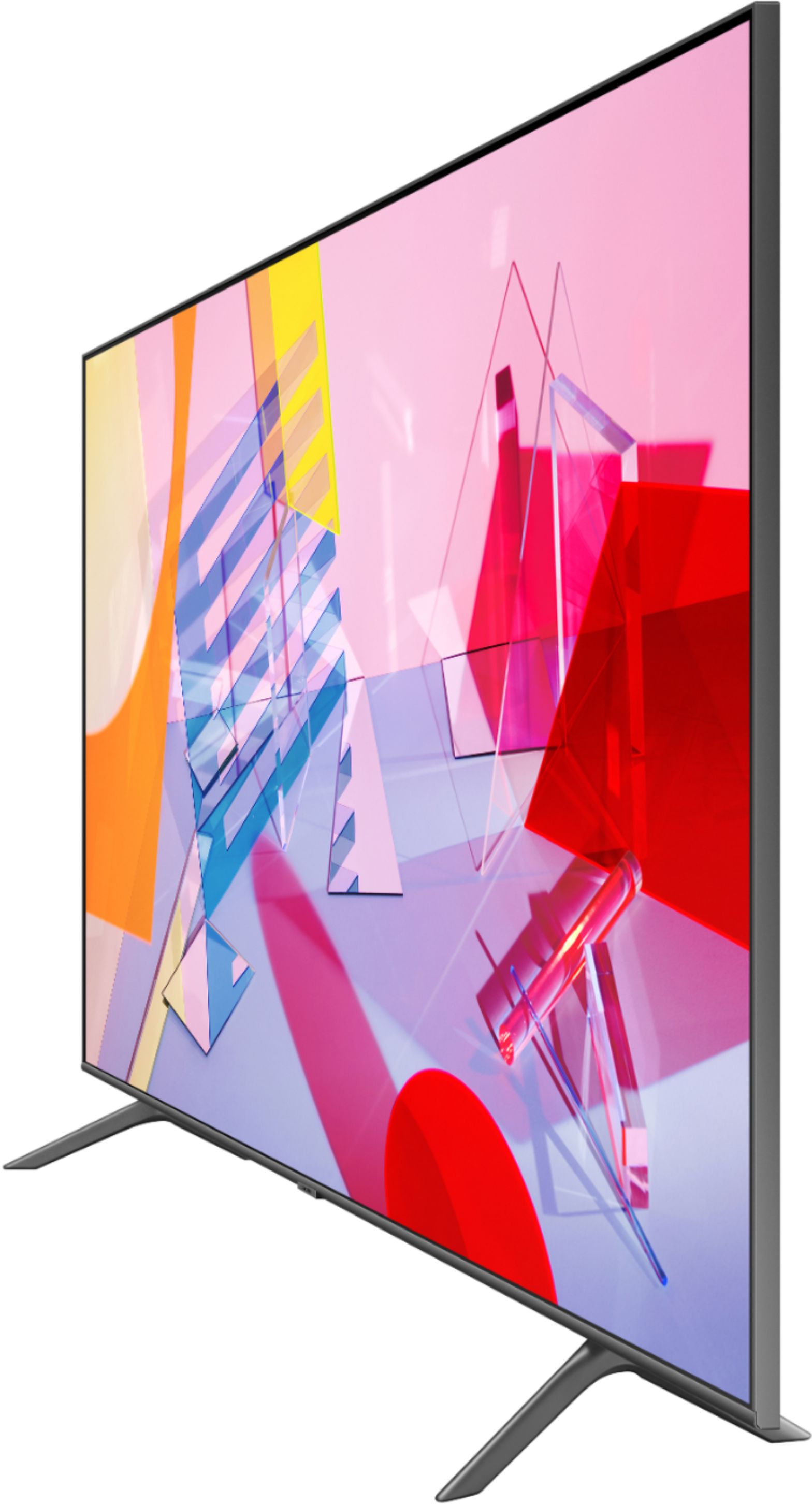
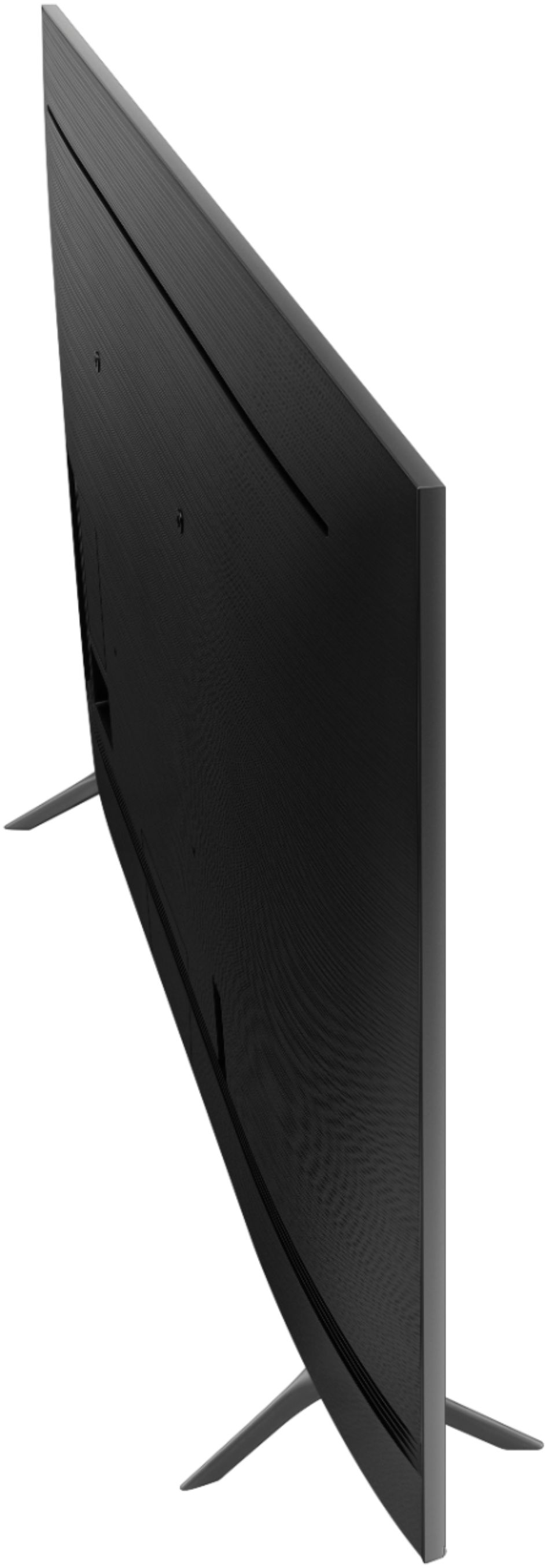
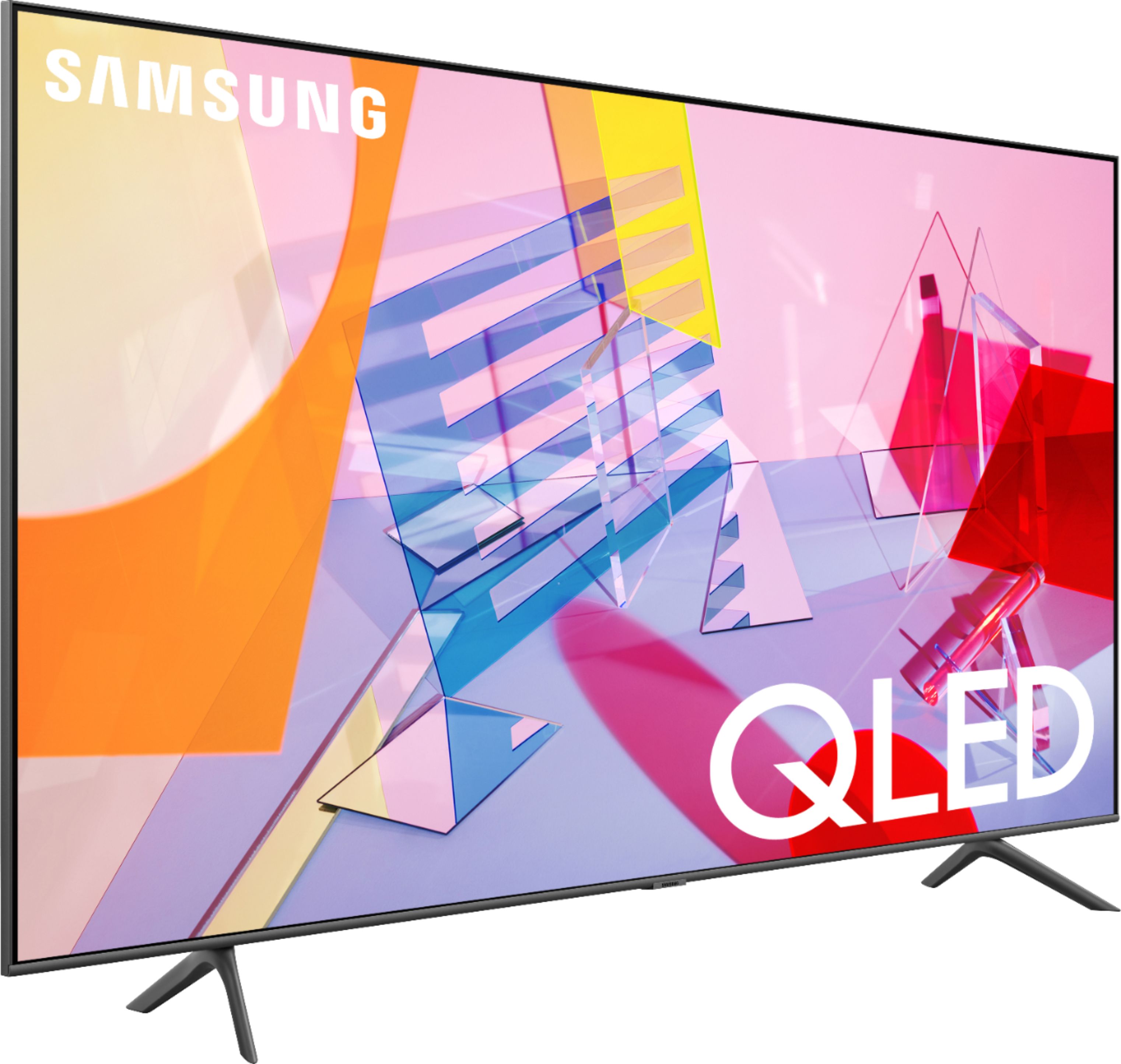
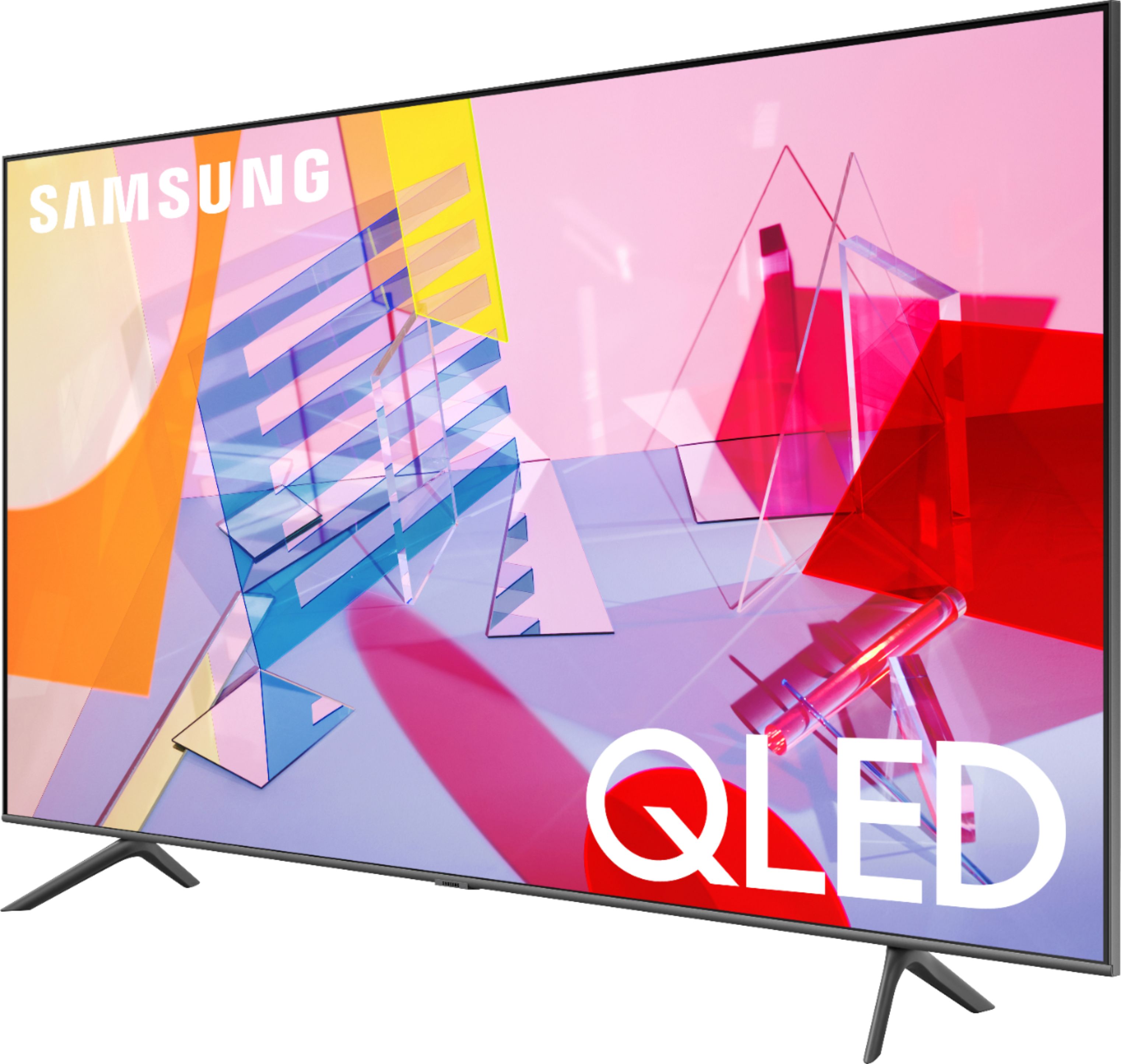
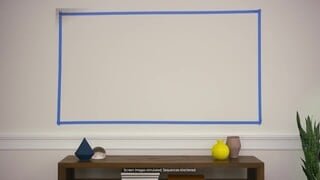
A:AnswerDuPa: Here are the full dimensions for the 50Q60T:
(INCHES W x H x D):
• TV WITHOUT STAND: 44 x 25.3 x 2.3
• TV WITH STAND: 44 x 28.4 x 9.6
^Gina
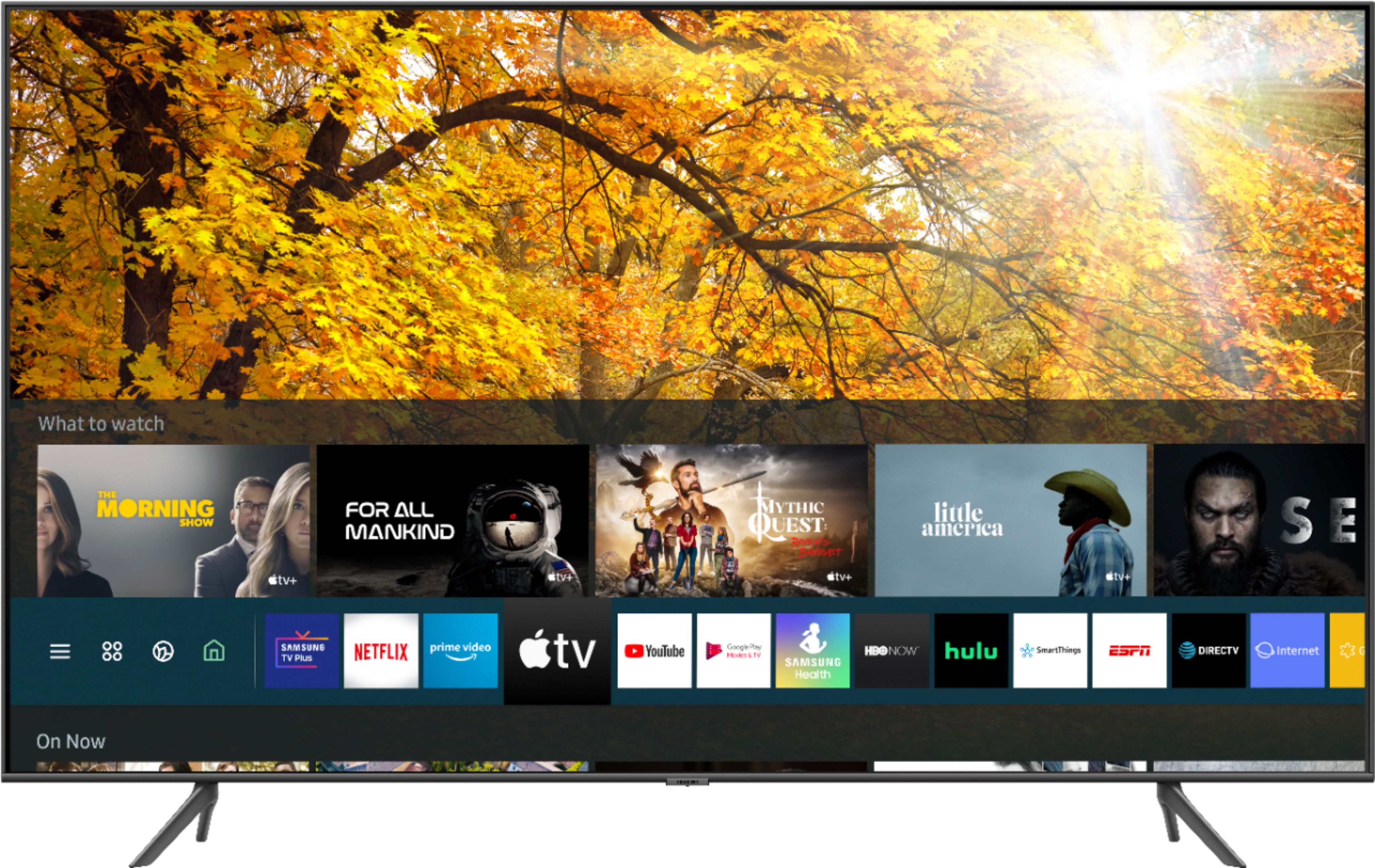
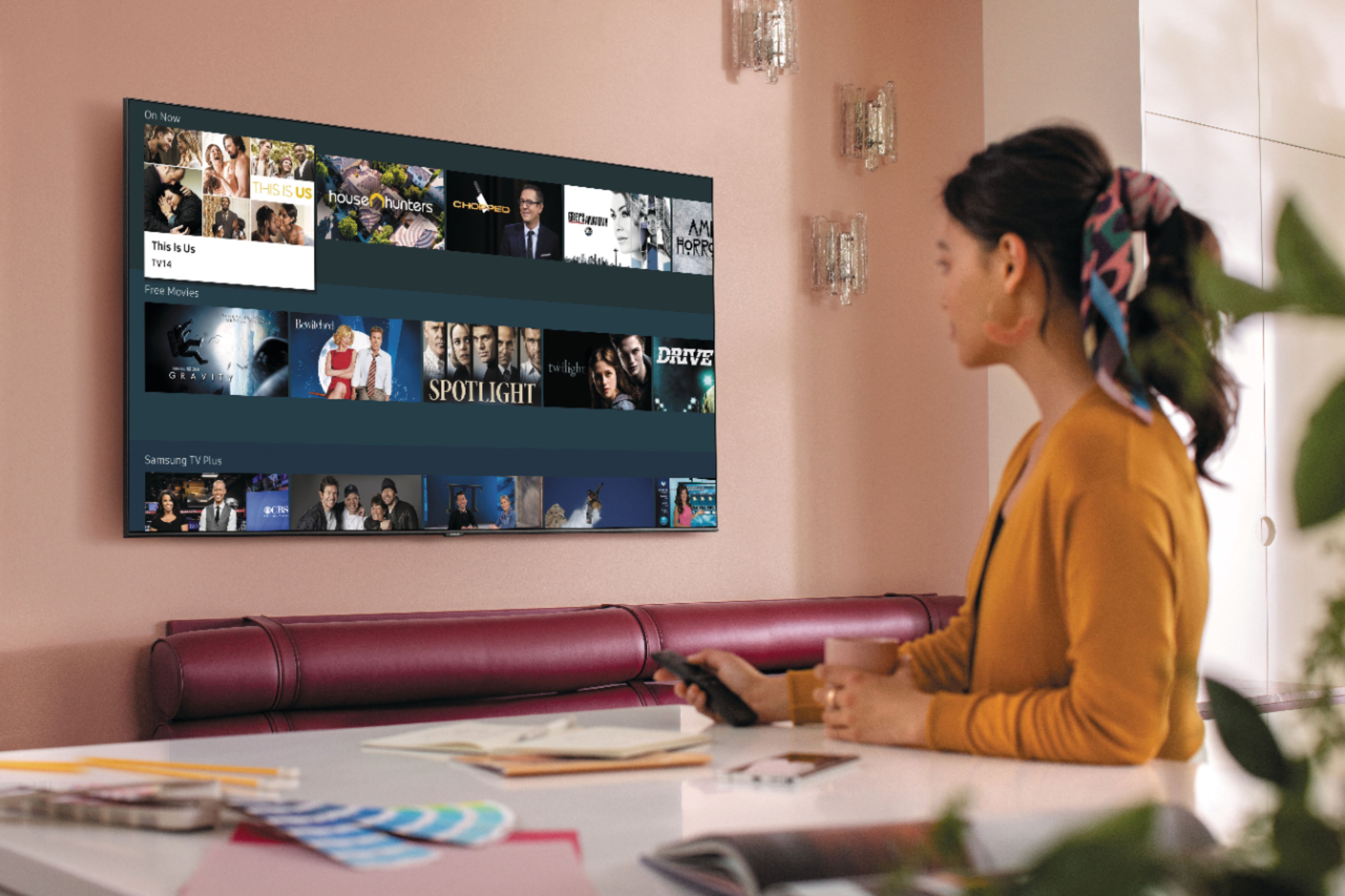
A:AnswerAdamz - There hundreds of apps available on Samsung 50Q60T utilizing the Samsung smart platform Tizen. Apps such as Disney+, Google Play Movies & TV, Hulu, Netflix, Prime Video, STARZ, Sling TV, YouTube are available. ^Jason
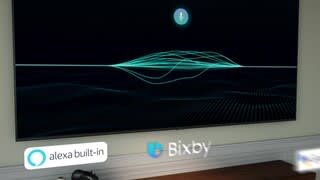
A:AnswerRay, the 2020 Q60T gains features such as the new Quantum Processor 4K Lite, Dual LED, Active Voice Amplifier, and built-in Voice Assistants (Amazon Alexa, Bixby, Google Assistant). For more comparisons, please visit https://www.bestbuy.com/site/compare?skus=6401758,6331928 ^Gina
A:AnswerHello, this is available now: https://www.bestbuy.com/site/samsung-50-class-qled-q60-series-4k-uhd-tv-smart-led-with-hdr/6401758.p?skuId=6401758 ^Gina
A:Answerantonio, this is available now: https://www.bestbuy.com/site/samsung-50-class-qled-q60-series-4k-uhd-tv-smart-led-with-hdr/6401758.p?skuId=6401758 ^Gina
A:AnswerHello Gene, First please make sure your TV is up to date. The Disney+ app is already pre installed on your TV. Turn your Samsung Smart TV on and make sure it’s connected to your home internet. Then, press the Home button on your remote control.
At the bottom left of the TV screen, select the APPS button. You can navigate left, right, up or down with your remote control.
In APPS, you’ll see several categories appear on the screen. Choose the category that you’re interested in to see what apps are available.
When you find an app you’re interested in, select it. Then, select Install (or Add to Home for an older Samsung Smart TV). When you click install, it downloads the app to your home screen.
To get back to your home screen, press the Home button on your remote control. There, you can navigate to your newest app download and select it.
You may be prompted to log in to the app or create a new account. Follow the directions onscreen.
^Cristian
A:AnswerHi Diltsy! for more information on Geek Squad Services, please contact your local Best Buy or visit: https://www.bestbuy.com/site/electronics/services/pcmcat1528819595254.c?id=pcmcat1528819595254 ^Tim
A:AnswerHi there, once you have paired the headphones with the TV you will be asked if you want to connect to the headphones every time the TV senses they are turned on. If your TV isn't doing this please contact us at your convenience here: https://www.samsung.com/us/support/televisions-home-theater/televisions. Thanks! ^Scott
A:AnswerHi, the Q60T comes with a Samsung One Remote which includes voice capability to connect with one of three different voice assistants, Bixby, Google Assistant, and Amazon Alexa. Thanks! ^Scott
A:AnswerHi! The Q60T along with all of our smart models feature enough storage to download all of your favorite streaming apps from the built in app store, you can view storage limits and clean up your TVs files with the built in device manager in the menu. ^Tim