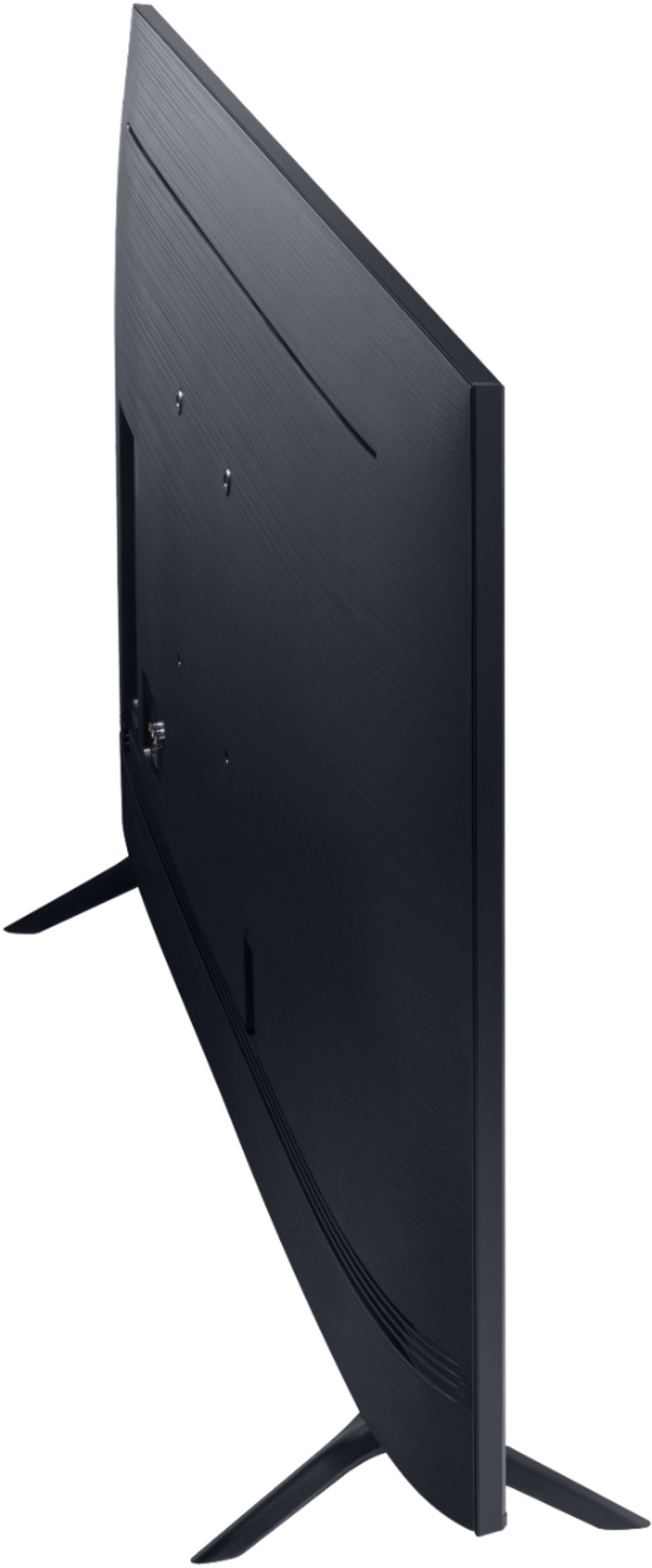
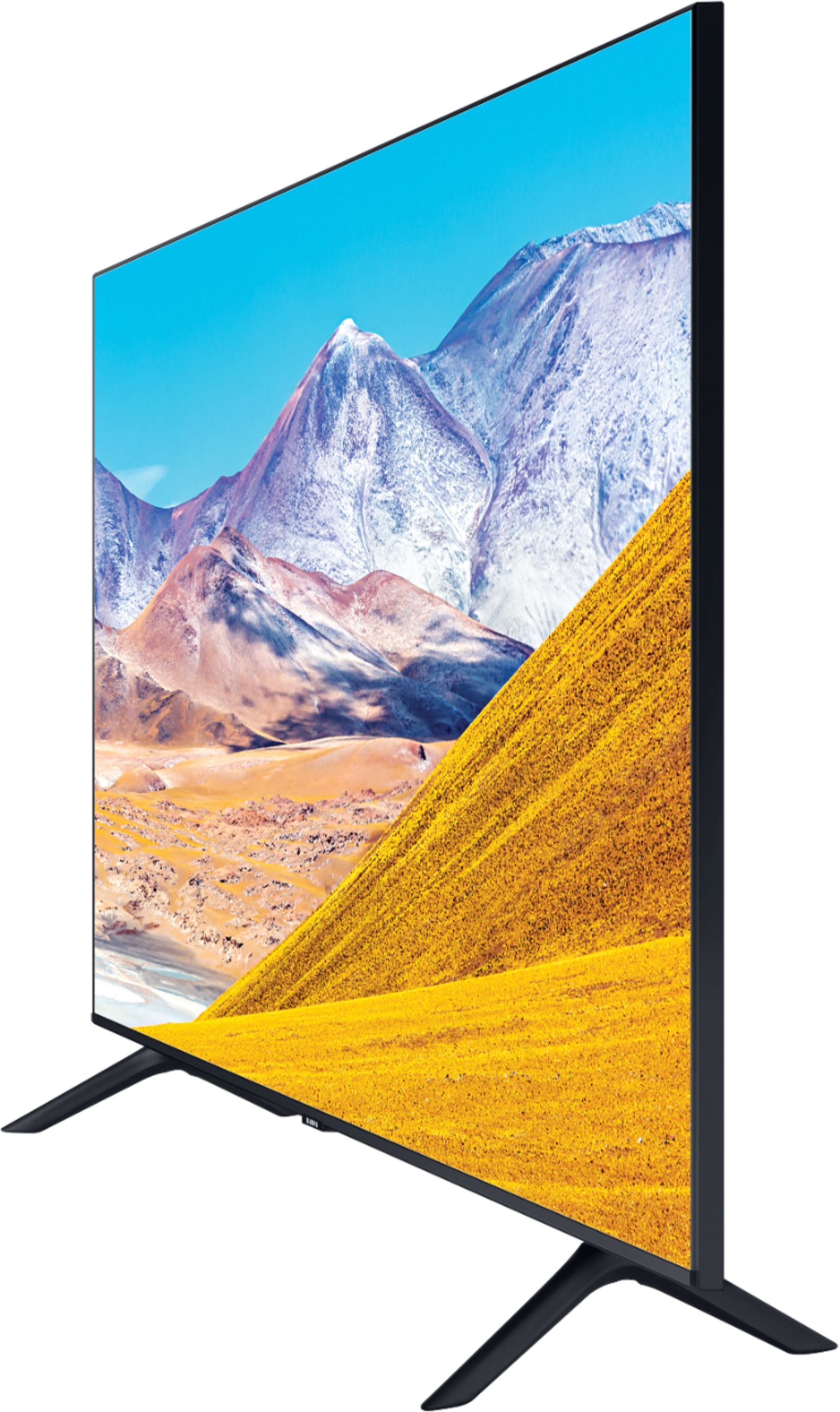
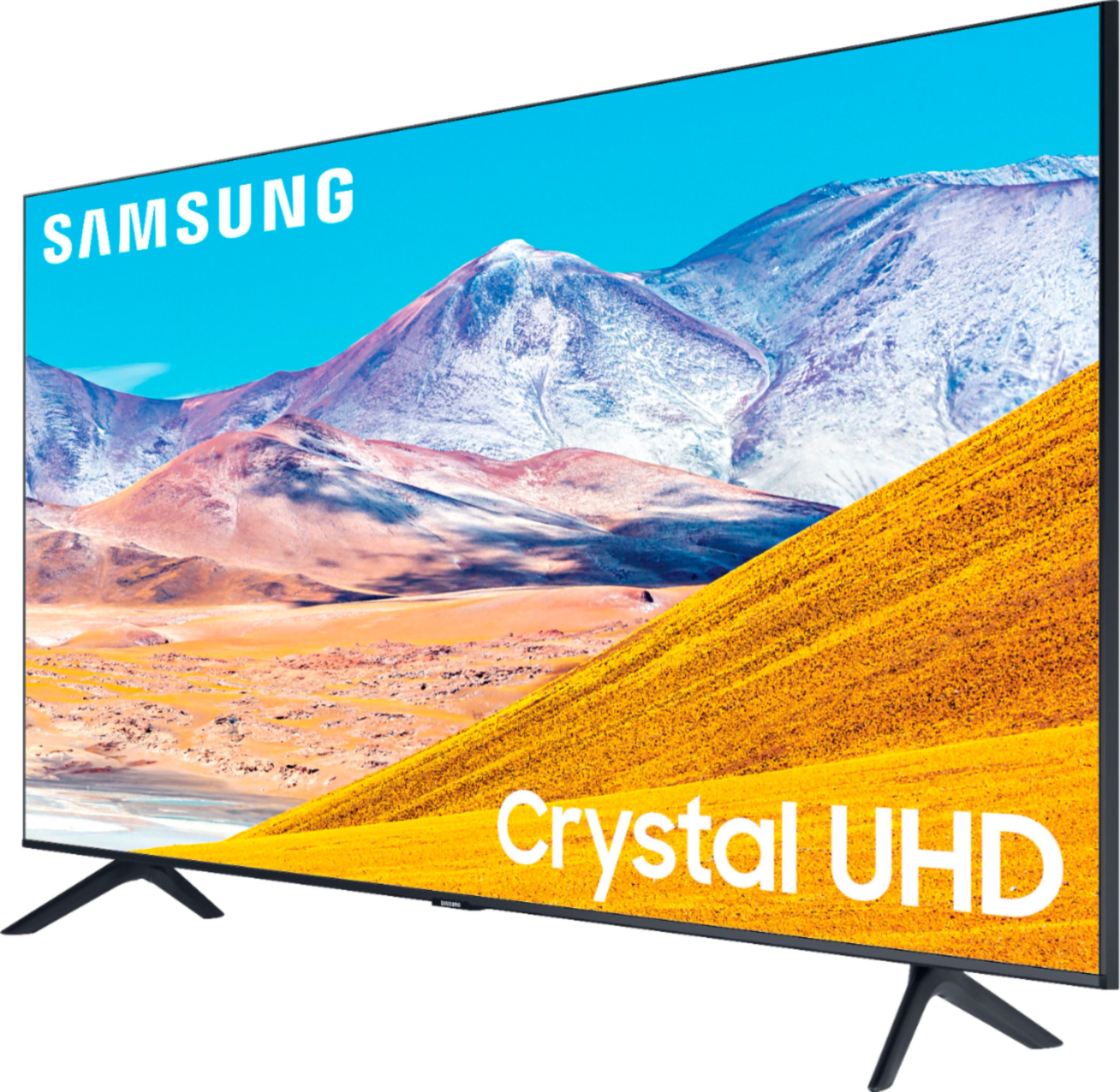
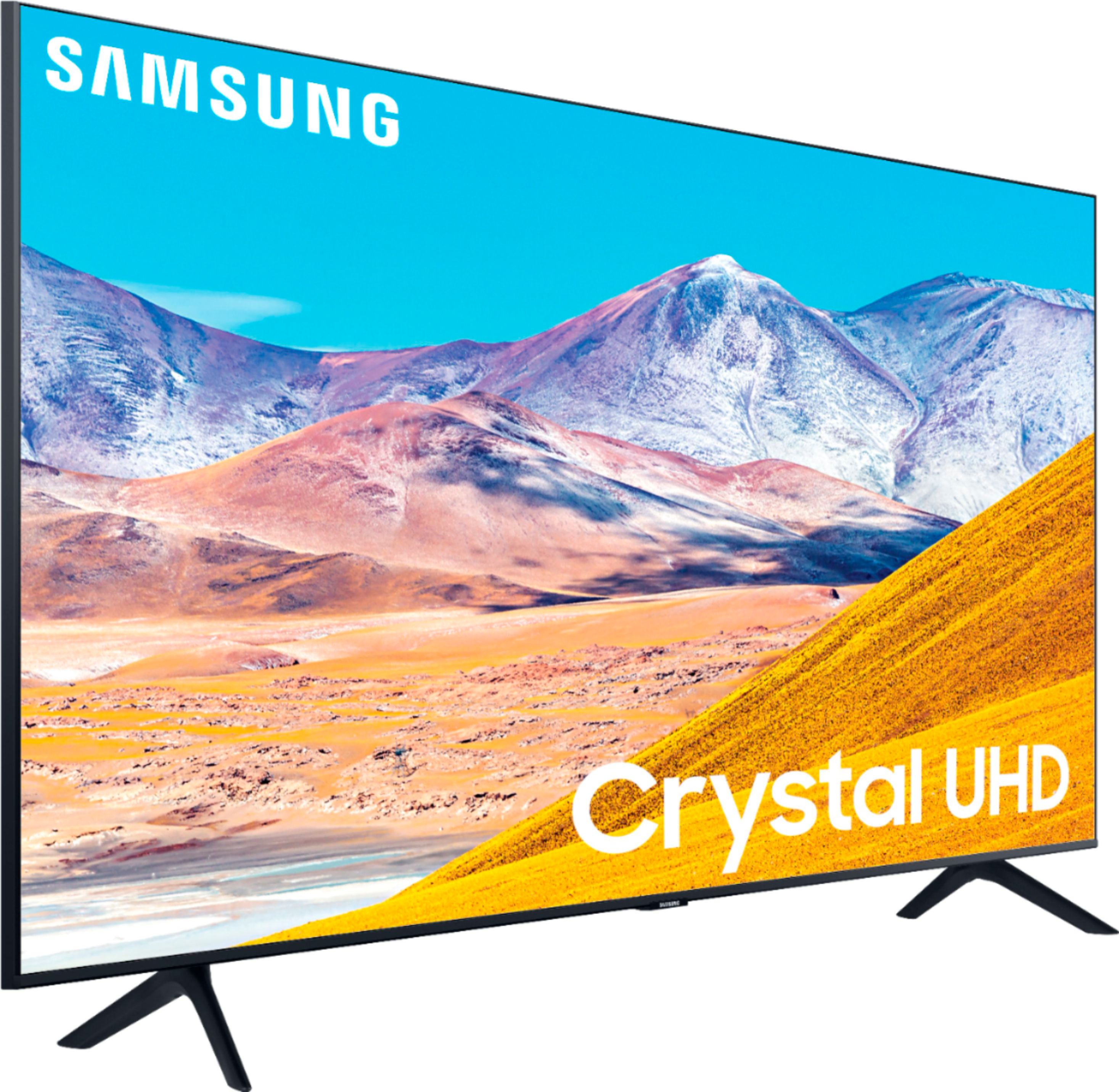
A:AnswerThe TU8000 is not compatible with No-Gap Wall Mount - The Frame and Q950TS are the only models compatible with this in 2020. You can utilize any Wall Mount with a VESA Standard of 200mm x 200mm. ^Gina
A:AnswerThe One Remote with this model is similar to those with more expensive Samsung models. It has voice capability, which I like because I can ask it to change channels, find programs, and answer questions such as "what's the weather forecast," just as you would with Alexa. You can choose from among Alexa, Google Assistant, or Bixby (Samsung's app). The remote also has somewhat "universal" ability. So you can use it for most of the same functions as a cable box or other external device. I haven't figured all of them out. But I use it for everything except setting up future recordings and controlling my external speakers. The remote has only a few buttons, but each one has several functions. It takes a while and a bit of guessing to get to the levels and functions you want. So I find it easier to use other remotes for some functions that need just one push of a button. Altogether, this remote was worth the extra cost for the Series 8 model (Series 7 and below have more traditional remotes).
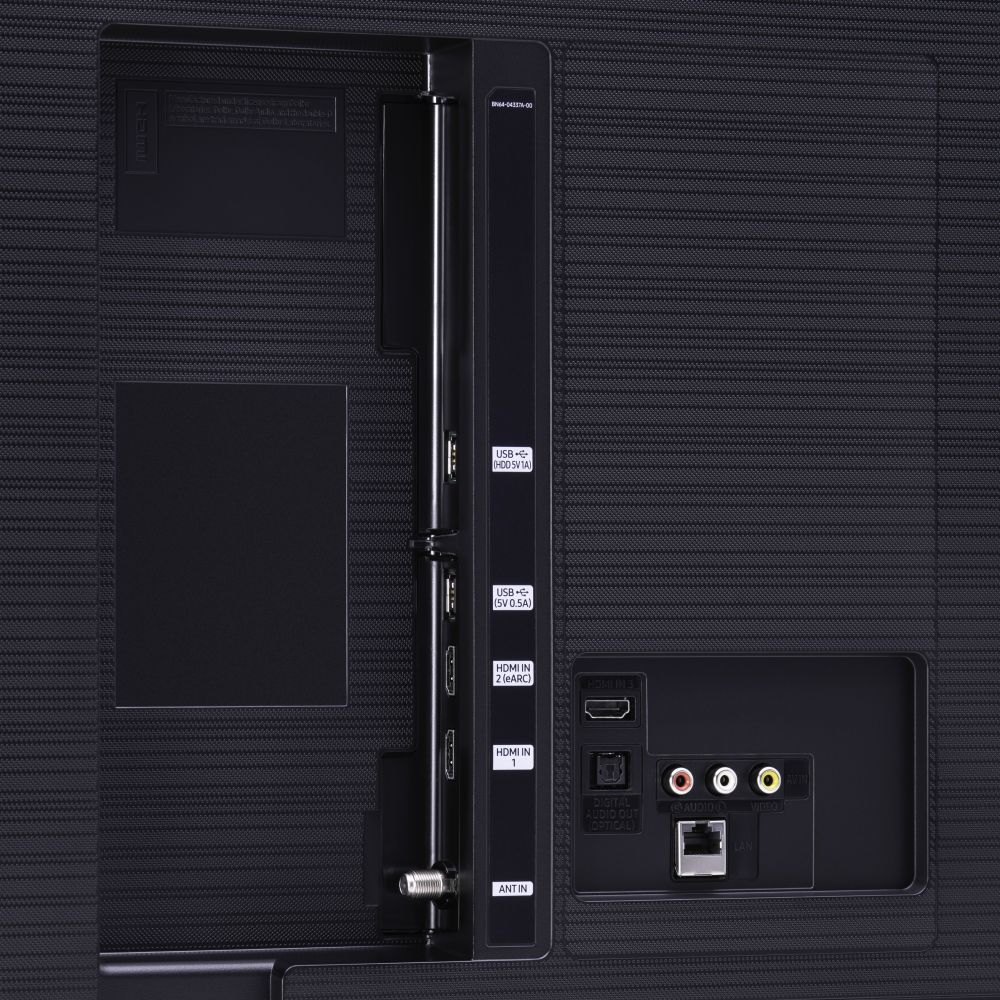
A:AnswerHi Eric -You can definitely use this TV for gaming. HDR10+ and Auto Low Latency Mode (ALLM/Auto Game Mode) are available on all 3 HDMI ports for this series. The “HDMI In 2” port additionally supports eARC.
However, if you are looking to game at 4K@120fps (FRL), take a look at the Samsung QLED Q70T Series and up. These series in 55" and larger offer 4K@120fps on HDMI 4, as well as have Variable Refresh Rate (VRR) and FreeSync. ^Val
A:AnswerAnswering my own question: I haven't been able to operate the Edifier speakers with the Samsung OneRemote. If I understand right, the speakers don't have a pairing code like soundbars and other devices. They are designed as bookshelf speakers for a computer, rather than sound devices for a TV. They don't have an HDMI input, so I use an optical one, which as I understand limits the TV remote's capabilities. On the plus side, a sound-delay setting on the TV lets the Edifiers sync perfectly with the TV sound. With the separate TV and speaker remotes, I can adjust the sound independently to get just the right mix of tone, depth, speech understanding, etc. If I leave the speakers turned on, they stay at the volume and tone I prefer. So I need to adjust only the TV volume. Also, the speakers and TV can connect through Bluetooth if I prefer. All of that makes it worth having to use the speakers' remote, at least to me.
A:AnswerHi Hank! Thank you for considering the TU8000, equipped with 3 HDMI ports, all of which support Auto Low Latency Mode (ALLM/Auto Game Mode). The “HDMI In 2” port also offers eARC.
If you need a TV that offers FRL (4K@120fps), the first model in our 2020 lineup to offer this is the 55" Q70T -- 4K@120fps is on HDMI 4. All Samsung 2020 model year QLED TVs 55” and bigger starting from the Q70T Series have 4K@120fps, VRR and FreeSync. If you have further questions, please reach out to us at 1-800-SAMSUNG. ^Gina
A:AnswerHi Taz! Thank you for your interest in the TU8000. With HDMI 2.1 being such a complex topic, we feel it is clearer to highlight the specific features supported by each TV model.
The TU8000 has 3 HDMI ports, all of which support Auto Low Latency Mode (Auto Game Mode). The “HDMI In 2” port further supports eARC.
If you are looking for a TV capable of 4K@120fps (FRL), please consider a step up to the 55" Q70T, which supports FRL on HDMI 4.
All Samsung 2020 model year QLED TVs 55” and larger starting from the Q70T Series are capable of 4K@120fps, as well as FreeSync, and VRR.
If we can help answer any other questions, please call us at 1-800-SAMSUNG. ^Gina
A:AnswerHi Fran! Thank you for your interest in the TU8000. With HDMI 2.1 being such a complex topic, we feel it is clearer to highlight the specific features supported by each TV model.
The TU8000 has 3 HDMI ports, all of which support Auto Low Latency Mode (Auto Game Mode). The “HDMI In 2” port further supports eARC.
If you are looking for a TV capable of 4K@120fps (FRL), please consider a step up to the 55" Q70T, which supports FRL on HDMI 4.
All Samsung 2020 model year QLED TVs 55” and larger starting from the Q70T Series are capable of 4K@120fps, as well as FreeSync, and VRR.
If we can help answer any other questions, please call us at 1-800-SAMSUNG. ^Gina
A:AnswerI really like the One Remote that comes with this model. Voice operation does away with button hunting to change channels or look for other programs. Linking the remote to other devices is easy and lets you do most of the functions of other remotes. This remote doesn't have as many buttons as most remote controls have. But each button has several levels and functions. It takes some patience and some guessing to get to the device and function you want. So I prefer to use my cable-box, DVD, and external-speaker remotes for some functions. Overall, though, this remote has been worth the extra cost of the Series 8 model TV. (Series 7 and lower levels have more traditional remotes.)
A:AnswerHello there, yes you can mirror from either of these devices. Go to the Settings Menu > select
General > select Apple AirPlay Settings> Ensure that AirPlay is set to On > From Your iPhone Notification Panel, select Screen Mirroring and tap on your TV name. Enter any code that might be shown on screen. ^Celina
A:AnswerHi! It is not recommended to lay a TV flat during transportation. Contact your local Best Buy or check out the following link for information regarding the free delivery services available. https://www.bestbuy.com/site/tv-home-theater/free-tv-shipping-or-delivery/pcmcat748300551037.c?id=pcmcat748300551037
^Tim
A:AnswerHello Al,
You can select the picture mode that provides the best viewing experience. To change the picture mode, press the Select button. To make fine adjustments, press the up directional button, and then select Picture Setup. If you want a brighter picture make sure it is set to Dynamic Picture. ^Cristian
A:AnswerHi LuLusMom, Pausing and rewinding are easy with the One Remote, just hit pause then fast forward or rewind. Though how fast you rewind, etc. is going to be a bit different between content providers. ^Scott