A:AnswerHi Stu,
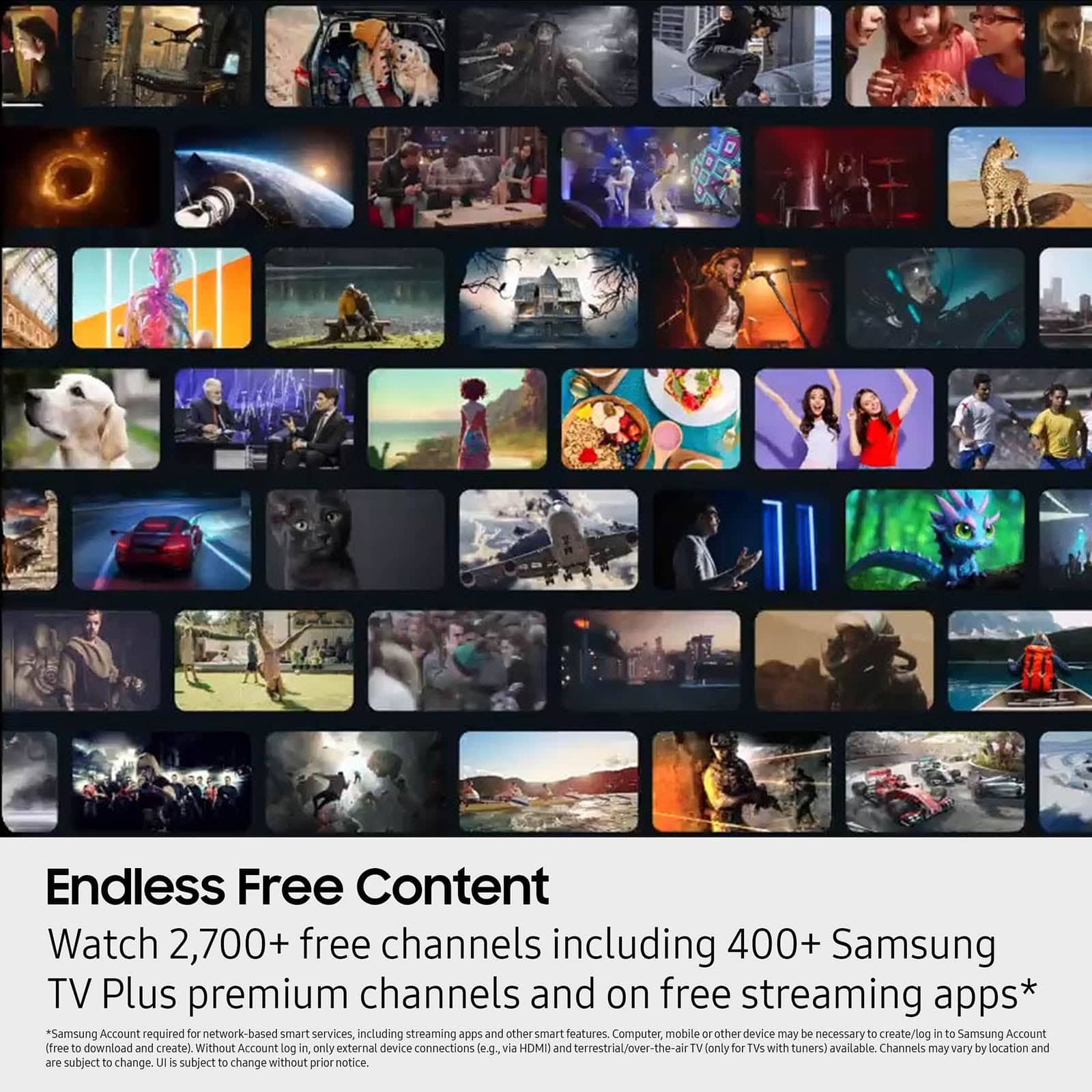
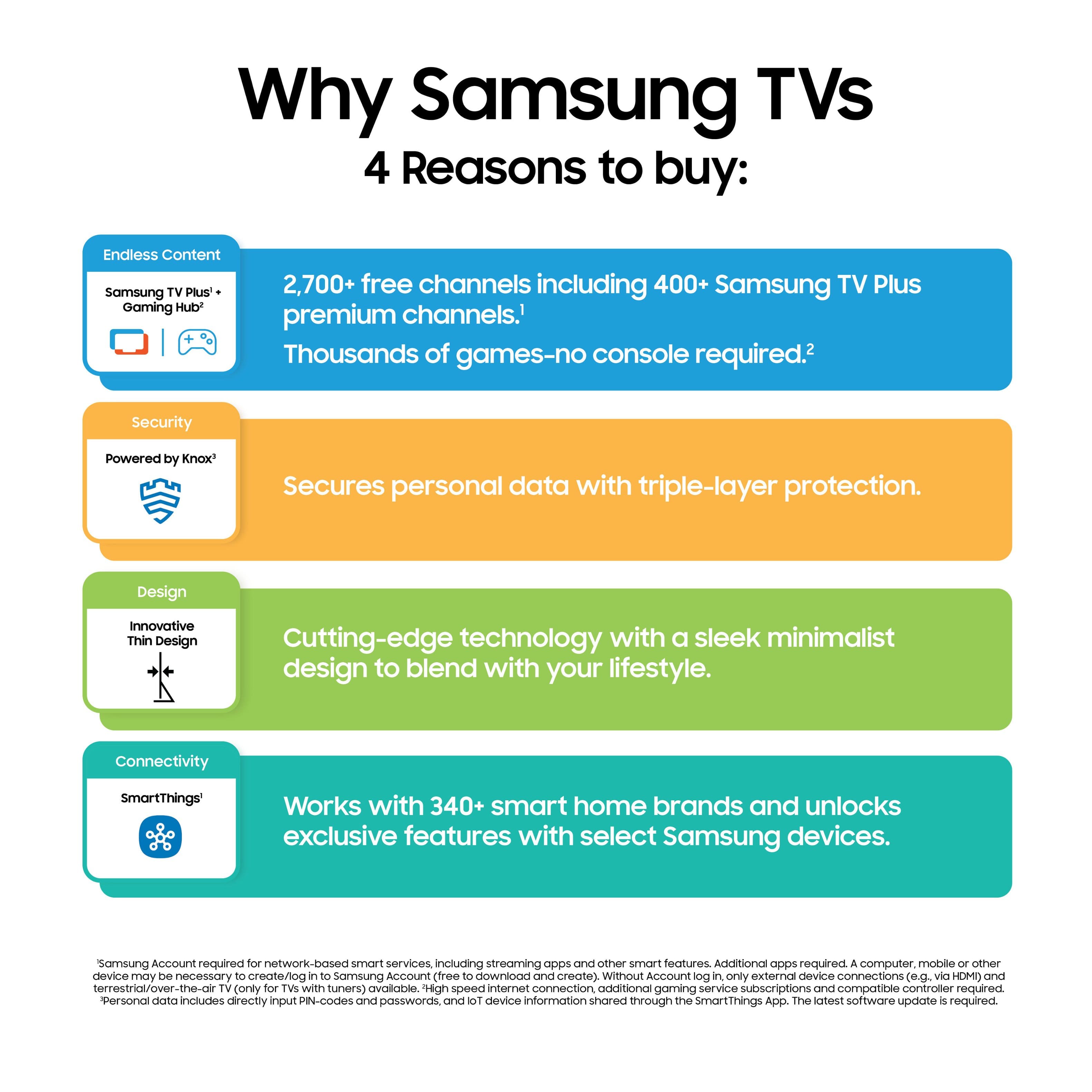
The Q7F is a Smart TV with built-in apps and is Wi-Fi enabled. Some cable providers offer a built-in app, but it will depend on your specific cable service.
~Samsung Advisor
A:AnswerHi Rae,
The Home Screen on the Q7F does offer customization. It, however, does not support far-field/hands-free voice commands. You can still take advantage of Alexa & Bixby voice commands – just press and hold the mic button on your remote, say a command, and then release the button.
All that being said, we recommend visiting your local Best Buy directly so they can best assist you with the best TV for you and your husband.
~Samsung Advisor
A:AnswerIf your TV's internal memory is insufficient, you can install some specific apps on a USB device. You can also remove select apps you no longer want and free up memory space on your TV. To locate the storage amount available to be used for Apps, please follow these steps: Home > left directional key > Home > Apps > App Settings.
~ Samsung Specialist
A:AnswerThe Q7F TV is not intended for outdoor use, as it does not carry an outdoor-use rating. If you’re looking for a TV built specifically for outdoor environments, we recommend The Terrace, which is rated for use in temperatures up to 122°F.
~ Samsung Specialist
A:Answerdee - If you’re looking for haul-away services for TVs or appliances, please visit your local Best Buy or see the full service details here:
https://www.bestbuy.com/site/recycling/tv-appliances-haul-away/pcmcat174900050009.c?id=pcmcat174900050009
~ Samsung Specialist
A:AnswerHi there - The Q7F features Mega Contrast which automatically adjusts brightness and contrast, enhancing the difference between light and dark areas on the screen, so you can enjoy stunning picture quality. When stepping up, our Q8F adds Dual LED backlighting to deliver vivid images with improved contrast, off-axis viewing, and color accuracy. And starting with our QN90F, you’ll gain Wide Viewing Angle and Glare Free technology to provide you with wider viewing angles, enhanced color, and minimized glare to help you enjoy shows without distractions. ~ Samsung Specialist
A:AnswerConnecting this to your home network is easy. Go to settings, network, and choose your home network. Enter your network password and you should be good to go.
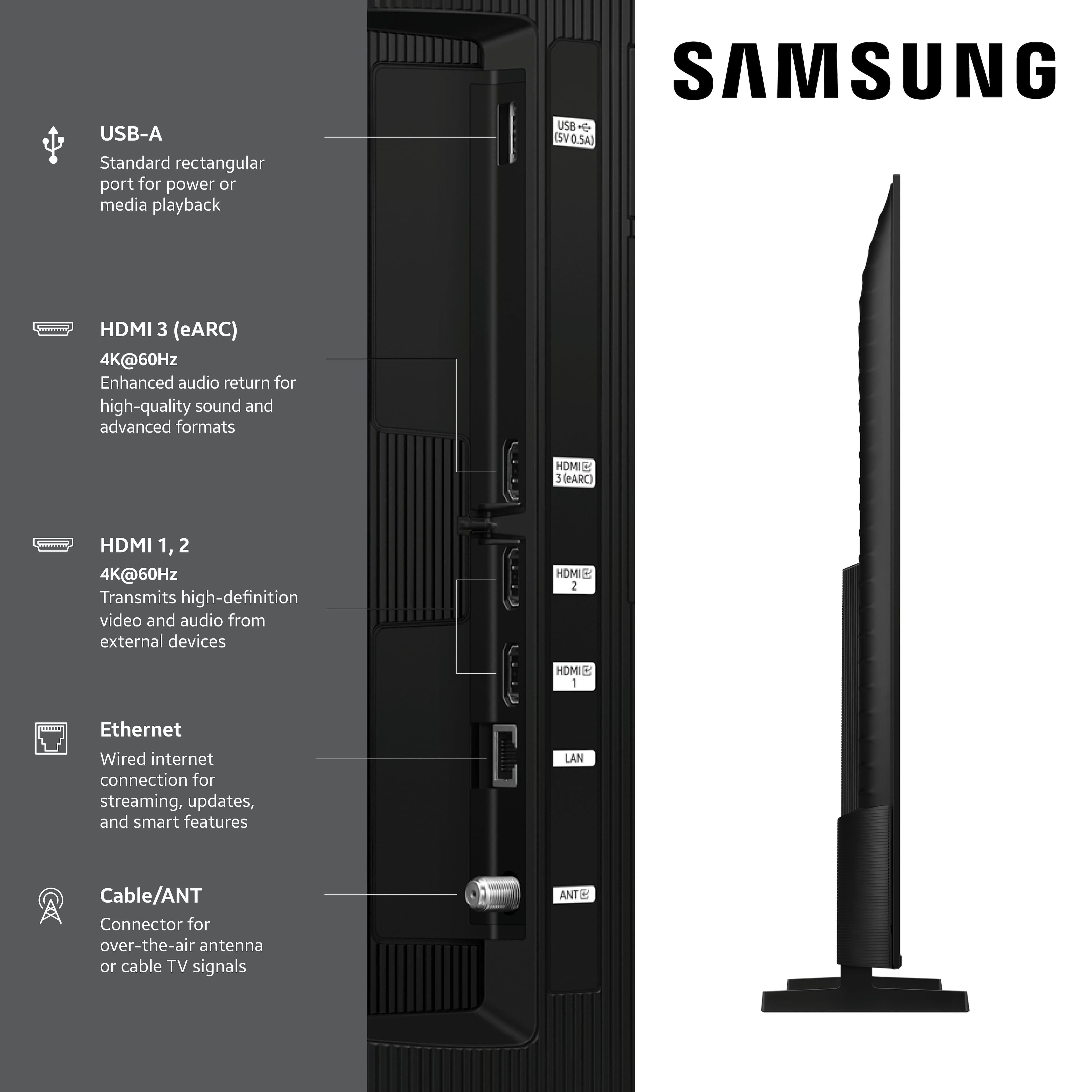
A:Answertony2 - No, the Q7F TV does not feature RCA inputs; you'll need to utilize an RCA to HDMI converter like this item found at Best Buy: https://www.bestbuy.com/site/insignia-rca-to-hdmi-converter-black/6134312.p?skuId=6134312
~ Samsung Specialist
A:AnswerSoccerfan - Multi View includes Picture-in-Picture (PiP) capability, allowing you to watch content from two sources at the same time. For example, you can play an app, HDMI device, or live TV on the main screen, while mirroring your phone to the smaller PiP window. You can also choose the location of the PiP screen – top left, top right, bottom left, or bottom right – and move it later if needed. Please note that two HDMI sources cannot be viewed simultaneously.
~ Samsung Specialist
A:AnswerKathy - Multi View, available on Samsung’s Q7F Series and above, allows you to display two types of content on-screen at once. You can view an app or HDMI source on the left, while mirroring your smartphone or casting from a compatible app on the right. While two HDMI sources can’t be displayed together, Multi View gives you the flexibility to combine streaming, live TV, mobile content, and more – side-by-side.
~ Samsung Specialist
A:AnswerPlease give us the opportunity to better assist with this by reaching Samsung Support at: 1-800-SAMSUNG (8AM – 9PM EST Mon – Fri, 8AM – 6PM Sat – Sun) or Chat with us on Samsung.com: https://www.samsung.com/us/support/contact/
~ Samsung Specialist
A:AnswerLexi - For best results, we recommend using a High Speed HDMI cable with Ethernet (HEAC) – this helps support 4K video and audio from most modern external devices.
~ Samsung Specialist