A:AnswerHi Lynda,
You can connect your Wireless headset via Bluetooth. Refer to your headphone's user manual for how to pair. Once paired to the TV, go to: Home > left directional key Settings > All Settings > Sound > Sound Output > Bluetooth Speaker List. Choose the headphones you wish to use for sound output.
~ Samsung Advisor
A:AnswerHi Tzilla,
. To help resolve the issue, please try the following steps:
1. Power off and disconnect all HDMI devices and cables connected to the TV.
2. Unplug the TV’s power cord from the wall outlet.
3. Press and hold the power button on the TV (not the remote) for at least 30 seconds to discharge residual power.
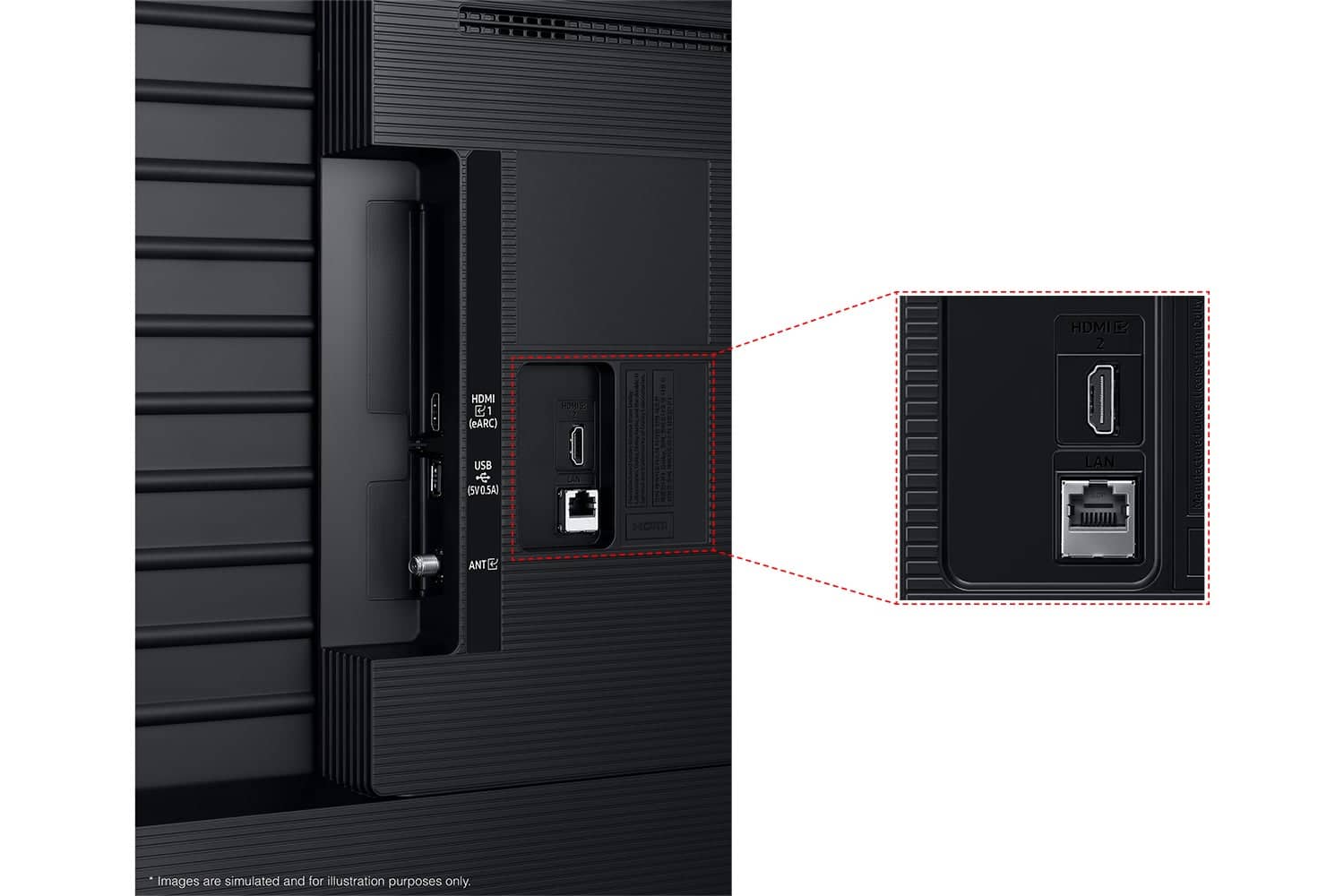
4. Reconnect the HDMI cables to their respective HDMI ports on the TV.
5. Plug the TV’s power cord back into the wall outlet and power the TV on.
Once reconnected, go to: Home > left directional key > Connected Devices > Connection Guide > Video Device > HDMI Troubleshooting. This tool will scan for HDMI connection issues and may help detect and resolve any problems automatically.
Please also ensure your TV is running the latest firmware, as updates may improve HDMI compatibility and stability. Go to: Settings > Support > Software Update > Update Now
When reconnecting your devices, make sure you are using a compatible HDMI cable. We recommend the following cable types for best performance:
• High Speed HDMI Cable
• High Speed HDMI Cable with Ethernet
• Premium High-Speed HDMI Cable
• Premium High-Speed HDMI Cable with Ethernet
• Ultra High-Speed HDMI Cable
If the issue continues, please reach out to Samsung Customer Support at 1-800-SAMSUNG, 8AM - 12AM EST, 7 days a week. LiveChat agents are also available via the ‘Support’ link on our website.
~Samsung Advisor
A:AnswerHi Evie,
We still appreciate a good VHS or DVD player! The U7900 can connect to a VCR via HDMI. If your VCR uses RCA inputs, you'll need to utilize an RCA to HDMI converter like this item found at Best Buy: https://www.bestbuy.com/site/insignia-rca-to-hdmi-converter-black/6134312.p?skuId=6134312
~Samsung Advisor
A:AnswerHi SamsungFan,
The U7900 TV defaults to Samsung TV Plus at startup. You can customize what happens when the TV powers on. Go to: Settings > All Settings > Advanced Features > Start Screen Option, then enable or disable:
• Start with Smart Hub Home
• Autorun Multi View Casting
• Autorun Multi View Mirroring
If you need help adjusting these options, feel free to reach out to Samsung Support at 1-800-SAMSUNG, 8AM – 12AM EST, 7 days a week. LiveChat agents are also available on our website under ‘Support’.
~ Samsung Advisor
A:AnswerHi Jenny,
If you are referring to voice assistants, you do not have to connect a voice assistant to your TV. If there are specific features you are wanting to disable, please feel free to contact us at 1-800-SAMSUNG. We’re available daily from 8AM to 12AM EST, or you can chat with us at https://www.samsung.com/us/support/contact/
~ Samsung Advisor
A:AnswerHi sshah,
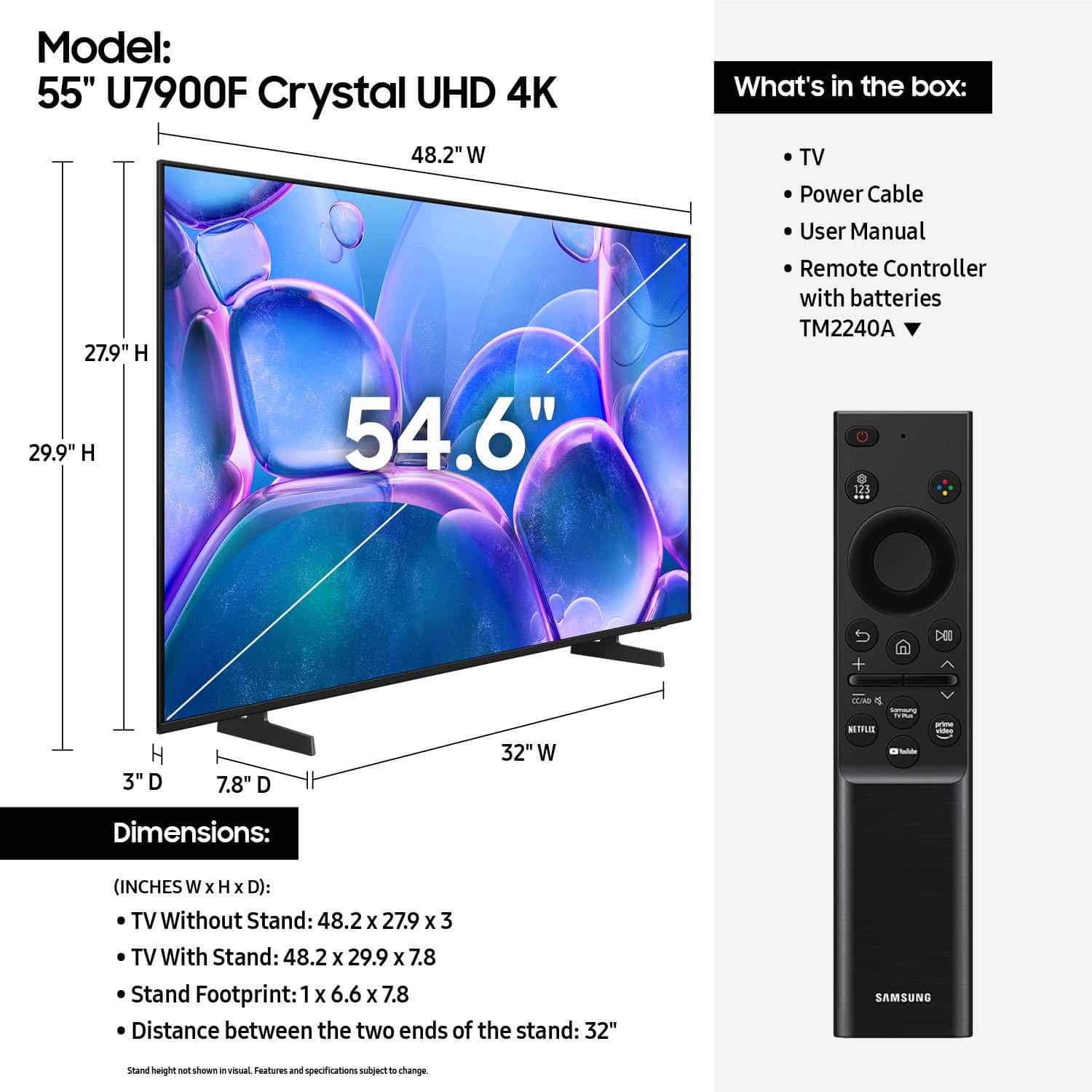
Yes, it includes batteries. If you do not have a Samsung Account you will need to create one here: https://account.samsung.com/iam/signup/terms.
The U7900 TV has a built-in app store with hundreds of apps available including Netflix, Hulu+, Apple TV, Prime Video etc.
~Samsung Advisor