A:AnswerHi JM,
Verizon Cable is not included with the U7900 TV. However, it is not an additional cost to connect to a cable box outside of the cable subscription fee, cable boxes, and cables.
~Samsung Advisor
A:AnswerHi Andy,
Yes, you can disable the Smart Features, or when prompted, choose not to sign into a Samsung account, which will prevent any Smart Features from being accessed.
I hope this helps!
~Samsung Advisor
A:AnswerI’m running it with a ps5 and it looks great. I’ve had zero issues and the two devices communicate well. I can press the ps button on the remote to boot my console and the tv will follow by turning on and switching inputs which simplifies a lot. No complaints from a casual gaming perspective.
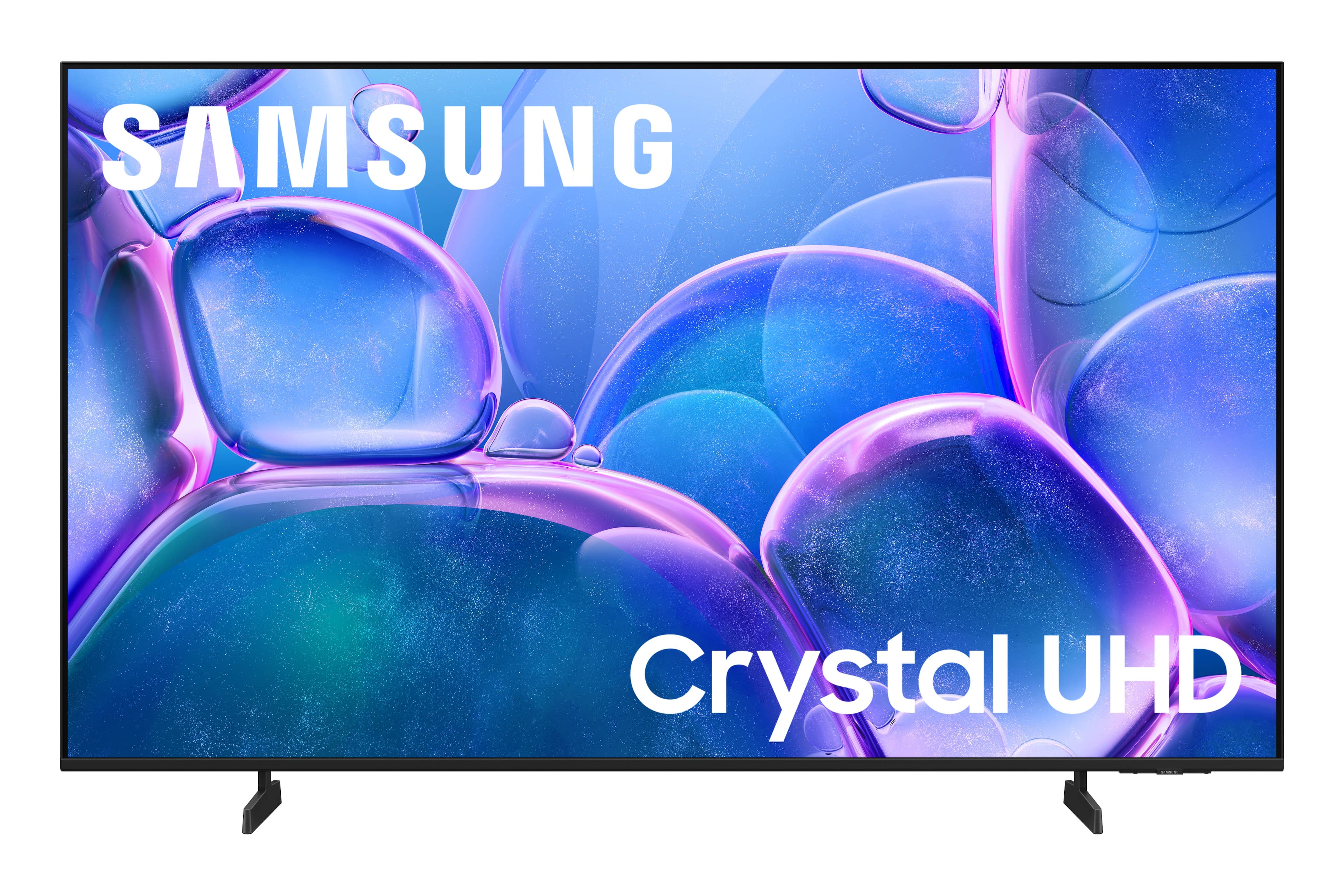
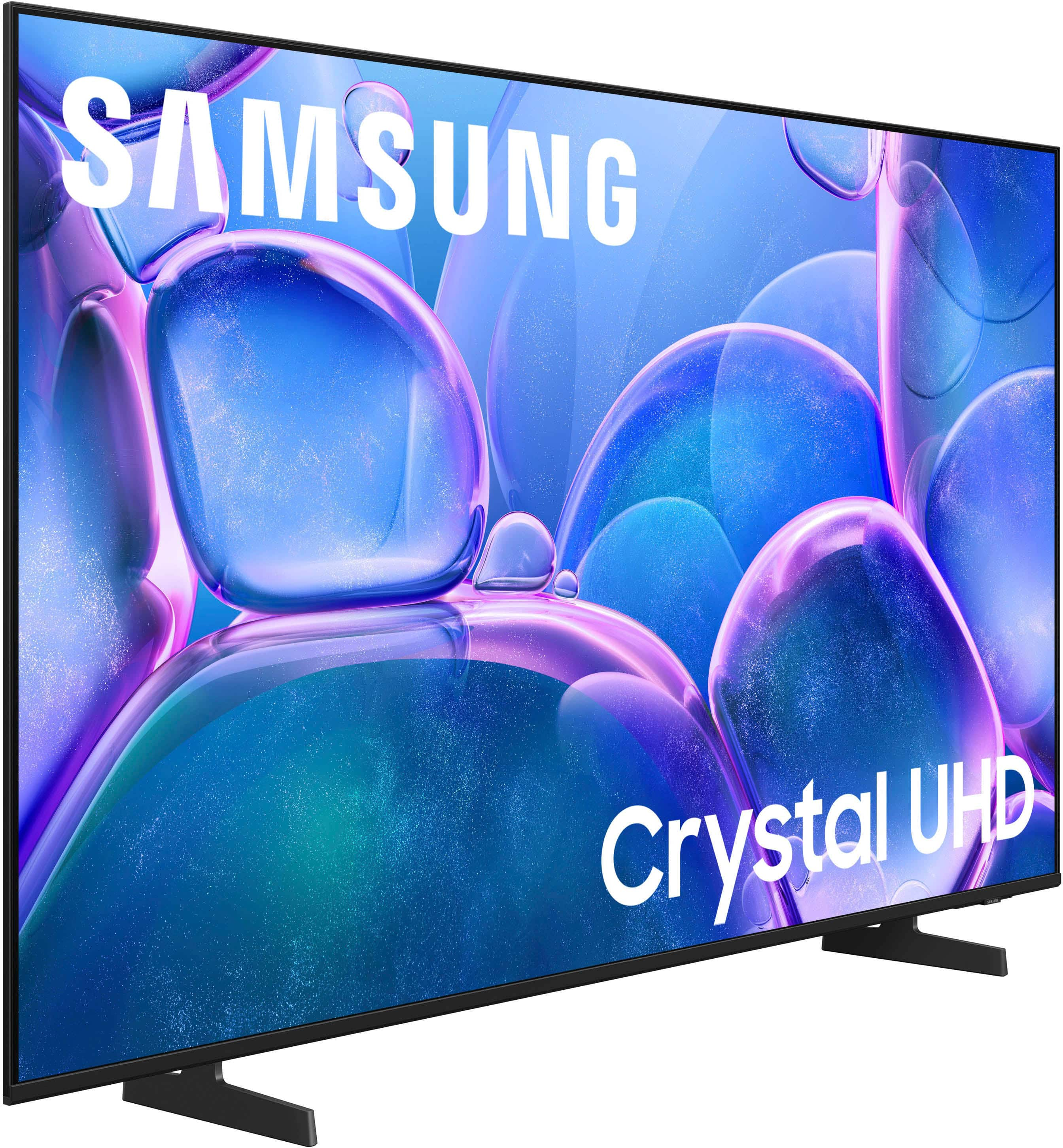
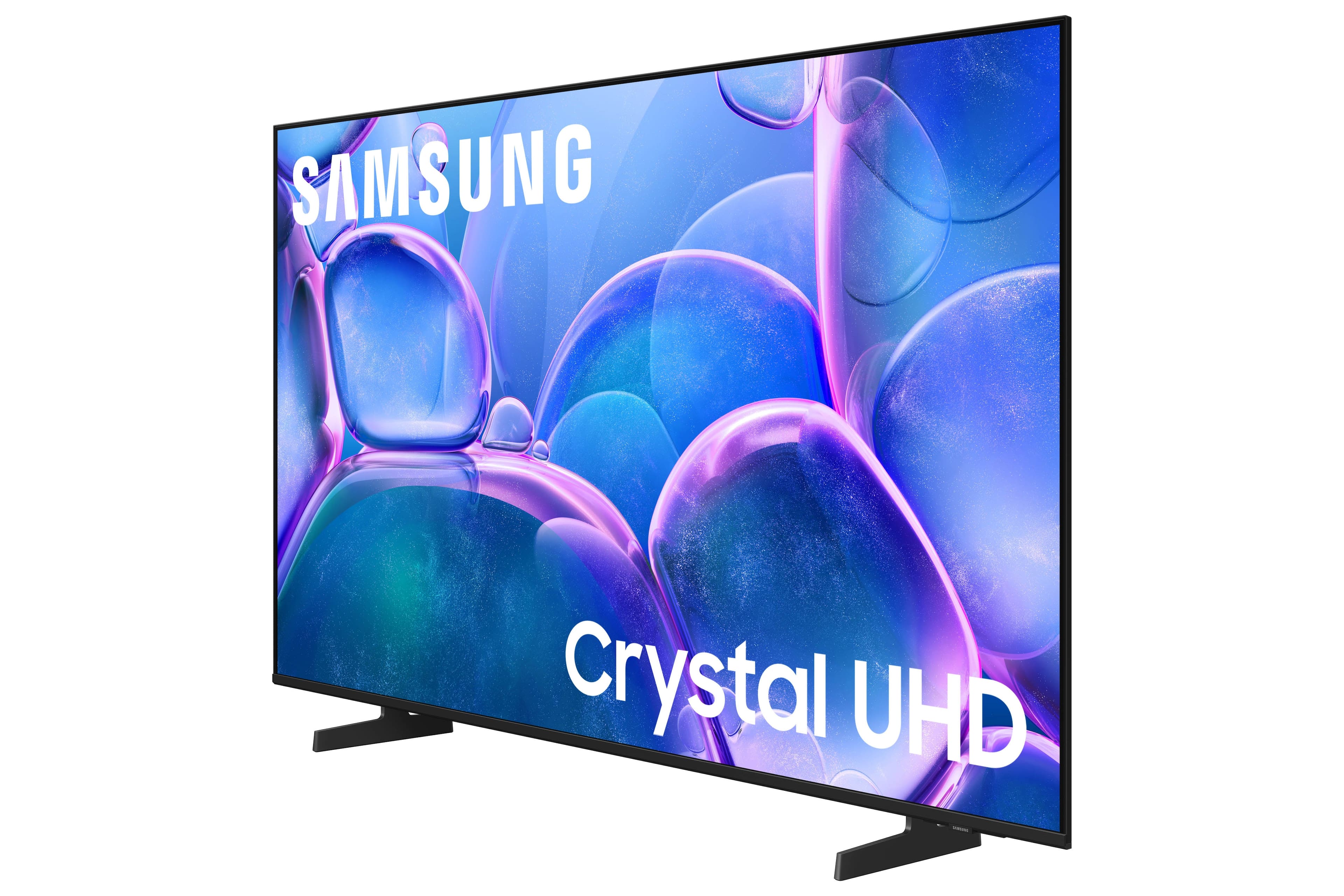
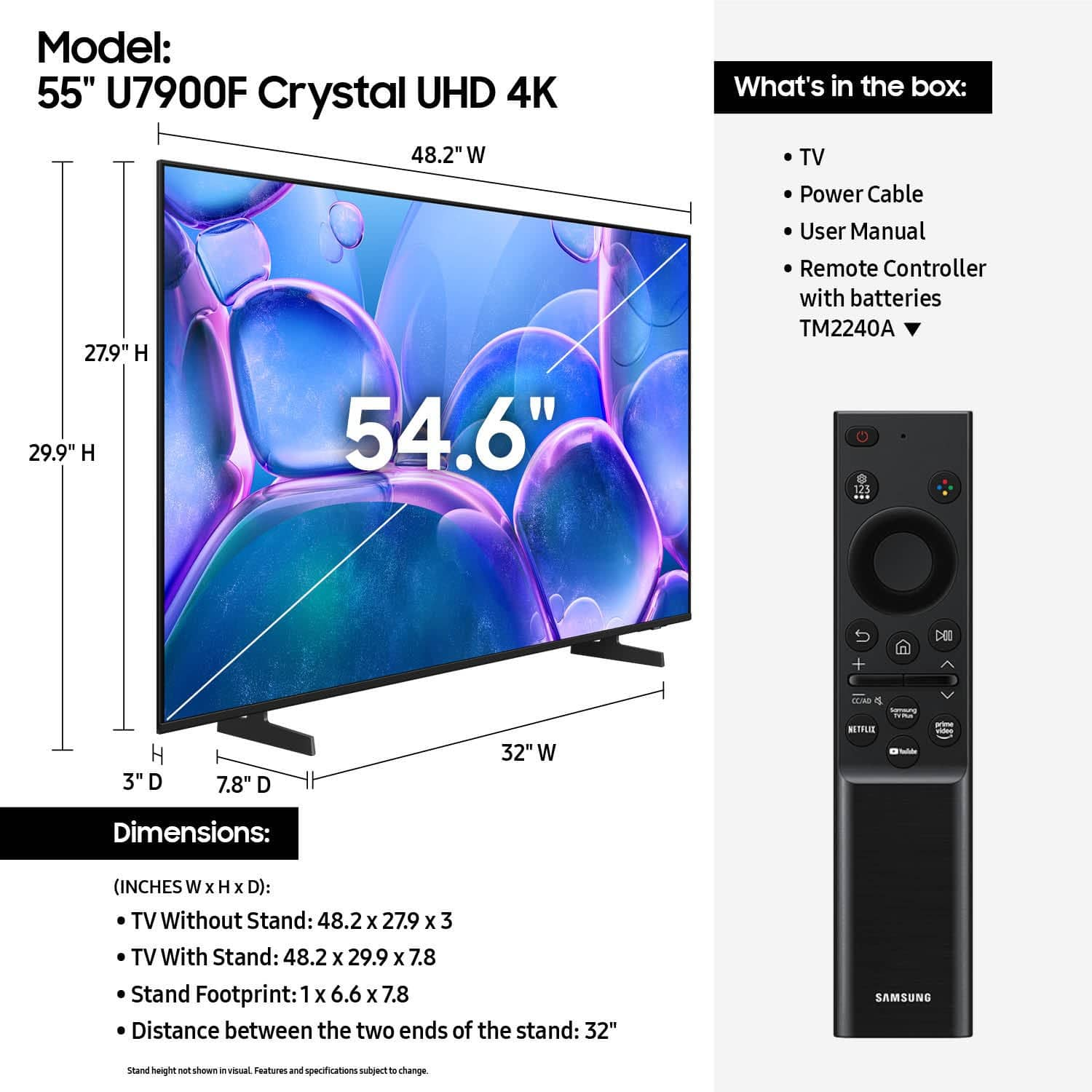
A:AnswerYes, it comes with feet that easily snap on. There is no confusion about which direction to install either, it has the word "front" on them with an arrow pointing in the direction to be installed.
A:AnswerHi Nory,
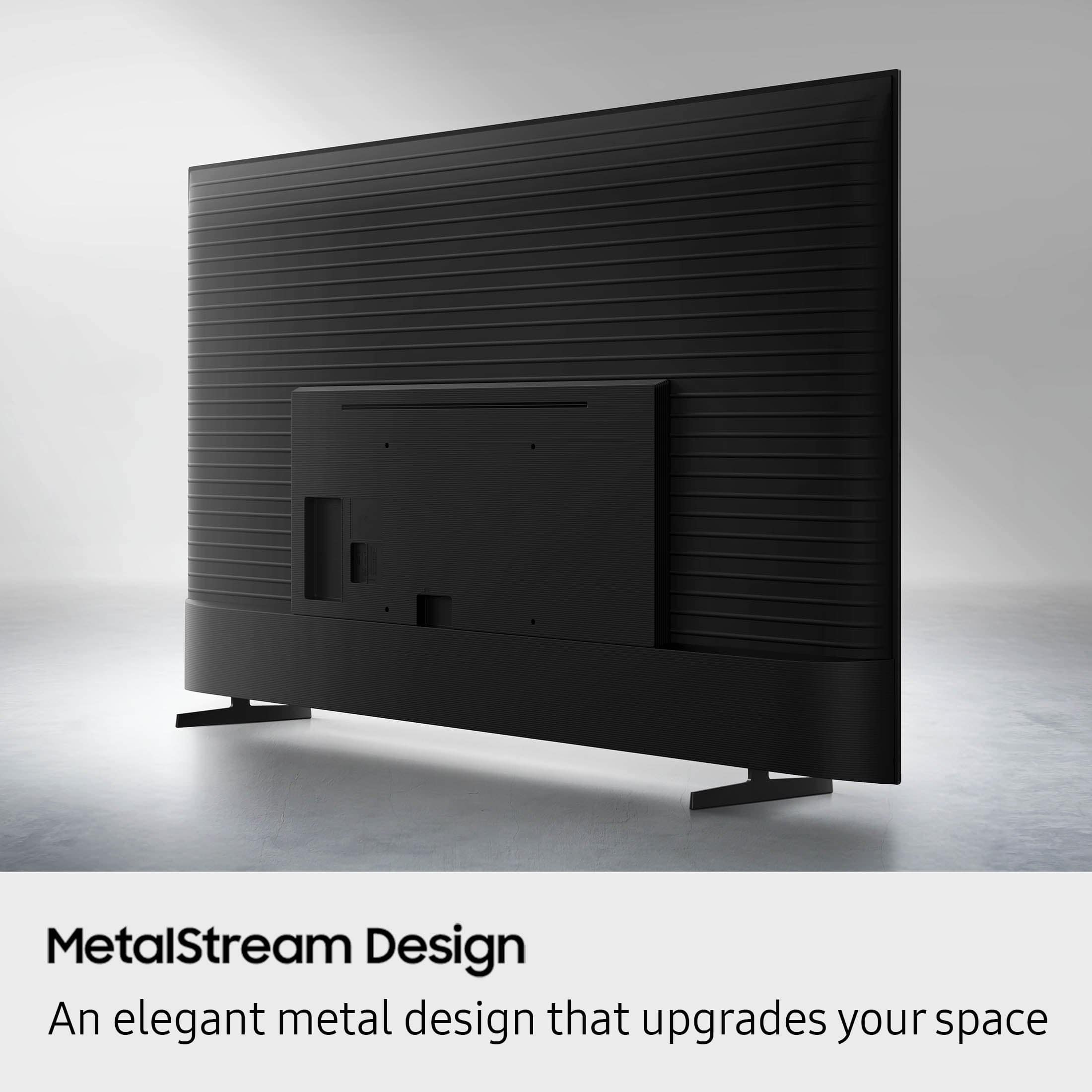
According to the Best Buy website, the mount is a separate purchase. You can find more information available on their website: https://www.bestbuy.com/site/tv-home-theater-services/tv-mounting-packages/pcmcat748300648009.c?id=pcmcat748300648009#1
~Samsung Advisor
A:AnswerHi Stef,
If your TV powers on but you’re seeing a black or red screen, it could be caused by your external device or the connection itself. Please try the following steps to help determine the cause:
1. Press the Home button on your Samsung remote.
– If the menu appears, the TV is powered on but may be on the wrong source or not receiving a signal.
– If the menu does not appear, the TV may be experiencing power issues.
2. Check the red standby light near the bottom of the screen.
– The light is on when the TV is off (standby), and off when the TV is on.
– If the light is off and there’s no menu or picture, the TV may not be receiving power.
3. Check your input source.
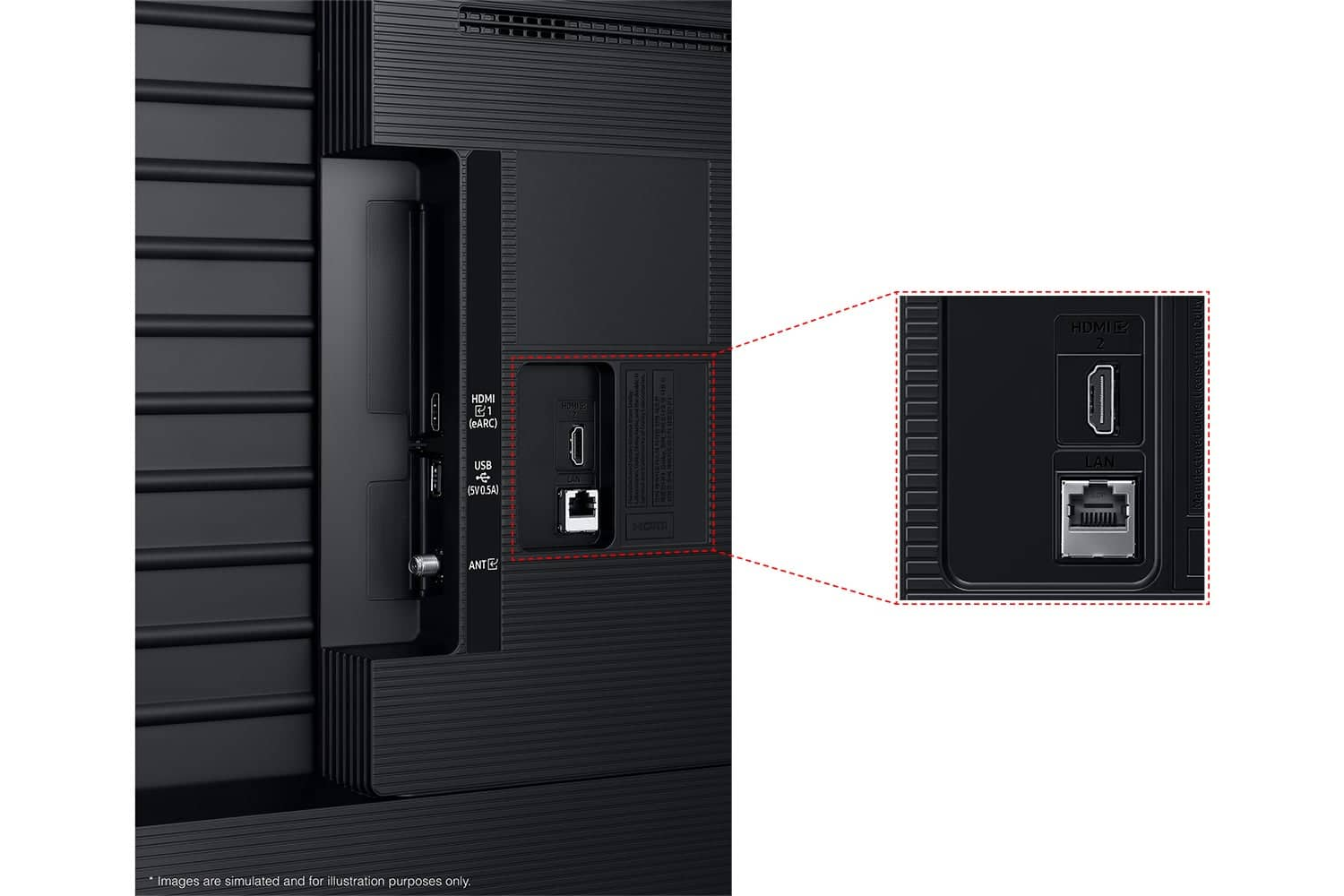
– If your cable box or streaming device is connected to HDMI 1, ensure the TV source is also set to HDMI 1.
– If it’s already set correctly but there’s still no picture, unplug and reconnect the HDMI cable at both ends. If any cable is damaged, it will need to be replaced. Power cycle the device and TV after reconnecting.
4. Try a different HDMI port or cable.
– Connect a different external device to see if the issue is limited to one source.
– If a new device works, you’ve narrowed down the issue.
5. Run HDMI Troubleshooting. Go to: Home > left directional key > Connected Devices > Connection Guide > Video Device > HDMI Troubleshooting (approx. 2 min).
6. Check for firmware updates. If your screen stays on long enough, we recommend checking for updates, which may resolve any HDMI communication bugs: Home > left directional key > Settings > Support > Software Update > Update Now
If the problem persists after these steps, please call us at 1-800-SAMSUNG, 8AM – 12AM EST, 7 days a week. LiveChat agents are also available via the ‘Support’ section on our website.
~ Samsung Advisor
A:AnswerRoughly 30lbs. It’s not heavy but you’re still going to need some help with wall mounting since it’s pretty awkward to carry alone once you get up to the 55”
A:AnswerHi Nick,
If you’re looking for haul-away services for TVs or appliances, please visit your local Best Buy or see the full service details here:
https://www.bestbuy.com/site/recycling/tv-appliances-haul-away/pcmcat174900050009.c?id=pcmcat174900050009
~ Samsung Advisor