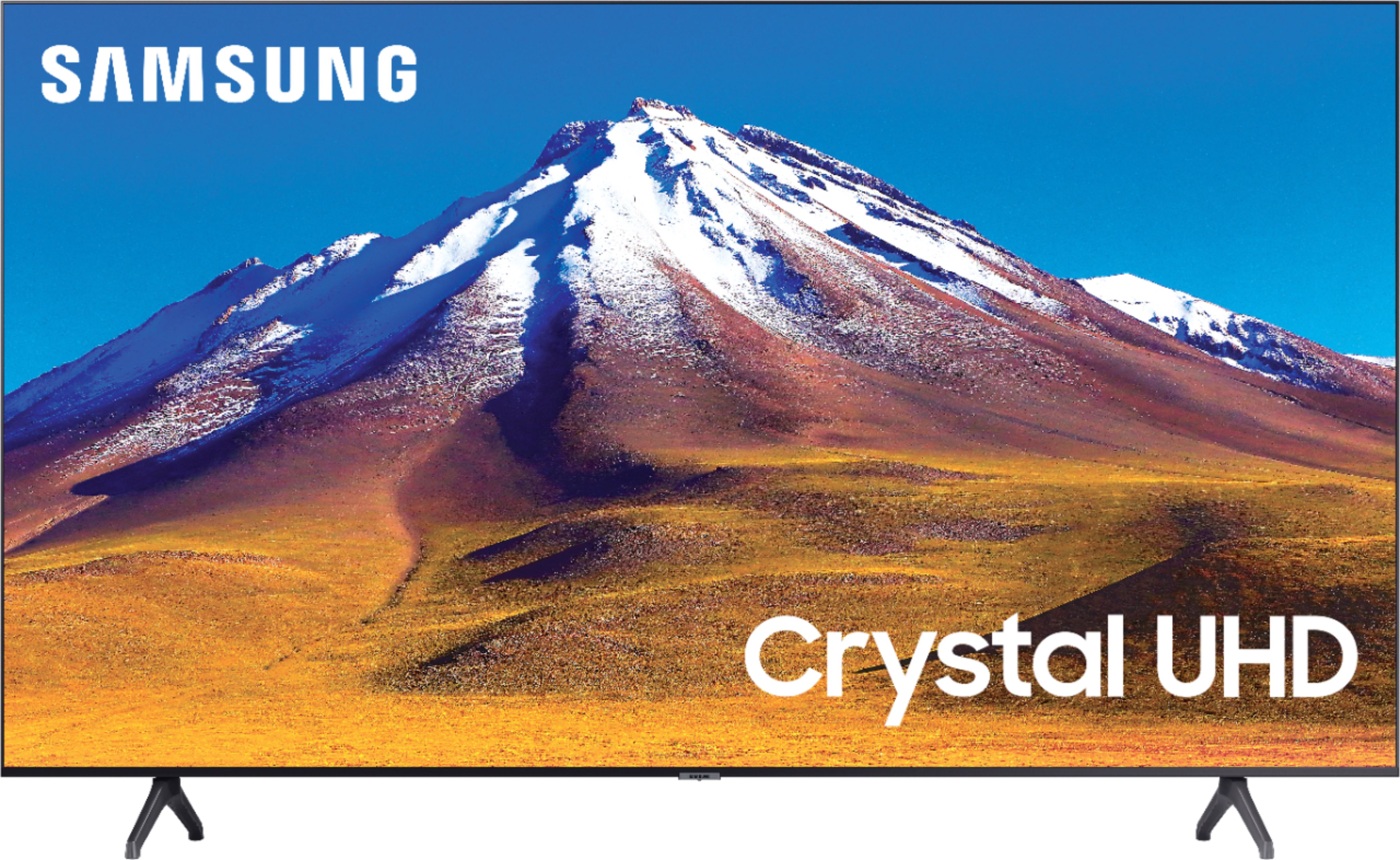
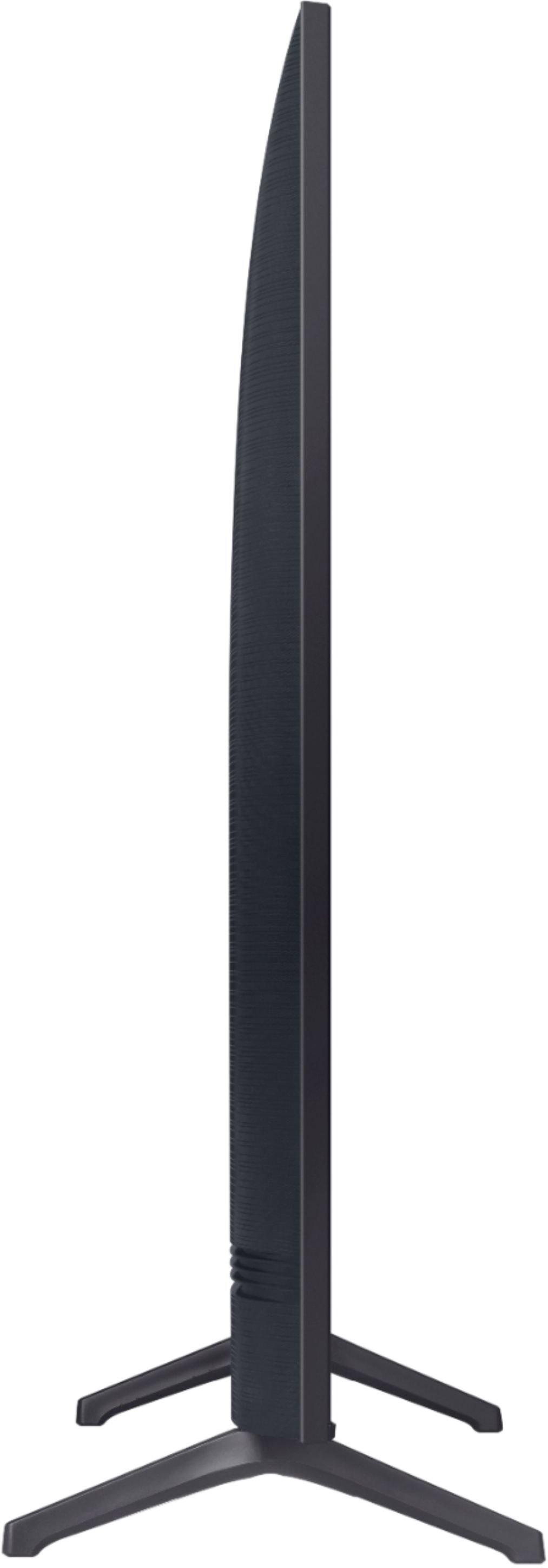
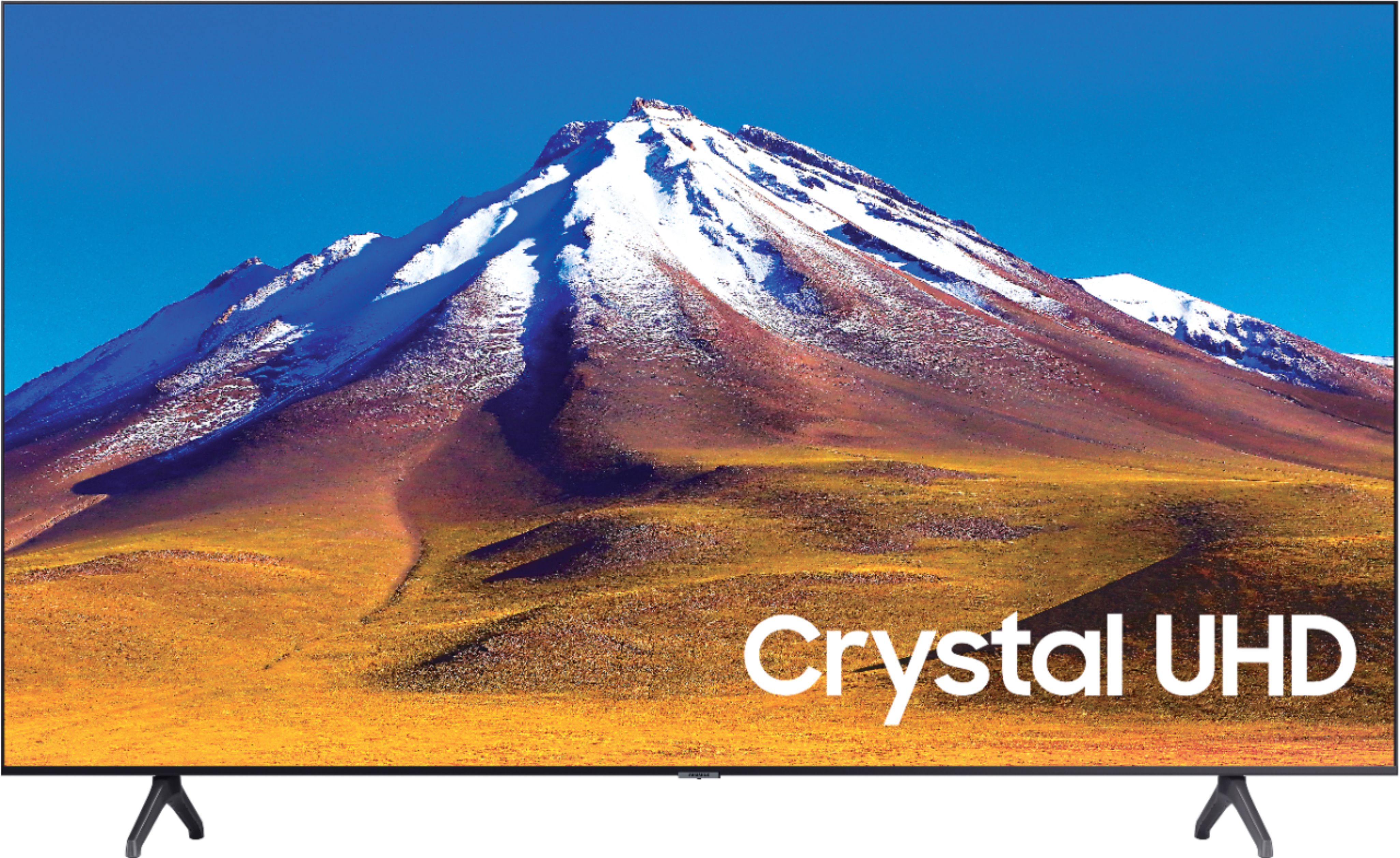
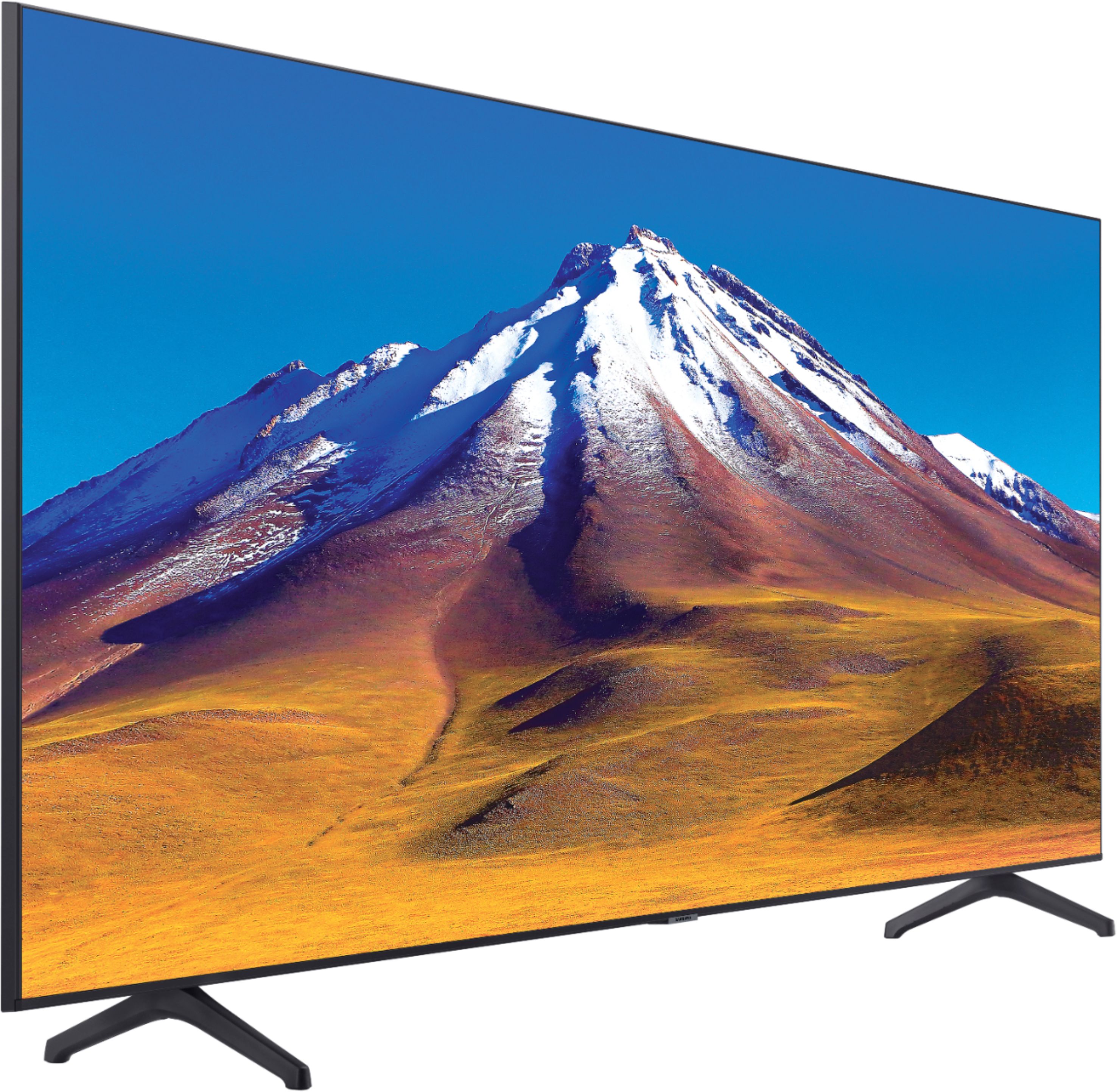
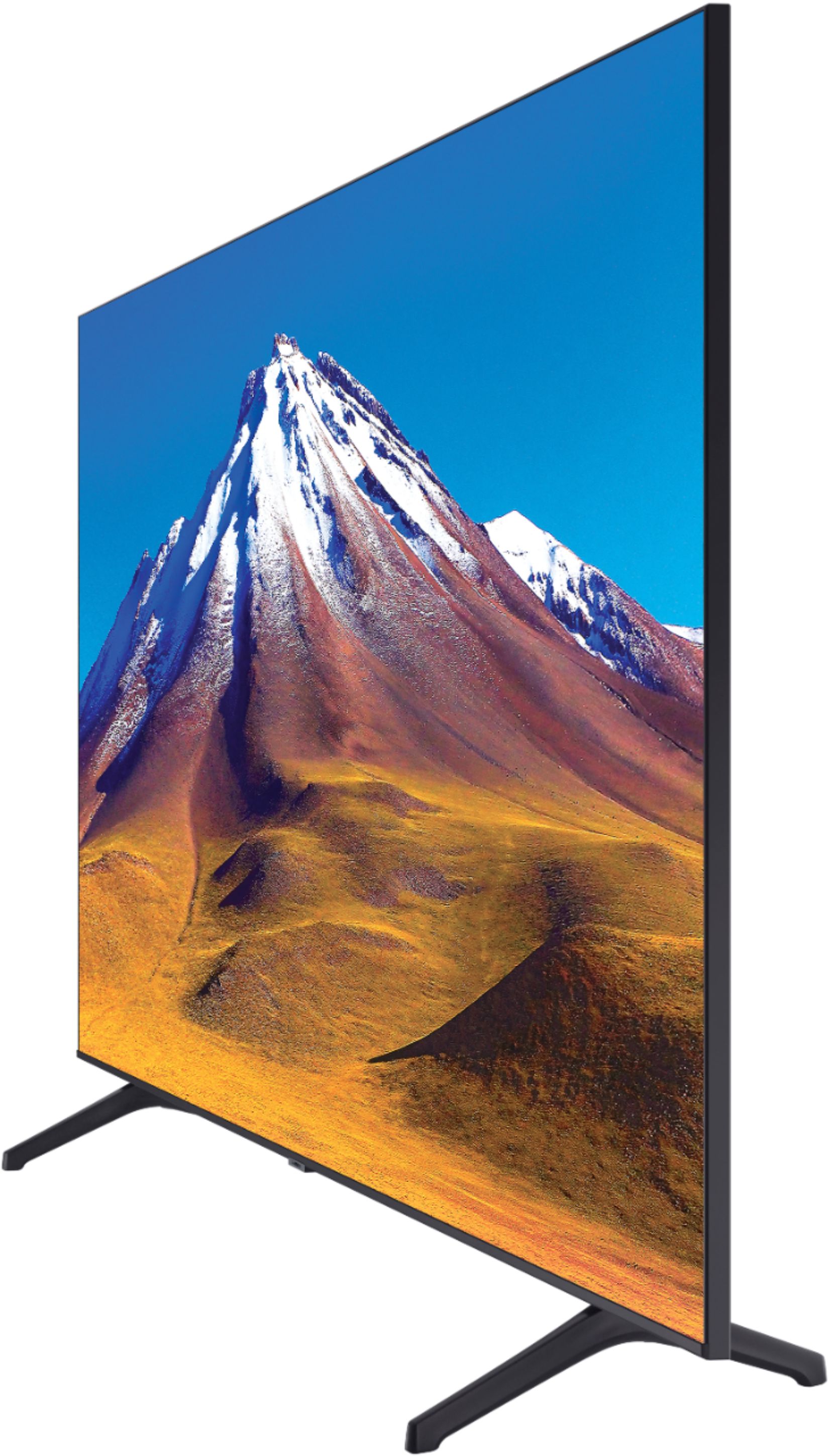
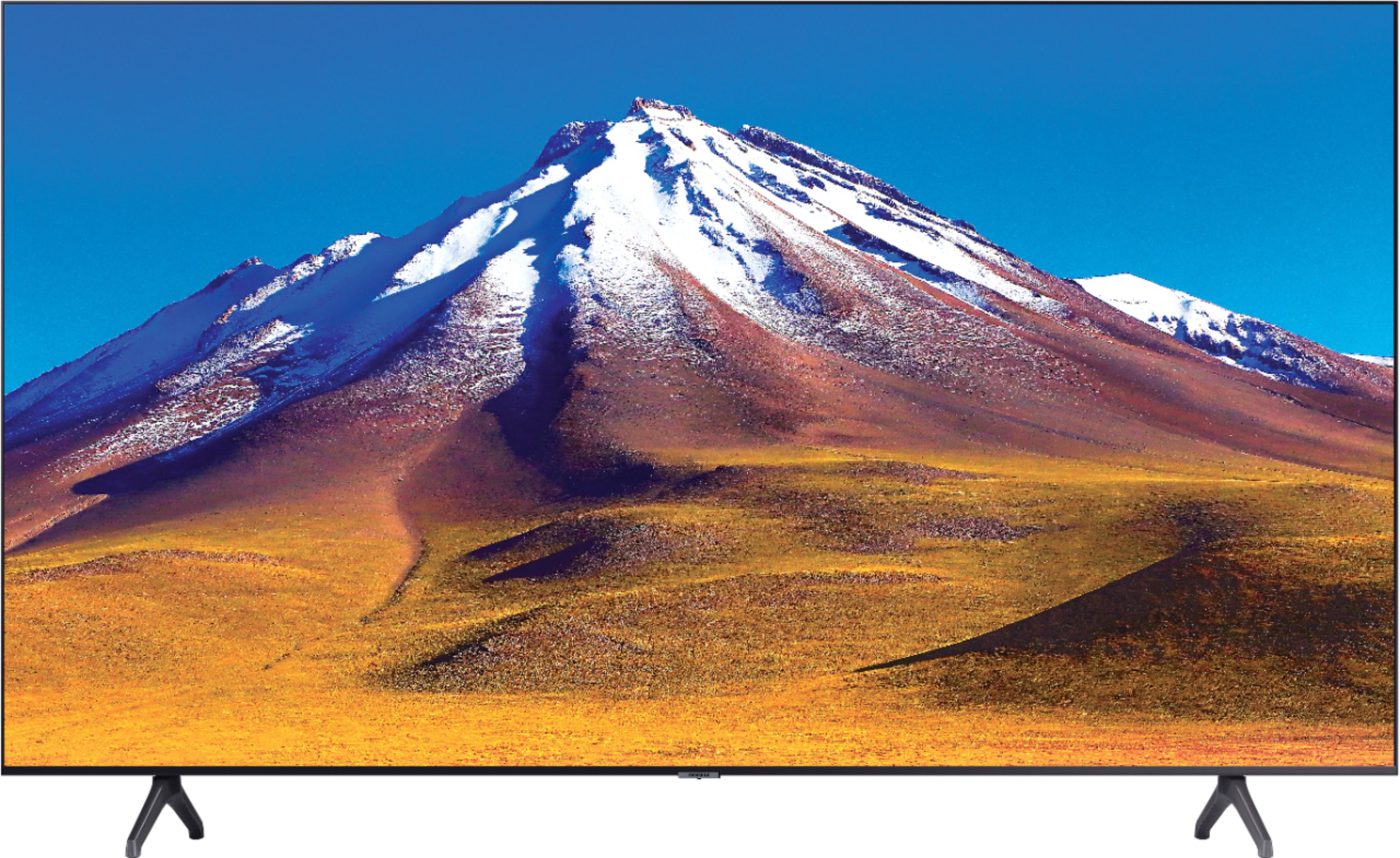
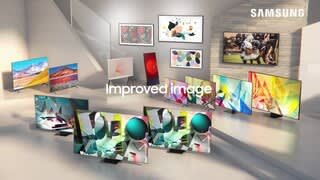
A:AnswerHi, the TU6 series and TU7 series are both 60Hz, 120mr (motion rate) TV's. The primary differences are the TU7000 introduces our Crystal Display which gives you crystal-clear colors that are fine-tuned to deliver a naturally crisp and vivid picture, and our Crystal UHD Processor, which brings stunning clarity to everything you already watch and powerfully upscales 4K to ensure that you always get life-like 4K resolution no matter the source. If you are looking for a 120Hz TV, here's a really good one: https://www.bestbuy.com/site/samsung-65-class-q70t-series-led-4k-uhd-smart-tizen-tv/6402399.p?skuId=6402399. Great question! ^Scott
A:AnswerHi, the 70" TU6980 comes with a 1 year parts and labor warranty through Samsung. This can be stretched to 2 or 5 years with Geek Squad protection. Check it out here: https://www.bestbuy.com/site/geek-squad-protection/tv-home-theater-protection-plans/pcmcat280100050012.c?id=pcmcat280100050012. Enjoy your day! ^Scott
A:AnswerHi David, the TU7000 introduces our Crystal Display which gives you crystal-clear colors that are fine-tuned to deliver a naturally crisp and vivid picture, and our Crystal UHD Processor, which brings stunning clarity to everything you already watch and powerfully upscales 4K to ensure that you always get life-like 4K resolution no matter the source. Great question! ^Scott
A:AnswerHi, the 70" TU6980 uses a 400 x 400mm VESA mount. So any size appropriate mount should work great. Check them out here: https://www.bestbuy.com/site/shop/tv-mounts. Cheers! ^Scott
A:AnswerHi Dani, the 70" TU6980 is compatible with virtually any universal remote on the market today. It could potentially be a cache issue though. Try this: Take your Samsung smart tv remote and press on the Home icon button and select; * Broadcasting *Expert Settings *HbbTV *Delete Browsing Data. A dialog box then opens on your Tv’s screen, and you can delete the cookies on your tv. Good luck Dani! ^Scott
A:AnswerHi Droc, The TU7000 introduces our Crystal Display which gives you crystal-clear colors that are fine-tuned to deliver a naturally crisp and vivid picture, and our Crystal UHD Processor, which brings stunning clarity to everything you already watch and powerfully upscales 4K to ensure that you always get life-like 4K resolution no matter the source. Great question! ^Scott
A:AnswerHello RussT,
Please follow link for instructions on pairing your Alexa speaker to the 70TU6980.
https://www.samsung.com/au/support/tv-audio-video/connect-amazon-alexa-with-smartthings/
^Cristian
A:AnswerHello Dmartinez,
If apps are not working correctly, we recommend first checking for firmware updates on your TV (Home > Settings > Support > Software Update). If your TV is up to date, try a cold boot. There are two ways to cold boot your TV. With the Remote: For most people, the easiest way is to hold down the Power button on the Samsung TV remote until the TV turns off and on again. This should only take about 5 seconds. With the Plug: If you do not have the remote, unplug your TV from the wall outlet or surge protector, leave it unplugged for 30 seconds, and then plug it back in. If the issue persists, please reach out to Samsung TV Support at: ― Phone: 1-800-SAMSUNG / Available 8 AM - 9 PM EST, Mon - Fri ― LiveChat or Email: https://www.samsung.com/us/support/#contact_us_for_support We look forward to hearing from you.
^Cristian
A:AnswerHi Joey! The Fios TV application is currently not available on the TU6980. For content unavailable through the built in app store, you can take advantage of the screen mirroring features from a mobile Android or Apple device to put more of your favorite content on the big screen. ^Tim
A:AnswerHi Consumer101! You cannot disable the screen mirror functionality, however, in order for a device to connect to the TV with a wireless connection, the connection must be accepted on the TV by using the TV remote. This prevents devices from connecting to your TV without your permission. ^Tim