A:AnswerYes, This is a very fast drive. I have 2 T7s, one red, one blue, and use it for full backups of 1 MAC and 1 Windows 10 Pro laptop. Both have a recovery drive so I can boot and do a full recovery.
Did I say fast? If you plug into a Thunderbolt or USB 3.1 port, it is very, very fast. The T7s are faster than my Samsung T5 1TB external USB drive.
I can boot into my MAC backup (using CCC) and run it like it was my main boot drive. Love these T7s from Samsung. I am always watching the price and will buy another one when the price drops.
A:AnswerI am using it for a 2020 MacBook Pro, 1TB is partitioned as a backup drive and 1TB is formatted in exFAT, so I can share files between my Mac machines and my Windows machines. For general computer stuff it works great. I would just say when you initially plug it in to your Mac, delete all the software that comes with the Drive and use your Mac’s built in hard drive software to format and partition, and it should work just fine for you.
A:AnswerThe Samsung T7 External USB 3.2 Gen 2 Portable SSD should be able to handle working with a 140GB virtual machine (VM) stored on it.
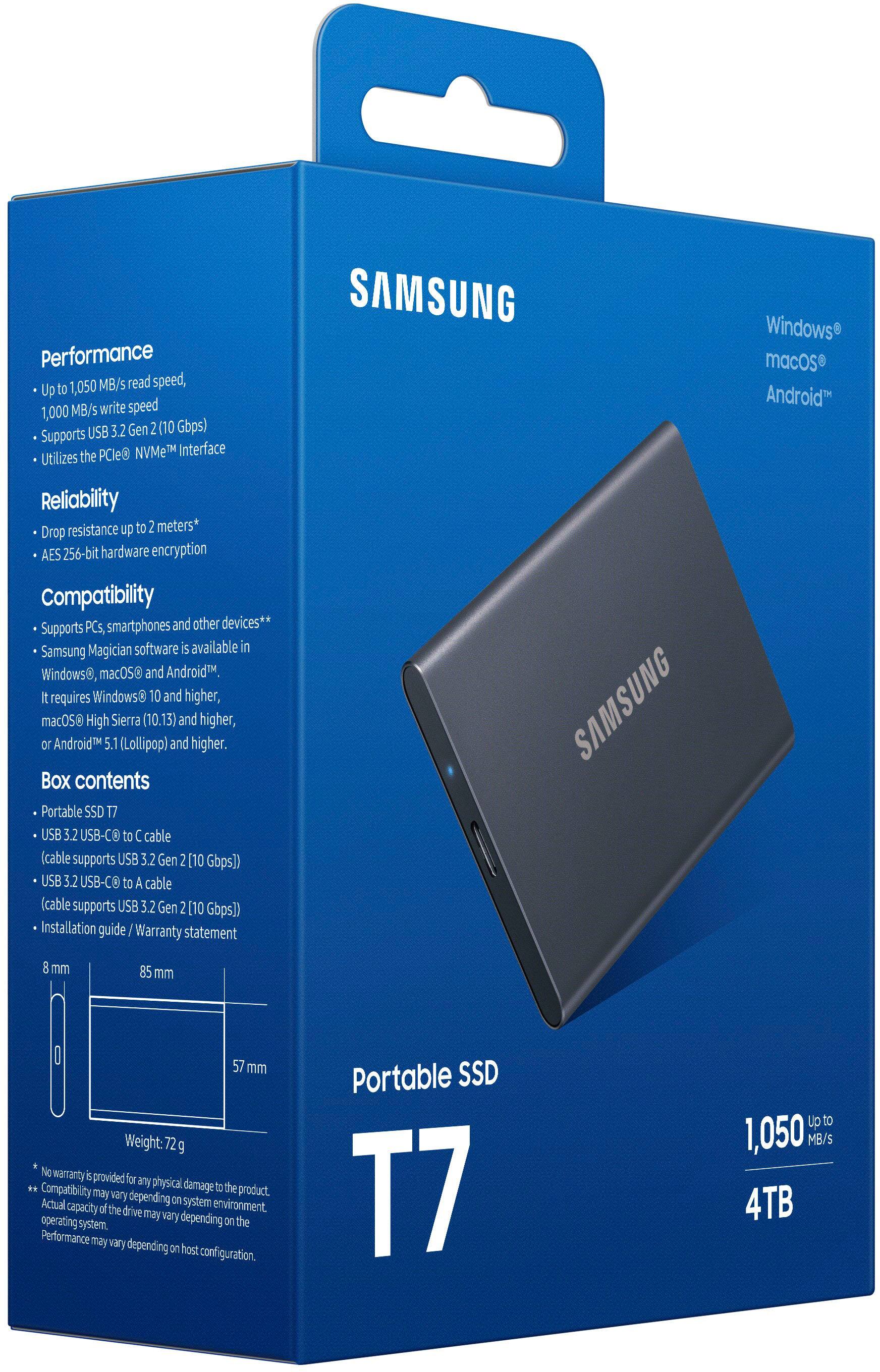
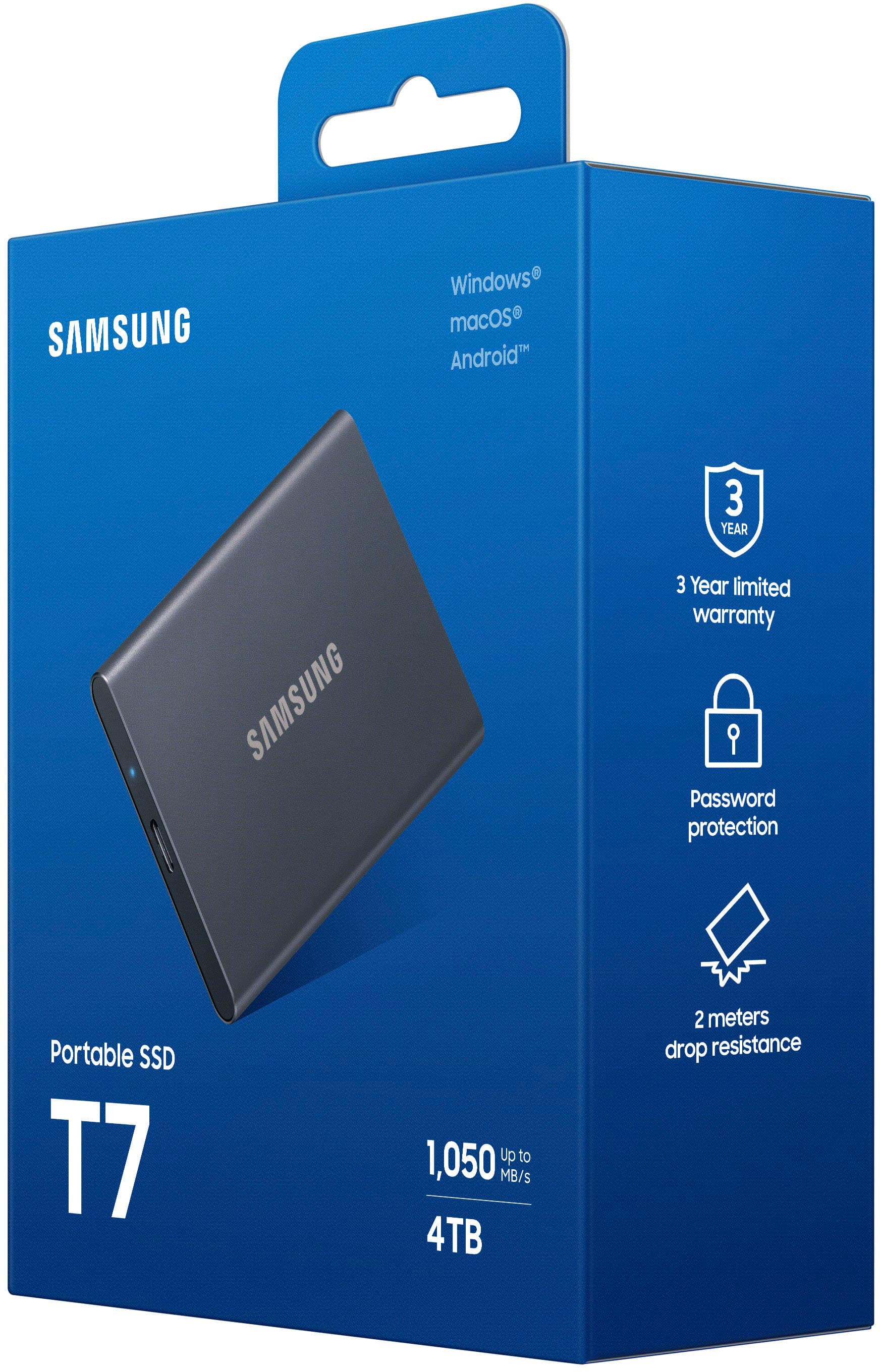
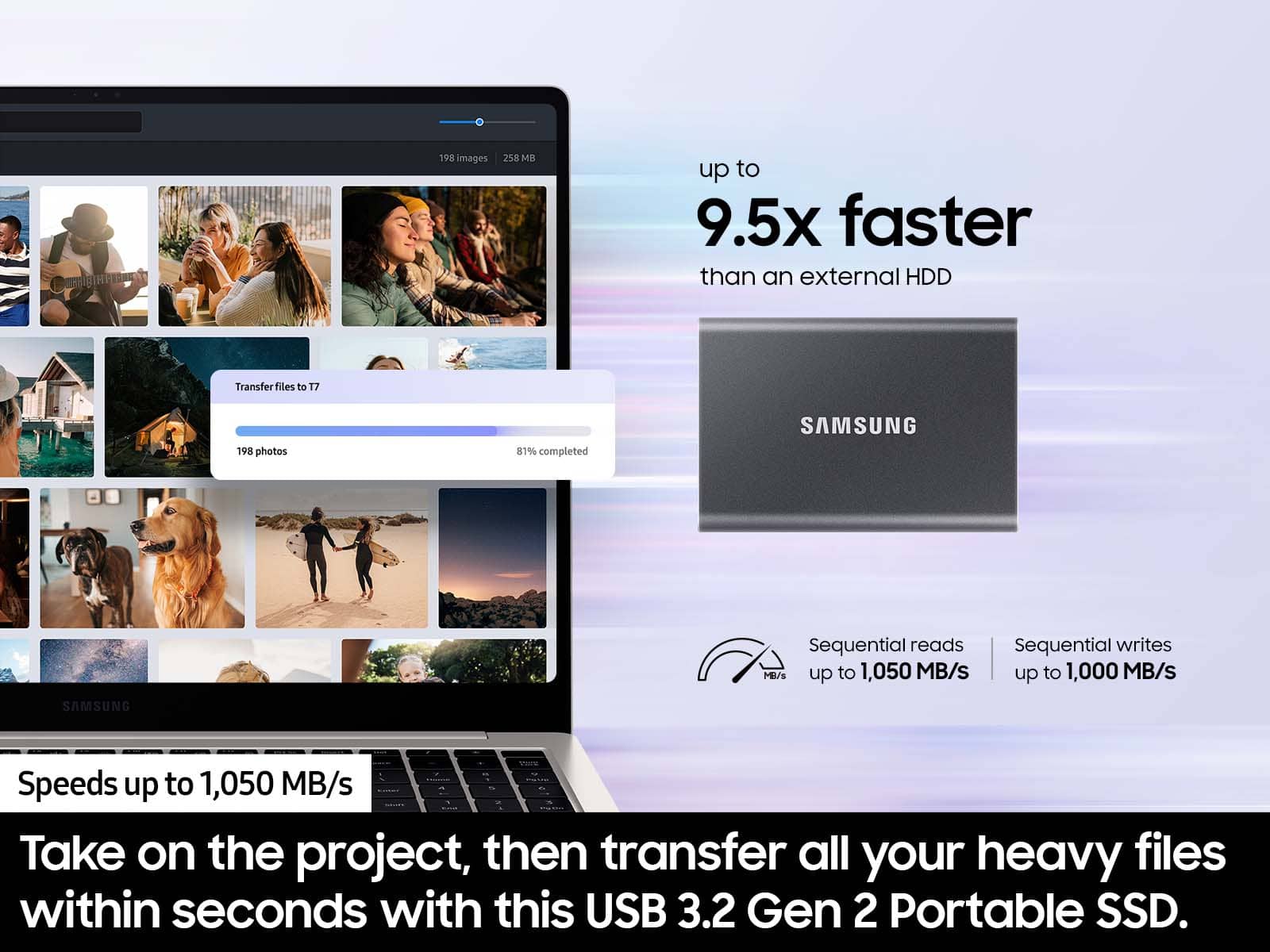
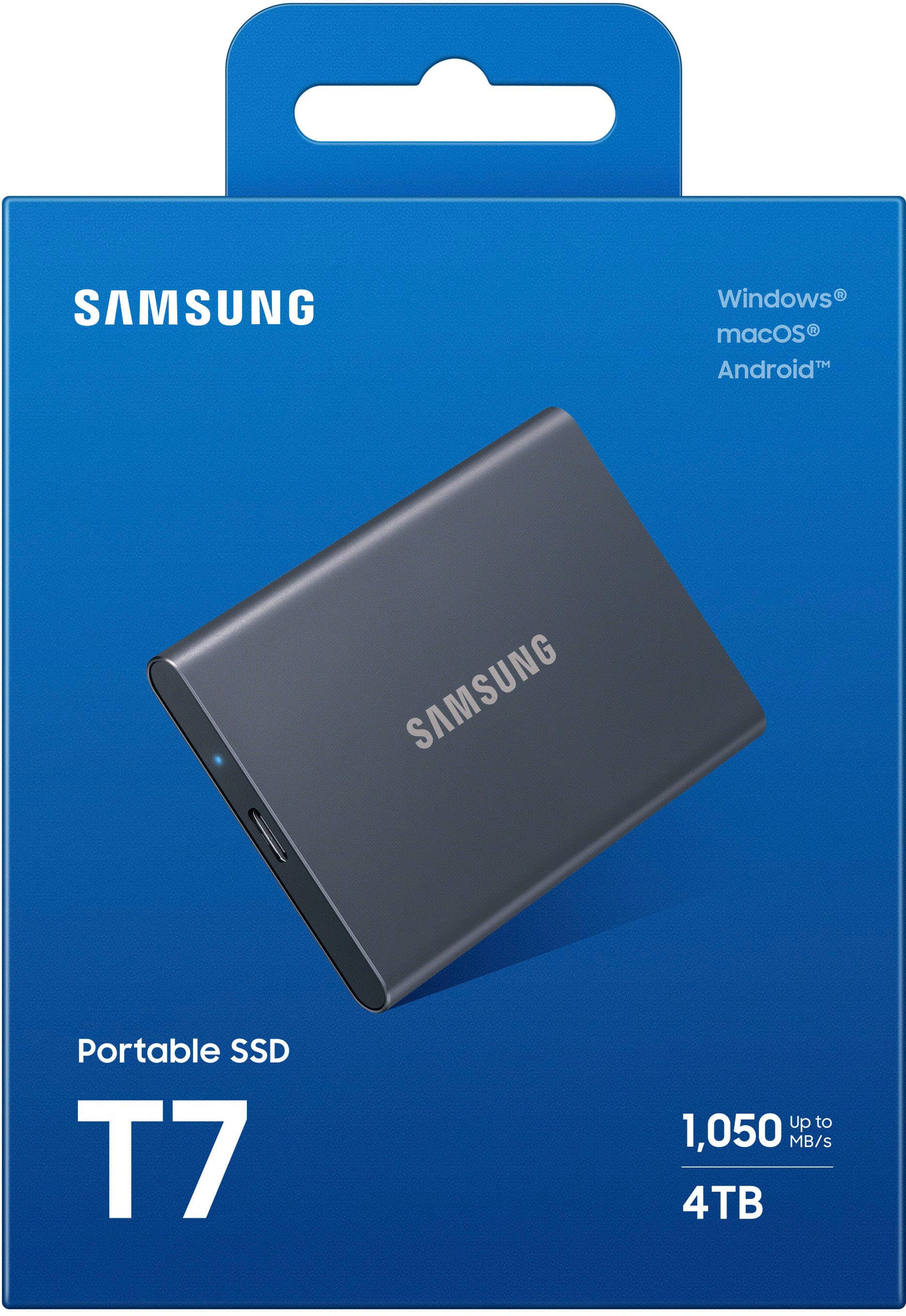
The T7 SSD has a fast read and write speeds of up to 1,050 MB/s and 1,000 MB/s respectively, which makes it an ideal storage device for large files and intensive applications.
However, it's worth noting that the performance of the T7 SSD may be affected by the hardware and software specifications of the device it's connected to. If you're using an older computer or a device with slower processing power, you may experience slower data transfer speeds and longer load times when working with large files like a 140GB virtual machine.
That being said, the T7 SSD is still a reliable and high-performance external storage device, and it should be able to handle most storage needs, including working with large files and virtual machines.
A:AnswerYou can’t do that directly but you can through a computer, I.e. the SSD does not connect directly to the iPhone but to the computer. You connect the iPhone to the computer, the SSD to the computer, and then transfer the files to the SSD just as if you were transferring to the computer’s internal hard drive.
A:AnswerYou may need Apple's Lightning-to-USB cable,
or Lightning-to-USB 3 camera adapter.
For more info on how to connect the drive to ipad read on here-
https://www.imore.com/how-use-external-hard-drives-your-iphone-or-ipad
A:AnswerBob, the ports speeds between 3.0 vs 3.1 is 2X. So speeds will always be dependent on the port and the processor speeds of the device it's plugged into. The max read/write speeds of the Samsung T7 are 1,050/1,000MB/s, respectively. Hope this helps
A:AnswerKt:
This SSD allows you to transfer massive files within seconds with the incredible speed of USB 3.2 Gen 2 on the T7. The embedded PCIe NVMe technology delivers blazing fast sequential read/write speeds of up to 1,050/1,000 MB/s, respectively, making the T7 almost twice as fast as the previous T5 model.
- Samsung Memory
A:AnswerYes it should work, watched a few others that bought it for the same purpose, which I can tell you that was te reason why I bought it. Really ease pug and play.
A:AnswerI have bought the 1tb and 500gb versions of the product. Both came with 2 cables. A Usb-A to Usb-C cable and a Usb-C to Usb-C cable. The length of both cables is approximately 14.5 inches.
A:AnswerCPS:
While the T7 is compatible and will work with routers, its intended use is not as a network drive. The Samsung T7 SSD is a portable USB 3.2 external SSD, and while it’s not designed to be a network drive by default, you can use it as a network-accessible drive if your router supports USB storage sharing.
- Samsung Memory
A:AnswerYes, just plug it in, click on your storage settings in steam, click add storage device and then click the device once its plugged in after downloading samsung magician. That can be downloaded with an easy google search.
A:AnswerDavid:
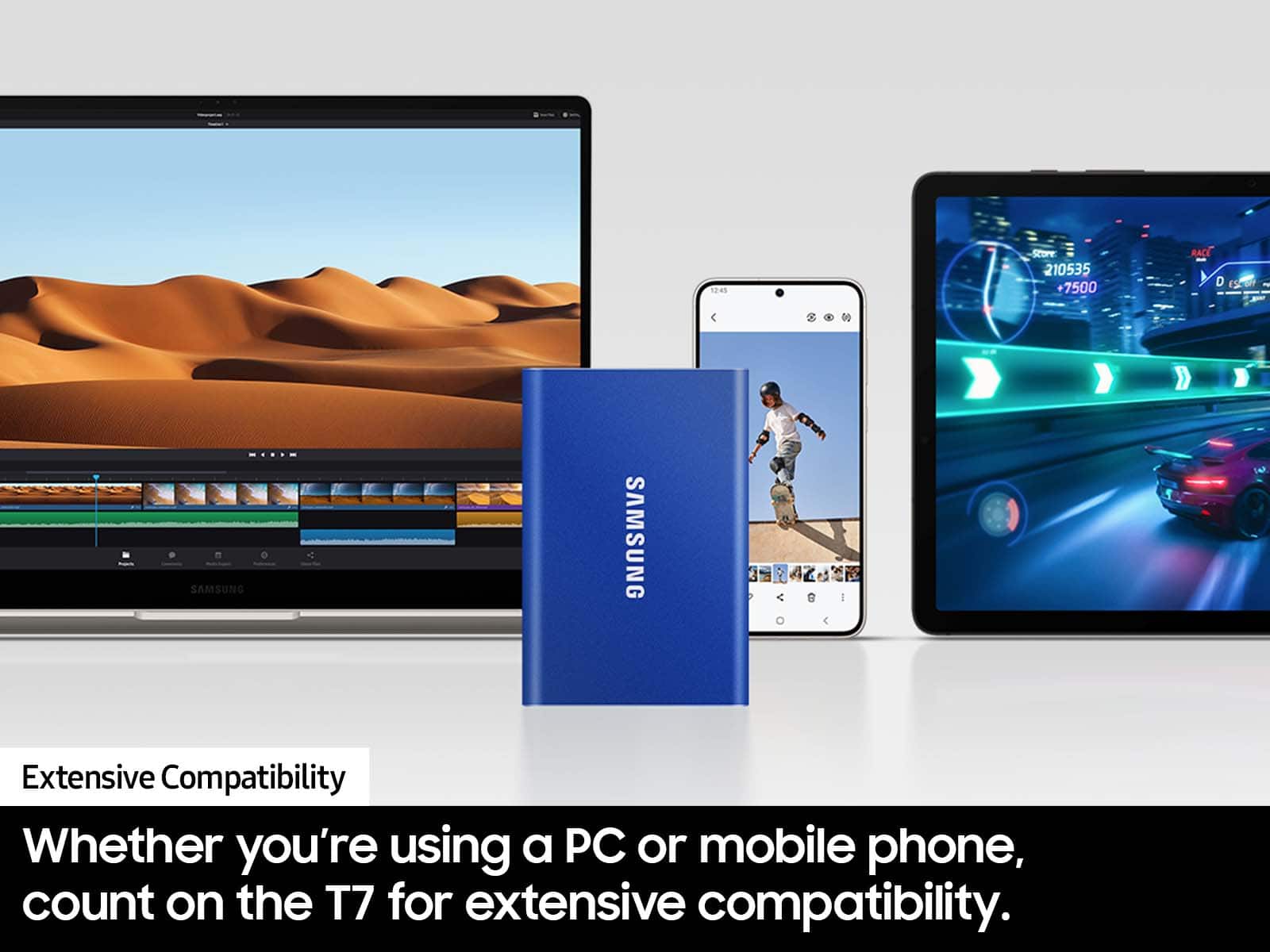
Yes. The T7 is pre-formatted in using exFAT file system which is supported by Windows OS, MAC OS, and Android operating systems. You will be able to store your images from your MacBook.
- Samsung Memory
". The box is open, revealing the product inside.](https://pisces.bbystatic.com/image2/BestBuy_US/images/products/6576/6576883cv18d.jpg)