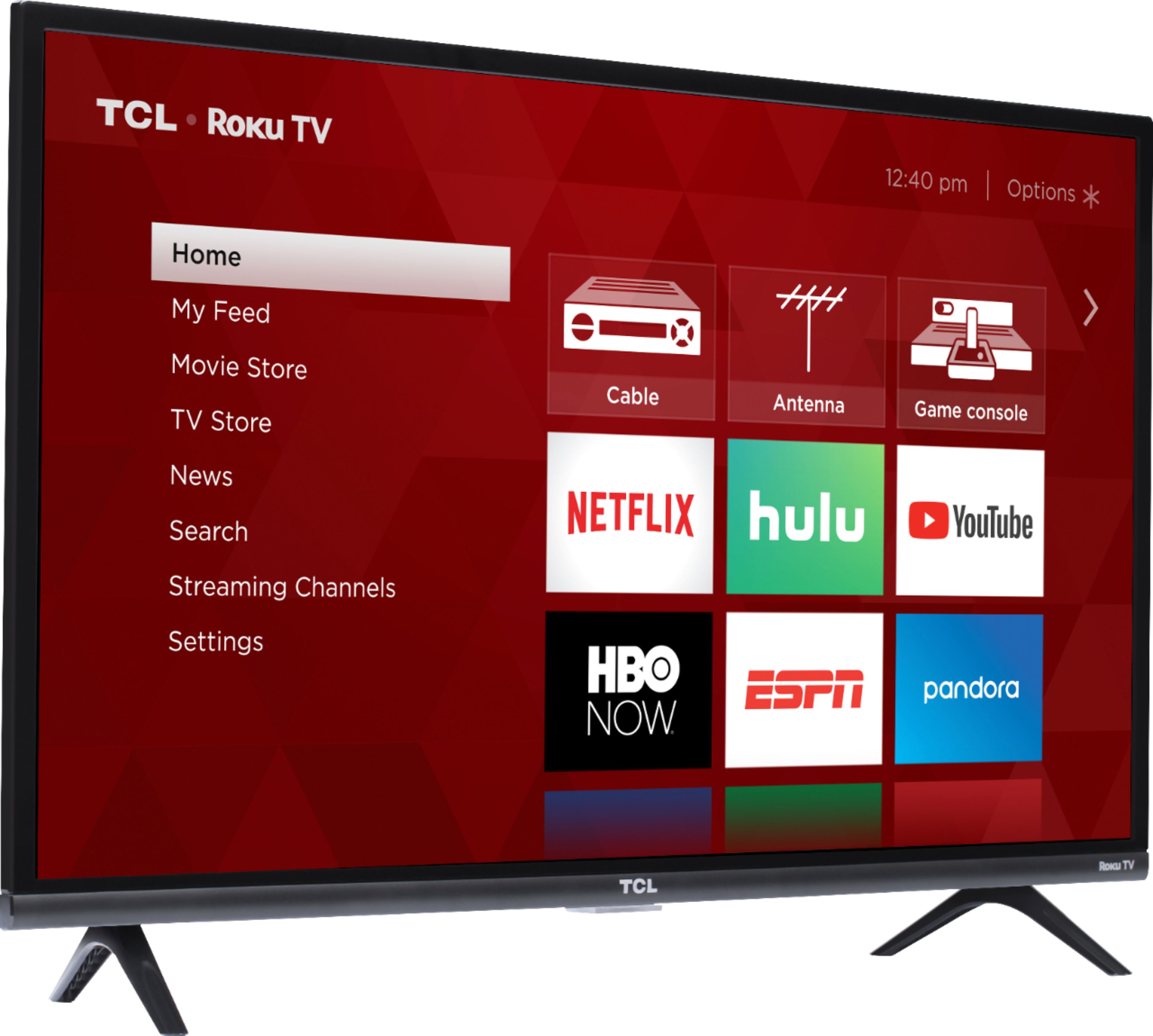
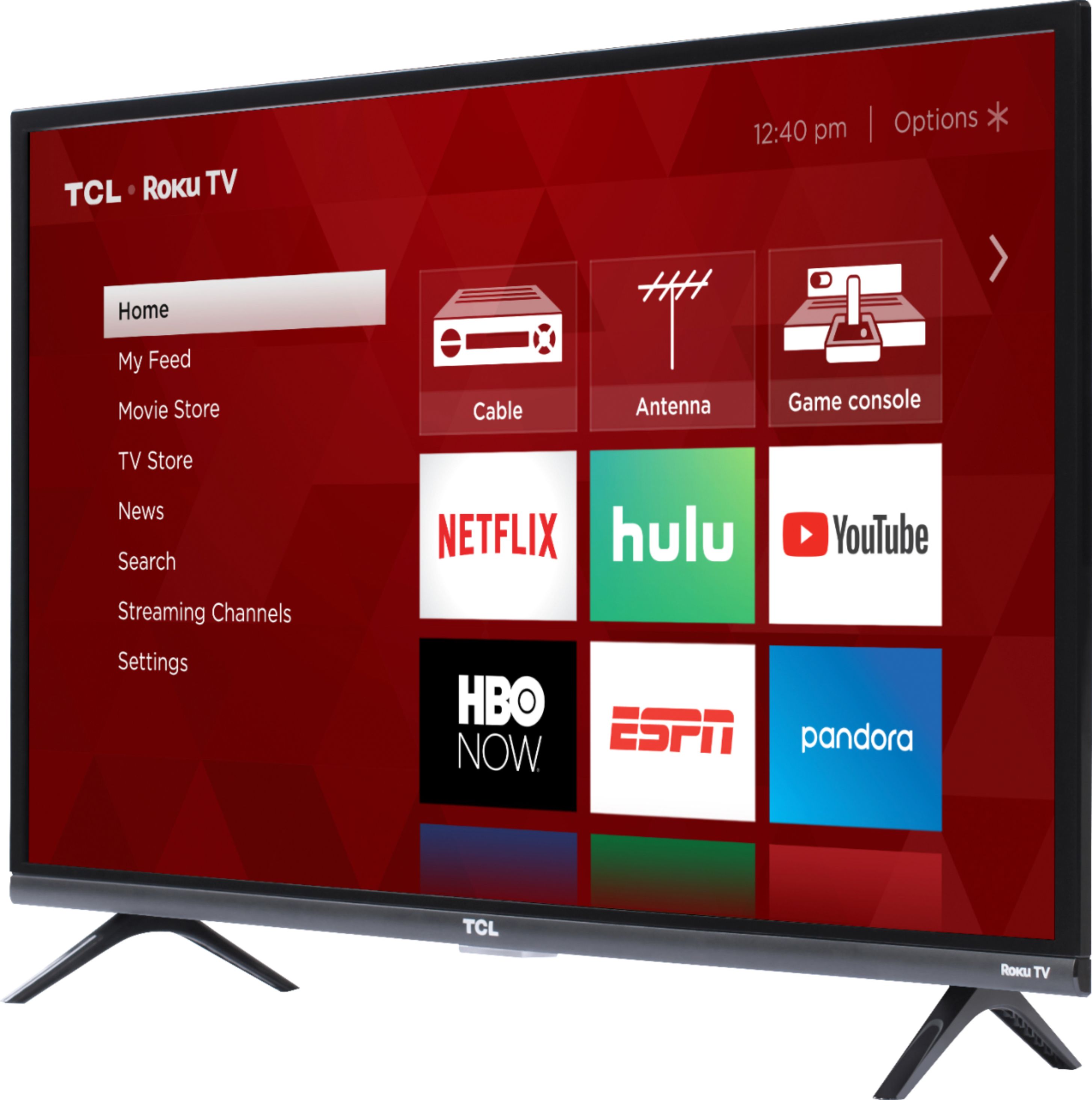
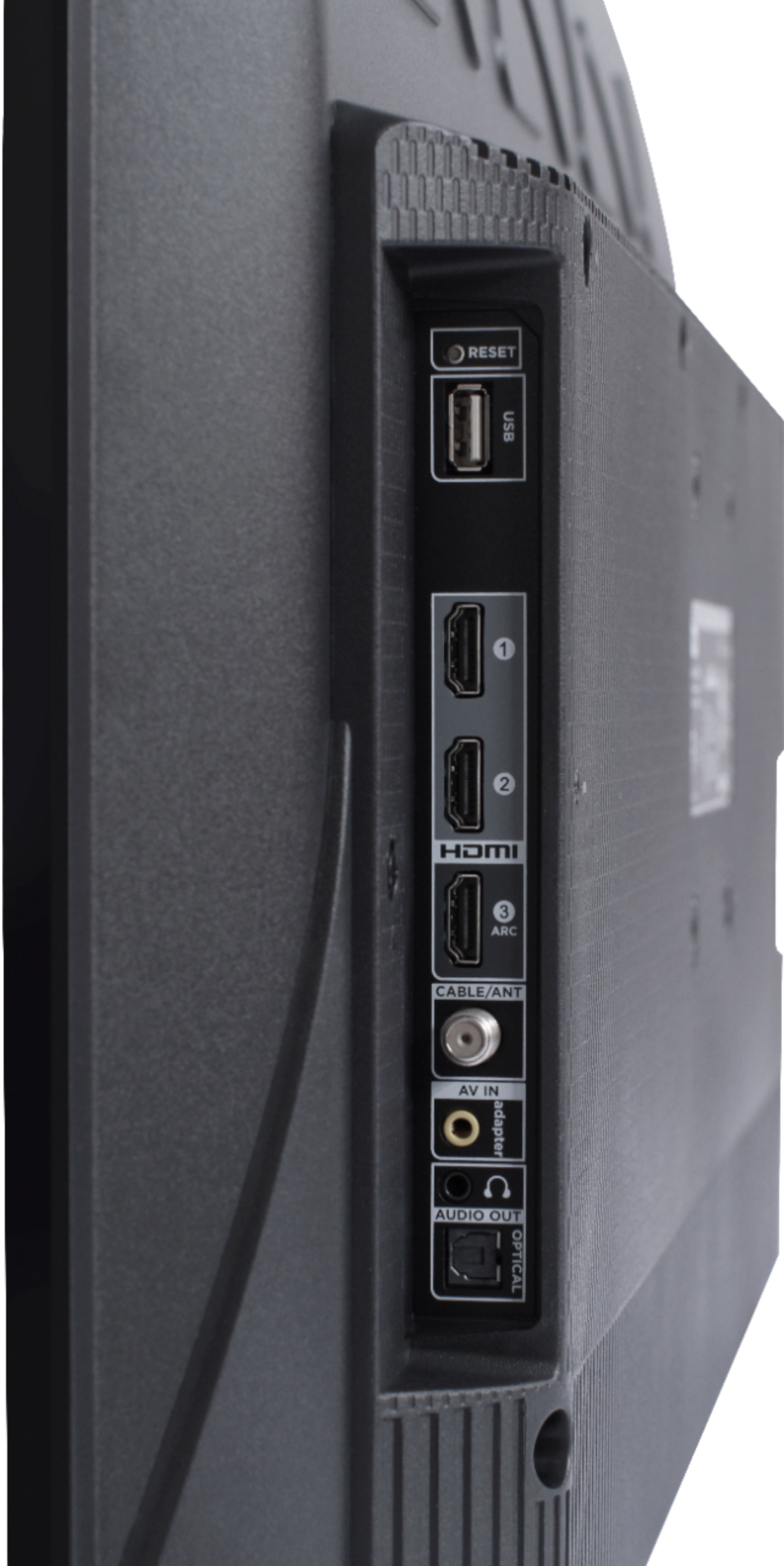
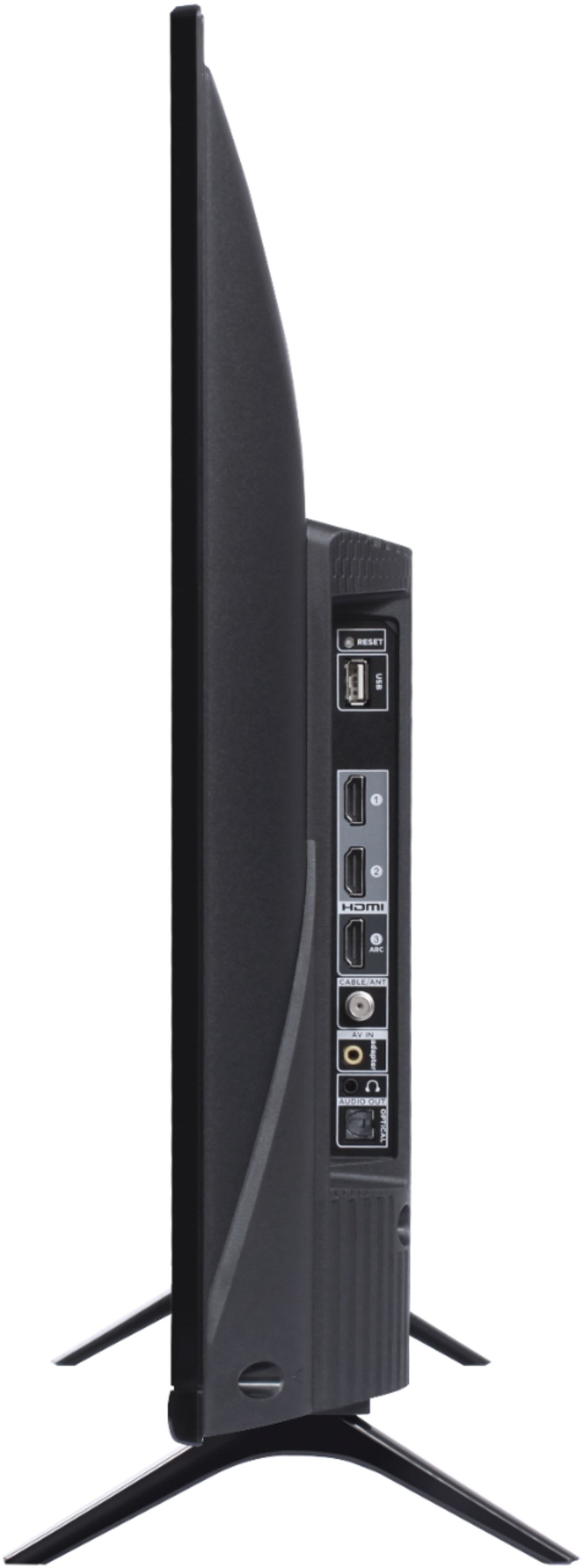
A:AnswerAbsolutely! This TCL Roku TV has 3 HDMI ports that can be used to connect external devices, such as a PS4. Hope this helps! Thank you, TCL Customer Support
A:AnswerI've never had a problem with good old rubbing alcohol on any LCD screen I've owned in the last 20 years but there is a first time for everything. It works better than any overpriced pack of tiny pads that cost way too much. You can get a half-liter of rubbing alcohol for $1-2. I've also used Windex, not store brand and only original, no scented stuff. There is also glass cleaners that are free of any harsh chemicals that might cause streaks, usually found in the auto section.
Always test on the edge/corner of the screen with a q-tip. Typically the image is not displayed all the way to the edge so there is a bit of space.
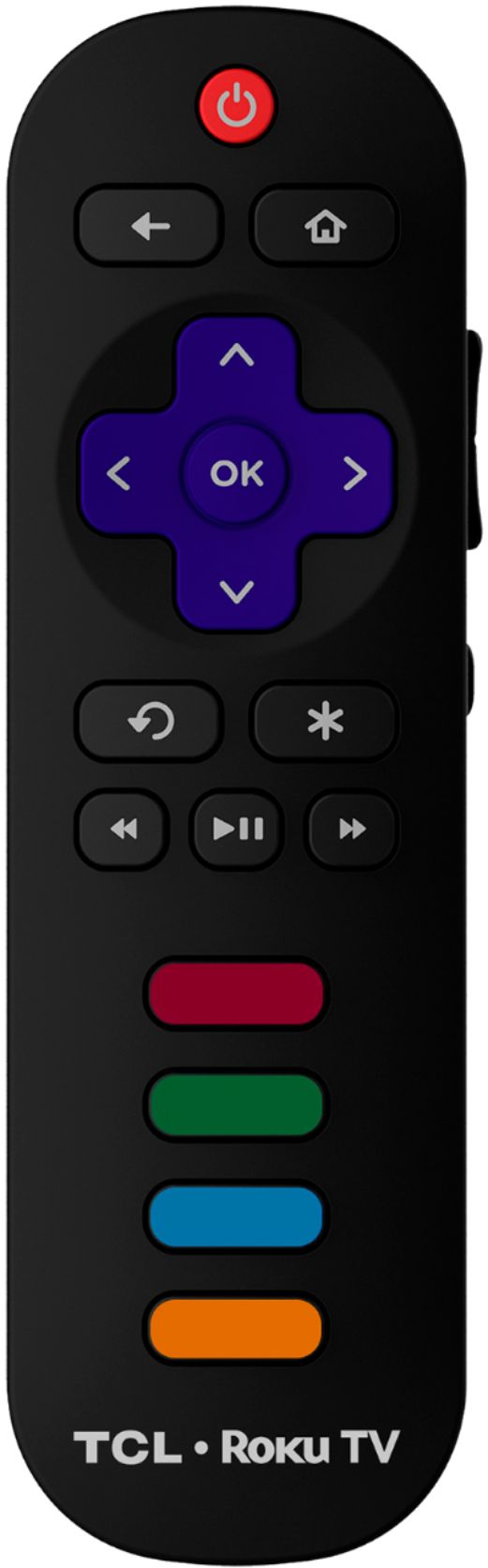
A:AnswerThere is not a physical button for it, but there is an option for it. Simply press the asterisk (*) button on your TCL Roku TV remote while watching content, highlight the sleep time option, and choose how long you want to set it for (30minutes-3hours). Thank you, TCL Customer Support
A:AnswerCurrently, our TVs do not support Bluetooth. If you are trying to connect a sound bar or speakers you can use the Optical port, or the HDMI ARC port. For Headphones, there is a Headphone jack on the back of the TV, or you can download the Free Roku app for private listening. Hope this helps! Thank you, TCL Customer Support
A:AnswerCurrently, our TVs do not support Bluetooth. Screen mirroring with a Roku device is not supported with iOS® or Apple devices. However, you can download the free Roku mobile app on your smartphone to use as a remote, cast personal photos and videos to the TV, experience private listening, etc. You can also cast select channels (Such as YouTube) from your Apple device. You can visit https://support.roku.com/article/208754928-how-to-use-screen-mirroring-with-your-android-or-windows-device for more information. Thank you, TCL Customer Support
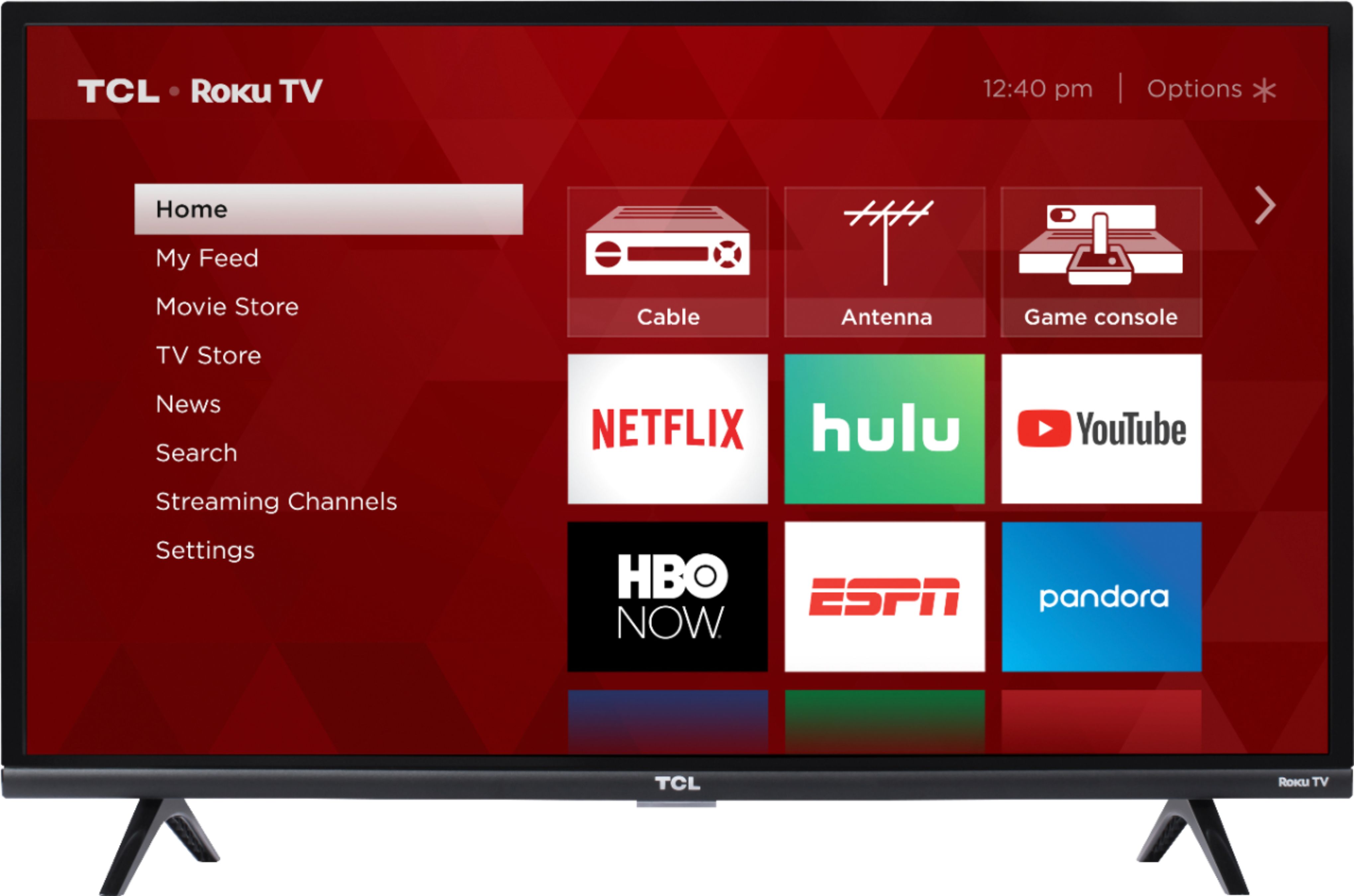
A:AnswerThis TCL Roku TV has a coaxial located on the back of the TV near the other inputs. By connecting an antenna you can receive over-the-air channels. However, the reception depends on the signal strength. Additionally, the HGTV streaming channel is available through Roku. You can go to www.Roku.com/whats-on to see what other streaming channels and apps are offered through the Roku Channel Store. To search for a specific channel you would simply want to enter that information into the search section. Hope this helps! Thank you, TCL Customer Support
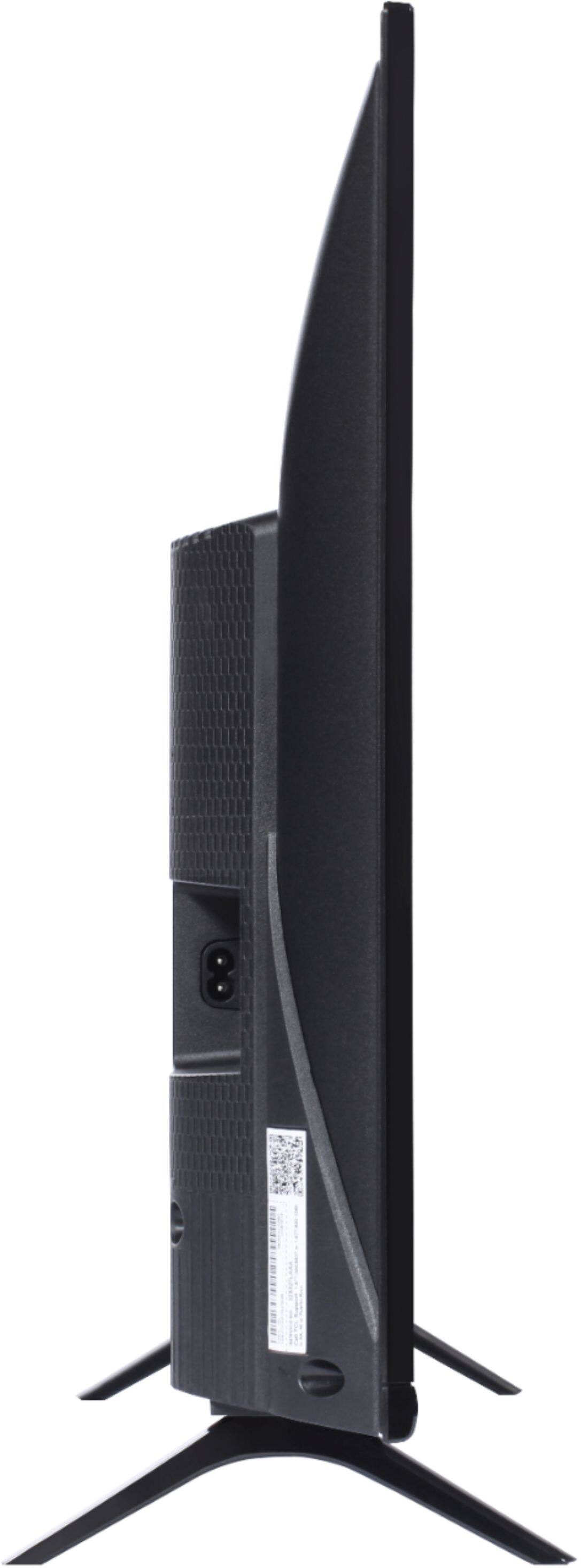
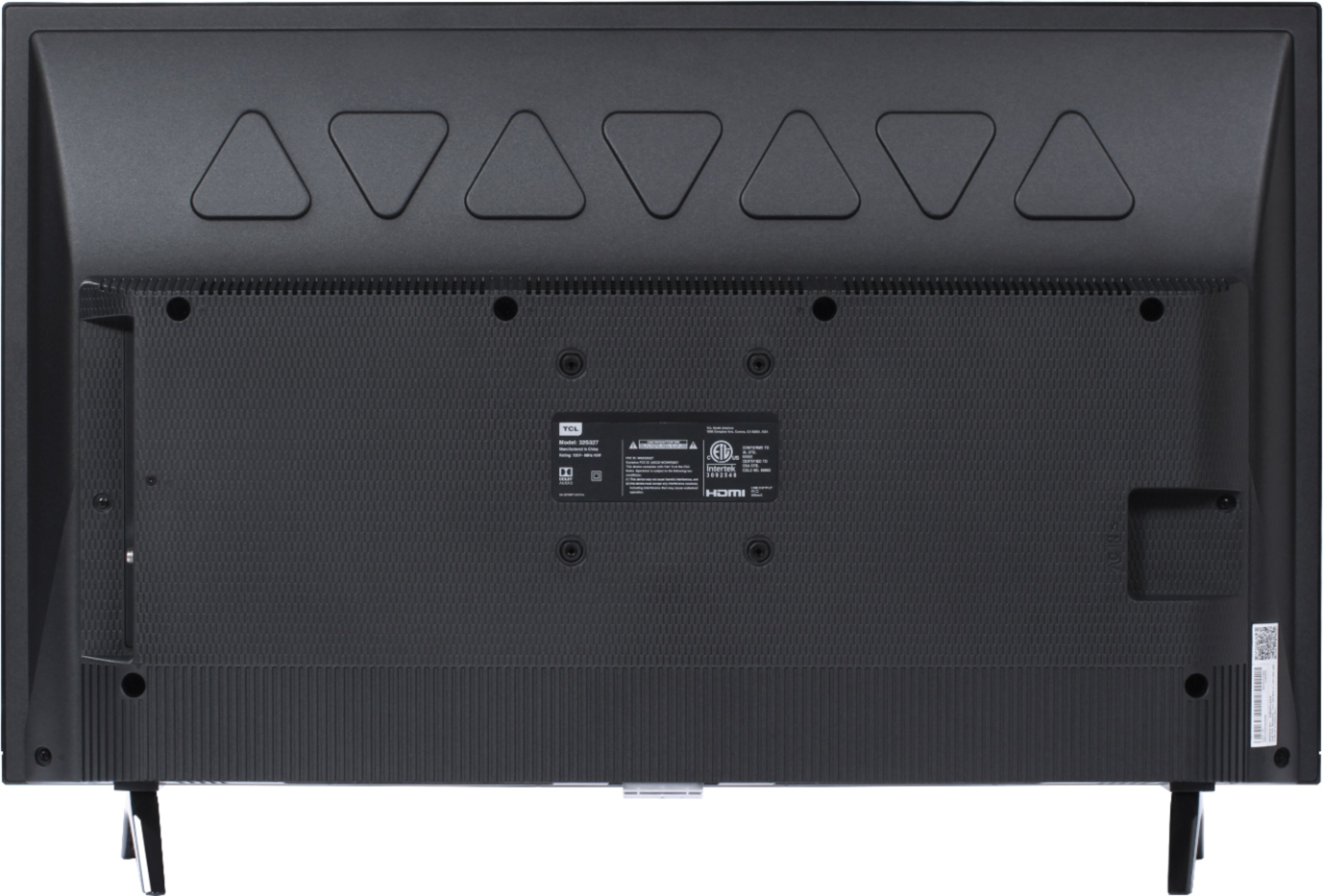
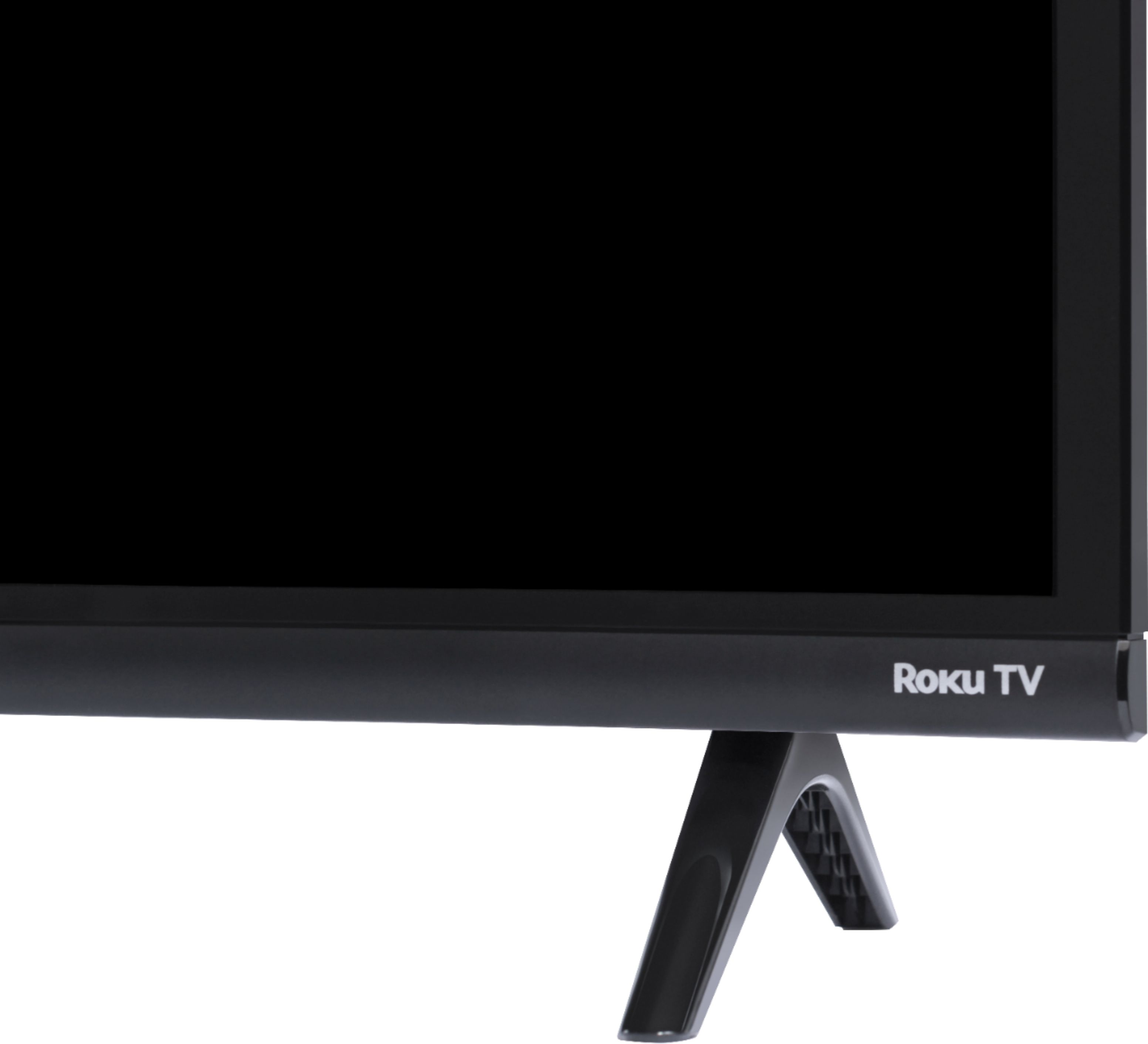
A:AnswerThis TCL Roku TV comes with two feet with screws to secure them, a power cord, a TCL Roku remote with batteries, and a quick start guide. Hope this helps! Thank you, TCL Customer Support
A:AnswerThis TCL Roku TV is designed for in-home usage, and is not weatherproof. It is not recommended for outdoor usage. Hope this helps! Thank you, TCL Customer Support
A:AnswerOur TCL Roku TVs are designed to have a quick and easy setup. When you first power on your TV you will go through a guided setup process. If you need further assistance, we are simple a phone call or email away. Hope this helps! Thank you, TCL Customer Support
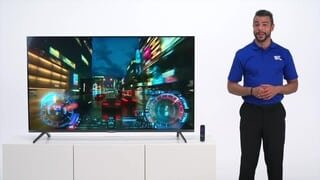
A:AnswerAbsolutely! Once your USB is connected either launch it or go to the Roku Media Player app. Go to Video and select the USB. You need to put all videos you want to loop into one folder, then highlight the folder, then hit the “circle back” button (to the left of the asterisk “*” button). It will then loop all the videos in the folder(but you can’t mix pictures/videos together). Hope this helps! Thank you, TCL Customer Support