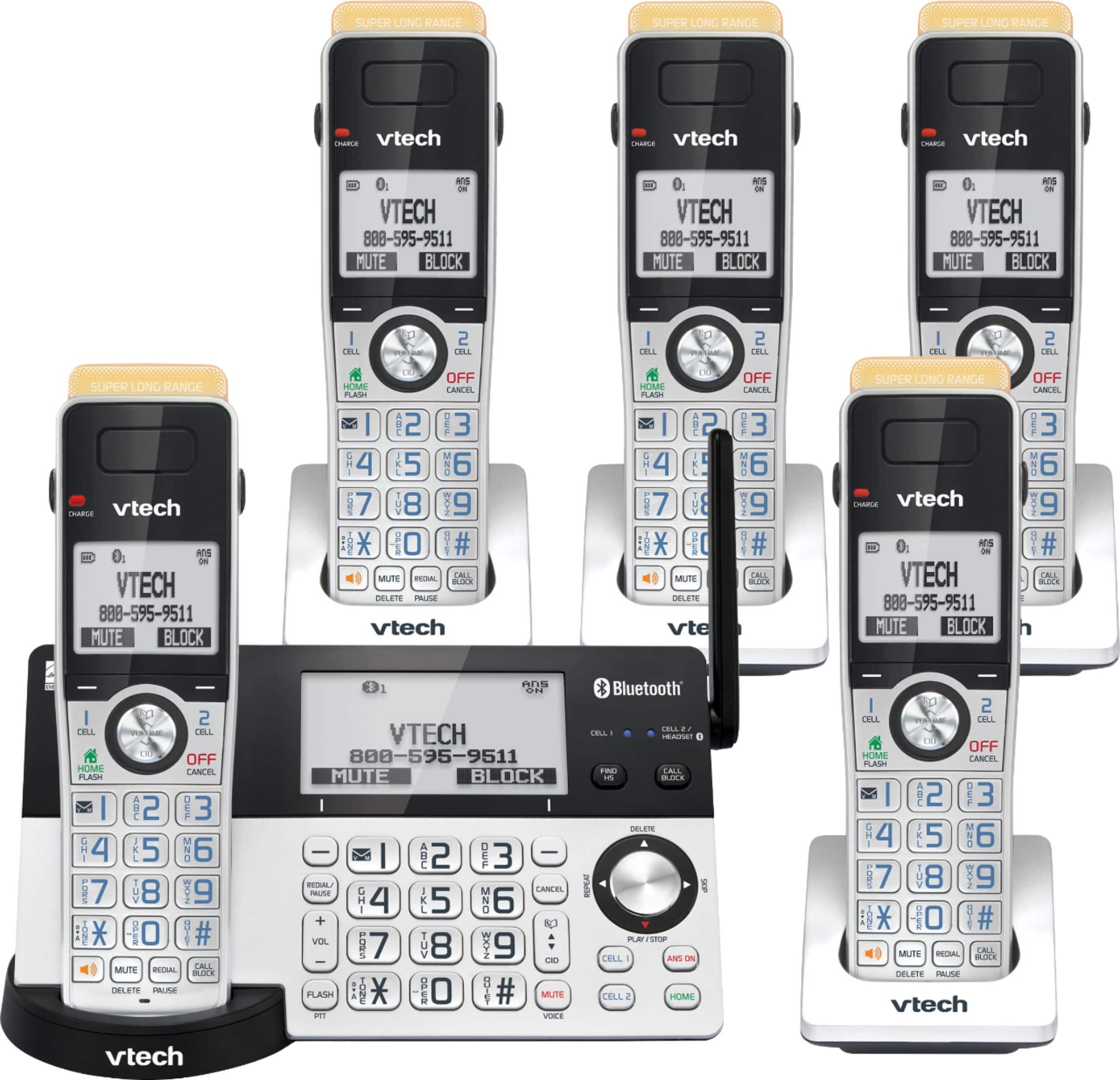
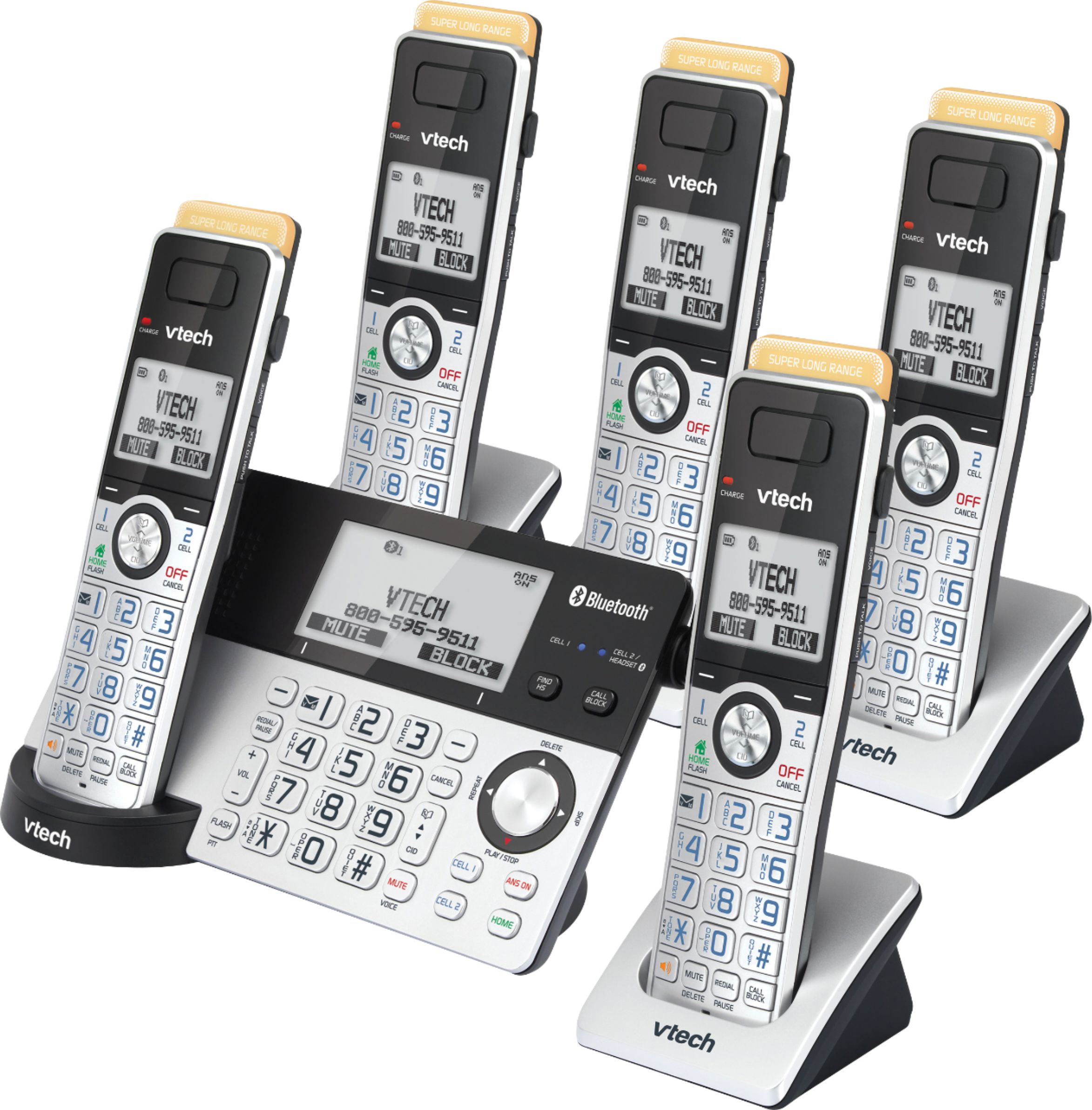
A:AnswerHi - Here's the procedure on how to change the number of rings of the built-in Answering System of the VTech IS8151-5.
Using the telephone base:
1. When the telephone base is not in use, press MENU to enter the main menu.
2. Press SELECT softkey to select Answering sys.
3. Press ▼ to scroll to Ans sys setup, then press SELECT softkey.
4. Press ▼ to scroll to # of rings, then press SELECT softkey.
5. Press ▼ or ▲ to choose among 2, 3, 4, 5, 6 or Toll saver.
6. Press SELECT softkey to save the setting. You hear a confirmation tone.
Hope this helps. Thank you! - VTech Support
A:AnswerKaiai - To change the time from a.m to p.m, you can press the ▼ CID or ▲ on the handset or telephone base or press the number 2 button for AM or 7 for PM. Here's the procedure on how to set the time and date on the VTech IS8151-5.
1. Press MENU when the phone to enter the main menu.
2. Press ▼ CID on the handset or telephone base to scroll to Set date/time and then press SELECT.
3. Press ▼ CID or ▲ on the handset or telephone base to select the month, then press NEXT, or enter the number using the dialing keys.
4. Press ▼ CID or ▲ on the handset or telephone base to select the day, then press NEXT, or enter the number using the dialing keys.
5. Press ▼ CID or ▲ on the handset or telephone base to select the year, or enter the number using the dialing keys, then press NEXT to move on to set the time.
6. Press ▼ CID or ▲ on the handset or telephone base to select the hour, then press SAVE, or enter the number using the dialing keys.
7. Press ▼ CID or ▲ on the handset or telephone base to select the minute, then press SAVE, or enter the number using the dialing keys.
8. Press ▼ CID or ▲ on the handset or telephone base to highlight AM or PM, or press 2 for AM or 7 for PM. Press SAVE to confirm. There is a confirmation tone and the screen returns to the previous menu.
Hope this helps. Thank you! - VTech Support
A:AnswerThis is grom the VTech website:
Connect to Cell™2
Make and receive calls from your cellular plan while enjoying the comforts of a home phone. Pair up to 4 cell phones and connect 2 cell phones or one cell phone and one BLUETOOTH headset for use with landline calls.
A:AnswerYes, but it does not let you name the handset so you know what room it is in. The last one we had allowed you to name the handset with say 'office' or kitchen' so there was no doubt where you were calling. This phone just has numbers for the handset.
A:AnswerYou will need to look at the power adapter. If the adapter has 100 - 120 it can be used in the US. Most other countries use 200 -240v, which require a stepdown transformer towork. I have seen a couple of reviews from Canada. You may be able to get this same item from the manufacturer for uses in other countries.
A:AnswerThis is just an awful step backwards from the previous VTech CS6529-26 which had a dedicated INT button to quickly initiate an intercom with another handset. Now it's a confusing multi-step process. Terrible ergonomics decision made by the manufacturer here for the newer model.
A:AnswerHi - Yes, the caller ID announce of the VTech IS8151-2 can be turned off. Here's how you can turn off the Caller ID announce.
1. Press MENU when the telephone is not in use.
2. Press ▼ CID or ▲ on the handset or telephone base to scroll to Caller ID annc, then press SELECT.
3. Press ▼ CID or ▲ on the handset or telephone base to highlight On or Off, then press SELECT. There is a confirmation tone.
Hope this helps! - VTech Support
A:AnswerHi - The VTech IS8151-5 is capable of displaying the Caller ID information as long as you are subscribed to the service from your telephone service provider. The service that enables the number to display while you are on a call is Caller ID waiting, which is a separate subscription. Please reach out to your telephone service provider to make sure that you are also subscribe to the Caller ID service.
Thank you,
-VTech Support
A:AnswerWilliam - When the daylight saving time occurs, your phone's clock will automatically reset to the correct time as soon as you receive a new call, if you are subscribe to Caller ID. You can also manually set the date and time on your phone by following the steps below:
Step 1: Press MENU in idle mode to enter the main menu.
Step 2: Press ▼ CID or ▲ Phonebook on the handset or telephone base to scroll to Set date/time and then press SELECT.
Step 3: Press ▼ CID or ▲ Phonebook on the handset or telephone base to select the month, then press NEXT or enter the number using the dialing keys.
Step 4: Press ▼ CID or ▲Phonebook on the handset or telephone base to select the day, then press NEXT, or enter the number using the dialing keys.
Step 5: Press ▼ CID or ▲ Phonebook on the handset or telephone base to select the year, or enter the number using the dialing keys, then press NEXT to move on to set the time.
Step 6: Press ▼ CID or ▲ Phonebook on the handset or telephone base to select the hour, then press SAVE, or enter the number using the dialing keys.
Step 7: Press ▼ CID or ▲ Phonebook on the handset or telephone base to select the minute, then press SAVE, or enter the number using the dialing keys.
Step 8: Press ▼ CID or ▲ Phonebook on the handset or telephone base to highlight AM or PM, or press 2 for AM or 7 for PM.
Step 9: Press SAVE to confirm. There is a confirmation tone and the screen returns to the previous menu.
If this does not help, please contact our Customer Support between the hours of 7:00 AM to 4:00 PM Pacific time, Monday through Friday at 1-800-595-9511 so we can provide you the best resolution to your concern.
Thank you,
-VTech Support