Customer Ratings & Reviews
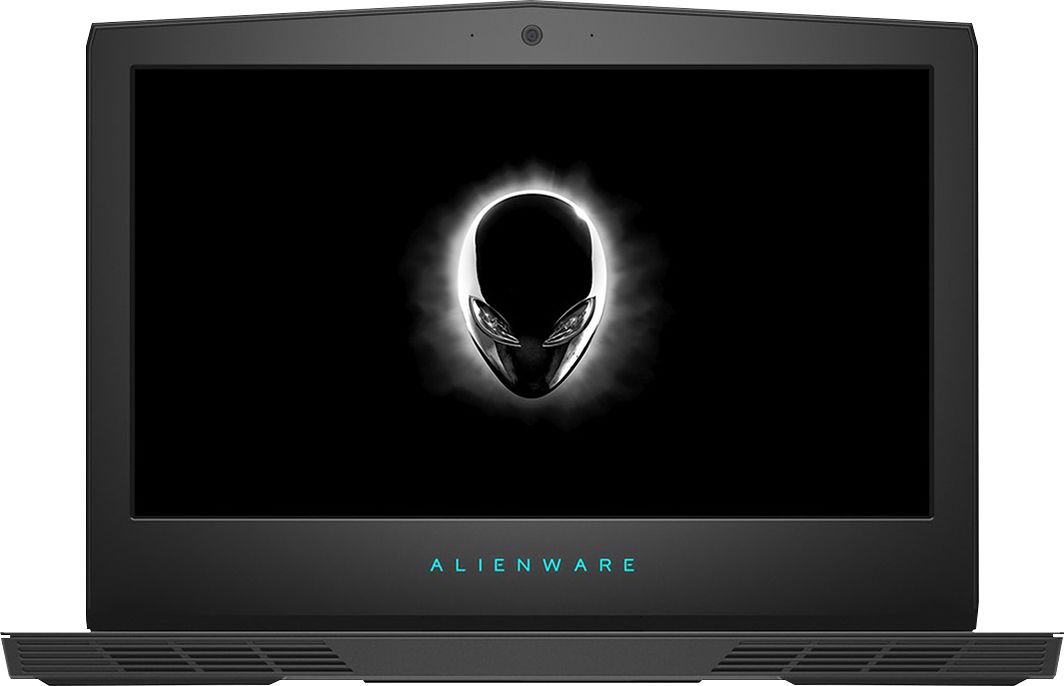

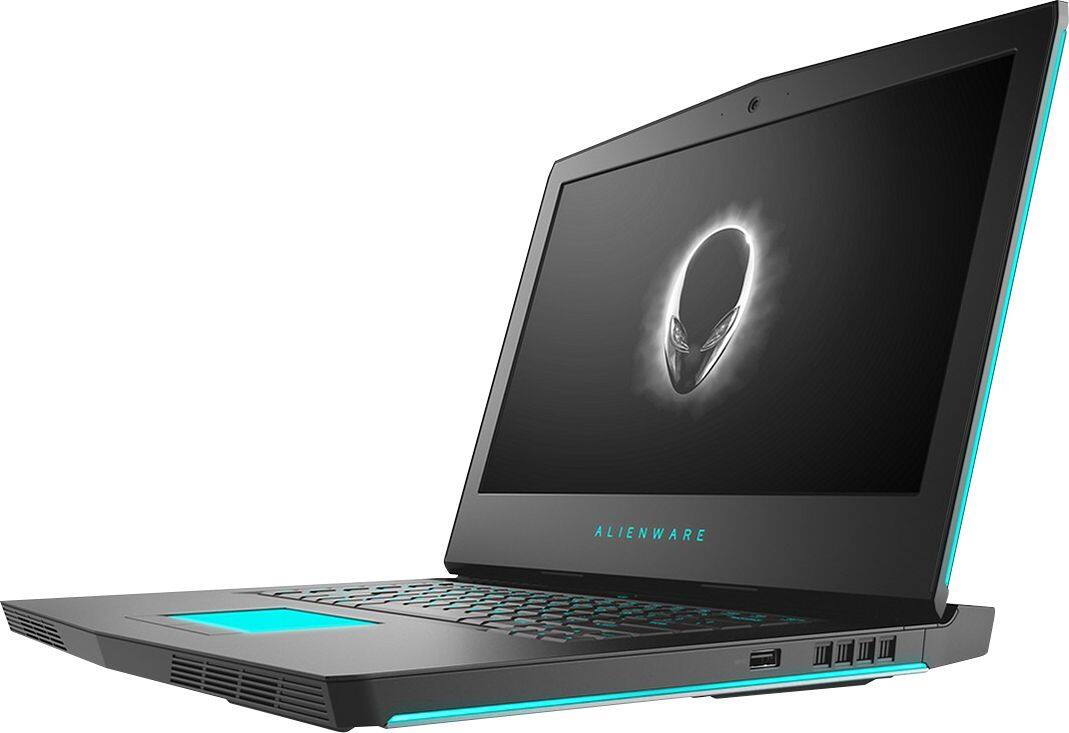
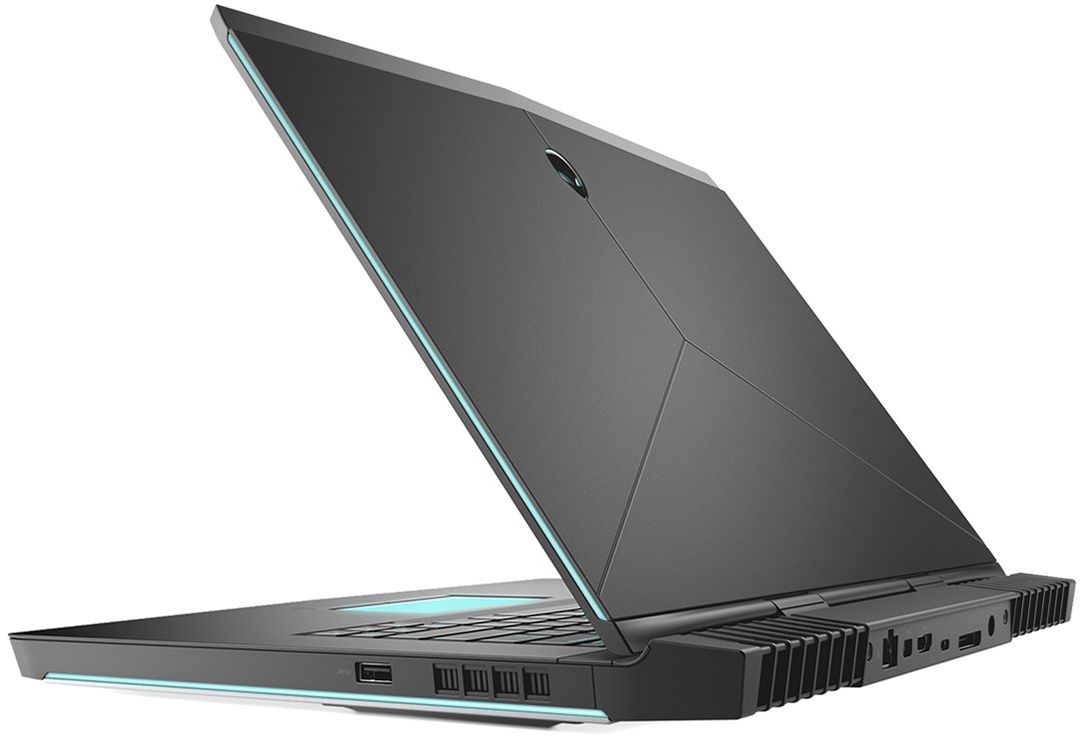
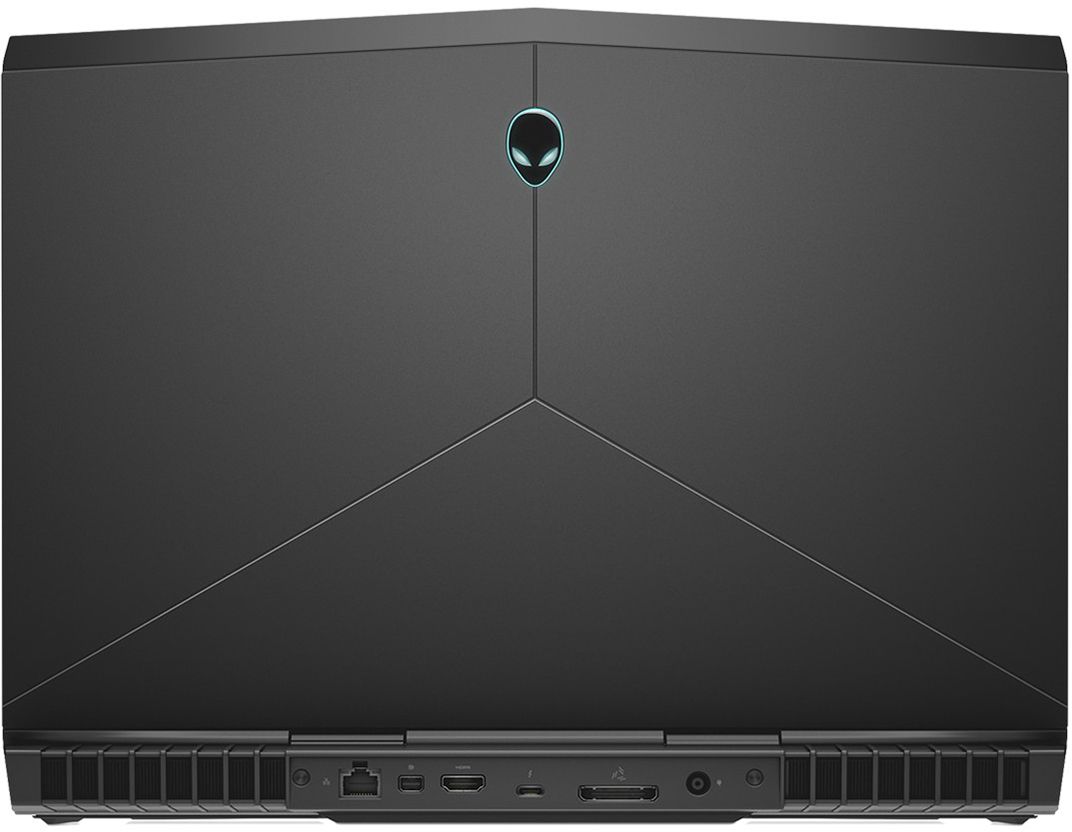

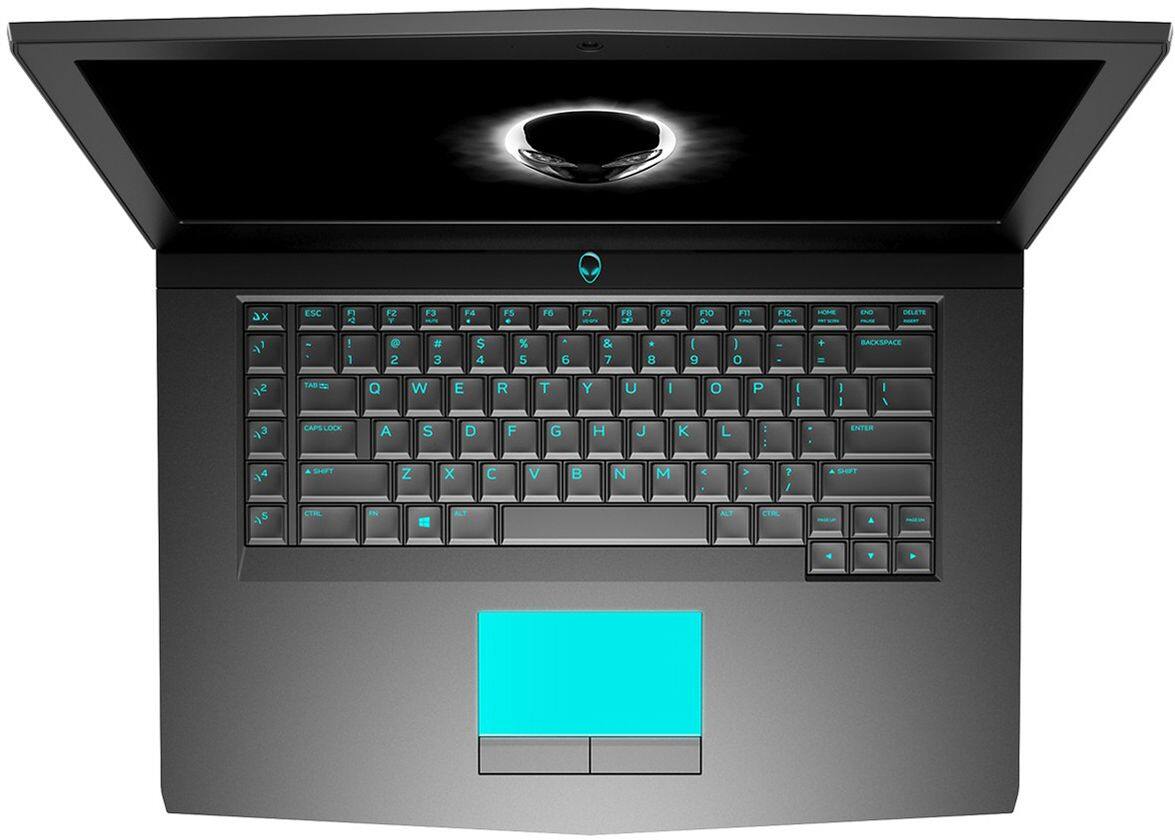
- Model:
- AW15R4-7620BLK-PUS
- SKU:
- 6239219
to a friend
Customers are saying
Customers admire the laptop's performance, solid-state drive speed, and impressive graphics capabilities, making it a great value for the price. However, some find the laptop's weight and size to be cumbersome, and battery life and heat generation are also mentioned as areas for improvement. The large screen and powerful components make it suitable as a desktop replacement, but its portability is somewhat limited.
This summary was generated by AI based on customer reviews.
- Cons mentioned:Battery life
its great but..
||Posted .This reviewer received promo considerations or sweepstakes entry for writing a review.The laptop is awesome but the battery doesnt last long when playing game, 45min give or take. I returned and lost $300 just from returning it. Bestbuy suck
No, I would not recommend this to a friendBrand response from YourDellTeam
Posted .Hi StressyPoo,
We're sorry to hear that your computer's battery life did not last as long as you hoped it would. In the future, here are some tips to help preserve your computer's battery life:
Change the Power Plan:
1. On the notification area of the taskbar, right-click the Battery icon.
2. On the options list, click Power Options.
3. Select a power plan on the battery meter, such as Power Saver or Balanced. Windows 10 has a built in 'Battery Saver' mode that can be activated to extend your system's battery life. The Battery Saver mode will monitor and limit background activity and other features such as push notifications. You do have the option to enable or disable this mode within settings or within advanced Battery Saver settings, you can customize the mode to best suit your needs.
a) Click on the Action Center icon in the taskbar and select the tile for Battery Saver.
b) If running Cortana then type Battery Saver into the search box and select from the results.
Within the Battery Saver settings page, you will be able to turn on and off the feature and customize the feature to best meet your needs.
c) Turn Battery Saver On or Off.
d) Additional settings available via the Battery use and Battery saver settings links.
e) Battery use shows further info on apps and their power usage.
f) Battery Saver Settings screen allows you to customize further Battery Saver feature.
You can read the full article here - http://dell.to/2vfXWf4.
Best,
Bryan
1-800-624-9896
- Pros mentioned:Speed
The best laptop
||Posted .This reviewer received promo considerations or sweepstakes entry for writing a review.The moment I start using my laptop is perfect wau great laptop
I would recommend this to a friend - Pros mentioned:Speed
great laptop
||Posted .This reviewer received promo considerations or sweepstakes entry for writing a review.the best laptop i have in my history fast and super fast
I would recommend this to a friend - Cons mentioned:Weight
It’s ok
||Posted .This reviewer received promo considerations or sweepstakes entry for writing a review.Nice laptop. But just to heavy. If you want a lap prop to stay home it’s goid but if you want a carry on. It’s to heavy
I would recommend this to a friend - Cons mentioned:Heat
good laptop
||Posted .This reviewer received promo considerations or sweepstakes entry for writing a review.Laptop is getting very hot and noisy when playing.If noise and heat does not bother you then very good lap top
I would recommend this to a friendBrand response from YourDellTeam
Posted .master60,
We're very sorry that your computer is heating up more than you anticipated. Here are some tips for keeping your laptop at a cooler temperature:
Tips for Proper Usage:
1. Dell does not recommend placing portable systems directly on your lap. Due to reductions in the thickness of modern portable systems, heat transfer can be an issue.
2. Using a portable system (Laptop) on a hard, flat, non-cloth surface will increase airflow and reduce heat from underneath and inside the system.
Using the portable system on a blanket, pillow, or other types of cloth will cover up the fan cause the computer to overheat and can cause permanent damage.
3. It is recommended to use the portable system in a Room temperature of 0°C to 35°C (32°F to 95°F) with a Humidity level no greater than 90%.
4. Use compressed air to clean the vents on a regular basis.
5. Using a cooling pad can decrease heat and increase performance.
6. If you want to know the temperature limitations for your system, go to the Dell Support Website, look up your system model then open the user guide under the manuals link.
You can read the full article here - http://dell.to/2uJ8AdG.
If you are still experiencing issues with the noise on your computer we'd recommend the following:Update the BIOS: An out-of-date BIOS can cause loud fan noises by having an outdated temperature table for the system. Refer to update BIOS and follow the instructions to update the BIOS on your computer. You can also follow up with our Technical Support Team here - 1-800-624-9896.
You can read the full article here - http://dell.to/2ENlXfz.
We hope these tips help your computer perform better for you.
Best,
Bryan
1-800-624-9896
Does what you expect well
||Posted .This reviewer received promo considerations or sweepstakes entry for writing a review.This is my second Alienware laptop. The first was in 2012, pretty good for a well used gaming laptop. I used to work at Best buy and build machines and still see value in purchasing their products. The last laptop is still alive, just was due for an upgrade.
I would recommend this to a friendReally good laptop
||Posted . Owned for 2 weeks when reviewed.This reviewer received promo considerations or sweepstakes entry for writing a review.its a very good laptop the oy problem is that in a warm room it overheats a lot but it hasnt stopped its performance
No, I would not recommend this to a friendNice bootup, easy to carry
||Posted .This reviewer received promo considerations or sweepstakes entry for writing a review.Good for game and better then 17”. same as 17” just screen and weight difference at last i like 15” better then 17”
I would recommend this to a friendGreat Performance
||Posted .This reviewer received promo considerations or sweepstakes entry for writing a review.I loved the performance and design on this laptop! Even in 2019 this would keep up with all the latest CAD softwares and Video editing softwares. Don't have any complains so far.
I would recommend this to a friendAwesome!!!
||Posted .This reviewer received promo considerations or sweepstakes entry for writing a review.Got this for my wife so she could join me in pc gaming and i bring it to work on easy days. Its been awesome with everything we wanted to use it for so far
I would recommend this to a friendGreat laptop
||Posted .This reviewer received promo considerations or sweepstakes entry for writing a review.Needed for business. Great laptop, battery life is great. This computer is very nice! Keyboard is amazing.
I would recommend this to a friendWE LOVE IT!!!
||Posted .This reviewer received promo considerations or sweepstakes entry for writing a review.i bought this so my wife could join me in pc gaming and i can bring it with us on trips and it has been awesome so far. We love our gaming laptop
I would recommend this to a friendExcellent laptop for everything
||Posted .This reviewer received promo considerations or sweepstakes entry for writing a review.I just bought it 3 days ago and it's more than i was expecting, rgb lighting, good heat management, overall i am happy with this investment.
I would recommend this to a friendDisappointed
||Posted .This reviewer received promo considerations or sweepstakes entry for writing a review.Had this laptop for 2 months. Update the Alienware software and now the screen can’t stop flickering and it dims on its own. Just a headache. I hope I can return it and get one that works.
No, I would not recommend this to a friendBrand response from YourDellTeam
Posted .Jimmy,
We're sorry to hear that your computer is not performing the way you hoped it would. If you'd like help with your screen's brightness we'd suggest the following:
Windows can adjust the brightness of the display based on how much light is reaching the system's ambient light sensor. This feature is referred to as 'adaptive brightness' and it can be disabled in Windows.
Here are some steps to adjust this feature:
1. In the Search box, type Settings.
2. Touch or click Settings (Modern application).
3. Touch or click System.
4. On the Display screen find the Adjust my screen brightness automatically option.
5. Touch or click the slider to toggle the option on or off.
6. Touch or click Apply.
7. Close the System window.
You can read the full article here: http://dell.to/2vjtPzg.
You can reach out to Alienware's Support Team via Email - awsocialmedia@dell.com regarding the flickering that you're experiencing. Please use your username from this review as the subject line of your Email.
We hope these tips help your computer perform better for you.
Best,
Bryan
1-800-254-3692
great
||Posted .This reviewer received promo considerations or sweepstakes entry for writing a review.This is my brother's surprise.he likes it very much, he is very happy, the process of use makes him very excited
I would recommend this to a friendGood machine; bad manufacturer.
||Posted .This reviewer received promo considerations or sweepstakes entry for writing a review.I bought this thinking I could get a docking station (not the graphics expansion) so that I could have just a power cord, thunderbolt/USB 3 cord and an HDMI cord plugged in to it, and use all my external peripherals and a monitor. The docking station has issues with lag and keystrokes being repeated 20-30 times. Turns out, even with a Dell docking station, Dell won't "support" this and won't try to do anything to fix it since the only "supported" docking station is the Alienware Graphics Expansion. I don't really get what the point is of having Thunderbolt/USB 3/C on the laptop if not to use it with a dock, really.
I would recommend this to a friendGreat gaming laptop
||Posted .This reviewer received promo considerations or sweepstakes entry for writing a review.Great quality and great value when bought open box. Alienware warranty is second to none.
I would recommend this to a friendLove this Laptop
||Posted . Owned for 1.5 years when reviewed.This reviewer received promo considerations or sweepstakes entry for writing a review.We love the laptop and appreciate all the help we got from the geek squad
I would recommend this to a friendGreat
||Posted .This reviewer received promo considerations or sweepstakes entry for writing a review.We are really enjoying our new speaker. It is loud and clear and perfect for our home gym
I would recommend this to a friendOK Laptop
||Posted .This reviewer received promo considerations or sweepstakes entry for writing a review.OK Laptop, not the best. Ran into LED issues with in 2 days of purchase, had to get it fixed. Runs a bit hot even on day today tasks. Temperature runs anywherer between 90 to 100C while gaiming.
No, I would not recommend this to a friendBrand response from YourDellTeam
Posted .Vishesh,
Thanks for your review. We're sorry that your computer has been running hotter than you expected it to. Here are a few tips to help with your system temperature:
Tips for Proper Usage:
1. Dell does not recommend placing portable systems directly on your lap. Due to reductions in the thickness of modern portable systems, heat transfer can be an issue.
2. Using a portable system (Laptop) on a hard, flat, non-cloth surface will increase airflow and reduce heat from underneath and inside the system.
Using the portable system on a blanket, pillow, or other types of cloth will cover up the fan cause the computer to overheat and can cause permanent damage.
3. It is recommended to use the portable system in a Room temperature of 0°C to 35°C (32°F to 95°F) with a Humidity level no greater than 90%.
4. Use compressed air to clean the vents on a regular basis.
5. Using a cooling pad can decrease heat and increase performance.
6. If you want to know the temperature limitations for your system, go to the Dell Support Website, look up your system model then open the user guide under the manuals link.
You can read the full article here - http://dell.to/2uJ8AdG.
We hope these tips help your computer cool down for you.
Best,
Bryan
1-800-624-9896