Customer Ratings & Reviews

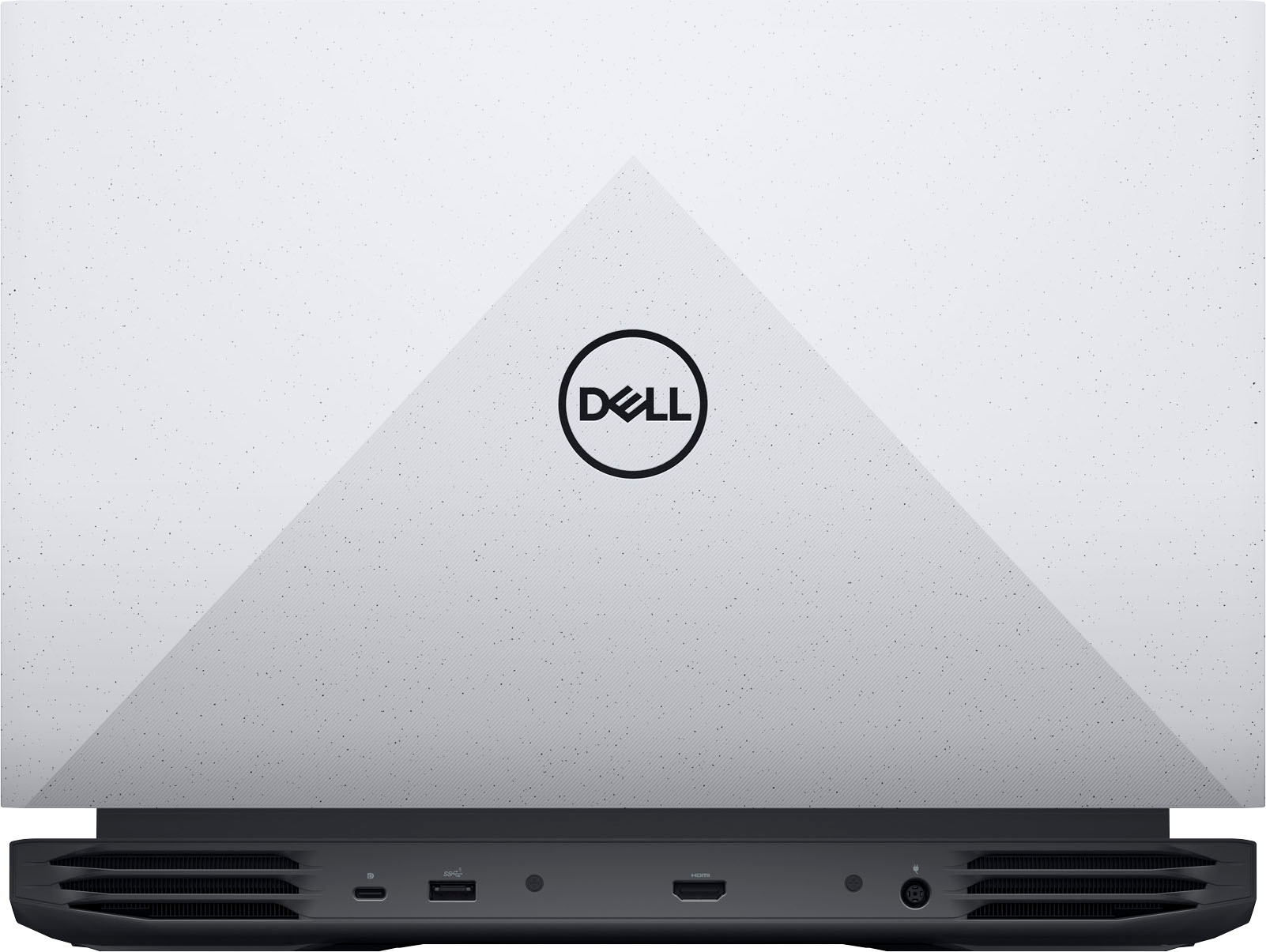


- Model:
- G15RE-A362GRY-PUS
- SKU:
- 6510327
Rating by feature
- Battery Life
Rating 3.9 out of 5 stars
- Speed
Rating 4.4 out of 5 stars
- Display
Rating 4.4 out of 5 stars
Customers are saying
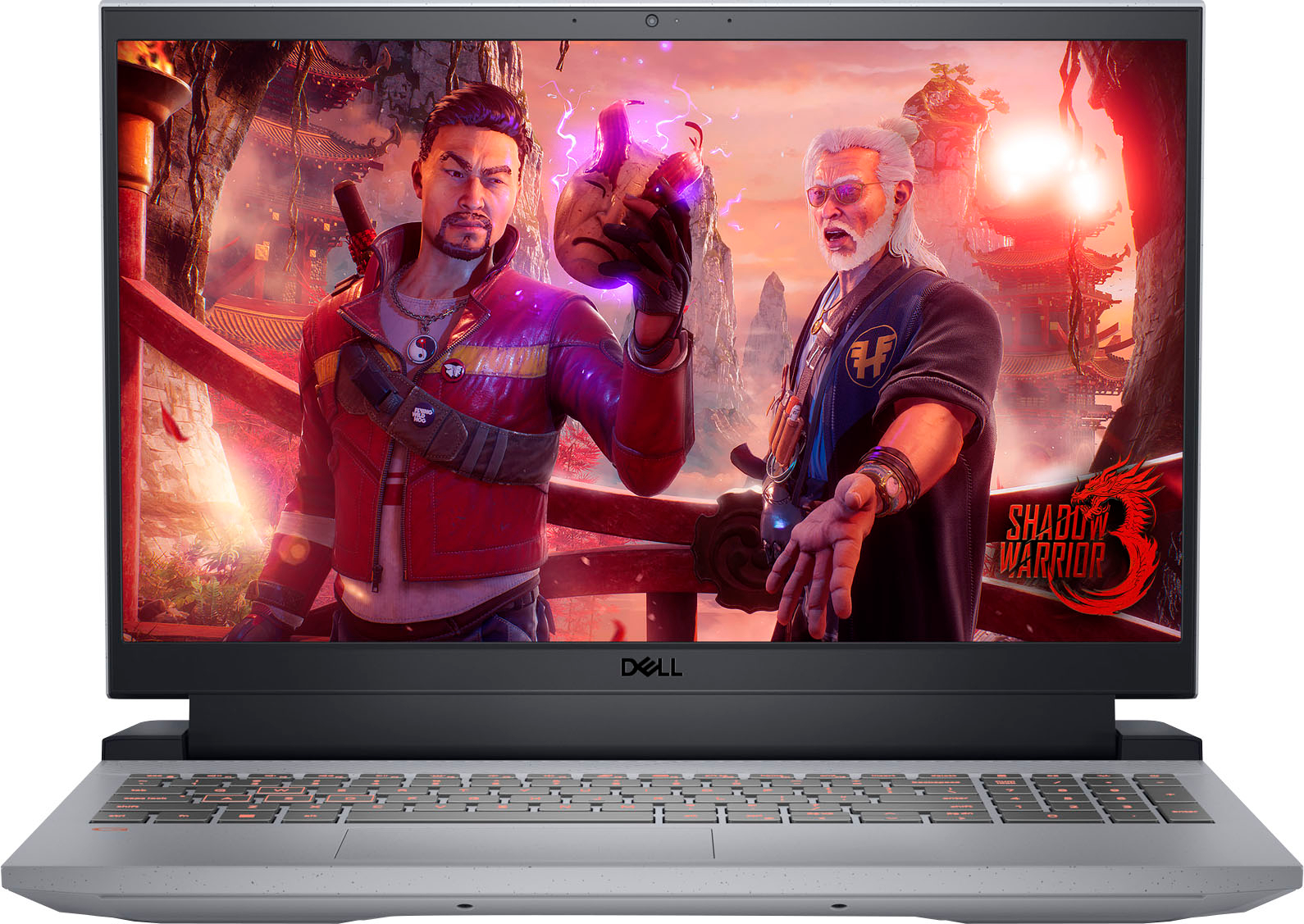
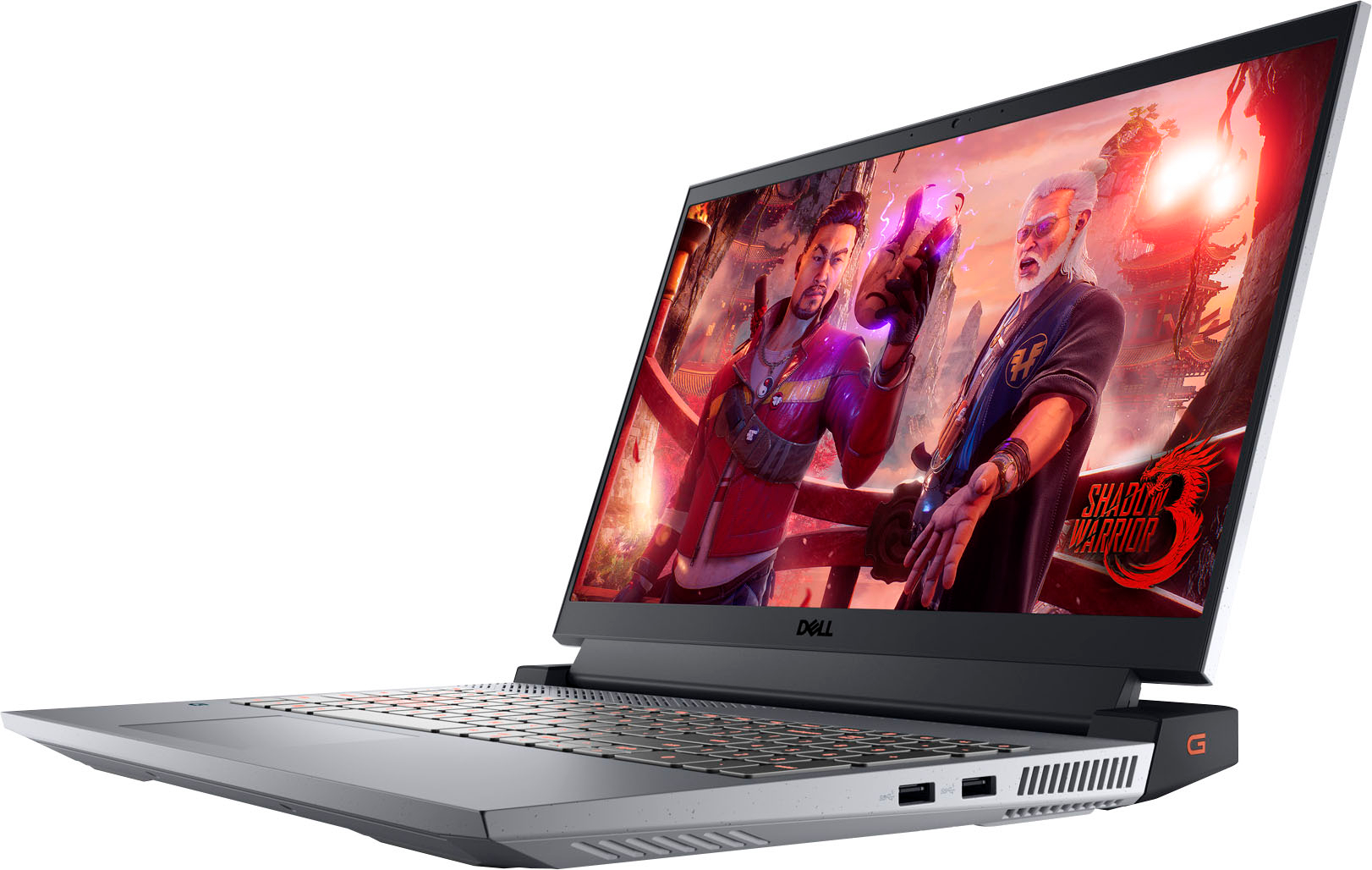
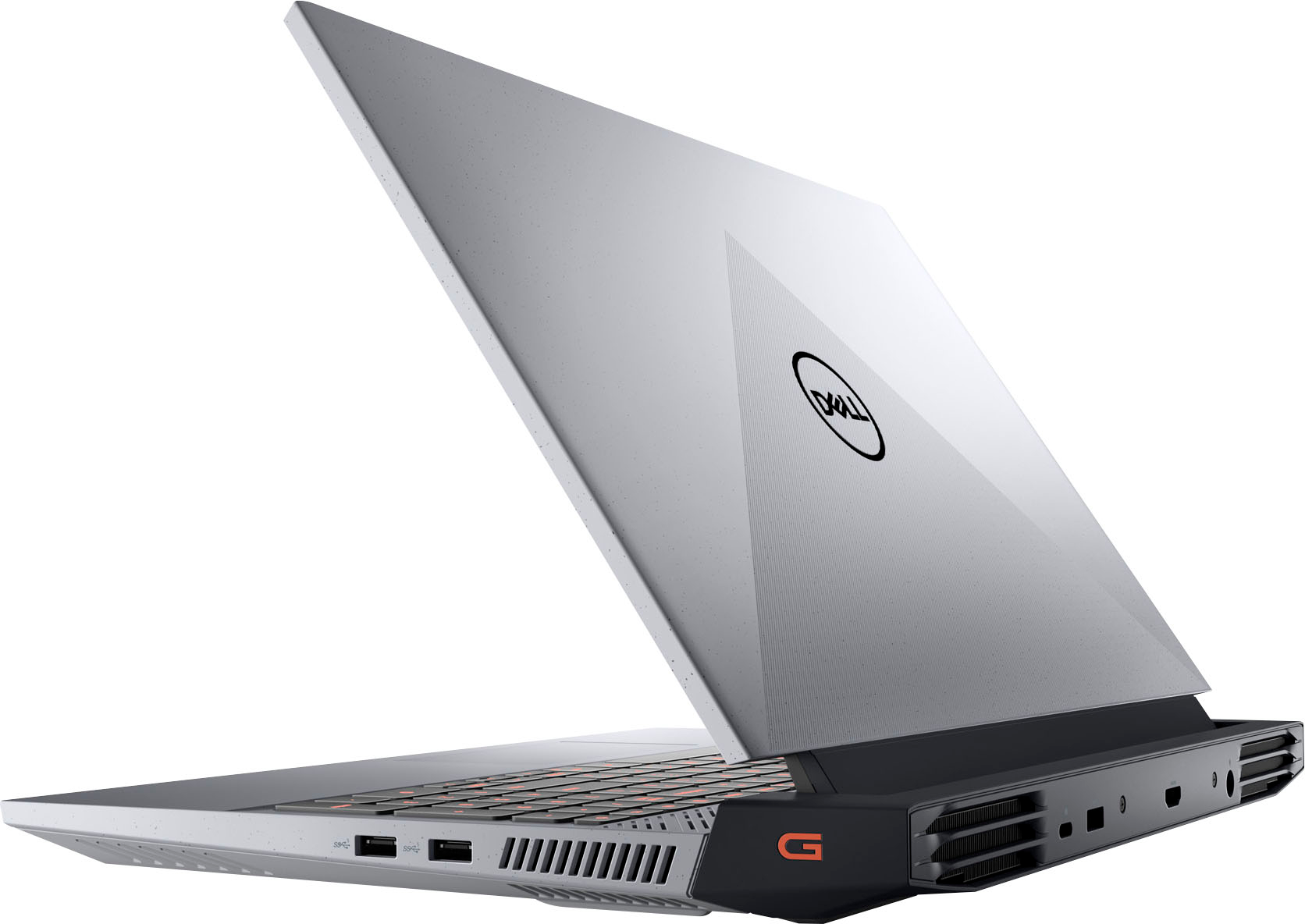
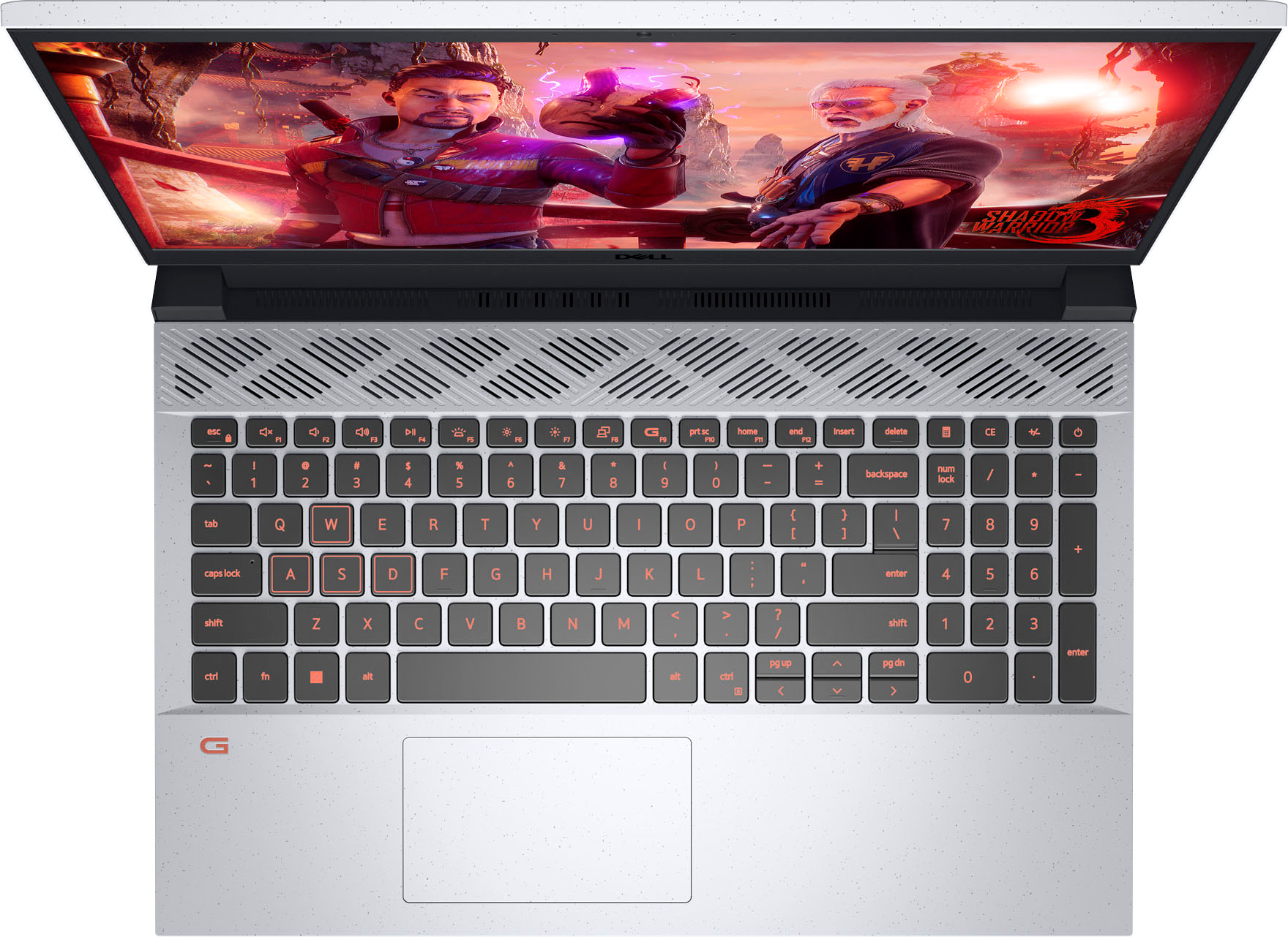
Customers express satisfaction with the G15 gaming laptop's performance, graphics capabilities, and build quality. Many appreciate its price point relative to its features, while some note that the refresh rate is a positive aspect for gaming. However, concerns exist regarding battery life and the laptop's weight. A few users also reported issues with the screen and memory.
This summary was generated by AI based on customer reviews.
Nixe
Posted .This reviewer received promo considerations or sweepstakes entry for writing a review.Nice nixe nic ejsh zjznxnxnsjwhxhxhdjwnwbduxznxbdbshs
I would recommend this to a friendDell G15 Gaming
Posted .This reviewer received promo considerations or sweepstakes entry for writing a review.My daughter is very happy, thank you guys, recommended
I would recommend this to a friendGreat starter laptop
Posted .This reviewer received promo considerations or sweepstakes entry for writing a review.I play apex legends and average 125 fps on high settings
I would recommend this to a friend- Cons mentioned:Battery life
Battery life is the worst
Posted .This reviewer received promo considerations or sweepstakes entry for writing a review.I have owned this laptop for less than a year and the battery doesnt even last an hour! Only giving one star since Dell wont do anything about it. Spend the extra money and invest in a gaming PC. Laptops are garbage.
No, I would not recommend this to a friendBrand response from YourDellTeam
Posted .Dear dzeigler5833,
Thank you for taking the time to leave a review of your Dell G15 gaming laptop. We are sorry to hear that you are experiencing an issue with the performance of your battery. That is not the type of feedback we like to hear from our customers, or the type of product Dell intends to deliver. Below I have provided troubleshooting steps to help resolve your issue.
Here are the steps to help improve the battery performance of your laptop:
1. On the notification area of the taskbar, right-click the Battery icon.
2. On the options list, click Power Options.
3. Select a power plan on the battery meter, such as Power Saver or Balanced. Windows 10 has a built-in 'Battery Saver' mode that can be activated to extend your system's battery life. The Battery Saver mode will monitor and limit background activity and other features such as push notifications. You do have the option to enable or disable this mode within settings or within advanced Battery Saver settings, you can customize the mode to best suit your needs.
a) Click on the Action Center icon in the taskbar and select the tile for Battery Saver.
b) If running Cortana, type Battery Saver into the search box and select from the results.
Within the Battery Saver settings page, you will be able to turn on and off the feature and customize the feature to best meet your needs.
c) Turn the Battery Saver On or Off.
d) Additional settings are available via the Battery use and Battery saver settings links.
e) Battery use shows further info on apps and their power usage.
f) Battery Saver Settings screen allows you to customize further the Battery Saver feature.
How to Improve the Performance of a Dell Laptop Battery: http://dell.to/2vfXWf4
Should you need further assistance; we recommend that you contact Dell directly with the information below.
Chat or call: https://bit.ly/DellSupportTeam
Phone number to Dell: 1-800-624-9896.
Regards,
Summer@Dell
- Cons mentioned:Weight
love it
Posted .This reviewer received promo considerations or sweepstakes entry for writing a review.Very Satisfied with the product. Little bit heavy but awesome quality.
I would recommend this to a friend Look Elsewhere
Posted .This reviewer received promo considerations or sweepstakes entry for writing a review.I've gone through 2 of these already. The laptop has given me nothing but issues over the past year and a half that I've owned it. It's glitchy, it's laggy and it doesn't keep up with my gaming. I feel scammed.
No, I would not recommend this to a friendBrand response from YourDellTeam
Posted .Dear Lizziesmalls,
Thank you for taking the time to leave a review of your Dell G15 Gaming Laptop. We are sorry to hear that you are experiencing an issue with the performance of your device. That is not the type of feedback we like to hear from our customers, or the type of product Dell intends to deliver. Below I have provided troubleshooting steps to help resolve your issue.
Here are the steps to help you with slow performance issues:
1. Run the automated tools in SupportAssist to ensure that the drivers are up to date and your computer is optimized.
2. Restart the computer
3. Run a hardware diagnostic test
4. Scan your computer for malware
5. Restore the computer using Windows System Restore
6. Restore the computer to factory default settings
You can read the article that can help you with slow performance issues here: https://dell.to/3yqre8r
We recommend that you contact Dell directly with the information below if you need further assistance.
Chat or call: https://bit.ly/DellSupportTeam
Phone number to Dell: 1-800-624-9896.
Best,
Summer@Dell
Dud
Posted .This reviewer received promo considerations or sweepstakes entry for writing a review.Just terrible. Died on day 2. Black screen. Don’t waste your time.
No, I would not recommend this to a friendBrand response from YourDellTeam
Posted .Hello LoriP,
Thank you for taking the time to us your review. Feedback like yours helps us improve our current and future products and services. We apologize for the issues you are enduring with your Dell G15 Gaming Laptop and would love to help and know more details. If your computer will still power on, you may need to perform a hard reset. Below I have provided the steps to do so. If your laptop will not power on we recommend using the toll-free number or chat link provided below to reach a member of our Dell Support Team.
A hard reset helps drain static electricity that may be causing the power issue. To perform a hard reset, follow these steps.
1. Turn off the computer.
2. Disconnect the power cable (for desktop computers), or disconnect the AC adapter and remove the battery (for Dell laptops with removable battery).
NOTE: For Dell laptops that have a nonremovable battery, learn How to Reset Real Time Clock (RTC) to Recover Your Dell Laptop. For Dell laptops with removable batteries, see the user guide of your Dell laptop for step-by-step instructions to safely remove the battery.
NOTE: On select Dell Latitude laptops, learn How to Use Forced ePSA to Recover from a POST or Boot Failure.
3. Disconnect all devices such as USB drivers, printers, webcams, media cards (SD/xD), except the keyboard and mouse.
4. Press and hold the power button for 15 to 20 seconds to drain the residual power.
5. Connect the power cable (for desktop computers) or the AC adapter and battery (for laptops).
6. Turn on the computer.
How to Resolve Monitor or Laptop Display Issues: https://rb.gy/dg0um3
If you continue to experience issues, please reach out to our Support Team by using the information provided below.
Chat or call: https://bit.ly/DellSupportTeam
Phone number to Dell: 1-800-624-9896
Best,
Summer@Dell