Customer Ratings & Reviews



- Model:
- i5505-A685GRY-PUS
- SKU:
- 6409419
Rating by feature
- Battery Life
Rating 3.7 out of 5 stars
- Speed
Rating 4.0 out of 5 stars
- Display
Rating 3.9 out of 5 stars
Customers are saying
Customers are positive about the G5 15.6" FHD Gaming Laptop's performance, especially considering its price, and also appreciate its graphics capabilities and relatively easy upgrade options for RAM and SSD. However, customers are negative about the laptop's tendency to overheat and generate significant fan noise, along with its shorter-than-expected battery life and limited storage capacity. Some also found the laptop to be heavier than expected.
This summary was generated by AI based on customer reviews.
to bad they dont have negative ratings
||Posted . Owned for 3 weeks when reviewed.This reviewer received promo considerations or sweepstakes entry for writing a review.the sales person said it was easy to use and had a good back support. this is the biggest piece of junk I have ever purchased and best buy geek squad doesn't seem to know how to fix it or is to much work
No, I would not recommend this to a friendBrand response from YourDellTeam
Posted .jjjj,
We're sorry that your computer is not working the way you hoped it would. We'd recommend downloading the latest drivers to ensure that your computer is performing the way that it should: Please refer to the System Guide to see if there are ways to help your computer perform better for you: https://dell.to/3ifhvsS.
Best, Bryan 1-800-624-9896
Not a good buy
||Posted . Owned for 4 months when reviewed.This reviewer received promo considerations or sweepstakes entry for writing a review.Crashes frequently and even though I bought it 4 months ago... is already telling me it needs a new hardrive. Do no recommend and no longer going to buy a dell
No, I would not recommend this to a friendBrand response from YourDellTeam
Posted .Dear NotHappy,
Thank you for your valued feedback. We apologize for the issues you are having with your Dell G5 crashing. Below I have provided a link to help troubleshoot and resolve this issue. We do suggest making sure all drivers and downloads are up to date. I have provided the link to the Drivers and Downloads page for your PC.
System restarts, shutdowns: https://dell.to/2OixlcL
Drivers and Downloads page:https://dell.to/3laQEAV
If you still experience this problem after you have finished troubleshooting your system, please feel free to reach out to our support team here: 1-800-624-9896.
If you require further assistance, you can contact Dell directly with the information below.
Chat or call: https://bit.ly/DellSupportTeam
Phone number to Dell 1-800-624-9896
Best,
Ashley@Dell
Blue Screen of Death
||Posted . Owned for 1 month when reviewed.This reviewer received promo considerations or sweepstakes entry for writing a review.Chrashed nonstop, updated all drivers and bios and final time it crashed it lost the OS. Took it back and got an Asus G14
No, I would not recommend this to a friendDo not buy this
||Posted . Owned for 3 months when reviewed.This reviewer received promo considerations or sweepstakes entry for writing a review.Didn't last a week, worst laptop ever I couldn't return it on time since I was too busy and I'm stuck with a expensive laptop with no use
No, I would not recommend this to a friendBrand response from YourDellTeam
Posted .Hello,
Thank you for sharing your review. We apologize for the trouble you came across with your G5. We would love to assist you with any troubleshooting needs but would need a little more information. Please feel free to reach out to Dell Support directly at 1-800-264-9896.
Best,
Wendy C.
https://bit.ly/DellSupportTeam.
Phone number to Dell: 1-800-264-9896.
Dell Bricktop
||Posted . Owned for 4 months when reviewed.This reviewer received promo considerations or sweepstakes entry for writing a review.This laptop turned into a brick after just a few weeks had to return and we went with the Asus for a little bit more money
No, I would not recommend this to a friendReturn
||Posted .This reviewer received promo considerations or sweepstakes entry for writing a review.Definitely not b what I wanted. This computer is so much slower than my last one
No, I would not recommend this to a friendBrand response from YourDellTeam
Posted .Hello Emurder,
There are a number of ways to help improve the performance of your computer if it is running slower than you expected it to. We'd recommend the following steps to help improve your computer's overall performance and speed:
1. Restart your computer regularly.
2. Run the automated tools provided in the SupportAssist Tool.
3. Run a complete hardware diagnostic test.
4. Scan your computer for malware.
5. Restore your Dell computer using Windows System Restore.
6. Reinstall Microsoft Windows.
With the latest firmware installed, you should expect the most stable up-to-date experience. If the issues persists, you are more than welcome to contact Dell support for further assistance.
Best Regards,
Anthony P.
not happy at all
||Posted . Owned for less than 1 week when reviewed.This reviewer received promo considerations or sweepstakes entry for writing a review.didnt even own it for 1 month and the keys are coming off had to return and wait til god knows when
No, I would not recommend this to a friendBrand response from YourDellTeam
Posted .HEWIE,
Thanks for your review and we're sorry that your laptop's keyboard is not working as well as you hoped it would. We hope that your return process went smoothly and that you'll consider Dell again in the future.
Best,
Bryan
1-800-624-9896
Dell laptop - wrong graphics card!
||Posted . Owned for 3 weeks when reviewed.This reviewer received promo considerations or sweepstakes entry for writing a review.Had the wrong graphics card installed. Had to return the laptop.
No, I would not recommend this to a friendBrand response from YourDellTeam
Posted .Hello,
Thank you for your feedback. We are extremely sorry to hear that you had the wrong graphics card installed. We would like to reassure you that all information related to this G5 can be found under its Specs. We would need a little more information to help you as soon as possible. Please, contact Dell Support at your earliest convenience at 1-800-264-9896.
Sincerely,
Wendy C.
https://bit.ly/DellSupportTeam.
Phone number to Dell: 1-800-264-9896.
Don't buy!
||Posted . Owned for 1 month when reviewed.This reviewer received promo considerations or sweepstakes entry for writing a review.Awful. Freezes up, shuts off, would NEVER buy this again!!!
No, I would not recommend this to a friendBrand response from YourDellTeam
Posted .Hello,
Thank you for your review. We are sorry to hear about your G5 freezing and shutting off while in use. We understand how frustrating that can be and would love to help right away. We recommend you perform system diagnostics to identify any errors that may be causing the issue. This will not only run diagnostics to determine if your device is experiencing errors and update your system to ensure you have the best performance possible.
1. Restart your computer regularly
2. Run the automated tools provided in the SupportAssist tool
3. Run a complete hardware diagnostic test
4. Scan your computer for malware
5. Restore your Dell computer using Windows System Restore
6. Reinstall Microsoft Windows
7. We'd also suggest checking to make sure that your software and drivers are up to date - https://dell.to/3esLQVp
7. Here is the link to the full article to assist with your performance issue: https://dell.to/32wo0Ss
If the issue persists, you can contact Dell directly with the information below via Chat or Call.
Best regards,
Wendy C.
https://bit.ly/DellSupportTeam.
Phone number to Dell: 1-800-264-9896.
would not come on this laptop junk
||Posted . Owned for 1 week when reviewed.This reviewer received promo considerations or sweepstakes entry for writing a review.there was no power in this laptop it was made in china
No, I would not recommend this to a friendBrand response from YourDellTeam
Posted .Hello richard,
Thank you for your feedback. I am sorry to hear that your computer did not turn on correctly. Here are some steps to further troubleshoot this concern,
1. If the computer is displaying the Dell logo and does not move past that point, it has probably failed POST.
2. If the power indicator lights up and it is amber or orange, this is usually an indicator that it has failed POST.
3. If you see text on a black screen, the computer is currently performing the POST. If the computer stays in that condition and does not move past it, it has probably failed POST.
4. If the video screen displayed anything at all during the startup process but is now black, this probably indicates that the computer failed POST.
5. If the computer is beeping or if Caps/Num/Scroll Locks are flashing, note if there is a particular pattern in which it beeps or flashes.
6. If the computer is not beeping and caps/num/scroll locks are not flashing, unplug all connections and remove all media communication devices (e.g. external monitors); reconnect one at a time and check if the computer functions.
7. For a notebook, press and hold the Fn key and then press the power button. This starts the pre-boot testing and will launch ePSA. In case you have a Desktop at the Dell logo screen tap the F12 key to enter One Time Boot Menu and use the arrow keys to highlight Diagnostics and press enter.
You can read the full article here - http://dell.to/2uj1Sby.
If you need further assistance, please feel free to reach out to Dell Support directly.
http://dell.to/2sH7Qlm
Best,
Meridith 1-800-624-9896
- Pros mentioned:PerformanceCons mentioned:Battery life, Heat
Overheats So much that it restarts
Posted .This reviewer received promo considerations or sweepstakes entry for writing a review.I bought this laptop when it was on sale for $750 and was excited to get it because in the reviews that I had watched online said that this had great preformance in games even though it got really hot. When I took the laptop home I downloaded borderlands 3 and started playing it. While playing the game I noticed that the laptop fans got extremely loud and the back of the laptop got extremely hot, but I didn't mind it at first because it was getting good FPS. About thirty minutes into the game, the game froze and then the laptop restarted. At first I thought it was just a first time fluke, but then it started to happen every time I played the game. I tried to fix this overheating problem by downloading all the latest updates to the drivers and bios, but nothing helped. Also the battery life on this laptop is very confusing because when watching online videos the laptop can get 6 to 7 hours, but whenever I would try to download something or browse the internet the battery life would drop to 2-3 hours for no reason. Do not buy this laptop it will disappoint you.
No, I would not recommend this to a friendBrand response from YourDellTeam
Posted .Hello,
Thank you for your feedback. I am sorry to hear about the issues you have had with your computer. Here are some steps to further troubleshoot the overheating concern,
1. Update your computer BIOS to the latest version available
• Browse to the Dell Drivers & Downloads page:
• Ensure you have selected the correct Operating System
• Under Category, choose BIOS
• Locate the latest System BIOS
• Click Download and save the file to your PC
• Open File Explorer and browse to the location where you saved the downloaded file
• Double-click the BIOS setup file and follow the on-screen instructions to complete the installation process
2. Open Alienware Command Center
3. Click Thermal at the Active Default Theme and set it to Performance
4. Restart the computer
5. Once the computer boots into Windows open SupportAssist
6. Go to the Troubleshooting tab and click on I want to check a specific piece of hardware
7. Click CPU under CPU Devices
8. Select CPU Stress Test and click Run Test
9. Open the Alienware Command Center and go to the Fusion tab
• The CPU peak temperature should be less than or equal to (≤) 100 ℃
• When under high stress, the computer's average temperature can be expected to be less than (≤) 100 ℃.
Also, here are some steps you may take to help with extend your battery life,
Change the Power Plan:
1. On the notification area of the taskbar, right-click the Battery icon.
2. On the options list, click Power Options.
3. Select a power plan on the battery meter, such as Power Saver or Balanced. Windows 10 has a built in 'Battery Saver' mode that can be activated to extend your system's battery life. The Battery Saver mode will monitor and limit background activity and other features such as push notifications. You do have the option to enable or disable this mode within settings or within advanced Battery Saver settings, you can customize the mode to best suit your needs.
a) Click on the Action Center icon in the taskbar and select the tile for Battery Saver.
b) If running Cortana then type Battery Saver into the search box and select from the results.
Within the Battery Saver settings page, you will be able to turn on and off the feature and customize the feature to best meet your needs.
c) Turn Battery Saver On or Off.
d) Additional settings available via the Battery use and Battery saver settings links.
e) Battery use shows further info on apps and their power usage.
f) Battery Saver Settings screen allows you to customize further Battery Saver feature.
You can read the full article here - http://dell.to/2vfXWf4.
If you need additional assistance with the thermals on your computer you can always reach out to Dell's Technical Support Team here: http://dell.to/2sH7Qlm.
Best,
Meridith 1-800-624-9896
- Cons mentioned:Storage
No bad at all
Posted .This reviewer received promo considerations or sweepstakes entry for writing a review.Not bad at all, just needs to be having an extra storage to avoid any space problems
I would recommend this to a friend - Pros mentioned:Ssd
Honest Review
Posted .This reviewer received promo considerations or sweepstakes entry for writing a review.Great budget gaming laptop for the $ but there are some issues i'm having 1. In chrome and during other random tasks the mouse will start lagging and i'll barely be able to move it almost as if the cpu is having random spikes 2. During gameplay of star wars jedi fallen order on medium high settings i got a green screen the audio started making a weird noise and the game was glitching and then crashed and gave me a blue screen and restarted this has happened almost everytime i've played that. 3. Gets really hot, will start throttling your game even with this gpu that's good in it. 4. Overall it's good and fast, and the gaming i was expecting out of this was a bit of a letdown it doesn't hold 60 fps on modern titles such as jedi fallen order or metro exodus even if reviews show it does. I kinda wanna return this if I keep having issues and build a PC with better thermals and components, 3600/5700x
I would recommend this to a friendBrand response from YourDellTeam
Posted .Cody,
Thank you for your review and we're sorry to hear about the issues that you're having with your computer so far. We'd recommend that you update the BIOS on your computer as well as the following drivers: Killer Wireless AX1650 UWD Bluetooth Driver and Killer 1650/1435/1435s/1535 Wi-Fi Controller Driver. You can find these updates on this page: https://dell.to/31CU4mu.
If you are still having issues with your touchpad you can re-calibrate it by following these steps:
Some Notebooks and Tablets with Keyboards have added gesture features to the touchpad hardware and drivers. A few of these features are two or three finger scrolling, pinch zoom, circle zoom, rotate and swiping. These new features may be the reason for the erratic cursor movement since most are turned on by default. You can disable or modify the way the features work in the touchpad driver properties. Here are some tips to modify these settings:
1. In the Search box, type main.cpl.
2. Touch or click main.cpl in the list of programs.
3. Touch or click the Dell Touchpad tab.
4. Touch or click on the picture of the touchpad.
5. Touch or click Gestures (depending on your computer there may not be a Gestures option).
6. Change the options as preferred.
7. Touch or click Save.
8. Touch or click the X in the upper-right corner to close the Dell Touchpad Utility.
9. Touch or click OK on the Mouse Properties window.
10. If the touchpad still does not work after following the preceding steps, refer to Dell Knowledge Base article - http://dell.to/2iaiujA.
You can read the full article here - http://dell.to/2tqmS02.
As always, if you need additional assistance please reach out to Dell's Technical Support Team: http://dell.to/2sH7Qlm.
Best,
Bryan
1-800-624-9896
- Pros mentioned:PerformanceCons mentioned:Battery life
Good for a start
Posted .This reviewer received promo considerations or sweepstakes entry for writing a review.I bought it from the store so I’m not verified. Overall the first start up I’d fairly fast and easy. It’s a good laptop for a start to gaming and lite gaming. This laptop can run mostly all games at max settings above 60 FPS. I haven’t updated drives or out everting together yet to make it at max performance. The battery is low in some ways but most laptops are like that. The looks of it is something I’m not into but it doesn’t effect the performance of course. I will update this as I go in using this computer but first impressions are great!
I would recommend this to a friend - Cons mentioned:Heat
I wanted to love it..
Posted .This reviewer received promo considerations or sweepstakes entry for writing a review.I originally bought this laptop to runs the Sims and do homework. Once I ventured into other games (Phasmaphobia mainly) it would overheat and shut off. I looked more into it, and apparently it’s a pretty big issue as other people also have overheating problems. I really wanted to love it! But after 3 months and countless tries to fix the issue, I ended up trading it in for a different brand.
No, I would not recommend this to a friendBrand response from YourDellTeam
Posted .Taytoe,
We're sorry to hear about the performance issues that you faced with your gaming laptop. There is a BIOS update available for this computer that most likely would have helped with the overheating and performance issues that you were facing. We're sorry that you decided to trade your computer and we hope that you'll consider Dell again in the future.
Best,
Bryan
1-800-624-9896
Do Not Buy A Dell
Posted .This reviewer received promo considerations or sweepstakes entry for writing a review.Do not purchase a Dell G5 5500. The one I bought cannot maintain connectivity to wireless internet. I have tried repeatedly to fix the problem and have not been successful. The worst computer I've ever owned.
No, I would not recommend this to a friendBrand response from YourDellTeam
Posted .Hello,
Thank you for your feedback. We apologize for your issues with your internet connection. Below are steps that can help with your connection.
1. Ensure the computer has the most current BIOS update, for more information refer to Dell Knowledge base article What is BIOS and How to Download and Install the latest BIOS?
2. When troubleshooting a Notebook, move it within 3-9 feet (1-3 meters) of the wireless router.
3. When troubleshooting a Notebook, make sure the wireless switch is on.
- For more information refer to the Dell Knowledge base article, How to Turn the Wireless Antenna On and Off on a Dell Computer.
4. Turn off and then turn on all the devices on the network to reset and synchronize them, for more information refer to the Turn Off and Then Turn on All the Devices on the Network section.
5. Make sure the latest driver is installed, for more information refer to Dell Knowledge Base article, How to Use the Drivers and Downloads Website.
-Note: The driver is located in the Network section. You may need to transfer the driver by memory key from another computer or use a network cable connected to the computer needing the driver.
6. When troubleshooting a Notebook, make sure the correct network name (SSID) and key (if any) were used to create a profile.
7. When troubleshooting a Notebook, configure the wireless adapter settings for optimal performance, for more information refer to the Configure the Wireless Adapter Settings for Optimal Performance section.
If you still have issues with your network connection this link can be used to assist further: http://dell.to/38daC9i.
Best regards,
Wendy C.
https://bit.ly/DellSupportTeam.
Phone number to Dell: 1-800-264-9896.
Advertised to include Thunderbolt 3
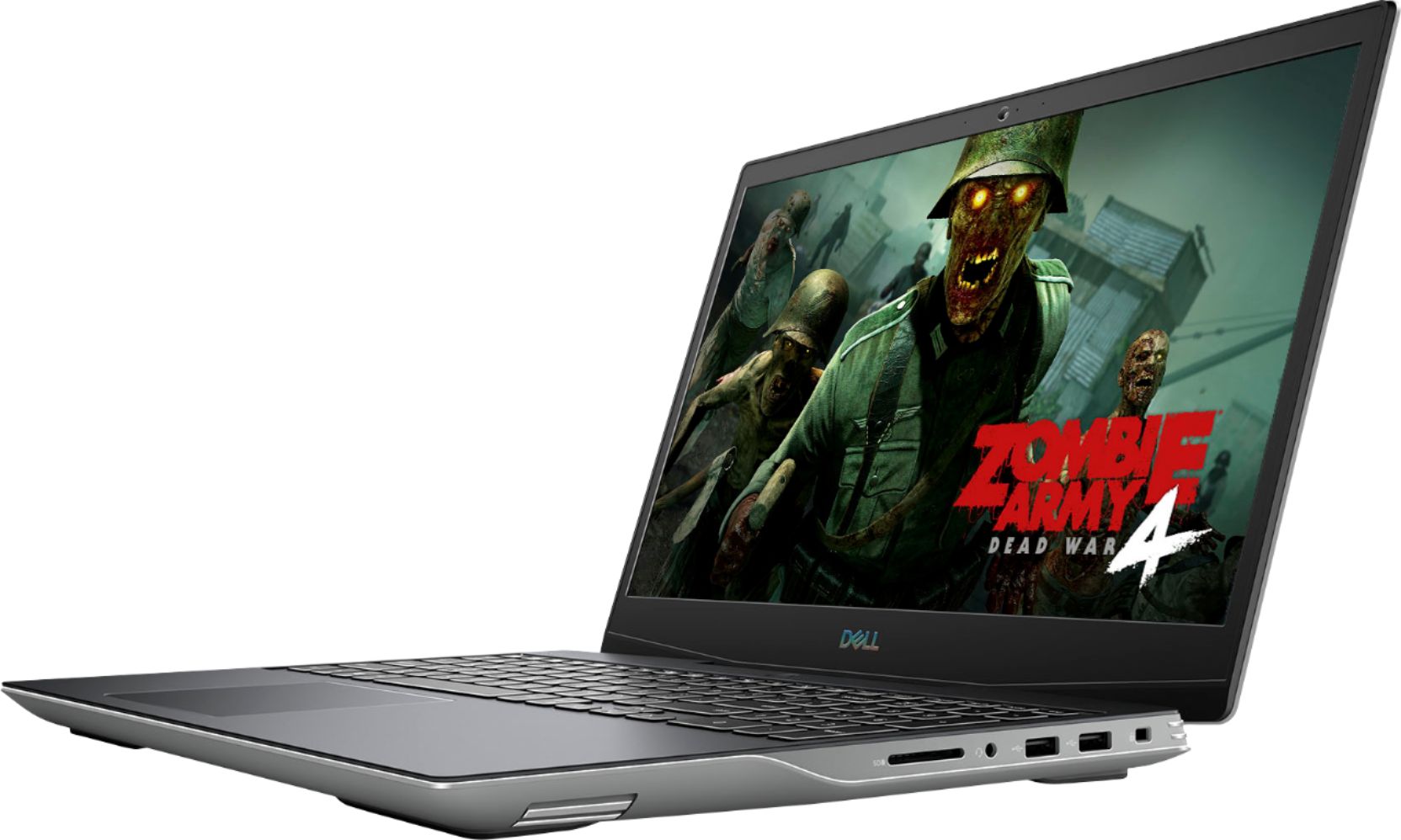
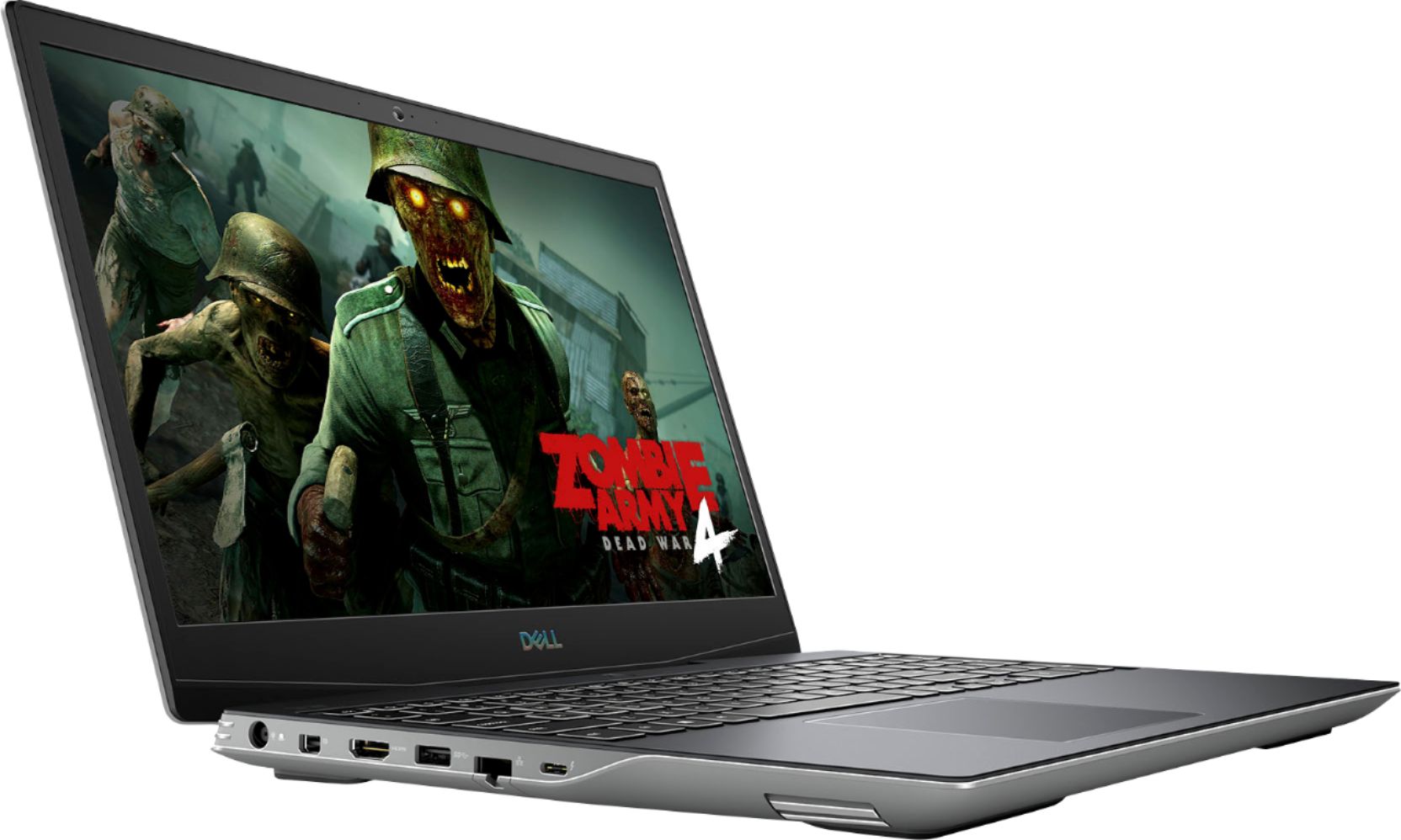
Posted .This reviewer received promo considerations or sweepstakes entry for writing a review.This laptop indicates thunderbolt 3 in the spec but it is not included in the laptop. Do not order this laptop if you're looking for a Thunderbolt 3 port.
No, I would not recommend this to a friendBrand response from YourDellTeam
Posted .wthinavl,
Thanks for your review and for bringing this specification to our attention. We will check on the Thunderbolt ports with our product team and we will revise the product specifications if necessary.
Best,
Bryan
1-800-624-9896