Customer Ratings & Reviews
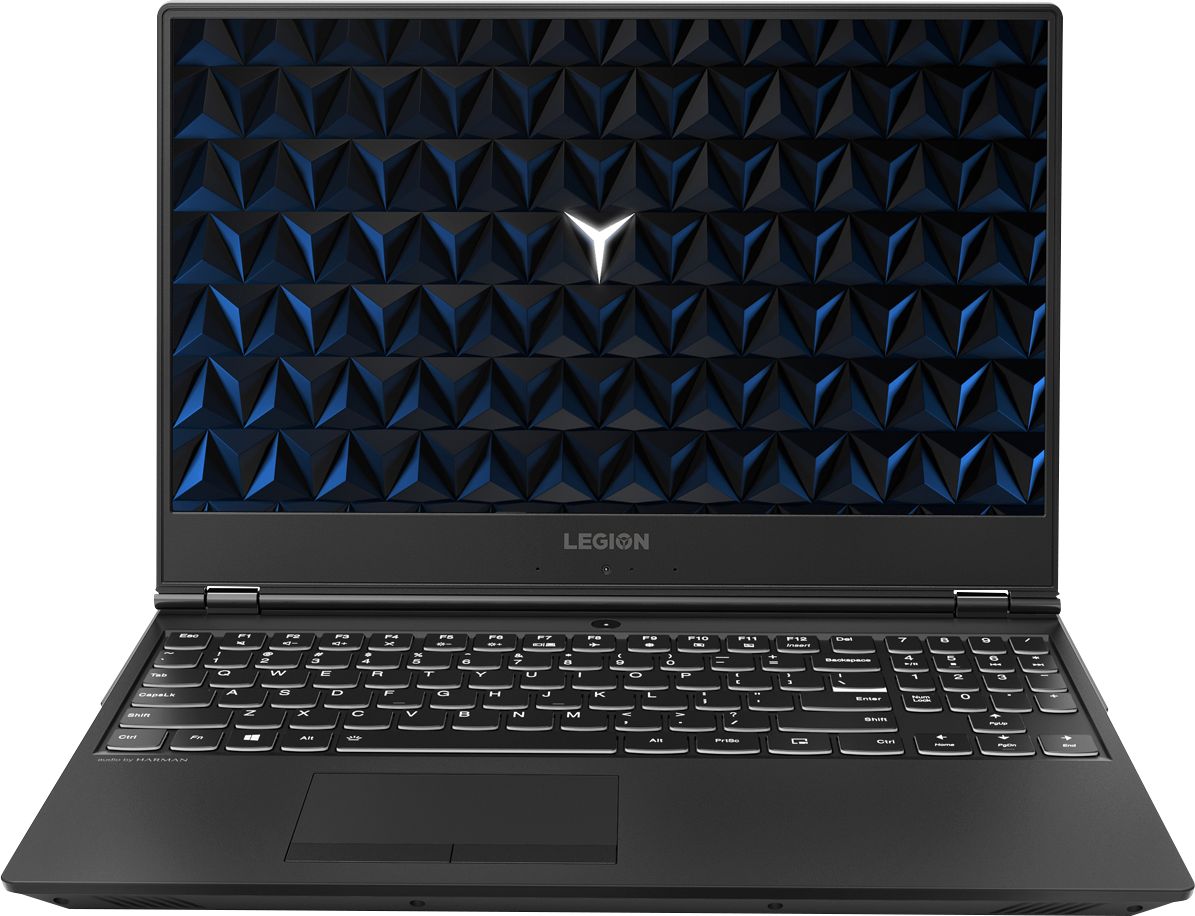
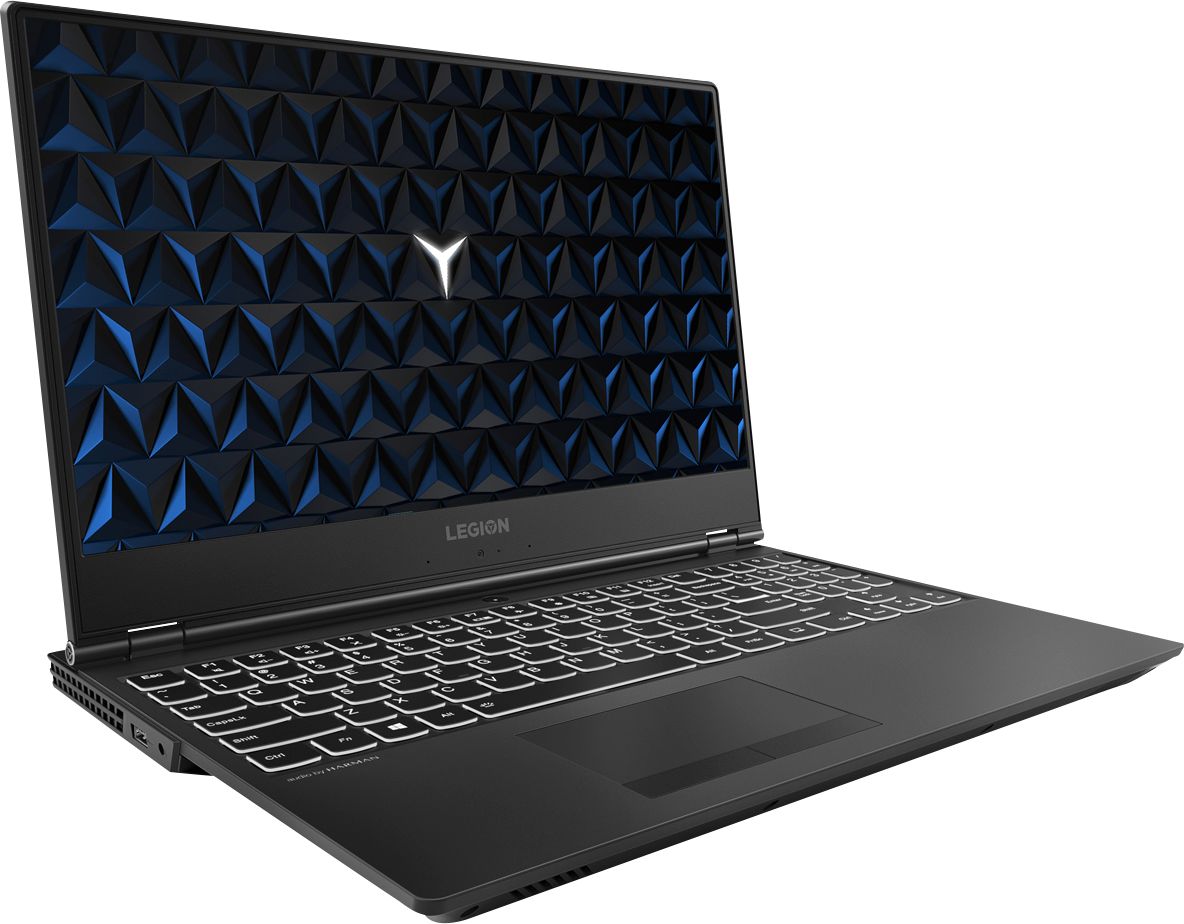

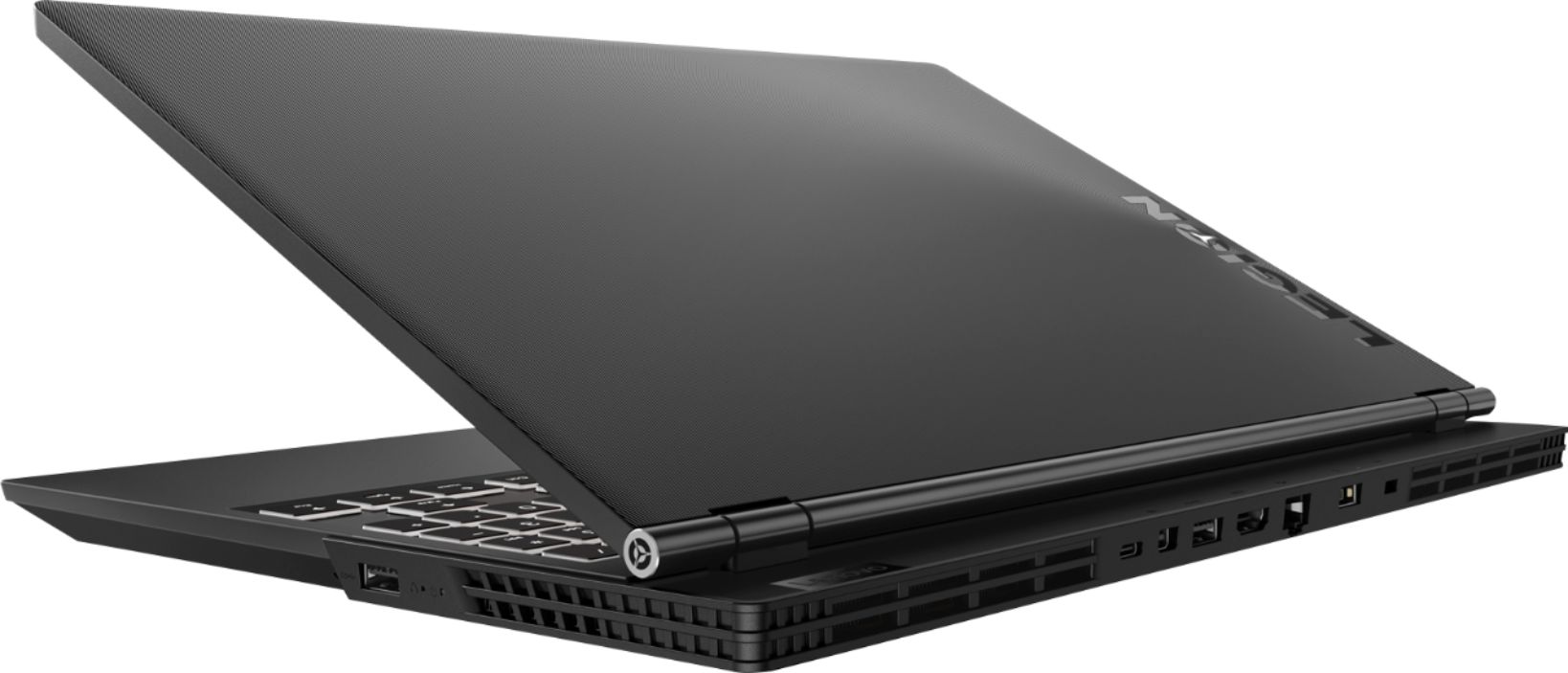
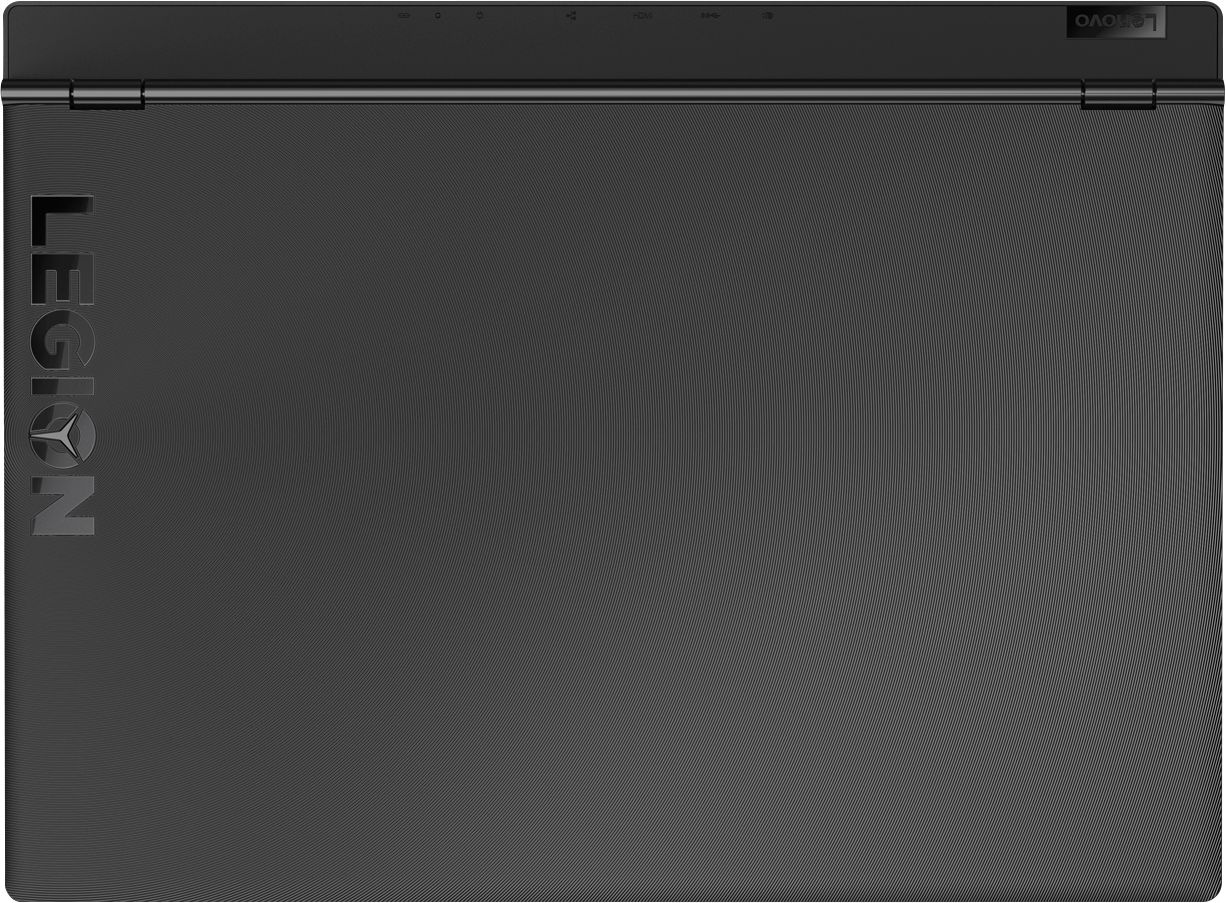



- Model:
- 81FV0002US
- SKU:
- 6219200
Rating by feature
- Value
Rating 4.2 out of 5 stars
- Quality
Rating 4.1 out of 5 stars
- Ease of Use
Rating 4.3 out of 5 stars
Customers are saying
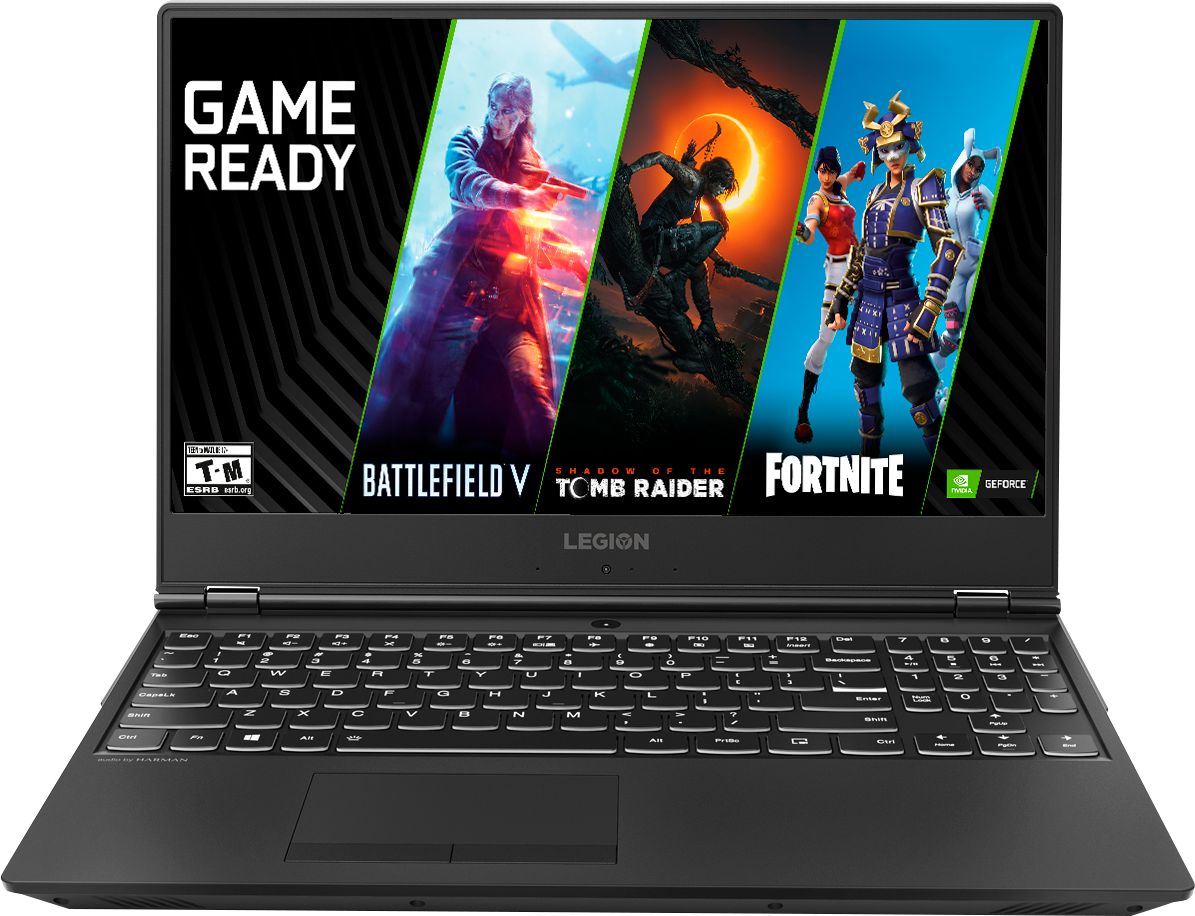
Customers are satisfied with the Legion Y530's performance, design, ample RAM, and graphics card, finding it suitable for gaming and other demanding tasks at a reasonable price. However, some users experienced issues with battery life, hard drive reliability, and overheating, while others noted concerns about the screen and webcam placement. Many felt the machine offered excellent value for its price point. The laptop's weight was also frequently praised as being surprisingly light.
This summary was generated by AI based on customer reviews.
Great little chrome book
||Posted .This reviewer received promo considerations or sweepstakes entry for writing a review.Great product would buy it again thank Best buy ..
I would recommend this to a friendBrand response from Lenovo Product Expert
Posted .Thank you for choosing the Lenovo Legion Y530 laptop. We are pleased to hear that the Legion Y530 is working out so well for you.

- Pros mentioned:Performance, Ram

Almost the perfect machine
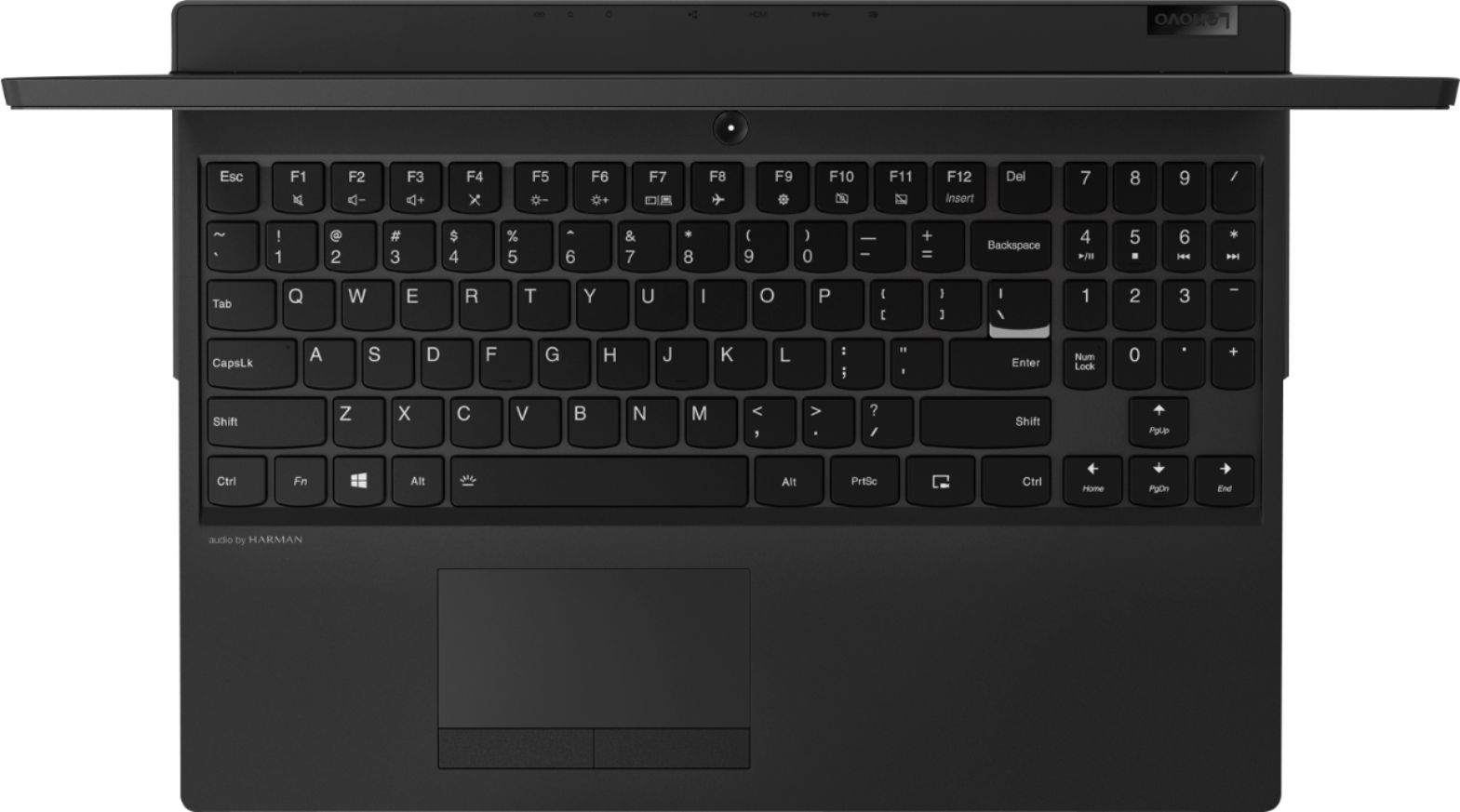
|Posted .This reviewer received promo considerations or sweepstakes entry for writing a review.This is definitely the better of the 2 options for the Legion Y530. The extra $100 you pay for the +8GB of RAM helps, but mostly its the hybrid hard drive that makes this a much smoother performing machine. Performance - This thing breezes through multiple installs and updates running at the same time. Games run without a stutter on FHD resolution and highest graphics settings, so we know the Nvidia chip can handle what you throw at it. It might get a bit warm though during gaming, so you could just keep it on a pedestal to give its fans some breathing room. Because the fans itself are pretty great, you just want to make sure they are not blocked. The reasons why this is not a 5 star machine for me - 1) It has some really odd choice in design choices, the screen has pretty narrow bezels, but then its offset by half an inch of extra chassis behind the screen. And its numpad pattern is by far the oddest I have used, it is definitely going to take a long time to get used to it. 2) But these are cosmetic, I still sometimes run into issues when there are some heavy background processes running (couple of updates or installs), when even simple tasks like browsing slow down to a halt. Its nothing crazy like processes hanging, but you can definitely feel the disk write speeds are not enough to handle these loads. But you kind of know that when you purchase it, its after all not a full SSD.
I would recommend this to a friendBrand response from Lenovo Product Expert
Posted .Thank you for choosing the Lenovo Legion Y530 laptop. We are pleased to hear that the Legion Y530 is working out so well for you. We have made note of your design issues. Concerning background processes slowing down other front end processes, this would occur even with a solid state hard drive where the background processes are high demand programs. The 1TB hard drive within this configuration is coupled with 16GB of Optane memory to give this configuration the base of both worlds: The capacity of a 1TB standard 7200RPM hard drive plus a 16GB solid state hard drive for those programs and files that are used the most.

Problems from the start
||Posted .This reviewer received promo considerations or sweepstakes entry for writing a review.Computer seemed fine when I first got it, but after 2 days it was having problems with wifi connections. I would be in the middle of browsing the web or watching a video and the laptop would drop connection every 5-10 minutes. I tried it with 3 different routers and still had the same issue. I exchanged the laptop for the same kind and that one had the same problems. The wifi card in the laptop is terrible. I was offered the solution to buy a wifi adapter, but I shouldn't have to buy something else to make a few days old laptop work. Exchanged the laptop for a dell g7
No, I would not recommend this to a friendBrand response from Lenovo Product Expert
Posted .We are sorry to hear that you are having issues with WiFi connectivity within your Lenovo Legion Y530 laptop. This model ships with the latest 5G 802.11AC WiFi frequency. Be sure you have the latest version of Windows 10 and that all the supporting BIOS files and drivers are up to date on the computer. You can easily do this for your specific model by scanning the computer with the Lenovo Utility software installed on the computer. This system has Lenovo utilities installed to help maintain the health of the device and keep the operating system software up to date. Type "Lenovo Vantage" in the Cortana Search window (if Lenovo Vantage is not installed on your device, you can download the APP and install it now). Select Lenovo Vantage from the list. In the window that opens, click on "Health and Support". In the expanded menu, select "Hardware Scan" In the window that opens, select "Run Quick Tests". This will scan your entire system for errors. Follow any directions that may pop up. If the problem continues after this scan, now click on "System Update". First select Windows update from the menu. Scan your system to be sure you have the latest version of Windows 10. Once that scan is complete, select "Additional Updates". This will scan your device to be sure there are no new BIOS/Driver updates needed. Follow any instructions that may pop up. If the issue still continues after these updates, we recommend you call Lenovo Tech Support at: 877-453-6686 for additional help. For 2018, Lenovo retained its place for a second year as the best laptop vendor:
https://www.laptopmag.com/articles/laptop-brand-ratings
Don't touch with a bargepole
||Posted .This reviewer received promo considerations or sweepstakes entry for writing a review.Looks like this model with Intel Optane (appears to be custom built for Best-buy to Best Buys bad luck) has a design fault. Had to return first piece as it failed Windows 10 first time update. Geek advised likely design defect but Liked the configuration so much I returned and bought another piece from Best Buy. Ran well for exactly 2 weeks till Intel Optane crashed again. This time called Lenovo help who tried to reinstal driver, failed then suggested return to factory for repairs. I chose to return to Best buy as it was withing return date. Boo to Lenovo and thanks to Best buy.
No, I would not recommend this to a friendBrand response from Lenovo Product Expert
Posted .We are sorry to hear that you are having issues with your Lenovo Legion Y530 laptop. The issue you describe with the Windows 10 operating system is due to a recent Windows 10 update. This update fails and requires a restoration of Windows 10 to factory settings. To do this, Intel Optane Memory must be turned off first. To restore system, Optane must be disabled first in the BIOS
o Power down system, power back on and press F2 to enter BIOS setup
o BIOS setup > Configuration > Storage > Intel® Rapid Storage technology > Intel Optane, 931.5GB > Disable > Are you sure you want to disable > Yes > Disable
o Wait for 3 minutes
o The Disable process should be finished and there will be (2) non-RAID physical disks
o Press F10 to Save and Exit
- The system should now be able to be Restored
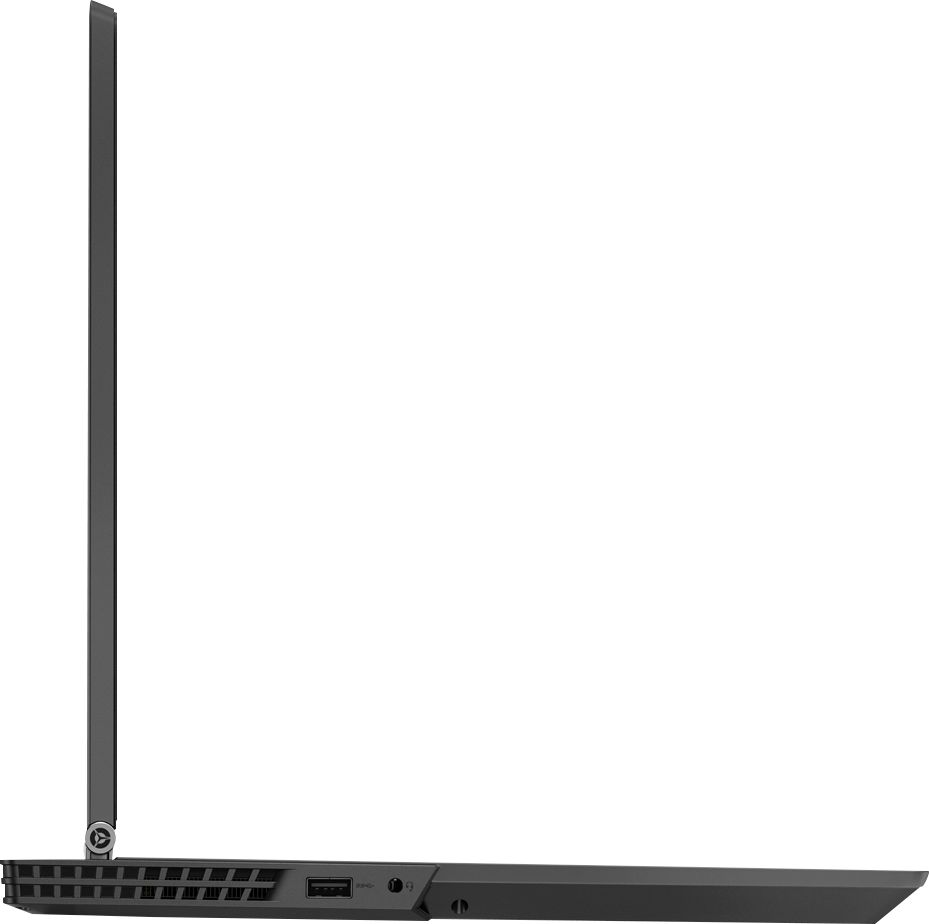
- After restoring, you will need to open the Optane UI from the task bar and choose Setup > Enable > Select “Erase all data on Intel “Optane” memory module > Continue > Restart. Now you can restore the Windows 10 operating system to factory original settings by following the instructions at this link: https://www.laptopmag.com/articles/reset-windows-10-pc. Be sure to re-enable the Optane Memory after you restore the system, then restart the device, as listed above. If your device will not boot have turning the Optane Memory off, this system is equipped with OneKey Recovery System. There is a very small pin hole on the right side of the device, right near the USB port on the device. You will need a pin to push this reset button. Plug the device in. Let the battery charge for about 15 minutes. Push the reset button. The system should boot to a choice screen where you can choose "Restore To Factory Default". Select this. It will delete everything from the hard drive except the original factory install of the operating system. You will need to reinstall all programs and files after the reset. If you don't have copies of the files, try to make one before you restore by selecting "Boot to desktop" and trying to back up your files. If the problem persists after the factory reset, we recommend you contact Lenovo Tech Support at: 877-453-6686.
- Cons mentioned:Screen
Unrepairable within a week!!!
||Posted .This reviewer received promo considerations or sweepstakes entry for writing a review.Screen locked up and auto-repai froze. Replaced with another brand. This was the second Lenovo to do this to me
No, I would not recommend this to a friendBrand response from Lenovo Product Expert
Posted .We are sorry to hear that you had issues with your Lenovo Legion Y530 laptop. There have been recent updates to the Lenovo repair files responding to this issue. We recommend you call Lenovo Tech Support if you are experiencing this issue, at: 877-453-6686.
Great specs, but damaged
||Posted .This reviewer received promo considerations or sweepstakes entry for writing a review.Has all what an engineer that enjoys gaming need. Worked great for 21 days. After that it didn't work anymore, won't even turn on. You need good luck when buying a Lenovo machine.
No, I would not recommend this to a friendBrand response from Lenovo Product Expert
Posted .We are sorry to hear that you are having issues with your Lenovo Legion Y530 laptop. From the description you provide of the issue you are experiencing, resetting the operating system back to original factory settings. Your system configuration includes 16GB of Intel Optane Memory, this needs to be turned off before resetting the operating system. To restore system, Optane must be disabled first in the BIOS
o Power down system, power back on and press F2 to enter BIOS setup
o BIOS setup > Configuration > Storage > Intel® Rapid Storage technology > Intel Optane, 931.5GB > Disable > Are you sure you want to disable > Yes > Disable
o Wait for 3 minutes
o The Disable process should be finished and there will be (2) non-RAID physical disks
o Press F10 to Save and Exit
- The system should now be able to be Restored
- After restoring, you will need to open the Optane UI from the task bar and choose Setup > Enable > Select “Erase all data on Intel “Optane” memory module > Continue > Restart. Now you can restore the Windows 10 operating system to factory original settings by following the instructions at this link: https://www.laptopmag.com/articles/reset-windows-10-pc. Be sure to re-enable the Optane Memory after you restore the system, then restart the device, as listed above. If you continue to have an issue, we recommend you call Lenovo Tech Support at: 877-453-6686.
- Pros mentioned:RamCons mentioned:Cooling
Fantastic Portable gaming rig
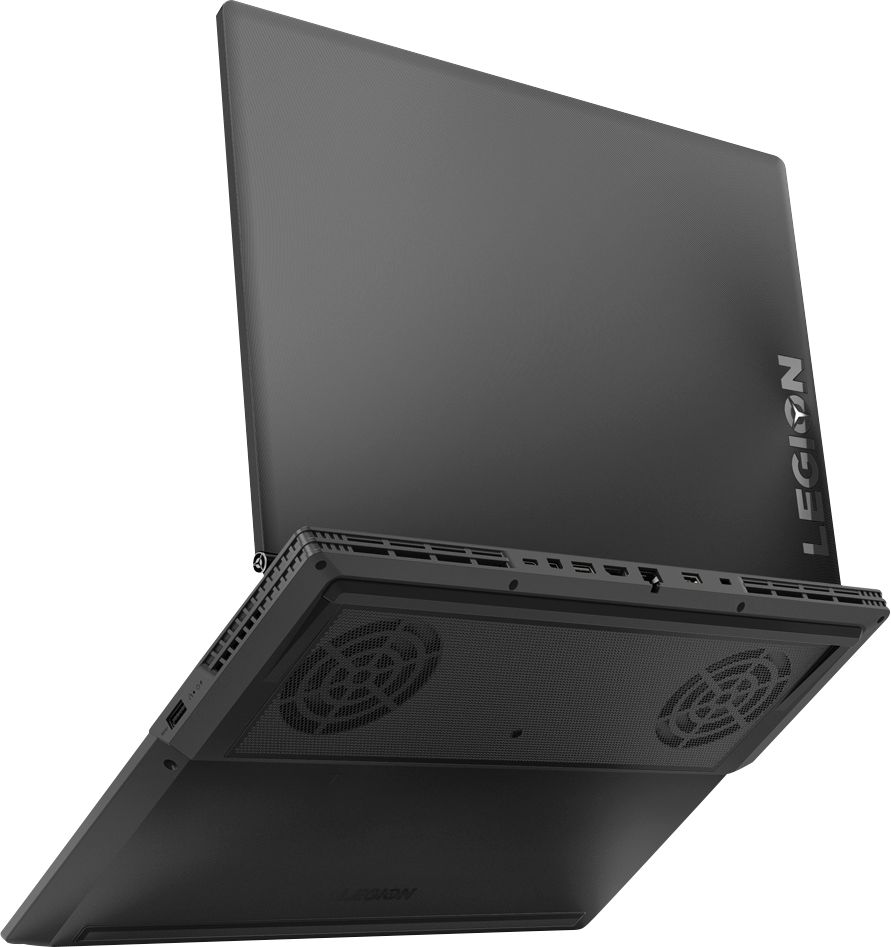
|Posted .This reviewer received promo considerations or sweepstakes entry for writing a review.I have been using this laptop for many days now, and though I am still not fully finished with the testing, this is the most of it. I will update in case something very different come into my observation. No SSD: My initial impression was that it will drag due to lack of SSD. We all know its only as fast as the weakest link in the chain. Good news is, it was a delight to use for most of my testing, due to the inclusion of Intel Optane. Together with 7200 RPM HDD (yep its not 5400), it acts as fast as an SSD. I tried big file transfer and they were as fast as a Samsung SSD (Pro). The way it works is the 16 GB acts like a cache to HDD, enabling super fast access. As you can guess it is not full proof with such a small size cache, but its mostly okay for general use. For example, playing Witcher 2 with texture buffer as small, game is required to load new textures from HDD as the scene change and I can see that the frame rate drops trying to do that. Fortunately the system has enough RAM, where I could select high texture buffer and avoid it for most of the parts. With 4GB VRAM in GPU and with 16GB of RAM, your gaming should be lag-free. But yeah you are better off with an SSD in the bigger scheme of things, I did intend to try free version of EaseUS to copy t he HDD to an SSD and see what speeds I will be getting(If I get to that, I will update the review). Side note: The boot time is not as fast as with an SSD. Overall That aside, overall feel of laptop is good, I like the design. I liked the fact that it is very subtle yet make a statement. For me that statement is, Yes I am a grown up and I game, and this is my grown up gaming laptop(you know, not the RGB). Keyboard is okeyish, there is a proper num kerypad for use, which is nice as the managed to keep good enough space beweeen the keys. Touch pad is the usual affair. The addition of Numpad (doubles as media keys) makes the main keyboard shift to left. This makes for a little awkward typing position in the start, but if you continue using it, you get used to it. I will suggest you try your hands on the keyboard if your usage requires lots of typing. 5 * Gaming This is purpose of this machine and this is where it shines. The screen is matte and does not reflect light, which is good for a portable gaming device. The GPU (GTX1050Ti), does it job perfectly. It could easily drive Witcher 2 for 60+ FPS all the time with mostly Ultra settings (I disabled some setting known to bring GPUs to crawl even in desktops). While gaming the laptop do run hot and I recommend proper ventilation for its cooling system to work on as otherwise the system will throttle down. It comes with a HDMI and a mini DP port in case you want to connect it to an external monitor. Temperatures and noise. In usual non-gaming work load. The laptop is silent with occasional fan runs. One time it crashed on me (the bugcheck was in tcpip.sys, a driver update should fix it). After that crash with battery plugged in, I booted the system, right after login some windows services and the AV (it comes with 6 months of McAfee), does this extensive disk operation which always takes the HDD to 100%. Temperature for CPU package hit 89, which is hot yet still below the T Junction of CPU, i.e. 100 degrees. The cooling system works well, and yeah its noisy. A beefy processor runs hot, and it needs cooling. In one gaming session, max CPU temps was 93(78 Avg(=), GPU Temp was max 72( 67 Avg). You can use supplied Vantage app to turn on the cooling boost which runs the fan at full. Audio Its average, I am not sure what they meant by "Audio by HARMAN", there isn't an app from Harman and the chip is from Realtek per device manager. My Main complaint: Is not SSD, I can always put an SSD, Lenovo decided to go with a new tech and it mostly works. Thing I miss most in this laptop is an IR camera for Windows Hello. It is a powerful machine no doubt, why they devoid it of few extra features is beyond me. Those could have make this an all-rounder gaming machine, but may be that us not what they were aiming for. May be they were aiming for a non-RGB gaming laptop, and they hit that perfectly.
I would recommend this to a friendBrand response from Lenovo Product Expert
Posted .Thank you for choosing the Lenovo Legion Y530 laptop. We are pleased to hear that the features and performance of the Legion Y530 meets your computing needs so well.
2 broken computers
||Posted .This reviewer received promo considerations or sweepstakes entry for writing a review.My son recently left for college with a new computer from Best Buy. He is 2 1/2 hours away without a vehicle. The Lenovo Legion Y530 computer broke and kept shutting down after two weeks. He took it to a Best Buy; they mailed him the same model. This one won't boot or load. Now we have to try for a third. It is a major hassle...and his twin is in the market for a computer. Might look elsewhere. Frustrated and disillusioned.
No, I would not recommend this to a friendBrand response from Lenovo Product Expert
Posted .We are sorry to hear that your son is having issues with his Legion Y530 laptop. If the device won't boot, this system is equipped with OneKey Recovery System. There is a very small pin hole on the right side of the device, right near the USB port on the device. You will need a pin to push this reset button. Plug the device in. Let the battery charge for about 15 minutes. Push the reset button. The system should boot to a choice screen where you can choose "Restore To Factory Default". Select this. It will delete everything from the hard drive except the original factory install of the operating system. You will need to reinstall all programs and files after the reset. If you don't have copies of the files, try to make one before you restore by selecting "Boot to desktop" and trying to back up your files. If the problem persists after the factory reset, we recommend you contact Lenovo Tech Support at: 877-453-6686.
- Cons mentioned:Hard drive
Faulty hardrive
||Posted .This reviewer received promo considerations or sweepstakes entry for writing a review.I was sold a computer. The computer that I was sold had a faulty hard drive. Kind of a bummer seeing that it was an $1,100 computer.
No, I would not recommend this to a friendBrand response from Lenovo Product Expert
Posted .We are sorry to hear that you are having issues with your Lenovo Legion Y530 laptop. It is possible that the issue you were experiencing was in fact an issue with the Windows 10 operating system that requires a reset of Windows 10 to the original factory settings. Because this model ships with Intel Optane Memory and the Optane Memory keeps an image of the Windows 10 operating system for fast boot ups, the Optane Memory must first be turned off before you can reset to factory original settings. To restore system, Optane must be disabled first in the BIOS
o Power down system, power back on and press F2 to enter BIOS setup
o BIOS setup > Configuration > Storage > Intel® Rapid Storage technology > Intel Optane, 931.5GB > Disable > Are you sure you want to disable > Yes > Disable
o Wait for 3 minutes
o The Disable process should be finished and there will be (2) non-RAID physical disks
o Press F10 to Save and Exit
- The system should now be able to be Restored
- After restoring, you will need to open the Optane UI from the task bar and choose Setup > Enable > Select “Erase all data on Intel “Optane” memory module > Continue > Restart. Now you can restore the Windows 10 operating system to factory original settings by following the instructions at this link: https://www.laptopmag.com/articles/reset-windows-10-pc. Be sure to re-enable the Optane Memory after you restore the system, then restart the device, as listed above. If you continue to have an issue, we recommend you call Lenovo Tech Support at: 877-453-6686.
- Cons mentioned:Screen
screen died in 1 year
||Posted . Owned for 1 year when reviewed.This reviewer received promo considerations or sweepstakes entry for writing a review.Screen died in 1 year. Started to flicker and then dead. Exactly 1 year and 1 month so no warranty. Do not buy
No, I would not recommend this to a friend DO NOT BUY
||Posted .This reviewer received promo considerations or sweepstakes entry for writing a review.I went through two of these laptops before eventually returning it for a different model. It runs great for the first 48 hours, then things start going wrong. It begins run very laggy, then refuses to boot. I tried several times to reset it, but it wouldn't reset. Stay away - just spend the extra money and get a decent gaming machine.
No, I would not recommend this to a friendBrand response from Lenovo Product Expert
Posted .We are sorry to hear that you are having issues with your Lenovo Legion Y530 laptop. Be sure any software you are installing is compatible with Windows 10. We recommend you call Lenovo Tech Support at: 877-453-6686 for specific help with the issues you are experiencing.
Terrible!
||Posted .This reviewer received promo considerations or sweepstakes entry for writing a review.Ordered PC worked for 30 min and was stuck in auto repair and I was unable to reset. Drove for 3 hours one way to get it replaced for the exact same thing to happen with another in two hours. DO NOT BUY A LENOVO LEGION 1050ti, unless you want to exchange it, and then , return it because the exchange didn't work!
No, I would not recommend this to a friendBrand response from Lenovo Product Expert
Posted .We are sorry to hear that you had issues with your Lenovo Legion Y530 laptop. Be sure any software you install is compatible with Windows 10. There is no need to install Microsoft Office software. The software is already part of the operating system, you just need to activate the software with a purchased product key. If you have installed a copy of Microsoft Office, this is conflicting with the existing copy on the system and this will slow your system down. If you have installed a 3rd party anti-virus program, be sure that Windows Defender is turned off and that the trial version of McAfee Anti-Virus software is uninstalled. There can only be one anti-virus program on the system. You may need to restore your system to original factory default settings if any of the programing errors have occurred. You can do that by typing "restore" in the Cortana search window. Just click on the magnifying glass icon at the bottom left of your Windows 10 Desktop. Click on "Reset This PC" Then click on "Get Started" and follow the on screen directions to restore to factory defaults. If the problem persists, we recommend you contact Lenovo Tech Support at: 877-453-6686.
- Pros mentioned:Design, Ram
Excellent Specs
|Posted .This reviewer received promo considerations or sweepstakes entry for writing a review.This model is one of the cleanest looking aesthetics you’ll find in a “gaming” laptop. Absent is the over the top designs and spaceship looking chassis. Nothing feels cheap or too “plasticy” – and coming in at under and inch thick isn’t bad either. Specs are perfect for modern HD gaming on the go. With 16GBs of RAM and top tier 6 core I7, it’s great for everything from gaming to software development! The Optane accelerated 1 TB drive is a nice touch too. The GTX 1050 is just the icing on top. I was able to play Overwatch, Ark (low settings), and Rocket League at more than acceptable frame rates. I connected an XBOX One controller in just a few seconds and couldn’t be happier. The Lenovo Y530 Legion is now my go to for portable gaming.
I would recommend this to a friendBrand response from Lenovo Product Expert
Posted .Thank you for choosing the Lenovo Legion Y530 laptop. We are pleased to hear that the value, features and performance of the Legion Y530 meets your computing needs so well.
With all the incredible specs...
||Posted . Owned for 11 months when reviewed.This reviewer received promo considerations or sweepstakes entry for writing a review.I could not believe how slow and not so great this laptop was. I've tried to have multiple programs disabled or uninstalled, which provided a little more speed. However, for the purposes of gaming no good, for everyday use, ok. I'm going to try and upgrade the RAM to see if that helps. The only good thing is that this encouraged me to build my own PC with the best parts.
No, I would not recommend this to a friendWorthless
||Posted .This reviewer received promo considerations or sweepstakes entry for writing a review.This product scores 0 stars. Highly disappointed. Brought it for my son to take to college. Crashed within 15 days. Took it back. I liked the specs and Best Buy clerk said new one should be fine. Within 10 days the 2nd one did the same thing. It’s junk or a software problem. Either way, DO NOT BUY THIS!!!
No, I would not recommend this to a friendBrand response from Lenovo Product Expert
Posted .We are sorry to hear that you are having issues with your Lenovo Legion Y530 laptop. Be sure any software you installed is compatible with Windows 10. There is no need to install Microsoft Office software. The software is already part of the operating system, you just need to activate the software with a purchased product key. If you have installed a copy of Microsoft Office, this is conflicting with the existing copy on the system and this will slow your system down. If you have installed a 3rd party anti-virus program, be sure that Windows Defender is turned off and that the trial version of McAfee Anti-Virus software is uninstalled. There can only be one anti-virus program on the system. You may need to restore your system to original factory default settings if any of the programing errors have occurred. You can do that by typing "restore" in the Cortana search window. Just click on the magnifying glass icon at the bottom left of your Windows 10 Desktop. Click on "Reset This PC" Then click on "Get Started" and follow the on screen directions to restore to factory defaults. If the problem persists, we recommend you contact Lenovo Tech Support at: 877-453-6686.
great works nice
||Posted . Owned for 1 month when reviewed.This reviewer received promo considerations or sweepstakes entry for writing a review.very nice computer working great and good for school work or business
I would recommend this to a friendNice but has issues
||Posted . Owned for more than 2 years when reviewed.This reviewer received promo considerations or sweepstakes entry for writing a review.Okay with issues. Problem with software turning off automatically
No, I would not recommend this to a friend- Pros mentioned:Graphics card, RamCons mentioned:Webcam placement
Sleek gaming laptop
|Posted .This reviewer received promo considerations or sweepstakes entry for writing a review.The Y530 is a decent gaming laptop, due to the 1050ti. The 16GB of ram make sure all of your web browsing and gaming needs are met. The biggest drawback for me is the placement of the webcam. The Y530 DOESN'T scream gamer, and I enjoy all of the main ports (charger, ethernet, etc). The backlit keyboard and track pad worked well, but I don't think anyone will be raving over them. I will be using this for playing Heroes of the Storm and WoW. The 1050ti and the ram provided are overkill for the game I play, however more power is better than under-powered.
I would recommend this to a friendBrand response from Lenovo Product Expert
Posted .Thank you for choosing the Lenovo Legion Y530 laptop. We are pleased to hear that the features and performance of the Legion Y530 meets your computing needs so well.
Not worth risk
||Posted .This reviewer received promo considerations or sweepstakes entry for writing a review.I bought this laptop to do my online college classes. I bought it in Sept. now it is January and two days into classes for this semester the screen goes black and I have to send it in to have the backlight replaced. Googled this issue and I’m not the only one that has had this issue and purchased around the same time frame.
No, I would not recommend this to a friendBrand response from Lenovo Product Expert
Posted .We are sorry to hear that you are having an issue with the screen image on your Lenovo Legion Y530 laptop. It is possible that the issue you describe can be corrected by resetting Windows 10 back to original factory settings. Your configuration of the Legion Y530, has Intel Memory installed. To restore system, Optane must be disabled first in the BIOS
o Power down system, power back on and press F2 to enter BIOS setup
o BIOS setup > Configuration > Storage > Intel® Rapid Storage technology > Intel Optane, 931.5GB > Disable > Are you sure you want to disable > Yes > Disable
o Wait for 3 minutes
o The Disable process should be finished and there will be (2) non-RAID physical disks
o Press F10 to Save and Exit
- The system should now be able to be Restored
- After restoring, you will need to open the Optane UI from the task bar and choose Setup > Enable > Select “Erase all data on Intel “Optane” memory module > Continue > Restart. Now you can restore the Windows 10 operating system to factory original settings by following the instructions at this link: https://www.laptopmag.com/articles/reset-windows-10-pc. Be sure to re-enable the Optane Memory after you restore the system, then restart the device, as listed above. If you continue to have an issue, we recommend you call Lenovo Tech Support at: 877-453-6686.
Open Box Purchase
||Posted .This reviewer received promo considerations or sweepstakes entry for writing a review.I was recommended to buy this lap top due to the kind of work I do and I was excited that they had an open box at a reduced price. I took it home and got it all set up and the next morning it would not stay on. It kept powering down. I took it right back to the store to get a new one.
No, I would not recommend this to a friend