Customer Ratings & Reviews




- Model:
- 81FV0002US
- SKU:
- 6219200
Rating by feature
- Value
Rating 4.2 out of 5 stars
- Quality
Rating 4.1 out of 5 stars
- Ease of Use
Rating 4.3 out of 5 stars
Customers are saying
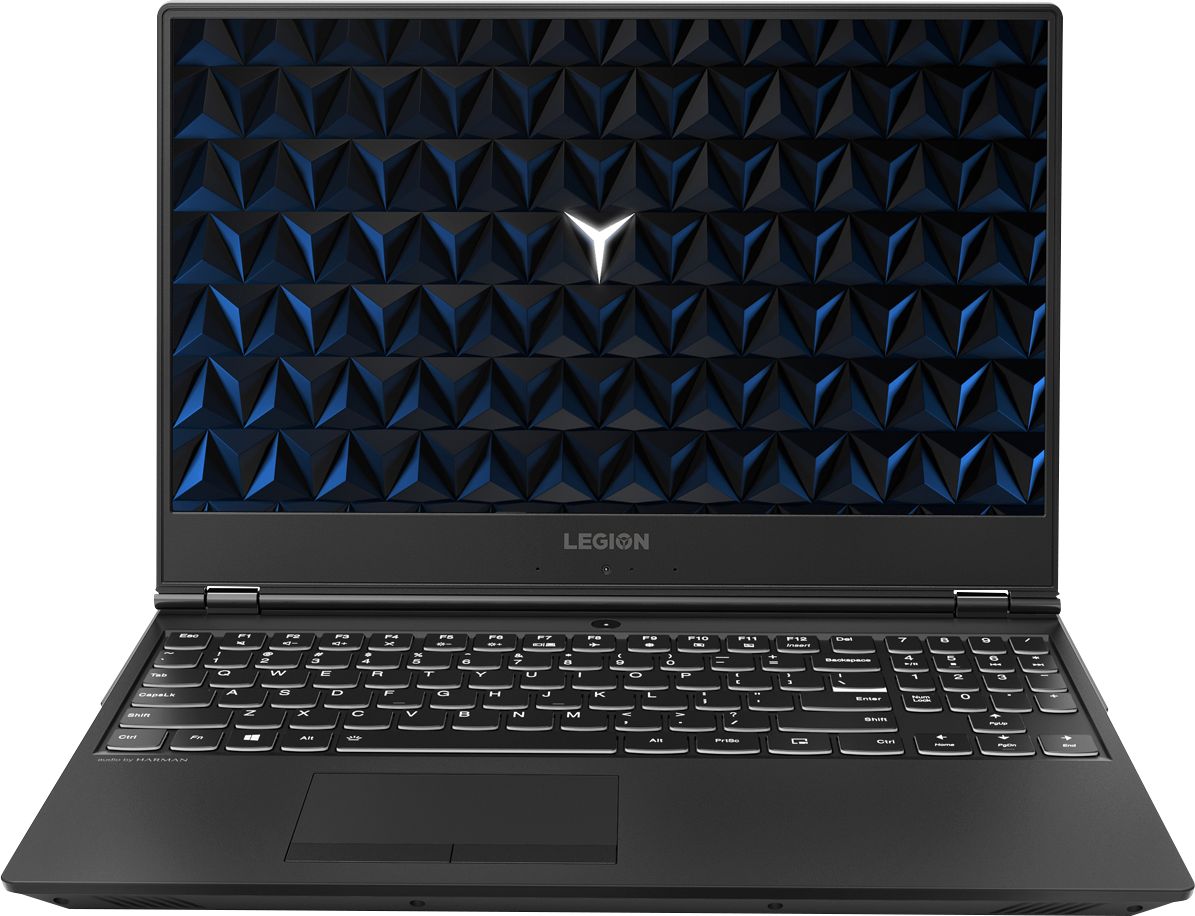
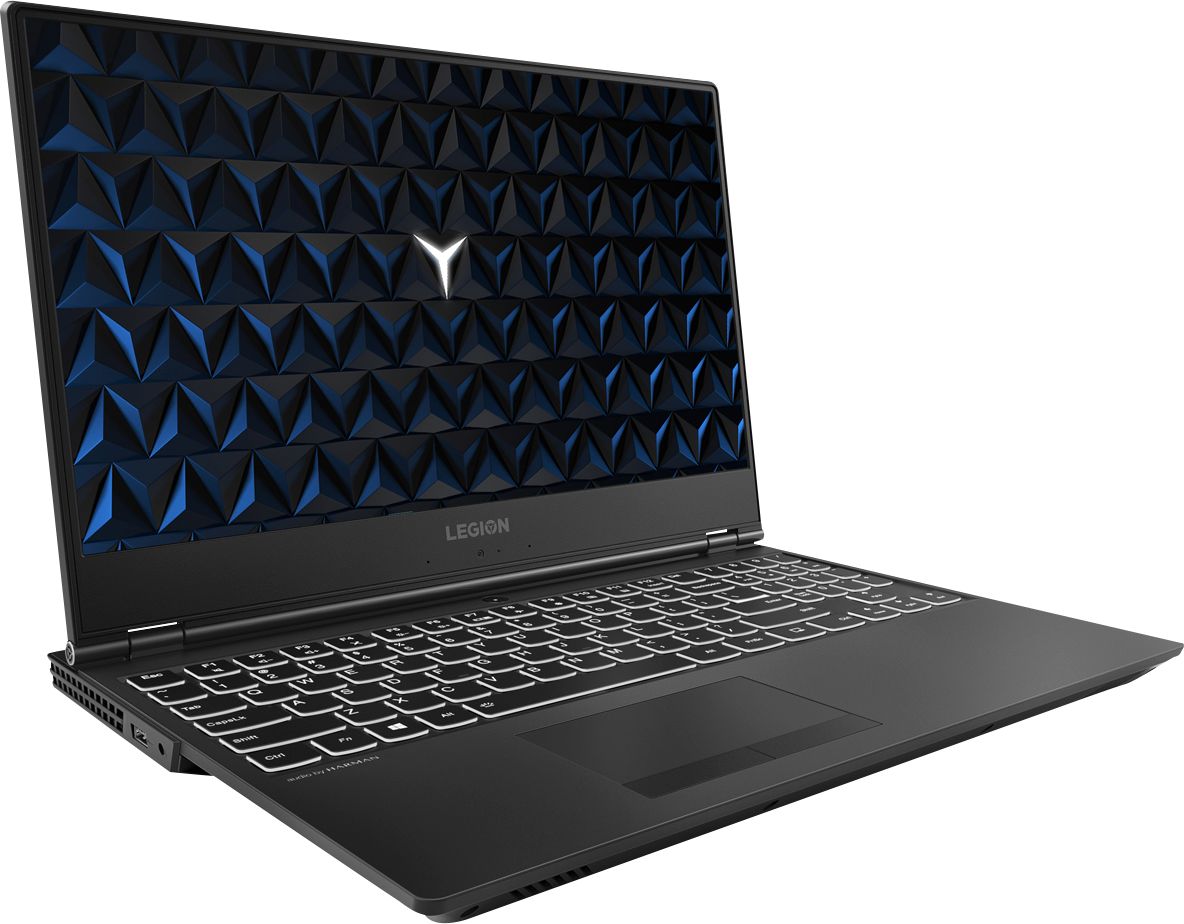
Customers are satisfied with the Legion Y530's performance, design, ample RAM, and graphics card, finding it suitable for gaming and other demanding tasks at a reasonable price. However, some users experienced issues with battery life, hard drive reliability, and overheating, while others noted concerns about the screen and webcam placement. Many felt the machine offered excellent value for its price point. The laptop's weight was also frequently praised as being surprisingly light.
This summary was generated by AI based on customer reviews.

Great for gaming
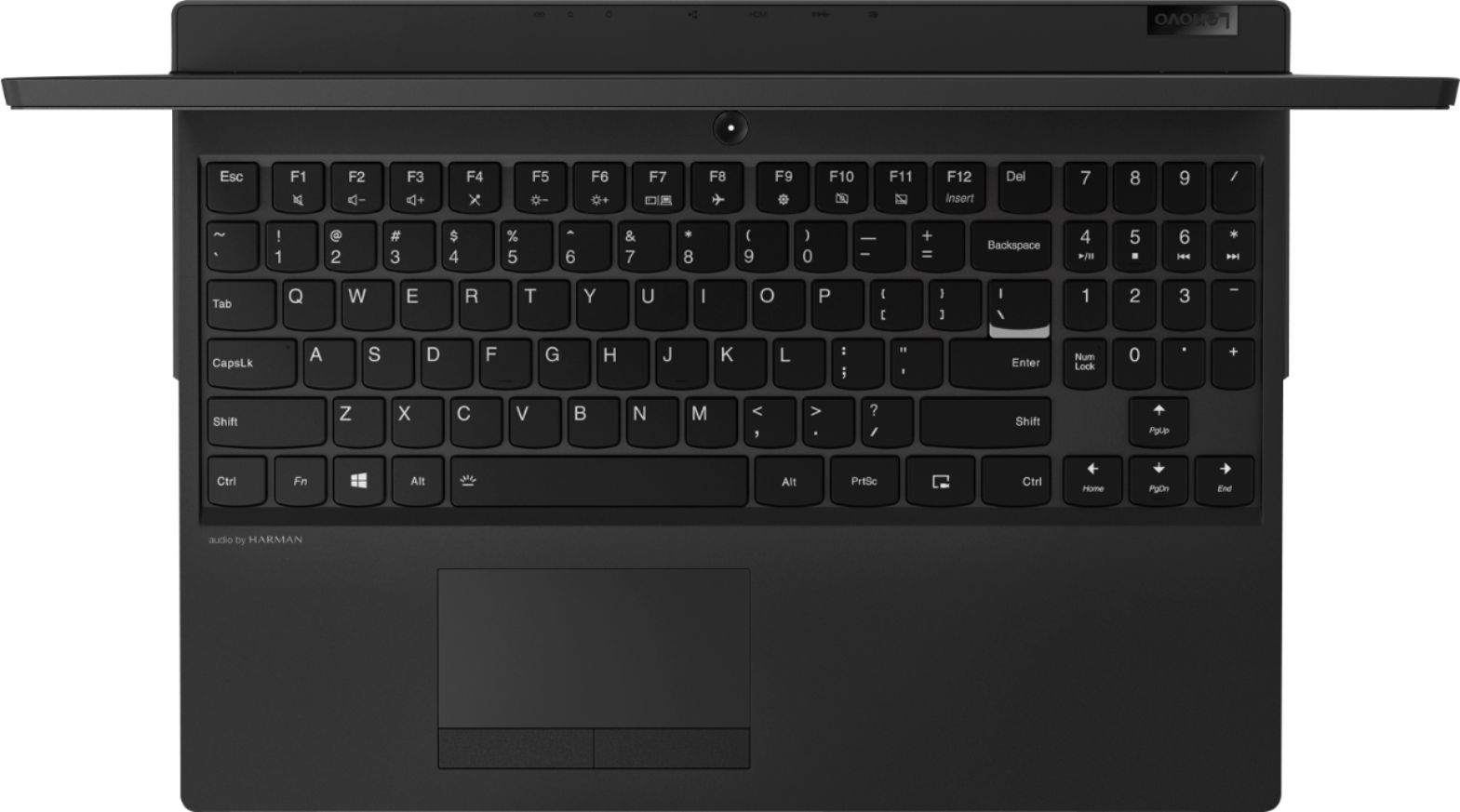
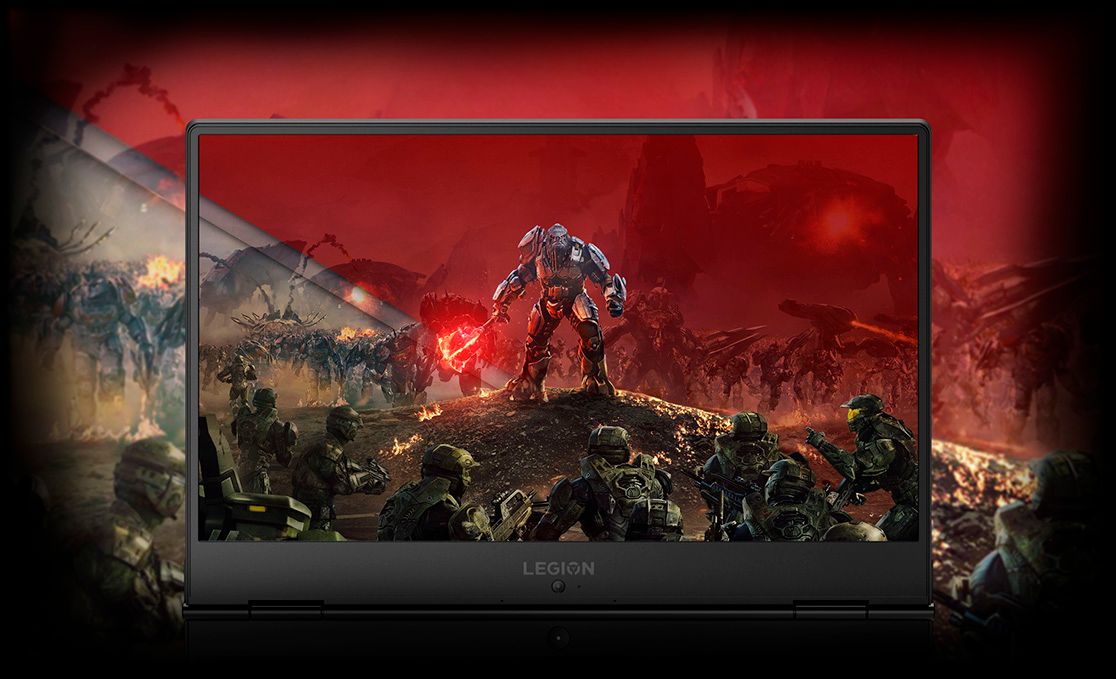
|Posted .This reviewer received promo considerations or sweepstakes entry for writing a review.The Lenovo Y530 has a nice exterior design, a nice 1080p screen with small bezels, and a great keyboard with white backlighting. You can expect to get high frame rates in most games at medium to high settings, even in games like “The Witcher 3”
I would recommend this to a friendBrand response from Lenovo Product Expert
Posted .Thank you for choosing the Lenovo Legion Y530 laptop. We are pleased to hear that the performance of the Legion Y530 meets your computing needs so well.

- Pros mentioned:Graphics cardCons mentioned:Screen
Black Screen Of Death
Posted .This reviewer received promo considerations or sweepstakes entry for writing a review.I got this laptop 2 days ago, and I loved it, it was fast, it had a good graphics card for what I needed, and the price was just right. But then today. I got home today to do some work on it, and it worked just fine at first, but then not to long later the screen went black for no reason. Me and my family worked on trying to figure out what was going on, we eventually plugged it in to the TV and realized that the problem was with the screen, and that's when I looked online and found out, all modern Lenovo laptops have the same problem, the screen goes black for no reason and you can't use it anymore without a external screen. For a laptop that's kinda the whole point of they device is not having to use an external screen to use it. If you are looking at a laptop or a gaming laptop then look somewhere else if you want something that won't randomly die on you with no way of preventing the issue. It's a shame, I'll be going back soon to get a new laptop.
No, I would not recommend this to a friendBrand response from Lenovo Product Expert
Posted .We are sorry to hear that you are having issues with your Lenovo Legion Y530. It sounds like your laptop is set up for an external monitor. Try holding down the "Fn" key and tapping the HotKey in the F7 position on your keyboard. This HotKey toggles your laptop screen on/off between an external monitor. You can also check monitor settings within the Control Panel. Click Start, Control Panel, Appearance and Personalization. Choose 'Connect an external display' from the Display menu. What's shown on your main screen will be duplicated on the second display. Select 'Extend these displays' from the 'Multiple displays' drop-down menu to expand your desktop across both monitors. It you continue to have the same issue, we recommend you call Lenovo Tech Support at: 877-453-6686.
- Pros mentioned:Performance
Legion Y530 i7 16 Gb
Posted .This reviewer received promo considerations or sweepstakes entry for writing a review.So far so good. I haven't really used the laptop enough for me to give a good review. I will update after a few weeks or months.
I would recommend this to a friendBrand response from Lenovo Product Expert
Posted .Thank you for choosing the Lenovo Legion Y530 Laptop. We are pleased to know that the value, features and performance of the Legion Y530 met your requirements for a new laptop so well.
Not what I thought
Posted .This reviewer received promo considerations or sweepstakes entry for writing a review.In my search for the best budget portable gaming laptop, I thought the Legion Y530 was the one for me. Pros: -- The screen bezels are beautiful -- The top of the laptop looked perfect -- 1TB memory -- Portable, not too heavy Cons: -- This laptop is SLOW. What do I mean by slow? Compared to the Dell G7, when I tried to update WIndows, it took the Legion Y530 overnight until the next morning to complete the update. The Dell G7 finished the update in 30mins. -- Gaming with Overwatch: Again compared to Dell G7, the very first game that finally loaded was laggy. It took forever to download Overwatch the game let alone the Blizzard App it comes with. Overall: If you're on a budget, and you have more patience than I do when it comes to loading times, then this laptop is a good choice. It is able to run games on Steam and Overwatch, but a little too slow for my liking. It is portable and doesn't look too gamer-y to bring to class. If it weren't for how slow the load times were, I would have completely fallen in love with this laptop :/
No, I would not recommend this to a friendBrand response from Lenovo Product Expert
Posted .The Lenovo Legion Y530 laptop uses Intel Optane Memory to boost the standard hard drive performance to Hybrid drive performance. The Optane Memory boost the speed of recall of the operating system (boot up) and your most uses programs. With regard to downloads, the Legion Y530 uses 5G 802.11AC WiFi, the newest and fastest available.
- Pros mentioned:Performance
5 star specs 2 star output
Posted .This reviewer received promo considerations or sweepstakes entry for writing a review.This laptop is almost perfect for its price range. It's snappy, programs load without hesitation etc. The downside? I had three of these within 3 weeks. Two of them had OS issues and never booted correctly after 3 days of usage. Returned to BB because I really liked this laptop. The last one had a fan so loud I thought it was my ac! It ran every 30 seconds and acted as if Youtube was a fully clocked video game. (I didn't have the chance to play any btw lol). Eventually I got the 128gb ssd, 1tb G7 and haven't looked back. I think the hybrid hd in this isn't as effective long term as it could be.
No, I would not recommend this to a friendBrand response from Lenovo Product Expert
Posted .We are sorry to hear that you had issues with the Windows 10 update, requiring the restoration of the operating system. In order to do this properly, the Intel Optane Memory must be turned off first. To restore system, Optane must be disabled first in the BIOS
o Power down system, power back on and press F2 to enter BIOS setup
o BIOS setup > Configuration > Storage > Intel® Rapid Storage technology > Intel Optane, 931.5GB > Disable > Are you sure you want to disable > Yes > Disable
o Wait for 3 minutes
o The Disable process should be finished and there will be (2) non-RAID physical disks
o Press F10 to Save and Exit
- The system should now be able to be Restored
- After restoring, you will need to open the Optane UI from the task bar and choose Setup > Enable > Select “Erase all data on Intel “Optane” memory module > Continue > Restart. Now you can restore the Windows 10 operating system to factory original settings by following the instructions at this link: https://www.laptopmag.com/articles/reset-windows-10-pc. If after turning off the Optane Memory, your device will not boot so you can restore to factory default settings, this system is equipped with OneKey Recovery System. There is a very small pin hole on the right side of the device, right near the USB port on the device. You will need a pin to push this reset button. Plug the device in. Let the battery charge for about 15 minutes. Push the reset button. The system should boot to a choice screen where you can choose "Restore To Factory Default". Select this. It will delete everything from the hard drive except the original factory install of the operating system. You will need to reinstall all programs and files after the reset. If you don't have copies of the files, try to make one before you restore by selecting "Boot to desktop" and trying to back up your files. Be sure to re-enable the Optane Memory after you restore the system, then restart the device, as listed above. If you continue to have an issue, we recommend you call Lenovo Tech Support at: 877-453-6686.
Second time is a charm
Posted .This reviewer received promo considerations or sweepstakes entry for writing a review.Bought this lovely computer from Best Buy and within two hours of using it, one of the speakers blew out (I tried reinstalling my drivers, updating them, and factory resetting windows - yes, they were blown out.) I took it back to Best Buy the next day, and they were able to swap it out for me. Now that I've been using the replacement one for about a week, I can safely say that I must have gotten a bad apple because this computer is amazing. My only issue with it is that the sound quality can be rather bad, but it's fine since you generally use a headset when gaming anyway. I love the discrete look of the laptop. It's made of plastic but still feels sturdy. Great buy.
I would recommend this to a friendBrand response from Lenovo Product Expert
Posted .We are sorry to hear that you had issues with the audio on your Lenovo Legion Y530. This system has Lenovo utilities installed to help maintain the health of the device and keep the operating system software up to date. Type "Lenovo Vantage" in the Cortana Search window (if Lenovo Vantage is not installed on your device, you can download the APP and install it now). Select Lenovo Vantage from the list. In the window that opens, click on "Health and Support". In the expanded menu, select "Hardware Scan" In the window that opens, select "Run Quick Tests". This will scan your entire system for errors. Follow any directions that may pop up. If the problem continues after this scan, now click on "System Update". First select Windows update from the menu. Scan your system to be sure you have the latest version of Windows 10. Once that scan is complete, select "Additional Updates". This will scan your device to be sure there are no new BIOS/Driver updates needed. Follow any instructions that may pop up. If the issue still continues after these updates, we recommend you call Lenovo Tech Support at: 877-453-6686 for additional help.
- Pros mentioned:Performance
Excellent price/performance
Posted .This reviewer received promo considerations or sweepstakes entry for writing a review.Excellent price/performance. However, every time it starts to process something, it increases abruptly the fan noise.
I would recommend this to a friendBrand response from Lenovo Product Expert
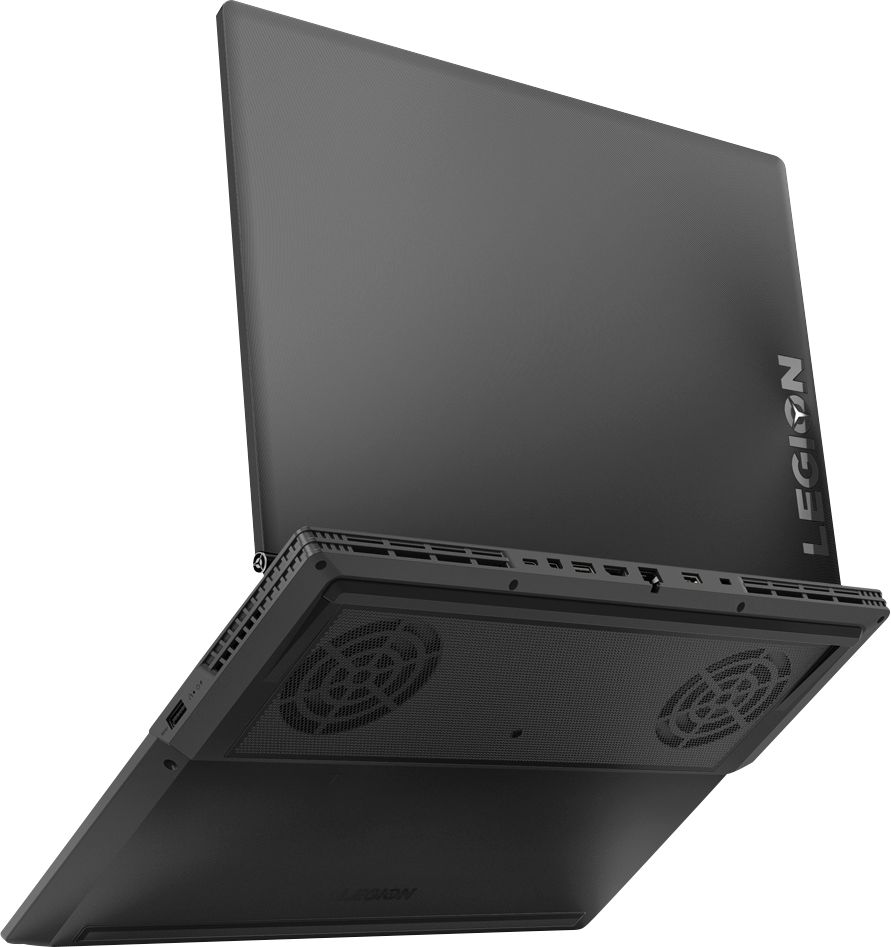
Posted .Thank you for choosing the Lenovo Legion Y530 laptop. This is a powerful configuration and heat is the nemesis of computing performance. It is not a problem with the re-mastered Legion Y530 though. It features a dual-channel thermal system, offering multiple benefits: individual CPU and GPU cooling, for cooler system temperatures; four thermal vents, for improved airflow; and 70 individual fan blades per channel, to reduce system noise.

- Pros mentioned:Performance
Great laptop, but NVIDIA bundle didn’t work
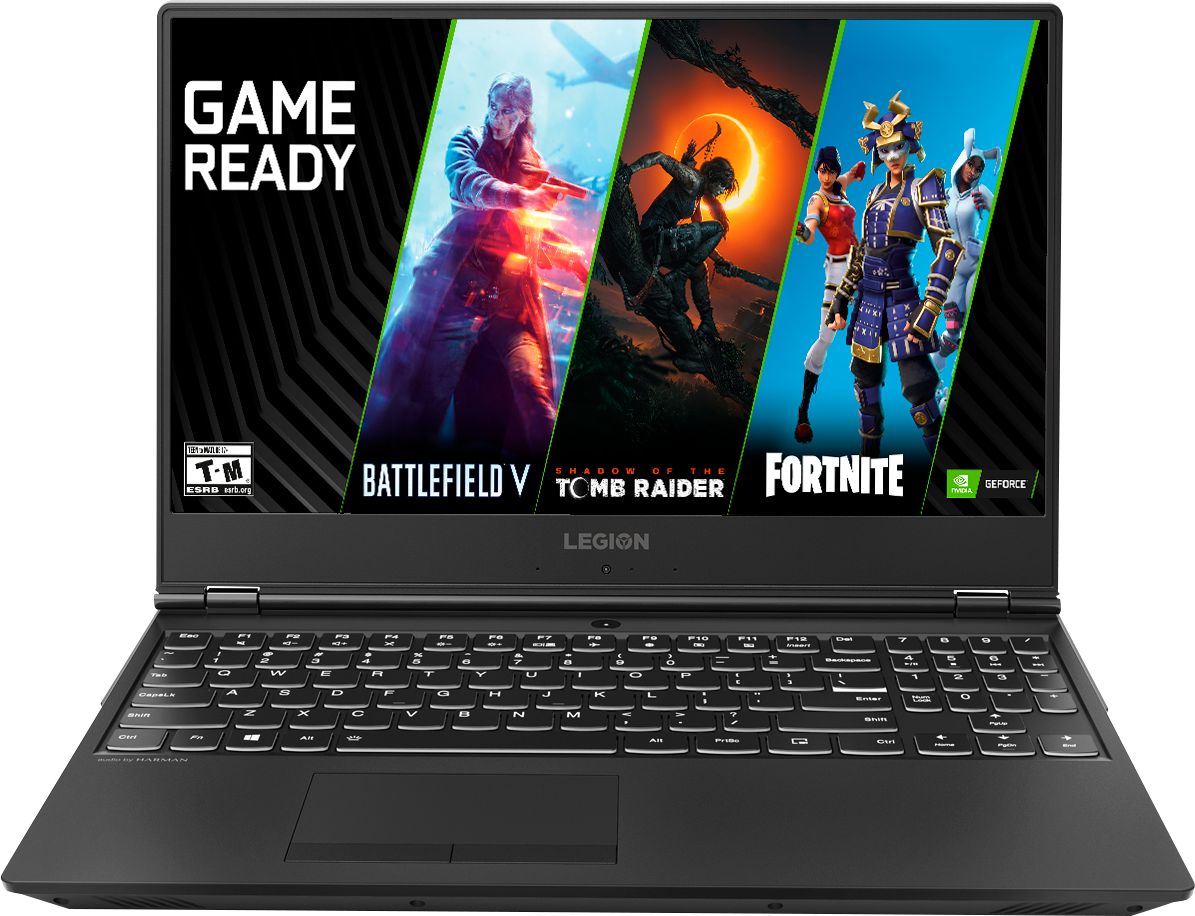
Posted .This reviewer received promo considerations or sweepstakes entry for writing a review.I can’t redeem the code for fortnite because it shows the message is already used or expired. The laptop works great.
I would recommend this to a friendBrand response from Lenovo Product Expert
Posted .Check the date on the offer for Fortnite to confirm the expiration date of the promotion. If you are still within the promotional period, we recommend you contact Best Buy for your options. For 2018, Lenovo retained its place for a second year as the best laptop vendor:
https://www.laptopmag.com/articles/laptop-brand-ratings
- Cons mentioned:Screen
Black Screen in just 3 months of light use
Posted .This reviewer received promo considerations or sweepstakes entry for writing a review.So I had this laptop last August 2018. I am fairly using it for excel and word (pre-installed) and watching movies. Pretty much light use, right? But recently this December, as I was watching a movie, the screen suddenly froze. I have no way of fixing it since the keyboard and the mouse weren't functioning. So I opted to mandatory shutdown. But when I turned it back on, I can't even proceed to the windows log-in since I am met with a black screen. Purely black screen with no cursor whatsoever. This happens after the logo of lenovo legion appeared with the loading icon that went round and round then blackscreen. I am not a tech geek so I don't know what's wrong so I tried windows recovery through the reset button. I have done everthing in windows recovery and nothing. Brought the bios system into default, still nothing. Tried system restore, still nothing. Tried system reset, still nothing. Tried other display through HDMI, no signal. I am disappointed Lenovo, really am.
No, I would not recommend this to a friendBrand response from Lenovo Product Expert
Posted .We are sorry to hear that you are having issues trying to reset your Lenovo Legion Y530 to factory settings. Because there is an image of the Windows 10 operating system on the Optane Memory, to restore system, Optane must be disabled first in the BIOS
o Power down system, power back on and press F2 to enter BIOS setup
o BIOS setup > Configuration > Storage > Intel® Rapid Storage technology > Intel Optane, 931.5GB > Disable > Are you sure you want to disable > Yes > Disable
o Wait for 3 minutes
o The Disable process should be finished and there will be (2) non-RAID physical disks
o Press F10 to Save and Exit
- The system should now be able to be Restored
- After restoring, you will need to open the Optane UI from the task bar and choose Setup > Enable > Select “Erase all data on Intel “Optane” memory module > Continue > Restart. Now you can restore the Windows 10 operating system to factory original settings by following the instructions at this link: https://www.laptopmag.com/articles/reset-windows-10-pc. Be sure to re-enable the Optane Memory after you restore the system, then restart the device, as listed above. If you continue to have an issue, we recommend you call Lenovo Tech Support at: 877-453-6686.
- Pros mentioned:Design
WIFI Issues
Posted .This reviewer received promo considerations or sweepstakes entry for writing a review.Think long and hard before buying this laptop. The price is very attractive for a gaming laptop with an i7 and 16 GB of memory and it does have power. I love the design and feel of the laptop. But I give it one star because they have updated the processor which is nice yet they have a known issue with the wifi adapter that they have not addressed (just do a Google Search). When you contact Lenovo support (block a lot of time as they respond very slowly) they run you through a bunch checks and then tell you that there is nothing they can do. Take the laptop back to where you purchased it. How do you create a gaming laptop with a crappy wifi adapter? You will find pages of people having this same issue.
No, I would not recommend this to a friendBrand response from Lenovo Product Expert
Posted .The Lenovo Legion Y530 laptop ships with the latest 5G, 802.11 AC (2 x 2) frequency WiFi. Be sure your b/g/n router has the latest firmware updates available from the router manufacturer's web site. You can keep the operating system, BIOS files and communications drivers up to date on the computer by scanning the computer regularly with the Lenovo Utility software installed on the computer. This system has Lenovo utilities installed to help maintain the health of the device and keep the operating system software up to date. Type "Lenovo Vantage" in the Cortana Search window (if Lenovo Vantage is not installed on your device, you can download the APP and install it now). Select Lenovo Vantage from the list. In the window that opens, click on "Health and Support". In the expanded menu, select "Hardware Scan" In the window that opens, select "Run Quick Tests". This will scan your entire system for errors. Follow any directions that may pop up. If the problem continues after this scan, now click on "System Update". First select Windows update from the menu. Scan your system to be sure you have the latest version of Windows 10. Once that scan is complete, select "Additional Updates". This will scan your device to be sure there are no new BIOS/Driver updates needed. Follow any instructions that may pop up. If the issue still continues after these updates, we recommend you call Lenovo Tech Support at: 877-453-6686 for additional help.
Dangerous - Do not buy
Posted .This reviewer received promo considerations or sweepstakes entry for writing a review.I bought a Lenovo Legion for my son for Christmas. It had great specs for the price and he was very happy. One week later, when he turned it on, the monitor would not come on, then it began to smoke. He immediately turned it off and took it outside until it stopped smoking and cooled off. It took four attempts to get through to Lenovo technical support, waiting more than 30 minutes on hold each time. When I finally was able to speak to someone, they said it was a safety issue and would escalate it to a case manager, who would get back to me in a few days about a replacement. I received an email and a voicemail from the case manager. Despite multiple calls over a week’s time, I was unable to speak to the case manager but I did leave 2 voicemails. I then received another email from the case manager stating that he had not heard from me and asking me to call him. Several emails, call attempts and voicemails later, I finally was able to speak to the case manager. At this point, it was more than 3 weeks since the initial problem and several hours of my time trying to resolve the problem. The case manager’s solution was for me to spend more of my time to send the defective and dangerous unit to see if it could be repaired. I told him I had no interest in the unit being repaired, nor in waiting for who knows how long for them to complete their evaluation, especially given that it had taken over three weeks to even have a conversation with him. I requested an immediate replacement, which he refused, stating it was not policy to take a customer’s word. I told him the I could still return the computer for a refund, but not a replacement, since the same unit was no longer available, and that the only reason I had spent so much time trying to resolve the issue was that my son wanted that specific computer. I again requested a replacement, which he refused, stating that Lenovo could not take a customer’s word and needed to see if the unit could be repaired. Since I am not willing to risk have a faulty unit repaired, I will be returning it for a refund and purchasing another brand. Any manufacturer can have a problem, but Lenovo’s cavalier attitude toward resolving this issue is dangerous. Please save yourself the potential risk and buy another brand.
No, I would not recommend this to a friend- Cons mentioned:Hard drive
No SSD support for Optane models HDD failures!
Posted .This reviewer received promo considerations or sweepstakes entry for writing a review.My first model lasted 2 weeks. Hard drive crashed. So I got an exchange with Best Buy. I bought an SSD for extra storage. Well. The BIOS in this “gaming” computer is extremely restricted and wouldn’t allow me to enable my SSD. So I put the Optane back in and re-enabled Optane. Well Optane would not re-enabled. I returned my SSD and got yet another Lenovo y530. I am on my 3rd model with in a month. I would not recommend this product. I hope this 3rd computer isn’t a lemon.
No, I would not recommend this to a friendBrand response from Lenovo Product Expert
Posted .We are sorry to hear that you are having issues with your Lenovo Legion Y530 laptop with Intel Optane Memory. You can routinely check the health of this device hardware and software with the Lenovo Utility software installed on the device. This system has Lenovo utilities installed to help maintain the health of the device and keep the operating system software up to date. Type "Lenovo Vantage" in the Cortana Search window (if Lenovo Vantage is not installed on your device, you can download the APP and install it now). Select Lenovo Vantage from the list. In the window that opens, click on "Health and Support". In the expanded menu, select "Hardware Scan" In the window that opens, select "Run Quick Tests". This will scan your entire system for errors. Follow any directions that may pop up. If the problem continues after this scan, now click on "System Update". First select Windows update from the menu. Scan your system to be sure you have the latest version of Windows 10. Once that scan is complete, select "Additional Updates". This will scan your device to be sure there are no new BIOS/Driver updates needed. Follow any instructions that may pop up. If the issue still continues after these updates, we recommend you call Lenovo Tech Support at: 877-453-6686 for additional help.
- Cons mentioned:Hard drive
Fried in 1 week
Posted .This reviewer received promo considerations or sweepstakes entry for writing a review.Used for one week, slow to run programs, froze constantly then after one week of owning it froze up while running Excel (shocker!), crashed, and when it rebooted gave an error that the boot failed. upon further inspection, the hard drive is no longer recognized by the computer at all...according to the geek squad agent it fried the HDD. I didn't game on it, ran only reputable programs and treated it well. returning this piece of scrap Friday for my money back.
No, I would not recommend this to a friendBrand response from Lenovo Product Expert
Posted .Be sure any software you installed is compatible with Windows 10. There is no need to install Microsoft Office software. The software is already part of the operating system, you just need to activate the software with a purchased product key. If you have installed a copy of Microsoft Office, this is conflicting with the existing copy on the system and this will slow your system down. If you have installed a 3rd party anti-virus program, be sure that Windows Defender is turned off and that the trial version of McAfee Anti-Virus software is uninstalled. There can only be one anti-virus program on the system. You may need to restore your system to original factory default settings if any of the programing errors have occurred. You can do that by typing "restore" in the Cortana search window. Just click on the magnifying glass icon at the bottom left of your Windows 10 Desktop. Click on "Reset This PC" Then click on "Get Started" and follow the on screen directions to restore to factory defaults. If the problem persists, we recommend you contact Lenovo Tech Support at: 877-453-6686.
I really wanted to like this laptop!
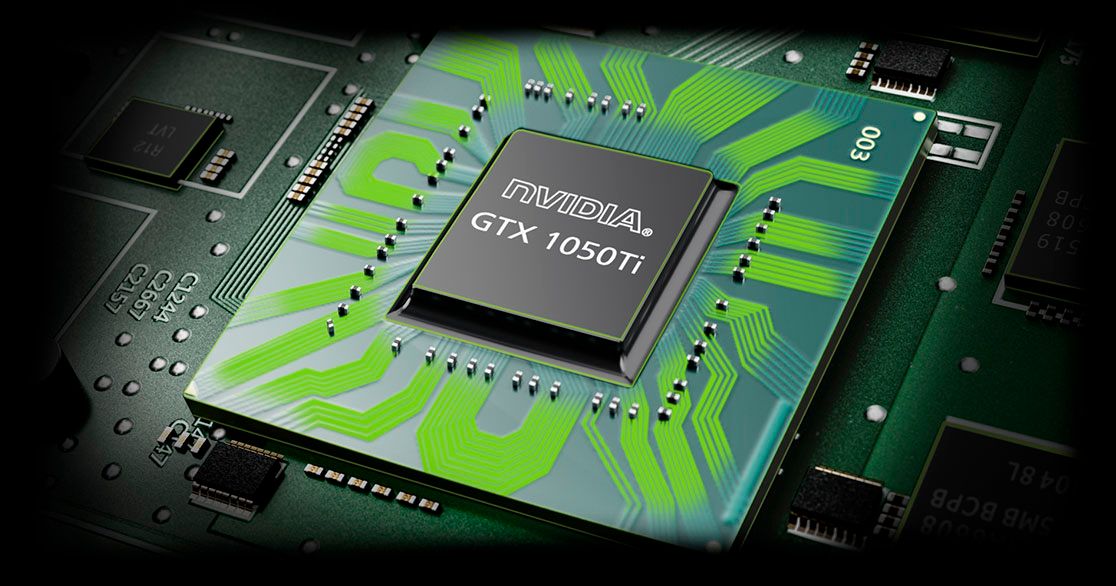
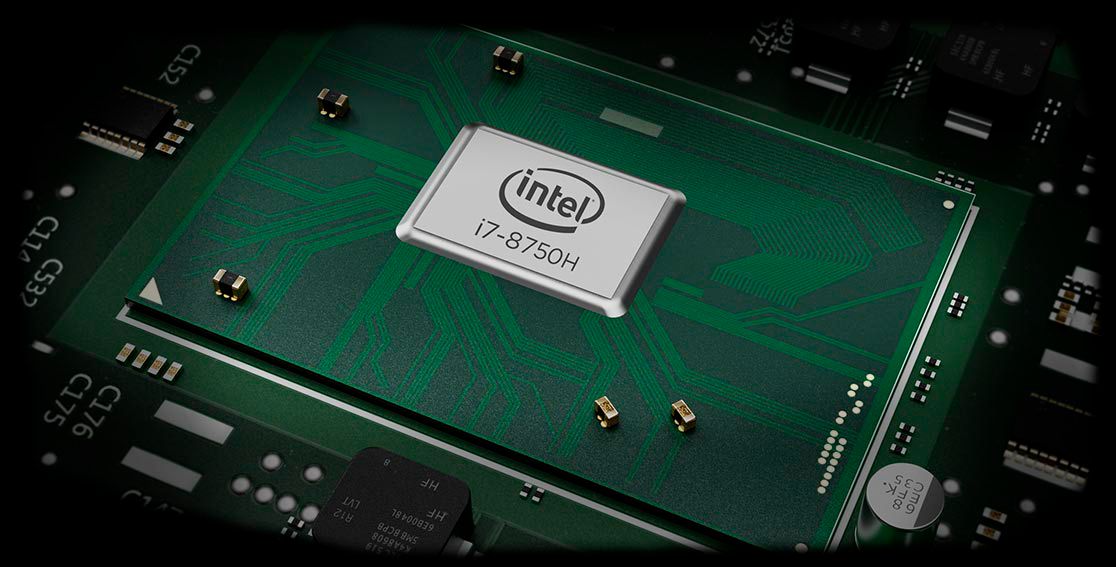
Posted .This reviewer received promo considerations or sweepstakes entry for writing a review.I did extensive research and watched a bunch of youtube reviews on the Y530. I picked up the i7 variation w/ the 16GB RAM and GTX 1050ti. Im not a hardcore gamer on pc but once in a while ill launch a game from Steam. I brought it home and let me tell you its was amazing pulling it out of the box and opening it up. One of the best looking gaming latops in the market for sure. But this came at a cost...extremely bad performance. It was slow to process any updates. It fails numerous times to download an update. It also wouldn't get above 1mbps on download but upload was fine. I checked my other devices to make sure it wasn't my modem or router but every other device worked beautifully. So I reset the laptop, reinstalled the WIFI drivers and same issue. Looking at the forums revealed that this is common with Lenovo laptops. I thought maybe I got a bad unit but after reading forums I decided that I do not want to deal with this in the future and exchanged it for the ASUS ROG for $500 more. Worth paying a premium to get a premium device. I trusted Lenovo due to their huge footprint in business capable devices but I think they should only stick to that or have better QC. Look at reviews recently posted who are having issues. Maybe its this new batch but I wouldn't recommend it.
No, I would not recommend this to a friendBrand response from Lenovo Product Expert
Posted .We are sorry to hear that you had issues with your Lenovo Legion Y530 laptop. This system uses the latest 5G, 802.11AC WiFi. Although 802.11AC is backward compatible to older b/g/n frequencies, be sure your router has the latest firmware updates for optimum WiFi speeds and connectivity.
- Cons mentioned:Battery life
Wouldn't recommend
Posted .This reviewer received promo considerations or sweepstakes entry for writing a review.I bought this laptop for college because I assumed its decent reviews on Youtube for gaming performance would be nice to have even if i don't game. Overall, I just don't think its worth it. The cooling fan is really loud and the battery runs out really fast. And it is rather heavy. These problems are constantly bothering me which is why I'm writing this. The audio isn't good either when its loud. I regret buying this
No, I would not recommend this to a friendBrand response from Lenovo Product Expert
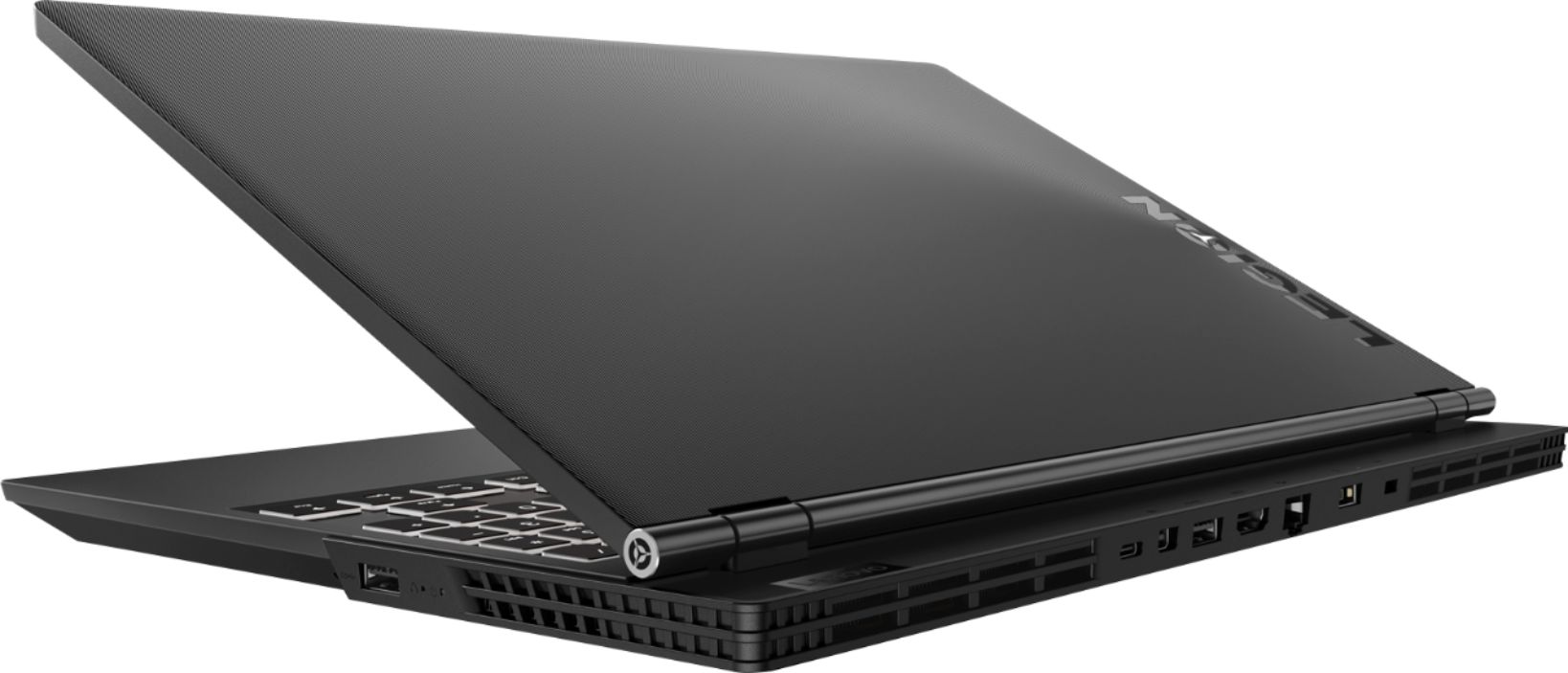
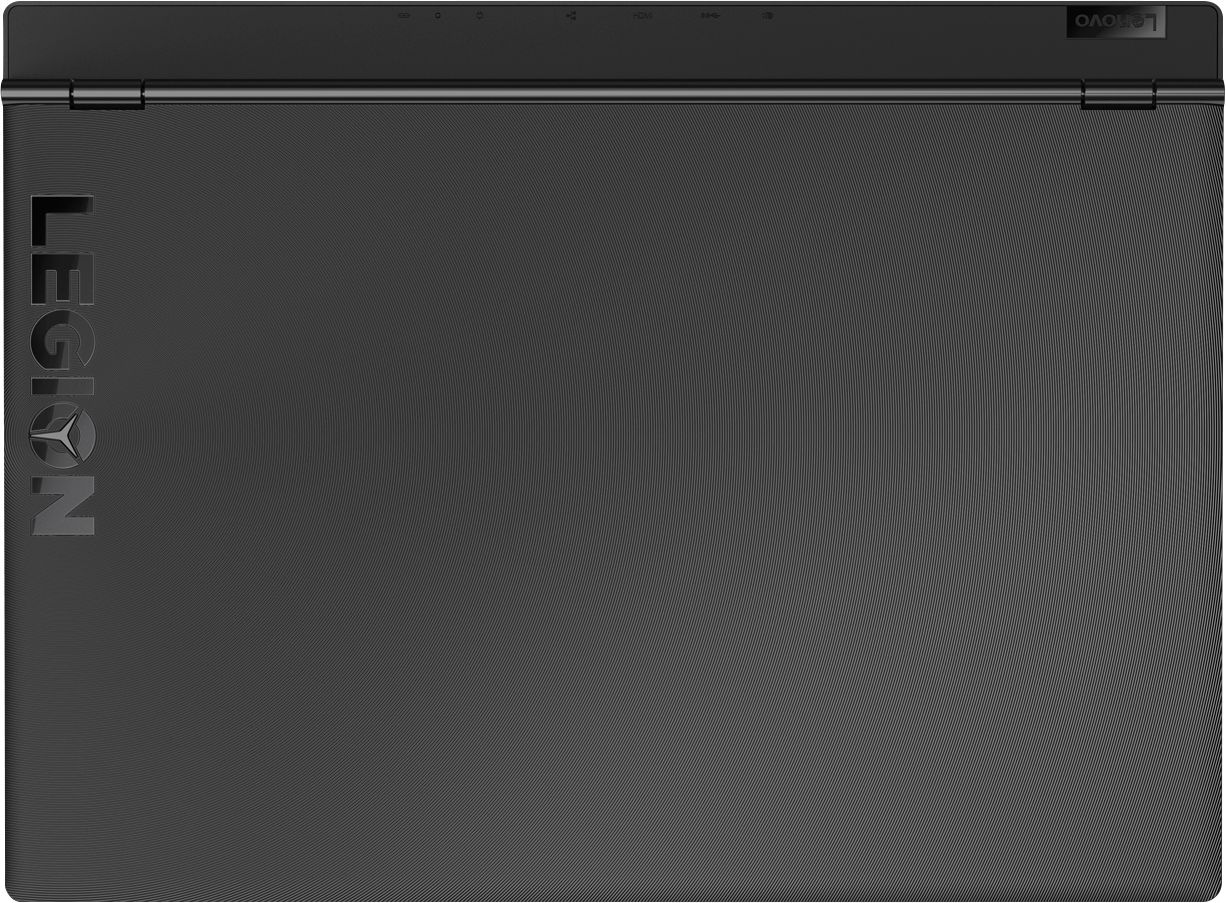
Posted .The Lenovo Legion Y530 laptop features a dual-channel thermal system, offering multiple benefits: individual CPU and GPU cooling, for cooler system temperatures; four thermal vents, for improved airflow; and 70 individual fan blades per channel, to reduce system noise. The Legion Y530 ships with a 3CELL 52.5WH, Lithium Polymer battery, with a battery life of up to 5 hours, depending on the work that the device is performing. This high performance 15.6" (screen size measured diagonally) system measures just 14.37 x 10.24 x 0.95 inches and weighs just 5.06 lbs. Regarding the audio system on the Legion Y530, Dolby Audio Premium energizes your entertainment with rich, powerful sound. It dynamically adjusts audio to deliver home theater quality in a virtual surround sound experience for all your entertainment. Boosted bass and enhanced volume turn it all up for sound that’s loud and clear enough to share.
- Cons mentioned:Hard drive
Drive failed after 5 week, cannot even restore Win
Posted .This reviewer received promo considerations or sweepstakes entry for writing a review.I do not recommend this laptop. It got it, purchased all my photo editing and anti-virus and after about 5 weeks of incredibly light use - would no longer start up. The hard drive was fried. I am typing this from my 7 year old Lenovo Win 7. Even if repaired, I would never trust it again and I have a feeling Best Buy will not take it back and let me buy something else. I hope I can
No, I would not recommend this to a friendBrand response from Lenovo Product Expert
Posted .We are sorry to hear that you are having issues with your Lenovo Legion Y530 and its Windows 10 operating system. There is a recent solution to this issue and we recommend you call Lenovo Tech Support at: 877-453-6686.
problems with hard drive and start up
Posted .This reviewer received promo considerations or sweepstakes entry for writing a review.I bought this model 2 months ago, but recently I cant turn on, because I put in sleep mode them I want to turn on and appears black screen and the system dont running, I try to push the restore botton and nothing, its the first time that i have problems with this brand I see in other reviews have the same problems. I hope to replace me this model and never buy this model again
No, I would not recommend this to a friendBrand response from Lenovo Product Expert
Posted .We are sorry to hear that you are having an issue with the operating system on your Lenovo Legion Y530 laptop. This issue may be caused by a recent Windows 10 update. In order to restore the operating system the Intel Optane Memory on this device configuration must be turned off first. Try these instructions: To restore system, Optane must be disabled first in the BIOS
o Power down system, power back on and press F2 to enter BIOS setup
o BIOS setup > Configuration > Storage > Intel® Rapid Storage technology > Intel Optane, 931.5GB > Disable > Are you sure you want to disable > Yes > Disable
o Wait for 3 minutes
o The Disable process should be finished and there will be (2) non-RAID physical disks
o Press F10 to Save and Exit
- The system should now be able to be Restored
- After restoring, you will need to open the Optane UI from the task bar and choose Setup > Enable > Select “Erase all data on Intel “Optane” memory module > Continue > Restart.
Now you can restore the Windows 10 operating system to factory original settings by following the instructions at this link: https://www.laptopmag.com/articles/reset-windows-10-pc. Be sure to re-enable the Optane Memory after you restore the system, then restart the device, as listed above. If you continue to have an issue, we recommend you call Lenovo Tech Support at: 877-453-6686.
- Cons mentioned:Hard drive
Calling you out Lenovo! 0 stars
Posted .This reviewer received promo considerations or sweepstakes entry for writing a review.I’m AM ON THE 4TH Lenovo Y-530. Hard drive has FAILED FOR THE 4th TIME. I am a drafter and I use Autocad to design commercial buildings, and I ABSOLUTELY CANNOT HAVE THIS FOR MY BUSINESS! I AM DEMANDING A FULL REFUND SO I CAN GET AN ACTUAL WORKING LAPTOP!
No, I would not recommend this to a friendBrand response from Lenovo Product Expert
Posted .We are sorry to hear that you are having an issue with your Lenovo Legion Y530 laptop. Be sure the software you are installing on the Legion Y530 is compatible with Windows 10. There is no need to install Microsoft Office software. The software is already part of the operating system, you just need to activate the software with a purchased product key. If you have installed a copy of Microsoft Office, this is conflicting with the existing copy on the system and this will slow your system down. If you have installed a 3rd party anti-virus program, be sure that Windows Defender is turned off and that the trial version of McAfee Anti-Virus software is uninstalled. There can only be one anti-virus program on the system. You may need to restore your system to original factory default settings if any of the programing errors have occurred. Since your Legion Y530 ships with Intel Optane Memory, to restore system, Optane must be disabled first in the BIOS
o Power down system, power back on and press F2 to enter BIOS setup
o BIOS setup > Configuration > Storage > Intel® Rapid Storage technology > Intel Optane, 931.5GB > Disable > Are you sure you want to disable > Yes > Disable
o Wait for 3 minutes
o The Disable process should be finished and there will be (2) non-RAID physical disks
o Press F10 to Save and Exit
- The system should now be able to be Restored
- After restoring, you will need to open the Optane UI from the task bar and choose Setup > Enable > Select “Erase all data on Intel “Optane” memory module > Continue > Restart. Now you can restore the Windows 10 operating system to factory original settings by following the instructions at this link: https://www.laptopmag.com/articles/reset-windows-10-pc. Be sure to re-enable the Optane Memory after you restore the system, then restart the device, as listed above. If you continue to have an issue, we recommend you call Lenovo Tech Support at: 877-453-6686.
- Cons mentioned:Screen
BSOD 2nd Day of Use
Posted .This reviewer received promo considerations or sweepstakes entry for writing a review.Screen went black, I then plugged in the power supply thinking low battery - Got BSOD Recovery screen. Could not get system to boot using any of the suggestions on the screen. Don't need this hassle, will return for refund or replacement.
No, I would not recommend this to a friendBrand response from Lenovo Product Expert
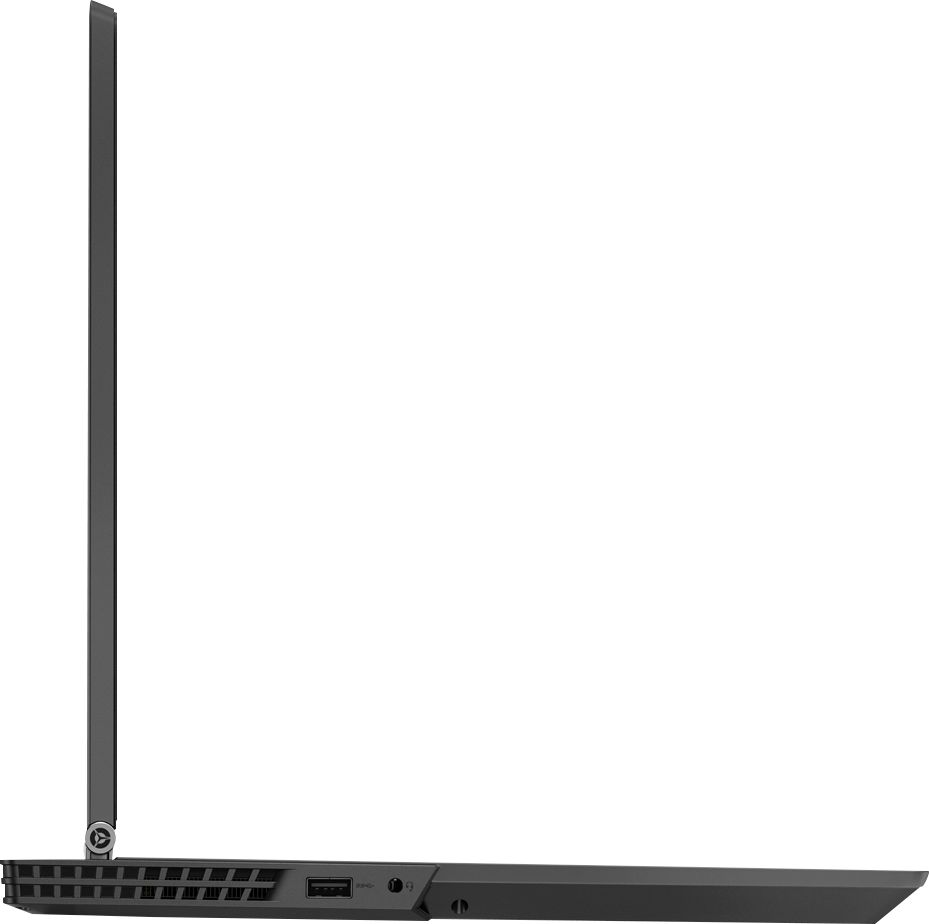
Posted .We are sorry to hear that you are having issues with your Lenovo Legion Y530. Be sure any programs you installed are compatible with Windows 10. This system is equipped with OneKey Recovery System. There is a very small pin hole on the right side of the device, right near the USB port on the right side of the device. You will need a pin to push this reset button. Plug the device in. Let the battery charge for about 15 minutes. Push the reset button. The system should boot to a choice screen where you can choose "Restore To Factory Default". Select this. It will delete everything from the hard drive except the original factory install of the operating system. You will need to reinstall all programs and files after the reset. If you don't have copies of the files, try to make one before you restore by selecting "Boot to desktop" and trying to back up your files. If the problem persists after the factory reset, we recommend you contact Lenovo Tech Support at: 877-453-6686.
Zero Stars. Brick after 4 days.
Posted .This reviewer received promo considerations or sweepstakes entry for writing a review.Bought this laptop for a business trip. Four days later while on my trip, it froze up completely with no response whatsoever. I pressed the power button and it came up with a BSOD with the following error: "Driver Power State Failure". Subsequent power cycling yielded a Windows repair screen which never made any progress. Attempted factory reset with the pin hole button. That was unsuccessful. Attempted to recover with a Windows USB recovery drive. That too was unsuccessful. So when I returned home, I took it back to Bestbuy for a replacement. Now 5 days after using the brand new replacement, it too froze up and bricked. Lenovo, please find three problem with this model and get it corrected.
No, I would not recommend this to a friendBrand response from Lenovo Product Expert
Posted .We are sorry to hear that you are having issues with your Lenovo Legion Y530 laptop. There was a recent Windows 10 update that has caused a conflict with existing BIOS files on this device. There is an update to Lenovo repair files that may now fix this issue. We recommend you, once again try a factory reset. This system is equipped with OneKey Recovery System. There is a very small pin hole on the right side of the device, right near the USB port on the device. You will need a pin to push this reset button. Plug the device in. Let the battery charge for about 15 minutes. Push the reset button. The system should boot to a choice screen where you can choose "Restore To Factory Default". Select this. It will delete everything from the hard drive except the original factory install of the operating system. You will need to reinstall all programs and files after the reset. If you don't have copies of the files, try to make one before you restore by selecting "Boot to desktop" and trying to back up your files. If the problem persists after the factory reset, we recommend you contact Lenovo Tech Support at: 877-453-6686.