Customer Ratings & Reviews





- Model:
- 81FV0002US
- SKU:
- 6219200
Rating by feature
- Value
Rating 4.2 out of 5 stars
- Quality
Rating 4.1 out of 5 stars
- Ease of Use
Rating 4.3 out of 5 stars
Customers are saying
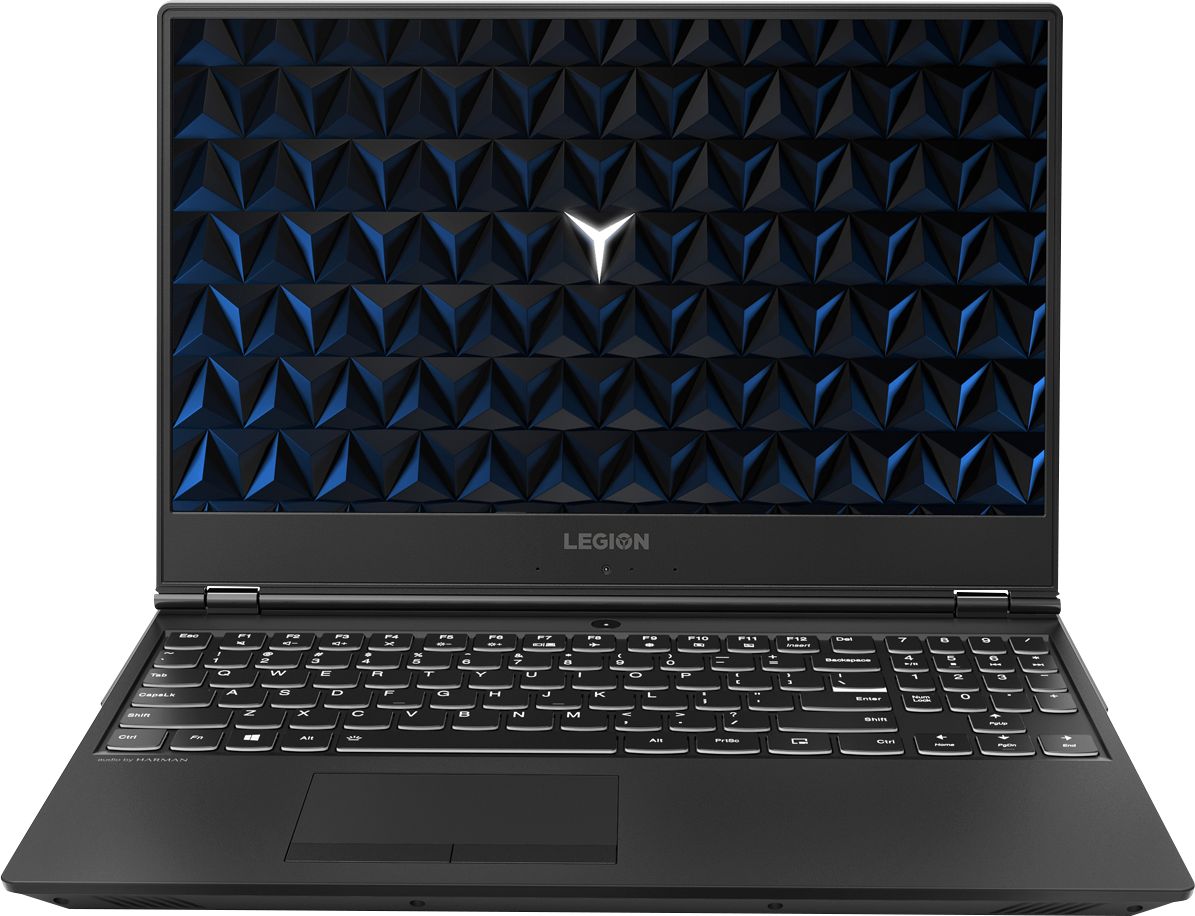
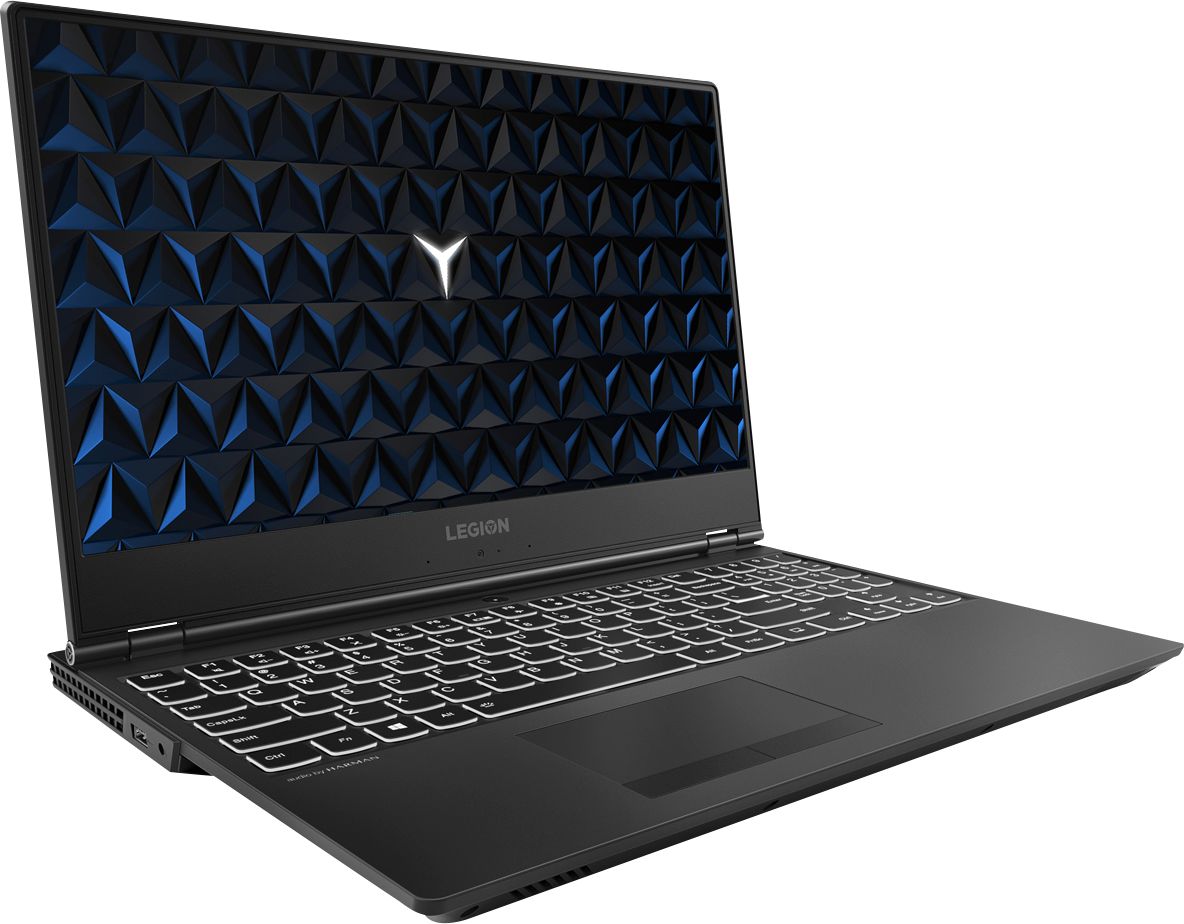
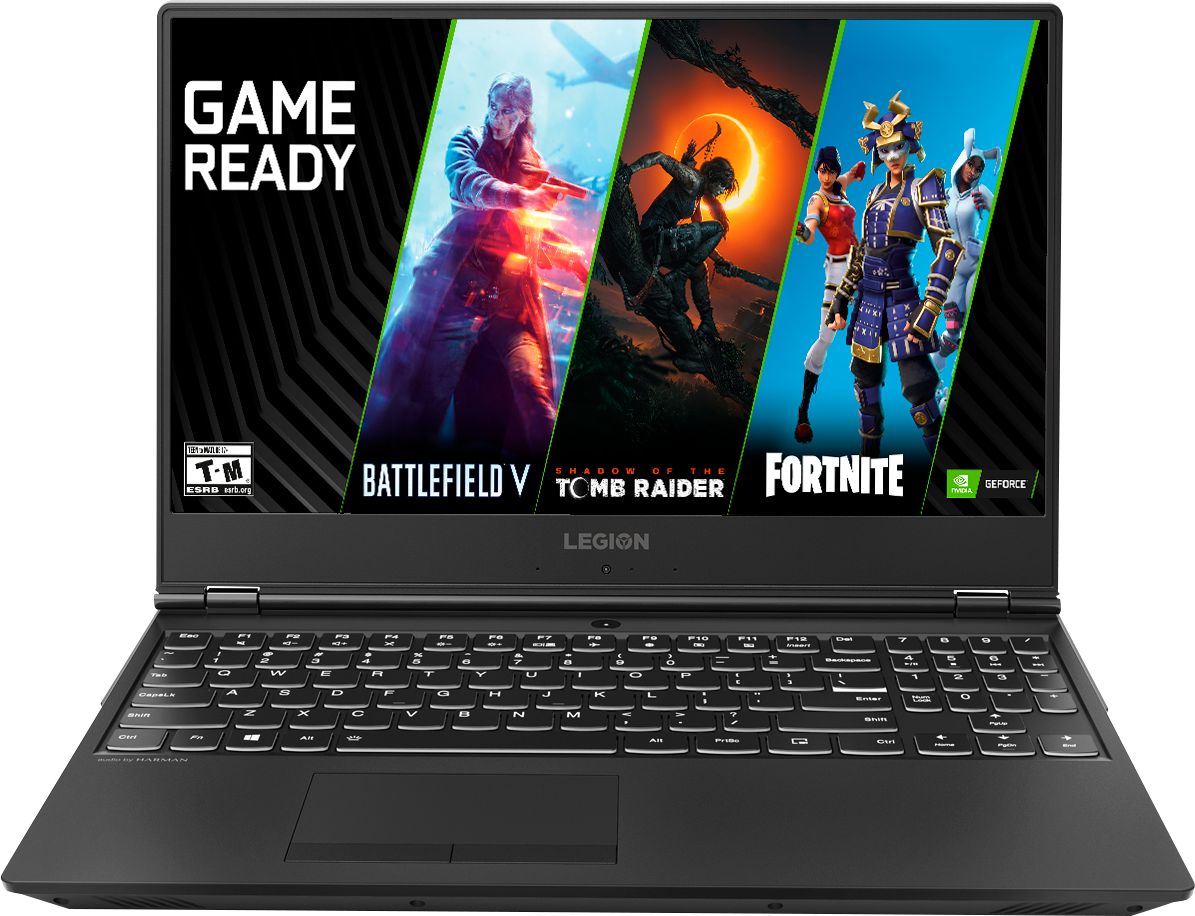
Customers are satisfied with the Legion Y530's performance, design, ample RAM, and graphics card, finding it suitable for gaming and other demanding tasks at a reasonable price. However, some users experienced issues with battery life, hard drive reliability, and overheating, while others noted concerns about the screen and webcam placement. Many felt the machine offered excellent value for its price point. The laptop's weight was also frequently praised as being surprisingly light.
This summary was generated by AI based on customer reviews.
freezes, crashes, repairing loops
Posted .This reviewer received promo considerations or sweepstakes entry for writing a review.Do NOT get this. I tried 2 copies of this exact same laptop. First copy lasted for a month when I logged and it froze, forcing me to do a force shutdown. 2nd copy, 2 months, trying to do my assignment and then froze again. Disk Usage 100%. forced shutdown again and then crash, then loop. I only play maplestory, do hw, and sometimes watch anime (yugioh vrains), sometimes streaming. I'm sorry but Lenovo's not for anybody.
No, I would not recommend this to a friendBrand response from Lenovo Product Expert
Posted .We are sorry to hear that you are having issues with the Lenovo Legion Y530 laptop. This issue you describe may require a reset of the Windows 10 operating system to original factory settings. Since this model ships with Intel Optane Memory and there is an image of Windows 10 on the Optane Memory as well as the hard drive, the Optane Memory must be turned off before you can restore the operating system. To restore system, Optane must be disabled first in the BIOS
o Power down system, power back on and press F2 to enter BIOS setup
o BIOS setup > Configuration > Storage > Intel® Rapid Storage technology > Intel Optane, 931.5GB > Disable > Are you sure you want to disable > Yes > Disable
o Wait for 3 minutes
o The Disable process should be finished and there will be (2) non-RAID physical disks
o Press F10 to Save and Exit
- The system should now be able to be Restored
- After restoring, you will need to open the Optane UI from the task bar and choose Setup > Enable > Select “Erase all data on Intel “Optane” memory module > Continue > Restart. Now you can restore the Windows 10 operating system to factory original settings by following the instructions at this link: https://www.laptopmag.com/articles/reset-windows-10-pc. Be sure to re-enable the Optane Memory after you restore the system, then restart the device, as listed above. If you continue to have an issue, we recommend you call Lenovo Tech Support at: 877-453-6686.
OS crashed twice
Posted .This reviewer received promo considerations or sweepstakes entry for writing a review.Within the first week with this laptop the operating system stopped working on me. I was able to bring it back and get a replacement but 3 months later the operating system failed again. Now I have to spend more money to get it fixed. I would not recommend buying this.
No, I would not recommend this to a friendBrand response from Lenovo Product Expert
Posted .We are sorry to hear that you are having issues with updates to the Windows 10 operating system on your Lenovo Legion Y530 laptop. We recommend you call Lenovo Tech Support for help restoring Windows 10 on your Legion Y530, at: 877-453-6686.
Don't buy Lenovo laptop
Posted .This reviewer received promo considerations or sweepstakes entry for writing a review.I bought this laptop ands within one month I got blue screen and the message said "It cannot be repaired". Sent it for Lenovo service to fix it and waiting. Never buy this Lenovo laptop, it's worthless.
No, I would not recommend this to a friendBrand response from Lenovo Product Expert
Posted .We are sorry to hear that you are having issues with your Lenovo Legion Y530 Laptop. For others who may be having this same issue, this issue may be fixed by restoring the Windows 10 operating system to original factory settings. This configuration ships with 16GB of Intel Optane Memory. The Optane Memory keeps an image of Windows 10 for quick boot ups. To restore system, Optane must be disabled first in the BIOS
o Power down system, power back on and press F2 to enter BIOS setup
o BIOS setup > Configuration > Storage > Intel® Rapid Storage technology > Intel Optane, 931.5GB > Disable > Are you sure you want to disable > Yes > Disable
o Wait for 3 minutes
o The Disable process should be finished and there will be (2) non-RAID physical disks
o Press F10 to Save and Exit
- The system should now be able to be Restored
- After restoring, you will need to open the Optane UI from the task bar and choose Setup > Enable > Select “Erase all data on Intel “Optane” memory module > Continue > Restart. Now you can restore the Windows 10 operating system to factory original settings by following the instructions at this link: https://www.laptopmag.com/articles/reset-windows-10-pc. Be sure to re-enable the Optane Memory after you restore the system, then restart the device, as listed above. If you continue to have an issue, we recommend you call Lenovo Tech Support at: 877-453-6686.
Worst laptop
Posted .This reviewer received promo considerations or sweepstakes entry for writing a review.This is easily the worst gaming laptop or laptop in general that I’ve owned. Within the first month it had a critical hardware failure, I was able to replace it, the second one continues to fail and freeze up when I literally have 1 game downloaded on the laptop.
No, I would not recommend this to a friendBrand response from Lenovo Product Expert
Posted .We are sorry to hear that you are having issues with your Lenovo Legion Y530 Laptop. This configuration ships with 16GB Intel Optane Memory, in support of the 1TB standard hard drive. In order to update and repair Windows 10, Intel Optane Memory must first be turned off. To restore system, Optane must be disabled first in the BIOS
o Power down system, power back on and press F2 to enter BIOS setup
o BIOS setup > Configuration > Storage > Intel® Rapid Storage technology > Intel Optane, 931.5GB > Disable > Are you sure you want to disable > Yes > Disable
o Wait for 3 minutes
o The Disable process should be finished and there will be (2) non-RAID physical disks
o Press F10 to Save and Exit
- The system should now be able to be Restored
- After restoring, you will need to open the Optane UI from the task bar and choose Setup > Enable > Select “Erase all data on Intel “Optane” memory module > Continue > Restart. Now you can restore the Windows 10 operating system to factory original settings by following the instructions at this link: https://www.laptopmag.com/articles/reset-windows-10-pc. Be sure to re-enable the Optane Memory after you restore the system, then restart the device, as listed above. If you continue to have an issue, we recommend you call Lenovo Tech Support at: 877-453-6686.
Great price, awful laptop
Posted .This reviewer received promo considerations or sweepstakes entry for writing a review.Day 1: turn on the laptop and attempt to update windows...... 6 hours later during a reboot, the computer goes blue screen and enters a boot loop. The machine was worthless and unrecoverable after almost no use. Please, avoid this model.
No, I would not recommend this to a friendBrand response from Lenovo Product Expert
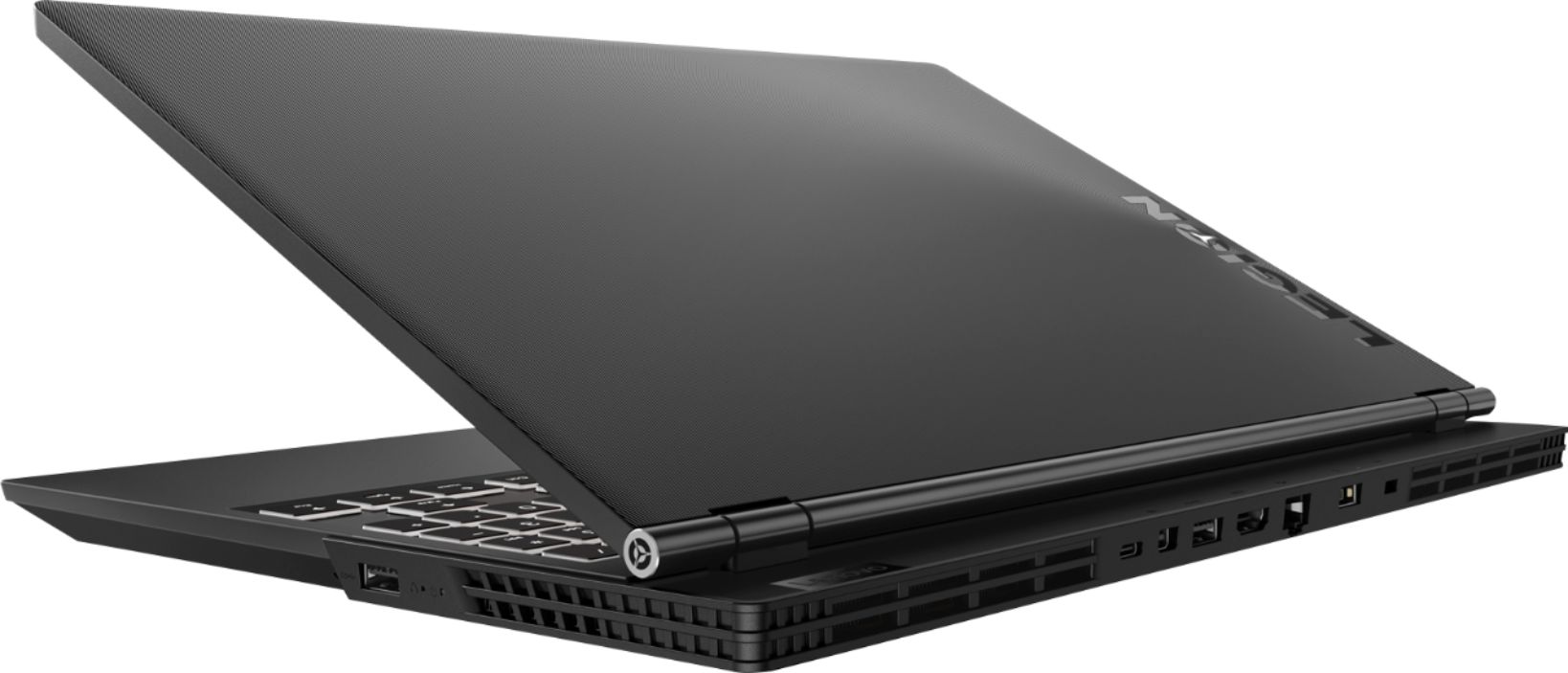
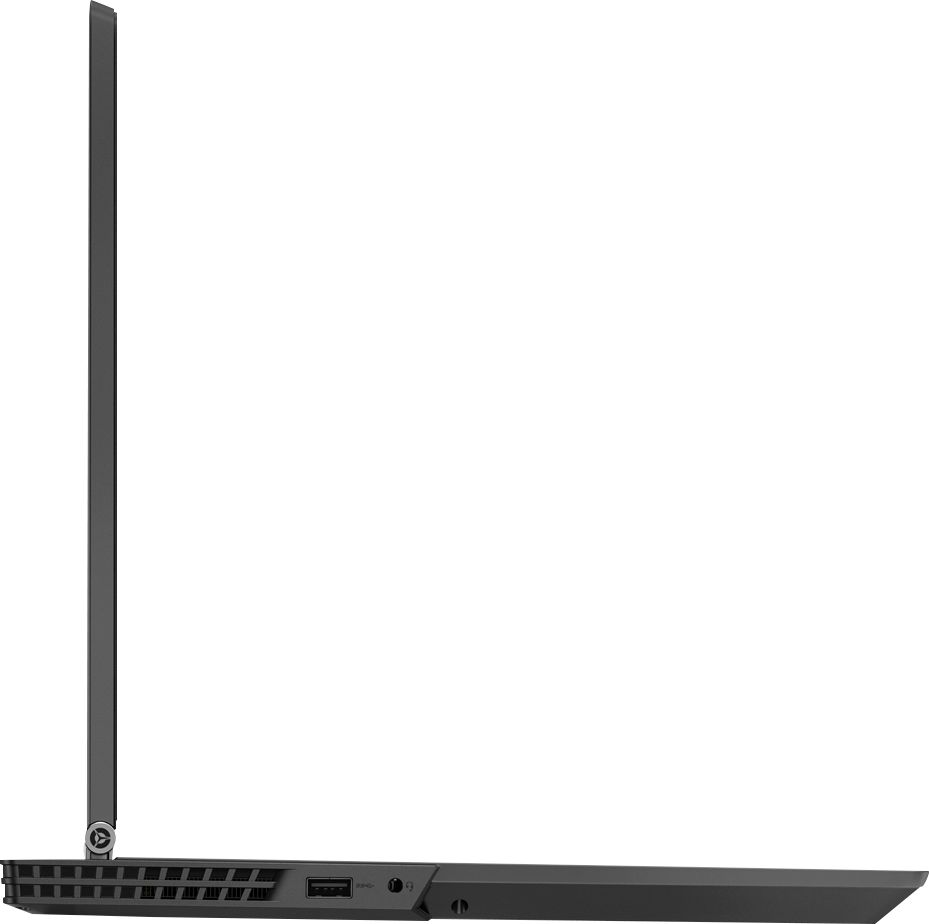
Posted .We are sorry to hear that you had an issue with the initial activation of Windows 10 on your Lenovo Legion Y530. Resetting the device back to original factory settings may correct the issue. If you can not boot the computer any longer, this system is equipped with OneKey Recovery System. There is a very small pin hole on the right side of the device, right near the USB port on the device. You will need a pin to push this reset button. Plug the device in. Let the battery charge for about 15 minutes. Push the reset button. The system should boot to a choice screen where you can choose "Restore To Factory Default". Select this. It will delete everything from the hard drive except the original factory install of the operating system. You will need to reinstall all programs and files after the reset. If you don't have copies of the files, try to make one before you restore by selecting "Boot to desktop" and trying to back up your files. If the problem persists after the factory reset, we recommend you contact Lenovo Tech Support at: 877-453-6686. For 2018, Lenovo retained its place for a second year as the best laptop vendor:
https://www.laptopmag.com/articles/laptop-brand-ratings
Do not buy this!
Posted .This reviewer received promo considerations or sweepstakes entry for writing a review.Speed become slower and slower, fan has huge noise, and the display is vague. After barely 2 weeks, it crashed and become a brick.
No, I would not recommend this to a friendBrand response from Lenovo Product Expert
Posted .We are sorry to hear that you are having issues with your Lenovo Legion Y530 laptop. If you need to restore the device to factory settings, but you can't boot the device, this system has OneKey Recovery support. First though, because this device has Intel Optane Memory installed, you need to turn off Optane Memory before you try a factory reset. To restore system, Optane must be disabled first in the BIOS
o Power down system, power back on and press F2 to enter BIOS setup
o BIOS setup > Configuration > Storage > Intel® Rapid Storage technology > Intel Optane, 931.5GB > Disable > Are you sure you want to disable > Yes > Disable
o Wait for 3 minutes
o The Disable process should be finished and there will be (2) non-RAID physical disks
o Press F10 to Save and Exit
- The system should now be able to be Restored
- After restoring, you will need to open the Optane UI from the task bar and choose Setup > Enable > Select “Erase all data on Intel “Optane” memory module > Continue > Restart. Now you can restore the Windows 10 operating system to factory original settings by following the instructions at this link: https://www.laptopmag.com/articles/reset-windows-10-pc. Be sure to re-enable the Optane Memory after you restore the system, then restart the device, as listed above. If you continue to have an issue, we recommend you call Lenovo Tech Support at: 877-453-6686