Customer Ratings & Reviews





- Model:
- 920-008484
- SKU:
- 6080503
Rating by feature
- Value
Rating 3.9 out of 5 stars
- Quality
Rating 4.7 out of 5 stars
- Ease of Use
Rating 4.4 out of 5 stars
Customers are saying
Customers are delighted by the Craft Wireless Keyboard's excellent build quality, superb key feel, and ease of use. Many appreciate its sleek design and compatibility with multiple operating systems. However, some users find the battery life could be improved, and the price point is a concern for some. A few also noted that the functionality of the dial could be enhanced.
This summary was generated by AI based on customer reviews.
Great product
||Posted .This reviewer received promo considerations or sweepstakes entry for writing a review.Great product. I would recommend this to a friend.
I would recommend this to a friendToo touchy
||Posted .This reviewer received promo considerations or sweepstakes entry for writing a review.This is a nice keyboard except that the key presses are way to sensitive with no way to adjust. I spoke with customer service about the problem and they had no idea what I was talking about. The CSR didn't have a clue about the product. Way overpriced.
No, I would not recommend this to a friendJust Average
||Posted .This reviewer received promo considerations or sweepstakes entry for writing a review.This is Logitech's best and brightest keyboard, yet the dongle always has issues connecting and it was not worth the extra money.
No, I would not recommend this to a friend- Cons mentioned:Battery life
Was ok at first.
||Posted .This reviewer received promo considerations or sweepstakes entry for writing a review.This keyboard has a great feel. However, battery life is not all that great and really no warning. The biggest issue was a sound/squeaking that developed from pressing keys. This only took a few months to start happening. It seems after some searching multiple people have this problem with it. I expected better at that prife point.
No, I would not recommend this to a friend Meh.
||Posted .This reviewer received promo considerations or sweepstakes entry for writing a review.I've been stalking this keyboard for a LONG time now. I finally pulled the trigger tonight, but when I got it home I quickly changed my mind. There's a totally different feel to the keyboard between when you're in the store, standing, using it on a display, and sitting at home at the desk. My palms didn't have anywhere to rest and had to rest on the hard wood of my desk. It's surprising there's no way to adjust the angle, etc. Sadly, this keyboard is going back.
No, I would not recommend this to a friend- Pros mentioned:Compatibility, Ease of use, Keyboard quality

Awesome Wireless Keyboard
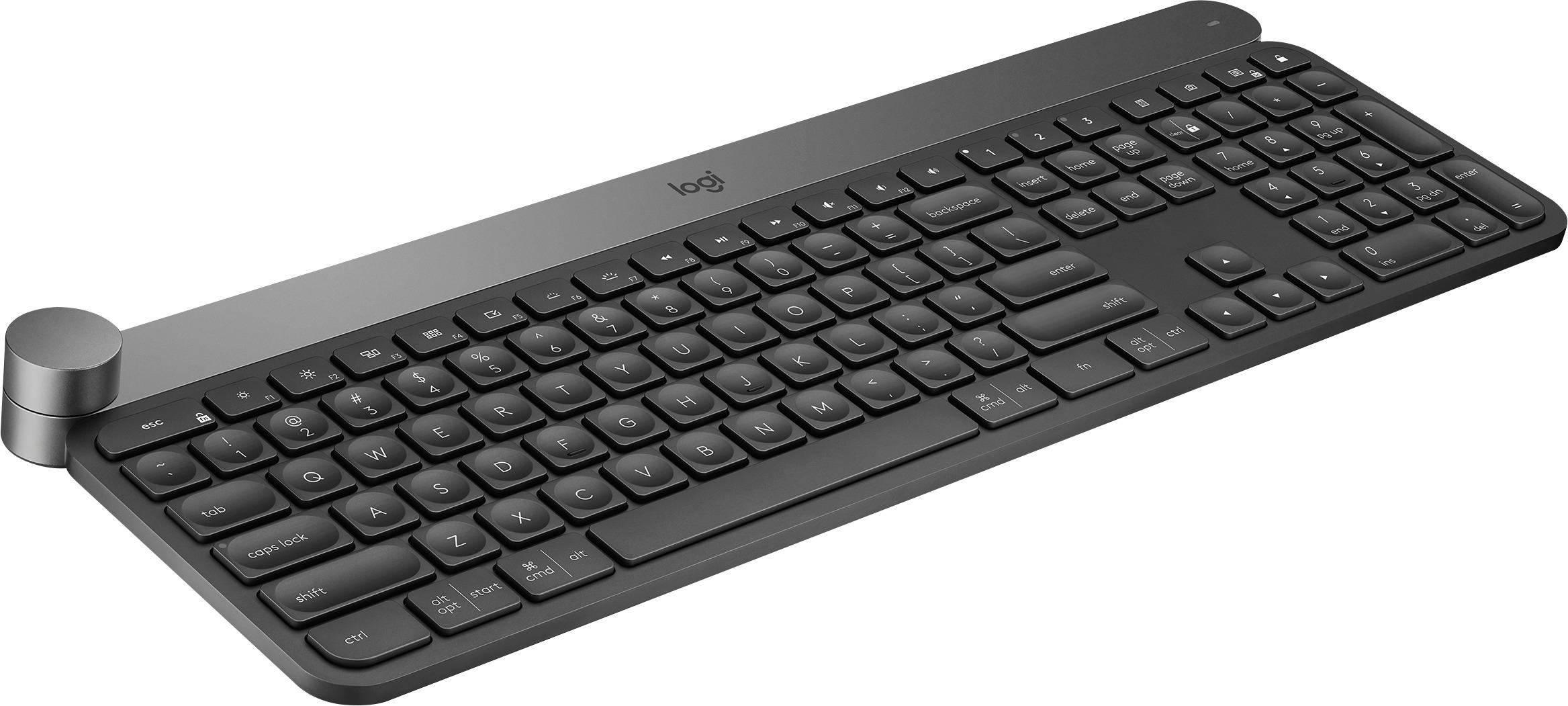
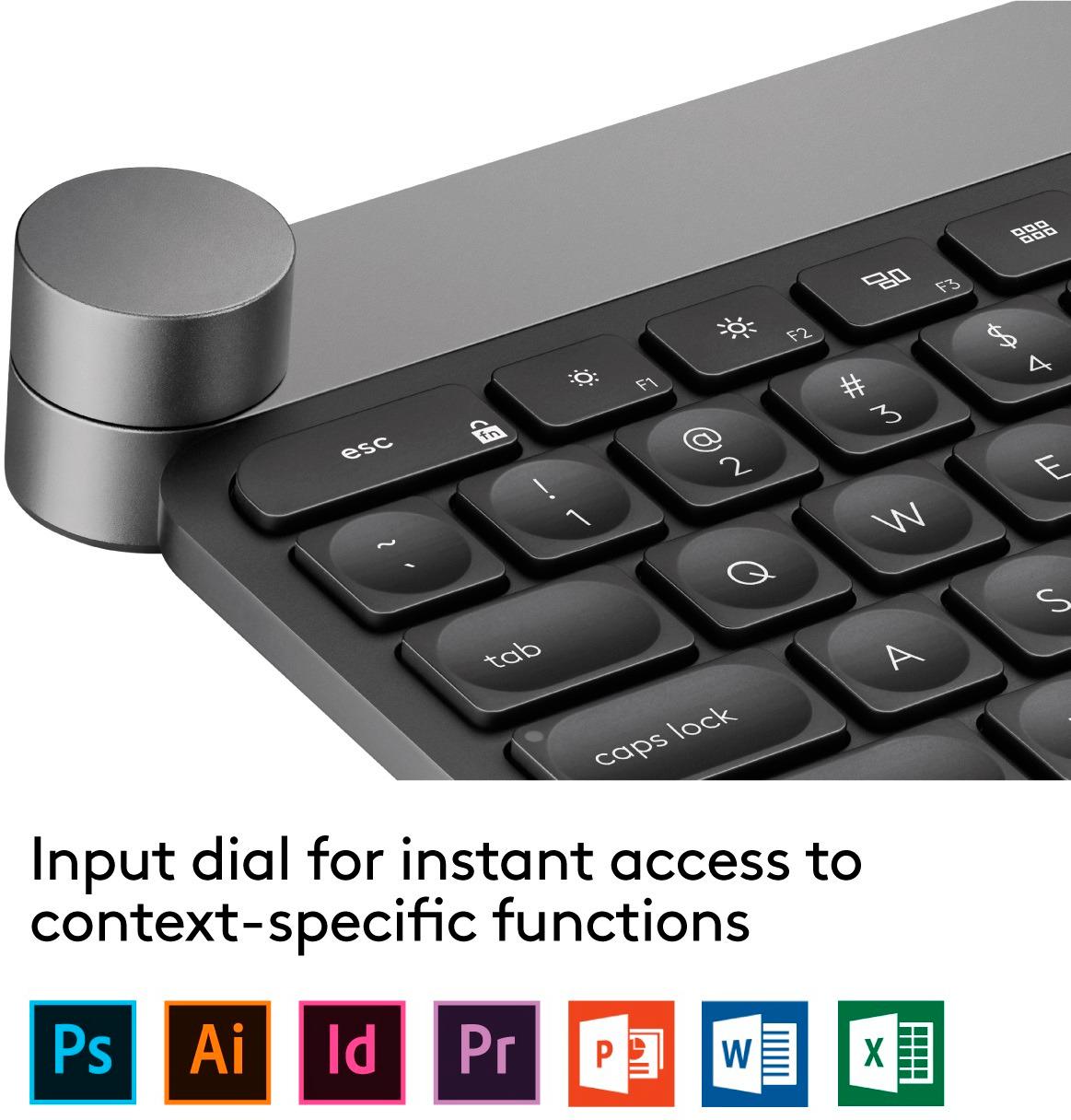
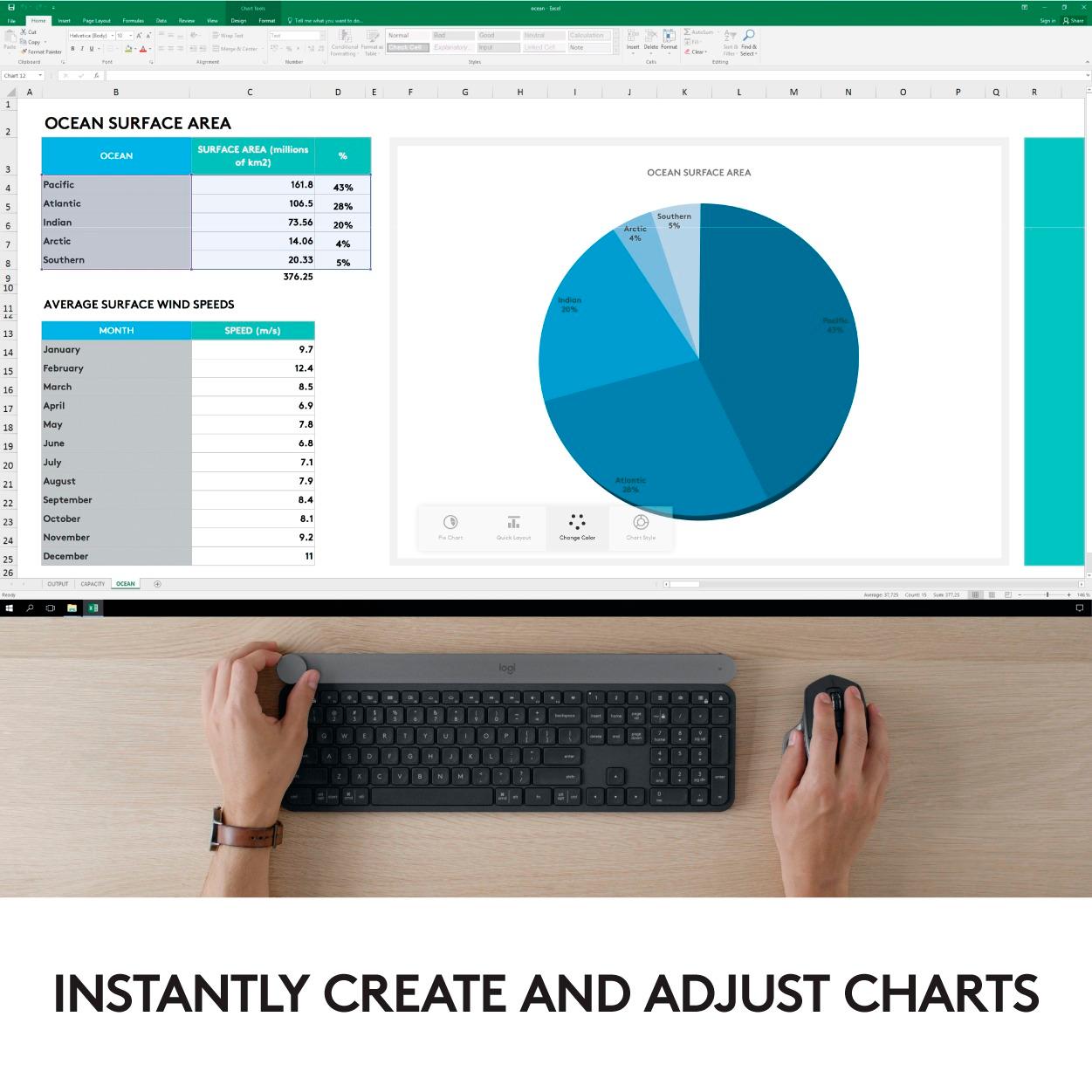
|Posted .This reviewer received promo considerations or sweepstakes entry for writing a review.This great Logitech wireless keyboard is one of the best keyboard i have ever use. The stylish look and compact size make it easy to use. It was easy to set up on my computer. it has a 32.8 feet wireless range and you can use it with up to three computers, laptops or tablet, just use the three buttons that you set up on the keyboard to switch computers. One of the features that i like about this new wireless keyboard is the backlit key with the hand proximity detection and also automatically adjust brightness to suit changing lighting conditions. The creative input dial gives you instant access to your context specific functions like adjust an image on your screen. it also include an USB in case you want to use it wired to your electronics.
I would recommend this to a friend - Pros mentioned:Key feel, Keyboard quality
Fantastic Wireless Keyboard
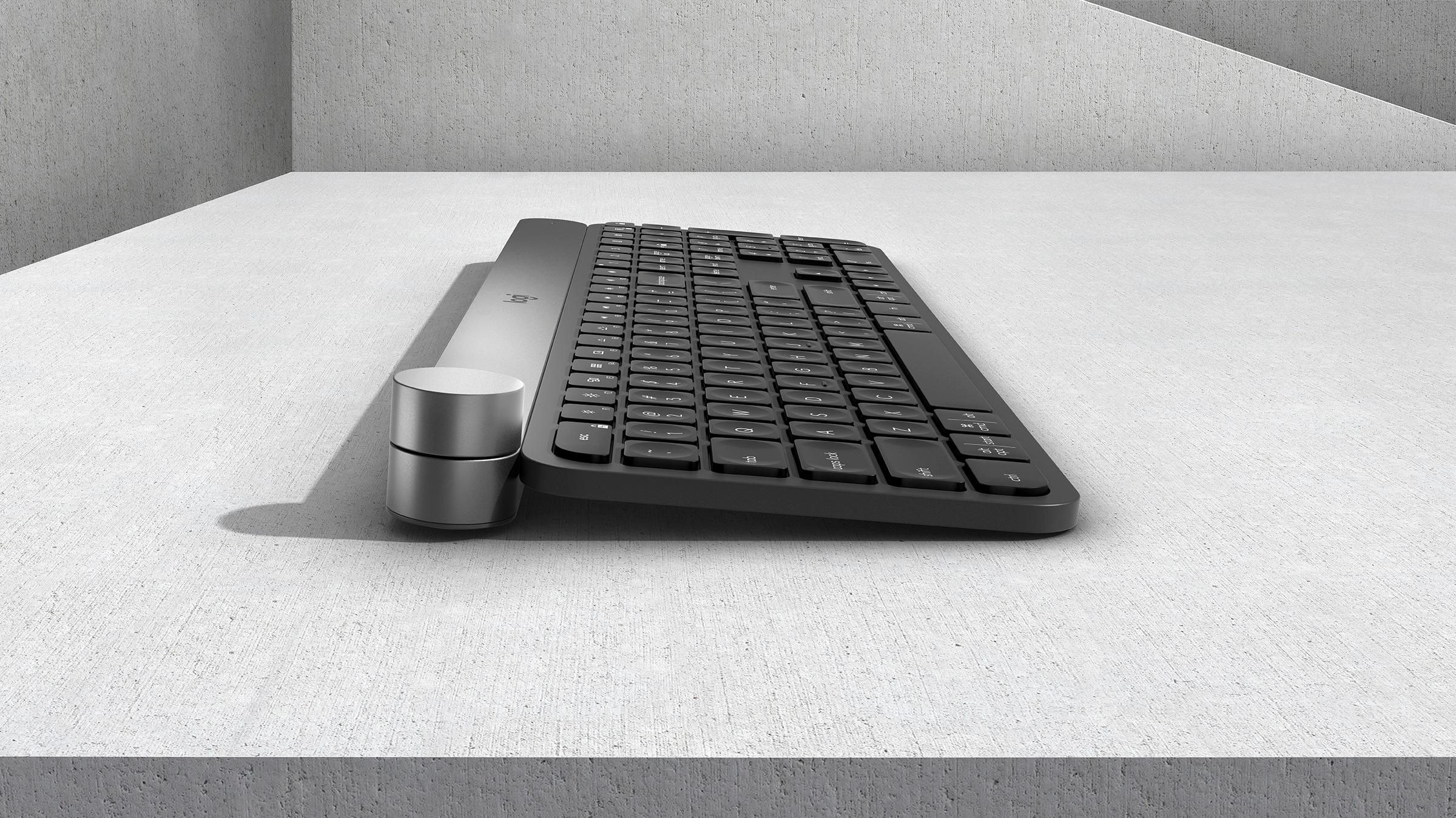
|Posted .This reviewer received promo considerations or sweepstakes entry for writing a review.I am an attorney and use keyboards every single day. They are an important tool and having the best quality it is important to me. I recently purchased a mechanical keyboard (for work) to replace an aging Microsoft Wireless keyboard. I fell in love with the mechanical "clickiness" of that keyboard. (important to note that it has two USB 3.0 ports built into the keyboard). But I still needed a keyboard for my home office where I not only work but also play. I like to edit movies and photos as a hobby. When looking for a keyboard, materials and design are important to me. Generally, for keyboards, I don't pay attention to features. I just want something that's accurate, responsive and easy to use. SO when I saw the Craft keyboard I was intrigued about the dial. I liked the idea of being able to use it's dial to help work flow (even though it is by no means critical or essential). First, design and materials. This is a sharp, modern looking keyboard. It is a nice heft to it; I actually find it surprisingly heavy, but that's by no means a bad thing, that's a great thing! The heft of the keyboard along with the rubber feet keep it in place. It literally doesn't even budge while in use. The keyboard has a nice rubbery plastic feel to it that gives it a grip. I know rubbery and plastic are synonymous with "cheap" but it's not. The rubbery feel gives it a nice grip. There's also a little imprint in each key that I surprisingly like. I'm still a partial look at your keyboard typer (i.e. don't type by touch alone) but I appreciate the shape of the keys. They aren’t completely flat, but have a nice “caved in” shape to them. And unlike my mechanical keyboard, which gives off a satisfying click (sometimes to the annoyance of my co-workers) this Craft keyboard is virtually silent. So while there’s no satisfying audible click, there’s still a satisfying key depression. In other words, the keyboard has a satisfying feel to it. I must say I love the shortcut keys and key placement. The icons are smart (as in simple, but you know what they mean). I also appreciate shortcuts for screenshots and calculator. Small things that are no deal breaker, but do enhance your experience and productivity. The backlighting is nice too. The lights are evenly distributed and show up when you place your hands near the keyboard (how does that even work?!). And on to the main event, or at least the reason why I think you’ve read this far into my review. The Craft dial. In order to use the dial (well, as a shortcut, by default, in my Windows laptop it controlled the volume) you have to download Logitech’s Option app, and then connect your keyboard to it. From there you download some extensions. So far, the only extensions are the Microsoft Office suite (Word, Excel, and PowerPoint) and Adobe Creative Suite programs. I mentioned earlier that I dabble in video editing. Well, I use Adobe Premiere Element, not the full on Premiere Pro, so sadly, I am unable to use the dial while video editing. I did give it a spin in Word and while it’s cool to make quick adjustments on the fly, it’s not much use to me. I don’t change themes, or font size routinely between documents (the documents we work on are standardized) so the dial doesn’t offer much benefits to me (right now). I’m hopeful that the list of programs will expand in the future. There’s definitely some potential there! And to be honest, I am okay with using the dial as volume rocker as I am often adjusting the volume in my office space. It’s much easier to grab a knob on the keyboard an turn it, versus either hitting FN and then another button or using your mouse to adjust the volume in the system tray. And another great feature is one in Chrome. If you usually have a lot of tabs open, you can spin the knob to open your various tabs. It’s quick, responsive and fluid, and I actually prefer it versus using the mouse to find the tab you want to open. All in all, if you care about your typing experience (not everyone does) then this keyboard should be high on your list. The knob is limited in use right now, but I think it’s more than a gimmick. Once Logitech fleshes out some more uses for it, it will be more than worth it. I’ve had zero connection issues and it connects to my laptop (via Bluetooth) almost immediately. I can’t say how long the battery lasts, but I’ve owned it and used it daily for nearly a week and have yet to have to charge it.
I would recommend this to a friend - Pros mentioned:Keyboard qualityCons mentioned:Dial
Great feeling keyboard, but the dial is finicky
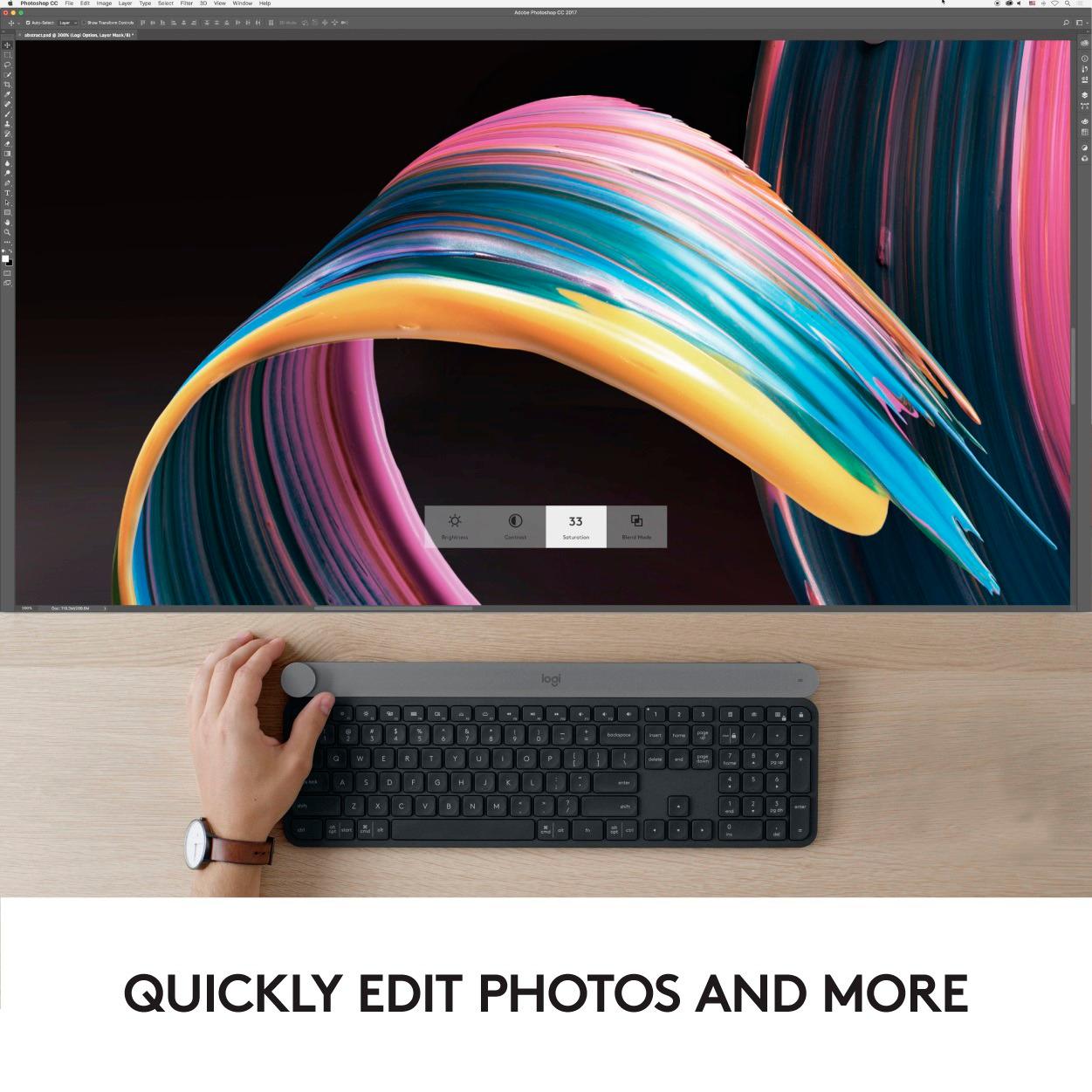
|Posted .This reviewer received promo considerations or sweepstakes entry for writing a review.Geared towards content creators, this keyboard is thin but sturdy, with a solid build and premium feel. The keys are quiet and feels good to type with, but not being able to adjust the height may bother some users. The battery life seems good, and the motion sensor backlight is a nice feature. It was easy to switch from the USB receiver to bluetooth on a different computer. The touch sensitive dial, called the Crown, however is somewhat a hit and miss. Sometimes it’s too sensitive and other times it won’t register your touch which will end up taking longer to use the dial than simply using a keyboard shortcut or mouse. It can also be erratic sometimes doing something bizarre or cause an application to crash. As of this writing, 9-23-17, it only support the Adobe, Microsoft Suites, Chrome, and Edge. There’s also an issue with it not working with iTunes properly. Good: -Build quality -Contextual shortcuts for supported applications -Backlight comes on when your hand is on the keyboard Bad: -The dial is touchy -Can be erratic -The function keys can’t be set as either shortcuts or normal F keys per application Setup Setting up was easy. It’s recommended that you download the Logitech Options software to fully use all the features. I set one profile to use the USB receiver and another with bluetooth and both were seamless. From Options, you can customize the F keys for shortcuts or set them as standard keys. The one disappointing thing was that you can only toggle between shortcuts or standard function keys as a whole. Certain application requires me to use the F1-12 keys extensively but I would like to keep using the shortcuts when I’m using other daily applications. I got around that by programming the shortcut keys as F keys per application. The Crown can be set to do three functions and can also be set as Contextual based on supported program profiles. Functionality: Typing feels good. While it’s not mechanical, the keys feel springy without being too firm not too clicky. It feels better than what you find on a laptop. It took me a bit to get a feel for the keys coming from a mechanical keyboard. I did have some issues with the shortcut keys. Now and then, it doesn’t do the assigned actions. For instance, rather than putting the pc in sleep mode, it logged out and typed a long string of text. Another issue is that the media keys will not control iTunes unless it’s the active window. It works with other media players, and other devices through the Options software can. Hopefully a quick patch will fix it. The main feature of this keyboard is the Crown, the dial that is supposed to help streamline your workflow. When used with applications that have supported profiles, the Crown functions becomes contextual based on which tool you’re using. With Photoshop, you can adjust the brush size, hardness, and opacity or adjust contrast and brightness while using the selection tool. Based on my usage, it’s either quick and helpful or brings your workflow to a stop. That’s because the Crown is touch sensitive, and it can be finicky. You touch the dial to bring up the menu and touch again to select a category and turn the dial to adjust. The issue is that it’s sometimes too sensitive, registering a touch when I’m trying to turn it, or it doesn’t register at all. In these cases, it took me longer to adjust the settings with the Crown than it would be for me to simply right click or use the keyboard shortcut. Other times, however, like doing layer adjustment for contrast or brightness, it automatically creates an adjustment layer and allows to adjust in on the fly without have to click on the corresponding layer, which is nice. And once it caused Photoshop to crash. With Chrome and Edge, it just switches tabs. The battery seems like it would last as long as advertised. I’ve been using it on and off for three days and the battery level hasn’t yet dropped a bar. The backlit feature is a nice touch, coming on only when your hand is near the keys. Whether this keyboard is worth it depends on your workflow. Some functions will save you a bit of time, while others can end up wasting some. If you’re already efficient with your keyboard shortcuts and macros, maybe it’s not worth the investment just for the dial. If you want a premium keyboard with some bonus, then this is a good contender. I can see it getting better with some updates.
I would recommend this to a friend - Pros mentioned:Ease of use, Keyboard quality
Make Your Fingers Happy
|Posted .This reviewer received promo considerations or sweepstakes entry for writing a review.My initial impression of Logitech’s “Craft” wireless and illuminated keyboard is “WOW, what a nicely made computer peripheral!” It is Logitech out-Appleing Apple. I’ve used it with a new iPad Pro, but it would look and feel right at home with anything Apple makes. I only use Apple as a comparison since they are consistently held up as an example of design that both looks good and just plain works, so Logitech should take that as a huge compliment as that is exactly how it was intended. Right out of the box it is apparent that this is the flagship of Logitech’s fleet. It has a nice heft to it as it is made out of aluminum, which immediately imparts an impression of quality. It has a fairly minimalist design…even Logitech’s name has been shortened to “logi” just above the function keys. The backlighting is nice and even, and the cool part is that the illumination comes to life when your hands move into position over they keys after it has automatically shut off (you don’t even have to touch anything). The keyboard allows you to pair it with three different devices and then choose which device it is linked to with the “Easy Switch” keys labeled “1”, “2”, and “3” in the top row. The Easy Switch feature worked flawlessly for me when I used multiple devices at the same time. I used it with Windows 10, Mac High Sierra, and iOS 11 with no issues during my evaluation. Included in the box besides the keyboard is a Quick Start Guide, Logitech’s Unifying receiver for devices that do not have built-in Bluetooth connectivity, and a charging cable USB type A to USB type C (keyboard end). The Logitech Options software (downloaded from their website) will give you more instruction on features and functionality of the Craft. Set-up and pairing of the keyboard was quick and easy. The "Crown" which is a rotary knob located in the upper left corner of the keyboard allows for changing functions (by tapping it) and making choices (by rotating and pressing it) in a variety of common applications (listed on their website and on the packaging) in Microsoft Office and Adobe Creative Cloud, and most popular internet browsers. You can tell from the tutorials in Logitech Options that the Crown would be a very welcomed feature for users that spend a lot of time working in any of the Office and Creative Cloud supported apps. In the applications I could use it with (I don’t have any of the Adobe products), the functionality of the Crown worked pretty much flawlessly and as expected, a very innovative feature in my opinion. Use with both Windows and the Mac OS are supported while no mention is made of using the Craft with Apple’s iOS on the iPad or iPhone. I was able to use the keyboard with no issues on an iPad, but there are really no apps supported for the functionality of the Crown feature in iOS – hopefully this will change in the future as I think Logitech is missing a sales opportunity by not having full iPad support. As it currently stands, the Crown will control music playback and volume in iOS. The initial quality of the Craft keyboard is what I have come to expect from Logitech having owned about twelve different devices across their product line over the years. Flawless and bulletproof pretty much sums up my Logitech experience for the past two decades. While some potential buyers will be put off by the price, I think the device deserves careful consideration by anyone who uses the supported apps in their profession or hobby where they spend a lot of time working on their computer.
I would recommend this to a friend Okay keyboard
||Posted . Owned for 1 month when reviewed.This reviewer received promo considerations or sweepstakes entry for writing a review.I purchased this keyboard with the intent to use it to edit photos which it did poorly and was a really expensive mistake.
No, I would not recommend this to a friend- Pros mentioned:Key feel, Keyboard quality
Checks all the boxes for the perfect Keyboard
|Posted .This reviewer received promo considerations or sweepstakes entry for writing a review.The keyboard is well protected in the box. The first thing I noticed was it has some heft to it. Which is probably the internal battery. But it feels very well made. After taking off the protective film I see that this is one beautiful piece of tech. The gunmetal upper strip looks very cool. In the box is of course the keyboard, a nice USB C charging cable, the Logitech unifying receiver, and a simple quick start guide. The set up for this is very easy. 4 steps and you're ready to go. First you download and install the Logitech options software. Turn on the keyboard, Press and hold one of the 3 easy switch keys to start the pairing. Then either plug in the receiver, or connect via Bluetooth. I chose to use the receiver. It instantly paired without any errors or connection issues. It just worked, which is how I wish all devices were. After these simple steps I was done with the set up. On to the “Options” software. The software ran through a simple tutorial giving you the basics of the Craft keyboard and usage of the Crown interactive knob. The Crown interactive knob is really cool. It has 3 ways of to interact. You can turn it for raising the volume and other app/ tool specific contextual actions. As well as being touch sensitive and clicks as a standard button. After the tutorial the software automatically checks your PC for apps it can interact with. You can then choose to have it install the profiles so it will be optimized for those apps. And just a word of warning it might reboot after it installs the profiles, it did for me. So save your work before this. After installing the profiles for the apps on my PC there are available tutorials for how to use the Crown in each app. This was very nice. So far the coolest feature for me is the smart illumination. The keyboard automatically lights up when it senses your hand near it, and even auto adjusts the brightness depending on your lighting. You can tell others you have the “force” and can control light. Joking aside this feature is awesome. Of course this being a keyboard its main use is typing. And it types extremely well. I am using it now to write this review. It has the perfect clickiness (actual word?) and tactile feel. Not to mention it is very quiet. Each key has a concave area where your fingers fit for easy, comfortable, and accurate typing. The keyboard is of course wireless as well, and has a built in rechargeable battery. You can charge it with the included USB C cable. It also pairs with up to 3 devices and use them at the same time even if they are not the same OS. This is easily done by using the easy switch buttons on the keyboard. You just tap the 1, 2, or 3 button depending on which one is paired with each. Logitech has created an amazing keyboard here that checks all the boxes. Multi-use, multi OS, wireless, rechargeable, the amazing “use the force” backlight, perfect typing feel, all packed in a beautiful shell. If these are the things you are looking for, or even if you just want an amazing wireless keyboard than this should be at the top of your list. Definitely recommended. Thanks for reading.
I would recommend this to a friend Great keyboard but connection issues
||Posted .This reviewer received promo considerations or sweepstakes entry for writing a review.Love the overall keyboard like looks and feel... But, it has huge issues when connecting using Bluetooth... computer/laptop is not recognizing keyboard anymore after it went to sleep mode... this is true for the new surface pro and the new Mac book pro... in all fairness, if you use the USB dongle, it works great.
No, I would not recommend this to a friend- Pros mentioned:Design, Keyboard qualityCons mentioned:Dial
Lacking in functionality, buggy dial design
|Posted .This reviewer received promo considerations or sweepstakes entry for writing a review.The Logitech Craft offers plenty of gimmicks to tempt potential users into a purchase, but doesn't come remotely close to meeting its potential, managing to disappoint me on nearly all of its key features. [ Quick Overview ] - Sturdy design - Good wireless performance - Typing experience similar to typing on a laptop with full-size keyboard - Lacks flexibility and features - Buggy/weird design of Creative Input Dial makes it rather disconcerting to use. This problem brought my rating down from three stars to two. [ Wireless / USB ] The ability to quickly and easily switch between three different device pairings is by far my favorite feature of this wireless keyboard. Three dedicated keys can be tapped for device switching, or held for three seconds to enter pairing mode. The wireless operation worked flawlessly for me, with low latency and no noticeable spikes. The USB cable is rather short, just barely reaching the rear of my desktop computer sitting at the same level about a foot and a half away. If my computer were on the floor instead, the cable would not reach. The USB cable apparently can not be used for purely wired operation, even with the wireless switch on the rear of the keyboard turned off, which in my opinion is a ridiculous design decision. [ Keys / Lighting ] The general key design is very similar to what I see in laptop keyboards, with very low profile, short key travel, and relatively quiet operation. While the tactile feedback is very slightly above what I'd expect from a laptop, I still find the feedback in general to be oddly low for a keyboard Logitech advertises as being crafted for efficiency and precision. The lack of tactile feedback compared to more traditional keyboards negatively impacted my typing accuracy and efficiency. The key backlighting remains on permanently while the keyboard is connected to a power source with the USB cable, and this is apparently not configurable with the Logitech Options software, which I find to be a terrible design decision or oversight. There seems to be no configurability of how long the backlighting remains lit. The backlighting generally has the same cheap after-thought engineering quality of laptop keyboards, with the amount of light escaping from each key being rather inconsistent. The approach-triggered backlighting seems to be based on the ambient light sensors. If I bring both hands forward to place them on the home row of keys, the backlighting triggers with my hands about two inches above the keyboard. However, placing a single hand over the keyboard and even touching a key does not trigger the backlighting. Pressing a key, as expected, turns on the back-lighting regardless. All considered it seems to work fairly well, and could prove a handy feature to those who sometimes type in the dark. [ Creative Input Dial ] With aesthetics that rival a large malignant tumor, the Creative Input Dial truly is an eye sore. Its height and shape would be fine if the dial could retract into the rear housing, but alas it can not. The dial lacks the flexibility to really make it a useful tool for power users. While 'turn' and 'press' motions can be re-bound, 'press and turn' can not. Despite the dial being touch-sensitive, there is no apparent way to bind touches, taps, and double taps to preset functions or key presses. I personally found the application-specific features that the dial supports were usually more conveniently or efficiently accessed by alternative approaches (not involving the dial). The dial supports both ratchet and smooth turning... sort of. The 'TLDR' synopsis is that this setting is completely FUBAR. Even with default settings, there seem to be instances where the dial switches between modes for no apparent reason, which is accompanied by a rather loud click noise similar to a camera shutter. It is particularly confusing because normally the dial does not switch states simply by switching between application windows. For example, when using the dial to adjust system volume with the desktop 'active', I would often find the dial inexplicably in ratchet mode, going through a few 'clicks' before it adjusted mid-turn into smooth mode. The preset action bindings such as adjusting volume, brightness, switching between application windows, etc., do not allow manually defining smooth/ratchet mode. Custom bindings that emulate key presses can specify ratchet/smooth mode, however this is either very buggy or implemented in a way that makes little to no sense. The very first custom binding I tested was to bind 'turn right' to emulate 'Shift + L', and 'turn left' to emulate 'Shift + R' with ratchet enabled specifically for Notepad. This worked, but when I closed Notepad and made sure no instance of it was running, with 'All Applications' selected in Logitech Options selected, and seeing that the turn binding showed the default 'Volume' option, the dial indeed was able to adjust the system volume, but remained in ratchet mode for at least several minutes, but then automatically adjusting to smooth mode much later seemingly randomly when I wasn't even turning the dial. If I changed to smooth mode or even reverted to volume control with my turn binding for Notepad, then closed out of Notepad, the keyboard would get stuck in ratchet mode for volume control (and other functions) *unless* I first used the dial with the new setting before closing out of Notepad. [ Productivity / Other ] Logitech continues to show a profound disregard for power users with the severe lack of features in their Logitech Options software. Besides the rebinding options of the Creative Input Dial as previously mentioned, the only other binding options I can see are of the re-binding of F-key functions when the 'fn' key is held down, plus the speaker key to the right of the F12 key, as well as the four easy access keys above the number pad (which are bound separately from the 'fn' key). Logitech had the perfect opportunity for allowing custom bindings of all virtually all other keys in combination with the 'fn' key, but instead we have to overwrite preexisting functions, using keys that already have well defined icon labeling which could easily lead to function obscurity and confusion. What's more, users are limited with their bindings to pre-defined functions and single key presses with optional modifier keys (such as 'Shift + R'), completely shrugging off the notion of more complex tasks like key sequences, recorded sequences with timing, text block reproduction, and other common macro design options. Thus, their claims of prioritizing productivity really seem empty to me. A few other observations: - This is the first and only peripheral keyboard I've ever used that did not include a method of back height adjustment. The default keyboard slant is far from what I'm familiar and comfortable with, which required me to raise the back of the keyboard up with improvised props. - The build quality feels very solid, with all external materials feeling to be of good quality. The keyboard is surprisingly heavy, which in combination with its long rubbery feet works very well to prevents slippage. - The indicator lights for the device/pair selection keys do not remain lit during normal operation, and this is apparently not configurable. - There is no physical battery level indicator on the keyboard that I can see. There is an LED light near the top-right of the keyboard that lights up momentarily when first turning the keyboard on, but as to whether this provides a low-battery warning is uncertain, especially since no product manual is currently available for this keyboard and I didn't have sufficient time to let the battery drain before writing the review. - The refresh cycle rate of the backlighting is somehow much more apparent to me with this keyboard than with other keyboards, to the point that it's actually rather distracting and annoying to me especially on its higher brightness settings. I seem to be more perceptive/sensitive than most to higher refresh rates, so most users are not likely to notice.
No, I would not recommend this to a friend - Pros mentioned:Key feel, Keyboard quality
High end keyboard that doubles as desk art
|Posted .This reviewer received promo considerations or sweepstakes entry for writing a review.Stunned - that was my first reaction at unboxing this piece. Actually, before even opening the box. Just feeling the heft of it you start to wonder if they packed it with weights inside. Then you see why - solid aluminum block superbly finished. Craft is certainly the right name. Then you look at the beautifully sculpted keys indented for your fingertips. From end to end, it's a first class finish. I was looking for a fashion designer's name engraved on it. But it is a keyboard, and needs to function as one. And for the price, needs to be a pretty good one. It's not an ergonomic keyboard per se, doesn't have a palm rest, but Logitech's claim is it's "designed for comfort." And if you have no need for the keyboard base to extend below the space bar, the keyboard itself does have an excellent tactile feel. If i had a minor complaint, it would be that i would prefer a bit more depth to the keystroke, something similar to my Logitech K800. Along with the sheer beauty of it, the star of this keyboard is the "Creative Input Dial." It's enabled through their "Options" software, and allows you to assign or program various functions specific to the program you're working with, i.e. scrolling through an Excel worksheet, or Spotify list; or basic functions such as volume or screen brightness. But who the dial will benefit most are those who use Adobe Photoshop, Illustrator, or Premiere. Being able to control hue, saturation, brightness, or to jog through video with the twist of a dial is a godsend. It's extremely precise and much better suited to the task than a touchpad or mouse. And then there's the feel of the knob. It's much more akin to rotating a volume or tuner dial on your high end stereo as opposed to anything that's normally connected to a desktop PC. Yes, it's expensive. But the way i see it, the appeal will be to 2 classes of people. For a professional artist, this will easily become an essential tool of the trade; and i don't believe they'll ever regret the purchase. As for the second class, this is an impressive piece of functional art that will outclass the keyboard on any other CEO's desk. This is the keyboard that says you've arrived!
I would recommend this to a friend - Pros mentioned:Keyboard qualityCons mentioned:Dial
A wireless keyboard with style
|Posted .This reviewer received promo considerations or sweepstakes entry for writing a review.While this is not the first wireless keyboard I have used from Logitech, it is the first one I have used that wasn't mainly built from plastic. The weight of this product is slightly heavier than the usual fair from Logitech. One of these reasons is because it has a built in rechargeable battery which is located at the top of the keyboard. I should also note that the charging connector uses USB-C. Not to fear though, as it comes with a cable with a conventional USB connector on the other end. What sets this apart from my previous experiences is the build quality of the device. It has a sturdy aluminum body, a full size keyboard and is fairly thin, compared to my previous experiences. My impressions: The Logitech Craft Wireless Keyboard uses either Bluetooth or connects with the "Unifying" adapter that should seem familiar if you have used other wireless products from Logitech. Not only does it support Bluetooth, but can be used on 3 different devices with a simple profile hotkeys near the top. This keyboard has a layout that for both PC and Mac users, will feel familiar and comfortable. The keys feel just about the right size, and most have divots so that your fingers will feel like you are using a wired keyboard. This product has back-lighting and beyond that, it works by proximity as well as to self-adjusting the brightness to current lighting conditions. It also features a dial near the top left corner, which has some level of functionality in certain apps. I didn't find much use for it, but I suspect Logitech will continue add more functionality to it in the future. Pros: Lightweight Backlit keyboard that only lights up when you go to use it Built in rechargeable battery Slim Sturdy High Quality Cons: The dial. It works, but it feels like an afterthought. Minimal functionality right now. P.S. It can also be used to connect an Android TV device, a nice bonus and not marketed feature.
I would recommend this to a friend Great Keyboard when it's connected.
||Posted .This reviewer received promo considerations or sweepstakes entry for writing a review.Great Keyboard when it's connected but it keeps loosing the connection and I have to turn it off and or start Logitech Options to get it connected again. I can't have this when I'm trying to get some work done. Not worth the price, very annoying I need to get another keyboard.
No, I would not recommend this to a friend- Pros mentioned:Ease of use, Keyboard quality
Well built advanced keyboard.
|Posted .This reviewer received promo considerations or sweepstakes entry for writing a review.The first thing you notice when picking the Craft Keyboard up is its heft and quality feel. Made from aluminum and built like a tank. Very easy to pair with your PC or Mac within a minute and charges with the included USB C cord. The Craft has illuminated keys that turn on when you approach the keyboard with your hands (which is really cool) and it automatically adjusts the brightness of the backlight based on the ambient light in your room etc The other great feature the Craft has is the creative input dial which is located in the upper left side of the keyboard. The creative dial has different functions based on the program you are using and can help adjust font size with a twist of the dial in Word for example or even just adjust the volume of your pc... You can also pair the Craft with up to three different devices such as your PC and your MAC, just choose which one you are using the keyboard with and it just works. Overall, a great high end addition to an office or Home office.
I would recommend this to a friend - Cons mentioned:Price
Stopped working after 4 months
||Posted . Owned for 2 months when reviewed.This reviewer received promo considerations or sweepstakes entry for writing a review.Really??? $150 keyboard and stopped working after 4 months.
No, I would not recommend this to a friend - Pros mentioned:Keyboard quality
A neat dial with good, not great customization.
|Posted .This reviewer received promo considerations or sweepstakes entry for writing a review.The product is described on the packaging as an “Advanced wireless keyboard with creative input dial.” So, right from the top, I want to focus first on the design of the keyboard. If you recently purchased the Logitech MX Master 2S, you’ll find the design of this keyboard to compliment it well: it’s a largely plastic surface (but rigid), with an aluminum bar across the top which positions at the far left end the “creative input dial.” The construction is solid; the keyboard barely flexes when pressure is applied and is solid during typing. Each key is individually backlit and has a concave surface that contours to your fingertips during typing. The dial (the use of which I will cover later) is “clicky” during use and does not freely spin. This is not a light keyboard—and I love that; it stays stationary during use. This keyboard is in its very essence a slim keyboard, but without any built in means of adjusting pitch. For me, that works—I like a very flat keyboard experience—but others may find the need to prop up the back end if the out-of-box experience doesn’t provide the angle you prefer. The typing experience itself is nearly perfect—the concave, chiclet keycaps are extremely comfortable during prolonged use, and the keyboard lets off clicks at a Goldilocks volume. Some design elements are peculiar—for instance, this keyboard is marketed as a multi-OS device, and the Command key (known as “Alt” by Windows users) contains the iconic Mac clover, however the “Start” key doesn’t have the iconic Windows logo. Also, depending on your current keyboard—if you are using a single wireless keyboard for devices in multiple OS’s, it may take some getting used to, for instance, that the built in “Windows” key on your existing keyboard doesn’t double as the “Command” key on Mac OS. Another peculiarity with this keyboard is how it obviously is designed from a key perspective with Mac users in mind, given the shortcut keys that mimic the older Mac shortcut row with volume controls, brightness controls, Exposé and Launchpad shortcuts—yet from a features perspective doesn’t allow Dial use in the Mac version of the supported Microsoft apps (Word, Excel, Powerpoint) the way it does for the native Windows versions of those programs. So physically speaking, more so than not, the Logitech Craft keyboard makes for an excellent experience. But, you wouldn’t pay $200 for a keyboard that is just fine sitting on your desk—additional features would need to justify that kind of price tag. One of the most sought after features of any keyboard is backlighting. Again, this isn’t personally my focus when I look at keyboards, as I seldom require any backlighting; even in a dark room the light from a lit screen is enough to see what I’m doing on the rare occasion that I find myself searching for a key. What makes the backlighting experience on the Craft keyboard just a little bit different is a built in proximity sensor that knows when your hands are close to the keyboard, lighting the way for your fingers only when needed. This eliminates the situation where you have to press a key in order for the board to light up, then perhaps undo whatever keypress after you can see what you’re doing. And, the proximity sensor is one that is constantly working—there is no situation where a pause in your typing will result in the dimming of the backlighting. I found myself rather entertained in trying to fool the sensor with a piece of paper or by a very non-traditional approach to the keyboard, for instance, from 3 feet above it with my hands in a slow descent. Every now and then the backlight would stay on even after I moved my hands away, which would definitely impact battery life, but otherwise I found the sensor to be very apt at performing its job well. Even still, a backlit keyboard with a good sensor is far from worth $200. So Logitech added their “creative input dial” in hopes that it would close that gap. It is clear that this device is strictly intended for creative users, which I am not—so consider that when reading. I am what I deem an office power user, and when I say “office” I’m referring to the location, not the Microsoft suite of applications. I use Mac’s Notes program along with the host of Microsoft Office applications, but not Adobe Photoshop, Illustrator, Premier, or anything along those lines. Still, I was interested in how this dial might augment my current user experience for the more basic applications, and even OS-level operations. First and foremost, who doesn’t love a giant volume knob? Out of the box, with no application in mind, that is this dial’s job, and it does it well in Mac, iOS and Windows environments. A press of the dial provides Play/Pause functionality, and a dual-action press/turn of the dial provides additional functionality. Furthermore, these functions can be customized, along with the top row of keys, using Logitech’s Options software, much like many of its other devices. It wouldn’t make sense to buy this keyboard without also intending to download the customization software; and what you can do with the software is certainly a great feature of the keyboard. For app specific gestures, I was disappointed that the dial didn’t support the Mac versions of Word and Excel. But, customizing the dial for those applications in Windows was good, albeit a bit limited; fortunately keyboard shortcuts are in no short supply for Word and Excel, and key combinations can be selected as customizations for the dial and the keys. As a Mac user, I tend to avoid Google Chrome, but the customization is there in both Windows and Mac environments. Another note about the dial customization—there is a “ratchet” component to the turn control, so that a clicky feedback is felt during operation; when customizing the app-specific use of this control, sometimes you can enable or disable the ratchet so that the dial can be turned more freely. This is all great—but I think that customization is more limited than it should be; for instance, it shouldn’t be that hard to allow programming of most (if not all) keys, or additional options for the dial. Over time, I imagine (and hope) that Logitech will partner with software creators to enhance the already good experience with customization. As far as multi-device control is concerned, I paired the keyboard easily with my MacBook Pro, iPad and Surface Pro 3—and easily moved between those devices during use. Logitech’s Flow software enabled for the MX Master 2S can also link the keyboard, so that when the mouse passes from device to device the keyboard “follows” it without any additional required keypresses. The Flow software performance has improved considerably since I first tested it with the 2S, which is promising. As far as a second generation product is concerned for the Craft keyboard, it is worth noting that this model has a dial that only has three input options: press, turn and press+turn. With some of Logitech’s other devices that are touch and gesture capable, I would be interested in expanding these 3 options to significantly more with the use of touch gestures and a glass surface; there is certainly space along the top of the keyboard to incorporate some additional sensors. And, at the price point, I’ll admit that excluding those options here is a bit of a disappointment. Also, I would love to see the on/off ratchet capability of the dial to be similar to the MX Master 2S speed-adaptive scroll wheel, which automatically enables or disables the ratchet component based upon use. It is also worth nothing that some of the keys are “squeaky” based upon where they are pressed, which I admit could be unit-specific for the device I received; for me the space bar and left shift key tended to squeak when pressed in certain (but not all) areas of the key. Something that I’ve overlooked up to this point, and honestly didn’t even realize until well into reviewing the device, is the inclusion of a USB-C charging port. Considering the MX Master 2S was just released a few months ago with an older micro-USB port, it is a relief that the type C connector was included with this latest Logitech product. To Logitech, from all of us: THANK YOU. When it all comes down to it, a $200 price tag is a bit on the steep side for a device that is marginally better than the next best device by the same manufacturer, which comes in at half the price. What you’re paying for here is the dial and the customization, and to some degree the design; that said, I don’t know that it’s quite enough to justify the price. Still, if you like the look of it and are a creative professional looking to tap into the extra capabilities afforded by the dial, or just want something that does a great job complimenting your MX Master 2S, you’d be hard pressed to find something better from Logitech. Personally, I’d look to pick this up on sale from Logitech directly or after it has been on the market for a few months, in order to save a couple bucks in the process.
I would recommend this to a friend Logitech Craft not easy to connect to MAC
||Posted .This reviewer received promo considerations or sweepstakes entry for writing a review.The Logitech Craft Wireless Keyboard was difficult to connect to my iMac. Once connected, it didn't use many of the features that were claimed to be compatible for MAC. I understood it was more Windows friendly and many more features were useful for Windows than MAC. I eventually returned this Keyboard. My Recommendation is only based on MAC connection...not Windows.
No, I would not recommend this to a friend