Customer Ratings & Reviews
![Tablet_Keyboards:
Esc 11 12 F3 4 FS F6 17 Home 15 End 10 PgUp 11 PgDn 12 ins Del - - ! 1 @ 2 # 3 $ 4 % 5 A 6 & 7 8 ( 9 ) 0 + = Backspace Tab Q W E R T Y U | O P { I } ] | / Caps A S D F G H J K L : : " a Enter Shift Z X C V N M < 1 > . ? / Shift Ctrl Fn Alt Alt](https://pisces.bbystatic.com/image2/BestBuy_US/images/products/6583/6583060_sd.jpg)

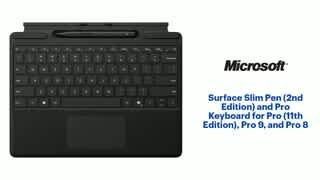
- Model:
- 8X6-00145
- SKU:
- 10148453
Rating by feature
- Value
Rating 4.4 out of 5 stars
- Quality
Rating 4.7 out of 5 stars
- Ease of Use
Rating 4.7 out of 5 stars
Customers are saying
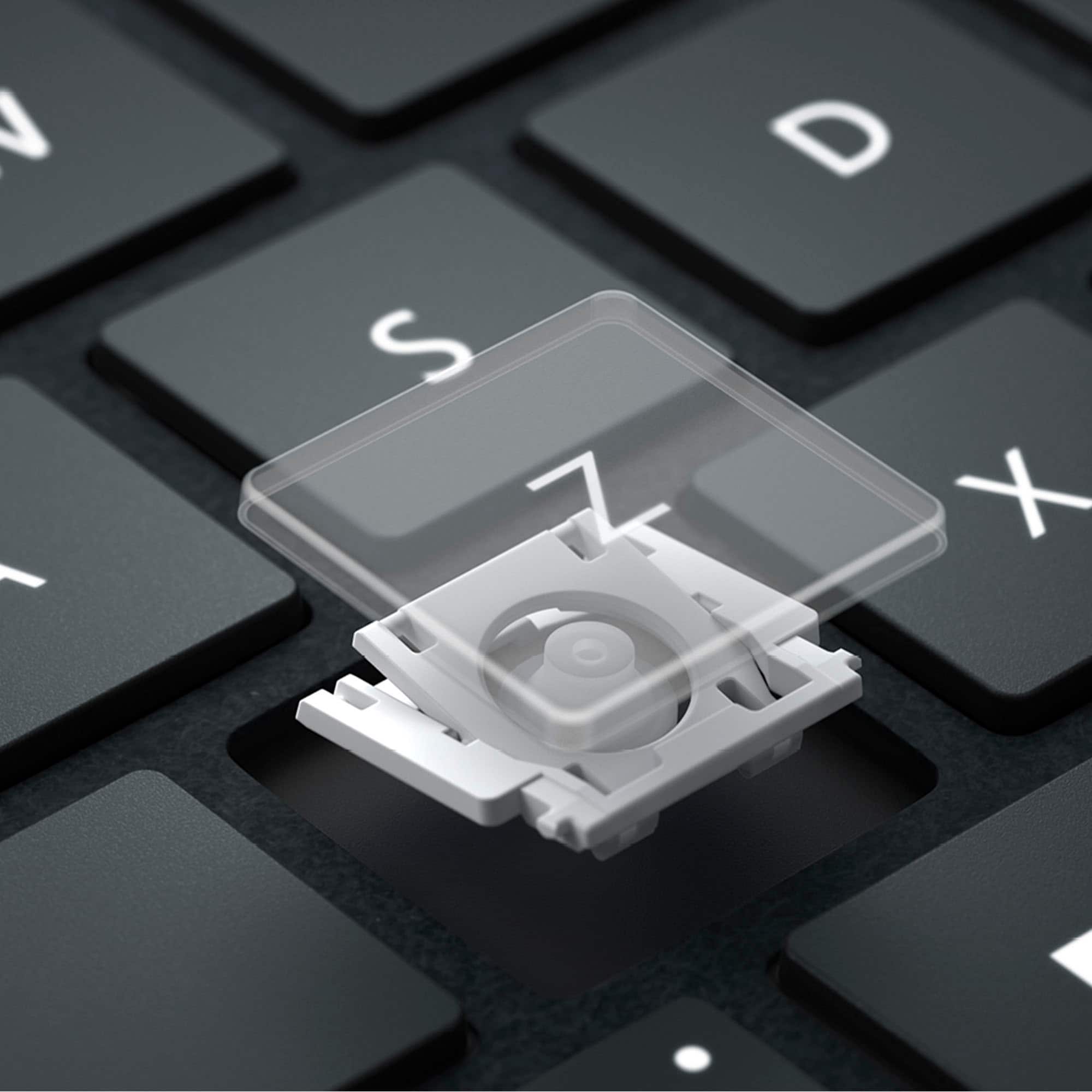
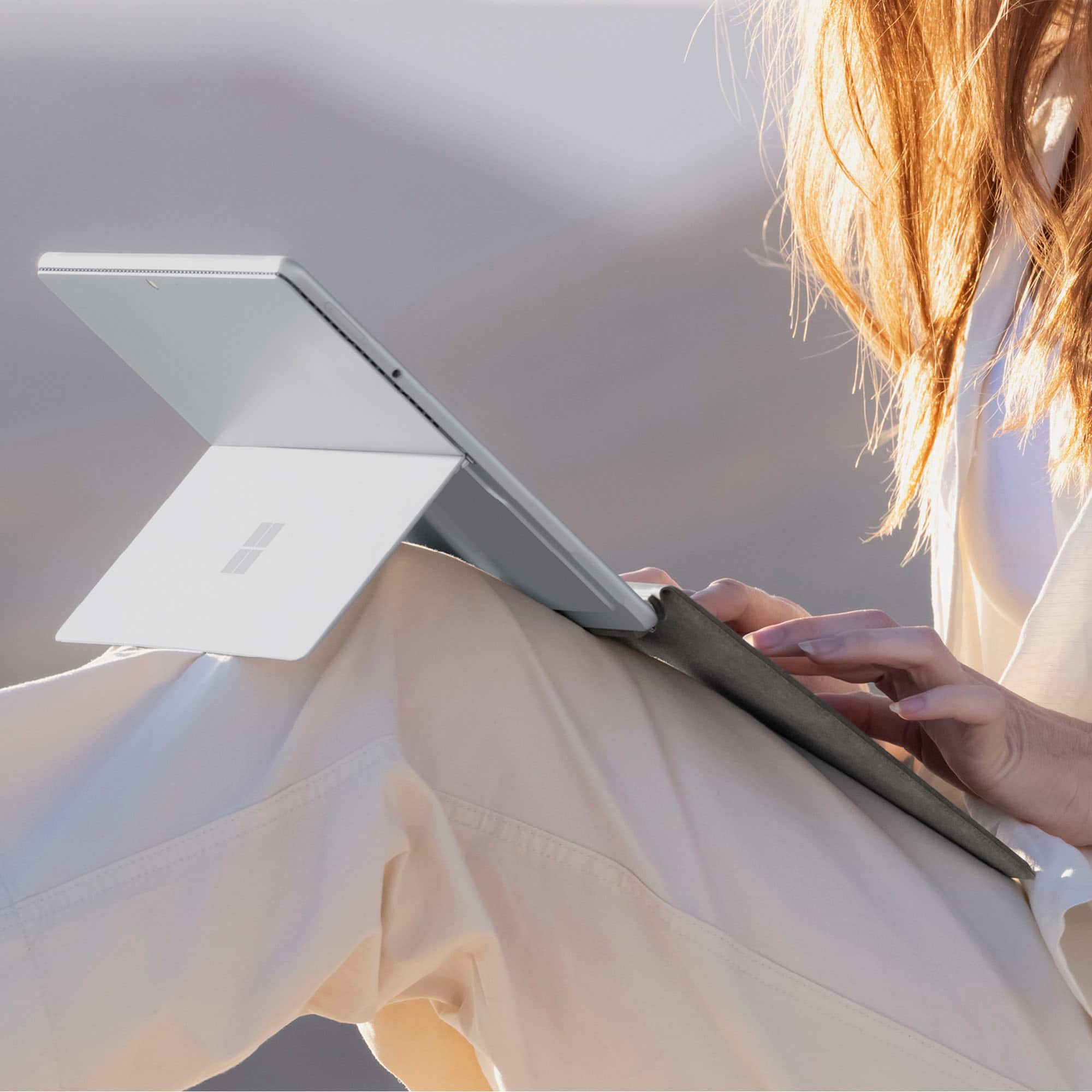
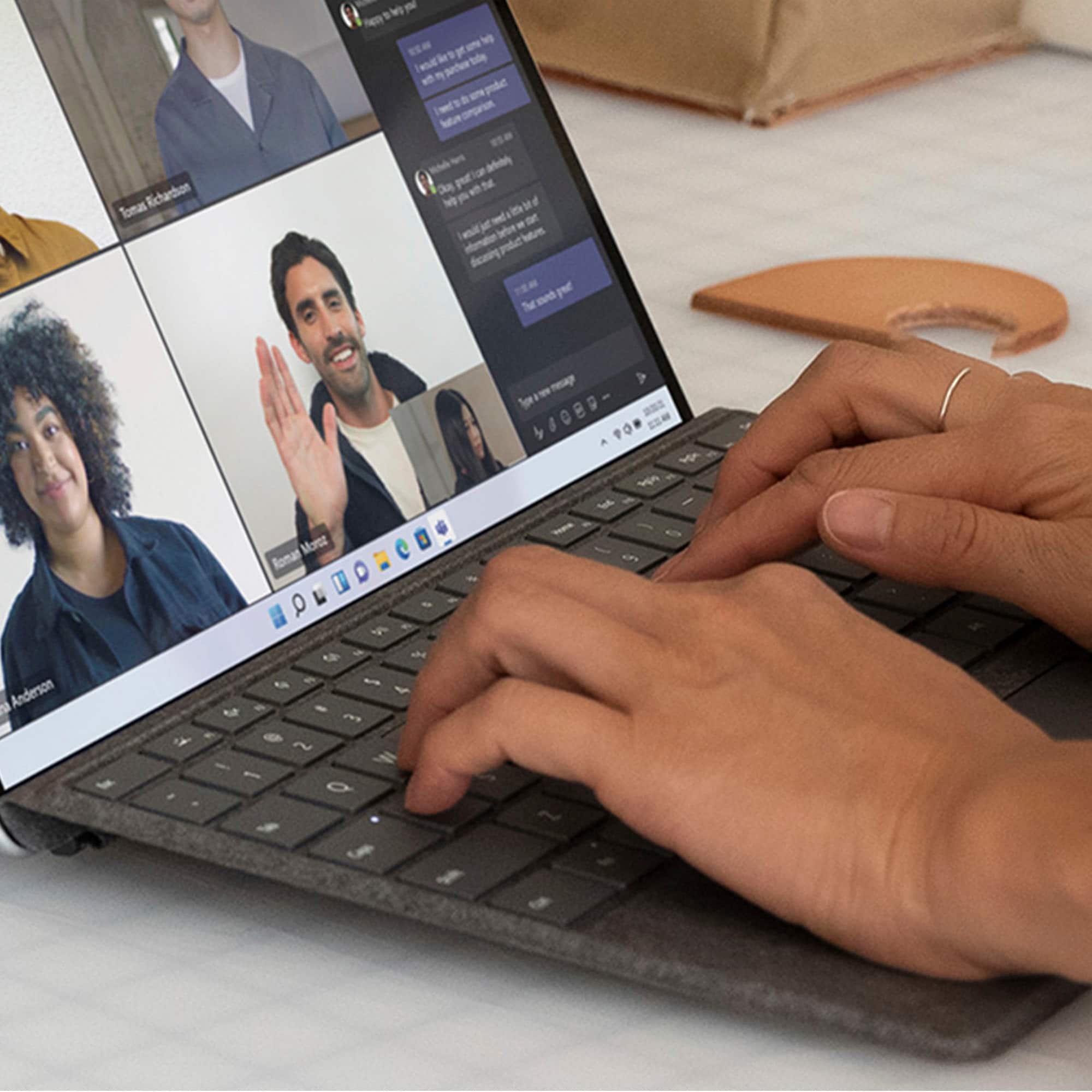
Customers appreciate the clever pen storage and charging area, the luxurious build quality, and the great typing experience. They also value its portability, light weight, and connectivity options. However, some customers find the trackpad to be a bit small.
This summary was generated by AI based on customer reviews.
the ultimate Mic tablet productivity Trio
||Posted . Owned for 1 week when reviewed.This reviewer received promo considerations or sweepstakes entry for writing a review.I couldnt be happier with the Microsoft tablet setup - especially the addition of the slim pen and keyboard. The Trio has completely transformed how I work, create and stay organized on the go. The pen is a great addition. it feels natural and precise, whether I'm using it to jot down notes, sketching ideas of marking up documents. the pressure sensitivity and low lag makes it feel almost like writing on paper, which has been amaxing for brainstorming and creative work. Adding the pro keyboard turns the tablet into a true productivity machine. the keys are comfortable and tactile, making long typing sessions enjoyable rather than tiring. I love how seamlessly everything works together. switching btw touch, pen and keyboard feels intuitive adn efficient. Overall theis setup delivers an exceptional blind of performance, versatility and style. this combo is well worth the investment.
I would recommend this to a friendKeyboard with pen
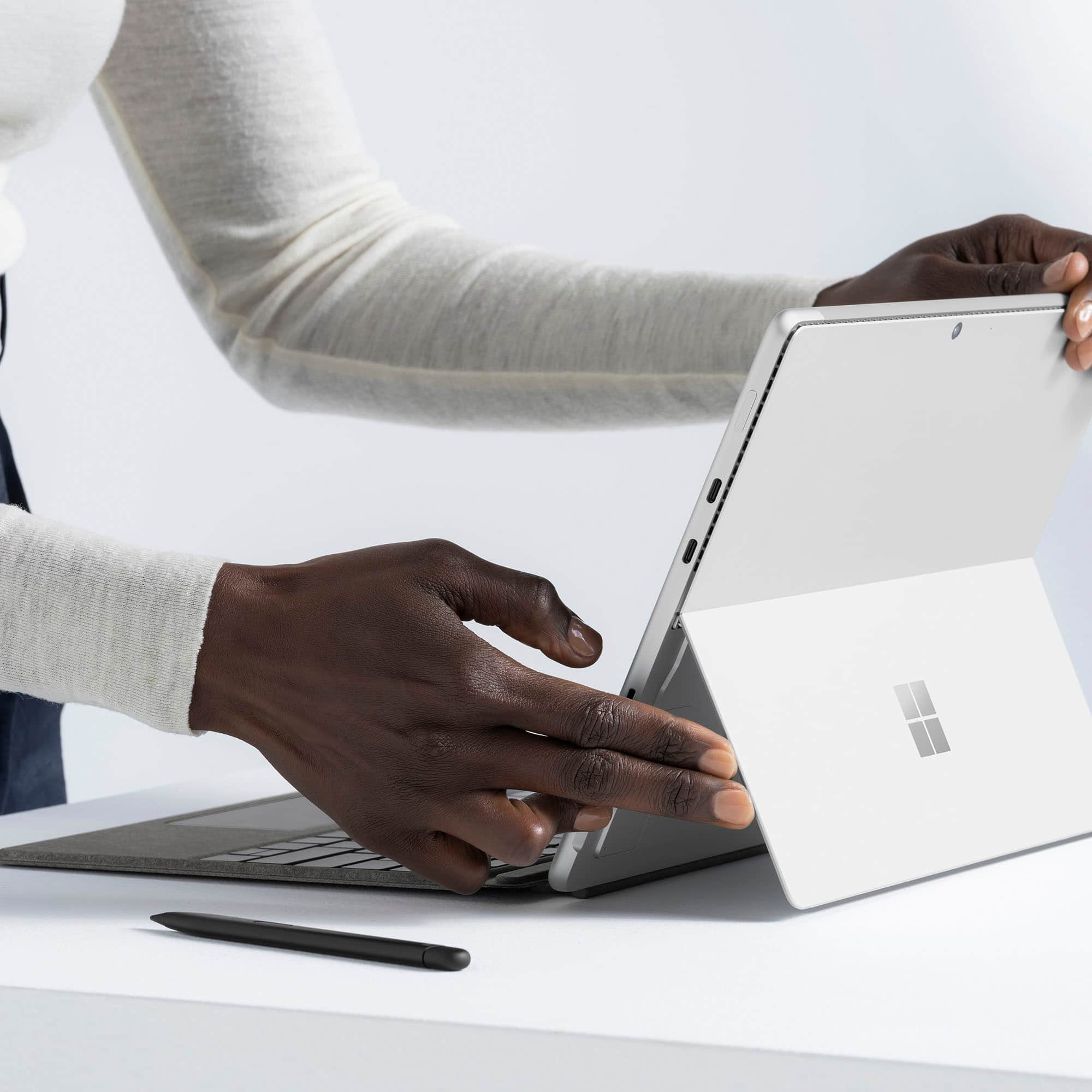
||Posted .This reviewer received promo considerations or sweepstakes entry for writing a review.A must have! This keyboard has a magnet it clips right on surface pro 11. Soft fabric around mouse is a nice touch. Pen is a must have and it charges right on the keyboard no extra plugs needed
I would recommend this to a friend- Pros mentioned:Build quality
Must have accessories
||Posted . Owned for 2 weeks when reviewed.This reviewer received promo considerations or sweepstakes entry for writing a review.Must have accessories for the surface tablet. Quality and feel are great. Pen and keyboard work flawlessly with the surface tablet. If you buy an aftermarket potective case it can sometimes cause the magnetic attachments to misalign, but that is a case problem not a keyboard problem.
I would recommend this to a friend - Pros mentioned:Color
Surface keyboard
||Posted . Owned for 1 week when reviewed.This reviewer received promo considerations or sweepstakes entry for writing a review.Love this keyboard, super fast reaction time. The color is also great
I would recommend this to a friend Perfect Combo for Productivity!
||Posted . Owned for 1 week when reviewed.This reviewer received promo considerations or sweepstakes entry for writing a review.The Surface Slim Pen 2 and Pro Keyboard are a must-have for anyone using the Surface Pro 8, 9, or 11th Edition. The pen feels natural and responsive—especially with haptic feedback—and the keyboard is incredibly comfortable to type on, with a premium build and smooth magnetic attachment. This combo transformed my Surface into a full productivity powerhouse. Highly recommend for students, professionals, and creatives alike!
I would recommend this to a friend- Pros mentioned:Portability
Microsoft keyboard
||Posted . Owned for 1 month when reviewed.This reviewer received promo considerations or sweepstakes entry for writing a review.Very great key board and vey light so easy for portable situations
I would recommend this to a friend Surface Pro keyboard black
||Posted . Owned for 2 weeks when reviewed.This reviewer received promo considerations or sweepstakes entry for writing a review.The typing experience is awesome and it has a very premium touch and feel with adjustable backlight and soft keys
I would recommend this to a friendMicrosoft surface pro keyboard
||Posted . Owned for 3 weeks when reviewed.This reviewer received promo considerations or sweepstakes entry for writing a review.This is a very good product, its very convenient for professional on the go.
I would recommend this to a friendSurvivor!
||Posted . Owned for 11 months when reviewed.This reviewer received promo considerations or sweepstakes entry for writing a review.Love this product. Super easy to use and To attach. Great quality product. My children have used this thing for a few years now. And it is still in great operating condition. And I have 6 young children that this product has survived
I would recommend this to a friendNeutral lovers
||Posted .This reviewer received promo considerations or sweepstakes entry for writing a review.I love this cover SOOO much. Neutral has always been my thing and this was perfect to compliment my PC.
I would recommend this to a friendFantastic
||Posted .This reviewer received promo considerations or sweepstakes entry for writing a review.Arrived in great condition and works great no issues at all
I would recommend this to a friendExcellent
||Posted . Owned for 2 weeks when reviewed.This reviewer received promo considerations or sweepstakes entry for writing a review.Good product. Works well as expected. Light and easy to travel with.
I would recommend this to a friendGood but Could Feel More Premium for the Price
||Posted . Owned for 5 months when reviewed.This reviewer received promo considerations or sweepstakes entry for writing a review.If you’re like me and prefer having all original accessories for your devices, then I definitely recommend it. However, the material quality feels a bit below what I expected for the price. Also, adding backlit keys would be an excellent feature — it’s something this keyboard is really missing. I believe brands like Dell or other Apple competitors could do it better.
No, I would not recommend this to a friendNeedthis
||Posted . Owned for 1 week when reviewed.This reviewer received promo considerations or sweepstakes entry for writing a review.This is my first laptop. And im excited to learn it.
I would recommend this to a friendPerfect
||Posted . Owned for 1 month when reviewed.This reviewer received promo considerations or sweepstakes entry for writing a review.Superb product , working great using with 11 pro soft and backlit buttons very smooth operation
I would recommend this to a friend- Pros mentioned:Build quality, Pen storage, Portability

Must Have Surface Pro Accessories!
|Posted .This reviewer received promo considerations or sweepstakes entry for writing a review.The Surface Pro is truly an excellent 2-1 device but anyone with a tablet that has the power of some of the best computers knows that they are truly fully formed when you have a keyboard accessory. And the official Microsoft Surface Slim Pen and Pro Keyboard is far and away the best choice to be made! PROS: - Opening this up, it looks fantastic. It’s light, it’s super slim, it’s portable, and it just has a premium feel to it. And setup is you just snap it to the Surface Pro and you are ready to go! - The keyboard itself is really great. It provides and excellent typing experience as it types smoothly and with nice quick response. The spacing on the keys is well done and all in all I really like it! - The trackpad is also a necessary and excellent feature! Optimal size with easy controls and smooth operating as well. - I will also add that I like how the keyboard can lay completely flat and be typed on or be up at a 20% angle or so to type. Gives it nice versatility along with being a cover for the screen itself when you have it closed all together. - The Pen is excellently made, really well done craftsmanship on it. It feels great in the hand, has precision on the screen, and nice built in touch controls as well. It stores safely into the keyboard itself and makes it much more secure than being attached to the outside somewhere instead. CONS: - Really none I can think of! All in all a great experience. BOTTOM LINE: - If you buy the Surface Pro, this is simply the best accessory you can have and the one you should have. It’s a perfect keyboard, provides even more versatility, the pen brings it to the next level, and it all comes in a sleek package. This keyboard is a no brainer!
I would recommend this to a friend - Pros mentioned:Build quality, Pen storage, Typing experienceCons mentioned:Trackpad size
Light weight & works great
|Posted .This reviewer received promo considerations or sweepstakes entry for writing a review.The Microsoft Surface Slim Pen 2nd Edition and Pro Keyboard pair perfectly with my new Surface Pro 11. Although thin and light, it feels sturdy. The magnetic connection to the tablet is strong and never feels like it will fall off. The keys have a much better feel to them than I would have expected from such a thin keyboard. This is a full function keyboard (minus the numbers pad) and even has backlighting for the keys (wasn't expecting that). The trackpad works beautifully although it is a bit small (to be expected with this form factor). The magnetic charging stall for the pen is perfectly located to keep it handy, charged and secure. As for the pen, it has plenty of customization available and works very well. It glides with ease across the screen. Using it for writing, note taking and creative uses works perfectly. Back to the keyboard, I have it in the sage (gold) color that matches my Surface Pro 11. I'm not sure I'm sold of the fabric-like material of the keyboard. Can't help but think it will get dirty easily. But, that's a wait and see thing and a minor issue if it happens at all. If you have a compatible Surface Pro, this keyboard and pen combo is a must have.
I would recommend this to a friend - Pros mentioned:Color, Pen storage, Portability
Complimentary Keyboard/Pen for Surface Pro
|Posted .This reviewer received promo considerations or sweepstakes entry for writing a review.This Microsoft Surface Pro Keyboard with Slim Pen is a worthy companion for the Surface Pro tablet. The Dune color is modern and stylish. Attaching this keyboard to the tablet is an effortless procedure; the magnetic edge just snaps right on securely. The keyboard is ultra thin, keeping the profile of the Surface Pro when connected to this keyboard, nice and slim. However, while well made, the keyboard does seem rather "inexpensive" which it certainly is not, price-wise. I'm not quite sure about the surface texture of this keyboard. While the keyboard itself is comfortable to type on, and is instantly responsive, the way the Alcantara surface material feels, simply isn't to my liking. It's a preference thing. Typing on the keyboard does feel good; each key press is fluid and smooth. There is even a dedicated Copilot+ key making it super convenient to access those cool AI features of the Surface Pro tablet. The Slim Pen took a bit of getting used to, though not long, it was just different than any of the other tablet pen/pencils I've used previously. Drawing with the pen was easy enough (even with me being left-handed) once I got acclimated to how it felt in my hand, and how it glided across the surface of the Surface Pro tablet's screen. There is a recessed slot to keep the pen so it's right there handy, and charged. Bottom line - This keyboard does what it needs to, both with optimal responsiveness, while also protecting the screen of the tablet. It is slim in design, highly portable, and a perfect compliment to the Microsoft Surface Pro tablet.
I would recommend this to a friend - Pros mentioned:Build quality
Not Bluetooth Capable
||Posted . Owned for 2 weeks when reviewed.This reviewer received promo considerations or sweepstakes entry for writing a review.NOT bluetooth capable, good quality, excellent condition
No, I would not recommend this to a friend - Pros mentioned:Build quality, Pen storageCons mentioned:Trackpad size
Essential Accessory for Surface Pro
|Posted .This reviewer received promo considerations or sweepstakes entry for writing a review.I’d consider the Surface Keyboard at the very least to be an essential accessory for the Surface Pro. I’d say that for the pen as well, but to a lesser degree. Together these things help complete the Surface experience and both are very well made and integrate very well with the Surface. The keyboard feels natural to type on and propped up on a desk with the Surface it’s very stable. It’s a little bit less so on the lap, but still doable. It attaches magnetically to the bottom of the Surface and it does not come out without a considerable amount of force, which is good. The keys have what I feel is just the right amount of travel and feel well spaced. The trackpad works well and supports all of the standard Windows gestures, though the ‘click’ feels louder than it needs to be for me and I do wish it was a little bigger. The fabric that covers it all looks nice and so far has held up well against fingerprints and stains. The pen rests in a storage area at the top that can be hidden away when angled up into the Surface. It also charges there as well. It’s held in magnetically and is very secure, so much so that I actually had some difficulty even getting it out until I realized I could press downward on the tip to pop the other end out. The pen is comfortable to hold and lends itself well to writing and sketching. And there’s lots of features built into Windows to help utilize it. If you’re buying a Surface, it’s pretty much a given that you should also buy this. I do think it’s a little expensive for what it is, but overall it’s a worthwhile purchase.
I would recommend this to a friend