Customer Ratings & Reviews
![Tablet_Keyboards:
Esc n X 12 F F4 FS F6 F7 FE Home P End F10 PgUp F11 PgDn F12 ins Del - . ! 1 2 # 3 $ 4 % 5 ^ 6 & 7 * 8 ( 9 ) 0 Ce C + = Backspace Tab Q W E R T Y U I O P { [ ) ] | / Caps A S D F G H J K L : ; "A - Enter Shift Z X C V N M < I > . ? / Shift Ctrl Fn Alt Alt i](https://pisces.bbystatic.com/image2/BestBuy_US/images/products/6583/6583049_sd.jpg)

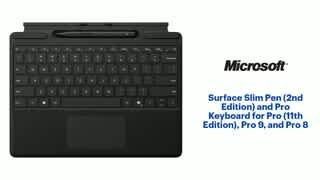
- Model:
- 8X6-00168
- SKU:
- 6583049
Rating by feature
- Value
Rating 4.3 out of 5 stars
- Quality
Rating 4.7 out of 5 stars
- Ease of Use
Rating 4.7 out of 5 stars
Customers are saying
Customers appreciate the Surface Slim Pen (2nd Edition) and Pro Keyboard for Pro 13" (11th Edition), Pro 9, and Pro 8 for its excellent keyboard quality, with users finding the trackpad particularly amazing. The product's connectivity options, including Bluetooth, are also well-received. Finally, customers find the product very smooth and easy to use.
This summary was generated by AI based on customer reviews.
- Pros mentioned:Keyboard quality

Essential Accessory for your Surface
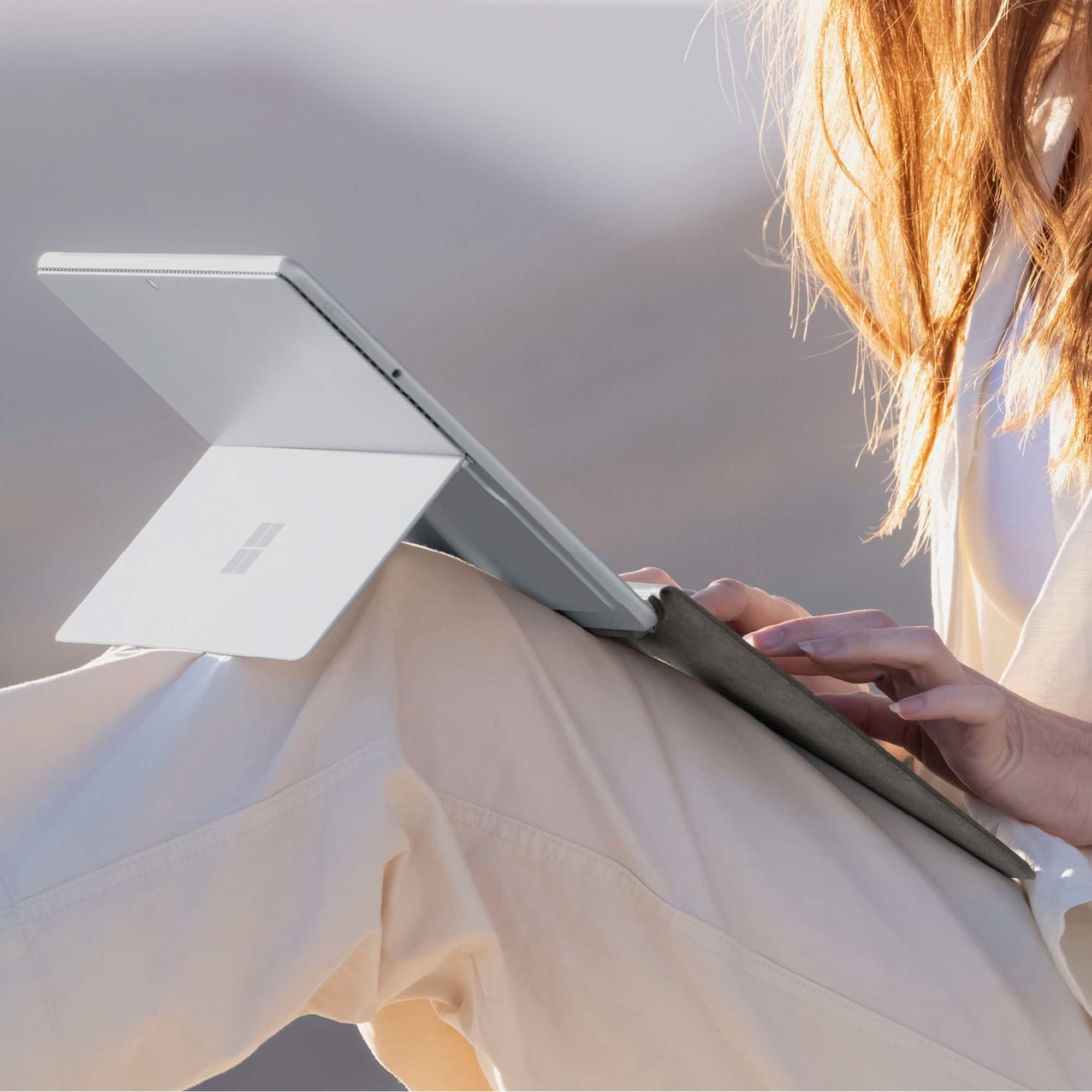
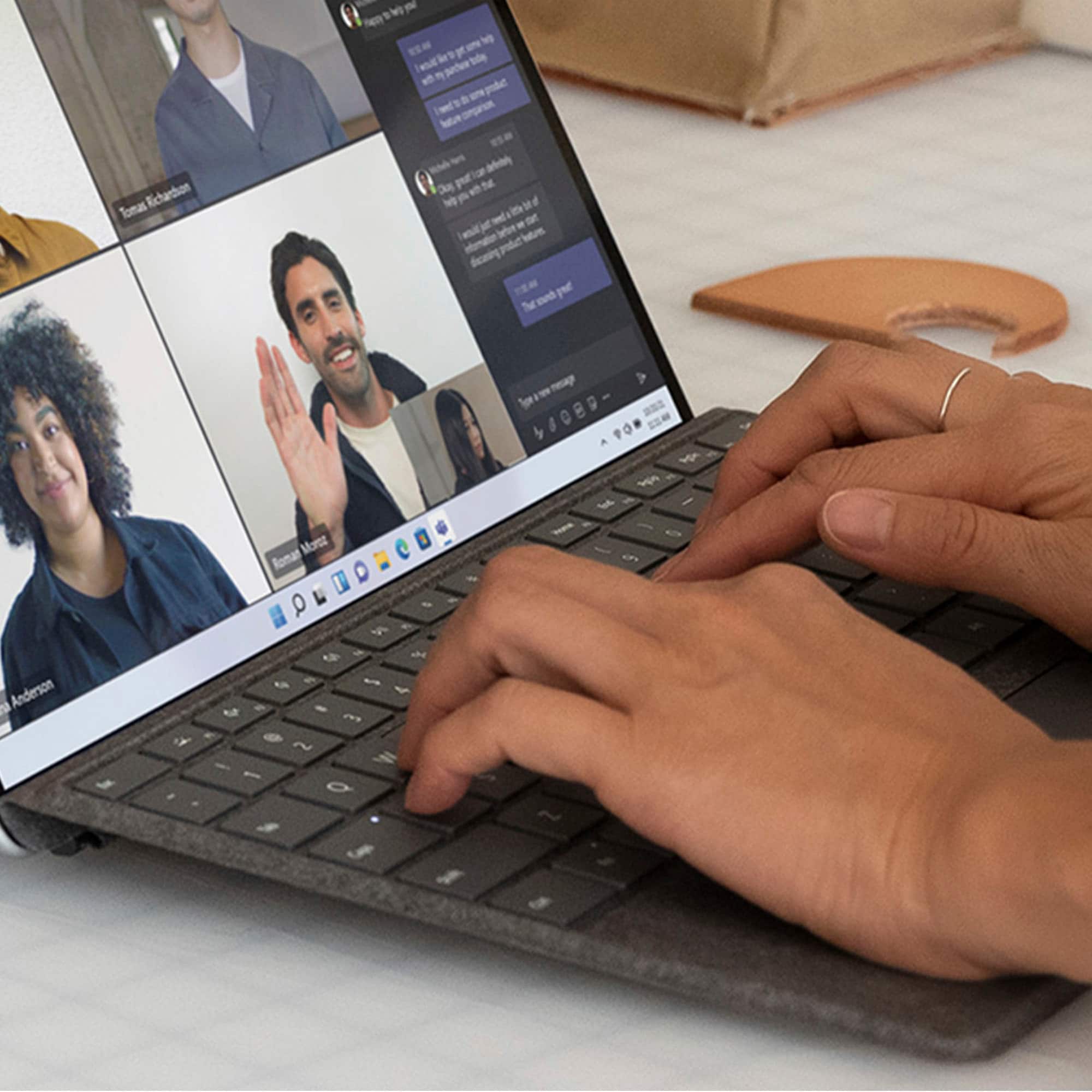
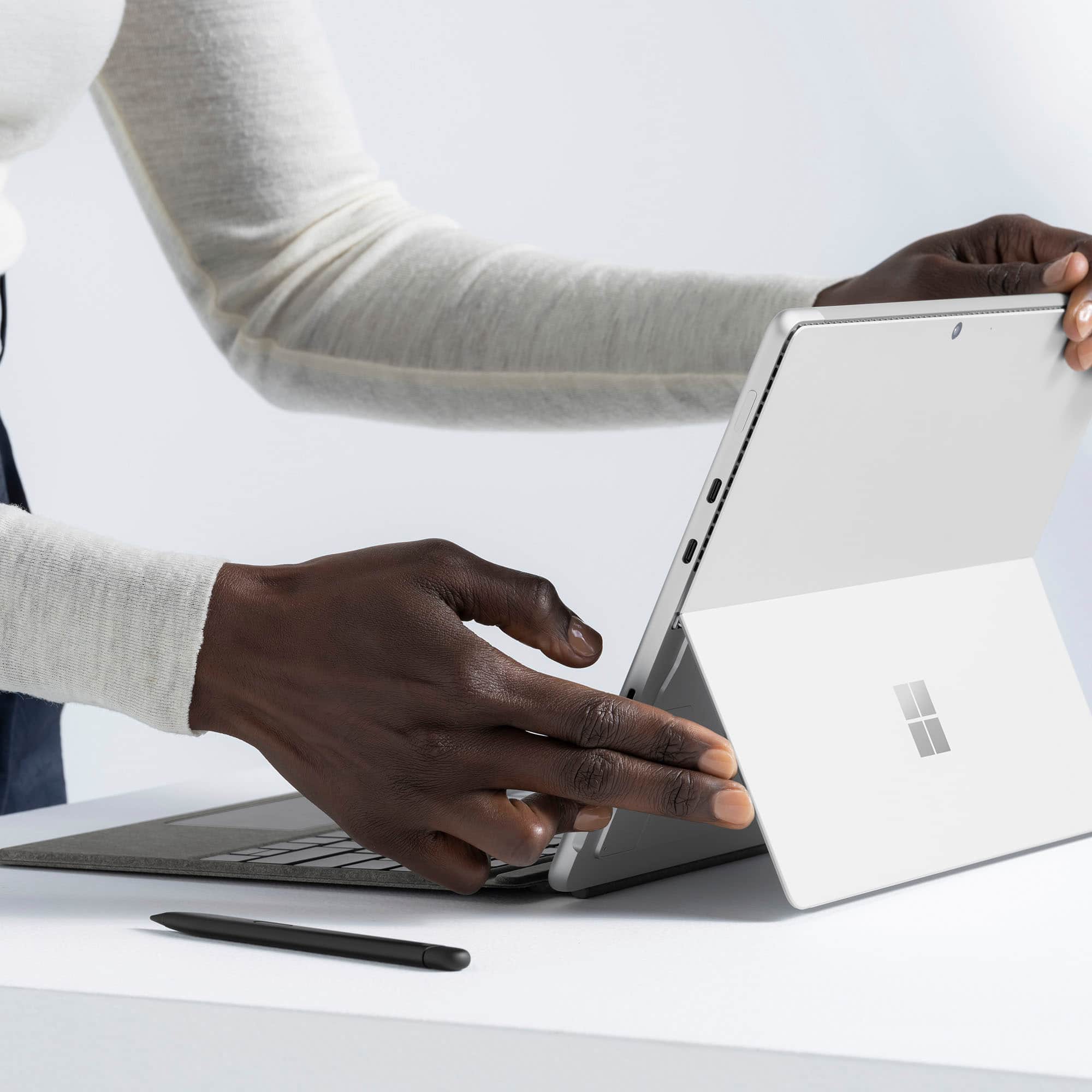
|Posted .This reviewer received promo considerations or sweepstakes entry for writing a review.Easy to detach when needed to have a truly tablet experience or quickly snap back onto the device for when a keyboard and trackpad are preferred. This latest Surface Pro keyboard houses a stylus pen that fits into a little magnetic slot at the top of the keyboard and hides away when not needed. The pen feels comfortable to use and fits perfectly in the writing hand even with its flatter design. It would be nice if Microsoft included the keyboard with the device as it's a pretty essential piece in the Surface experience. The keyboard is backlit and feels comfortable to type on. The keys have a nice tactile feel to them for such a thin keyboard. The trackpad is smooth and responsive. Not quite as large as on some 13-inch devices I've seen, but a decent size. The keyboard is powered by the Surface device, so it has to be attached to use it. It magnetically snaps into an inclined position or can lay flat if desired to access the pen slot. It also provides screen protection in the closed mode.
I would recommend this to a friend - Pros mentioned:Keyboard quality
Good keyboard & pen, no real AI integration
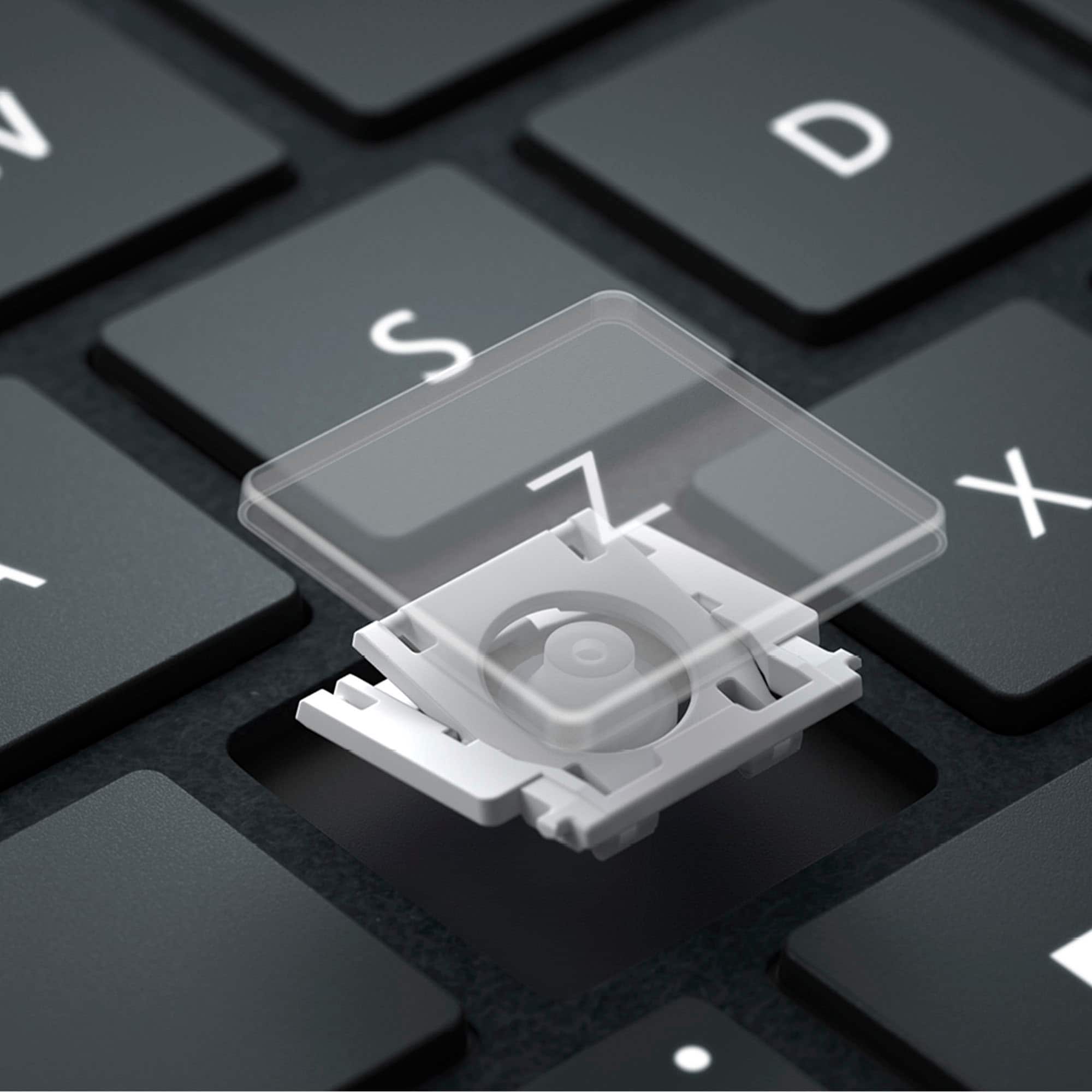
|Posted .This reviewer received promo considerations or sweepstakes entry for writing a review.Microsoft - Surface Slim Pen (2nd Edition) and Pro Keyboard for Pro (11th Edition), Pro 9, and Pro 8 – Black The Pro Keyboard makes a nice appearance and feels comfortable with the Alcantara material front and back. It is compatible with the Surface Pro 11, 9 or 8 editions and offers variable backlighting of the keys and special keys including those to mute the microphone or snip adjustable screen shots. The keys are mechanical with the keyboard being raised and attached magnetically along the front at the lower edge of the Surface Pro for an inclined typing experience, or it can be lowered so that it’s flat on the desktop as well. While not a particularly noisy keyboard, it is a little quieter in a flat position. In the inclined position there is a certain give or flex while typing but not enough to be a problem or distraction. When connected to the Surface Pro, it does so magnetically with pins on the lip of the keyboard engaging the bottom of the Surface Pro. When the keyboard is folded up across the screen, it attaches magnetically putting the Surface Pro to sleep and providing screen protection as well. The keyboard can be folded all the way back the other way with it flush against the back of the Surface Pro when using the Surface Pro as a tablet. Unlike the Surface Pro 11 Flex Keyboard, the Pro Keyboard does not have BT or a battery for use separately from the Surface Pro. The keyboard has a larger size touch pad that is quite smooth and easy to operate. It is a mechanical touch pad, so there is clicking, and not a haptic touch pad that doesn’t move as the Surface Pro 11 Flex Keyboard has. It comes with the Slim Pen 2 that nestles magnetically in a slot above the keys where it is securely protected and charges there only when the keyboard is connected to the Surface Pro. The Slim Pen 2 looks like a carpenter’s pencil with its flattened sides that I find quite comfortable and easy to hold when using. The inking experience is excellent with no issues that I noted. It’s an excellent tool for navigation, writing or sketching. While the Slim Pen 2 feels better on the screen while writing (better than the Apple Pencil 2 on the iPad’s screen), it still isn’t like writing on paper. It is, after all, a solid nib on a hard glass screen so it’s still slick with not much friction even though the haptic feedback through the pen provides some feeling of texture on the screen. Nevertheless, it doesn’t provide real friction between the nib and screen so expect a similar writing experience to other pens or stylus’s being used on a glass screen. Lastly, there is a special use key on the keyboard called the CoPilot key. Originally, it’s use was to open up a kind of AI assistant that could be directed to not only do what the downloadable version of CoPilot can do on any Windows machine, but for use as a more integrated AI experience with the Surface system enabling you to have CoPilot change settings and similar activities. However, that attribute was stripped away and now the key’s only role is to open CoPilot more as a PWA (like you would get if you opened CoPilot from a web browser). Once open in a window taking up the screen, you chat with it through text input as you would on any computer having CoPilot downloaded on it. It is a disappointing use of a special key taking up space on your keyboard. Overall, the Surface Pro Keyboard and Slim Pen 2 combo are a useful and necessary addition to your Surface Pro. Any intention of AI integration with your Surface Pro is missing and a disappointment lessening its combined capabilities with your Surface Pro.
I would recommend this to a friend