Customer Ratings & Reviews
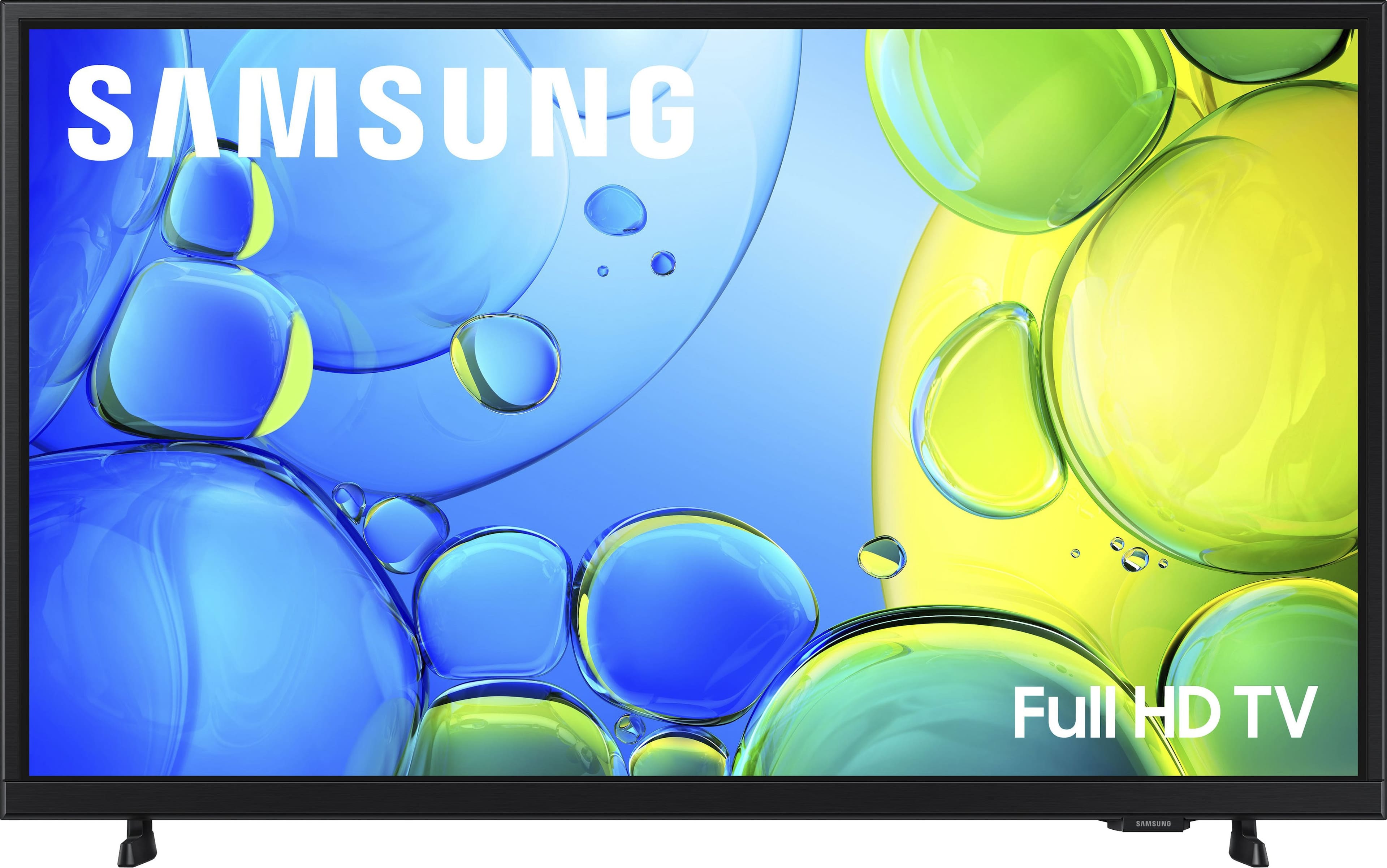
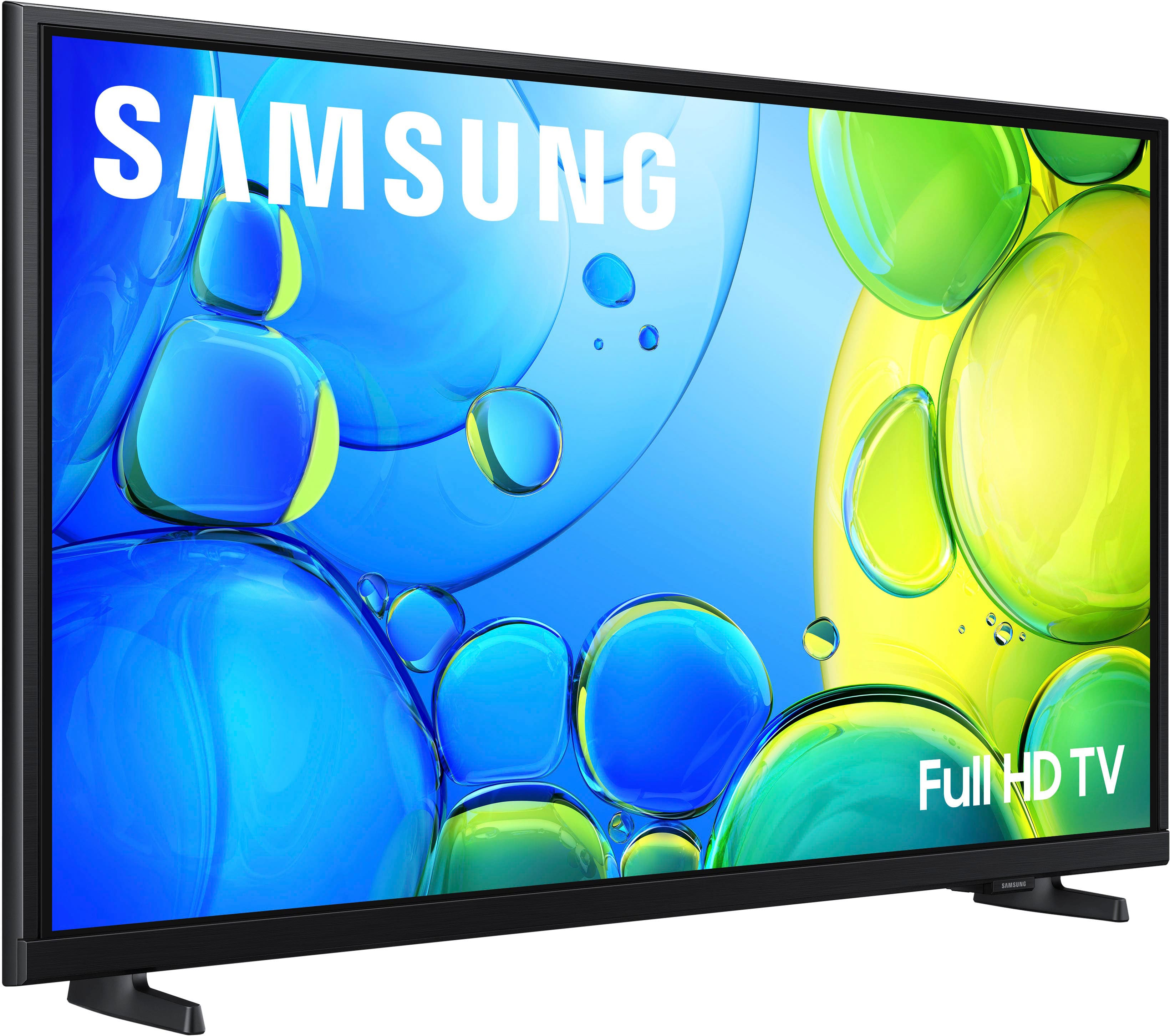
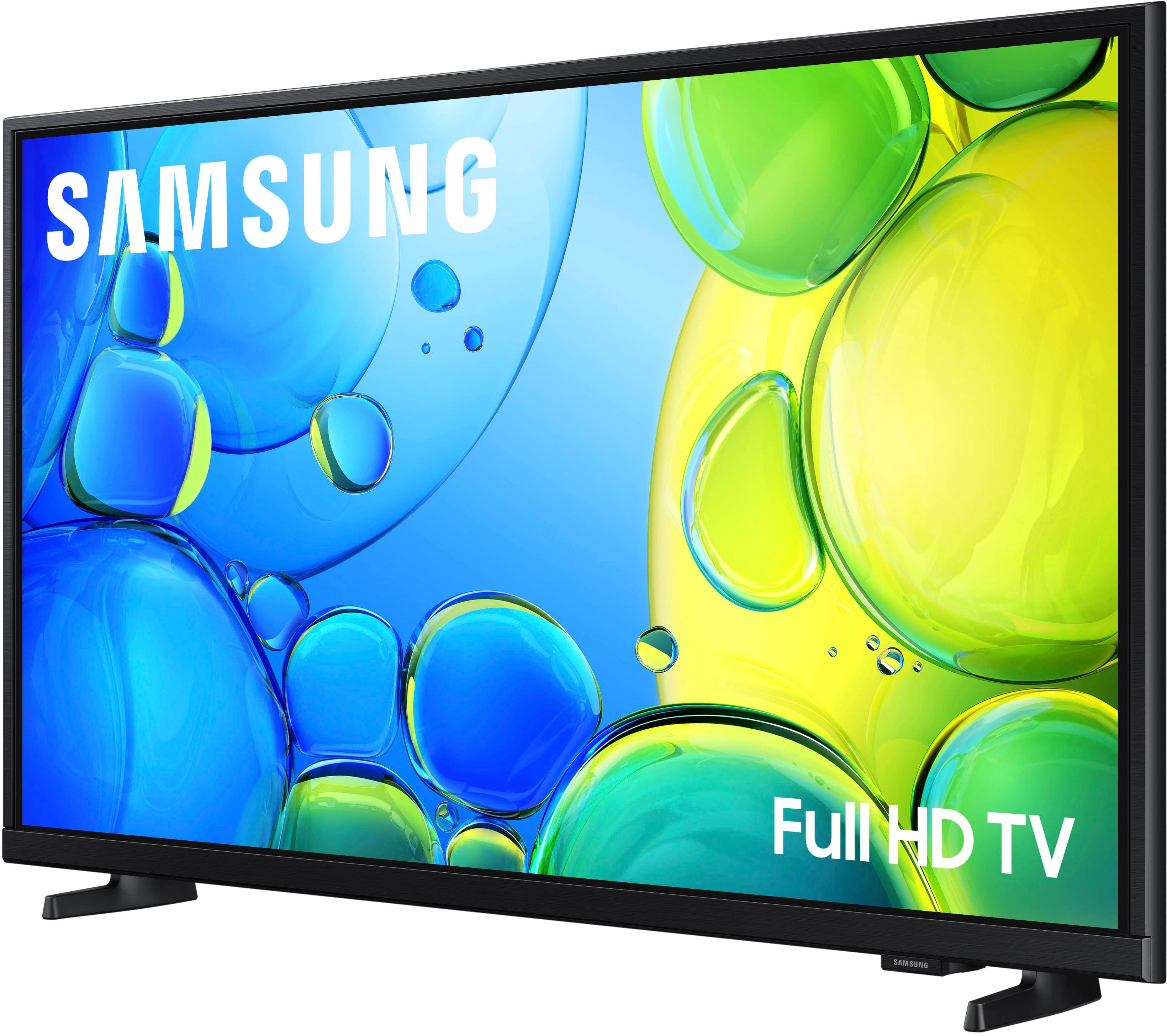
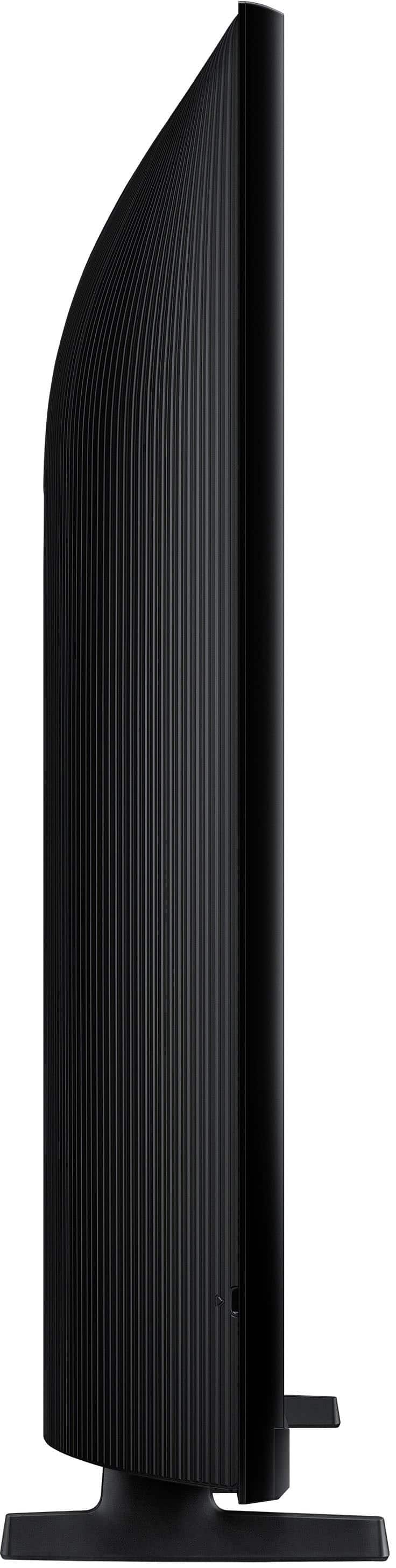


- Model:
- UN32F6000FFXZA
- |
- SKU:
- 10214329
Customer reviews
Rating 4.5 out of 5 stars with 899 reviews
(899 customer reviews)Rating by feature
- Picture Quality4.8
Rating 4.8 out of 5 stars
- Sound Quality4.5
Rating 4.5 out of 5 stars
- Brightness4.8
Rating 4.8 out of 5 stars
Customers are saying
Customers are impressed with the excellent picture quality and the straightforward setup process of this product. Many users also appreciate its convenient size and lightweight design, which makes installation simple. However, some customers have noted concerns regarding the responsiveness of the remote and the overall speed of the processor. Additionally, a few users reported occasional difficulties with app performance and smart functionality.
This summary was generated by AI based on customer reviews.
- Pros mentioned:Picture quality, Setup ease
Rated 5 out of 5 stars
Very Pleased
||Posted . Owned for 3 weeks when reviewed.This reviewer received promo considerations or sweepstakes entry for writing a review.Great tv veautiful colors easy to set up very pleases
This review is from Samsung - 32" Class F6000F Series LED Full HD Smart Tizen TV (2025)
I would recommend this to a friend - Pros mentioned:Picture quality
Rated 4 out of 5 stars
Television
||Posted . Owned for 3 weeks when reviewed.This reviewer received promo considerations or sweepstakes entry for writing a review.TV has a beautifully focused picture. Set up is so involved that we cannot finish, so I am not fully experiencing its capabilities. It is definitely not a plug and play.
This review is from Samsung - 32" Class F6000F Series LED Full HD Smart Tizen TV (2025)
No, I would not recommend this to a friend - Pros mentioned:Picture quality, Setup ease
Rated 5 out of 5 stars
Great Little TV
||Posted .This reviewer received promo considerations or sweepstakes entry for writing a review.This Samsung for its size has a very clear sharp picture on. Simple to use for Streaming services. has a sound to it.
This review is from Samsung - 32" Class F6000F Series LED Full HD Smart Tizen TV (2025)
I would recommend this to a friend - Pros mentioned:Picture quality
Rated 4 out of 5 stars
Stellar Picture Average Sound
||Posted . Owned for 2 weeks when reviewed.This reviewer received promo considerations or sweepstakes entry for writing a review.Who needs OLED, QLED or MICRO RB, etc. FULL HD is an acceptable picture. When I have to maintain a 85-95 sound level and it only goes up to 100 the sound needs a soundbar -- particularly in an open space.
This review is from Samsung - 32" Class F6000F Series LED Full HD Smart Tizen TV (2025)
I would recommend this to a friend - Pros mentioned:Picture quality, Setup ease
Rated 5 out of 5 stars
Super nice TV
||Posted .This reviewer received promo considerations or sweepstakes entry for writing a review.Super deal! Sharp picture, good sound, and easy to set up. Put all my favorite apps on it.
This review is from Samsung - 32" Class F6000F Series LED Full HD Smart Tizen TV (2025)
I would recommend this to a friend - Pros mentioned:Picture qualityCons mentioned:Responsiveness
Rated 4 out of 5 stars
Samsung 32'' Classic TV
||Posted . Owned for 1 month when reviewed.This reviewer received promo considerations or sweepstakes entry for writing a review.Its a great tv. The screen is great quality and it has good sound. The only thing I haven't liked is that it can be slow to react to the remote.
This review is from Samsung - 32" Class F6000F Series LED Full HD Smart Tizen TV (2025)
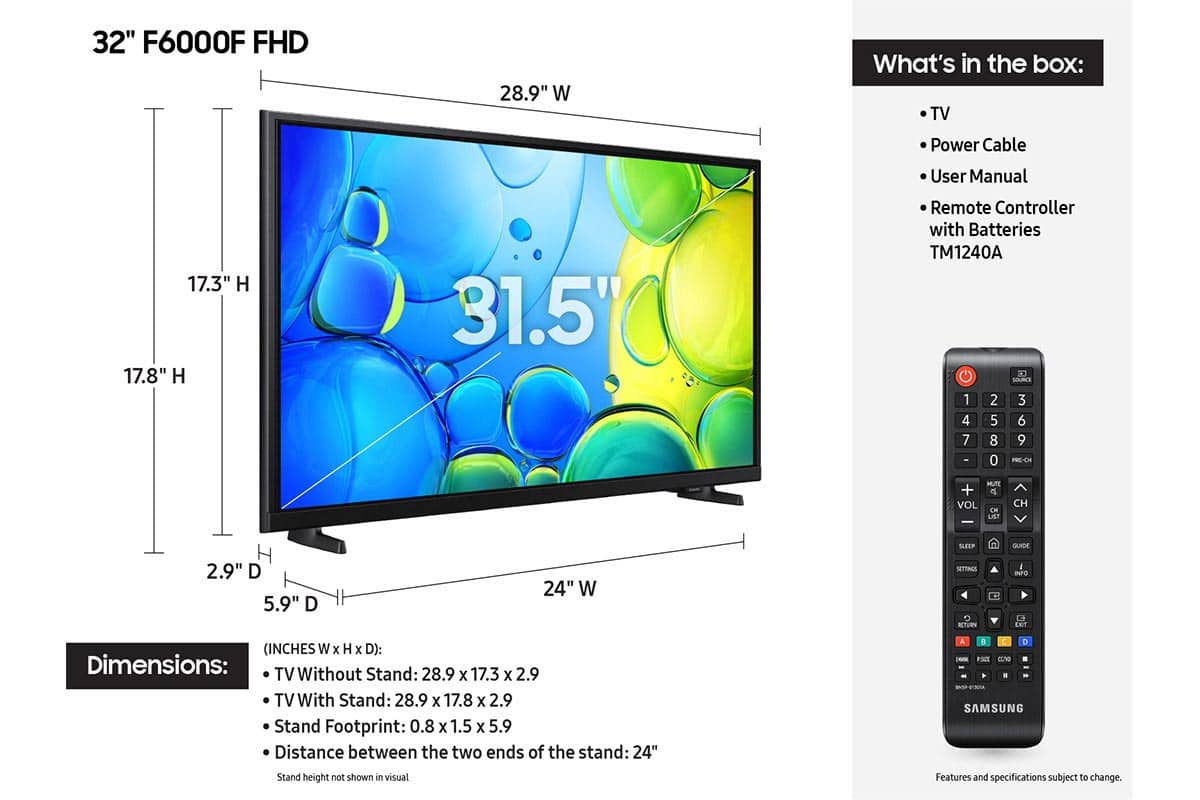
I would recommend this to a friend - Pros mentioned:Size
Rated 4 out of 5 stars
Samsung TV
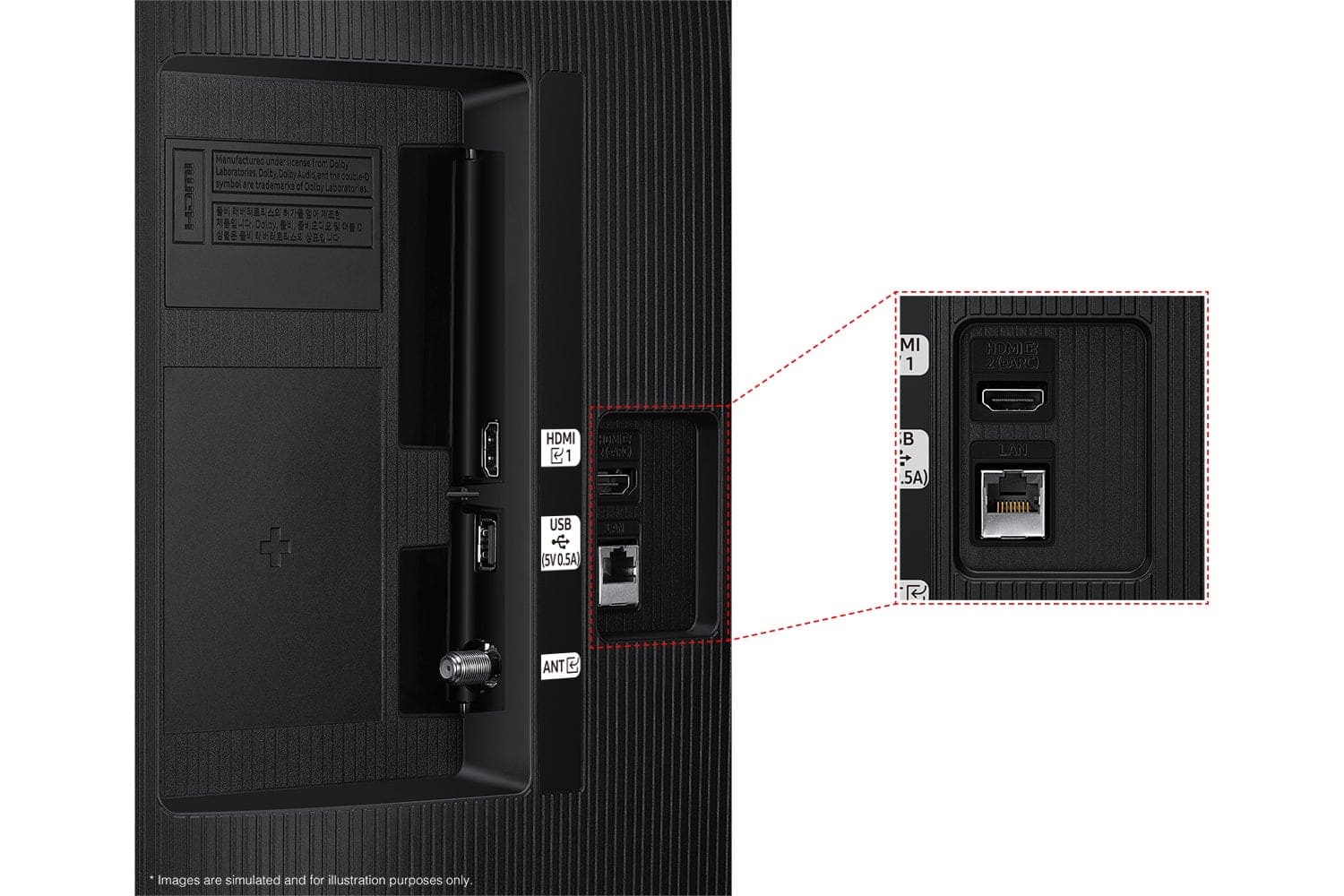
||Posted . Owned for 1 month when reviewed.This reviewer received promo considerations or sweepstakes entry for writing a review.I like the size. I don't like the lack of ports for hdmI cables in the back to automatically hook up my security system.
This review is from Samsung - 32" Class F6000F Series LED Full HD Smart Tizen TV (2025)
No, I would not recommend this to a friend - Pros mentioned:Picture quality
Rated 5 out of 5 stars
Samsung 32 inch monitor.
||Posted . Owned for 3 weeks when reviewed.This reviewer received promo considerations or sweepstakes entry for writing a review.I use it for a monitor of my desktop, TV. It's a giant screen when you're sitting right in front of its. It's also sounding best when I'm listening with my Bose Bluetooth headphones. Loved it.
This review is from Samsung - 32" Class F6000F Series LED Full HD Smart Tizen TV (2025)
I would recommend this to a friend - Pros mentioned:Picture quality, Setup ease
Rated 4 out of 5 stars
Good value
||Posted . Owned for 1 month when reviewed.This reviewer received promo considerations or sweepstakes entry for writing a review.The Samsung has performed better than expected so far. picture quality is good and easy to operate.
This review is from Samsung - 32" Class F6000F Series LED Full HD Smart Tizen TV (2025)
I would recommend this to a friend - Pros mentioned:Picture quality
Rated 5 out of 5 stars
Good purchase
||Posted . Owned for 3 weeks when reviewed.This reviewer received promo considerations or sweepstakes entry for writing a review.I like the picture quality. The size is good. It was difficult attaching the stands to the tv
This review is from Samsung - 32" Class F6000F Series LED Full HD Smart Tizen TV (2025)
I would recommend this to a friend - Pros mentioned:Picture quality, Size
Rated 5 out of 5 stars
Small tv
||Posted . Owned for 1 month when reviewed.This reviewer received promo considerations or sweepstakes entry for writing a review.Works perfectly. Exact size needed for a small kitchen area.
This review is from Samsung - 32" Class F6000F Series LED Full HD Smart Tizen TV (2025)
I would recommend this to a friend - Pros mentioned:Picture quality
Rated 5 out of 5 stars
Samsung 32” F600F
||Posted . Owned for 3 weeks when reviewed.This reviewer received promo considerations or sweepstakes entry for writing a review.Excellent picture and easy mount and set up.. also the sound quality met all our expectations
This review is from Samsung - 32" Class F6000F Series LED Full HD Smart Tizen TV (2025)
I would recommend this to a friend - Pros mentioned:Picture quality, Size
Rated 5 out of 5 stars
Kitchen TV
||Posted . Owned for 2 weeks when reviewed.This reviewer received promo considerations or sweepstakes entry for writing a review.Great fit in my space, terrific picture. Easy to navigate
This review is from Samsung - 32" Class F6000F Series LED Full HD Smart Tizen TV (2025)
I would recommend this to a friend Rated 4 out of 5 stars
Great tv, audio takes some adjusting to though
||Posted . Owned for 2 weeks when reviewed.This reviewer received promo considerations or sweepstakes entry for writing a review.I have been using this tv for about a month now and can say without a doubt this is a great tv especially for the price. My only complaint is the raw tv audio does sound off from most tv's ive had but it's not enough to bother me and now at this point in it's usage I am completely used to it's sound. Highly recommend this product for anyone looking for a good cheap tv
This review is from Samsung - 32" Class F6000F Series LED Full HD Smart Tizen TV (2025)
I would recommend this to a friend- Pros mentioned:Picture quality
Rated 5 out of 5 stars
Perfect Fit for RV
||Posted . Owned for 2 weeks when reviewed.This reviewer received promo considerations or sweepstakes entry for writing a review.Fit perfectly in the TV location in our new trailer. Works well with built-in antenna and has a sharp, clear screen. The sound quality is decent.
This review is from Samsung - 32" Class F6000F Series LED Full HD Smart Tizen TV (2025)
I would recommend this to a friend - Pros mentioned:Picture quality, Setup ease
Rated 5 out of 5 stars
Samsung delivers another great product
||Posted . Owned for 3 weeks when reviewed.This reviewer received promo considerations or sweepstakes entry for writing a review.Great picture, easy setup and app usage. A high quality product.
This review is from Samsung - 32" Class F6000F Series LED Full HD Smart Tizen TV (2025)
I would recommend this to a friend - Pros mentioned:Picture quality, Setup ease
Rated 5 out of 5 stars
Good TV
||Posted .This reviewer received promo considerations or sweepstakes entry for writing a review.Good tv, does what I need it to do. Easy mounting setup as well
This review is from Samsung - 32" Class F6000F Series LED Full HD Smart Tizen TV (2025)
I would recommend this to a friend - Pros mentioned:Picture quality, Size
Rated 5 out of 5 stars
Best Purchase
||Posted .This reviewer received promo considerations or sweepstakes entry for writing a review.Good TV, quality is great. The aize is perfect fit
This review is from Samsung - 32" Class F6000F Series LED Full HD Smart Tizen TV (2025)
I would recommend this to a friend - Pros mentioned:Picture quality, Setup ease
Rated 5 out of 5 stars
Best tv
||Posted . Owned for 3 weeks when reviewed.This reviewer received promo considerations or sweepstakes entry for writing a review.Wonderful tv super happy with everything best picture and super easy setup
This review is from Samsung - 32" Class F6000F Series LED Full HD Smart Tizen TV (2025)
I would recommend this to a friend - Pros mentioned:Picture quality
Rated 5 out of 5 stars
Great quality
||Posted . Owned for 9 months when reviewed.This reviewer received promo considerations or sweepstakes entry for writing a review.For a small room it works great. Sound and clarity is very good.
This review is from Samsung - 32" Class F6000F Series LED Full HD Smart Tizen TV (2025)
I would recommend this to a friend