Customer Ratings & Reviews
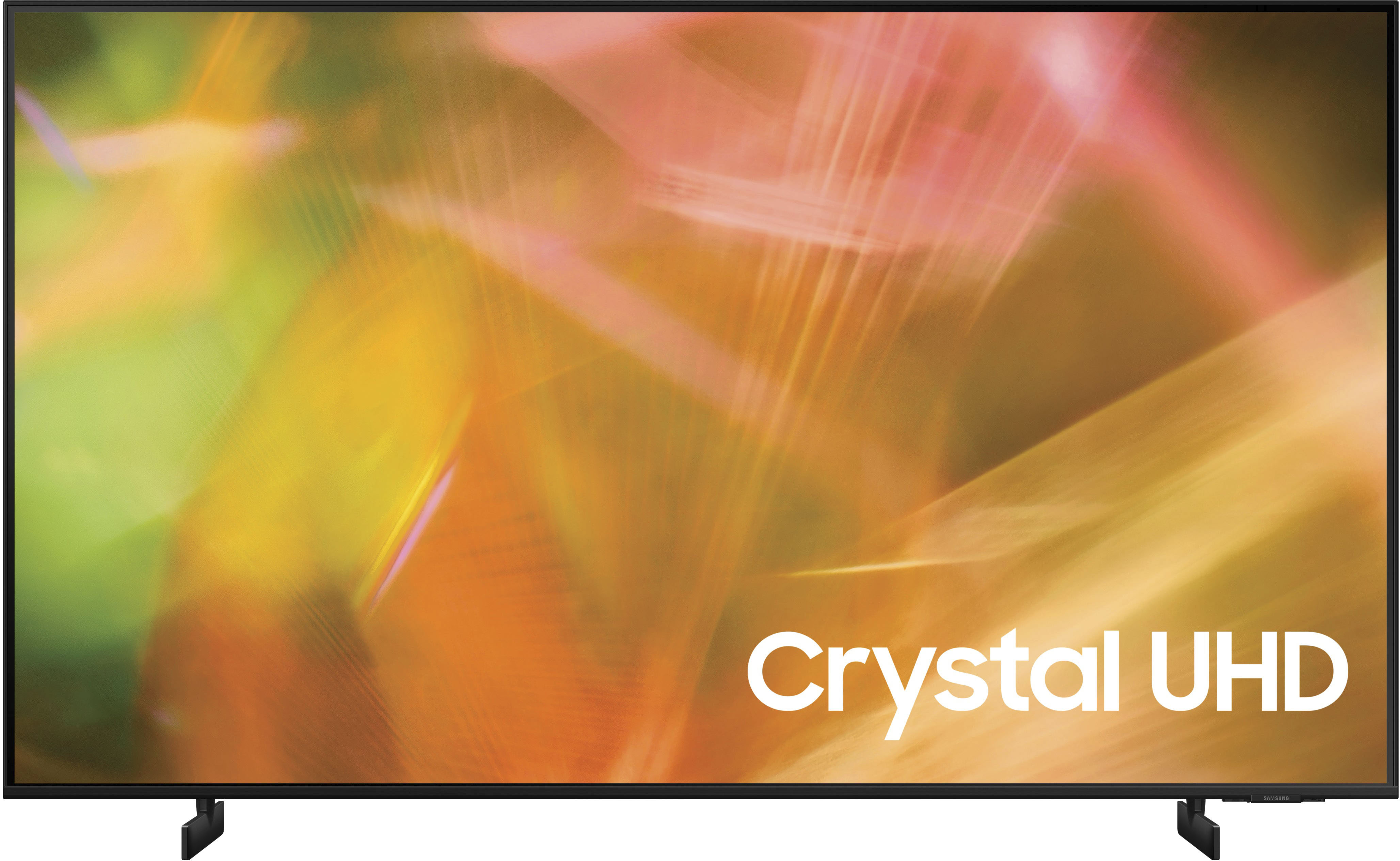
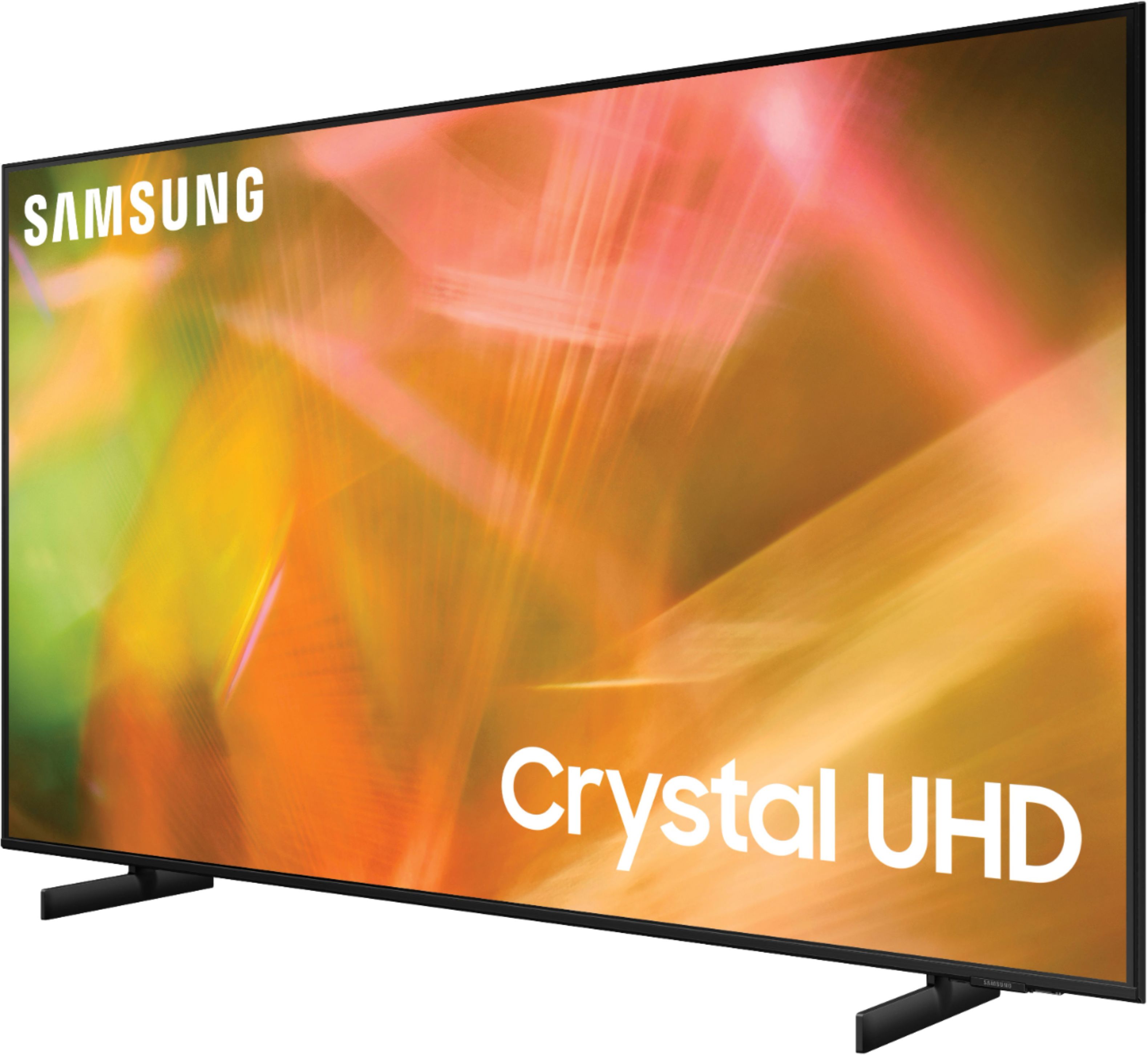

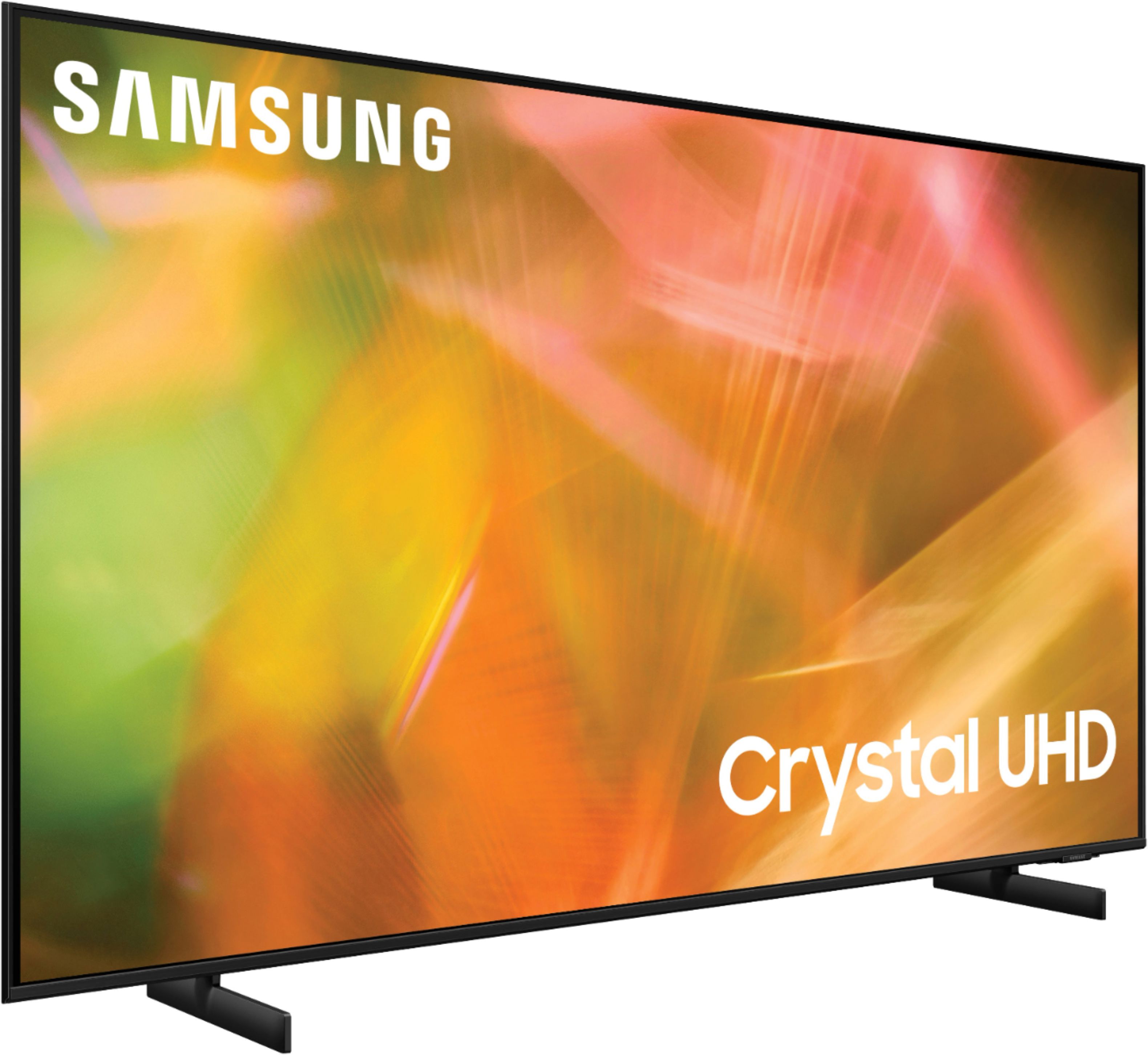

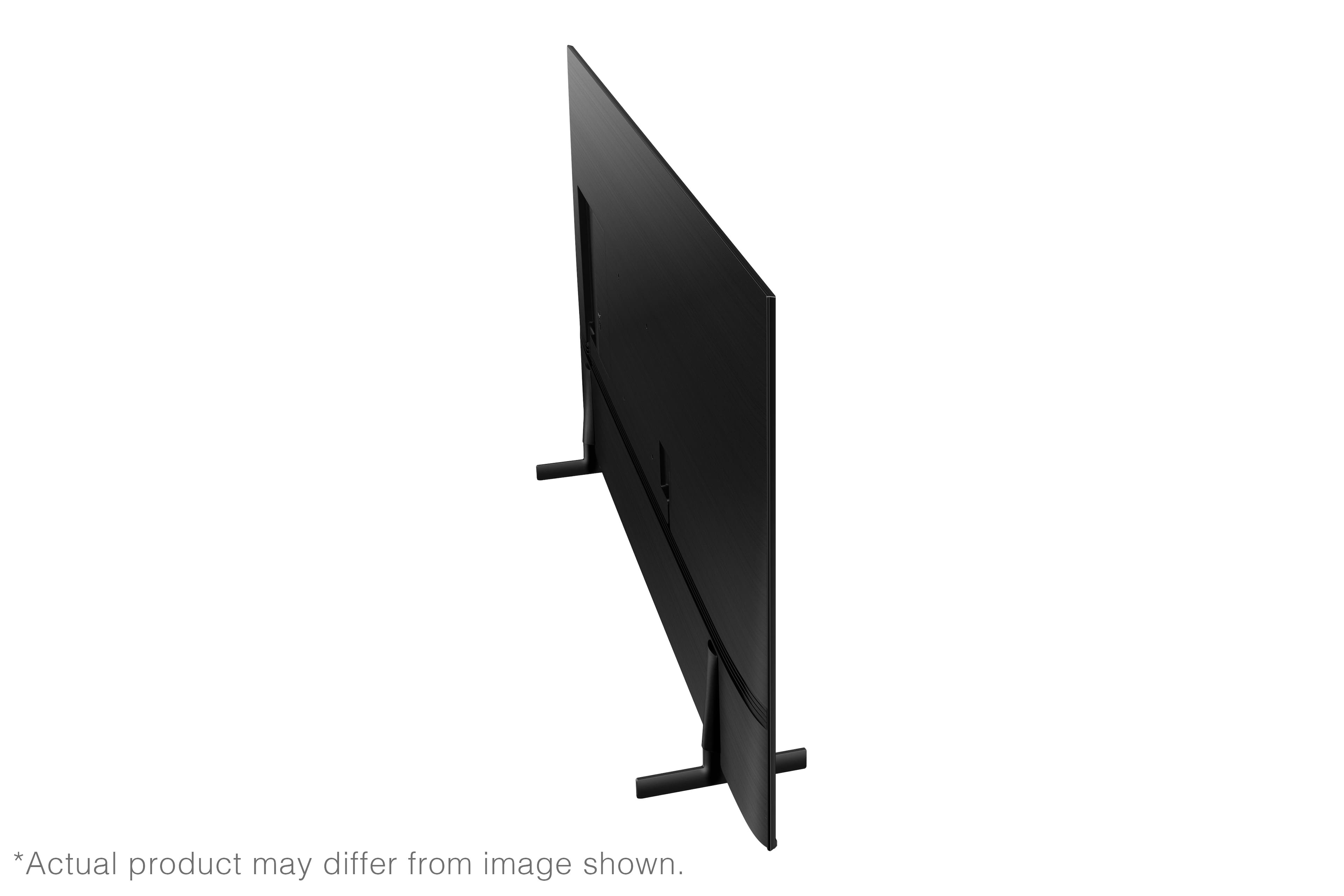
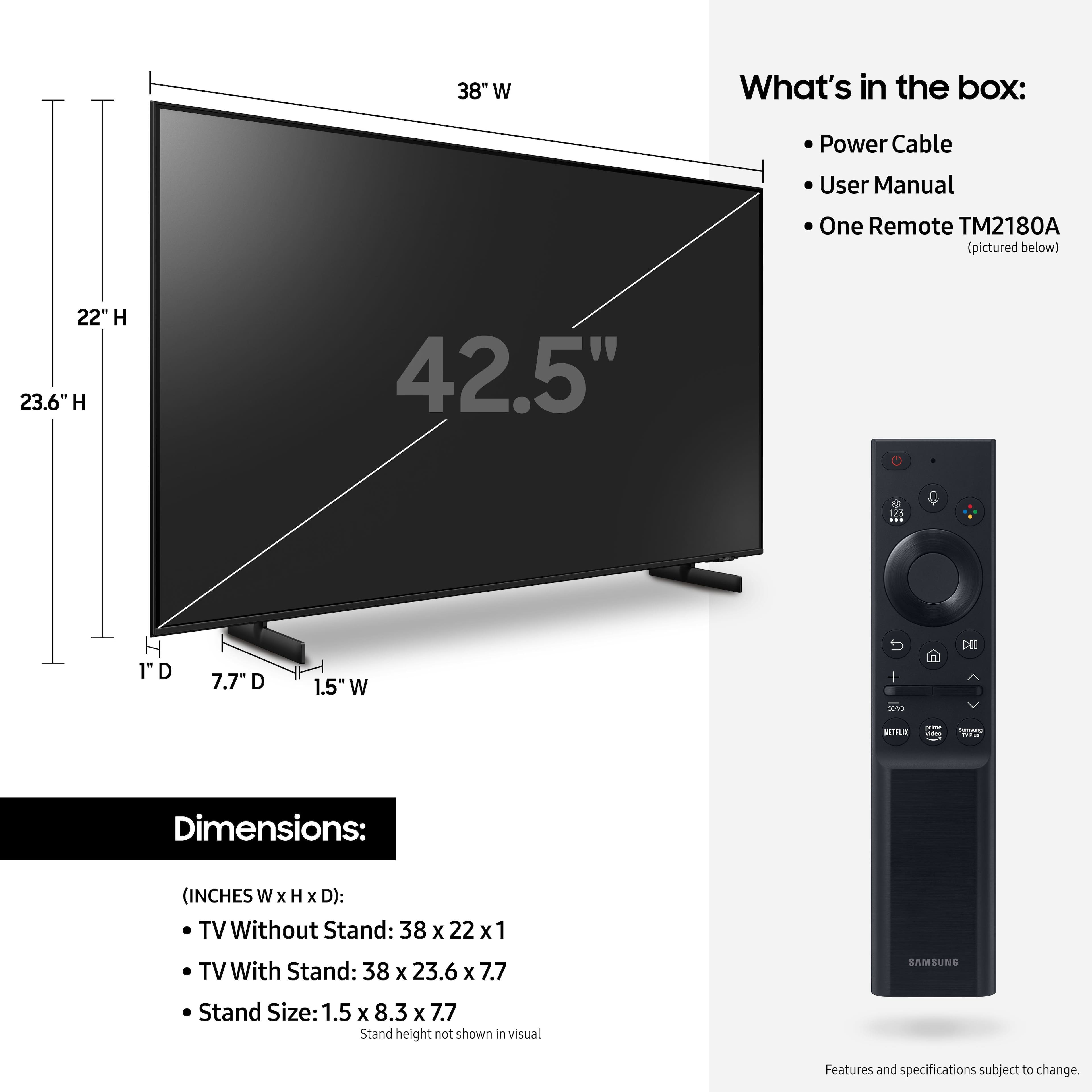







- Model:
- UN43AU8000FXZA
- SKU:
- 6452966
Rating by feature
- Picture Quality
Rating 4.8 out of 5 stars
- Sound Quality
Rating 4.1 out of 5 stars
- Brightness
Rating 4.7 out of 5 stars
Customers are saying
Customers are delighted by the picture quality and ease of use of the 43" Class 8000 Series LED 4K UHD Smart Tizen TV. Many also appreciate the smart TV features, the price point, and the sleek design. However, some users have expressed concerns regarding the remote control's ergonomics and the volume control's range. A few customers also mentioned that the operating system and user interface could be improved for a smoother experience.
This summary was generated by AI based on customer reviews.
Need to unplug every time before power will come o
||Posted . Owned for 9 months when reviewed.This reviewer received promo considerations or sweepstakes entry for writing a review.Less than a year old and power board is failing , though Samsung was good quality
No, I would not recommend this to a friend1 star
||Posted . Owned for 5 months when reviewed.This reviewer received promo considerations or sweepstakes entry for writing a review.Bought this TV sep 2022, just bought another to TV to replace it. Stopped working over night. Only worked 5 months.
No, I would not recommend this to a friendBrand response from Samsung
Posted .Hi KarlaC,
I'm very sorry that your AU8000 TV stopped working. Please know that we back this TV with a 1-year limited manufacturer's warranty, including authorized repair for manufacturer defect, if purchased brand-new directly from an authorized seller.
Please give us a call so we can schedule a warranty appointment. You can contact us at 1-800-SAMSUNG, 8 AM - 12 AM EST, 7 days a week. Our LiveChat agents are also available by clicking on the ‘Support’ link on our website.
~ Samsung Advisor
Samsung quality
||Posted . Owned for 3 weeks when reviewed.This reviewer received promo considerations or sweepstakes entry for writing a review.This TV won’t blow you away with its picture quality, but it offers a decent picture for the money. You certainly could could do a lot worse.
I would recommend this to a friendBrand response from Samsung
Posted .Applei7black,
We appreciate you sharing your experience with the AU8000 TV. Your feedback regarding image quality is important to us and will be shared with our internal teams. You may want to try adjusting image settings to improve your picture.
Go to Home > Settings > Picture > Picture Mode
...and select the mode that best fits your usage:
1) Standard: Is the default mode suitable for general viewing environments.
2) Natural: Reduces eye strain for a comfortable viewing experience.
3) Movie: Is suitable for watching TV or movies in a dark room.
4) Dynamic: Makes the picture brighter and clearer in bright viewing environments.
5) Filmmaker Mode: You can watch the source content (e.g., movie) as it is. If the image is defined as Filmmaker Mode, it will automatically switch to Filmmaker Mode while watching.
You can also go to: Settings > Picture > Expert Settings > to manually fine tune your image.
If you need more help, Samsung is here for you. Call us at 1-800-SAMSUNG, 8AM - 12AM EST, 7 days a week. LiveChat with an agent as well as manuals, software, and warranty info can be found at the ‘Support’ link on our Samsung website.
~ Samsung Specialist
Acceptable though not great
||Posted . Owned for 1 month when reviewed.This reviewer received promo considerations or sweepstakes entry for writing a review.Overall, this is a good purchase. The sound quality has a tinish resonance. Cansidering a low end soundbar to improve quality.
I would recommend this to a friendBrand response from Samsung
Posted .Hi None,
Thank you for sharing your thoughts regarding the AU8000 TV’s sound quality. To tune the sound, you may want to try adjusting the sound settings to suit your personal sound preferences. You can change the Sound Mode by going to Settings > Sound > Sound Mode.
You can also customize the sound with Expert Settings by going to Settings > Sound > Expert Settings.
To assist you with possible sound settings adjustments for a better audio experience or choosing a Samsung Soundbar to complement your viewing enjoyment, please reach out to us at 1-800-SAMSUNG, 8 AM - 12 AM EST, seven days a week. Our LiveChat agents are also available by clicking on the ‘Support’ link on our website.
~ Samsung Advisor
The screen is too dark
||Posted . Owned for 1 month when reviewed.This reviewer received promo considerations or sweepstakes entry for writing a review.I love that the TV is thin and that it is so easy to set up. Unfortunately any movie or show that has a dark background becomes almost completely dark and unviewable. I called customer service and they couldn't help. I adjusted the settings and it still didn't work. If I'm watching a show that has no night/dark scenes the picture us totally good. I'll have to return this TV.
No, I would not recommend this to a friendBrand response from Samsung
Posted .Hi User805,
Thank you for your detailed review of Samsung’s AU8000 Crystal UHD TV. Samsung is committed to providing the best possible product experience, quality, and value, and your feedback will be shared with our product teams.
Should you ever decide to give Samsung TVs another try and have questions or need assistance with settings, setup, or features, please know we are always here to help. Call us at 1-800-SAMSUNG (ask for TVs), available 8AM - 12AM EST, 7 days a week.
For additional support resources, visit us on the Samsung website and click on the ‘Support’ link in the upper right corner of the homepage for:
1) Chat with Us/Product Help: To begin a chat or find solutions, choose ‘TVs & Home Theater’ and select your model & topic.
2) Manuals, Software, & Warranty Info
We hope to regain you as a customer in the future.
~ Samsung Solutions
Samsung TV
||Posted . Owned for 3 weeks when reviewed.This reviewer received promo considerations or sweepstakes entry for writing a review.Have no place to plug my combo DVD & VCR player in so am not too happy with this, nor will my sound system work with this TV!!!
I would recommend this to a friendBrand response from Samsung
Posted .Hi snappy,
Thank you for taking the time to review the Samsung AU8000 TV and providing feedback on the connections.
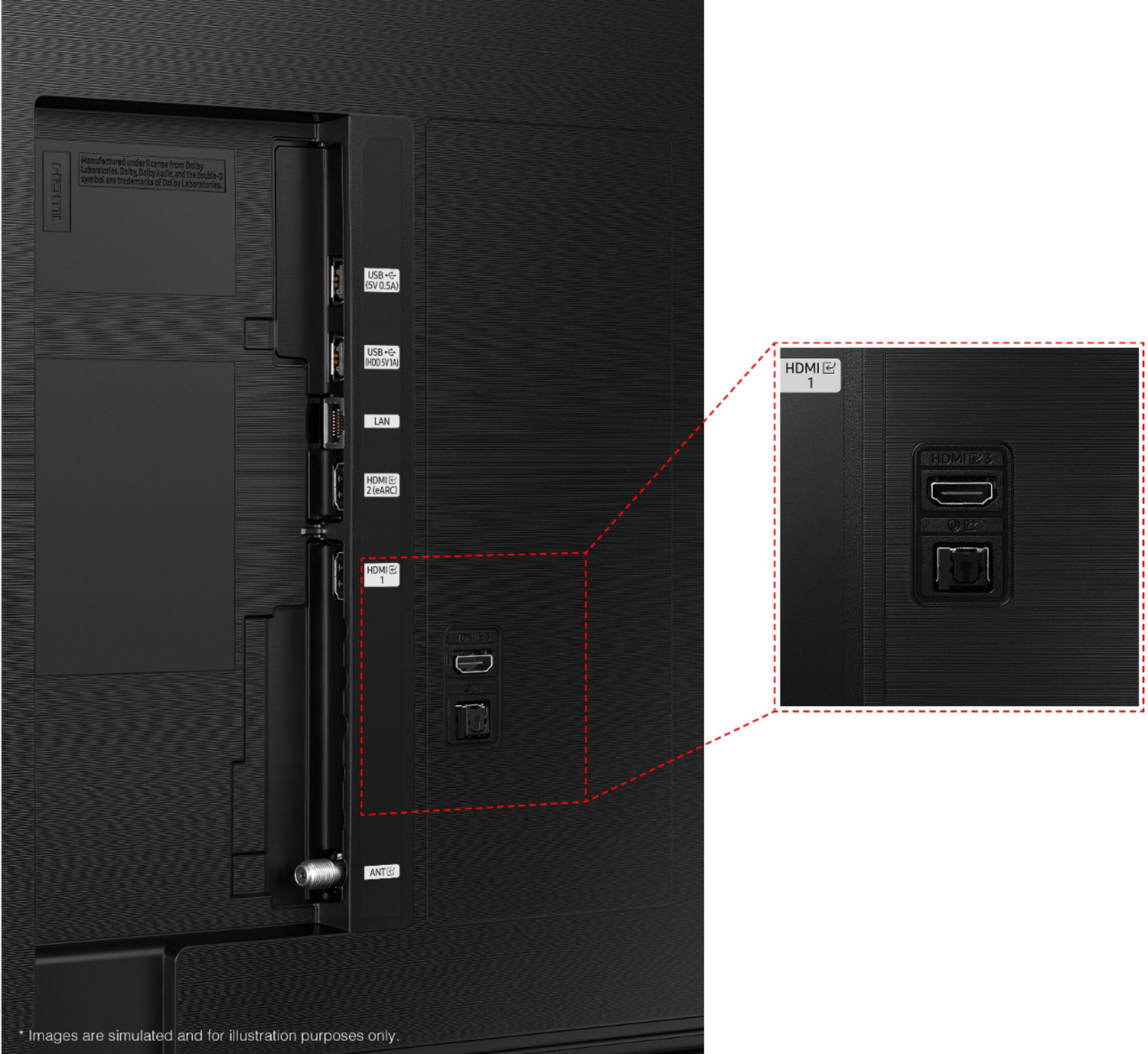
The AU8000 has 3 HDMI ports, 2 USB ports, 1 digital optical audio input, 1 ethernet port, 1 RF antenna input. To connect to external devices through RCA cables you will need an HDMI to RCA converter like this one. https://www.bestbuy.com/site/insignia-hdmi-to-rca-converter-black/6134314.p?skuId=6134314.
I hope this helps! If we can help further please reach out to us at 1-800-SAMSUNG, 8 AM - 12 AM EST, seven days a week. Or visit us on the Samsung website and click on the ‘Support’ link for:
1) LiveChat with an agent
2) Manuals, Software, & Warranty Info
Thanks for being a part of the Samsung family!
~ Samsung Advisor
- Pros mentioned:Picture quality
Samsung 43 inch Class 8000 Series TV
||Posted . Owned for 2 weeks when reviewed.This reviewer received promo considerations or sweepstakes entry for writing a review.Samsung 43 inch Class 8000 Series had a GREAT picture quality but the sound was absolutely a whisper LOW !!!
No, I would not recommend this to a friendBrand response from Samsung
Posted .Hi cgsteel,
Thank you for choosing the 2021 AU8000 Crystal UHD TV and for your review. Your feedback regarding the volume of your TV is important to us and will be shared with our product teams. Please know there are several volume features you can adjust to your liking.
1) Auto Volume automatically adjusts the sound to a certain level when changing channels or switching to another external input.
2) Several Sound Modes are likewise available to meet your personal preferences: Home > Settings > Sound > Sound Mode
3) Some sources have their own volume control which might be set too low. Please check the volume control of the external device (cable box or satellite box, DVD, Blu-ray, etc.) connected to your TV. Also, check the cable connection between an external device and the TV and then try cable connection again.
I hope this helps you further enjoy your experience with the AU8000.
Should you want additional assistance with audio adjustments, please call us at 1-800-SAMSUNG (ask for TVs), available 8AM - 12AM EST, 7 days a week.
For additional support resources, visit us on the Samsung website and click on the ‘Support’ link in the upper right corner of the homepage for:
1) Chat with Us/Product Help: To begin a chat or find solutions, choose ‘TVs & Home Theater’ and select your model & topic.
2) Register a Product: For access to easy warranty support, convenient opt-in to special promos and offers, faster troubleshooting and service, and quick notification of system updates.
3) Manuals & Software
4) Warranty Info
5) Contact Us
~ Samsung Solutions
Good product but picture quality not
||Posted .This reviewer received promo considerations or sweepstakes entry for writing a review.Good product but the picture what it says doesn’t seems like matching the specs. With Crystal UHD it should have been a more crisp and smooth but it’s not.
No, I would not recommend this to a friendBrand response from Samsung
Posted .Hi Singh!
Thank you for purchasing the AU8000 TV and sharing your thoughts regarding the image quality. The TV will upscale as best as possible any content sent to it. The closer your content is to 4K, the better the image will look on the screen.
Here are some tips to help improve the picture clarity:
1) HDMI cables are recommended for optimal HD viewing.
2) If you have an analog cable box or satellite box, upgrade to a digital cable box or satellite box.
3) Change the output resolution of your devices, such as digital broadcast receiver or set-top box, to UHD or HD.
4) Choose a Picture Mode by going to Settings > Picture > Picture Mode and choose from Dynamic, Standard, Natural, or Movie.
5) You can further adjust your sharpness, brightness, contrast, color, and more by going to Settings > Picture > Expert Settings
Should you ever have questions or need help with TV features, specs, or operation, we are here to help. Contact us at:
1-800-SAMSUNG (ask for TVs), available 8AM -12AM EST M-F (9AM – 6PM EST Sat). Or text HELP to 62913.
For additional support resources, visit us on the Samsung website and click on the ‘Support’ link in the upper right corner of the homepage for:
1) More ‘Contact Us’ options – LiveChat, Facebook, Twitter, Samsung Community, Samsung Members app
2) Manuals & Software
3) Warranty Info
4) Product Registration: For access to easy warranty support, convenient opt-in to special promos and offers, faster troubleshooting and service, and quick notification of system updates.
~ Samsung Solutions
sound quality is poor
||Posted .This reviewer received promo considerations or sweepstakes entry for writing a review.the sound quality is really not good. Not sure you if can add external speakers but I suggest listening to this model before you purchase.
No, I would not recommend this to a friendBrand response from Samsung
Posted .Hi kenp,
Thank you for purchasing the Samsung AU8000 Crystal UHD TV and for sharing your feedback regarding the sound quality. Please know there are several sound settings you can adjust to suit your personal sound preferences. Change the Sound Mode by going to: Settings > Sound > Sound Mode
You can also customize the sound with Expert Settings by going to: Settings > Sound > Expert Settings
To assist you with possible sound settings adjustments for a better audio experience, or choosing a Samsung Soundbar to complement your viewing enjoyment, please reach out to us at 1-800-SAMSUNG (ask for TVs), available 8AM - 12AM EST, 7 days a week.
For additional support resources, visit us on the Samsung website and click on the ‘Support’ link in the upper right corner of the homepage for:
1) Chat with Us/Product Help: To begin a chat or find solutions, choose ‘TVs & Home Theater’ and select your model & topic.
2) Register a Product: For access to easy warranty support, convenient opt-in to special promos and offers, faster troubleshooting and service, and quick notification of system updates.
3) Manuals & Software
4) Warranty Info
5) Contact Us
~ Samsung Solutions
Good but not great
||Posted . Owned for 3 weeks when reviewed.This reviewer received promo considerations or sweepstakes entry for writing a review.Quality of screen is excellent. Operation with standard TV is easy but with Roku not so; have to use two controls and often run into complications.
No, I would not recommend this to a friendBrand response from Samsung
Posted .Hi Bobby!
Thank you for purchasing the AU8000 Crystal UHD TV and for your review. I am glad to hear you are enjoying the picture quality provided by the Crystal Processor 4K paired with Dynamic Crystal Color for exceptional clarity and lifelike colors.
Please know you can control external devices connected to the TV using the Samsung universal remote control included with your TV. Connect an external device to the HDMI port of the TV, and then power on the external device. Your TV will automatically recognize the device when connected through HDMI, and will switch the output. If it doesn’t automatically detect, press Source, and select Universal Remote to continue the setup process for the Universal Remote.
Should you ever have questions or need help, please call us at:
1-800-SAMSUNG (ask for TVs), available 8AM -12AM EST M-F (9AM – 6PM EST Sat). Or text HELP to 62913.
For additional support resources, visit us on the Samsung website and click on the ‘Support’ link in the upper right corner of the homepage for:
1) More ‘Contact Us’ options – LiveChat, Facebook, Twitter, Samsung Community, Samsung Members app
2) Manuals & Software
3) Warranty Info
4) Product Registration: For access to easy warranty support, convenient opt-in to special promos and offers, faster troubleshooting and service, and quick notification of system updates.
~ Samsung Solutions
Very poor.
||Posted . Owned for 2 months when reviewed.This reviewer received promo considerations or sweepstakes entry for writing a review.Very poor remote. not at all intuitive. Very hard to use. Would not buy again or recommend.
No, I would not recommend this to a friendLasted 4 onths
||Posted . Owned for 3 months when reviewed.This reviewer received promo considerations or sweepstakes entry for writing a review.This brand-new TV lasted 4 months and is NOT returnable. Never again
No, I would not recommend this to a friendDon’t do it
||Posted . Owned for 1 year when reviewed.This reviewer received promo considerations or sweepstakes entry for writing a review.Garbage. So slow, doesn’t connect to anything. Nothing compared to our frame tv by Samsung
No, I would not recommend this to a friendBrand response from Samsung
Posted .Hi NickW,
Thank you for letting us know about the issues you are experiencing with the AU8000 TV. Please know we are here to help you. Please call us so we can better assist you with the connectivity issues you are having. You can contact us at 1-800-SAMSUNG, 8 AM - 12 AM EST, seven days a week. Or visit us on the Samsung website and click on the ‘Support’ link for:
1) LiveChat
2) Manuals, Software, & Warranty Info
~ Samsung Advisor
- Cons mentioned:Remote control
Don’t buy if you want to use Apple Play.
||Posted . Owned for 3 weeks when reviewed.This reviewer received promo considerations or sweepstakes entry for writing a review.Apple Play rarely works. Sometimes I can mirror a picture but often without sound. In looking at various blogs, I found that this is an ongoing problem with Samsung TV’s that purport to have Apple PLay. Also, the remote control is a joke. I wouldn’t have purchased this TV if I had known.
No, I would not recommend this to a friendBrand response from Samsung
Posted .Hi NoApplePlay,
We are sorry that you are having issues with your AU8000 TV and Apple Airplay. Please know we are here to help.
Please ensure you are running the latest Firmware. Go to Settings> Support> Software Update.
Next, please note Apple Airplay requires iOS12.3 or later or mac OS 10.14.5 or later. You may have to update your Apple device.
Finally, try these troubleshooting steps:
・Restart all devices, including network devices. Unplug power cables for 5
minutes.
・Try disabling Bluetooth on your Apple device. Then try reenabling Bluetooth.
・Reset paired devices.
If you continue to have issues, contact us so we can further troubleshoot further with you. Just call us at 1-800-SAMSUNG, 8 AM - 12 AM EST, seven days a week. Or visit us on the Samsung website and click on the ‘Support’ link for:
1) LiveChat with an agent
2) Manuals, Software, & Warranty Info
~ Samsung Advisor
Good picture, color, bad backlight bleed
||Posted . Owned for 3 weeks when reviewed.This reviewer received promo considerations or sweepstakes entry for writing a review.Crisp image and clarity. Backlight bleed in low light scenes, particularly toward the upper left, spoiled this.
I would recommend this to a friendBrand response from Samsung
Posted .danfarnsy,
We appreciate you sharing your experience with the AU8000 TV. Your details regarding the image quality of your TV are important to us and will be shared with our internal teams. You may want to try adjusting image settings to improve your picture.
Your TV has several Picture Modes to choose from allowing you to enjoy content in optimal conditions. Go to Home > Settings > Picture > Picture Mode
1) Standard: Is the default mode suitable for general viewing environments.
2) Natural: Reduces eye strain for a comfortable viewing experience.
3) Movie: Is suitable for watching TV or movies in a dark room.
4) Dynamic: Makes the picture brighter and clearer in bright viewing environments.
5) Filmmaker Mode: You can watch the source content (e.g., movie) as it is. If the image is defined as Filmmaker Mode, it will automatically switch to Filmmaker Mode while watching.
You can also go to: Settings > Picture > Expert Settings and configure the TV settings to your taste with additional functions.
If you would like further assistance with settings adjustments or have any questions, please contact Samsung Customer Support at 1-800-SAMSUNG, 8AM - 12AM EST, 7 days a week. Our LiveChat agents are also available by clicking on the ‘Support’ link on our website.
~ Samsung Specialist
Jim m
||Posted .This reviewer received promo considerations or sweepstakes entry for writing a review.I don’t like what it does to the size and format of the picture. I think it’s a little too rectangular
No, I would not recommend this to a friendBrand response from Samsung
Posted .Hi JimM,
We appreciate your review of the Samsung AU8000 TV. Samsung prides itself on high-quality products and a great customer experience. Please know we are here to help you.
To adjust the picture size options on your external device or set the TV to full screen, simply go to Home > Settings > Picture > Picture Size Settings > Picture Size.
If we can help with anything else, please call us at 1-800-SAMSUNG, 8 AM - 12 AM EST, 7 days a week. LiveChat with an agent, as well as manuals, software, and warranty info, can be found at the ‘Support’ link on our Samsung website.
~ Samsung Advisor
samsung-43-class-8000 series LED 4K UHD Smarttizen
||Posted . Owned for 3 weeks when reviewed.This reviewer received promo considerations or sweepstakes entry for writing a review.I am not happy with the sound of the television. It is too shrill and apparently cannot be adjusted.
No, I would not recommend this to a friendBrand response from Samsung
Posted .Hi samsung43class8000,
We appreciate you taking the time to write a review and tell us about your sound experience with the Samsung AU8000. There are a few troubleshooting steps that can help with the sound on your TV.
First, let's ensure your firmware is up to date, as the most recent update helps with performance. To update your firmware, go to Settings > Support > Software Update. You can easily update from there if needed.
Next, you can adjust the sound settings to suit your personal sound preferences to tune the sound. You can change the Sound Mode by going to Settings > Sound > Sound Mode.
You can customize the sound with Expert Settings by going to Settings > Sound > Expert Settings.
To assist you with possible sound settings adjustments for a better audio experience, please reach out to us at 1-800-SAMSUNG, 8 AM - 12 AM EST, seven days a week. Or visit us on the Samsung website and click on the ‘Support’ link for:
1) LiveChat with an agent
2) Manuals, Software, & Warranty Info
~ Samsung Advisor
Sound off on new televisiom
||Posted . Owned for 3 weeks when reviewed.This reviewer received promo considerations or sweepstakes entry for writing a review.The sound is not good at all. Very tinny sound. We may go up to a larger screen but afraid the sound will be the same
No, I would not recommend this to a friendBrand response from Samsung
Posted .Hi Concetta!
Thank you for purchasing the 43" AU8000 TV and for sharing your feedback regarding the sound quality. There are several sound settings you can adjust to suit your personal sound preferences.
Change the Sound Mode by going to: Settings > Sound > Sound Mode
You can also customize the sound with Expert Settings by going to: Settings > Sound > Expert Settings
To assist you with possible sound settings adjustments for a better audio experience, or choosing a Samsung Soundbar to complement your viewing enjoyment, please reach out to us at: 1-800-SAMSUNG (ask for TVs), available 8AM - 12AM EST, 7 days a week.
For additional support resources, visit us on the Samsung website and click on the ‘Support’ link in the upper right corner of the homepage for:
1) Contact Us: For additional Chat & Text options, choose ‘TVs & Home Theater’ and select your model & topic.
2) Manuals & Software
3) Warranty Info
4) Register a Product: For access to easy warranty support, convenient opt-in to special promos and offers, faster troubleshooting and service, and quick notification of system updates.
~ Samsung Solutions
returned
||Posted .This reviewer received promo considerations or sweepstakes entry for writing a review.Did not work for me . Did not recieve all local channels . Returned for refund.
No, I would not recommend this to a friendBrand response from Samsung
Posted .Hi CecilW,
Thank you for taking the time to provide feedback on your AU8000 TV. Please know your feedback will be shared with our internal product teams. We take pride in our products and are sorry to hear that your experience was not up to our high standards.
We do hope you will give Samsung another chance when purchasing your next TV. If there’s anything we can ever help with, please call us at 1-800-SAMSUNG, 8 AM - 12 AM EST, seven days a week. Or visit us on the Samsung website and click on the ‘Support’ link for:
1) LiveChat
2) Manuals, Software, & Warranty Info
~ Samsung Advisor
- Cons mentioned:Remote control
Not clear.
||Posted . Owned for 2 weeks when reviewed.This reviewer received promo considerations or sweepstakes entry for writing a review.The picture was not very clear. I hated the remote. I wanted numbers on the remote.
No, I would not recommend this to a friendBrand response from Samsung
Posted .Hi SweetTweet!
Thank you for sharing your thoughts on the picture quality of your new 2021 AU8000 Crystal UHD TV. If the picture you are seeing out-of-the-box are not to your liking, there are several picture settings you may want to try adjusting.
You can select the Picture Mode that provides the best viewing experience. Go to Home > Settings > Picture > Picture Mode
1) Standard: Is the default mode suitable for general viewing environments.
2) Natural: Reduces eye strain for a comfortable viewing experience.
3) Movie: Is suitable for watching TV or movies in a dark room.
4) Dynamic: Makes the picture brighter and clearer in bright viewing environments.
You can also go to: Settings > Picture > Expert Settings > to manually fine tune your image.
Should you have questions or need assistance with settings, setup, or features, please know we are always here to help. Call us at 1-800-SAMSUNG (ask for TVs), available 8AM -12AM EST M-F (9AM – 6PM EST Sat). Or text HELP to 62913.
For additional support resources, visit us on the Samsung website and click on the ‘Support’ link in the upper right corner of the homepage for:
1) More ‘Contact Us’ options – LiveChat, Facebook, Twitter, Samsung Community, Samsung Members app
2) Manuals, Software, & Warranty Info
~ Samsung Solutions