Last-Minute SavingsLimited quantities.Shop now

Skip to content
Gift Ideas
Main Content

Customer Ratings & Reviews
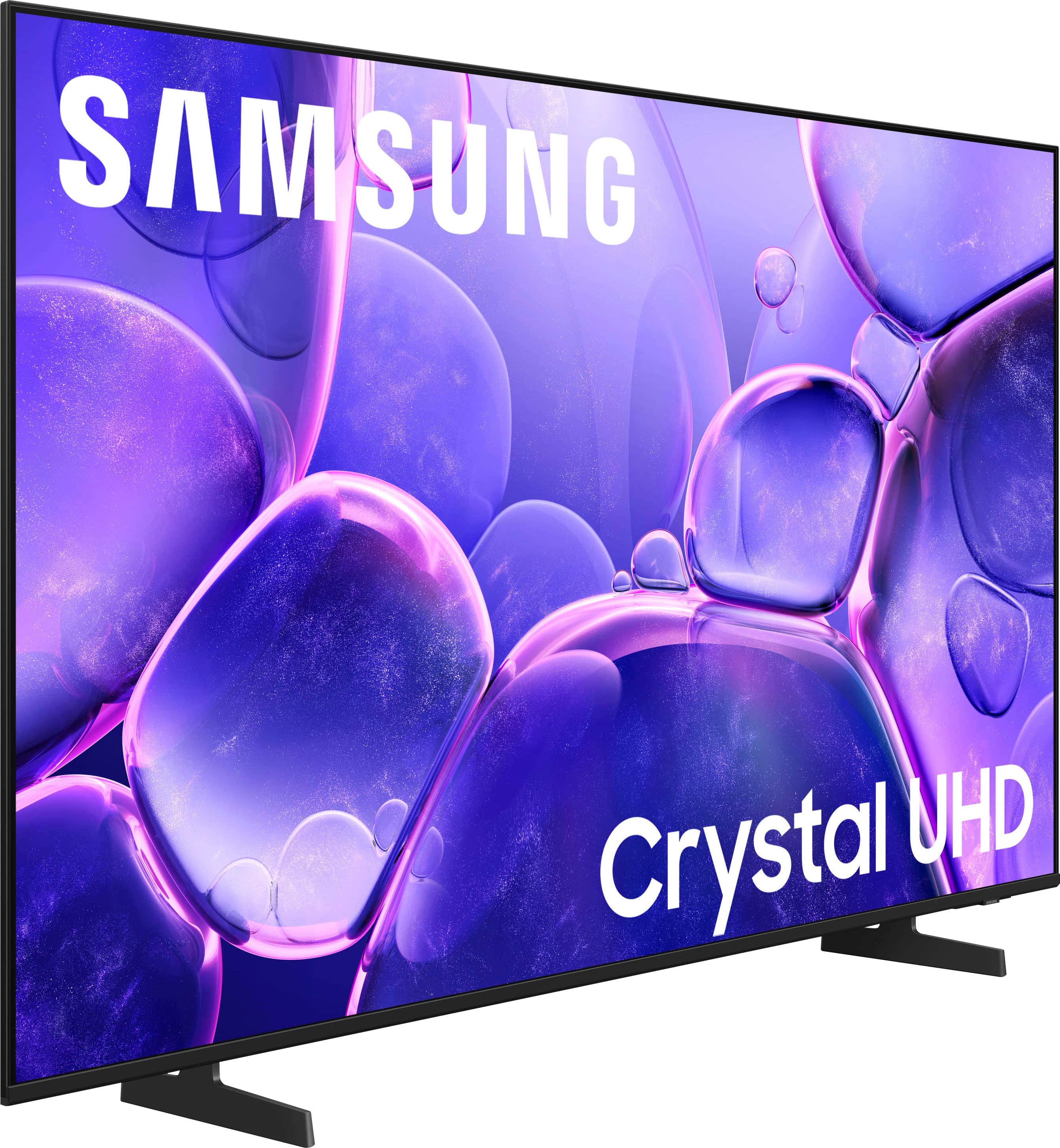
Your price for this item is $297.99
The comparable value price is $329.99

Customer reviews

Rating 4.7 out of 5 stars with 562 reviews

Rating Filter

Rating by feature

  • Picture Quality

    Rating 4.8 out of 5 stars

  • Sound Quality

    Rating 4.6 out of 5 stars

  • Brightness

    Rating 4.7 out of 5 stars

94%
would recommend
to a friend
The vast majority of our reviews come from verified purchases. Reviews from customers may include My Best Buy members, employees, and Tech Insider Network members (as tagged). Select reviewers may receive discounted products, promotional considerations or entries into drawings for honest, helpful reviews.
Page 27 Showing 521-540 of 562 reviews
  • Rated 4 out of 5 stars

    TV channels would like to get others

    |
    |
    Posted . Owned for 1 month when reviewed.
    This reviewer received promo considerations or sweepstakes entry for writing a review.

    Great picture but sound changes with every channel. Haven't been able to set up Samsung account.

    I would recommend this to a friend
    • Brand response from Samsung
      Posted .

      Hi

      Thank you for your review. To help stabilize volume levels, try enabling the Auto Volume function, which automatically adjusts sound when switching channels or inputs: Settings > All Settings > Sound > Expert Settings > Auto Volume > On.

      For help setting up your Samsung Account through SmartThings, we have step-by-step videos available! https://www.youtube.com/watch?v=6CW42trdJjA

      If you need additional support, Samsung is here to help. Please call us at 1-800-SAMSUNG, available daily from 8AM - 12AM EST. You can also chat with a LiveChat agent by clicking the ‘Support’ link on our website.

      ~ Samsung Advisor Samsung

  • Rated 5 out of 5 stars

    great tv

    |
    |
    Posted . Owned for 1 week when reviewed.
    This reviewer received promo considerations or sweepstakes entry for writing a review.

    great tv for the price will get a 65 for living room

    I would recommend this to a friend
  • Rated 5 out of 5 stars

    Highly recommended

    |
    |
    Posted . Owned for 1 month when reviewed.
    This reviewer received promo considerations or sweepstakes entry for writing a review.

    Very much satisfied with purchasing. I definitely recommend purchasing,

    I would recommend this to a friend
  • Rated 3 out of 5 stars

    The interface needs improvement

    |
    |
    Posted . Owned for 1 month when reviewed.
    This reviewer received promo considerations or sweepstakes entry for writing a review.

    The audio and video quality are excellent. The user interface is not good at all. It's not well put together and slow.

    No, I would not recommend this to a friend
    • Brand response from Samsung
      Posted .

      Hi JMJ3,

      Thank you for your feedback on the U8000F audio, video, and user interface. Please know your opinion is important to us and will be shared with our internal teams.

      If you ever have questions or need support, we’re here to help. Call us at 1-800-SAMSUNG, available from 8AM - 12AM EST, seven days a week. You can also connect with a LiveChat agent by clicking the ‘Support’ link on our website.

      ~ Samsung Advisor Samsung

  • Rated 4 out of 5 stars

    Tariff TV

    |
    |
    Posted . Owned for 3 weeks when reviewed.
    This reviewer received promo considerations or sweepstakes entry for writing a review.

    Saw it was on sale cheap and decided to pickup one as a just in case the prices rose to extreme levels.

    I would recommend this to a friend
  • Rated 3 out of 5 stars

    Average TV

    |
    |
    Posted . Owned for 3 weeks when reviewed.
    This reviewer received promo considerations or sweepstakes entry for writing a review.

    Quality of color was as good as I expected. Remote did not have verbal instructions capability. Only one HDMI port

    No, I would not recommend this to a friend
    • Brand response from Samsung
      Posted .

      Hi LarryM,

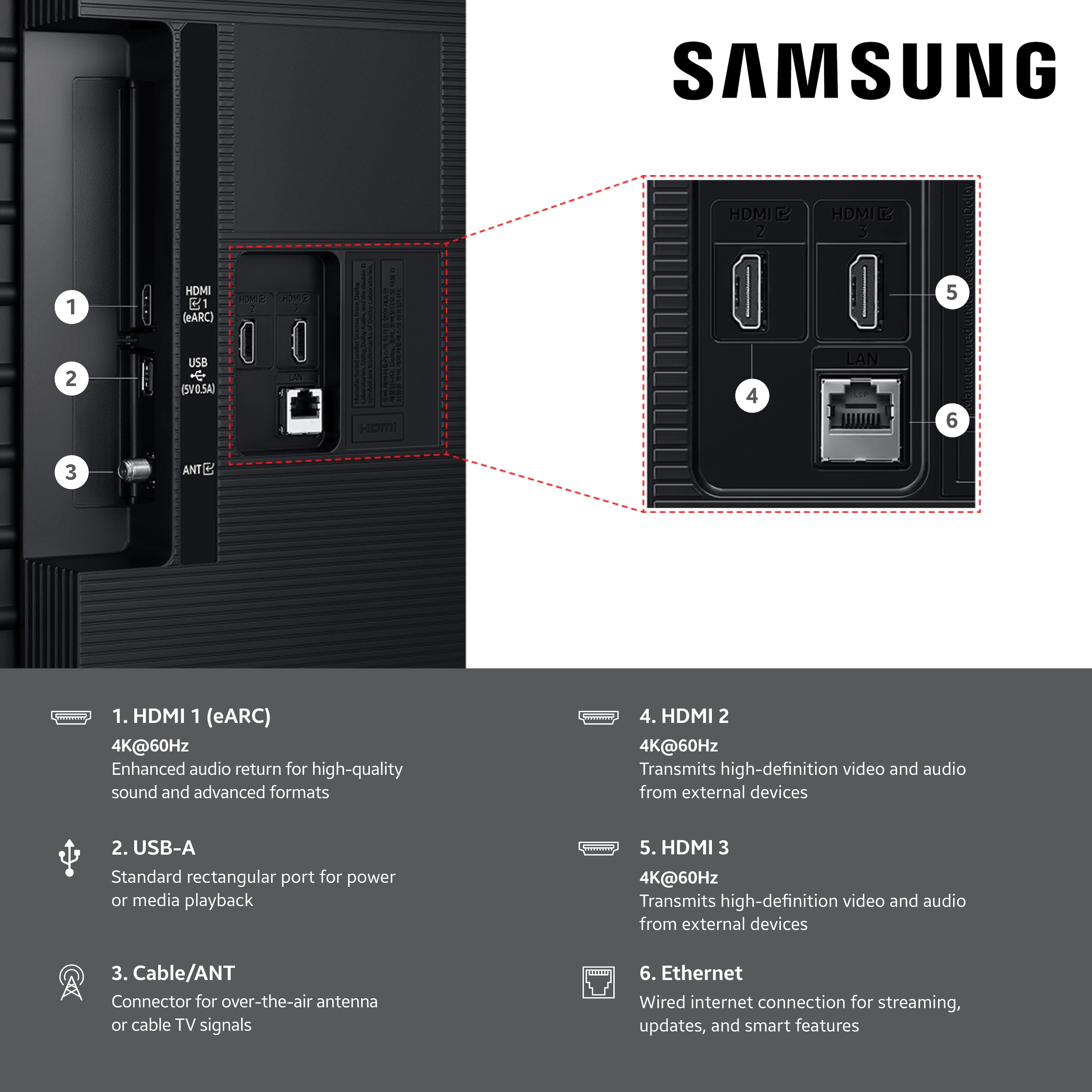
      Thank you for your feedback on the U8000F. Please know the U8000F TV offers three HDMI ports on the back of your TV. If you need more help, please call us at 1-800-SAMSUNG (8AM – 12AM EST, 7 days a week) or use LiveChat via the ‘Support’ link on our website.

      ~ Samsung Advisor Samsung

  • Rated 5 out of 5 stars

    Great service

    |
    |
    Posted . Owned for 3 weeks when reviewed.
    This reviewer received promo considerations or sweepstakes entry for writing a review.

    Great greeted and help us find the TV we were looking fof.

    I would recommend this to a friend
  • Rated 5 out of 5 stars

    carol

    |
    |
    Posted . Owned for 3 weeks when reviewed.
    This reviewer received promo considerations or sweepstakes entry for writing a review.

    I love this tv easy to get all the other premium channels.

    I would recommend this to a friend
  • Rated 5 out of 5 stars

    43" Samsung

    |
    |
    Posted . Owned for 1 month when reviewed.
    This reviewer received promo considerations or sweepstakes entry for writing a review.

    Great smart TV for the room needed and was easy to setup

    I would recommend this to a friend
  • Rated 4 out of 5 stars

    Unhappy

    |
    |
    Posted . Owned for 3 weeks when reviewed.
    This reviewer received promo considerations or sweepstakes entry for writing a review.

    No sleep timer. I should have asked before I purchase.

    No, I would not recommend this to a friend
    • Brand response from Samsung
      Posted .

      Hi Gift,

      Please know the U8000F TV does have a Sleep Timer available in the Menu Settings. To adjust these settings: Home > Settings > All Settings > General & Privacy > Power and Energy Saving.

      I hope this tip is helpful. If you have any questions, please call us at 1-800-SAMSUNG between 8AM - 12AM EST, seven days a week. You can also access LiveChat, manuals, software, and warranty info by clicking the ‘Support’ link on our website.

      ~ Samsung Advisor


      ~ Samsung Advisor Samsung

  • Rated 4 out of 5 stars

    Review

    |
    |
    Posted . Owned for 3 weeks when reviewed.
    This reviewer received promo considerations or sweepstakes entry for writing a review.

    It was ok. I expected a much better performance though.

    I would recommend this to a friend
  • Rated 4 out of 5 stars

    Wall Mount

    |
    |
    Posted .
    This reviewer received promo considerations or sweepstakes entry for writing a review.

    Cant mount it, has no where to screw into the universal mount

    I would recommend this to a friend
    • Brand response from Samsung
      Posted .

      Hi Stack,

      Thank you for choosing Samsung. The U8000F mounting holes are located on the back of your TV and should work with a universal wall mount. For help mounting your TV, please know we have created step-by-step guides with videos just for you! https://www.samsung.com/us/support/answer/ANS00038091/

      If you need more help, please do not hesitate to reach out to us at 1-800-SAMSUNG, available daily from 8AM - 12AM EST. You can also visit the Samsung website and click on ‘Support’ for:
      • Live Chat
      • Manuals, Software, & Warranty Info

      ~ Samsung Advisor Samsung

  • Rated 3 out of 5 stars

    Not too happt

    |
    |
    Posted .
    This reviewer received promo considerations or sweepstakes entry for writing a review.

    The TV was 2 weeks old and when I turned it on there was no sound. I had to call Best Buy, they put me in touch with Samsung and they help me. Then less than 2 weeks later the sound would not come on AGAIN. Not too happy

    No, I would not recommend this to a friend
    • Brand response from Samsung
      Posted .

      Hi user889703,

      I'm very sorry to hear that you're experiencing issues with your U8000F TV. If you're experiencing sound dropouts, the steps below are designed to help you troubleshoot across different connection types.

      HDMI ARC / eARC Connection
      1. Use a certified High-Speed HDMI cable with Ethernet and ensure it's firmly connected to the HDMI eARC ports on both the TV and soundbar/receiver.
      2. Enable ARC/eARC settings on your TV:
      o Settings > All Settings > Sound > Expert Settings > HDMI eARC Mode = Auto
      o Settings > All Settings > General & Privacy > External Device Manager > Anynet+ (HDMI-CEC) = On
      3. Adjust Digital Output Audio Format:
      o Settings > All Settings > Sound > Expert Settings > Digital Output Audio Format
      o Set this to Auto unless you're using a device that specifically requires Pass-Through.
      4. Cold boot your TV by holding the power button on your remote for 5+ seconds.

      Bluetooth Connection
      1. Bluetooth connections can be sensitive to distance and interference. Keep the Bluetooth device close to the TV, and remove nearby sources of interference (e.g., wireless routers or other Bluetooth devices).
      2. For improved stability, use a 5GHz Wi-Fi network if available.
      3. If issues persist, we recommend switching to a wired connection (HDMI ARC or Optical) for a more reliable audio experience.

      Wi-Fi / Wireless Speaker Connections
      1. Make sure both your TV and audio device are on the same network band (5GHz is ideal for stability).
      2. If you're using Samsung’s Wireless Audio features (e.g., Wi-Fi Speaker Surround Setup), ensure your speaker system is properly added in: Settings > All Settings > Sound > Sound Output > Wi-Fi Speaker Surround Setup
      3. If signal issues continue, disconnect and reconnect the speaker from the network and re-add it to the TV.

      Also Try:
      • Update your TV's firmware: Settings > Support > Software Update > Update Now
      • Run a Sound Test to verify internal sound functions: Settings > Support > Device Care > Self Diagnosis > Sound Test

      If you’ve tried the steps above and are still experiencing issues, we’re here to help. You can call Samsung Support at 1-800-SAMSUNG, 8AM – 12AM EST, 7 days a week. Our LiveChat agents are also available by clicking the ‘Support’ link at Samsung.com.

      ~ Samsung Advisor Samsung

  • Rated 3 out of 5 stars

    Volume problem!!

    |
    |
    Posted .
    This reviewer received promo considerations or sweepstakes entry for writing a review.

    Love the picture, however the volume is a big problem. Have to set at 100, and still low. Not sure who to call for,this problem.

    No, I would not recommend this to a friend
    • Brand response from Samsung
      Posted .

      Hi MynameisRuth,

      Thank you for purchasing Samsung’s U8000F TV and for sharing your feedback regarding low volume. To start, we recommend making sure your TV is running the latest firmware, as updates can include improvements to sound performance: Home > left directional key > Settings > Support > Software Update

      If volume levels still seem too low, you can improve sound performance by adjusting a few key settings:

      Sound Mode: Navigate to: Settings > All Settings > Sound > Sound Mode

      Auto Volume: This feature helps maintain consistent volume levels across content and input sources. Turn it on under: Settings > All Settings > Sound > Expert Settings > Auto Volume = On

      You can also explore Expert Settings to fine-tune sound output with adjustments for Balance, Equalizer, and more.

      If you’re considering enhancing your setup, Samsung’s Q- and S-Series Soundbars (like the HW-Q600F) feature Q-Symphony, which syncs your TV and soundbar speakers for a fuller, more immersive sound experience.

      For personalized support with these settings or selecting a soundbar to complement your setup, contact Samsung Support at 1-800-SAMSUNG (8AM – 12AM EST, 7 days a week) or use LiveChat via the ‘Support’ link on our website.

      ~ Samsung Advisor Samsung

  • Rated 3 out of 5 stars

    Samsung TV

    |
    |
    Posted . Owned for 3 weeks when reviewed.
    This reviewer received promo considerations or sweepstakes entry for writing a review.

    Tv picture was not as clear as I thought it would be.

    No, I would not recommend this to a friend
    • Brand response from Samsung
      Posted .

      Hi TyroneC,

      Thank you for your feedback on the Samsung U8000F TV. If the picture appears unclear, dull, or lacks definition, there are several settings you can adjust to improve clarity and overall image quality. Go to: Settings > All Settings > Picture > Expert Settings, and review these key settings:

      Picture Clarity Settings: While originally intended for motion handling, these can also impact overall clarity
      • Off: Disables motion enhancements
      • Auto: Automatically adjusts based on content
      • Custom: Lets you fine-tune:
      o Judder Reduction – Helps smooth out uneven motion
      o LED Clear Motion – Boosts sharpness in fast-moving content
      o Noise Reduction – Reduces distortion and enhances detail in lower-resolution sources

      Core Picture Settings
      • Brightness – Controls overall screen brightness
      • Contrast – Enhances the difference between bright and dark areas
      • Sharpness – Adjusts edge definition; closer to 20 increases detail
      • Color – Enhances depth and intensity of colors

      And don’t forget to check for the latest firmware, which may improve performance: Settings > Support > Software Update > Update Now

      These adjustments can make a noticeable difference in overall clarity. If you need further help tailoring the settings to your preferences or environment, please contact Samsung Support at 1-800-SAMSUNG, 8AM – 12AM EST, 7 days a week. LiveChat is also available via the ‘Support’ link on our website.

      ~ Samsung Advisor Samsung

  • Rated 2 out of 5 stars

    Low quality

    |
    |
    Posted . Owned for 3 weeks when reviewed.
    This reviewer received promo considerations or sweepstakes entry for writing a review.

    The TV jas relly low light light and the colors look horrible. For being a Samsung its very bad. I jad to teturn it and get my money back. This model of Samsung is Terrible, i do not recommend.

    No, I would not recommend this to a friend
    • Brand response from Samsung
      Posted .

      Hi Diggles,

      We're very sorry to hear about your experience, which caused the return of your Samsung TV. Please know we are available and would have been happy to troubleshoot any issues or settings.

      If you decide to explore Samsung TVs again in the future, we’re always here to support you - whether it’s setup, features, or troubleshooting. Reach us anytime at 1-800-SAMSUNG (8AM – 12AM EST, 7 days a week), or visit the ‘Support’ section of our website for LiveChat, manuals, and more.

      ~ Samsung Advisor Samsung

  • Rated 2 out of 5 stars

    Owner

    |
    |
    Posted . Owned for 2 months when reviewed.
    This reviewer received promo considerations or sweepstakes entry for writing a review.

    TV picture quality is not good. The remote doesn't have a voice command. Instead of TV staying on last channel watched, it alwsys returns to Samsung Plus.

    No, I would not recommend this to a friend
    • Brand response from Samsung
      Posted .

      Hi MelWill
      ,
      Thank you for sharing your review. Your TV Works With Alexa, meaning you’ll need to connect a standalone Alexa device, such as an Echo speaker, to control compatible smart home devices and some experiences on your TV. Here are the steps:

      1. Download both the Amazon Alexa and Samsung SmartThings apps, if you don't already have them. Both are available for iOS or Android devices.
      2. Make sure your Alexa device and TV are both connected to the same Wi-Fi network.
      3. Your TV must be enabled within the SmartThings app. If not, make sure you are signed in with your Samsung account on the TV: Settings > All Settings > Samsung Account
      4. Log in to the SmartThings app with the same Samsung account. Tap Devices, and if your TV isn’t already shown, tap + to add it to the app.
      5. In the Alexa app, enable the SmartThings skill and sign into your Samsung account. This will automatically connect your Samsung TV to Alexa and let you use voice commands to control your television.

      If you need more help, we’re here. Give us a call at 1-800-SAMSUNG (8AM – 12AM EST, 7 days a week). You can also connect with a LiveChat agent through the Support link on our website.

      ~ Samsung Advisor Samsung

  • Rated 2 out of 5 stars

    Absolutely no audio output.

    |
    |
    Posted . Owned for 3 weeks when reviewed.
    This reviewer received promo considerations or sweepstakes entry for writing a review.

    Got the t v home. Was preparing it to install. Found absolutely no audio output built into this model. Repacked returned never powered it up.

    No, I would not recommend this to a friend
    • Brand response from Samsung
      Posted .

      Ornairon,

      Thank you for sharing your thoughts on the available inputs for the U8000F. If an Optical port is a crucial part of your setup needs, you’ll find that connection starting with our Q8F Series and above.

      For future purchases, we recommend double-checking the product specs on Best Buy’s site to ensure the model you choose has the ports you need. You’ll find the full list under the “Specifications” tab (just beneath the Highlights section): https://www.bestbuy.com/site/samsung-43-class-q7f-series-qled-4k-uhd-samsungvision-ai-smart-tizen-tv-2025/6619443.p?skuId=6619443

      Should you ever need assistance with your TV, Samsung is here for you. Reach out by calling 1-800-SAMSUNG between 8AM - 12AM EST, any day of the week. You can also chat with us online by visiting the ‘Support’ section of our website.

      ~ Samsung Specialist Samsung

  • Rated 3 out of 5 stars

    Nice Set

    |
    |
    Posted .
    This reviewer received promo considerations or sweepstakes entry for writing a review.

    Nice set have trouble get a great picture. Color, Contrast, and Brightness off

    I would recommend this to a friend
    • Brand response from Samsung
      Posted .

      Hi Tippy,

      We appreciate your feedback on the picture quality of Samsung’s U8000F TV. If the image doesn’t quite match your preferences, there are several adjustments you can make to better suit your viewing environment and content type.

      First, please ensure your TV is running the latest firmware, as updates may include important picture quality enhancements. Go to: Home > Left directional button > Settings > Support > Software Update > Update Now

      To explore picture mode options, navigate to: Home > Left directional button > Settings > All Settings > Picture > Picture Mode. Options include:
      • Standard – Ideal for general viewing
      • Dynamic – Brighter and more vibrant for well-lit spaces
      • Eco – Optimized for energy efficiency
      • Movie – Best for viewing in low light
      • Filmmaker Mode – Preserves the content creator’s intent and disables motion smoothing for supported content

      You can further customize your image by going to: Settings > All Settings > Picture > Expert Settings, where you can adjust Brightness, Contrast, Color Tone, Sharpness, Contrast Enhancer and more.

      If you’d like help finding the best picture settings for your preferences, please don’t hesitate to contact Samsung Support at 1-800-SAMSUNG, available 8AM – 12AM EST, 7 days a week. You can also LiveChat with an agent or explore additional resources on our website by clicking the ‘Support’ link.

      ~ Samsung Advisor Samsung

  • Rated 1 out of 5 stars

    did not work out

    |
    |
    Posted .
    This reviewer received promo considerations or sweepstakes entry for writing a review.

    Ordered TV on Saturday Nov 29th. At end of ordering was asked when I wanted TV delivered. I chose Monday, the first between noon and 2pm. Never arrived. Checked status and all it noted was delayed by Rhoadies. Waited a week...nothing from Best Buy. So contacted customer service. Cancelled and got a refund. That part was very efficient.

    I would recommend this to a friend