Customer Ratings & Reviews

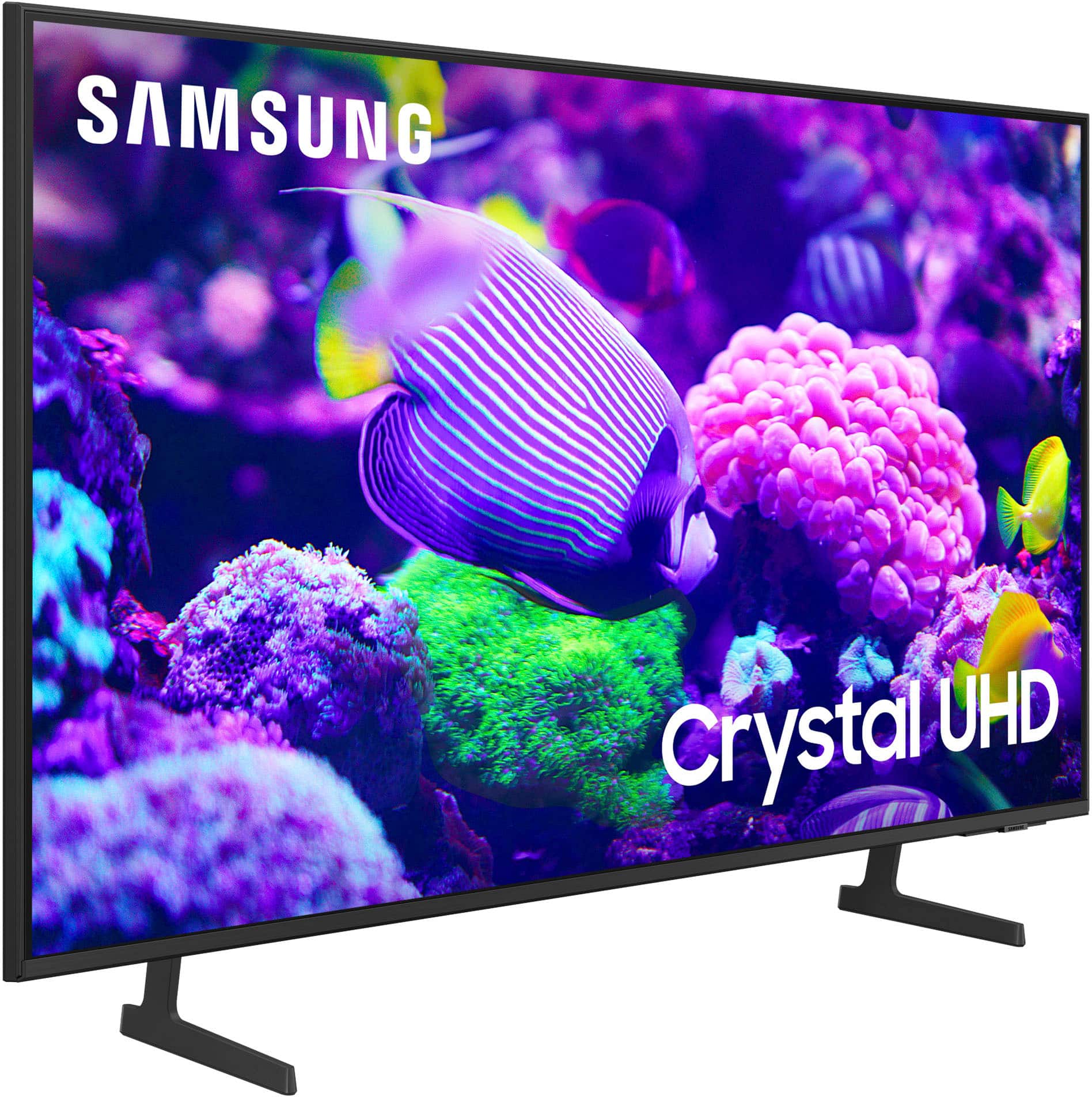
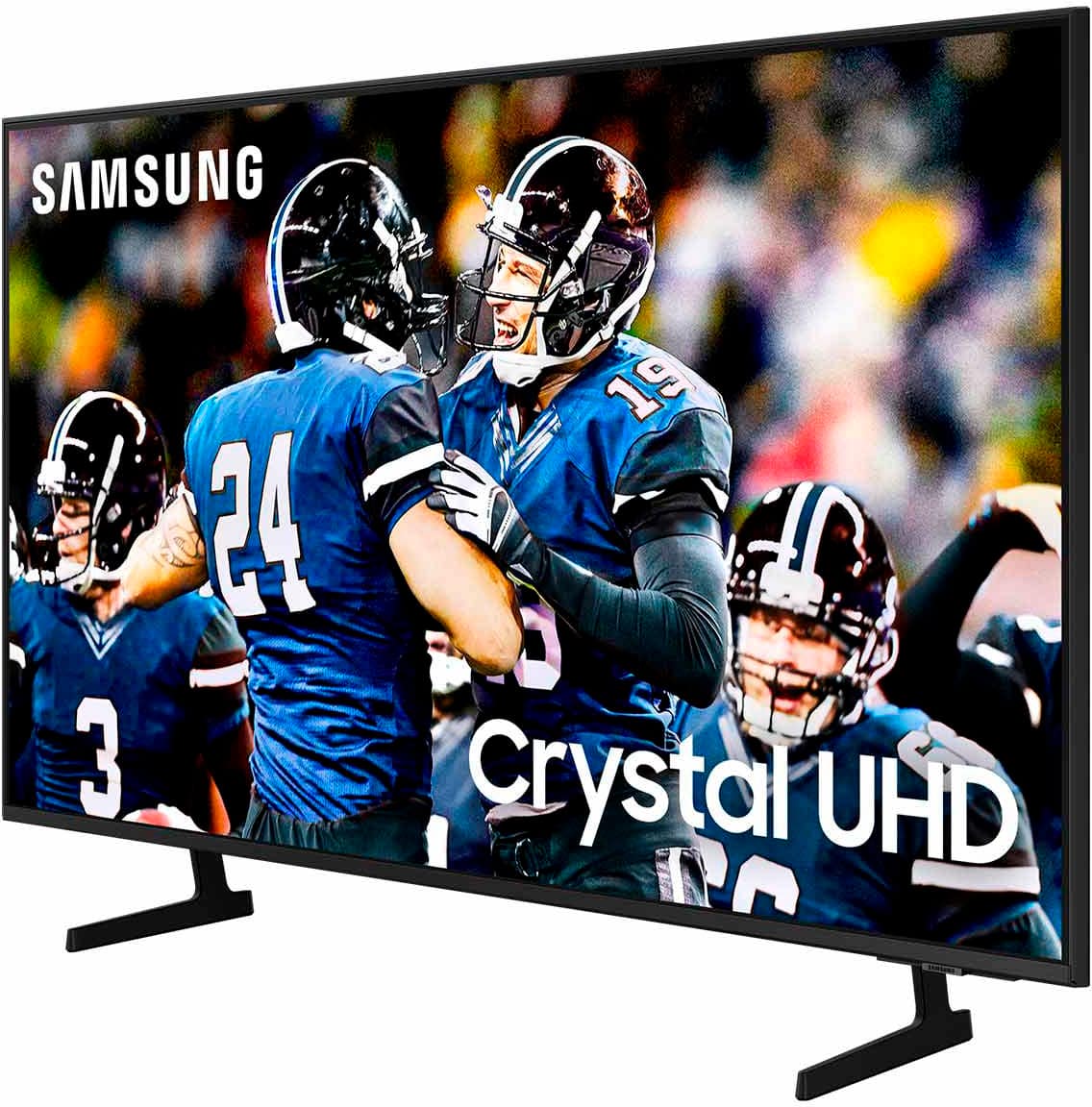
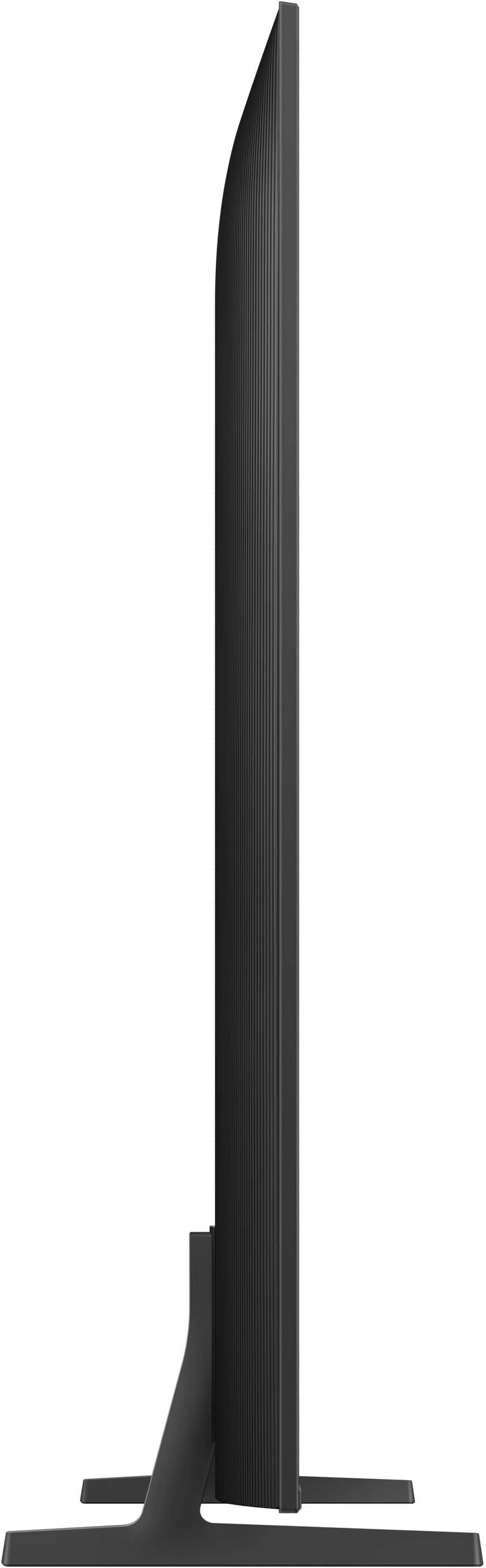
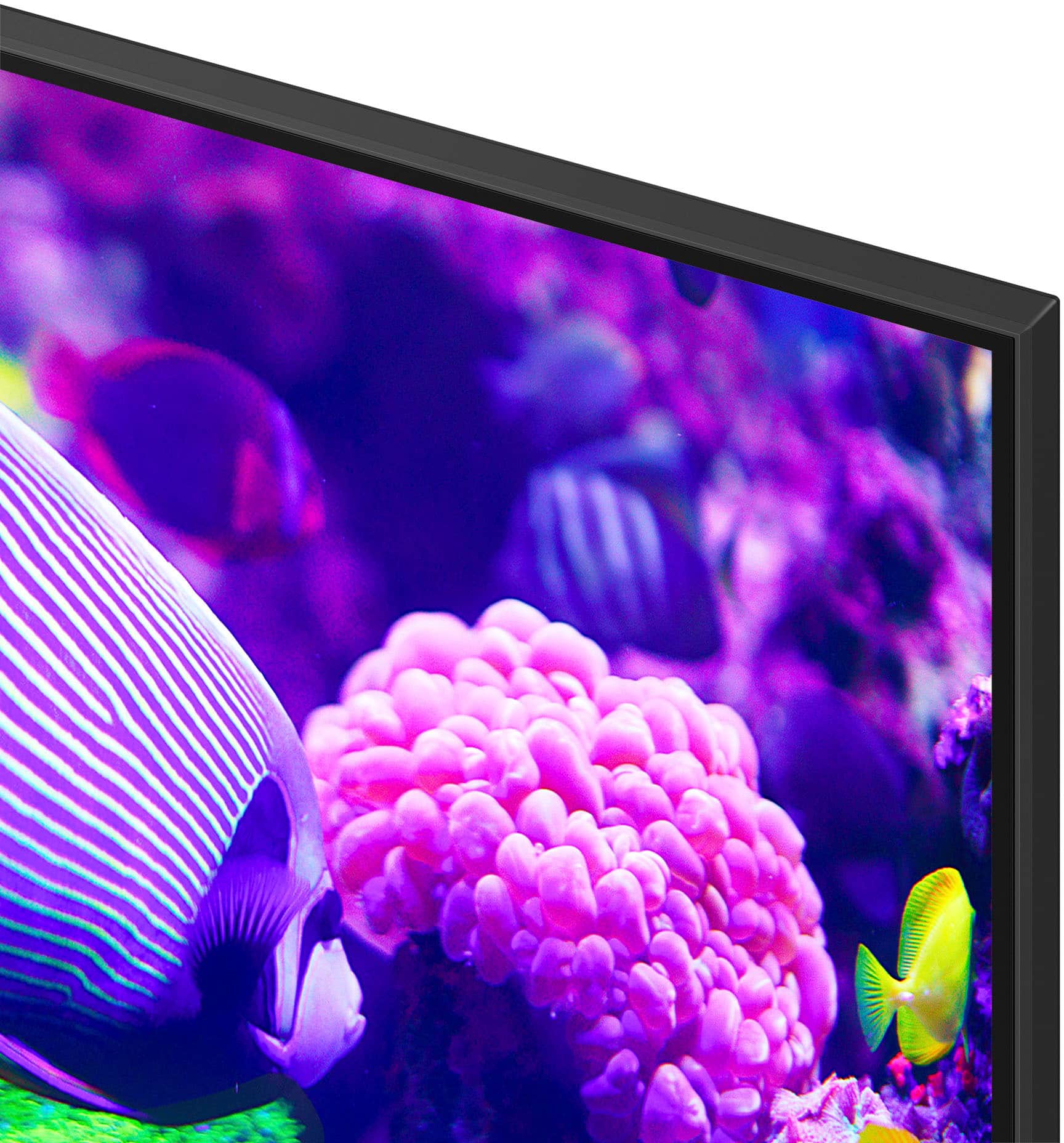


- Model:
- UN50DU7200FXZA
- SKU:
- 10754977
Rating by feature
- Picture Quality
Rating 4.8 out of 5 stars
- Sound Quality
Rating 4.6 out of 5 stars
- Brightness
Rating 4.7 out of 5 stars
to a friend
awful tv
Posted .This reviewer received promo considerations or sweepstakes entry for writing a review.just picked this one up today. the colors are horrible and it doesnt even get that bright. if you do get this tv, i reccomend getting a roku or apple tv becusse the menus are slow and laggy. overall not happy. save your money for something better.
No, I would not recommend this to a friendBrand response from Samsung
Posted .Hi Clutvhh,
Thank you for choosing Samsung and for sharing your experience with us regarding the DU72000 TV picture and operating system. We are sorry to hear that you are not satisfied with the picture you are seeing. I have a few recommendations that may improve your experience.
First, please know there are many Picture Settings available for you to adjust based on the content you are watching.
Go to Home > Settings > All Settings > Picture > Picture Mode and select the mode that best fits your usage:
1) Dynamic: Makes the picture brighter and clearer in bright viewing environments.
2) Standard: Default mode suitable for general viewing environments.
3) Eco: This screen is provided to save energy.
4) Movie: Most suitable for watching TV or movies in a dark room.
5) Filmmaker Mode: You can watch the source content (e.g., movie) as it is. If the image is defined as Filmmaker Mode, it will automatically switch to Filmmaker Mode while watching.
You can also fine-tune your screen with Expert Settings, which includes brightness, contrast, color, tint, and more. Go to Home> Settings > All Settings> Picture > Expert Settings.
Finally, I recommend ensuring you turn on Auto Updates for your Firmware so you do not miss any important Software Updates. Go to Home> Settings> Support> Software Update> Auto Update.
If you need more help, Samsung is here for you! Please call us at 1-800-SAMSUNG from 8 AM to 12 AM EST, seven days a week. Our LiveChat agents are also available by clicking on the ‘Support’ link on our website.
~ Samsung Advisor
Not bright
Posted .This reviewer received promo considerations or sweepstakes entry for writing a review.Worst TV color I’ve ever dealt with. Menu is bloated and laggy.
No, I would not recommend this to a friendBrand response from Samsung
Posted .Hi MnSnowta,
We appreciate your feedback on the picture color quality of the DU7200 TV. I have a few recommendations that may improve your experience:
Go to Home > Settings > All Settings > Picture > Picture Mode and select the mode that best fits your usage:
1) Standard: Default mode suitable for general viewing environments.
2) Natural: Reduces eye strain for a comfortable viewing experience.
3) Movie: Most suitable for watching TV or movies in a dark room.
4) Dynamic: Makes the picture brighter and clearer in bright viewing environments.
5) Filmmaker Mode: You can watch the source content (e.g., movie) as it is. If the image is defined as Filmmaker Mode, it will automatically switch to Filmmaker Mode while watching.
You can also go to Settings > All Settings> Picture > Expert Settings > to manually fine-tune your image.
Next, please ensure your software is up to date. Go to Settings> Support> Software Update.
If you’d like more help with settings, we are always happy to help! Call us at 1-800-SAMSUNG, 8 AM - 12 AM EST, seven days a week. Or visit us on the Samsung website and click on the ‘Support’ link for:
1) LiveChat
2) Manuals, Software, & Warranty Info
~ Samsung Advisor