Customer Ratings & Reviews
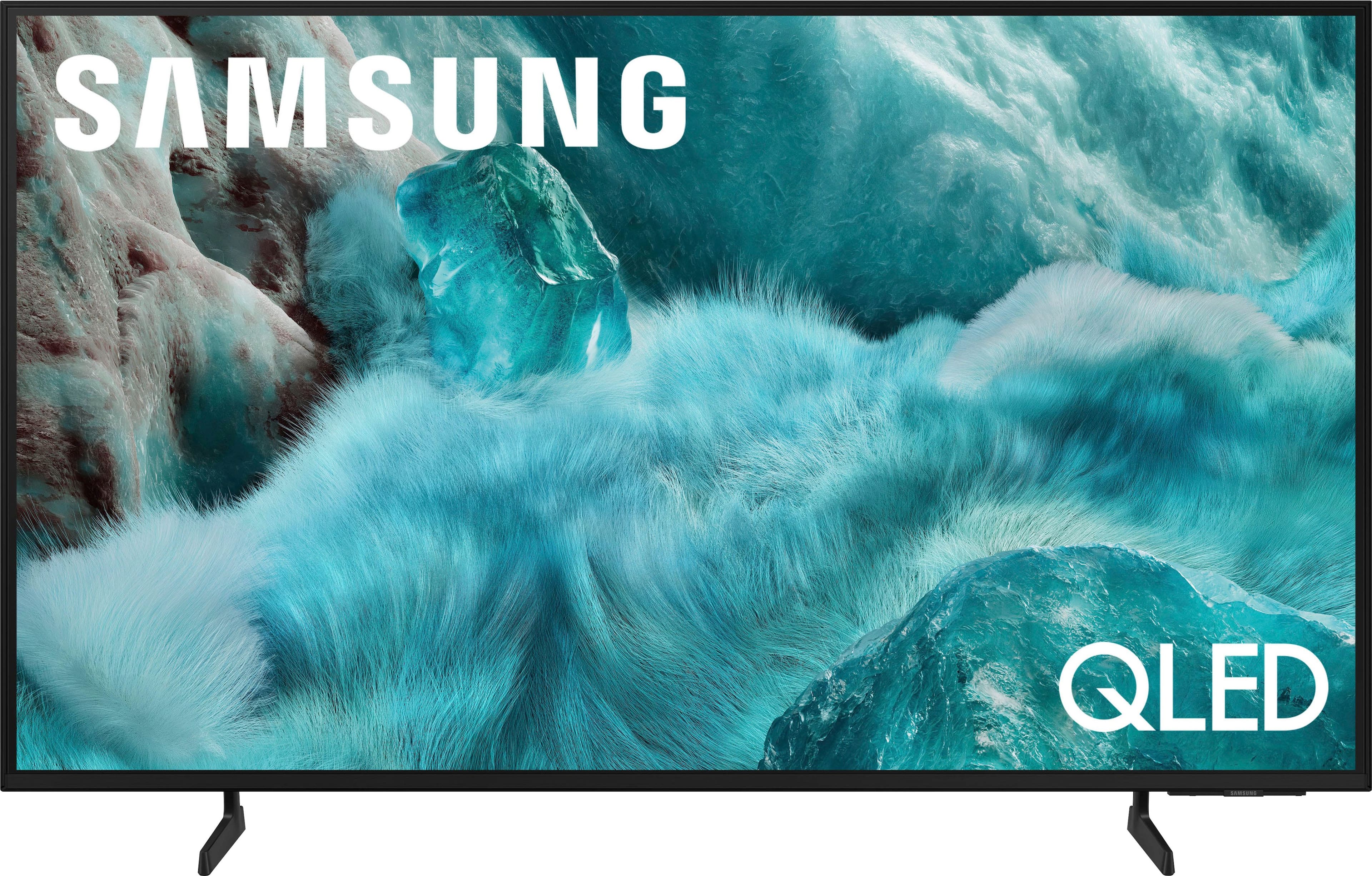
- Model:
- QN50Q7FAAFXZA
- |
- SKU:
- 6619441
Customer reviews
Rating 4.7 out of 5 stars with 317 reviews
(317 customer reviews)Rating by feature
- Picture Quality4.8
Rating 4.8 out of 5 stars
- Sound Quality4.5
Rating 4.5 out of 5 stars
- Brightness4.8
Rating 4.8 out of 5 stars
Customers are saying
Customers are pleased with the TV's excellent picture quality, easy setup, ideal size, and user-friendly settings. However, some customers have expressed concerns regarding the remote control, lack of audio connection, and brightness.
This summary was generated by AI based on customer reviews.
Rated 4 out of 5 stars
Good, but not not great color.
||Posted . Owned for 3 weeks when reviewed.This reviewer received promo considerations or sweepstakes entry for writing a review.The picture is not as bright as the model in the store.
No, I would not recommend this to a friendBrand response from Samsung
Posted .Hi MichaelG,
We appreciate your feedback on the picture quality of Samsung’s Q7F TV. If the image doesn’t quite match your preferences, there are several adjustments you can make to better suit your viewing environment and content type.
First, please ensure your TV is running the latest firmware, as updates may include important picture quality enhancements. Go to: Home > Left directional button > Settings > Support > Software Update > Update Now
To explore picture mode options, navigate to: Home > Left directional button > Settings > All Settings > Picture > Picture Mode. Options include:
• Standard – Ideal for general viewing
• Dynamic – Brighter and more vibrant for well-lit spaces
• Eco – Optimized for energy efficiency
• Movie – Best for viewing in low light
• Filmmaker Mode – Preserves the content creator’s intent and disables motion smoothing for supported content
You can further customize your image by going to: Settings > All Settings > Picture > Expert Settings, where you can adjust Brightness, Contrast, Color Tone, Sharpness, Contrast Enhancer and more.
If you’d like help finding the best picture settings for your preferences, please don’t hesitate to contact Samsung Support at 1-800-SAMSUNG, available 8AM – 12AM EST, 7 days a week. You can also LiveChat with an agent or explore additional resources on our website by clicking the ‘Support’ link.
~ Samsung Specialist
Rated 3 out of 5 stars
Best Buy abandoned the sale
||Posted .This reviewer received promo considerations or sweepstakes entry for writing a review.Wish I could review this but Best Buys delivery service and then customer service abandoned me forcing the cancellation of the sale. Their Customer concern team has never contacted me after. Bought cellular, tablet, Macbook and TV" s previously so they have changed.
I would recommend this to a friendBrand response from Samsung
Posted .PoppaLou,
Please know that you're leaving a review and 3-star rating for the Q7F TV, but we’re sorry to hear of your experience with Best Buy, nonetheless. You may want to consider providing your feedback directly to the Best Buy store where the purchase was made.
If you have questions about the TV itself, Samsung is here to help. You can reach us at 1-800-SAMSUNG, 8AM – 12AM EST, 7 days a week. LiveChat agents are also available by clicking the ‘Support’ link on our website.
~ Samsung Specialist
Rated 3 out of 5 stars
Unhappy Samsung Fan
||Posted . Owned for 3 weeks when reviewed.This reviewer received promo considerations or sweepstakes entry for writing a review.Very disappointed with Samsung. Very difficult to setup soundbar. Picture quality not as good as my older Samsung TV’s. Don’t waste your money buy a OLED instead. QLED just a gimmick
No, I would not recommend this to a friendBrand response from Samsung
Posted .RobsTV,
We appreciate you sharing your user experience. To help you get the most from your TV, you can download the full e-Manual and more by visiting Samsung’s website then navigating to: Support > Manual & Software > TVs & Home Theater. From there, you can search for and select your Q7F TV model to view or download the available guides.
The e-Manual and Remote Control Guide are also conveniently built into your TV: Settings > Support > Tips and User Guides
If the image doesn’t quite match your preferences, there are several adjustments you can make to better suit your viewing environment and content type.
First, please ensure your TV is running the latest firmware, as updates may include important picture quality enhancements. Go to: Home > Left directional button > Settings > Support > Software Update > Update Now
To explore picture mode options, navigate to: Home > Left directional button > Settings > All Settings > Picture > Picture Mode. Options include:
• Standard – Ideal for general viewing
• Dynamic – Brighter and more vibrant for well-lit spaces
• Eco – Optimized for energy efficiency
• Movie – Best for viewing in low light
• Filmmaker Mode – Preserves the content creator’s intent and disables motion smoothing for supported content
You can further customize your image by going to: Settings > All Settings > Picture > Expert Settings, where you can adjust Brightness, Contrast, Color Tone, Sharpness, Contrast Enhancer and more.
If you’d like help finding the best picture settings for your preferences, please don’t hesitate to contact Samsung Support at 1-800-SAMSUNG, available 8AM – 12AM EST, 7 days a week. You can also LiveChat with an agent or explore additional resources on our website by clicking the ‘Support’ link.
~ Samsung Specialist
Rated 3 out of 5 stars
It’s o.k.
||Posted .This reviewer received promo considerations or sweepstakes entry for writing a review.Not the best clarity. It's quite bright with the settings to dim. Sound quality is not that great either. It’s a light tv easily to mount.
No, I would not recommend this to a friendBrand response from Samsung
Posted .CarolineH,
We appreciate your feedback on Samsung’s Q7F TV. If the image doesn’t quite match your preferences, there are several adjustments you can make to better suit your viewing environment and content type.
First, please ensure your TV is running the latest firmware, as updates may include important picture quality enhancements. Go to: Home > Left directional button > Settings > Support > Software Update > Update Now
To explore picture mode options, navigate to: Home > Left directional button > Settings > All Settings > Picture > Picture Mode. Options include:
• Standard – Ideal for general viewing
• Dynamic – Brighter and more vibrant for well-lit spaces
• Eco – Optimized for energy efficiency
• Movie – Best for viewing in low light
• Filmmaker Mode – Preserves the content creator’s intent and disables motion smoothing for supported content
You can further customize your image by going to: Settings > All Settings > Picture > Expert Settings, where you can adjust Brightness, Contrast, Color Tone, Sharpness, Contrast Enhancer and more.
If the sound still doesn’t meet your expectations, there are a few settings you can try adjusting:
Go to: Settings > All Settings > Sound > Sound Mode
• Standard: Balanced sound without emphasis on any one range
• Optimized: Enhanced effects and spacious sound
• Amplify: Boosts mid and high tones to make dialogue clearer
You can also explore Expert Settings to fine-tune options such as Balance, Equalizer, Auto Volume, and more to match your personal preferences.
If you're considering expanding your setup, Samsung’s Q- and S-Series Soundbars (like the HW-QS700F) support Q-Symphony, a feature that synchronizes your TV and soundbar speakers for an immersive 3D audio experience.
For further help adjusting your picture and sound settings or finding the right soundbar for your space, feel free to reach Samsung Support at 1-800-SAMSUNG (8AM – 12AM EST, 7 days a week) or visit the Support link on our website for:
• LiveChat
• Manuals, Software, & Warranty Info
~ Samsung Specialist
Rated 3 out of 5 stars
Set up issues
||Posted . Owned for 3 weeks when reviewed.This reviewer received promo considerations or sweepstakes entry for writing a review.Had problems getting TV set up. Was on phone with Samsung support 3 times. Probably 2 hours combined.
No, I would not recommend this to a friendBrand response from Samsung
Posted .RonW,
We appreciate your review of Samsung’s Q7F TV. So we can understand the issues you’re experiencing and provide you with troubleshooting assistance, please reach out to Samsung Customer Support at 1-800-SAMSUNG, available daily from 8AM - 12AM EST. You can also chat with a LiveChat agent by clicking the ‘Support’ link on our website for:
• Live Chat
• Manuals, Software, & Warranty Info
• Creating a Service ticket
~ Samsung Specialist
Rated 3 out of 5 stars
50” Class Q7F Series QLED 4K UHD Samsung
||Posted . Owned for 2 weeks when reviewed.This reviewer received promo considerations or sweepstakes entry for writing a review.Good for my 80 year parent. Quality of tv is not for me.
No, I would not recommend this to a friendBrand response from Samsung
Posted .Mental,
Thanks for taking a moment to review Samsung’s Q7F TV. If you’re experiencing specific issues which caused you to give this a 3-star rating, please know Samsung Customer Support is here to help at1-800-SAMSUNG between 8AM - 12AM EST, any day of the week. You can also reach our LiveChat team by selecting the ‘Support’ link on our website.
~ Samsung Specialist
- Cons mentioned:Brightness
Rated 1 out of 5 stars
poor picture controls
||Posted . Owned for 1 month when reviewed.This reviewer received promo considerations or sweepstakes entry for writing a review.Limited picture controls and the picture does not get bright enough
No, I would not recommend this to a friendBrand response from Samsung
Posted .DMJ4,
We’re sorry to hear you’re not fully satisfied with the picture quality on your Samsung TV. If the image appears too dark, we suggest disabling certain energy-saving features, which can automatically adjust brightness and affect how the screen looks.
Go to: Settings > All Settings > General & Privacy > Power and Energy Saving, then turn off Brightness Optimization, Energy Saving Solution, Motion Lighting, and/or Contrast Enhancer.
You can also adjust the Picture Mode to better suit your environment: Settings > All Settings > Picture > Picture Mode
• Standard – Default mode for general viewing
• Dynamic – Brighter and clearer, ideal for well-lit rooms
• Movie – Best for dark room viewing
• Eco – Energy-saving mode
• Filmmaker Mode – Preserves content as intended by creators
To fine-tune brightness, go to: Home > left directional key > Settings > All Settings > Picture > Expert Settings, then adjust the Brightness level (0–50) to your preference.
Lastly, please make sure your TV is running the latest firmware: Home > Home > left directional key > Settings > Support > Software Update > Update Now
We hope these tips help improve your viewing experience. If you need further support, feel free to contact us at 1-800-SAMSUNG, 8AM – 12AM EST, 7 days a week. LiveChat is also available via the ‘Support’ link on our website.
~ Samsung Specialist
Rated 3 out of 5 stars
Ron
||Posted . Owned for 3 weeks when reviewed.This reviewer received promo considerations or sweepstakes entry for writing a review.Difficult to set up when I got it home. The instructions we not any good.
No, I would not recommend this to a friendBrand response from Samsung
Posted .Richkid,
We appreciate you sharing your user experience. To help you get the most from your TV, you can download the full e-Manual and more by visiting Samsung’s website then navigating to: Support > Manual & Software > TVs & Home Theater. From there, you can search for and select your Q7F TV model to view or download the available guides.
The e-Manual and Remote Control Guide are also conveniently built into your TV: Settings > Support > Tips and User Guides
If you need additional help, please contact Samsung Support at 1-800-SAMSUNG, 8AM – 12AM EST, 7 days a week. LiveChat agents are also available through the ‘Support’ link on our website.
~ Samsung Specialist
Rated 1 out of 5 stars
Backlight failure
||Posted .This reviewer received promo considerations or sweepstakes entry for writing a review.Backlight failed in less than 90 days. Best Buy wouldn’t refund me or exchange the TV. They told me to contact Samsung. Don’t buy TVs from Best Buy!
No, I would not recommend this to a friendBrand response from Samsung
Posted .Josh,
It’s unfortunate to hear about your experience with Samsung’s Q7F TV. We’re committed to delivering quality, value, and the best possible product experience. This TV is backed by a 1-year limited manufacturer’s warranty, which includes authorized repair for eligible defects when purchased brand-new from an authorized retailer. To review full warranty terms, you can enter your model number here: https://www.samsung.com/us/support/warranty/
We’d appreciate the opportunity to assist further. Please contact Samsung Customer Support at 1-800-SAMSUNG (8AM – 12AM EST, 7 days a week), or connect with a LiveChat agent by clicking the ‘Support’ link on our website.
~ Samsung Specialist
Rated 1 out of 5 stars
Poor picture quality, ignore incentivized reviews
||Posted .This reviewer received promo considerations or sweepstakes entry for writing a review.I had a Samsung TV (Crystal 4K) previously, and thought this TV would at least be as good given it's a newer model and also 4K UHD. Nope. The picture clarity is unsatisfactory. All the reviews that praise it are incentivized reviews, ignore them. Also, actually go to the store, and have them play a TV show or Netflix or something, and make up your mind there.
No, I would not recommend this to a friendBrand response from Samsung
Posted .Reni,
We appreciate your feedback on the picture quality of Samsung’s Q7F TV. If the image doesn’t quite match your preferences, there are several adjustments you can make to better suit your viewing environment and content type.
First, please ensure your TV is running the latest firmware, as updates may include important picture quality enhancements. Go to: Home > Left directional button > Settings > Support > Software Update > Update Now
To explore picture mode options, navigate to: Home > Left directional button > Settings > All Settings > Picture > Picture Mode. Options include:
• Standard – Ideal for general viewing
• Dynamic – Brighter and more vibrant for well-lit spaces
• Eco – Optimized for energy efficiency
• Movie – Best for viewing in low light
• Filmmaker Mode – Preserves the content creator’s intent and disables motion smoothing for supported content
You can further customize your image by going to: Settings > All Settings > Picture > Expert Settings, where you can adjust Brightness, Contrast, Color Tone, Sharpness, Contrast Enhancer and more.
If you’d like help finding the best picture settings for your preferences, please don’t hesitate to contact Samsung Support at 1-800-SAMSUNG, available 8AM – 12AM EST, 7 days a week. You can also LiveChat with an agent or explore additional resources on our website by clicking the ‘Support’ link.
~ Samsung Specialist
Rated 1 out of 5 stars
Terrible
||Posted . Owned for 2 weeks when reviewed.This reviewer received promo considerations or sweepstakes entry for writing a review.Customer service has been awful. Customer service has been terrible by Best Buy. Will look elsewhere for future purchases.
No, I would not recommend this to a friendBrand response from Samsung
Posted .Hi DavidP,
We appreciate your feedback. You may want to reach out to Best Buy directly for additional assistance. If there’s anything we can assist with, please don’t hesitate to call us at 1-800-SAMSUNG, available daily from 8AM - 12AM EST. You can also visit the Samsung website and click on ‘Support’ for:
• Live Chat
• Manuals, Software, & Warranty Info
~ Samsung Advisor
Rated 2 out of 5 stars
get the bigger one
||Posted . Owned for 2 weeks when reviewed.This reviewer received promo considerations or sweepstakes entry for writing a review.This is a beautiful TV just too small for our space
No, I would not recommend this to a friendBrand response from Samsung
Posted .anon,
Thanks for taking a moment to review Samsung’s Q7F TV. If you’re experiencing specific issues which caused you to give this a 2-star rating, please know Samsung Customer Support is here to help at 1-800-SAMSUNG, available from 8AM - 12AM EST, seven days a week. You can also chat with one of our agents by clicking the ‘Support’ link on our website for:
• Live Chat
• Manuals, Software, & Warranty Info
~ Samsung Specialist
Rated 1 out of 5 stars
Horrible TV
||Posted .This reviewer received promo considerations or sweepstakes entry for writing a review.I hate this tv. Resolution is horrible. Unable to add apps with being charge .15
No, I would not recommend this to a friendBrand response from Samsung
Posted .Cassandra,
We're sorry to hear of this. Please know that you can customize your Home screens by installing, removing or adding your favorite apps to Apps Home and/or For You Home screen. Here's how:
Searching for & Installing Apps
1. From the Home screen, press left on the remote’s directional pad.
2. Navigate to and select Search.
3. Using the search bar, enter the content or app you’d like to find.
4. Navigate to and select the app you’d like to install, then select Install.
Note: Previously installed apps can be accessed on the Settings screen.
Adding & Managing Apps on Home Screen
1. Go to App Settings (these can be found at the bottom of the Apps screen) and select the app you want to move. The following options will be available:
a. Add to Home: Move the app to your desired location on the Home screen.
b. Delete: Delete app.
c. Lock/Unlock: Lock the app with a PIN so only you can use it. When the app is selected again, you will be prompted to enter the PIN to unlock it.
d. Reinstall: Reinstall the app.
e. View Details: View the app’s information and details.
If the image doesn’t quite match your preferences, there are several adjustments you can make to better suit your viewing environment and content type.
First, please ensure your TV is running the latest firmware, as updates may include important picture quality enhancements. Go to: Home > Left directional button > Settings > Support > Software Update > Update Now
To explore picture mode options, navigate to: Home > Left directional button > Settings > All Settings > Picture > Picture Mode. Options include:
• Standard – Ideal for general viewing
• Dynamic – Brighter and more vibrant for well-lit spaces
• Eco – Optimized for energy efficiency
• Movie – Best for viewing in low light
• Filmmaker Mode – Preserves the content creator’s intent and disables motion smoothing for supported content
You can further customize your image by going to: Settings > All Settings > Picture > Expert Settings, where you can adjust Brightness, Contrast, Color Tone, Sharpness, Contrast Enhancer and more.
If you’d like help adding apps or finding the best picture settings for your preferences, please don’t hesitate to contact Samsung Support at 1-800-SAMSUNG, available 8AM – 12AM EST, 7 days a week. You can also LiveChat with an agent or explore additional resources on our website by clicking the ‘Support’ link.
~ Samsung Specialist
Rated 1 out of 5 stars
Dissapointed
||Posted .This reviewer received promo considerations or sweepstakes entry for writing a review.Was broken out of th ebox, Best Buy refused to accept the return
No, I would not recommend this to a friendBrand response from Samsung
Posted .WayneM,
We appreciate you sharing your delivery experience and are sorry to hear that your TV arrived damaged. For issues related to shipping or delivery, we recommend reaching back out to Best Buy directly so they can assist in resolving the situation.
Once your issue is resolved, if you have any questions about setup, usage, or features, please don’t hesitate to contact Samsung Support at 1-800-SAMSUNG (8AM – 12AM EST, 7 days a week), or connect with a LiveChat agent via the ‘Support’ link on our website.
~ Samsung Specialist
- Pros mentioned:Picture quality
Rated 5 out of 5 stars
Good tv ever in quality.
Posted .This reviewer received promo considerations or sweepstakes entry for writing a review.This is best picture quality and and sound quality. Specially film maker mode is the great picture also the eco mode. This is perfect size for my bedroom. We love it
I would recommend this to a friend - Pros mentioned:Picture quality
Rated 5 out of 5 stars
Samsung TV
Posted .This reviewer received promo considerations or sweepstakes entry for writing a review.As a really great picture and a perfect size and great features on there
I would recommend this to a friend Rated 5 out of 5 stars
Great TV
Posted .This reviewer received promo considerations or sweepstakes entry for writing a review.Looks amazing and the qled looks really good on this TV couldn’t recommend enough!
I would recommend this to a friend