Customer Ratings & Reviews
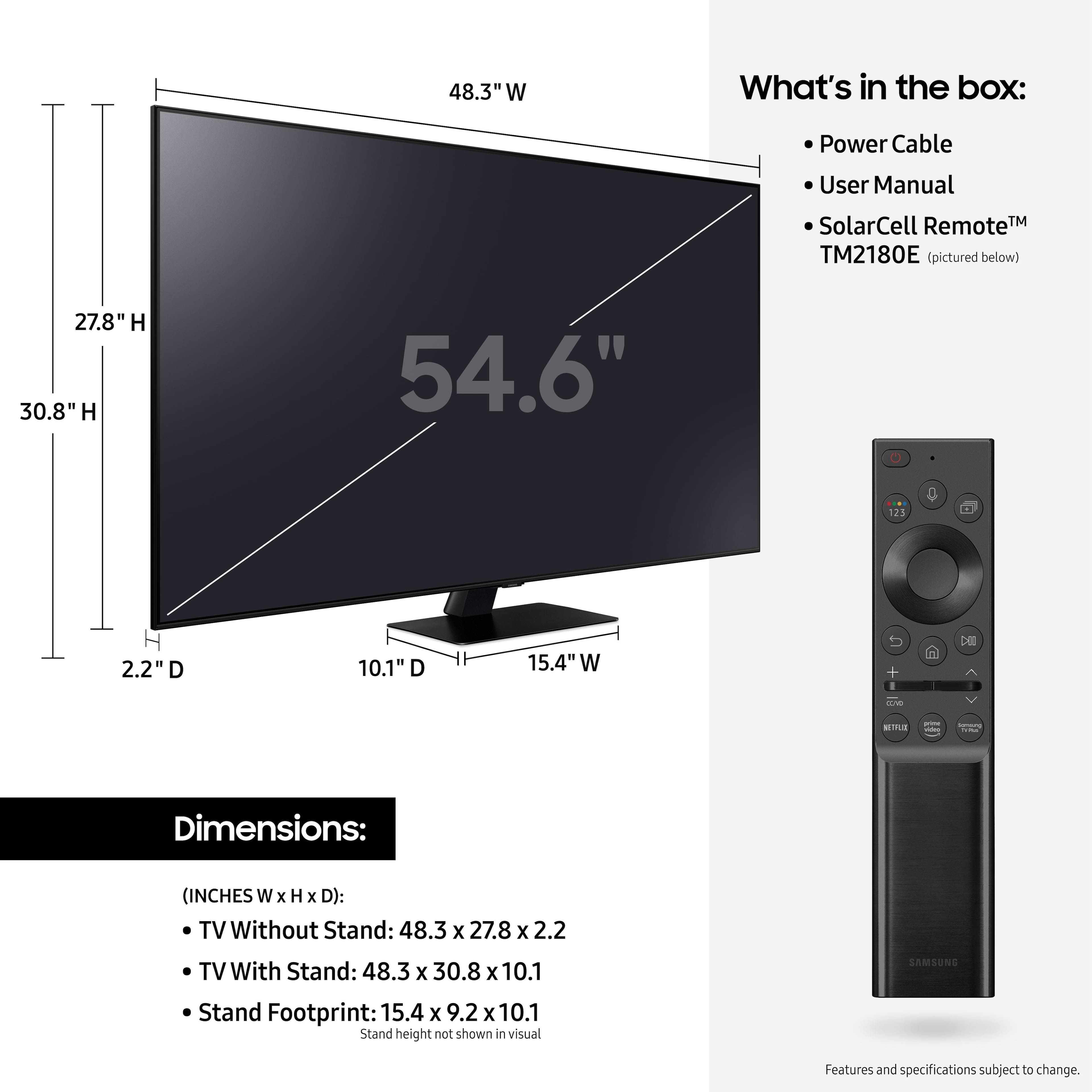
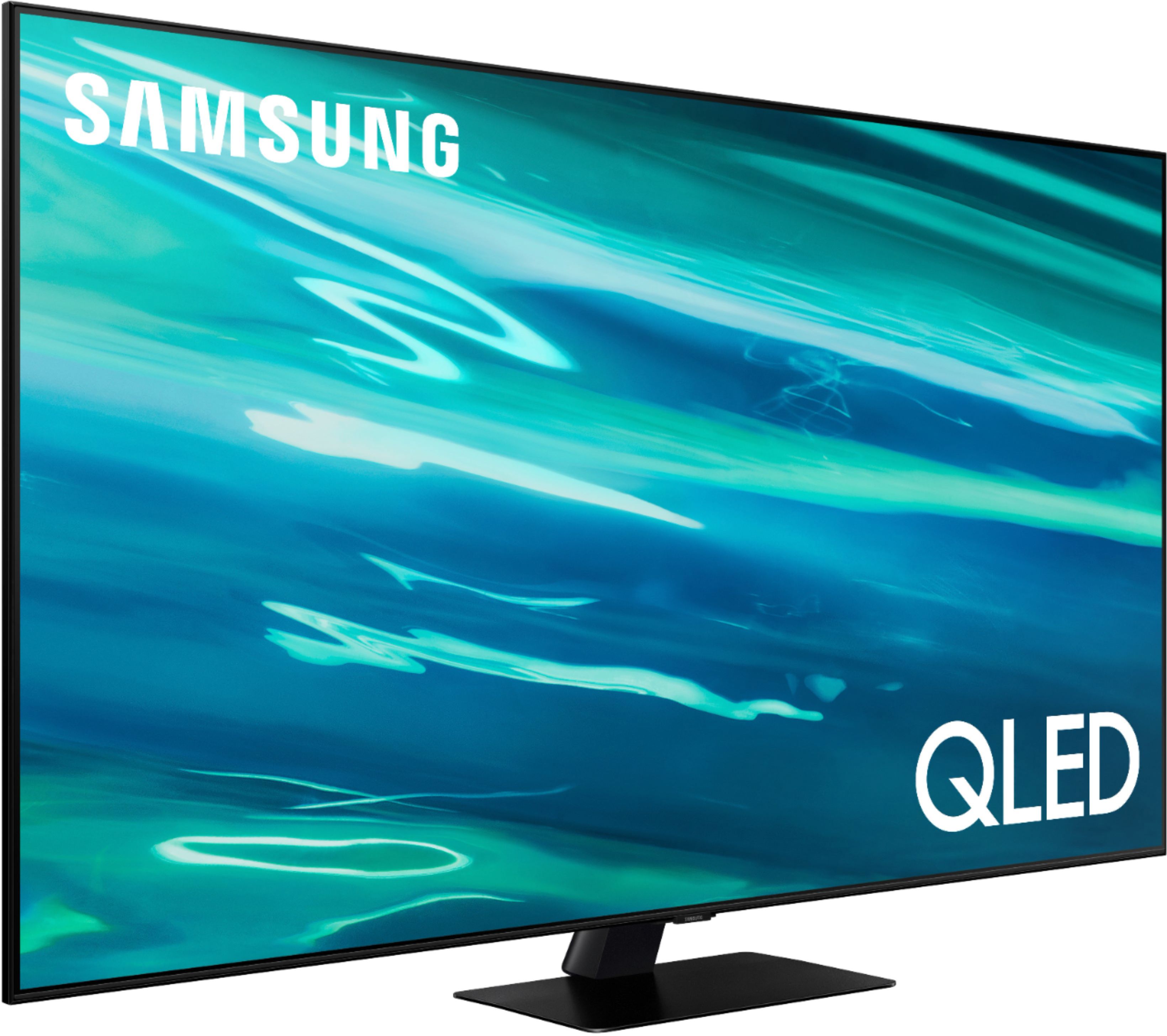
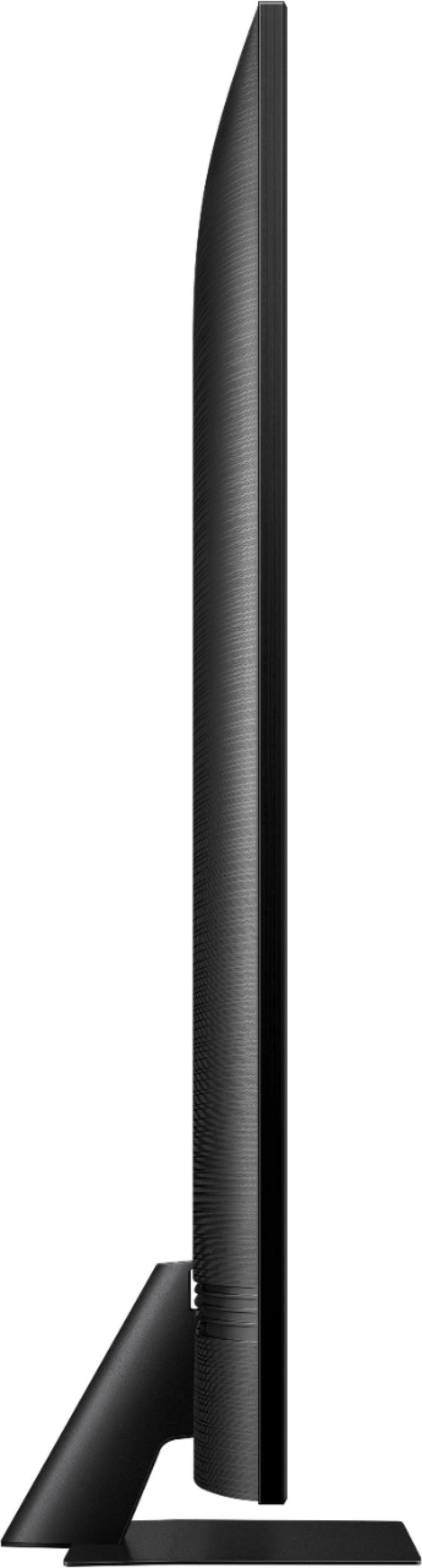
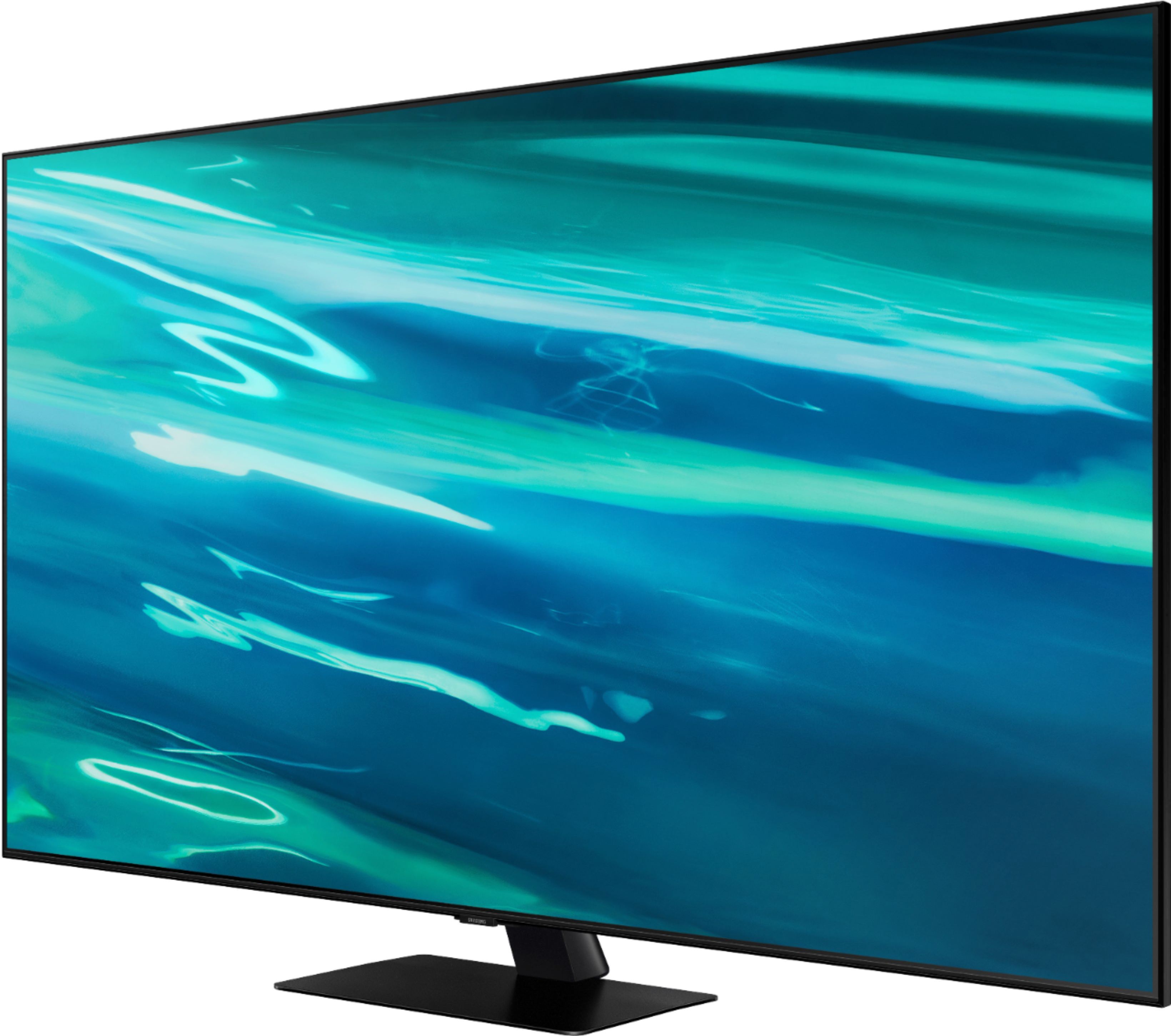
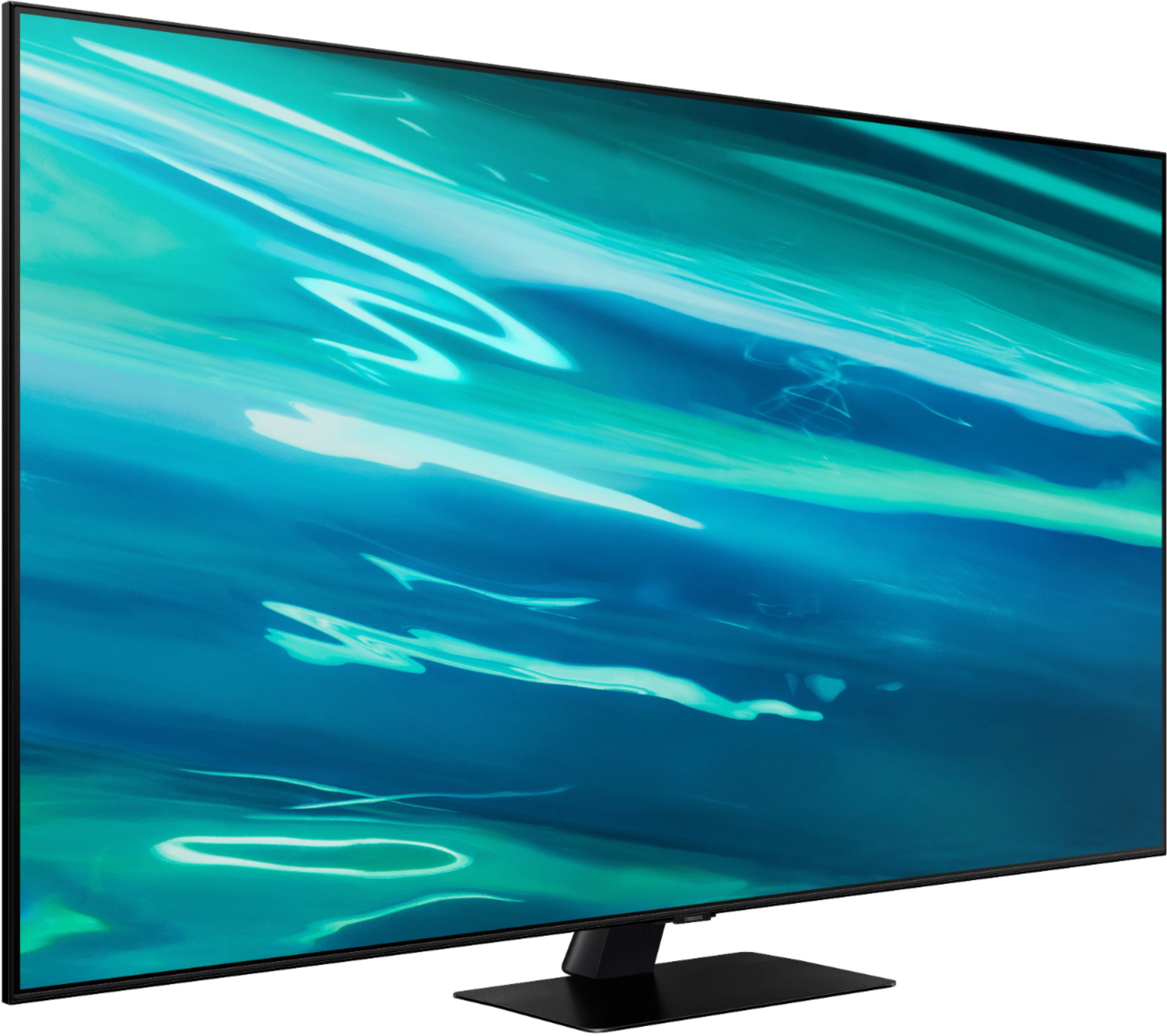
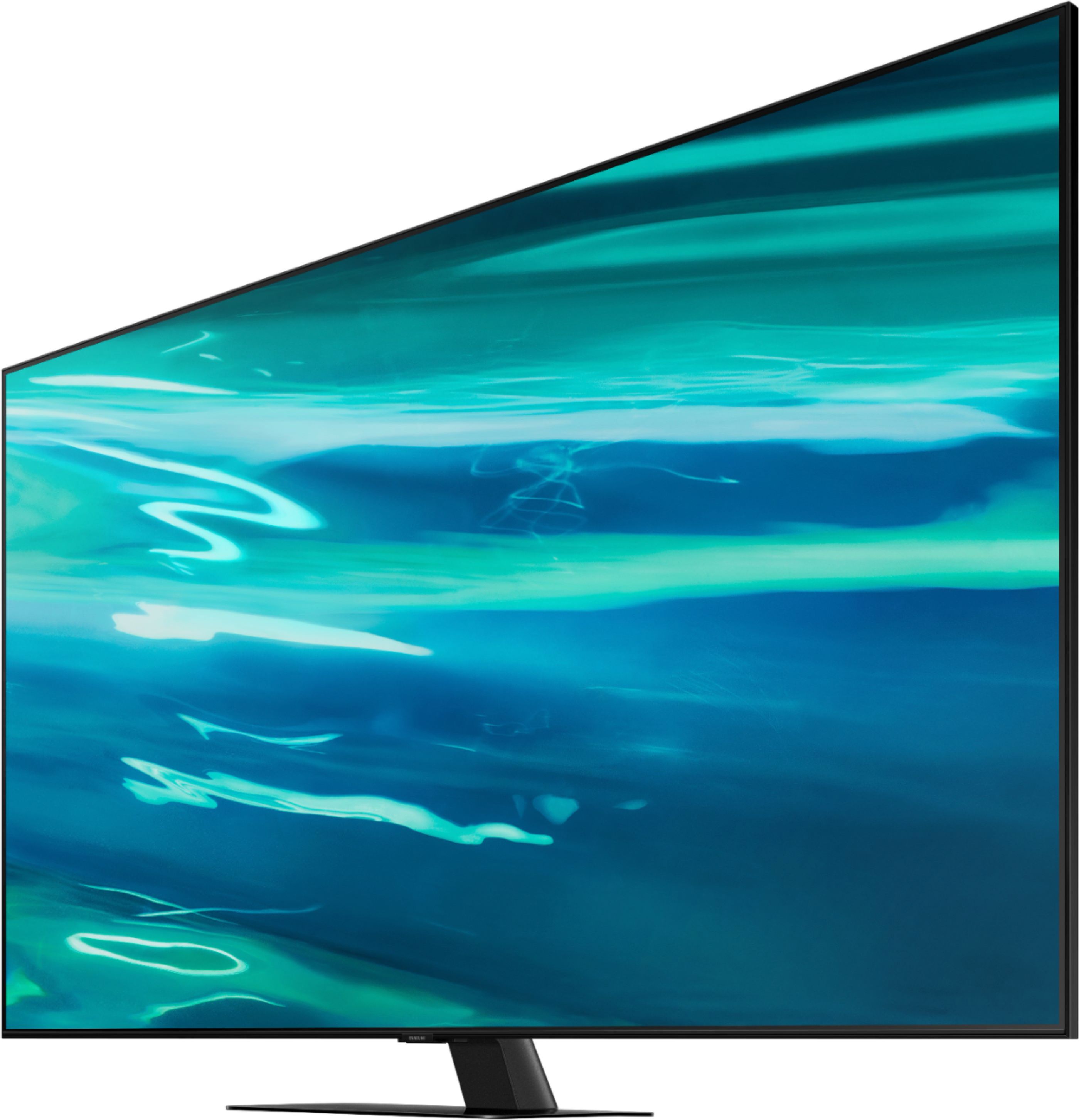
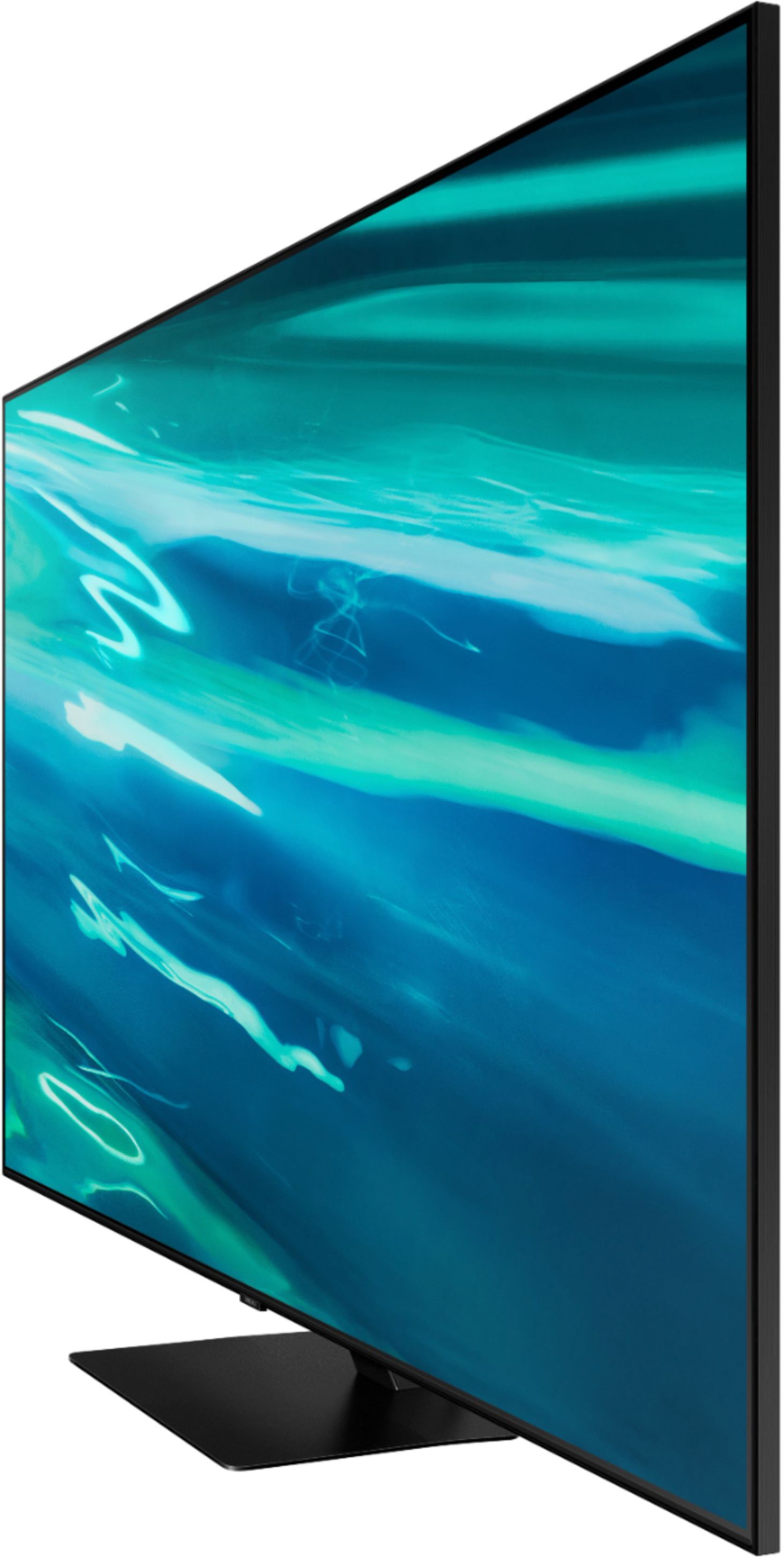

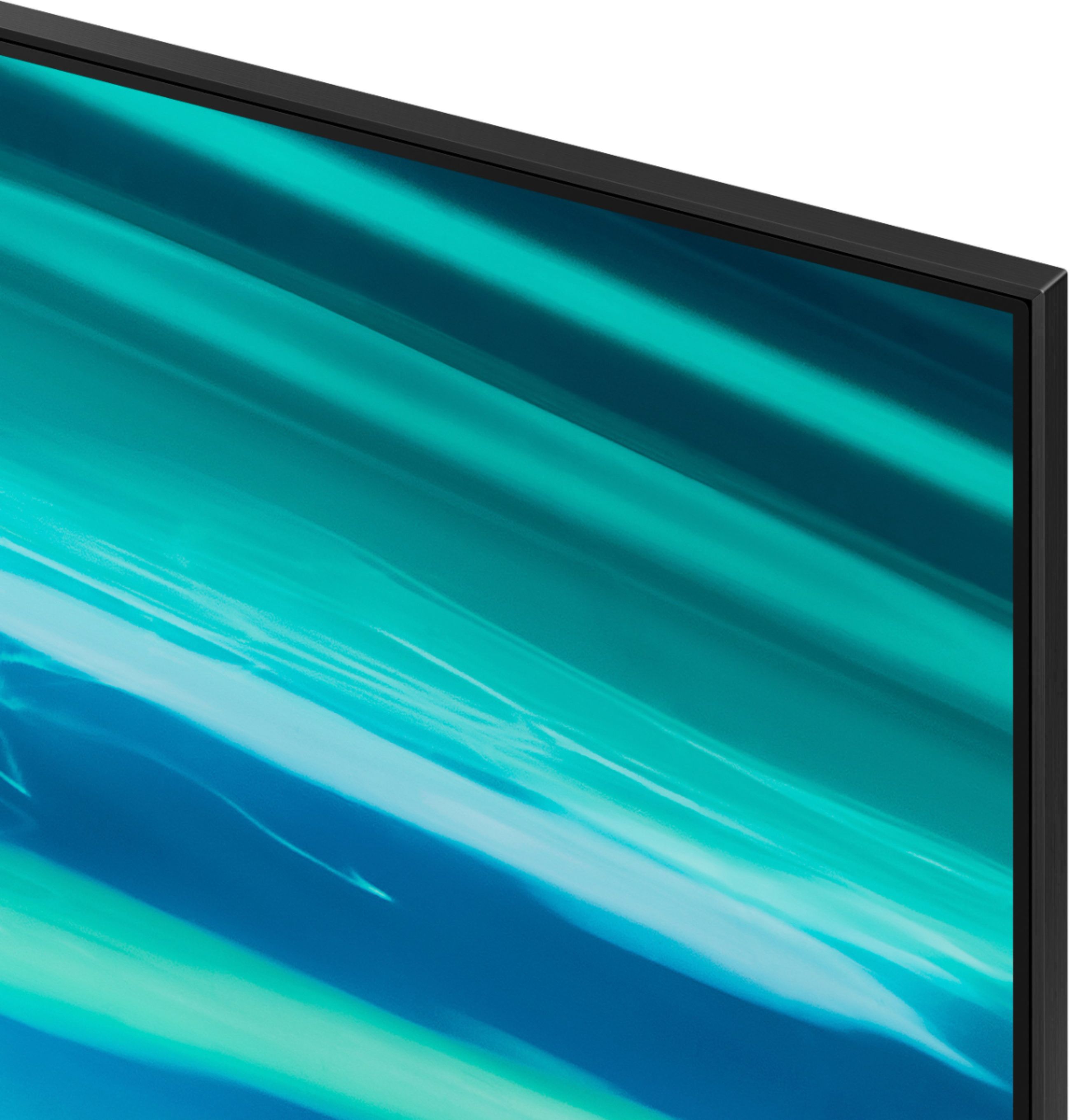



- Model:
- QN55Q80AAFXZA
- SKU:
- 6451481
Rating by feature
- Picture Quality
Rating 4.7 out of 5 stars
- Sound Quality
Rating 4.5 out of 5 stars
- Brightness
Rating 4.7 out of 5 stars
Customers are saying
Customers express satisfaction with the picture quality, describing it as great and worth the money. They also appreciate the easy setup process and find the gaming experience to be exceptional. However, some users have encountered issues with the remote control and a few have reported dead pixels and streaming problems.
This summary was generated by AI based on customer reviews.
Don’t buy
||Posted . Owned for 3 weeks when reviewed.This reviewer received promo considerations or sweepstakes entry for writing a review.This tv gets super hot I won’t not recommend. I bought it for my sons room and just walking by the tv you can feel the heat like a heater! I didn’t get to return it because it was 2 days pass the time required to return so now I’m stuck with the bill and a tv/ heater I hope it doesn’t catch on fire like the Samsungs before. I only got it because the tv guy there said it was good but turned out it’s not .
No, I would not recommend this to a friend- Cons mentioned:Screen
TV went bad one week after the one year warranty.
||Posted . Owned for 1 year when reviewed.This reviewer received promo considerations or sweepstakes entry for writing a review.One week after the 1 year warranty the screen on this TV went. Had Best Buy come out and look at it. It will require a new panel to fix this at a cost of $515 + tax + $109 labor. I will be contacting Samsung but a TV that cost $1099 shouldn't be going bad after just one year.
No, I would not recommend this to a friend Tv
||Posted .This reviewer received promo considerations or sweepstakes entry for writing a review.Also had two of these TVs in a different size. There’s nothing really special about them, color so so so so
No, I would not recommend this to a friendThe store returned it as defective.
||Posted .This reviewer received promo considerations or sweepstakes entry for writing a review.The picture seemed to be washed out. The store returned it as defective.
No, I would not recommend this to a friendBrand response from Samsung
Posted .Sumsang,
Thank you for purchasing the Samsung Q80A TV and for sharing your experience with us.
Please know that Samsung is committed to providing the best possible product experience, quality, and value, and your feedback will be shared with our product and customer care teams.
Should you ever decide to give Samsung TVs another try and have questions or need assistance with settings, setup, or features, please know we are always here to help. Call us at 1-800-SAMSUNG (ask for TVs), available 8AM - 12AM EST, 7 days a week.
For additional support resources, visit us on the Samsung website and click on the ‘Support’ link in the upper right corner of the homepage for:
1) Chat with Us/Product Help: To begin a chat or find solutions, choose ‘TVs & Home Theater’ and select your model & topic.
2) Manuals, Software, & Warranty Info
~ Samsung Specialist
Samsung Qled
||Posted . Owned for 3 weeks when reviewed.This reviewer received promo considerations or sweepstakes entry for writing a review.Not pleased with clearness of picture background seems fuzzy difficult remote
No, I would not recommend this to a friendBrand response from Samsung
Posted .Santa,
Thank you for sharing your thoughts on the picture quality of your Q80A TV. If the picture you are seeing out-of-the-box is not to your liking, there are several picture settings you may want to try adjusting.
You can select the Picture Mode that provides the best viewing experience. Go to Home > Settings > Picture > Picture Mode
1) Standard: Is the default mode suitable for general viewing environments.
2) Natural: Reduces eye strain for a comfortable viewing experience.
3) Movie: Is suitable for watching TV or movies in a dark room.
4) Dynamic: Makes the picture brighter and clearer in bright viewing environments.
5) Filmmaker Mode: You can watch the source content (e.g., movie) as it is. If the image is defined as Filmmaker Mode, it will automatically switch to Filmmaker Mode while watching.
You can also go to: Settings > Picture > Expert Settings > to manually fine tune your image.
To further assist you in learning the various features and functions of your remote, you can download the Q80A TV's Remote Control Guide on Samsung's website under ‘Support’ (top right corner) > Manuals & Software > TVs & Home Theater. From there, you can select the Q80A TV under QLED 4K TVs > A Model Lineup to download the guides you would like.
If you need assistance or have any questions, please contact Samsung Customer Support at 1-800-SAMSUNG (ask for TVs), available 8AM - 12AM EST, 7 days a week.
For additional support resources, visit us on the Samsung website and click on the ‘Support’ link in the upper right corner of the homepage for:
1) Chat with Us/Product Help: To begin a chat or find solutions, choose ‘TVs & Home Theater’ and select your model & topic.
2) Manuals, Software, & Warranty Info
~ Samsung Specialist
Not Very Compatible with Directv Streaming App
||Posted . Owned for 3 weeks when reviewed.This reviewer received promo considerations or sweepstakes entry for writing a review.Directv Streaming App not compatible with many of the Samsung solar remote selection buttons (i.e. number pad). Samsung default settings make it difficult to find compatibility with many apps. Need a lot of Tech Support hours to make this Samsung TV workable
No, I would not recommend this to a friendSamsung - overpriced
||Posted . Owned for 1 month when reviewed.This reviewer received promo considerations or sweepstakes entry for writing a review.Not worth the extra money. Picture is not as good as they whow in the store!
No, I would not recommend this to a friendBrand response from Samsung
Posted .Hello Samsung,
Thank you for your review of Samsung's Q80A QLED 4K TV. If the picture you are seeing out-of-the-box are not to your liking, there are several picture settings you may want to try adjusting.
You can select the Picture Mode that provides the best viewing experience. Go to Home > Settings > Picture > Picture Mode
1) Standard: Is the default mode suitable for general viewing environments.
2) Natural: Reduces eye strain for a comfortable viewing experience.
3) Movie: Is suitable for watching TV or movies in a dark room.
4) Dynamic: Makes the picture brighter and clearer in bright viewing environments.
5) Filmmaker Mode: You can watch the source content (e.g., movie) as it is. If the image is defined as Filmmaker Mode, it will automatically switch to Filmmaker Mode while watching.
You can also go to: Settings > Picture > Expert Settings > to manually fine tune your image.
Intelligent Mode also enables the TV to recognize and analyze the surroundings, noise, content, and your usage patterns to provide the best viewing experience. You can enable Intelligent Mode by going to Home > Settings > General > Intelligent Mode Settings. Adaptive Picture, which is among the options, optimizes brightness and provides the best picture quality in real time, based on the lighting condition and the content you're viewing.
For further assistance with settings adjustments, please contact Samsung Customer Support at 1-800-SAMSUNG (ask for TVs), available 8AM -12AM EST M-F (9AM – 6PM EST Sat). Or text HELP to 62913.
For additional support resources, visit us on the Samsung website and click on the ‘Support’ link in the upper right corner of the homepage for:
1) More ‘Contact Us’ options – LiveChat, Facebook, Twitter, Samsung Community, Samsung Members app
2) Manuals & Software
3) Warranty Info
4) Product Registration: For access to easy warranty support, convenient opt-in to special promos and offers, faster troubleshooting and service, and quick notification of system updates.
We look forward to hearing from you.
~ Samsung Specialist
Had it for 5 days...
||Posted . Owned for less than 1 week when reviewed.This reviewer received promo considerations or sweepstakes entry for writing a review.I had this TV less than a week, didn't set anything special up on it except my streaming services and it randomly started power cycling while my husband was playing Xbox. I finally got it to a point where I could reset the TV to factory defaults, but now there's a pink line going down the screen and across it, and it still randomly power cycles. It's up to date on the software. Returning for a full refund. Buyer beware.
No, I would not recommend this to a friendBrand response from Samsung
Posted .Nerdynurse13:
Thank you for sharing your experience with the 55” Q80A QLED TV. Your details regarding your TV power cycling and the lines you are seeing will be shared with our product team. So that we can gather further details on your issue and provide you with troubleshooting assistance or warranty service, please contact Samsung TV Customer Support.
Samsung is committed to providing the best possible product experience, quality, and value. We back this TV with a 1-year limited manufacturer's warranty if purchased brand-new directly from an authorized seller.
You can reach us at 1-800-SAMSUNG (ask for TVs), available 8AM -12AM EST, 7 days a week. Or text HELP to 62913.
For additional support resources, visit us on the Samsung website and click on the ‘Support’ link in the upper right corner of the homepage for:
1) More ‘Contact Us’ options – LiveChat, Facebook, Twitter, Samsung Community, Samsung Members app
2) Manuals & Software
3) Warranty Info
4) Product Registration: For access to easy warranty support, convenient opt-in to special promos and offers, faster troubleshooting and service, and quick notification of system updates.
~ Samsung Solutions
Not good enough
||Posted .This reviewer received promo considerations or sweepstakes entry for writing a review.Not good for gaming if thats what youre looking for
No, I would not recommend this to a friendBrand response from Samsung
Posted .Hi Winchester,
Thank you for purchasing the 2021 Samsung Q80A QLED TV and for sharing your review. I am sorry to hear that you are not completely satisfied with the gaming experience.
Have you tried Freesync Premium Pro? This innovative feature optimizes your gaming experience with less lag, tearing and stuttering while providing you with peak performance, exceptionally high dynamic range visuals, and low latency for effortlessly smooth gameplay.
When Game Mode is set to On or Auto, the FreeSync (VRR) function is activated. You can check to see if Game Mode is on by going to: Settings > General > External Device Manager > Game Mode Settings > Game Mode.
Additionally, you can press and hold the play/pause button on your remote when in Game Mode to start the Game Bar. Variable Refresh Rate (VRR) is one of the settings located within the Game Bar, which will show you which gaming functions are currently active, depending on the type of game you are playing (ON, OFF, FreeSync Premium, FreeSync Premium Pro).
If you find Game Motion Plus causes unwanted artifacts or causes blur when playing some FPS games, try toggling this setting to Off. You can disable this feature within the Game Bar when in Game Mode. You can also adjust blur and judder settings by going to Settings > General > External Device Manager > Game Mode Settings > Game Motion Plus Settings. Please keep in mind when you increase the values for Blur Reduction and Judder Reduction in Game Motion Plus Settings, the input lag will increase.
I hope these tips help you enjoy better game playing on your TV.
Should you ever have questions or need help, please call us at 1-800-SAMSUNG (ask for TVs), available 8AM - 12AM EST, 7 days a week.
For additional support resources, visit us on the Samsung website and click on the ‘Support’ link in the upper right corner of the homepage for:
1) Contact Us: For additional Chat & Text options, choose ‘TVs & Home Theater’ and select your model & topic.
2) Manuals & Software
3) Warranty Info
4) Register a Product: For access to easy warranty support, convenient opt-in to special promos and offers, faster troubleshooting and service, and quick notification of system updates.
~ Samsung Solutions
No help support from Best buy either Samsung.
||Posted . Owned for 3 weeks when reviewed.This reviewer received promo considerations or sweepstakes entry for writing a review.Best buy or samsung didnt help. voice and screen moves different time zone. faces are like a shadow. Color not really better than my old plasma Tv. I spoke to Besy buy represenatibe and Samsung direct no one return back to me.
No, I would not recommend this to a friendBrand response from Samsung
Posted .Steven,
Thank you for purchasing the Samsung Q80A TV and for sharing your experience with sound delays. Please be sure your firmware is up to date with version 1560.5 which includes updates to address lip sync or audio delays that you are experiencing. You can check this by going to: Settings > Support > Software Update.
If this firmware version is not yet available on your TV, you can download the update on a USB drive and manually update your TV:
1. On Samsung's website (upper right corner), go to: Support > Manuals & Software > Find your TV model.
2. Download the update and extract it to the root of a USB thumb drive. (Do not put it in any folders on the thumb drive.)
3. Connect the USB thumb drive to a USB port on your TV.
4. Navigate to Settings > Support > Software Update, select Update Now, and then select Yes.
5. Follow the on-screen instructions to install the updated software.
If the picture you are seeing out-of-the-box is not to your liking, there are several picture settings you may want to try adjusting.
You can select the Picture Mode that provides the best viewing experience. Go to Home > Settings > Picture > Picture Mode
1) Standard: Is the default mode suitable for general viewing environments.
2) Natural: Reduces eye strain for a comfortable viewing experience.
3) Movie: Is suitable for watching TV or movies in a dark room.
4) Dynamic: Makes the picture brighter and clearer in bright viewing environments.
5) Filmmaker Mode: You can watch the source content (e.g., movie) as it is. If the image is defined as Filmmaker Mode, it will automatically switch to Filmmaker Mode while watching.
You can also go to: Settings > Picture > Expert Settings > to manually fine tune your image.
Should you ever have questions or need help, please call us at 1-800-SAMSUNG (ask for TVs), available 8AM -12AM EST M-F (9AM – 6PM EST Sat). Or text HELP to 62913.
For additional support resources, visit us on the Samsung website and click on the ‘Support’ link in the upper right corner of the homepage for:
1) More ‘Contact Us’ options – LiveChat, Facebook, Twitter, Samsung Community, Samsung Members app
2) Manuals & Software
3) Warranty Info
4) Product Registration: For access to easy warranty support, convenient opt-in to special promos and offers, faster troubleshooting and service, and quick notification of system updates.
~ Samsung Specialist
Stay Away!!
||Posted . Owned for 1 month when reviewed.This reviewer received promo considerations or sweepstakes entry for writing a review.This TV sucks. I bought two for my new house and the remotes do not work on either one. They turn the TV on and off and that’s all. Can’t change channels. Can’t switch source. All I get on both TVs is reruns of Baywatch. The solar charging remotes are crap. The SmartThings app says it’s offline but it’s connected to the internet. I have had a number of Samsung TVs but these are the last. Samsung really bombed with this TV. STAY AWAY!!!!
No, I would not recommend this to a friendBrand response from Samsung
Posted .Hello Frankg,
Thank you for choosing Samsung's Q80A TV and for your review. We appreciate your feedback regarding the Solar Cell remote included with your TV. If you press any key on the remote, and the LED indicator at the top of your remote stays on for about 3 seconds rather than blinking, please try the following steps to reset your remote:
1) Long press the RETURN key and ENTER key together for about 10 seconds you’re your remote was once paired already with the TV, you do not need to re-pair it again. However, if it was not paired with the TV, pairing must be done after the reset.
2) The RETURN key is on the left side of your remote and looks like a curved, backwards pointing arrow.
3) The ENTER key is the button in the center of your directional ring.
If the remote control still does not work properly or its response is very slow, the battery might be low or dead. You can charge the remote control by using the solar cell or the USB port(C-type) on the bottom. You can also check the remaining battery of the Smart Remote by going to Settings > General > Power and Energy Saving > Available Remote Battery.
I hope this helps, should you need further assistance, please contact Samsung TV Support at 1-800-SAMSUNG (ask for TVs), available 8AM -12AM EST, 7 days a week. Or text HELP to 62913.
For additional support resources, visit us on the Samsung website and click on the ‘Support’ link in the upper right corner of the homepage for:
1) More ‘Contact Us’ options – LiveChat, Facebook, Twitter, Samsung Community, Samsung Members app
2) Manuals & Software
3) Warranty Info
4) Product Registration: For access to easy warranty support, convenient opt-in to special promos and offers, faster troubleshooting and service, and quick notification of system updates.
~ Samsung Specialist
Disappointed
||Posted . Owned for 1 month when reviewed.This reviewer received promo considerations or sweepstakes entry for writing a review.Disappointed with picture quality, not as expected for a Q80 4K
No, I would not recommend this to a friendBrand response from Samsung
Posted .Ralf,
Thank you for sharing your thoughts on the picture quality of your new Q80A QLED TV. If the picture you are seeing out-of-the-box is not to your liking, there are several picture settings you may want to try adjusting.
You can select the Picture Mode that provides the best viewing experience. Go to Home > Settings > Picture > Picture Mode
1) Standard: Is the default mode suitable for general viewing environments.
2) Natural: Reduces eye strain for a comfortable viewing experience.
3) Movie: Is suitable for watching TV or movies in a dark room.
4) Dynamic: Makes the picture brighter and clearer in bright viewing environments.
5) Filmmaker Mode: You can watch the source content (e.g., movie) as it is. If the image is defined as Filmmaker Mode, it will automatically switch to Filmmaker Mode while watching.
You can also go to: Settings > Picture > Expert Settings > to manually fine tune your image.
Intelligent Mode also enables the TV to recognize and analyze the surroundings, noise, content, and your usage patterns to provide the best viewing experience. You can enable Intelligent Mode by going to Home > Settings > General > Intelligent Mode Settings. Adaptive Picture, which is among the options, optimizes brightness and provides the best picture quality in real time, based on the lighting condition and the content you're viewing.
I hope you can use these adjustment recommendations to set the image to your liking. If you would like further assistance with settings, features, or functions, please reach out to Samsung Customer Support at 1-800-SAMSUNG (ask for TVs), available 8AM -12AM EST M-F (9AM – 6PM EST Sat). Or text HELP to 62913.
For additional support resources, visit us on the Samsung website and click on the ‘Support’ link in the upper right corner of the homepage for:
1) More ‘Contact Us’ options – LiveChat, Facebook, Twitter, Samsung Community, Samsung Members app
2) Manuals & Software
3) Warranty Info
4) Product Registration: For access to easy warranty support, convenient opt-in to special promos and offers, faster troubleshooting and service, and quick notification of system updates.
~ Samsung Specialist
Will never shop here again
||Posted .This reviewer received promo considerations or sweepstakes entry for writing a review.Disgusted as still awaiting , for over a week, a store credit that was promised me by Marcus Delgado’s manager (at the 5th avenue store ) and absolutely have the feeling it was never submitted….
No, I would not recommend this to a friendDead Pixel on arrival
||Posted . Owned for 3 weeks when reviewed.This reviewer received promo considerations or sweepstakes entry for writing a review.Samsung tv quality has definitely gone down. Right out the box massive dead pixel line so I returned it for a different brand entirely.
No, I would not recommend this to a friendBrand response from Samsung
Posted .pnwrunner,
Thank you for your review of the Samsung Q80A TV and for sharing the issues that have caused you to return your unit. Your experience is very important to us and will be shared with our product team.
Should you ever decide to give Samsung TVs another try and have questions or need assistance with settings, setup, or features, please know we are always here to help. Call us at 1-800-SAMSUNG (ask for TVs), available 8AM - 12AM EST, 7 days a week.
For additional support resources, visit us on the Samsung website and click on the ‘Support’ link in the upper right corner of the homepage for:
1) Chat with Us/Product Help: To begin a chat or find solutions, choose ‘TVs & Home Theater’ and select your model & topic.
2) Manuals, Software, & Warranty Info
We hope to regain you as a customer in the future.
~ Samsung Specialist
Mrs. Scott Shearouse
||Posted . Owned for 1 month when reviewed.This reviewer received promo considerations or sweepstakes entry for writing a review.I just had the installer come to hang and the screen was totally cracked. Called Best Buy…too late to return. Called Samsung…nada!!! Really not impressed.
No, I would not recommend this to a friendMisleading information
||Posted . Owned for 3 weeks when reviewed.This reviewer received promo considerations or sweepstakes entry for writing a review.I bought this tv as it was an open box excellent and I received a tv without a remote control, stand and the display had scratches
No, I would not recommend this to a friendDo not buy
||Posted . Owned for 2 months when reviewed.This reviewer received promo considerations or sweepstakes entry for writing a review.This TV sucks. The picture quality is awful, the Smart TV doesn't work with YouTube TV, and the sound is low. Don't buy it.
No, I would not recommend this to a friendBrand response from Samsung
Posted .Hi Bestbuycustomer2000222,
Thank you for your review of Samsung's Q80A TV and for sharing your experience. If the picture you are seeing out-of-the-box is not to your liking, there are several picture settings you may want to try adjusting.
You can select the Picture Mode that provides the best viewing experience. Go to Home > Settings > Picture > Picture Mode
1) Standard: Is the default mode suitable for general viewing environments.
2) Natural: Reduces eye strain for a comfortable viewing experience.
3) Movie: Is suitable for watching TV or movies in a dark room.
4) Dynamic: Makes the picture brighter and clearer in bright viewing environments.
5) Filmmaker Mode: You can watch the source content (e.g., movie) as it is. If the image is defined as Filmmaker Mode, it will automatically switch to Filmmaker Mode while watching.
Your TV also has several volume features you can enable/disable/adjust to your liking.
1) Auto Volume automatically adjusts the sound to a certain level when changing channels or switching to another external input.
2) Adaptive Volume automatically adjusts to a specific volume level while you are watching TV. The TV analyzes your volume usage history by time period to automatically adjust the volume when you use an app or switch to an external input source.
3) Several Sound Modes are likewise available to meet your personal preferences: Home > Settings > Sound > Sound Mode
If you are experiencing issues with the YouTube TV app, please ensure the app is up to date. Navigate to the Settings within the App Store to check for updates. We recommend setting Auto Update to 'On' if it not enabled already.
Please also be sure your firmware is up to date with version 1805.4 which includes updates to app performance. You can check this by going to: Settings > Support > Software Update.
If this firmware version is not yet available on your TV, you can download the update on a USB drive and manually update your TV:
1. On Samsung's website (upper right corner), go to: Support > Manuals & Software > Find your TV model.
2. Download the update and extract it to the root of a USB thumb drive. (Do not put it in any folders on the thumb drive.)
3. Connect the USB thumb drive to a USB port on your TV.
4. Navigate to Settings > Support > Software Update, select Update Now, and then select Yes.
5. Follow the on-screen instructions to install the updated software.
I hope these tips help! Should you ever have questions or need help, please call us at 1-800-SAMSUNG (ask for TVs), available 8AM - 12AM EST, 7 days a week.
For additional support resources, visit us on the Samsung website and click on the ‘Support’ link in the upper right corner of the homepage for:
1) Contact Us: For additional Chat & Text options, choose ‘TVs & Home Theater’ and select your model & topic.
2) Manuals, Software, & Warranty Info
Thank you for choosing Samsung, we hope to hear from you!
~ Samsung Specialist
Bogus tv
||Posted . Owned for less than 1 week when reviewed.This reviewer received promo considerations or sweepstakes entry for writing a review.All these TVs are defective big triangle shape pixel missing on the bottom left hand side on all the 80a series
No, I would not recommend this to a friendBrand response from Samsung
Posted .Samsung:
Thank you for choosing the Samsung 55” Q80A and sharing your experience. Please check that you have removed the protective film covering the TV screen. It is possible that the triangle image you are reporting is imprinted on the protective film.
Please be aware that not all TVs come with a protective film. If there is a protective film on your screen, it will be indicated with a blue tab in the upper left corner. The tab will have an illustration showing how to remove the protective film. If you do not have a blue tab in the upper left corner, then that means there is no protective film on the screen, so please do not try to peel off anything. You will damage what is actually the screen.
If you tried removing the film and only removed the blue tab, then please affix a piece of adhesive tape to where the blue tab was and try removing the film again.
If you have checked that there is no protective film and are still seeing the triangle on the screen, please contact Samsung Customer Support at 1-800-SAMSUNG so we can further assist you. We are available 8AM -12AM EST, 7 days a week. Or text HELP to 62913.
For additional support resources, visit us on the Samsung website and click on the ‘Support’ link in the upper right corner of the homepage for:
1) More ‘Contact Us’ options – LiveChat, Facebook, Twitter, Samsung Community, Samsung Members app
2) Manuals & Software
3) Warranty Info
4) Product Registration: For access to easy warranty support, convenient opt-in to special promos and offers, faster troubleshooting and service, and quick notification of system updates.
~ Samsung Solutions
Frustrated
||Posted .This reviewer received promo considerations or sweepstakes entry for writing a review.My product is defective. It does not work. I need help. I just bought it yesterday
No, I would not recommend this to a friendBrand response from Samsung
Posted .Defective,
Thank you for sharing your experience with Samsung's Q80A TV. So we can better understand the problems you are experiencing and provide you with troubleshooting assistance or warranty service, please contact Samsung Customer Support at 1-800-SAMSUNG (ask for TVs), available 8AM - 12AM EST, 7 days a week.
For additional support resources, visit us on the Samsung website and click on the ‘Support’ link in the upper right corner of the homepage for:
1) Contact Us: For additional Chat & Text options, choose ‘TVs & Home Theater’ and select your model & topic.
2) Manuals, Software, & Warranty Info
~ Samsung Specialist
No good
||Posted . Owned for 7 months when reviewed.This reviewer received promo considerations or sweepstakes entry for writing a review.When out completely on 6 moths had to be replaced.
No, I would not recommend this to a friend