Customer Ratings & Reviews
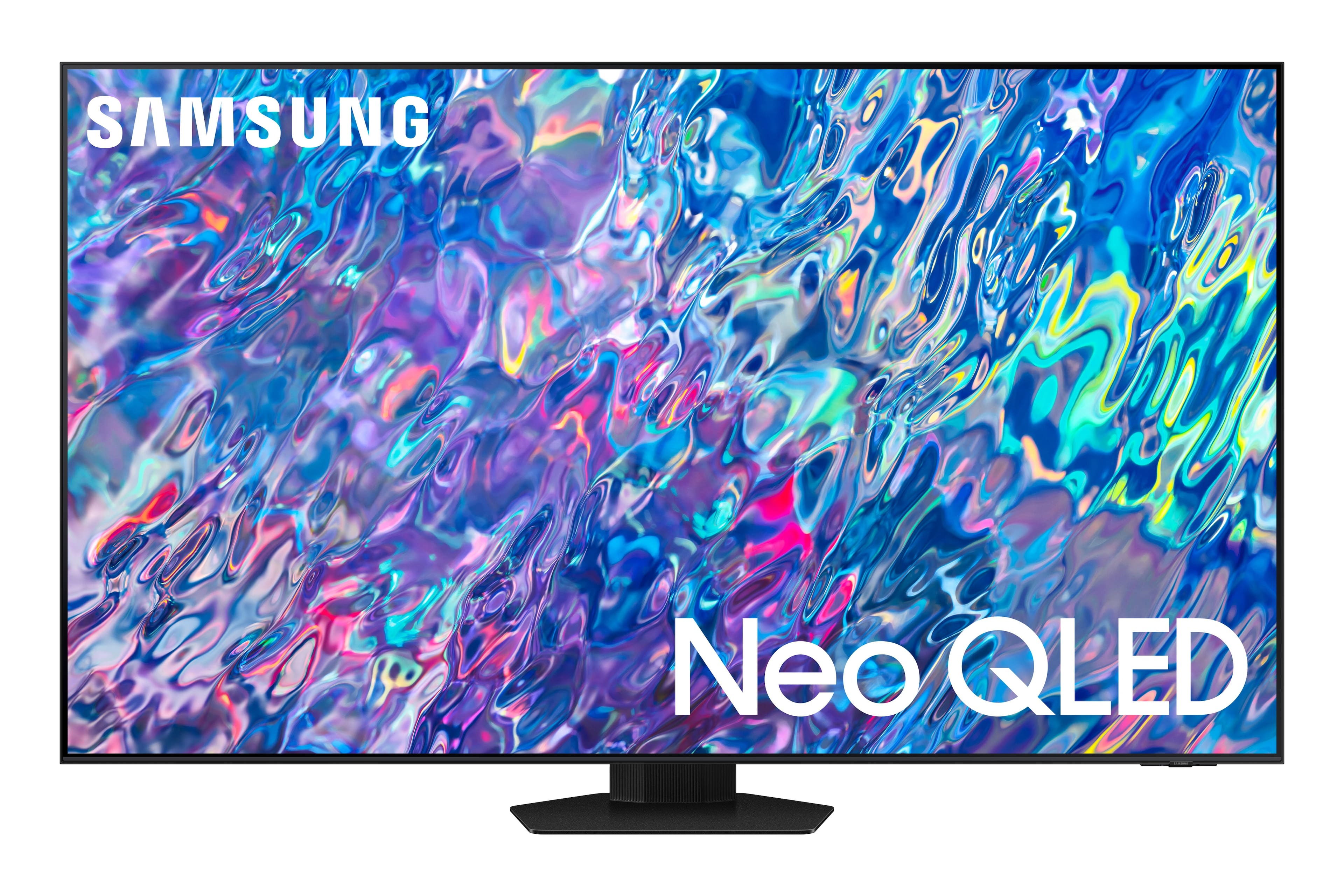
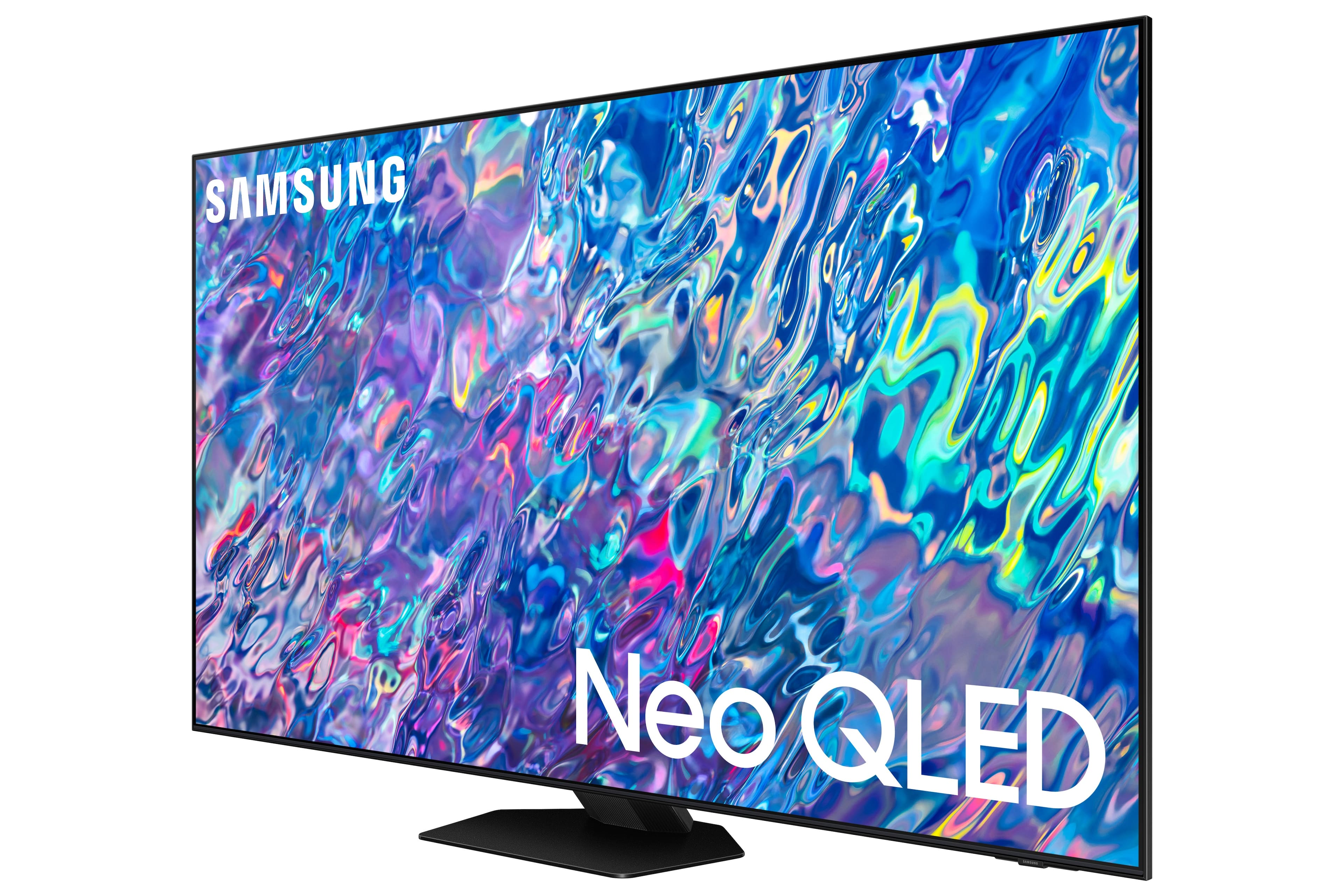
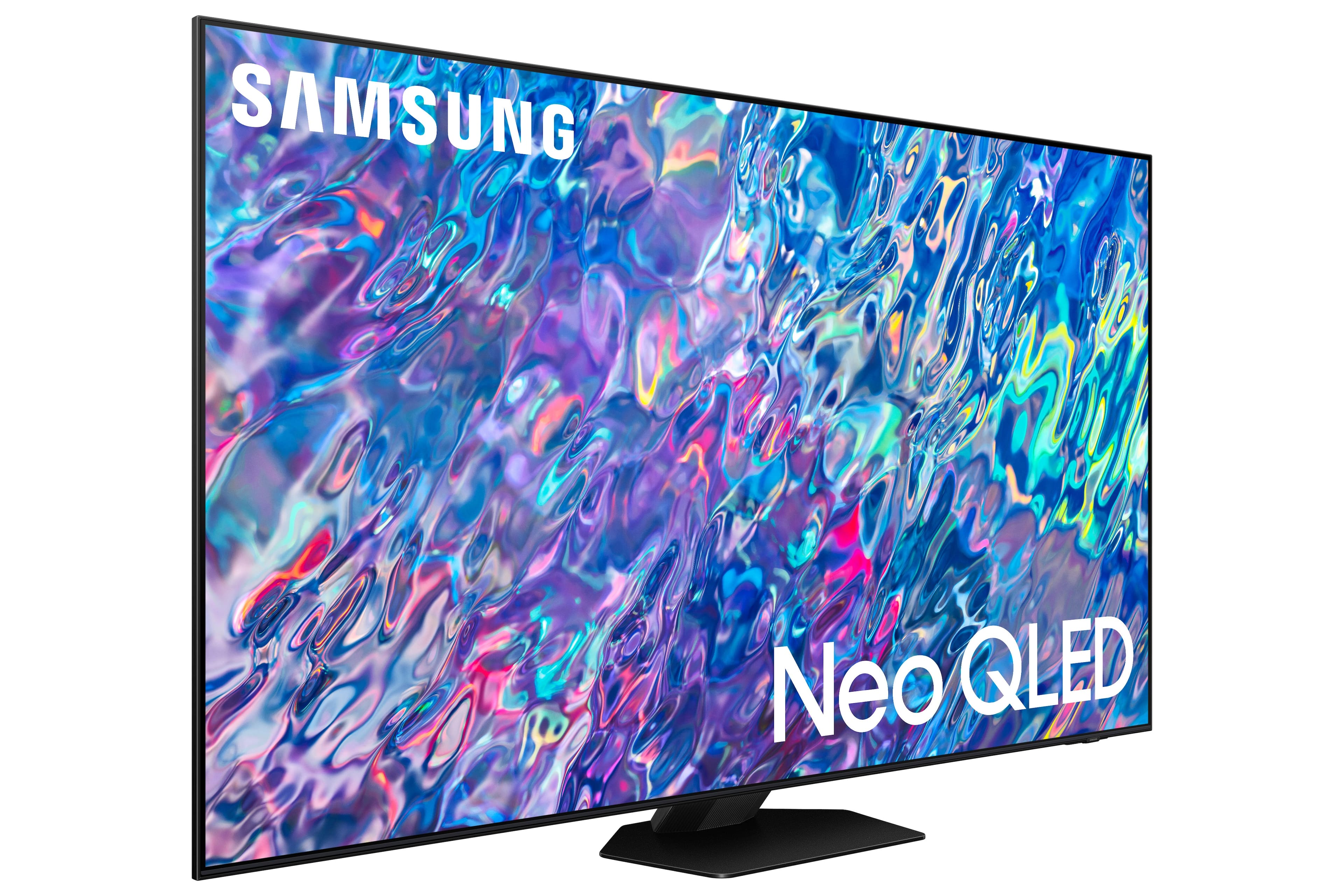
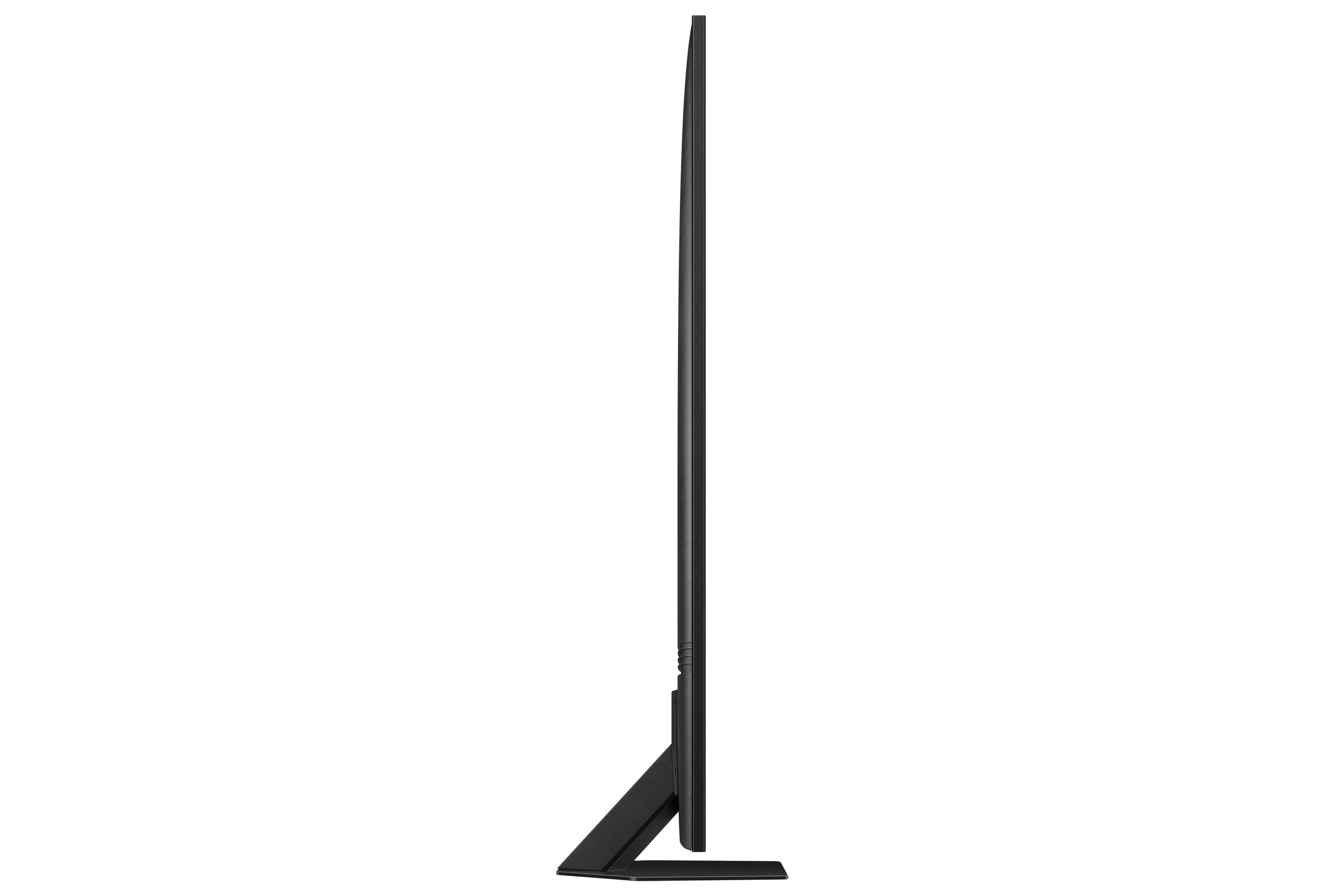
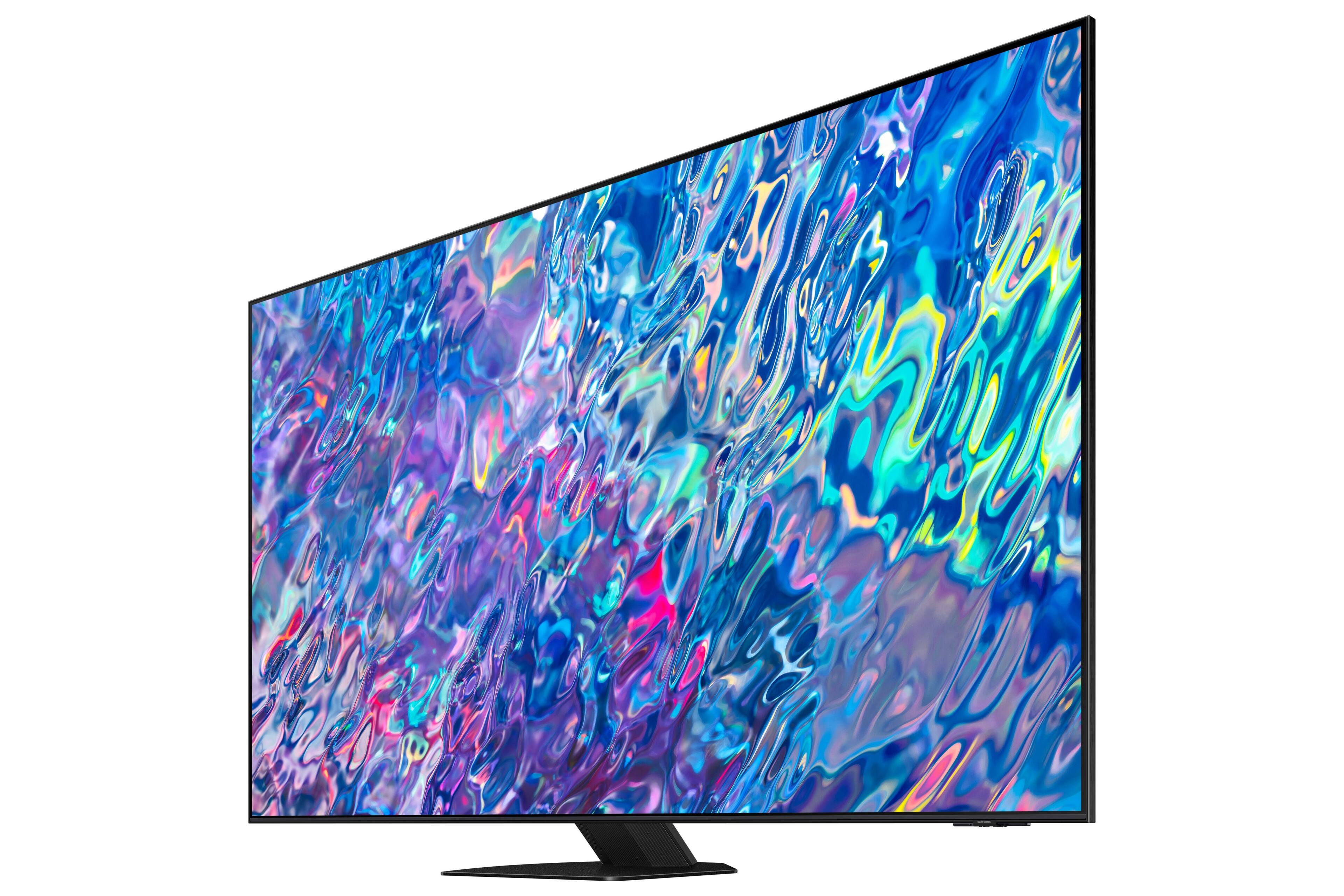
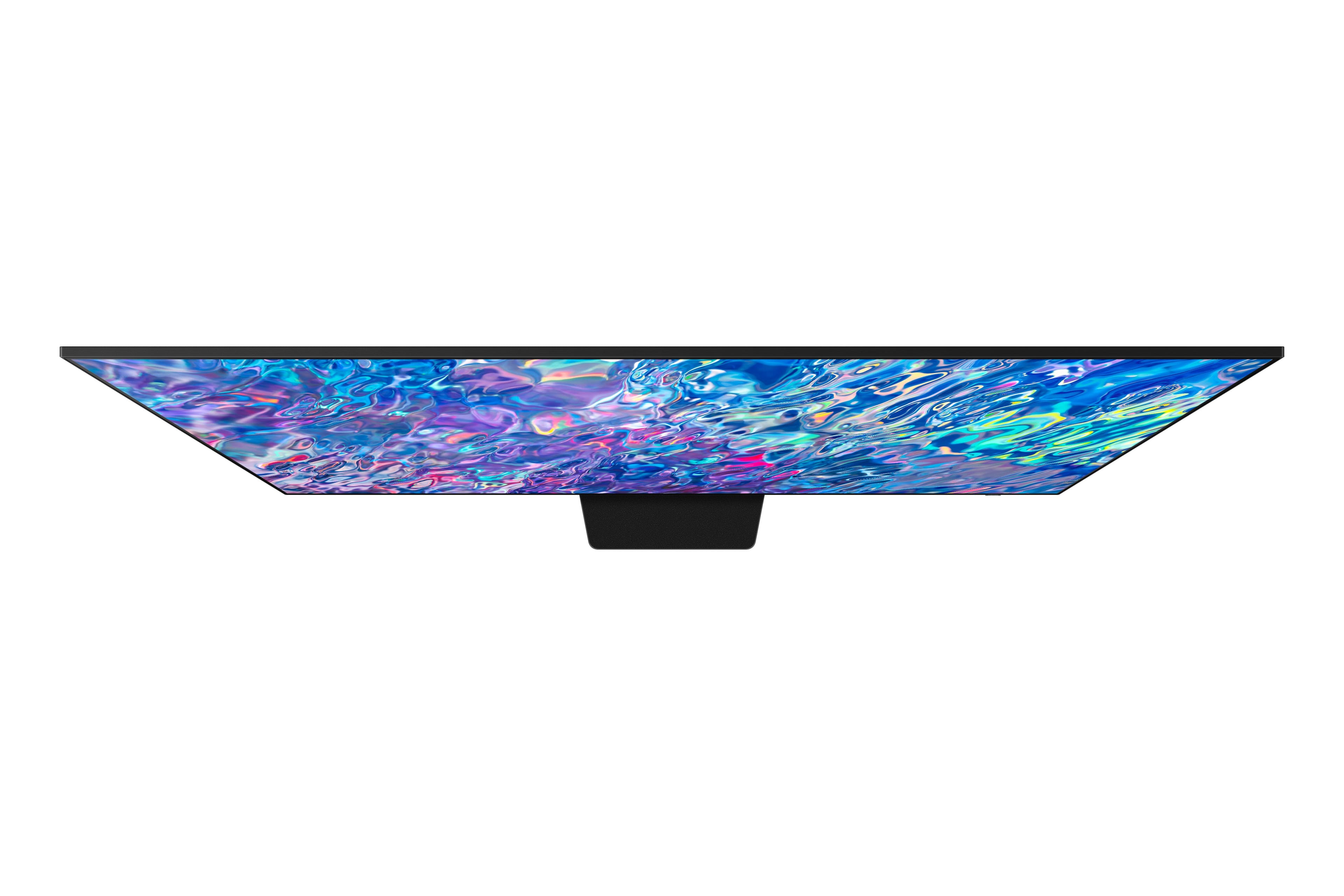
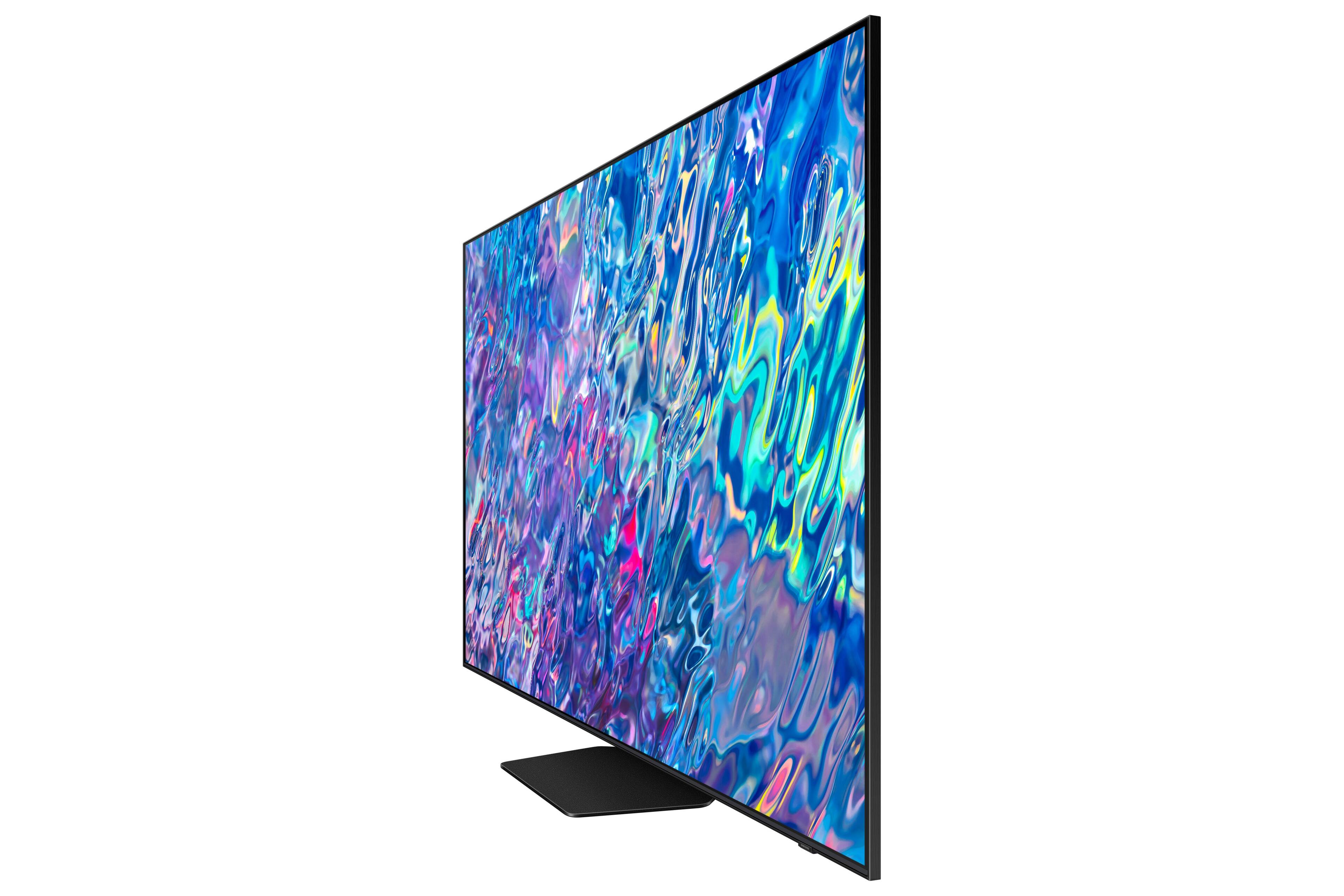
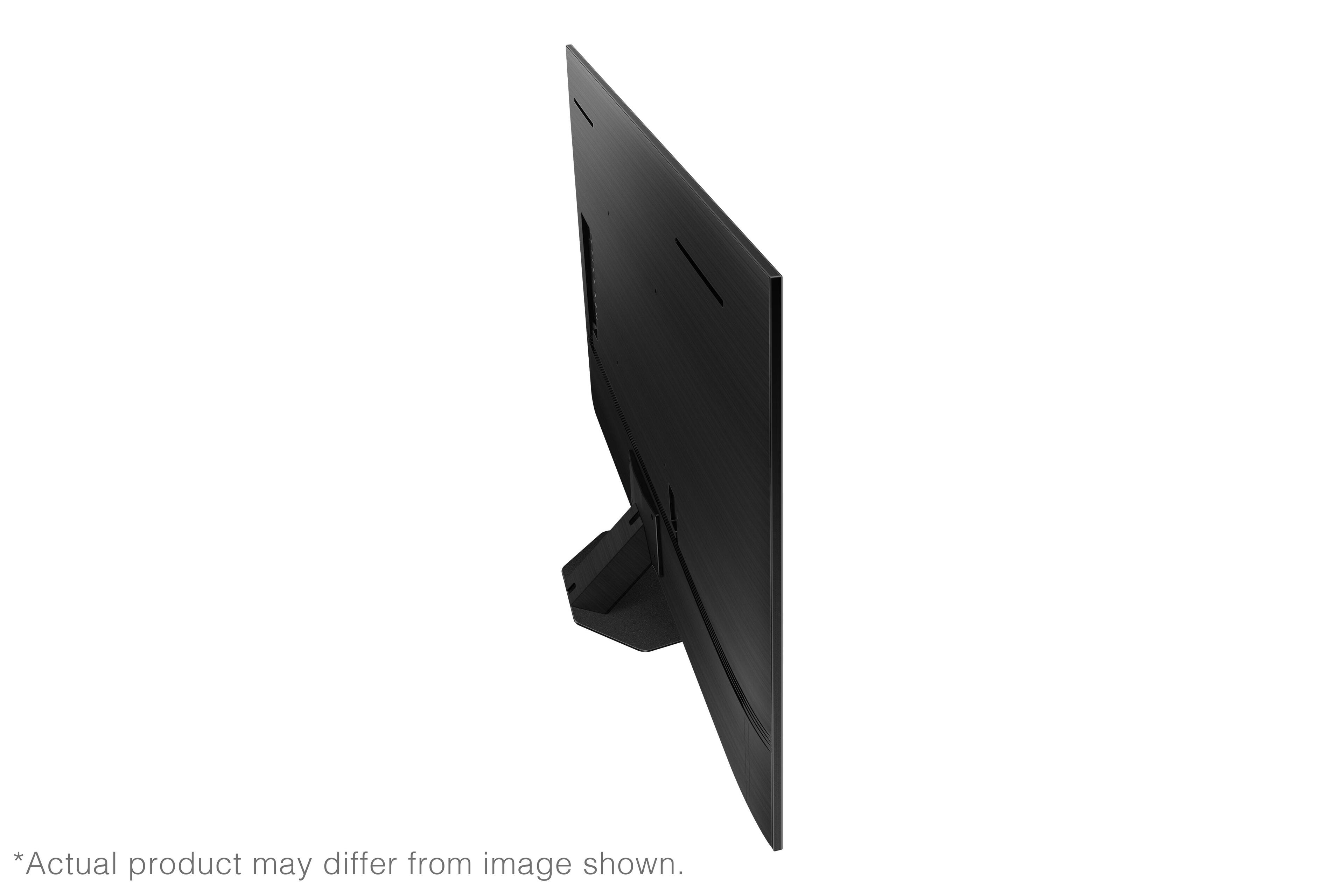
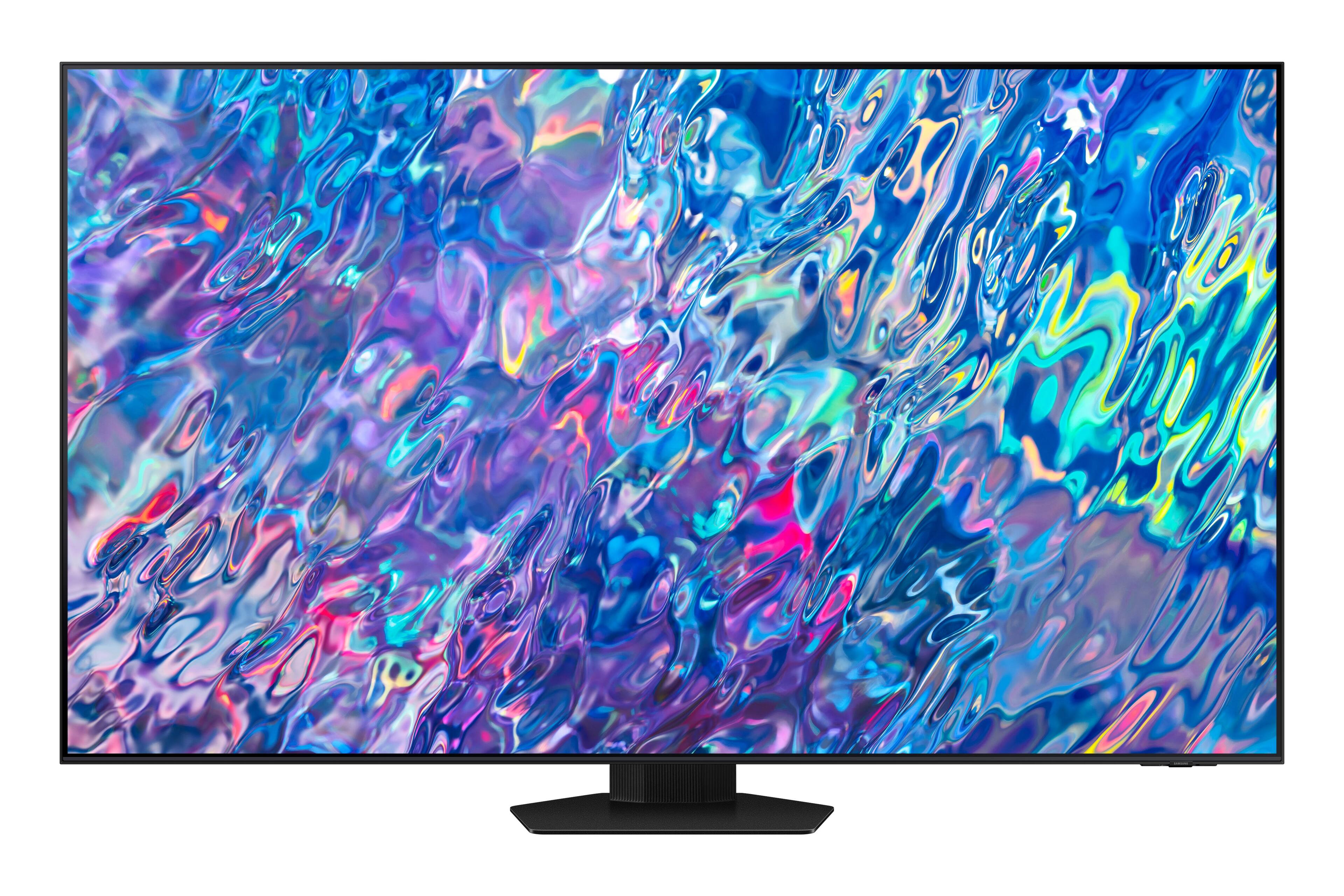
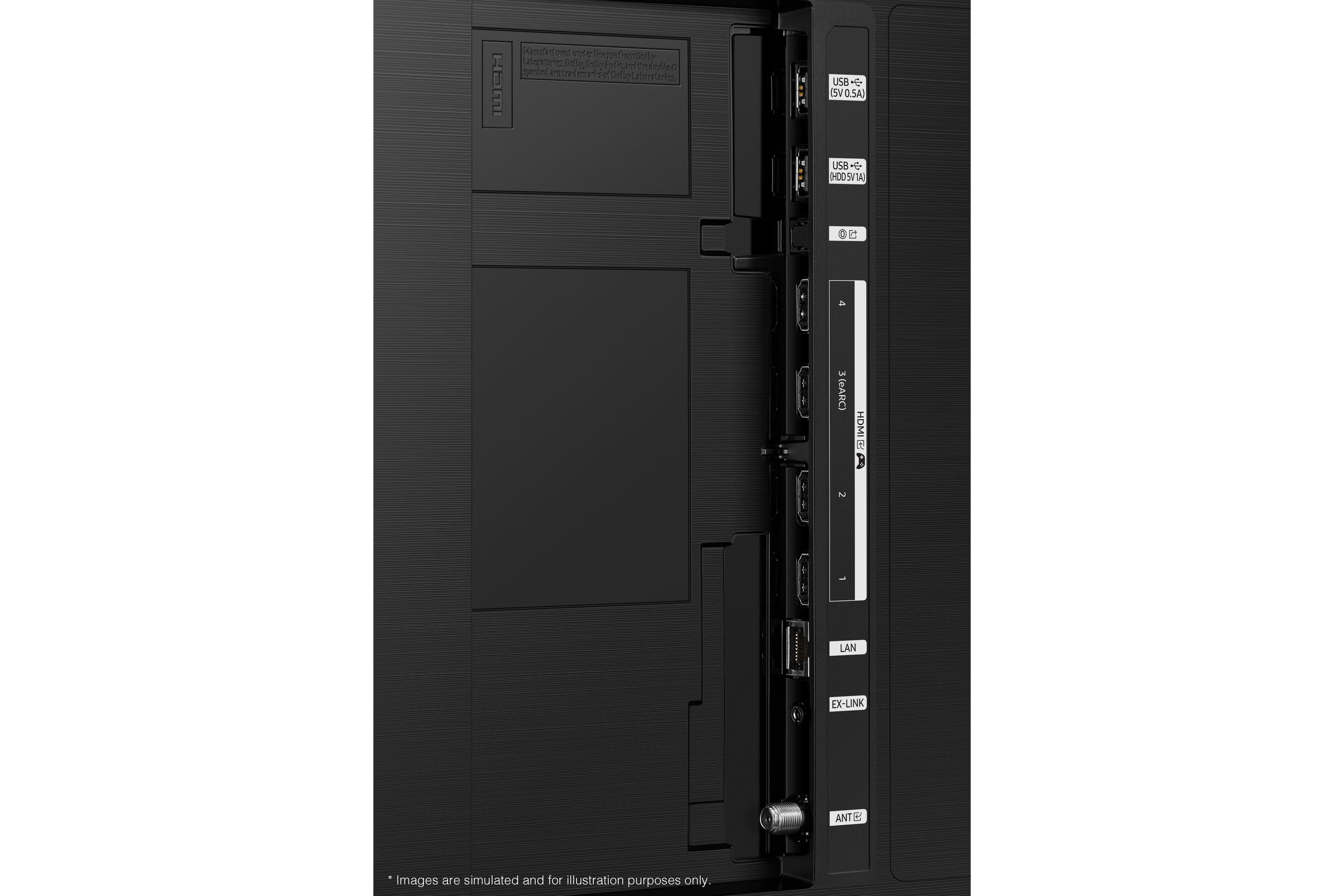
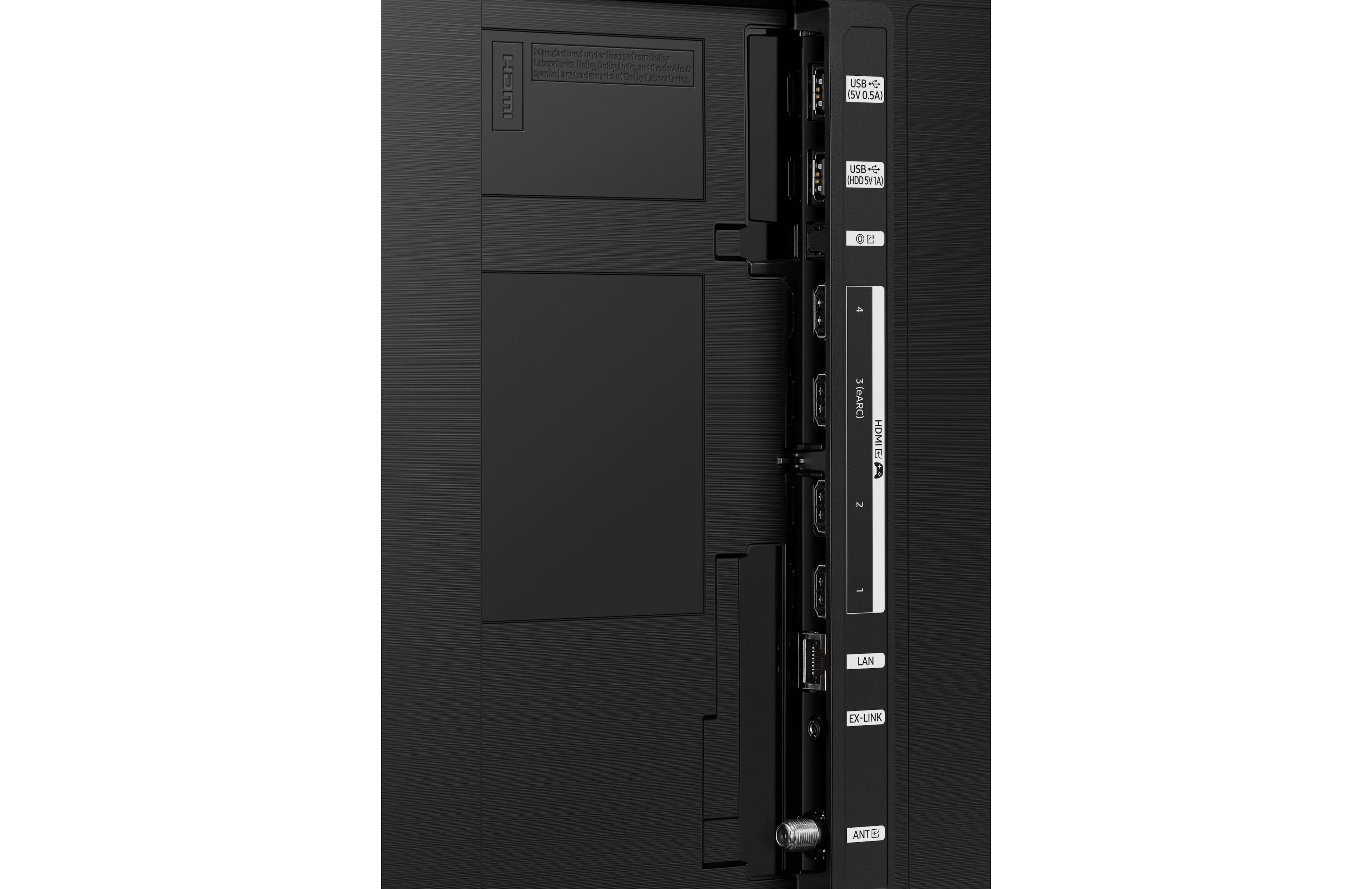







- Model:
- QN55QN85BAFXZA
- SKU:
- 6500311
Rating by feature
- Picture Quality
Rating 4.8 out of 5 stars
- Sound Quality
Rating 4.6 out of 5 stars
- Brightness
Rating 4.8 out of 5 stars
Customers are saying
Customers recognize the 55” Class QN85B Neo QLED 4K Smart Tizen TV for its exceptional picture quality, vibrant colors, and impressive sound. Many users are particularly impressed with the TV's ability to deliver stunning visuals and lifelike colors, making it an excellent choice for movie nights and gaming. The TV's user-friendly interface and easy setup process are also highly appreciated, making it a breeze to get started. While some users have expressed concerns about the remote control, the overall positive feedback on the TV's core features outweighs this minor inconvenience.
This summary was generated by AI based on customer reviews.
New Samsung 55” Not Worth The Money
||Posted . Owned for 3 weeks when reviewed.This reviewer received promo considerations or sweepstakes entry for writing a review.Picture is no better than our 55” 2018 Samsung Smart TV; it does NOT add all of our APPS; Apple screen casting is harder to do and interferes with out other tv; not worth the money.
No, I would not recommend this to a friendBrand response from Samsung
Posted .JManzG,
Thank you for sharing your thoughts on the picture quality of your QN85B TV. To ensure you’ve got the latest image quality updates, please confirm that your TV is up to date with the latest firmware version. You can check by going to: Home > Menu > Settings > Support > Software Update.
If the picture you’re seeing is still not to your liking after updating firmware, there are several picture settings you may want to try adjusting.
Go to Home > Menu > Settings > All Settings > Picture > Picture Mode
...and select the mode that best fits your usage:
1) Standard: Is the default mode suitable for general viewing environments.
2) Movie: Is suitable for watching TV or movies in a dark room.
3) Dynamic: Makes the picture brighter and clearer in bright viewing environments.
4) Filmmaker Mode: You can watch the source content (e.g., movie) as it is. If the image is defined as Filmmaker Mode, it will automatically switch to Filmmaker Mode while watching.
You can also go to: Home > Menu > Settings > All Settings > Picture > Expert Settings to manually fine tune your image.
We also appreciate your feedback when using streaming apps. Samsung offers hundreds of apps in our App Store that you can download, and we’re continuously adding more premium content and new services to our Smart TV platform. To see our full offering of apps, please make sure your TV is connected to the Internet and logged into your Samsung.com account.
If we can help with anything else, please call us at 1-800-SAMSUNG, 8AM - 12AM EST, 7 days a week. LiveChat with an agent as well as manuals, software, and warranty info can be found at the ‘Support’ link on our Samsung website.
~ Samsung Specialist
Great option
||Posted . Owned for 1 month when reviewed.This reviewer received promo considerations or sweepstakes entry for writing a review.Returned due to size, needed a slightly smaller unit. In my opinion Samsung is the best TV on the market.
I would recommend this to a friendAwesome
||Posted . Owned for 1 month when reviewed.This reviewer received promo considerations or sweepstakes entry for writing a review.Delivery and set up was awesome!!! They took the time to set up the TV and to answer any questions
I would recommend this to a friendNever got to see it
||Posted . Owned for 3 weeks when reviewed.This reviewer received promo considerations or sweepstakes entry for writing a review.Actually canceled this item Family dispute, you had to be there
I would recommend this to a friendJust what I was looking for.
||Posted .This reviewer received promo considerations or sweepstakes entry for writing a review.Works just as expected, and very Happy with the Purchase.
I would recommend this to a friendPerfect Tv
||Posted . Owned for 3 weeks when reviewed.This reviewer received promo considerations or sweepstakes entry for writing a review.Just what I was looking for. New tech but not overboard
I would recommend this to a friendGreat picture quality
||Posted . Owned for 1 month when reviewed.This reviewer received promo considerations or sweepstakes entry for writing a review.Love the picture clarity and brightness Easy to navigate
I would recommend this to a friendBuy it
||Posted . Owned for 3 weeks when reviewed.This reviewer received promo considerations or sweepstakes entry for writing a review.Love every aspect. Great for gaming in xbox series x
I would recommend this to a friendGood Buy
||Posted . Owned for less than 1 week when reviewed.This reviewer received promo considerations or sweepstakes entry for writing a review.Love qleds and samsung, worth the buy at this price
I would recommend this to a friendSamsung NEO TV
||Posted . Owned for 1 week when reviewed.This reviewer received promo considerations or sweepstakes entry for writing a review.Works well as advertised. Using it the PC emulation
I would recommend this to a friend- Pros mentioned:Picture quality
It's ok
||Posted . Owned for 1 month when reviewed.This reviewer received promo considerations or sweepstakes entry for writing a review.Good picture, but the software runs incredibly slow
No, I would not recommend this to a friendBrand response from Samsung
Posted .Josh,
We appreciate your feedback on the response time, and for optimal performance, we ask that you please ensure you've got the latest firmware version installed on your QN85B TV. You can check this by going to: Home > Menu > Settings > Support > Software Update.
You may also want to further optimize performance with the self-diagnostic tool, which checks memory, frees up unused cached memory, and closes background apps. Go to: Home > Menu > Settings > Support > Device Care > Start Device Care
I hope these tips help you enjoy your new product.
You can always contact us for further help at 1-800-SAMSUNG, 8AM - 12AM EST, 7 days a week. Our LiveChat agents are also available by clicking on the ‘Support’ link on our website.
~ Samsung Specialist
TV stopped working
||Posted . Owned for 2 months when reviewed.This reviewer received promo considerations or sweepstakes entry for writing a review.Terrible stopped working after one month. There is a known issue with Samsung TV's where they will start turning on and off by themselves. I had forgot that before this purchase as the last Samsung TV I owned was 15 years ago and it did the same exact thing execept it was after a few years vs one month
No, I would not recommend this to a friendBrand response from Samsung
Posted .Hi Noquailty,
It’s unfortunate to hear you’re experiencing a power cycling issue, causing your QN85B TV to turn itself on and off repeatedly. Please try a few troubleshooting steps that may help solve the issue:
1) Check the power cable for damage and proper connection. If the cable is bent, broken, kinked, pinched, pressed excessively (possibly by a heavy object on top of it) or damaged, this is likely the cause of the issue. Replace the cable.
2) Unplug the TV from the wall outlet for 30 seconds, and then plug it back in.
3) If the power cycling allows enough time in between powering on and off, try updating the TV to the latest firmware. There is a risk, however. If the TV turns off during the software update, it could damage the TV. Updates can take up to 30 minutes depending on network speed, so if the TV is not turning off too frequently, try updating the software.
4) TVs which can connect to SmartThings can be turned on using compatible devices, sometimes automatically. However, if abnormal "power on" signals are sent through the wireless network, they will trigger this function and make the TV turn on. If you do not want this function, navigate to Menu > Settings > All Settings > Connection > Network > Expert Settings > Power On with Mobile, and turn the setting off.
If the issue persists after these steps, please call us so that we can better investigate your issue and assist with a solution or replacement. You can reach Samsung Customer Support at 1-800-SAMSUNG, 8AM - 12AM EST, 7 days a week. Our LiveChat agents are also available by clicking on the ‘Support’ link on our website.
~ Samsung Specialist
Good Value
||Posted . Owned for 1 month when reviewed.This reviewer received promo considerations or sweepstakes entry for writing a review.Good value. Have not yet seem a 4k movie on it. Remote instructions terrible.
I would recommend this to a friendLake Arrowhead
||Posted . Owned for 3 weeks when reviewed.This reviewer received promo considerations or sweepstakes entry for writing a review.Great so far, but we have only had it for a few weeks, Getting used to features.
I would recommend this to a friendInterface down grade.
||Posted . Owned for 3 weeks when reviewed.This reviewer received promo considerations or sweepstakes entry for writing a review.I purchased this new TV for Samsung because the previous interface was so intuitive and user friendly. The new operating system on the Samsung TVs are less than desirable. They promote sponsored added are designed to sell you stuff and are not as easy to operate as the previous versions. Very disappointed.
No, I would not recommend this to a friendBrand response from Samsung
Posted .JBanting,
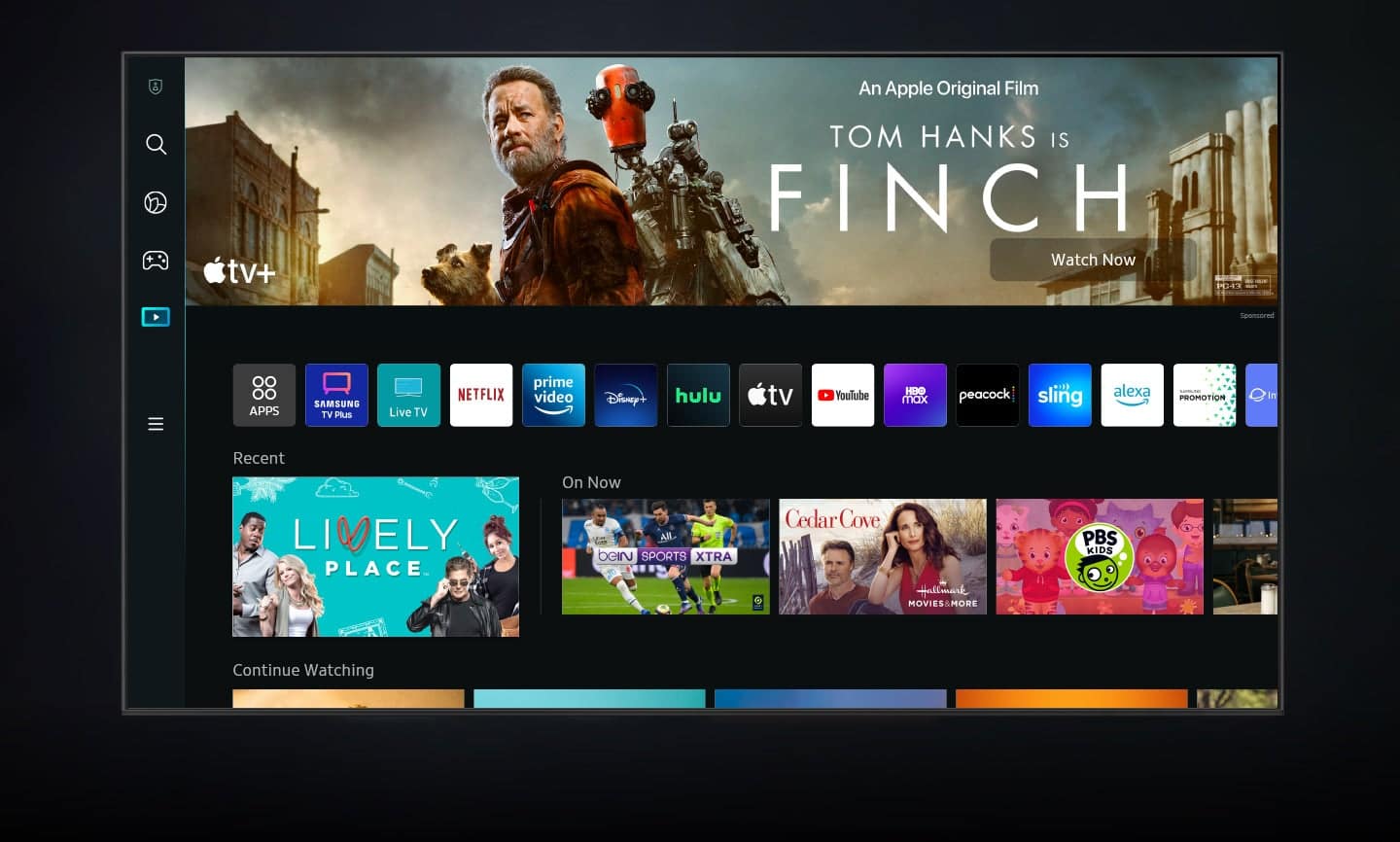
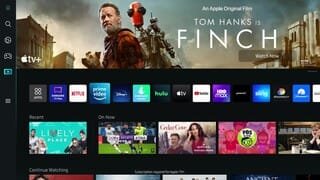
We appreciate you sharing your thoughts on the new interface. Redesigned in 2022, Next Home pulls opens a separate menu that is easier to see and navigate. In addition to the new layout, Next Home has a convenient sidebar on the left. The sidebar is broken down into multiple sections, categorizing different features and settings in a streamlined design. To open Next Home, just press the Home button on your remote. The following tabs will be available:
1. Privacy Choices: Review your TV’s Terms & Conditions, Privacy Policy, and Privacy Center
2. Search: Instead of browsing content aimlessly, you can search for specific movies or shows by typing out keywords in the search bar at the top or saying a command using your remote. Your recent Search History and Popular searches will appear on this page as well.
3. Ambient Mode: Access Ambient Mode settings to customize your TV’s screen when it isn’t being used. You can make your TV display a relaxing photo, a picturesque image, or a funky background to keep things interesting. And if you’re into NFT artwork, Ambient Mode now has an entire NFT section with content from the Nifty Gateway marketplace!
4. Gaming Hub: Run out of console games to play? Check out the new Gaming Hub, a discovery platform that includes games you can stream right on your TV! Browse new releases, indie gems, or simply go back to that one game you can't put down. There are also multiple playing options, so the possibilities are endless.
5. Media: Your hub for all things entertainment. Available streaming apps will display at the top of the screen, such as Netflix, Samsung TV Plus, and more. Next Home will learn your viewing patterns over time and suggest movies and shows based on what you like.
6. Menu: The Menu tab lets you access Settings and Connected Devices. From here, you can access or change most settings on your TV. And of course, you can manage any devices you’ve previously connected or would like to pair.
Should you have any questions or need assistance, please call us at 1-800-SAMSUNG, 8AM - 12AM EST, 7 days a week. LiveChat with an agent as well as manuals, software, and warranty info can be found at the ‘Support’ link on our Samsung website.
~ Samsung Specialist
DO NOT BUY
||Posted . Owned for 1.5 years when reviewed.This reviewer received promo considerations or sweepstakes entry for writing a review.Barely a year and a half and the screen already has three verticle lines on the right side. My previous TV was half the price and is still going strong after 10 years.
No, I would not recommend this to a friendThis is not a 120hz TV
||Posted . Owned for 1 week when reviewed.This reviewer received promo considerations or sweepstakes entry for writing a review.I already Turn on the input signal plus , and make sure the hdmi cable is 4k 120hz. But it still show 60hz. This is a scam
No, I would not recommend this to a friendNot the best
||Posted . Owned for 1 month when reviewed.This reviewer received promo considerations or sweepstakes entry for writing a review.This tv does not have a great pitcure. Had a Samsung before and loved it. This one the color is off and have not been able to fix it.
No, I would not recommend this to a friendBrand response from Samsung
Posted .ChristinaB,
Thank you for sharing your thoughts on the picture quality of your QN85B TV. To ensure you’ve got the latest image quality updates, please confirm that your TV is up to date with the latest firmware version. You can check by going to: Home > Menu > Settings > Support > Software Update.
If the picture you’re seeing is still not to your liking after updating firmware, there are several picture settings you may want to try adjusting.
Go to Home > Menu > Settings > All Settings > Picture > Picture Mode
...and select the mode that best fits your usage:
1) Standard: Is the default mode suitable for general viewing environments.
2) Movie: Is suitable for watching TV or movies in a dark room.
3) Dynamic: Makes the picture brighter and clearer in bright viewing environments.
4) Filmmaker Mode: You can watch the source content (e.g., movie) as it is. If the image is defined as Filmmaker Mode, it will automatically switch to Filmmaker Mode while watching.
You can also go to: Home > Menu > Settings > All Settings > Picture > Expert Settings to manually fine tune your image.
For further assistance with settings adjustments, please contact Samsung Customer Support at 1-800-SAMSUNG, 8AM - 12AM EST, 7 days a week. Or visit us on the Samsung website and click on the ‘Support’ link for:
• LiveChat
• Manuals, Software, & Warranty Info
~ Samsung Specialist
Disappointed with connection to Sonos arc
||Posted . Owned for 1 month when reviewed.This reviewer received promo considerations or sweepstakes entry for writing a review.My Sonos arc doesn’t seem to get along well with this TV.
No, I would not recommend this to a friendBrand response from Samsung
Posted .FrankM,
It's unfortunate to hear you're having difficulties connecting your QN85B TV to your Sonos Arc soundbar. Please be sure you are using a high-speed HDMI cable with Ethernet Channel (sometimes called HDMI HEC cable). Also be sure to enable HDMI-eARC in the Expert Settings menu. Lastly, please also verify that you are running the latest firmware. You can check to see what software version your TV is using and if there is an available update through the settings on your TV. Go to: Menu > Settings > Support > Software Update.
For further help, please contact Samsung Customer Support at 1-800-SAMSUNG, 8AM - 12AM EST, 7 days a week. Our LiveChat agents are also available by clicking on the ‘Support’ link on our website.
~ Samsung Specialist
What just happened...
||Posted . Owned for 3 weeks when reviewed.This reviewer received promo considerations or sweepstakes entry for writing a review.Purchased online on 09/09/2022 and it was delivered on 09/23/2022. Worked as expected until the evening of 10/06/2022. Left the room for a few minutes then returned to a blank screen that flashed every five (5) seconds and faint clicking sounds could be heard from inside the unit. I thought to myself...what just happened. I have scheduled a Samsung service call for 10/12/2022.
No, I would not recommend this to a friendBrand response from Samsung
Posted .DudeN4CR,
We appreciate you sharing the details of your power issue and for your patience while waiting for your service appointment. Should you need further assistance after your service is complete, please contact Samsung Customer Support at 1-800-SAMSUNG, 8AM - 12AM EST, 7 days a week. Or visit us on the Samsung website and click on the ‘Support’ link for:
• LiveChat
• Manuals, Software, & Warranty Info
~ Samsung Specialist