Customer Ratings & Reviews
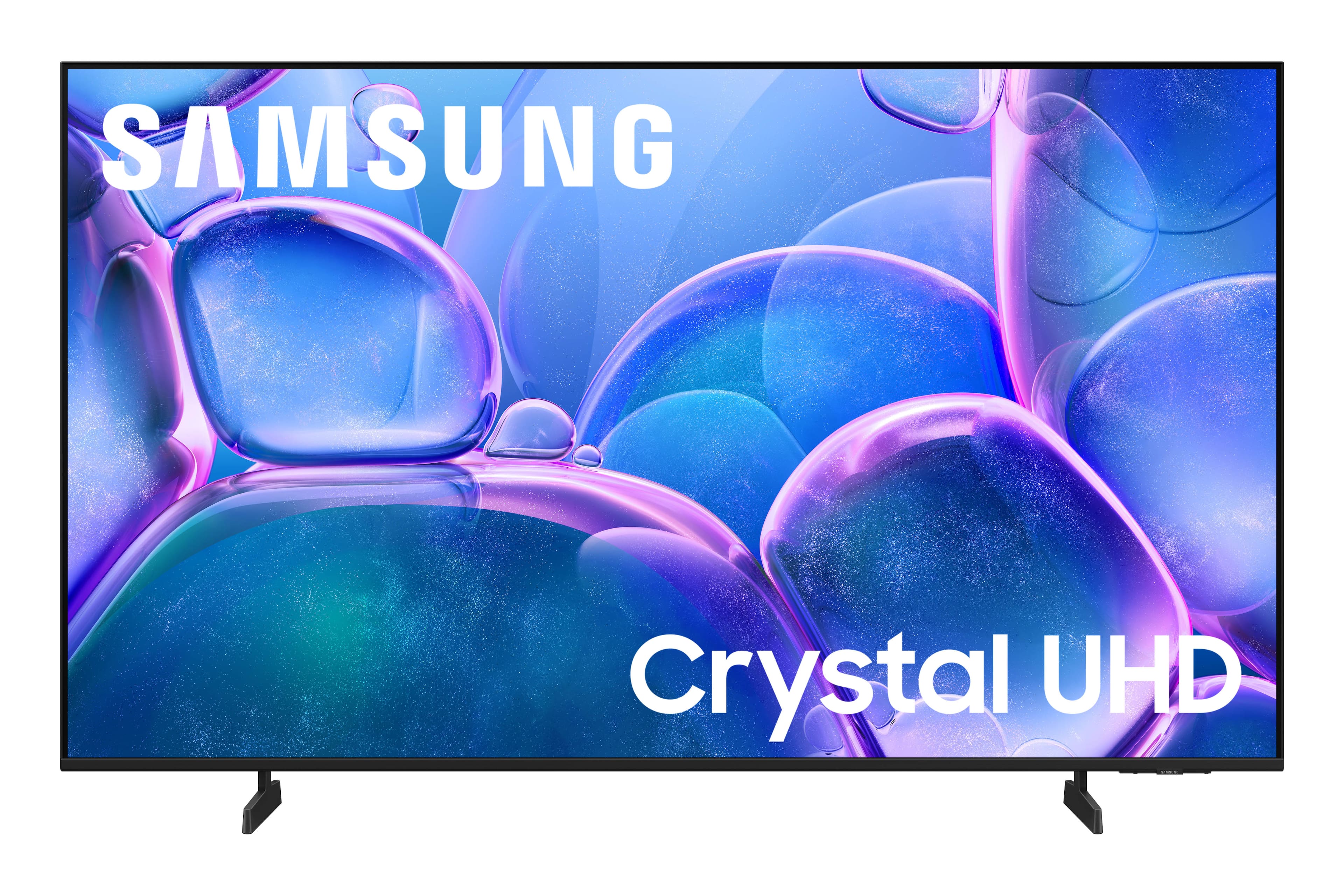
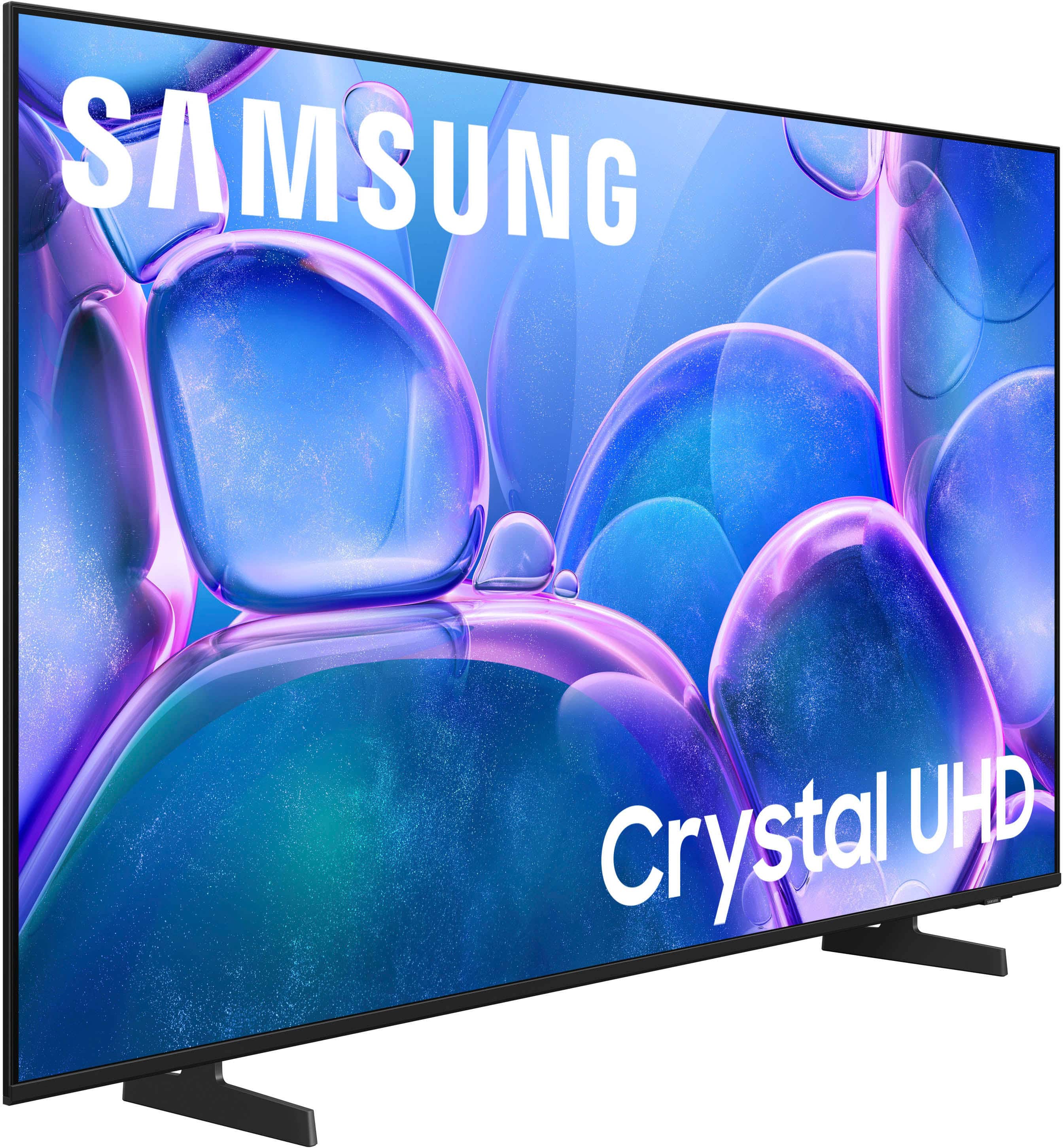
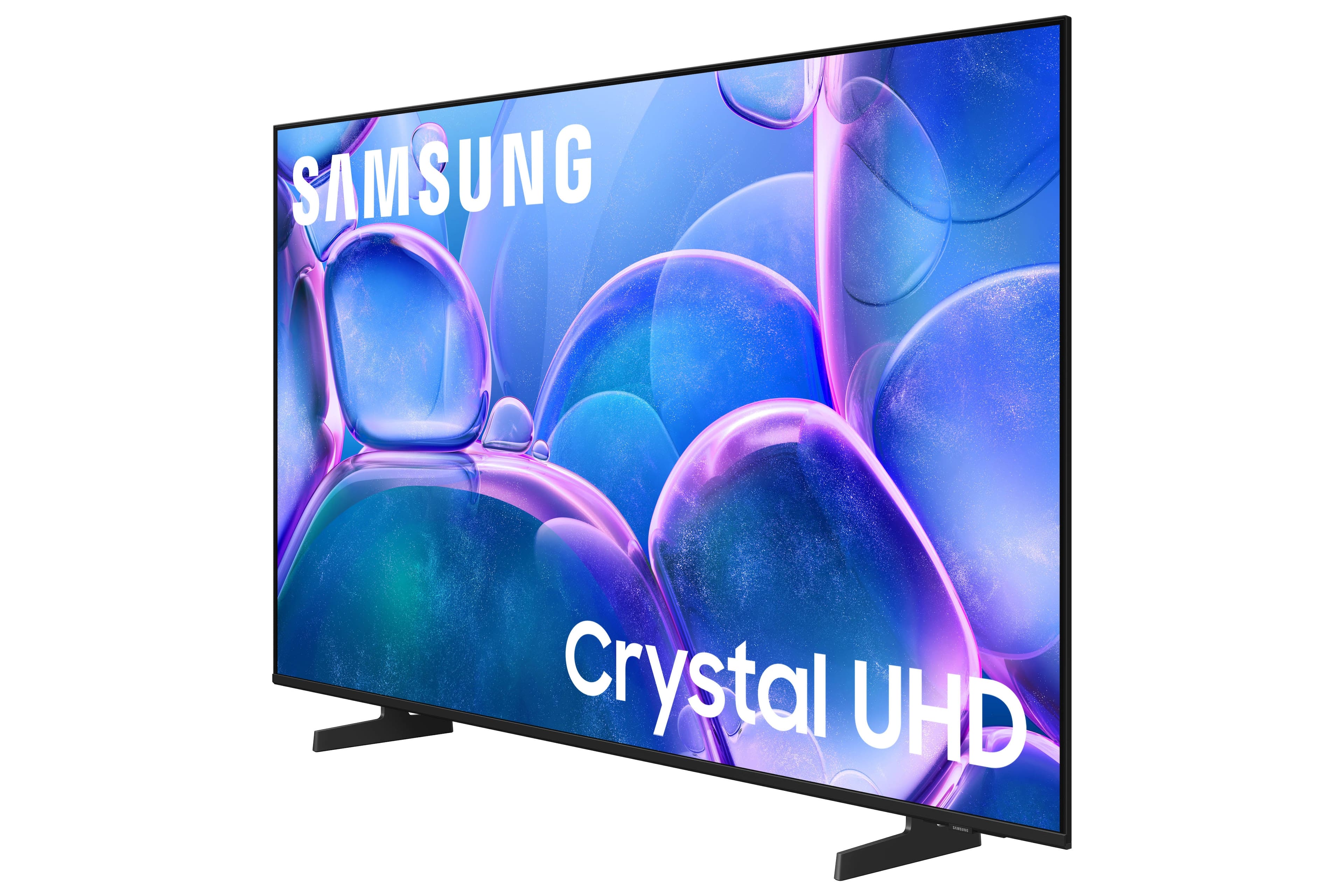
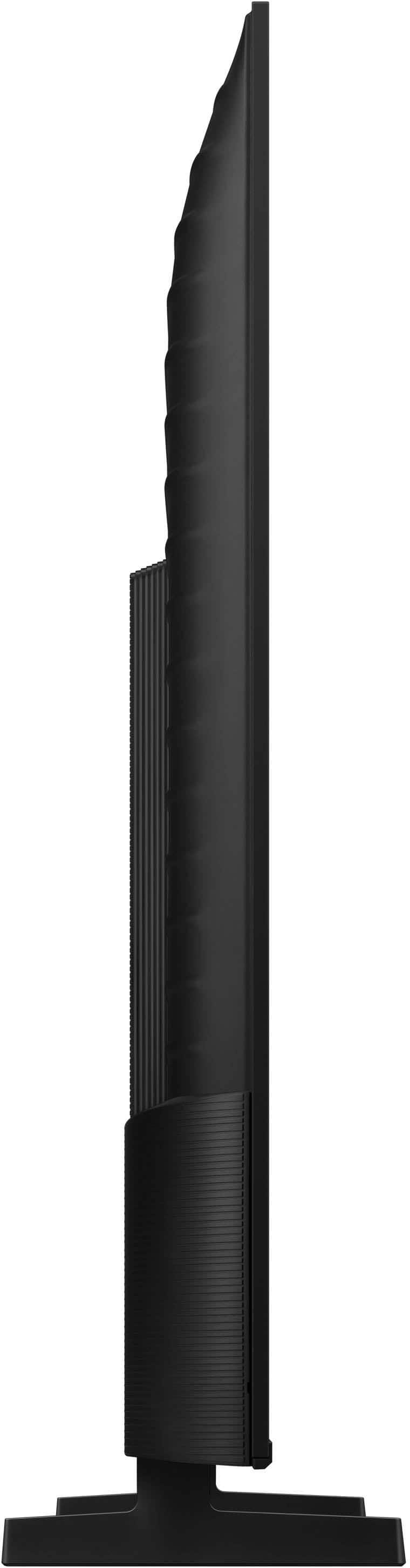


- Model:
- UN55U7900FFXZA
- SKU:
- 10362535
Rating by feature
- Picture Quality
Rating 4.8 out of 5 stars
- Sound Quality
Rating 4.7 out of 5 stars
- Brightness
Rating 4.8 out of 5 stars
Customers are saying
Customers express satisfaction with the television's fantastic picture quality, ease of setup, and convenient size. Users also appreciate the lightweight build, modern design, and consistent brightness levels. However, some individuals have noted concerns regarding limited connectivity options and the functionality of the remote control. Additionally, a small number of users reported that the app performance can occasionally feel sluggish.
This summary was generated by AI based on customer reviews.
Samsung TV
||Posted . Owned for 3 weeks when reviewed.This reviewer received promo considerations or sweepstakes entry for writing a review.Beautiful display but the sound is very subpar. Need to turn volume all the way up to hear.
No, I would not recommend this to a friendBrand response from Samsung
Posted .Hi MatthewC,
Thank you for purchasing Samsung’s U7900F TV and for sharing your feedback regarding low volume. To start, we recommend making sure your TV is running the latest firmware, as updates can include improvements to sound performance: Home > left directional key > Settings > Support > Software Update
If volume levels still seem too low, you can improve sound performance by adjusting a few key settings:
Sound Mode: Navigate to: Settings > All Settings > Sound > Sound Mode
Auto Volume: This feature helps maintain consistent volume levels across content and input sources. Turn it on under: Settings > All Settings > Sound > Expert Settings > Auto Volume = On
You can also explore Expert Settings to fine-tune sound output with adjustments for Balance, Equalizer, and more.
If you’re considering enhancing your setup, Samsung’s Q- and S-Series Soundbars (like the HW-xxx) feature Q-Symphony, which syncs your TV and soundbar speakers for a fuller, more immersive sound experience.
For personalized support with these settings or selecting a soundbar to complement your setup, contact Samsung Support at 1-800-SAMSUNG (8AM – 12AM EST, 7 days a week) or use LiveChat via the ‘Support’ link on our website.
~ Samsung Advisor
What is a title
||Posted . Owned for 1 month when reviewed.This reviewer received promo considerations or sweepstakes entry for writing a review.A little difficult to operate,remote no light,kind of cheap dissapointed
No, I would not recommend this to a friendBrand response from Samsung
Posted .Hi BettyC,
We appreciate your feedback on the U7900 TV remote user friendliness. To assist in learning the various functions, please know the e-Manual and Remote Control Guides are embedded into your TV itself under Settings > Support > Tips and User Guides.
If you need more help, Samsung is here for you. Please call us at 1-800-SAMSUNG, 8AM - 12AM EST, 7 days a week. Our LiveChat agents are also available by clicking on the ‘Support’ link on our website.
~Samsung Advisor
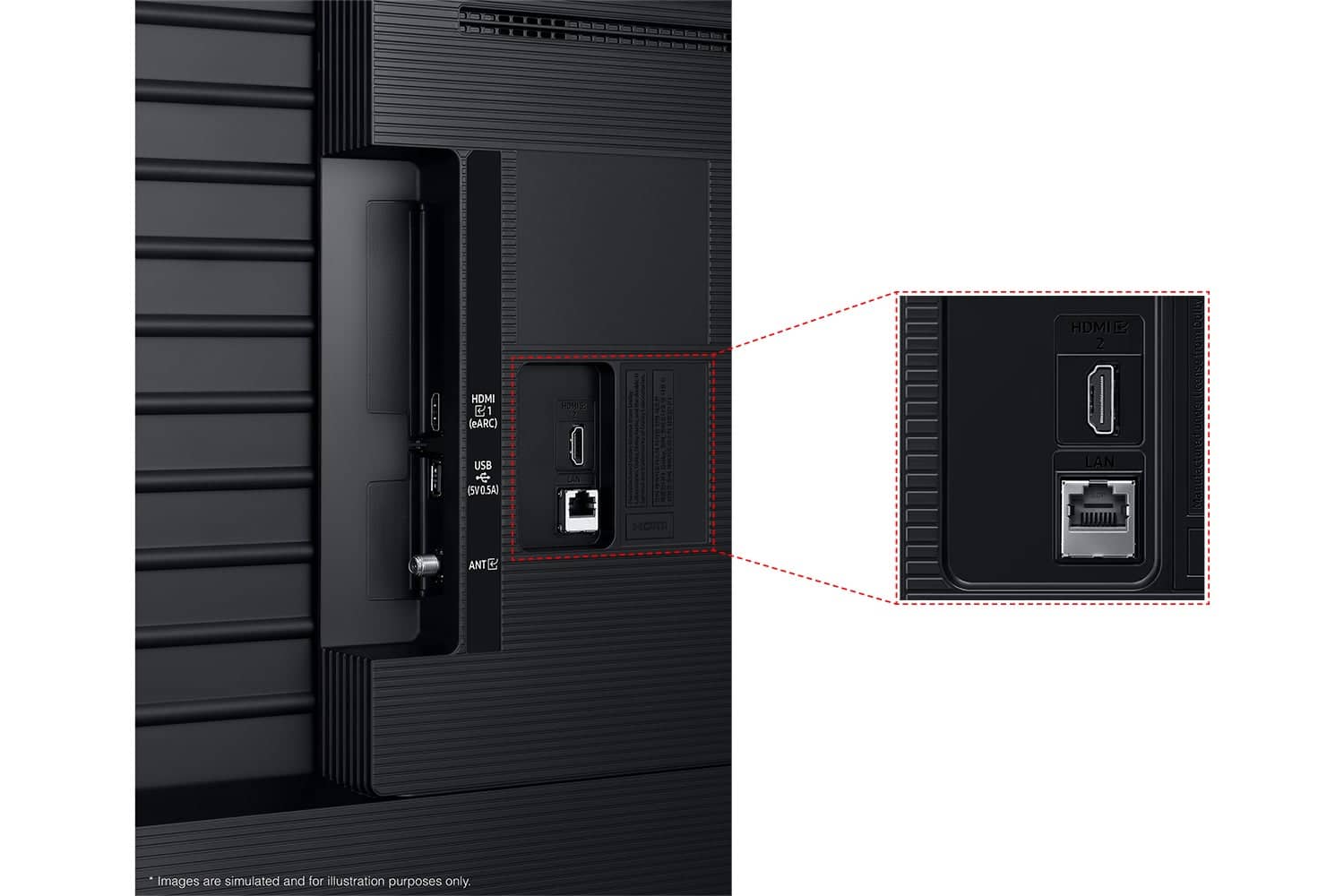
- Cons mentioned:Connectivity
New TV glitching
||Posted .This reviewer received promo considerations or sweepstakes entry for writing a review.TV is constantly glitching and I have to factory reset it every other day just for it to connect to my wifi.
No, I would not recommend this to a friendBrand response from Samsung
Posted .Hi user520355,
Thank you for sharing your experience with buffering on your TV. The issue you’re encountering may be related to network strength or stability. We recommend the following steps:
1. Connect to a 5GHz Wi-Fi network, if available
2. Use a wired LAN connection for increased stability
3. Reposition your router to reduce obstacles between the TV and the router
Please also check that your TV is running the latest firmware by going to: Settings > Support > Software Update. From there, you can also enable Auto Update for added convenience.
For improved app performance, we recommend running Device Care, which can help by clearing memory and closing background apps. To access it: Settings > Support > Device Care
We hope these steps improve your streaming experience. If the issue continues, please reach out to us at 1-800-SAMSUNG, available daily from 8AM - 12AM EST. You can also chat with a LiveChat agent by clicking the ‘Support’ link on our website.
~ Samsung Advisor
- Cons mentioned:Connectivity
on knowledgeable sales staff
||Posted . Owned for 3 weeks when reviewed.This reviewer received promo considerations or sweepstakes entry for writing a review.TV is only good to watch. TV could not connect any thing else to it surround sound and other things I have not enough parts I would never buy one again from Samsung and inexperience sales help that said I’d be all set and could connect everything to it this was in Mansfield
No, I would not recommend this to a friendBrand response from Samsung
Posted .Hi WarrenB,
To best assist you, please contact us at 1-800-SAMSUNG, available daily from 8AM - 12AM EST. You can also visit the Samsung website and click on ‘Support’ for:
• Live Chat
• Manuals, Software, & Warranty Info
~ Samsung Advisor
Mr Jim
||Posted . Owned for 2 weeks when reviewed.This reviewer received promo considerations or sweepstakes entry for writing a review.Not very bright very dark picture. Quality just isn’t a Samsung
No, I would not recommend this to a friendBrand response from Samsung
Posted .Hi JimH,
We’re sorry to hear you’re not fully satisfied with the picture quality on your Samsung U7900F TV. If the image appears too dark, we suggest disabling certain energy-saving features, which can automatically adjust brightness and affect how the screen looks.
Go to: Settings > All Settings > General & Privacy > Power and Energy Saving, then turn off Brightness Optimization, Energy Saving Solution, Motion Lighting, and/or Contrast Enhancer.
You can also adjust the Picture Mode to better suit your environment: Settings > All Settings > Picture > Picture Mode
• Standard – Default mode for general viewing
• Dynamic – Brighter and clearer, ideal for well-lit rooms
• Movie – Best for dark room viewing
• Eco – Energy-saving mode
• Filmmaker Mode – Preserves content as intended by creators
To fine-tune brightness, go to: Home > left directional key > Settings > All Settings > Picture > Expert Settings, then adjust the Brightness level (0–50) to your preference.
Lastly, please make sure your TV is running the latest firmware: Home > Home > left directional key > Settings > Support > Software Update > Update Now
We hope these tips help improve your viewing experience. If you need further support, feel free to contact us at 1-800-SAMSUNG, 8AM – 9PM EST Mon – Fri, 8AM – 6PM Sat – Sun. LiveChat is also available via the ‘Support’ link on our website.
~ Samsung Advisor
Picture too dark
||Posted . Owned for 1 month when reviewed.This reviewer received promo considerations or sweepstakes entry for writing a review.Horrible picture. Lack of brightness at any setting leaves a murky, dark picture. No way to change it. Found out after buying that it’s a big problem with this set. It’s even worse if there is a gales in the room. Wish I could return it. Won’t be buying Samsung again, even though I used their tvs for years.
No, I would not recommend this to a friendBrand response from Samsung
Posted .Hi Dadreviewz,
We’re sorry to hear you’re not fully satisfied with the picture quality on your Samsung U7900F TV. If the image appears too dark, we suggest disabling certain energy-saving features, which can automatically adjust brightness and affect how the screen looks.
Go to: Settings > All Settings > General & Privacy > Power and Energy Saving, then turn off Brightness Optimization, Energy Saving Solution, Motion Lighting, and/or Contrast Enhancer.
You can also adjust the Picture Mode to better suit your environment: Settings > All Settings > Picture > Picture Mode
• Standard – Default mode for general viewing
• Dynamic – Brighter and clearer, ideal for well-lit rooms
• Movie – Best for dark room viewing
• Eco – Energy-saving mode
• Filmmaker Mode – Preserves content as intended by creators
To fine-tune brightness, go to: Home > left directional key > Settings > All Settings > Picture > Expert Settings, then adjust the Brightness level (0–50) to your preference.
Lastly, please make sure your TV is running the latest firmware: Home > Home > left directional key > Settings > Support > Software Update > Update Now
We hope these tips help improve your viewing experience. If you need further support, feel free to contact us at 1-800-SAMSUNG, 8AM – 12AM EST, 7 days a week. LiveChat is also available via the ‘Support’ link on our website.
~ Samsung Advisor
Never going to buy anything from best buy again
||Posted . Owned for 3 weeks when reviewed.This reviewer received promo considerations or sweepstakes entry for writing a review.I bought this TV from best and there was a barcode on the screen. I removed the barcode after some days and found that there was a bubble on the screen. Someone from Best Buy actually put the barcode to hide the bubble. When I contacted Best Buy they just told me to contact Samsung customer care. The worst store there.
No, I would not recommend this to a friendBrand response from Samsung
Posted .Hi MukeshS,
Thanks for reaching out, and we’re sorry for the confusion. The barcode you’re seeing may be stuck to a protective film - not the screen itself.
If there’s no orange pull tab, try using a piece of tape on the corner to gently lift the film. The sticker should come off along with it.
If you’re unsure, please don’t hesitate to contact us at 1-800-SAMSUNG or use LiveChat via the ‘Support’ link on our website.
~ Samsung Advisor
- Pros mentioned:Picture quality
Customer service
||Posted . Owned for 1 month when reviewed.This reviewer received promo considerations or sweepstakes entry for writing a review.I've been a rewards member since day 1. Although there is no more rewards program I was treated as such
No, I would not recommend this to a friendBrand response from Samsung
Posted .Hi,
Thank you for your review. If there’s anything we can assist with, please don’t hesitate to call us at 1-800-SAMSUNG, available daily from 8AM - 12AM EST. You can also visit the Samsung website and click on ‘Support’ for:
• Live Chat
• Manuals, Software, & Warranty Info
~Samsung Advisor
Failure to Connect
||Posted .This reviewer received promo considerations or sweepstakes entry for writing a review.TV out the box is impressive but when it came to setting it up was a total bummer. Could not set up their SmartThings network so could not load any apps or anything. Tried resetting and Samsung network just would not work. I returned TV for refund not exchange. Didnt want to encounter same issue with another TX
No, I would not recommend this to a friendBrand response from Samsung
Posted .Hi RoZe0915,
We're very sorry you experienced issues connecting to the Samsung Smart Hub. Please know we are always available and would have been happy to assist you.
Should you give Samsung another look in the future, we’d be glad to assist with setup, settings, or features. You can contact us at 1-800-SAMSUNG, 8AM – 12AM EST daily, or LiveChat with a representative at the ‘Support’ link on our website.
~ Samsung Advisor
Seems dated
||Posted .This reviewer received promo considerations or sweepstakes entry for writing a review.Not quite what I expected from a new smart tv, on-screen controls are awkward and dated, minimal remote functions
No, I would not recommend this to a friendBrand response from Samsung
Posted .Hi MichaelA,
We appreciate your thoughts on the U7900 TV’s remote. While it may appear minimal at first glance, many of the buttons are designed with dual or long-press functions to help reduce clutter without sacrificing functionality.
For example:
• Volume rocker: Push UP/DOWN to adjust volume; press and release quickly to MUTE.
• Long-press Volume button: Hold for more than 1 second to access Accessibility Shortcuts.
• RETURN button: Press to go back to the previous screen or menu; when watching TV, it takes you back to the previous channel.
These combined functions help create a cleaner design while keeping everything you need just a button away. If you ever need help with your remote or want to learn more shortcuts, we’re here to assist. You can reach us at 1-800-SAMSUNG, available daily from 8AM - 12AM EST. You can also visit the Samsung website and click on ‘Support’ for:
• Live Chat
• Manuals, Software, & Warranty Info
~ Samsung Advisor
Samsung nightmare
||Posted . Owned for 2 weeks when reviewed.This reviewer received promo considerations or sweepstakes entry for writing a review.I bought this tv… the day i turned it on and watched for a few hours, there was a pixel glitch that ran across the screen for a few seconds. I replaced it with another samsung TV, sameee thing happened the same day. I own a roku now and loving itt
No, I would not recommend this to a friendBrand response from Samsung
Posted .Hi Beverly,
We are sorry to hear about your experience. If you decide to explore Samsung TVs again in the future, we’re always here to support you - whether it’s setup, features, or troubleshooting. Reach us anytime at 1-800-SAMSUNG (8AM – 12AM EST, 7 days a week), or visit the ‘Support’ section of our website for LiveChat, manuals, and more.
~ Samsung Advisor
Not a great Samsung TV
||Posted . Owned for 2 weeks when reviewed.This reviewer received promo considerations or sweepstakes entry for writing a review.Samsung is over rated. Might go for an exchange or just return this idiot box. Screen is blurry. Poor job Samsung
No, I would not recommend this to a friendBrand response from Samsung
Posted .Hi BharatS,
Thank you for your feedback on the Samsung U7900 TV. If the picture appears unclear, dull, or lacks definition, there are several settings you can adjust to improve clarity and overall image quality. Go to: Settings > All Settings > Picture > Expert Settings, and review these key settings:
Picture Clarity Settings: While originally intended for motion handling, these can also impact overall clarity
• Off: Disables motion enhancements
• Auto: Automatically adjusts based on content
• Custom: Lets you fine-tune:
o Judder Reduction – Helps smooth out uneven motion
o LED Clear Motion – Boosts sharpness in fast-moving content
o Noise Reduction – Reduces distortion and enhances detail in lower-resolution sources
Core Picture Settings
• Brightness – Controls overall screen brightness
• Contrast – Enhances the difference between bright and dark areas
• Sharpness – Adjusts edge definition; closer to 20 increases detail
• Color – Enhances depth and intensity of colors
And don’t forget to check for the latest firmware, which may improve performance: Settings > Support > Software Update > Update Now
These adjustments can make a noticeable difference in overall clarity. If you need further help tailoring the settings to your preferences or environment, please contact Samsung Support at 1-800-SAMSUNG, 8AM – 12AM EST, 7 days a week. LiveChat is also available via the ‘Support’ link on our website.
~Samsung Advisor
Not so good
||Posted .This reviewer received promo considerations or sweepstakes entry for writing a review.The image is so dark. The colors look opaque. Difficult to distinguish the colors.
No, I would not recommend this to a friendBrand response from Samsung
Posted .Hi GloriaT,
We’re sorry to hear you’re not fully satisfied with the picture quality on your Samsung U7900 TV. If the image appears too dark, we suggest disabling certain energy-saving features, which can automatically adjust brightness and affect how the screen looks.
Go to: Settings > All Settings > General & Privacy > Power and Energy Saving, then turn off Brightness Optimization, Energy Saving Solution, Motion Lighting, and/or Contrast Enhancer.
You can also adjust the Picture Mode to better suit your environment: Settings > All Settings > Picture > Picture Mode
• Standard – Default mode for general viewing
• Dynamic – Brighter and clearer, ideal for well-lit rooms
• Movie – Best for dark room viewing
• Eco – Energy-saving mode
• Filmmaker Mode – Preserves content as intended by creators
To fine-tune brightness, go to: Home > left directional key > Settings > All Settings > Picture > Expert Settings, then adjust the Brightness level (0–50) to your preference.
Lastly, please make sure your TV is running the latest firmware: Home > Home > left directional key > Settings > Support > Software Update > Update Now
We hope these tips help improve your viewing experience. If you need further support, feel free to contact us at 1-800-SAMSUNG, 8AM – 12AM EST, 7 days a week. LiveChat is also available via the ‘Support’ link on our website.
~ Samsung Advisor
An ok tv fir the money
||Posted . Owned for 1 month when reviewed.This reviewer received promo considerations or sweepstakes entry for writing a review.Picture wasn't smooth for tv watching. Minimal options for adjusting picture.
No, I would not recommend this to a friendBrand response from Samsung
Posted .GregN,
We appreciate your feedback on the picture quality of Samsung’s U7900F TV. If the image doesn’t quite match your preferences, there are several adjustments you can make to better suit your viewing environment and content type.
First, please ensure your TV is running the latest firmware, as updates may include important picture quality enhancements. Go to: Home > Left directional button > Settings > Support > Software Update > Update Now
To explore picture mode options, navigate to: Home > Left directional button > Settings > All Settings > Picture > Picture Mode. Options include:
• Standard – Ideal for general viewing
• Dynamic – Brighter and more vibrant for well-lit spaces
• Eco – Optimized for energy efficiency
• Movie – Best for viewing in low light
You can further customize your image by going to: Settings > All Settings > Picture > Expert Settings, where you can adjust Brightness, Contrast, Color Tone, Sharpness, Contrast Enhancer and more.
If you’d like help finding the best picture settings for your preferences, please don’t hesitate to contact Samsung Support at 1-800-SAMSUNG, available 8AM – 12AM EST, 7 days a week. You can also LiveChat with an agent or explore additional resources on our website by clicking the ‘Support’ link.
~ Samsung Specialist
Terrible TV
||Posted .This reviewer received promo considerations or sweepstakes entry for writing a review.Never buy anything from Best Buy and never buy from Samsung. I bought a tv and it has stopped working within 2 months of me purchasing. Neither party has been willing to work with me to help me get my issue resolved. Best part was when I went to get my issue resolved I watch an employee drop a piece of equipment directly on the ground. DO NOT SHOP HERE.
No, I would not recommend this to a friendBrand response from Samsung
Posted .Hi Knox,
I'm very sorry to hear about your experience. Please give us a call so we can better understand how to assist you. Call 1-800-SAMSUNG from 8AM - 12AM EST, seven days a week, or connect with a LiveChat agent anytime by selecting ‘Support’ on our website.
~ Samsung Advisor
4 months and done
||Posted .This reviewer received promo considerations or sweepstakes entry for writing a review.TV went black after 4 minths of use. Not sure why, hope i can exchange for new one
No, I would not recommend this to a friendBrand response from Samsung
Posted .Hi MikeLevi,
We're sorry to hear that your TV is no longer functional. Please know that Samsung offers a 1-year manufacturer's warranty on the U7900 TV. To schedule a warranty appointment, please call us at 1-800-SAMSUNG, available daily from 8AM - 12AM EST. You can also chat with a LiveChat agent by clicking the ‘Support’ link on our website.
~ Samsung Advisor
Not for me
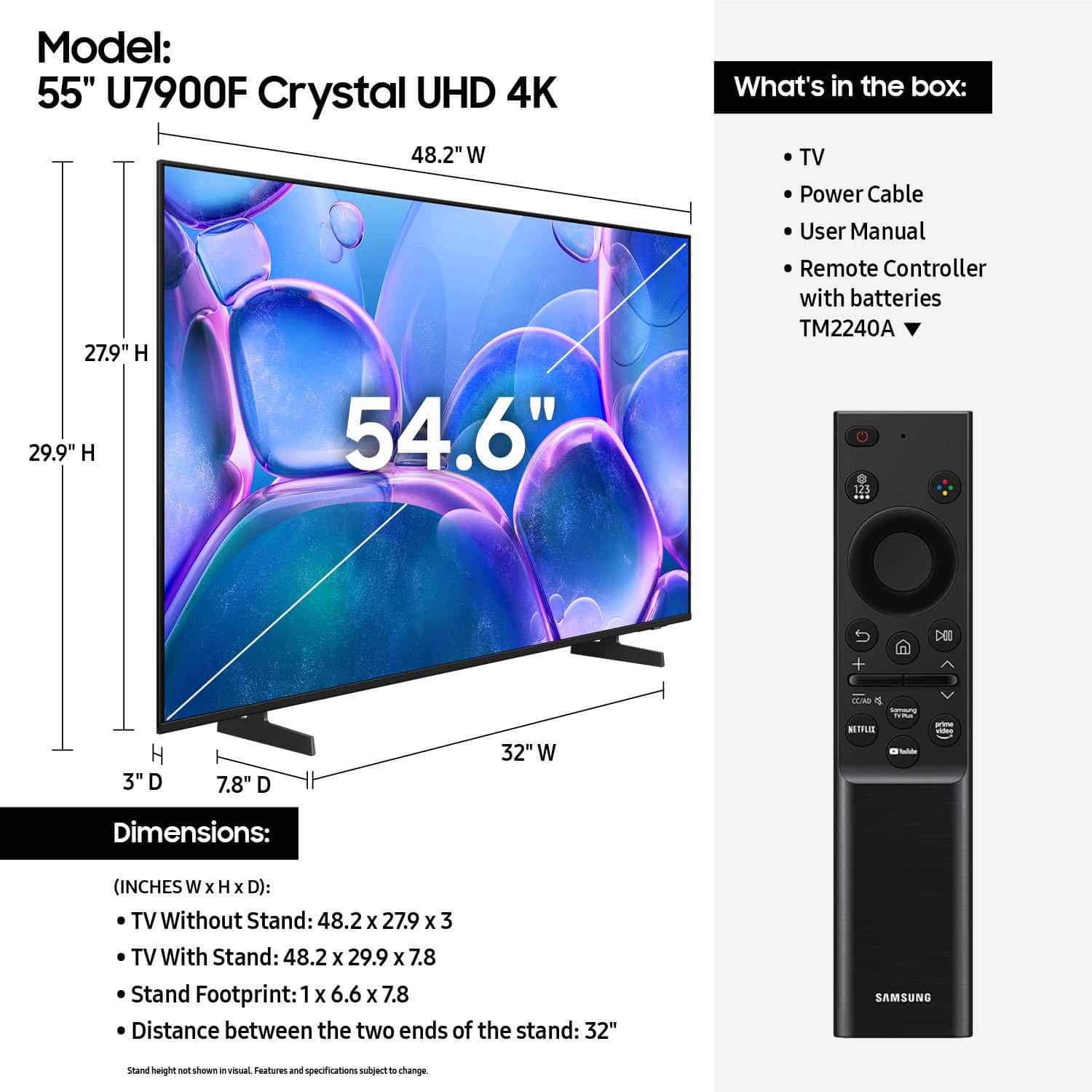
||Posted . Owned for 2 weeks when reviewed.This reviewer received promo considerations or sweepstakes entry for writing a review.I love samsung brand but this ones was Too small for my taste
I would recommend this to a friendBrand response from Samsung
Posted .Hi LazaroE,
Thank you for your feedback. If you decide to explore Samsung TVs again in the future, we’re always here to support you - whether it’s setup, features, or troubleshooting. Reach us anytime at 1-800-SAMSUNG (8AM – 12AM EST, 7 days a week), or visit the ‘Support’ section of our website for LiveChat, manuals, and more.
~ Samsung Advisor
- Cons mentioned:App performance
Smart Hub not working.
||Posted .This reviewer received promo considerations or sweepstakes entry for writing a review.I am having problems with the app. Smart hup isn't loading. I need help
No, I would not recommend this to a friendBrand response from Samsung
Posted .Hi BrianJ,
We appreciate your feedback regarding the performance of Smart Hub on your U7900 TV. If you're experiencing freezing, lag, or issues with apps not launching properly, the following steps may help:
1. Reset Smart Hub – This restores Smart Hub to factory settings and can resolve many performance issues: Home > left directional key > Settings > Support > Device Care > Self Diagnosis > Reset Smart Hub
(Note: This will sign you out of all apps and reset Smart Hub preferences.)
2. Check for Firmware Updates – An outdated software version can impact Smart Hub functionality: Home > left directional key > Settings > Support > Software Update > Update Now
3. Run Device Care – This tool helps optimize performance by clearing cached memory and closing background processes: Home > left directional key > Settings > Support > Device Care > Start Device Care
If Smart Hub continues to have issues after performing these steps, please contact Samsung Support at 1-800-SAMSUNG, available 8AM – 12AM EST, 7 days a week. LiveChat support is also available through the ‘Support’ link on our website.
~ Samsung Advisor
Mine was defective
||Posted .This reviewer received promo considerations or sweepstakes entry for writing a review.Screen turned black one month after purchase it’s a 2025 model and Samsung claims they no longer make the parts that the tv needs. They claimed I won’t receive a refund or credit for three weeks after I turn the tv back to them
No, I would not recommend this to a friendBrand response from Samsung
Posted .Hi user576068,
We appreciate you sharing the issues you’re experiencing with your U7900 TV, and we appreciate your patience while waiting for a refund. Please know that Samsung is committed to providing the best possible product experience, quality, and value, and your feedback will be shared with our product and customer care teams.
Should you wish to contact us directly with your ticket number, please call us at 1-800-SAMSUNG, 8AM - 12AM EST, 7 days a week. Our LiveChat agents are also available by clicking on the ‘Support’ link on our website.
~ Samsung Advisor
Sucks
||Posted . Owned for 2 months when reviewed.This reviewer received promo considerations or sweepstakes entry for writing a review.Picture quality is low Volume low it sucks don’t recommend
No, I would not recommend this to a friendBrand response from Samsung
Posted .Hi ASHLEY,
We appreciate your feedback on the picture quality of Samsung’s U7900F TV. If the image doesn’t quite match your preferences, there are several adjustments you can make to better suit your viewing environment and content type.
First, please ensure your TV is running the latest firmware, as updates may include important picture quality enhancements. Go to: Home > Left directional button > Settings > Support > Software Update > Update Now
To explore picture mode options, navigate to: Home > Left directional button > Settings > All Settings > Picture > Picture Mode. Options include:
• Standard – Ideal for general viewing
• Dynamic – Brighter and more vibrant for well-lit spaces
• Eco – Optimized for energy efficiency
• Movie – Best for viewing in low light
• Filmmaker Mode – Preserves the content creator’s intent and disables motion smoothing for supported content
You can further customize your image by going to: Settings > All Settings > Picture > Expert Settings, where you can adjust Brightness, Contrast, Color Tone, Sharpness, Contrast Enhancer and more.
If you’d like help finding the best picture settings for your preferences, please don’t hesitate to contact Samsung Support at 1-800-SAMSUNG (8AM – 9PM EST Mon – Fri, 8AM – 6PM Sat – Sun). You can also LiveChat with an agent or explore additional resources on our website by clicking the ‘Support’ link.
~ Samsung Advisor