Customer Ratings & Reviews


- Model:
- UN55U7900FFXZA
- SKU:
- 6632331
Rating by feature
- Picture Quality
Rating 4.8 out of 5 stars
- Sound Quality
Rating 4.7 out of 5 stars
- Brightness
Rating 4.8 out of 5 stars
Customers are saying
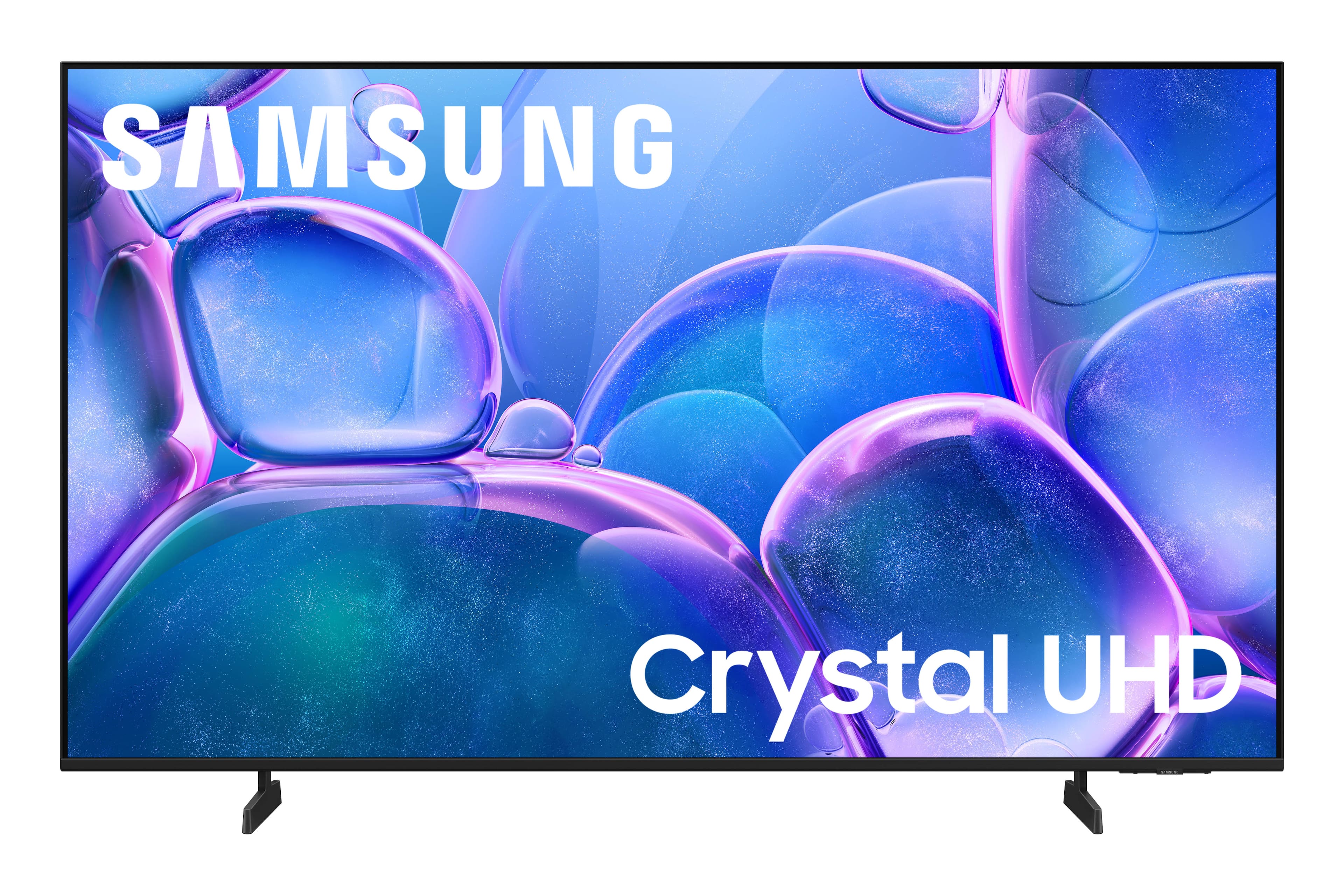
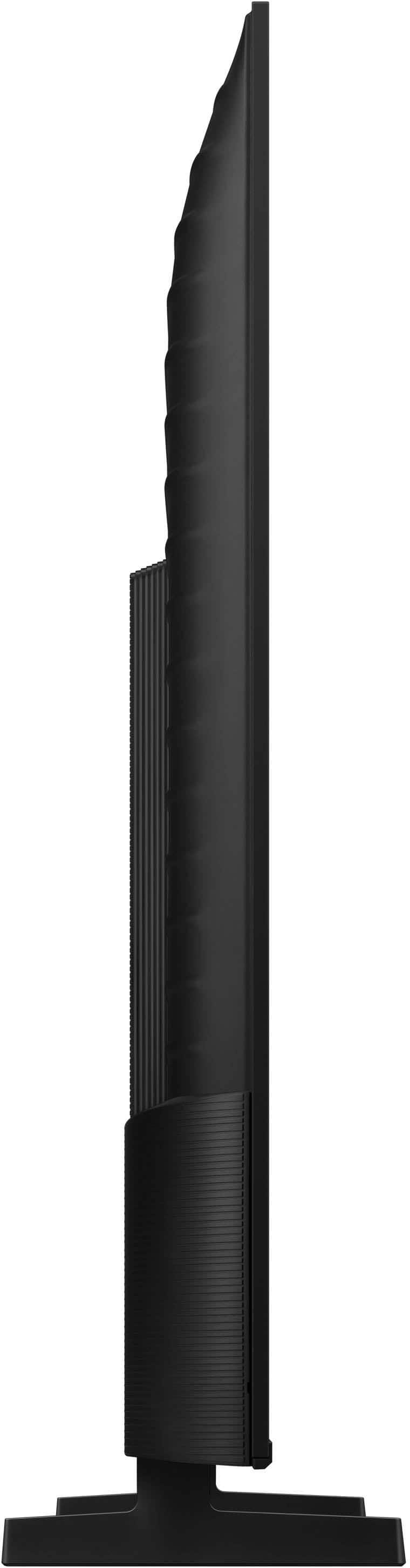
Customers highly value the 55" Class U7900 Series UHD 4K Smart Tizen TV (2025) for its sharp and vibrant picture quality, ease of setup, and perfect size. Many appreciate its lightweight design and modern look. However, some customers have expressed concerns about connectivity issues, the remote control, and occasional lag in app performance.
This summary was generated by AI based on customer reviews.
Tv purchased
||Posted .This reviewer received promo considerations or sweepstakes entry for writing a review.Best brand tv. The delivery was smooth and the guys were very respectful and helpful
I would recommend this to a friend- Cons mentioned:Connectivity
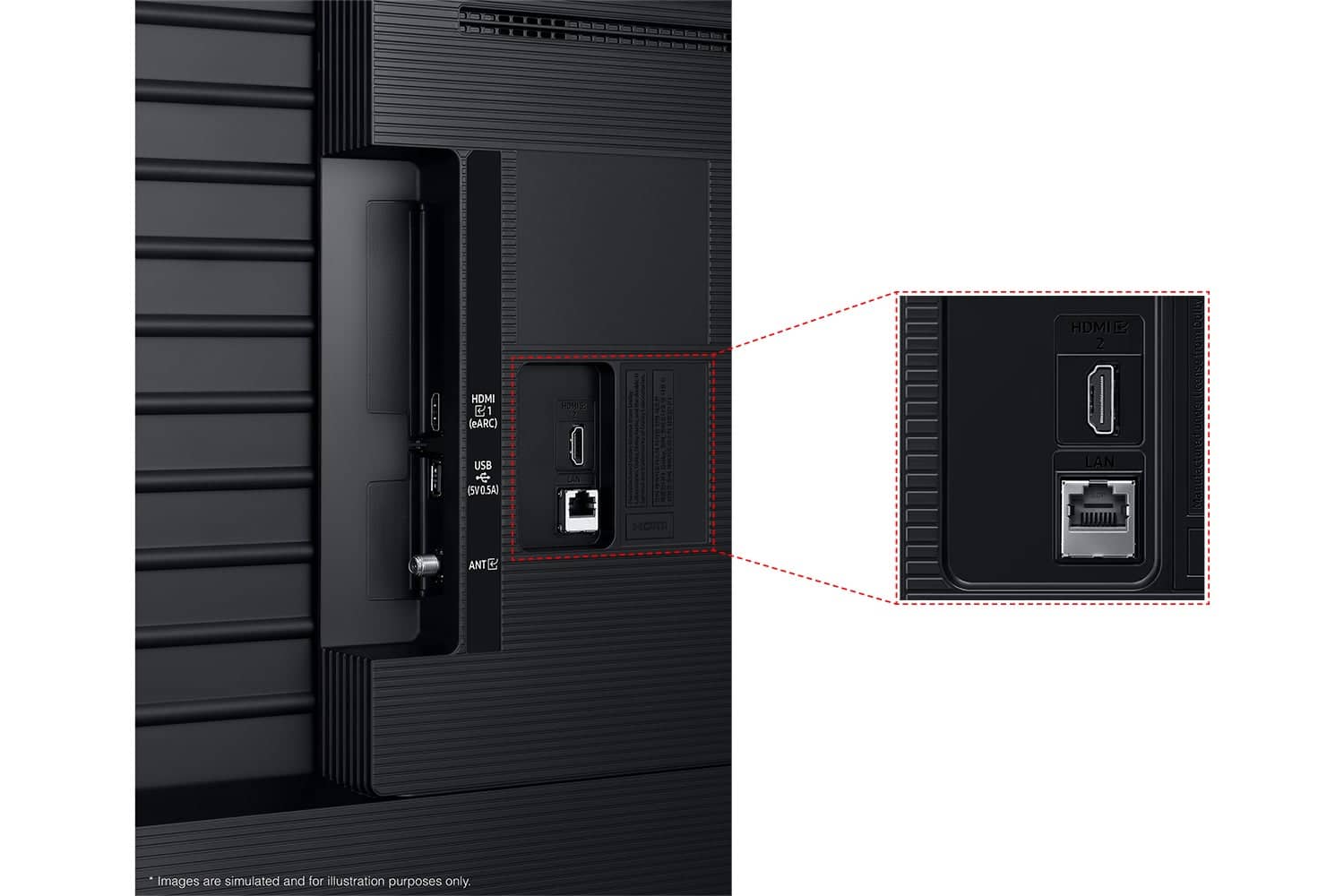
No sound bar port.
||Posted . Owned for 1 month when reviewed.This reviewer received promo considerations or sweepstakes entry for writing a review.Disappointed that there is no way to hook up my sound bar to the TV.
No, I would not recommend this to a friendBrand response from Samsung
Posted .Hi Midwest,
Thank you for your feedback. Please know you can connect a soundbar to the U7900 TV via HDMI port or Bluetooth. If an Optical port is a crucial part of your setup needs, you’ll find that connection starting with our Q8F Series and above.
For future purchases, we recommend double-checking the product specs on Best Buy’s site to ensure the model you choose has the ports you need. You’ll find the full list under the “Specifications” tab (just beneath the Highlights section.
Should you ever need assistance with your TV, Samsung is here for you. Reach out by calling 1-800-SAMSUNG between 8AM - 12AM EST, any day of the week. You can also chat with us online by visiting the ‘Support’ section of our website.
~Samsung Advisor
Great buy
||Posted .This reviewer received promo considerations or sweepstakes entry for writing a review.I really love this tv. I have been buying Samsung TV’s for a long time. I have a 65” in my living room but it’s about 3-4 years old.
I would recommend this to a friendsandra t
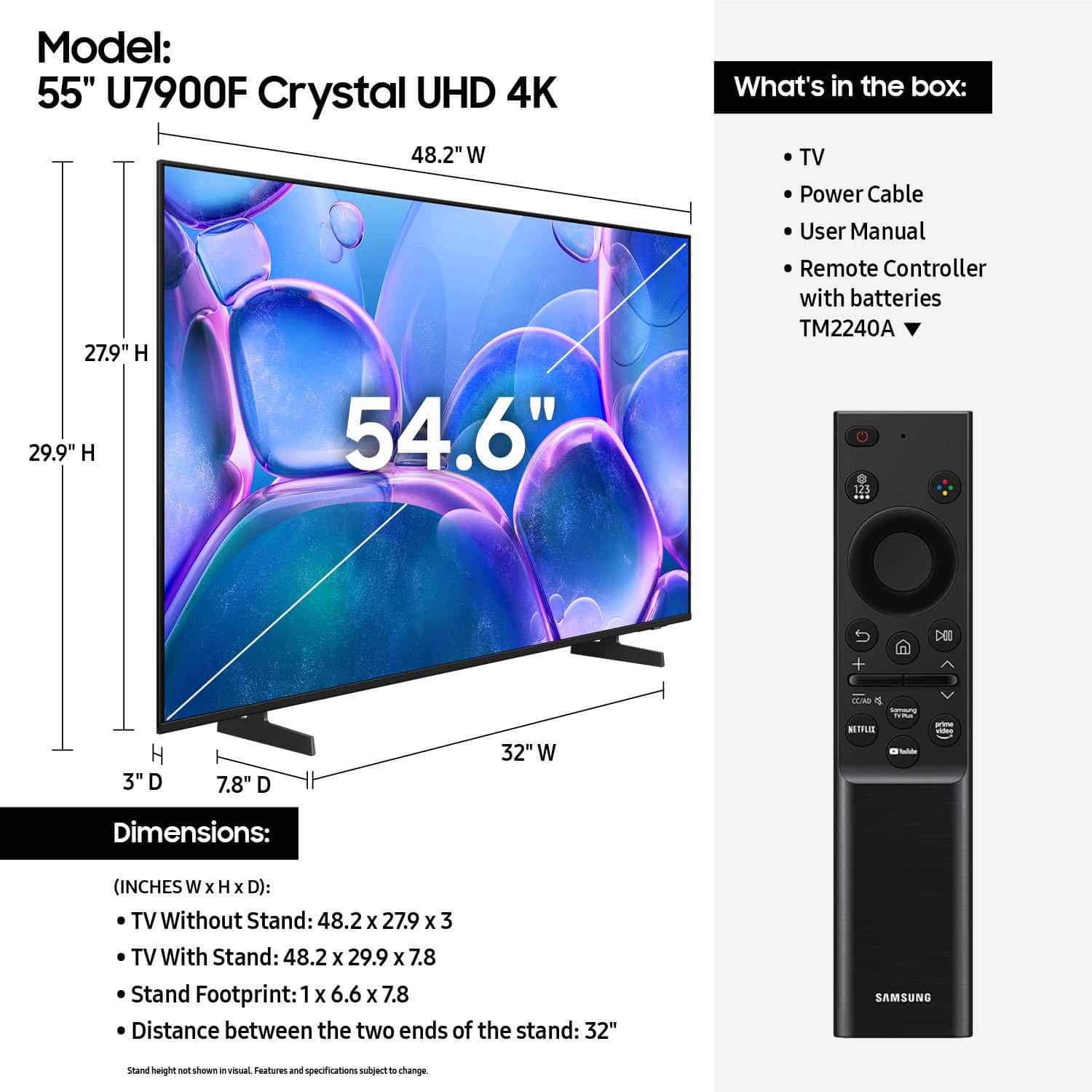
||Posted .This reviewer received promo considerations or sweepstakes entry for writing a review.good tv just dont like remote its too small for older people ,cant read it .and easy to loose.
I would recommend this to a friendWorst WiFi network connectivity
||Posted . Owned for 1 month when reviewed.This reviewer received promo considerations or sweepstakes entry for writing a review.Boughtw this Samsung TV mid December. Home Screen it’s a bit wonky, works.. It does have the worst wifi network connectivity I’ve ever seen.. so if you’re buying a smart tv for the stand alone apps and streaming this is not you’re TV. You will need to use a fire stick or attach device.
No, I would not recommend this to a friendBrand response from Samsung
Posted .Hi Erick,
Thank you for your feedback. Please ensure your TV is running the latest Firmware, version 1132.0. Go to Settings> Support> Software Update. If this firmware version is not yet available on your TV, you can download the update on a USB drive and manually update your TV:
1. On Samsung's website (upper right corner), go to: Support > Manual & Software > Find your TV model, and click on the Firmware – Upgrade File.
2. When the file has finished downloading, locate it and then unzip it. There is normally one folder inside but there may be multiple files.
3. Copy or move all of the files that were included in the zip file to a USB flash drive, but do not place them inside any other folders. If you place the software folders inside a folder on the USB flash drive, the TV or monitor will not find them.
4. Connect the USB drive containing the software upgrade into a USB port on your device.
5. Using your device's remote, navigate to and select Settings, then select All Settings, and then select Support. Select Software Update, select Update Now, and then select Yes if prompted.
Your device will search the USB drive for update files. Follow the on-screen instructions to install the updated software. Updates usually take a few minutes; please do not turn off the TV until the update is complete. When the update is finished, it will restart automatically.
If you need additional support, Samsung is here to help. Please call us at 1-800-SAMSUNG, available daily from 8AM - 12AM EST. You can also chat with a LiveChat agent by clicking the ‘Support’ link on our website.
~ Samsung Advisor
Samsung 55 inch smart TV
||Posted . Owned for 2 months when reviewed.This reviewer received promo considerations or sweepstakes entry for writing a review.It’s been the best Samsung 55 inch smart TV that I’ve had runs great would like a 65 but can’t afford it
I would recommend this to a friendDelivery was good, but no pre-notification call
||Posted . Owned for 3 weeks when reviewed.This reviewer received promo considerations or sweepstakes entry for writing a review.Samsung TV delivered. Delivery was good however they neglected to call me 24 hours in advance and called 20 minutes before arriving at 6:20 AM.
I would recommend this to a friend- Cons mentioned:Connectivity
Software issues
||Posted .This reviewer received promo considerations or sweepstakes entry for writing a review.loses DNS server details on a regular basis. agrivating
No, I would not recommend this to a friendBrand response from Samsung
Posted .Hi GregoryT,
Thank you for your review. If you're seeing a “No Signal” or “Weak Signal” error on your TV, try the following troubleshooting steps to resolve the issue:
1. Confirm external device setup: Make sure the external device (such as a cable box, game console, or Blu-ray player) is securely connected and powered on. On your TV, go to: Home > left directional key > Connected Devices > Sources, and confirm the correct input is selected.
2. Reconnect and test cables: Remove and firmly reconnect all HDMI or AV cables between your TV and the external device. Try using a different cable if possible.
3. Power cycle your equipment: Unplug the power cords to your TV and the connected devices. Wait 30 seconds, then plug them back in and power on each device.
4. Run a Picture or Sound Test: These tests help determine if the issue lies with the TV or the connected device. Go to: Home > left directional key > Settings > Support > Device Care > Self Diagnosis > Picture Test or Sound Test.
5. Use HDMI Troubleshooting: Home > left directional key > Connected Devices > Connection Guide > Video Device > HDMI Troubleshooting. This tool checks HDMI connections and helps identify potential issues.
6. Check signal strength (for antenna users). If you're using an antenna, go to: Settings > Support > Device Care > Self Diagnosis > Broadcast Signal. Here you can view signal strength and adjust the antenna position if needed for better reception.
7. Run Auto Program (if not using a cable box). If your TV is connected directly to a wall cable outlet or antenna, try running Auto Program to scan for available channels: Settings > All Settings > Broadcasting > Auto Program
8. Check network status (for streaming sources): Settings > All Settings > Connection > Network > Network Status, and make sure your TV is properly connected to the internet if you're using streaming services or apps.
If you still see the “No Signal” message after trying the above, please call Samsung Support at 1-800-SAMSUNG (8AM - 12AM EST, 7 days a week). Our LiveChat agents are also available through the Support link on our website.
~Samsung Advisor
Good Review
||Posted . Owned for 2 weeks when reviewed.This reviewer received promo considerations or sweepstakes entry for writing a review.I liked it not many glitches or issues wonderful thing to buy
I would recommend this to a friendsamsung tv
||Posted .This reviewer received promo considerations or sweepstakes entry for writing a review.Crystal clear im so happy about all the quality and affordability
I would recommend this to a friendGood value
||Posted . Owned for 2 weeks when reviewed.This reviewer received promo considerations or sweepstakes entry for writing a review.Good value for the price. Not a top end television but great tv for the price.
I would recommend this to a friendSamsung
||Posted . Owned for 2 weeks when reviewed.This reviewer received promo considerations or sweepstakes entry for writing a review.Best flat screen TV I've ever purchased! Easy installation!
I would recommend this to a friendGreat Vallue
||Posted . Owned for 1 month when reviewed.This reviewer received promo considerations or sweepstakes entry for writing a review.Great TV for the price we put it in my kids room and he loves it!
I would recommend this to a friendGreat deal!
||Posted .This reviewer received promo considerations or sweepstakes entry for writing a review.Great deal, great service. Arrived on time, very efficient. We are happy!
I would recommend this to a friendLg install
||Posted .This reviewer received promo considerations or sweepstakes entry for writing a review.Was a purchase for my daughter was installed by geek squad. They are clean and professional.
I would recommend this to a friendExcellent tv
||Posted . Owned for 2 weeks when reviewed.This reviewer received promo considerations or sweepstakes entry for writing a review.Excellent product Samsung does not disappoint with their television technology.
I would recommend this to a friend- Cons mentioned:Connectivity
Look at all TVs
||Posted . Owned for 1 month when reviewed.This reviewer received promo considerations or sweepstakes entry for writing a review.Not as good as older samsungs in my opinion. I think it should also have more features from tvs that were made 5-6 yrs ago, such as additional HDMI ports and it doesnt.
No, I would not recommend this to a friendBrand response from Samsung
Posted .Hi Al22884,
We appreciate your feedback on the features available on the U7900 TV. If you ever have questions or need support, we’re here to help. Call us at 1-800-SAMSUNG, available from 8AM - 12AM EST, seven days a week. You can also connect with a LiveChat agent by clicking the ‘Support’ link on our website.
~ Samsung Advisor
- Pros mentioned:Picture quality
Good TV for the price
||Posted .This reviewer received promo considerations or sweepstakes entry for writing a review.Nice TV with good picture quality and smart features. Unfortunately the volume isn’t that loud compared to my previous no name TV of the same size.
I would recommend this to a friendBrand response from Samsung
Posted .Hi DannyP,
Thank you for purchasing Samsung’s U7900F TV and for sharing your feedback regarding low volume. To start, we recommend making sure your TV is running the latest firmware, as updates can include improvements to sound performance: Home > left directional key > Settings > Support > Software Update
If volume levels still seem too low, you can improve sound performance by adjusting a few key settings:
Sound Mode: Navigate to: Settings > All Settings > Sound > Sound Mode
Auto Volume: This feature helps maintain consistent volume levels across content and input sources. Turn it on under: Settings > All Settings > Sound > Expert Settings > Auto Volume = On
You can also explore Expert Settings to fine-tune sound output with adjustments for Balance, Equalizer, and more.
If you’re considering enhancing your setup, Samsung’s Q- and S-Series Soundbars (like the HW-xxx) feature Q-Symphony, which syncs your TV and soundbar speakers for a fuller, more immersive sound experience.
For personalized support with these settings or selecting a soundbar to complement your setup, contact Samsung Support at 1-800-SAMSUNG (8AM – 12AM EST, 7 days a week) or use LiveChat via the ‘Support’ link on our website.
~ Samsung Advisor
Samsung
||Posted . Owned for 1 month when reviewed.This reviewer received promo considerations or sweepstakes entry for writing a review.It is a quality tv with a special feature along with 4-star remote
I would recommend this to a friendTV SAMSUNG
||Posted . Owned for 2 weeks when reviewed.This reviewer received promo considerations or sweepstakes entry for writing a review.BEST BUY, THE BEST STORE. THE BEST CUSTOMER SERVICE
I would recommend this to a friend