Customer Ratings & Reviews
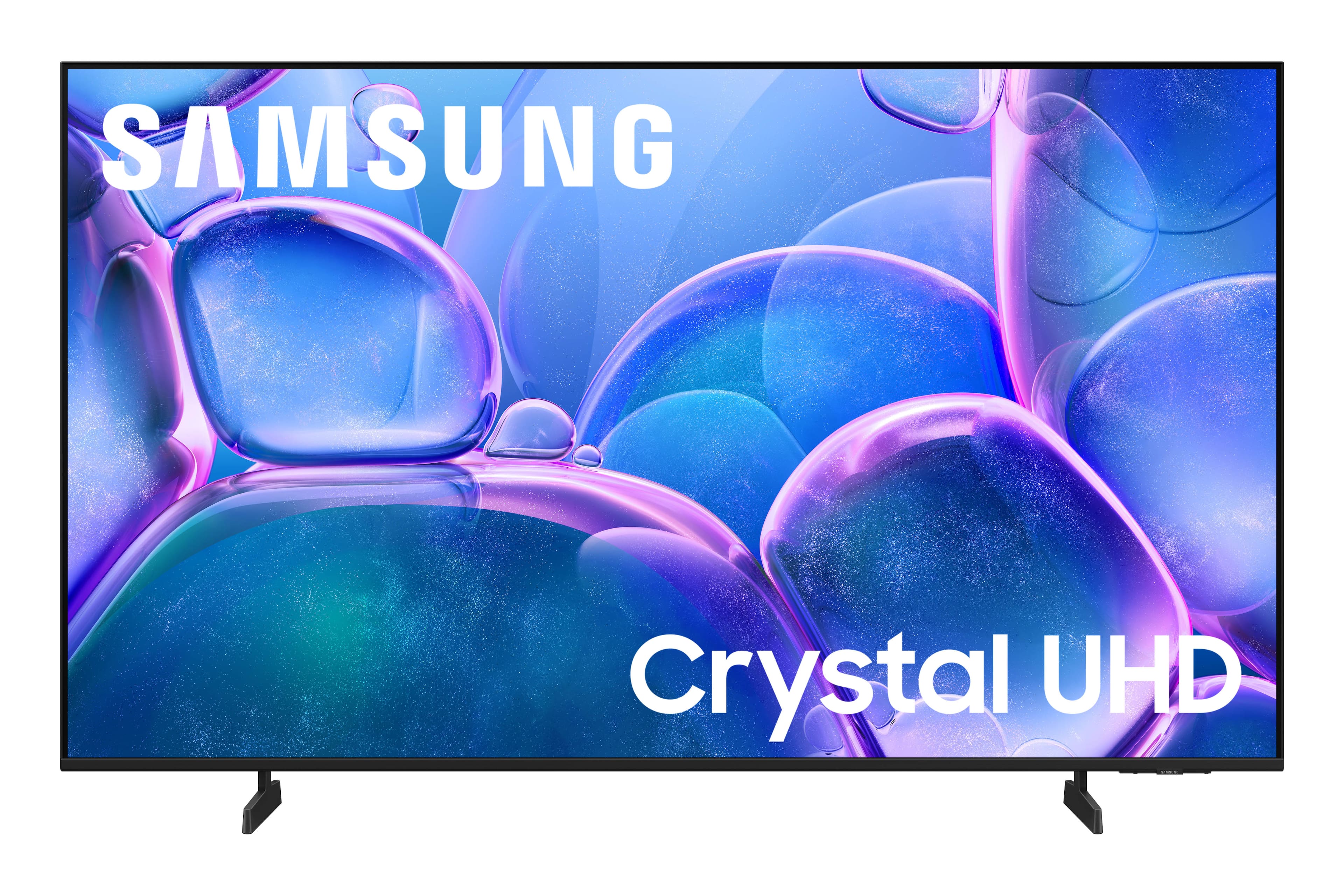
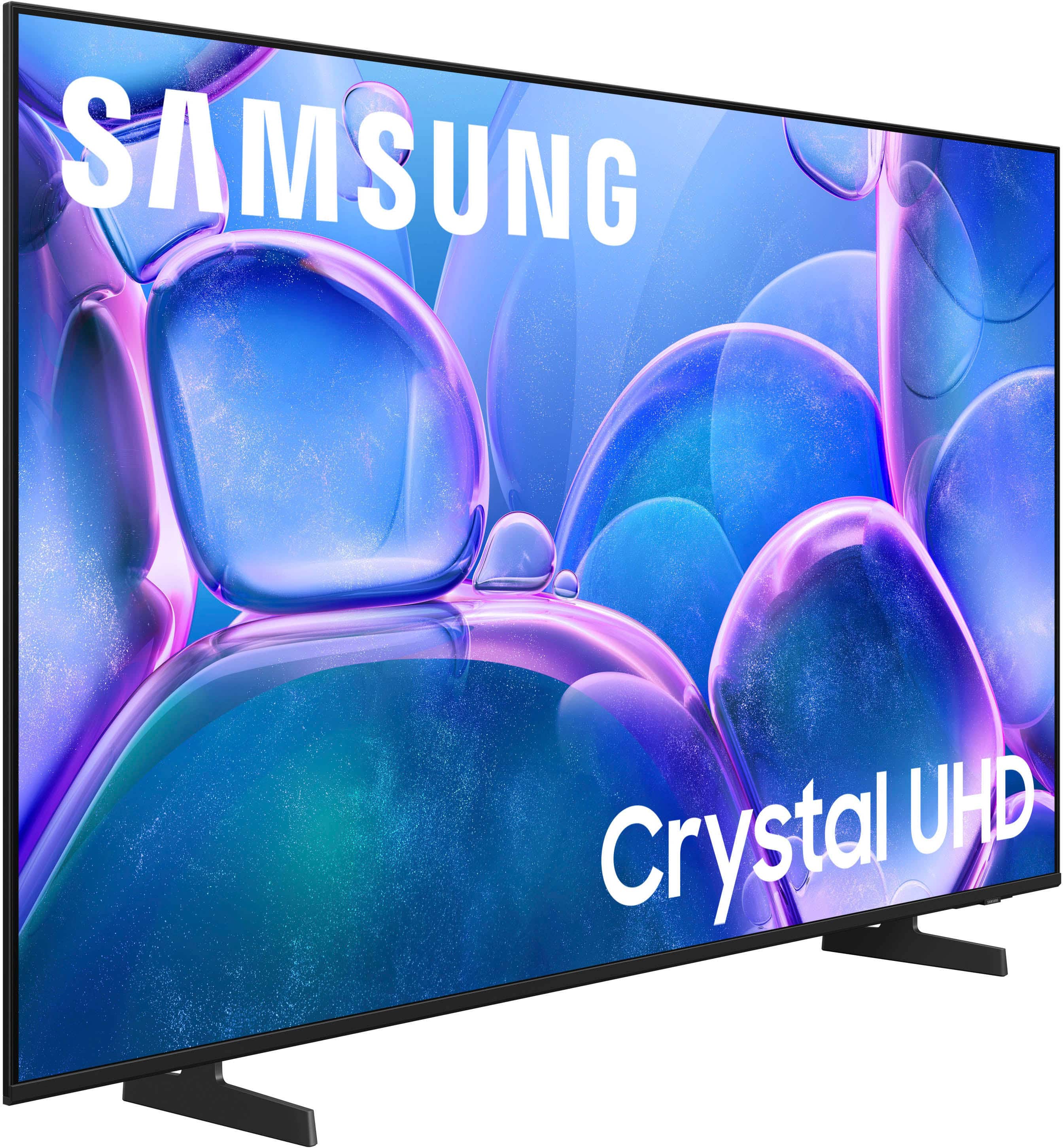
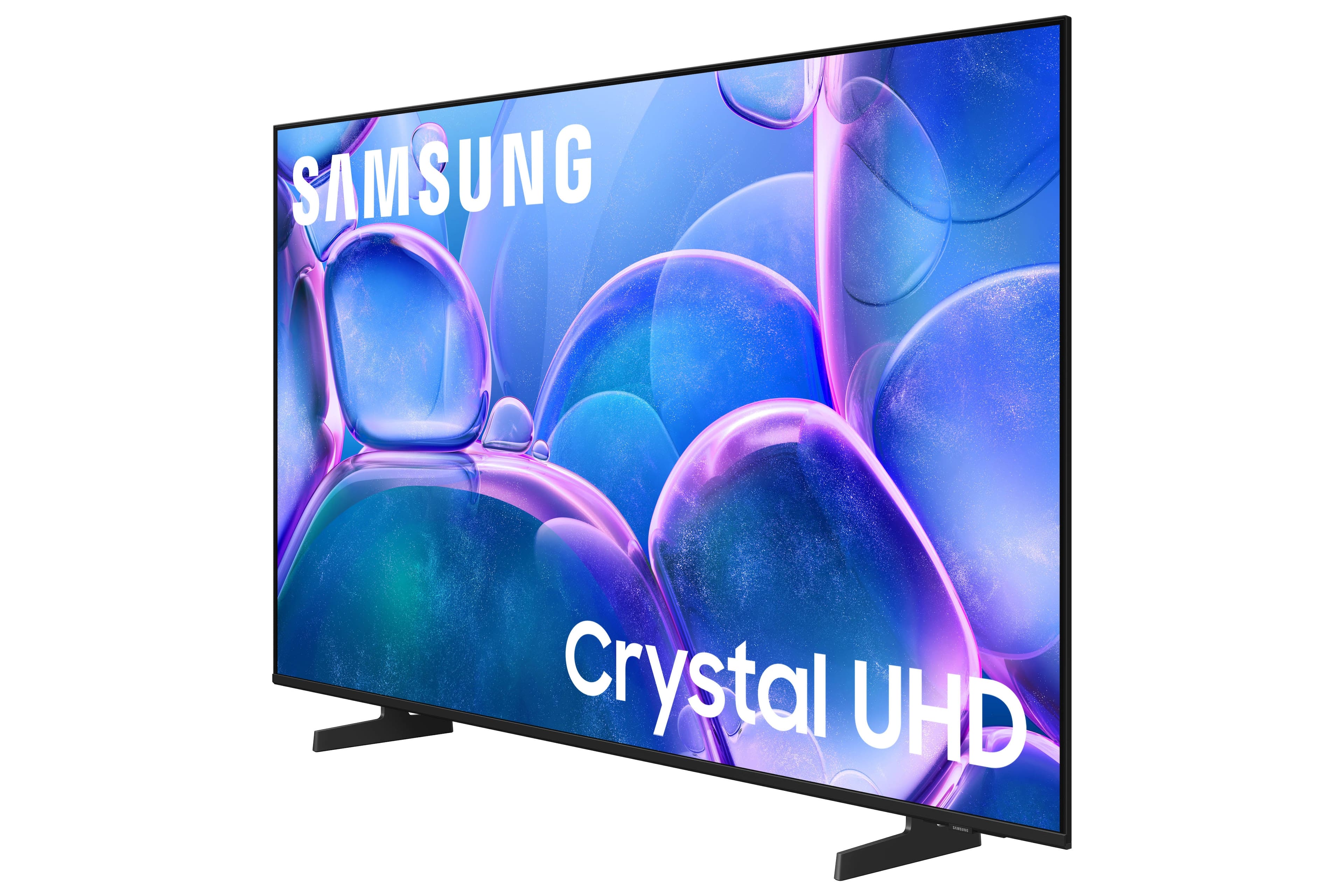
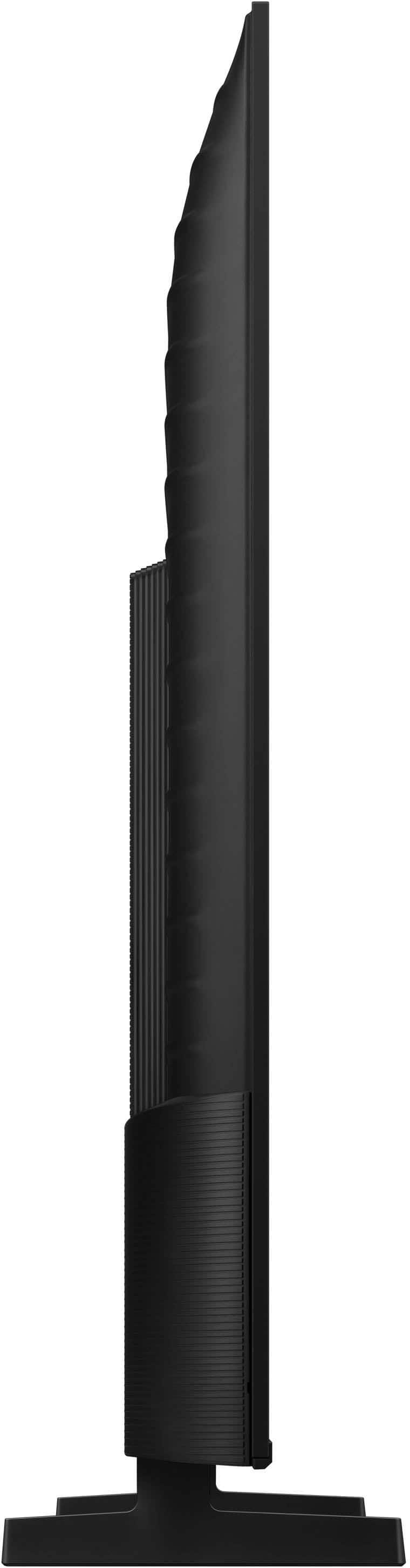


- Model:
- UN55U7900FFXZA
- SKU:
- 6632331
Rating by feature
- Picture Quality
Rating 4.8 out of 5 stars
- Sound Quality
Rating 4.7 out of 5 stars
- Brightness
Rating 4.8 out of 5 stars
Customers are saying
Customers highly value the 55" Class U7900 Series UHD 4K Smart Tizen TV (2025) for its sharp and vibrant picture quality, ease of setup, and perfect size. Many appreciate its lightweight design and modern look. However, some customers have expressed concerns about connectivity issues, the remote control, and occasional lag in app performance.
This summary was generated by AI based on customer reviews.
Do better
||Posted .This reviewer received promo considerations or sweepstakes entry for writing a review.Glichy with the game mode in the begining thought i would have to return it but so far so good. I would have giving the whole experience a 5 star over all but the guy in who handled my tv dragged in the floor didnt even bother to set it on a cart i had to get it myself it was terrible how my item got treated before it reached my hands
I would recommend this to a friendBrand response from Samsung
Posted .Hi Notyouraverageshopper,
I'm very sorry to hear about your shopping experience. If there's anything we can do to help or if you have any product questions, please do not hesitate to reach out to us. . Reach out by calling 1-800-SAMSUNG between 8AM - 12AM EST, any day of the week. You can also chat with us online by visiting the ‘Support’ section of our website.
~ Samsung Advisor
Samsung 55" TV
||Posted . Owned for 3 weeks when reviewed.This reviewer received promo considerations or sweepstakes entry for writing a review.Nice TV, nothing special, reflects the reduced price, I guess.
I would recommend this to a friendBetter tvs out there
||Posted . Owned for 1 month when reviewed.This reviewer received promo considerations or sweepstakes entry for writing a review.It’s ok better option for price, like pioneer tv at Best Buy
No, I would not recommend this to a friendBrand response from Samsung
Posted .Hi ErKrzN,
We appreciate your feedback. If there's ever anything we can do to help you, please do not hesitate to reach out to us. You can reach us at 1-800-SAMSUNG (8AM – 9PM EST Mon – Fri, 8AM – 6PM Sat – Sun), or connect with a LiveChat agent by selecting ‘Support’ on our website.
~ Samsung Advisor
Basic TV For The Price
||Posted .This reviewer received promo considerations or sweepstakes entry for writing a review.Purchased as a moderately priced second tv. Tizen interface works OK, but I believe the Roku interface is better. Picture quality is ok; I expected a little better than what this tv offers, even after making a few adjustments in settings. Recommend at a price point that purchaser would be comfortable with (i.e, Sale)
I would recommend this to a friendBrand response from Samsung
Posted .Hi Starrzz,
We appreciate your feedback on the picture quality of Samsung’s U7900F TV. If the image doesn’t quite match your preferences, there are several adjustments you can make to better suit your viewing environment and content type.
First, please ensure your TV is running the latest firmware, as updates may include important picture quality enhancements. Go to: Home > Left directional button > Settings > Support > Software Update > Update Now
To explore picture mode options, navigate to: Home > Left directional button > Settings > All Settings > Picture > Picture Mode. Options include:
• Standard – Ideal for general viewing
• Dynamic – Brighter and more vibrant for well-lit spaces
• Eco – Optimized for energy efficiency
• Movie – Best for viewing in low light
• Filmmaker Mode – Preserves the content creator’s intent and disables motion smoothing for supported content
You can further customize your image by going to: Settings > All Settings > Picture > Expert Settings, where you can adjust Brightness, Contrast, Color Tone, Sharpness, Contrast Enhancer and more.
If you’d like help finding the best picture settings for your preferences, please don’t hesitate to contact Samsung Support at 1-800-SAMSUNG, available 8AM – 12AM EST, 7 days a week. You can also LiveChat with an agent or explore additional resources on our website by clicking the ‘Support’ link.
~ Samsung Advisor
Good service for a defective product
||Posted . Owned for 1 week when reviewed.This reviewer received promo considerations or sweepstakes entry for writing a review.The tv worked great for about a week. However, the picture went out. The service i had with Best Buy was great with the return and offer to provide a new one.
I would recommend this to a friendBrand response from Samsung
Posted .Hi KeithW,
Thank you for sharing your experience. Should you ever need assistance, Samsung is here for you. Reach out by calling 1-800-SAMSUNG between 8AM - 12AM EST, any day of the week. You can also chat with us online by visiting the ‘Support’ section of our website.
~Samsung Advisor
Not worth the money
||Posted .This reviewer received promo considerations or sweepstakes entry for writing a review.The picture quality on this TV is extremely disappointing, especially in dark scenes. Even with brightness turned all the way up and trying multiple picture modes, it’s very hard to see what’s going on. A lot of detail gets lost, which makes watching movies and shows frustrating. I expected much better performance and wouldn’t recommend this TV if you watch a lot of darker content. I wish I would have returned it.
No, I would not recommend this to a friendBrand response from Samsung
Posted .Hi KMel2,
We’re sorry to hear you’re not fully satisfied with the picture quality on your Samsung U7900F TV. If the image appears too dark, we suggest disabling certain energy-saving features, which can automatically adjust brightness and affect how the screen looks.
Go to: Settings > All Settings > General & Privacy > Power and Energy Saving, then turn off Brightness Optimization, Energy Saving Solution, Motion Lighting, and/or Contrast Enhancer.
You can also adjust the Picture Mode to better suit your environment: Settings > All Settings > Picture > Picture Mode
• Standard – Default mode for general viewing
• Dynamic – Brighter and clearer, ideal for well-lit rooms
• Movie – Best for dark room viewing
• Eco – Energy-saving mode
• Filmmaker Mode – Preserves content as intended by creators
To fine-tune brightness, go to: Home > left directional key > Settings > All Settings > Picture > Expert Settings, then adjust the Brightness level (0–50) to your preference.
Lastly, please make sure your TV is running the latest firmware: Home > Home > left directional key > Settings > Support > Software Update > Update Now
We hope these tips help improve your viewing experience. If you need further support, feel free to contact us at 1-800-SAMSUNG, 8AM – 12AM EST, 7 days a week. LiveChat is also available via the ‘Support’ link on our website.
~ Samsung Advisor
Decent TV, horrible UI experience
||Posted .This reviewer received promo considerations or sweepstakes entry for writing a review.Decent TV for the price. Not 5 stars because of the absolutely HORRIBLE samsung interface - my tv just starts playing a random movie channel when i turn it on. Genuinely who asked for this
I would recommend this to a friendBrand response from Samsung
Posted .Hi Noah,
Thank you for your review. While your U7900F TV may currently default to Samsung TV Plus when powered on, you can customize what your TV does at startup by adjusting the Start Screen Options.
To do this, navigate to: Settings > All Settings > Advanced Features > Start Screen Option and choose from the following:
1. Start with Smart Hub Home – Automatically launches Smart Hub when the TV is turned on. You can enable or disable this option based on your preference.
2. Autorun Multi View Casting – If you cast YouTube content from your mobile device, the TV will automatically display the content using Multi View.
3. Autorun Multi View Mirroring – When you screen mirror your mobile device, Multi View will automatically open to show your device’s screen.
If you need help adjusting these settings or have any other questions, please contact Samsung Support at 1-800-SAMSUNG, 8AM – 12AM EST, 7 days a week. LiveChat agents are also available by clicking on the ‘Support’ link on our website.
~ Samsung Advisor
Samsung tv
||Posted . Owned for 9 months when reviewed.This reviewer received promo considerations or sweepstakes entry for writing a review.Never purchase a Samsung or apple tv, and buy the warranty , because you do not get to exchange it, they send it off , and you hear absolutely nothing about it, so a 60 dollar warranty is worthless, it was Sunday May 10th , today is Friday, and was told I would know something in 3 days. Just remember this when you purchase these 2 brands, they need to tell this upfront. The tv is 9 months old.
No, I would not recommend this to a friendBrand response from Samsung
Posted .Hi DonnaK,
We're sorry to hear that you are not satisfied with your warranty experience. For updates with your TV, please contact us at 1-800-SAMSUNG, available daily from 8AM – 9PM EST Mon – Fri, 8AM – 6PM Sat – Sun. You can also visit the Samsung website and click on ‘Support’ for:
• Live Chat
• Manuals, Software, & Warranty Info
~ Samsung Advisor
- Cons mentioned:Remote control
You need a Samsung account in order to use tv
||Posted . Owned for 2 weeks when reviewed.This reviewer received promo considerations or sweepstakes entry for writing a review.Worst tv experience ever. Guy suggested an easy tv. Took all weekend to setup a Samsung acct. Only way to get tv on. Remote no volume controls. Very disappointed. The 1 person who actually helped suggested a lousy tv
No, I would not recommend this to a friendBrand response from Samsung
Posted .Hi KelliM,
We appreciate your feedback and are sorry you had a poor experience setting up your new Samsung TV. Please know you can control the volume of your TV with the +/- button on the left side of the remote: push UP/DOWN to adjust volume; press and release quickly to MUTE.
To help you get the most from your TV, you can download the full e-Manual and more by visiting Samsung’s website then navigating to: Support > Manual & Software > TVs & Home Theater. From there, you can search for and select your U7900 TV model to view or download the available guides.
The e-Manual and Remote Control Guide are also conveniently built into your TV: Settings > Support > Tips and User Guides
If you need additional help, please contact Samsung Support at 1-800-SAMSUNG, 8AM – 12AM EST, 7 days a week. LiveChat agents are also available through the ‘Support’ link on our website.
~ Samsung Advisor
Samsung tv
||Posted . Owned for 1 month when reviewed.This reviewer received promo considerations or sweepstakes entry for writing a review.It’s an ok tv, Gets the job done. Only real complaint is that if you’re off to the side watching it’s super dark. Might be a settings thing but I can’t figure it out
I would recommend this to a friendBrand response from Samsung
Posted .Hi CarlB,
We’re sorry to hear you’re not fully satisfied with the picture quality on your Samsung U7900 TV. If the image appears too dark, we suggest disabling certain energy-saving features, which can automatically adjust brightness and affect how the screen looks.
Go to: Settings > All Settings > General & Privacy > Power and Energy Saving, then turn off Brightness Optimization, Energy Saving Solution, Motion Lighting, and/or Contrast Enhancer.
You can also adjust the Picture Mode to better suit your environment: Settings > All Settings > Picture > Picture Mode
• Standard – Default mode for general viewing
• Dynamic – Brighter and clearer, ideal for well-lit rooms
• Movie – Best for dark room viewing
• Eco – Energy-saving mode
• Filmmaker Mode – Preserves content as intended by creators
To fine-tune brightness, go to: Home > left directional key > Settings > All Settings > Picture > Expert Settings, then adjust the Brightness level (0–50) to your preference.
Lastly, please make sure your TV is running the latest firmware: Home > Home > left directional key > Settings > Support > Software Update > Update Now
We hope these tips help improve your viewing experience. If you need further support, feel free to contact us at 1-800-SAMSUNG, 8AM – 12AM EST, 7 days a week. LiveChat is also available via the ‘Support’ link on our website.
~Samsung Advisor
Glitchy
||Posted . Owned for 1 week when reviewed.This reviewer received promo considerations or sweepstakes entry for writing a review.Streaming Netflix,philo ect... the tv jumps/ Glitches repeatedly during the movie or show. Thats the only problem im seeming to be running into. I hate it.
No, I would not recommend this to a friendBrand response from Samsung
Posted .Hi Keelo22,
We appreciate you sharing details about the flickering you’ve noticed on your Samsung U7900 TV. This behavior may be related to energy-saving features or dynamic picture settings that adjust the screen brightness automatically.
Please try disabling the following features: Settings > All Settings > General & Privacy > Power and Energy Saving
• Brightness Optimization
• Energy Saving Solution
• Motion Lighting
If these are already off, check if Contrast Enhancer is enabled, which can also cause brightness to shift depending on content: Settings > All Settings > Picture > Expert Settings > Contrast Enhancer
To ensure optimal performance, please also confirm your TV is running the latest firmware: Settings > Support > Software Update > Update Now
We hope these steps help stabilize your screen brightness. If you continue to experience issues, please don’t hesitate to contact Samsung Customer Support at 1-800-SAMSUNG, 8AM – 12AM EST, 7 days a week. LiveChat is also available via the ‘Support’ link on our website.
~ Samsung Advisor
- Cons mentioned:Connectivity
Bad tv
||Posted .This reviewer received promo considerations or sweepstakes entry for writing a review.This tv is the worst tv I’ve ever gotten, it never stays connected to the wifi, it is super laggy, the picture is so bad and you can’t watch any streaming services without it buffering.
No, I would not recommend this to a friendBrand response from Samsung
Posted .Hi DelaynieW,
Thank you for sharing your experience. Buffering during streaming is typically related to internet speed or signal strength. This can happen when your connection isn’t able to deliver data quickly enough for smooth playback.
We recommend the following steps to help improve streaming performance:
1. Use a 5GHz Wi-Fi connection, if available
2. Try a wired LAN connection for more stability
3. Reposition your router to minimize obstacles between it and the TV
4. Make sure your TV is running the latest firmware (Settings > Support > Software Update)
5. Run Device Care to optimize performance: Home > left directional key > Settings > Support > Device Care > Start Device Care
If buffering continues, you may want to contact your internet service provider to check your current speed or explore upgrade options.
If we can assist further, please call us at 1-800-SAMSUNG, available daily from 8AM - 12AM EST. You can also visit the Samsung website and click on ‘Support’ for:
• Live Chat
• Manuals, Software, & Warranty Info
~ Samsung Advisor
Decent budget TV
||Posted . Owned for 1 month when reviewed.This reviewer received promo considerations or sweepstakes entry for writing a review.Overall its a decent budget TV to get video quality is ok i would recommend.
I would recommend this to a friendBrand response from Samsung
Posted .Hi RuuD,
Thank you for sharing your experience. If you ever have questions or need support, we’re here to help. Call us at 1-800-SAMSUNG, available from 8AM - 12AM EST, seven days a week. You can also connect with a LiveChat agent by clicking the ‘Support’ link on our website.
~ Samsung Advisor
Tv is good
||Posted . Owned for 3 weeks when reviewed.This reviewer received promo considerations or sweepstakes entry for writing a review.Good tv for the price. Can’t get more savings then that
I would recommend this to a friendGood samsung tv
||Posted . Owned for 2 weeks when reviewed.This reviewer received promo considerations or sweepstakes entry for writing a review.Good operating system and clean screen with no blur
I would recommend this to a friendJust Meh.
||Posted . Owned for 1 month when reviewed.This reviewer received promo considerations or sweepstakes entry for writing a review.The TV is fine but even on the brightest setting the picture is a little dark
No, I would not recommend this to a friendBrand response from Samsung
Posted .Hi JohnP,
We’re sorry to hear you’re not fully satisfied with the picture quality on your Samsung U7900F TV. If the image appears too dark, we suggest disabling certain energy-saving features, which can automatically adjust brightness and affect how the screen looks.
Go to: Settings > All Settings > General & Privacy > Power and Energy Saving, then turn off Brightness Optimization, Energy Saving Solution, Motion Lighting, and/or Contrast Enhancer.
You can also adjust the Picture Mode to better suit your environment: Settings > All Settings > Picture > Picture Mode
• Standard – Default mode for general viewing
• Dynamic – Brighter and clearer, ideal for well-lit rooms
• Movie – Best for dark room viewing
• Eco – Energy-saving mode
• Filmmaker Mode – Preserves content as intended by creators
To fine-tune brightness, go to: Home > left directional key > Settings > All Settings > Picture > Expert Settings, then adjust the Brightness level (0–50) to your preference.
Lastly, please make sure your TV is running the latest firmware: Home > Home > left directional key > Settings > Support > Software Update > Update Now
We hope these tips help improve your viewing experience. If you need further support, feel free to contact us at 1-800-SAMSUNG, 8AM – 12AM EST, 7 days a week. LiveChat is also available via the ‘Support’ link on our website.
~ Samsung Advisor
Soid TV but very poor UI Performance
||Posted . Owned for 1 month when reviewed.This reviewer received promo considerations or sweepstakes entry for writing a review.Very poor UI performance. Delayed when using the interface of the tv. Had to get a amaazon firestick because the built in UI is so bad
No, I would not recommend this to a friendBrand response from Samsung
Posted .dragonslayer69,
We appreciate your feedback regarding response time. For optimal performance, please ensure your TV is running the latest firmware. You can check this by going to: Home > left directional key > Settings > Support > Software Update
To further optimize performance, try running Device Care, which checks memory, clears unused cached data, and closes background apps: Home > left directional key > Settings > Support > Device Care > Start Device Care
If issues continue, please reach Samsung Support at 1-800-SAMSUNG, available 8AM – 12AM EST, 7 days a week.
LiveChat is also available via the ‘Support’ link on our website.
~ Samsung Specialist
Samsung TV
||Posted .This reviewer received promo considerations or sweepstakes entry for writing a review.It's A good product, but I find the need to use two control devices to be cumbersome
No, I would not recommend this to a friendBrand response from Samsung
Posted .Hi AnthonyC,
Thank you for your feedback. Please know you can control multiple devices with your Samsung TV remote if they are connected via HDMI cable. If your Remote isn’t controlling your external device, please try the following:
1. Reset the Remote: Press and hold Return and Enter (center of the navigation pad) for more than 10 seconds. Then, re-pair the remote by pressing Return and Play/Pause simultaneously for at least 5 seconds, or until a message appears on screen confirming connection.
2. Check the Remote Battery: On your TV, go to: Home > left directional key > Settings > All Settings > General & Privacy > Remote Control
3. Ensure the Remote is Sending IR Signals: Use your smartphone camera to check for infrared. If you see a flashing light from the remote’s front when pressing a button, it’s working properly.
4. Enable Anynet+ (HDMI-CEC): This feature allows your remote to control HDMI-connected devices. To enable it:
Settings > All Settings > General & Privacy > External Device Manager > Anynet+ (HDMI-CEC) = On
5. If the device doesn’t support HDMI-CEC, use the Universal Remote feature. First, confirm the external device is properly connected. Then go to: Home > left directional key > Connected Devices > Universal Remote Setup, and follow the prompts.
If the issue persists, please call Samsung Support at 1-800-SAMSUNG, 8AM – 12AM EST, 7 days a week. Our LiveChat agents are also available by clicking the ‘Support’ link on our website.
~Samsung Advisor
Legs were missing
||Posted . Owned for 1 month when reviewed.This reviewer received promo considerations or sweepstakes entry for writing a review.I went to best but and bought it cause i was moving into an apartment and didn’t open it up until I moved in saw the legs were missing and it was passed the 15 days to return it
No, I would not recommend this to a friendBrand response from Samsung
Posted .Hi Kiaron,
We appreciate your feedback regarding parts missing from your U7900 TV. If purchased brand-new and unopened, please contact Samsung Customer Support and a representative will gladly help you. If purchased in open-box condition, we recommend contacting Best Buy directly for assistance. We hope your issue is resolved in a timely manner.
Should you have questions or concerns on usage or setup of your TV once your issue has been resolved, please call us at 1-800-SAMSUNG, 8AM – 12AM EST, 7 days a week, or connect with us via LiveChat through the ‘Support’ link on our website.
~ Samsung Advisor
Mr Jim
||Posted . Owned for 2 weeks when reviewed.This reviewer received promo considerations or sweepstakes entry for writing a review.Not very bright very dark picture. Quality just isn’t a Samsung
No, I would not recommend this to a friendBrand response from Samsung
Posted .Hi JimH,
We’re sorry to hear you’re not fully satisfied with the picture quality on your Samsung U7900F TV. If the image appears too dark, we suggest disabling certain energy-saving features, which can automatically adjust brightness and affect how the screen looks.
Go to: Settings > All Settings > General & Privacy > Power and Energy Saving, then turn off Brightness Optimization, Energy Saving Solution, Motion Lighting, and/or Contrast Enhancer.
You can also adjust the Picture Mode to better suit your environment: Settings > All Settings > Picture > Picture Mode
• Standard – Default mode for general viewing
• Dynamic – Brighter and clearer, ideal for well-lit rooms
• Movie – Best for dark room viewing
• Eco – Energy-saving mode
• Filmmaker Mode – Preserves content as intended by creators
To fine-tune brightness, go to: Home > left directional key > Settings > All Settings > Picture > Expert Settings, then adjust the Brightness level (0–50) to your preference.
Lastly, please make sure your TV is running the latest firmware: Home > Home > left directional key > Settings > Support > Software Update > Update Now
We hope these tips help improve your viewing experience. If you need further support, feel free to contact us at 1-800-SAMSUNG, 8AM – 9PM EST Mon – Fri, 8AM – 6PM Sat – Sun. LiveChat is also available via the ‘Support’ link on our website.
~ Samsung Advisor