Customer Ratings & Reviews
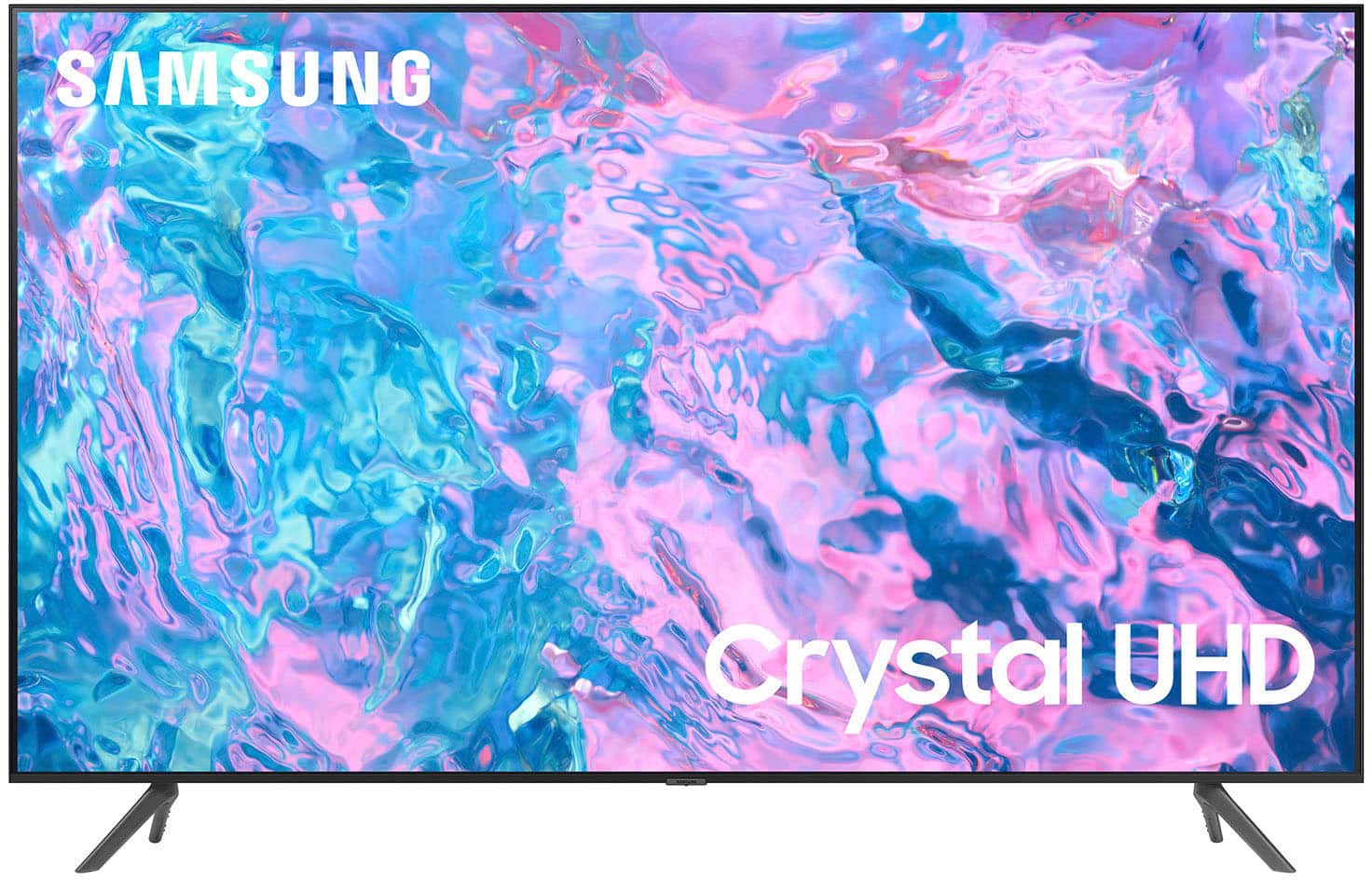
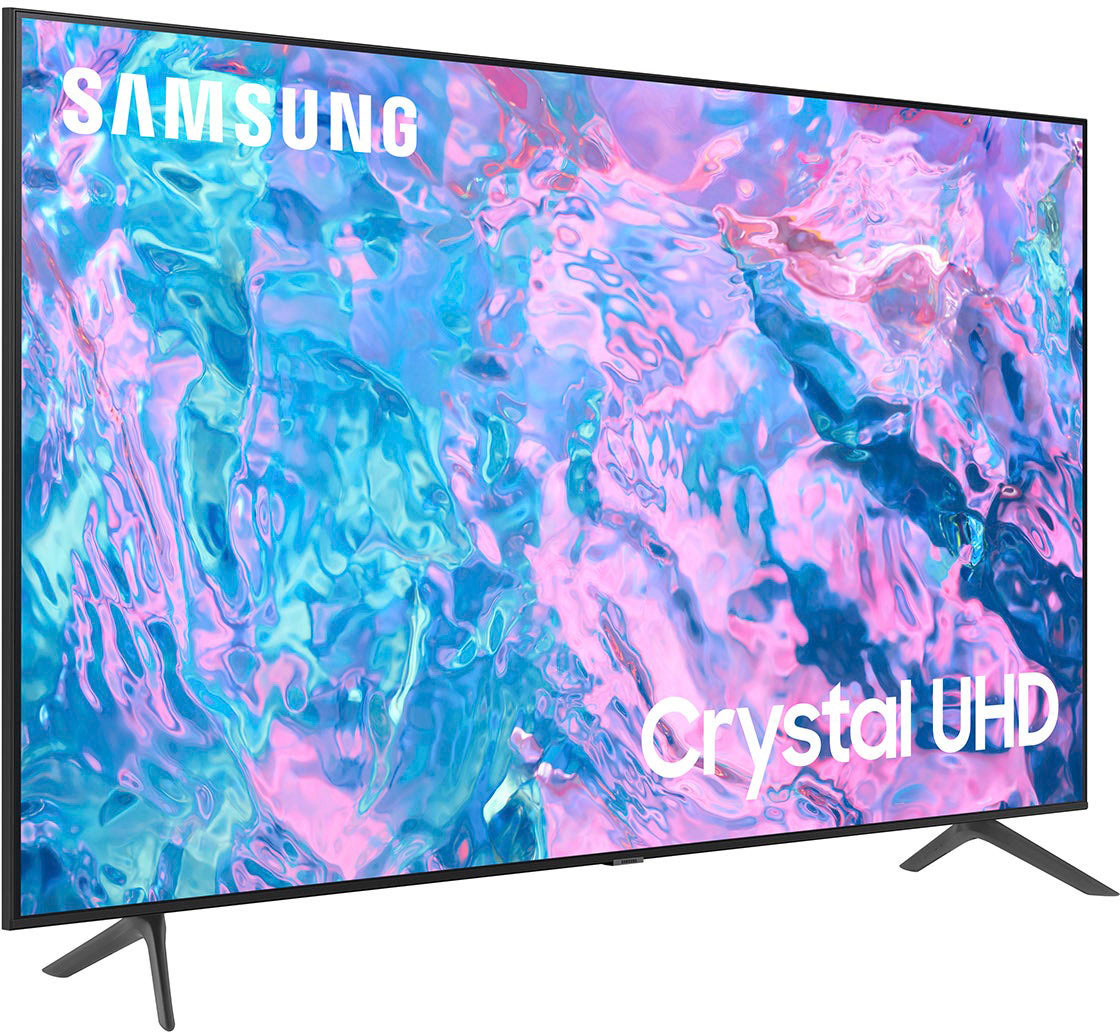
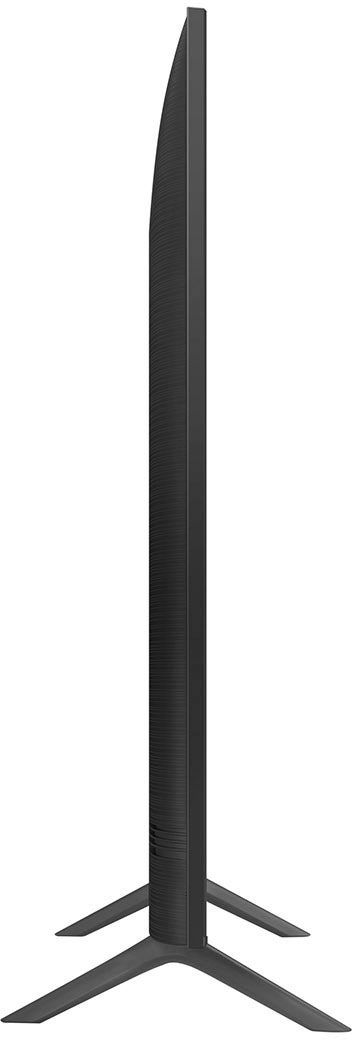
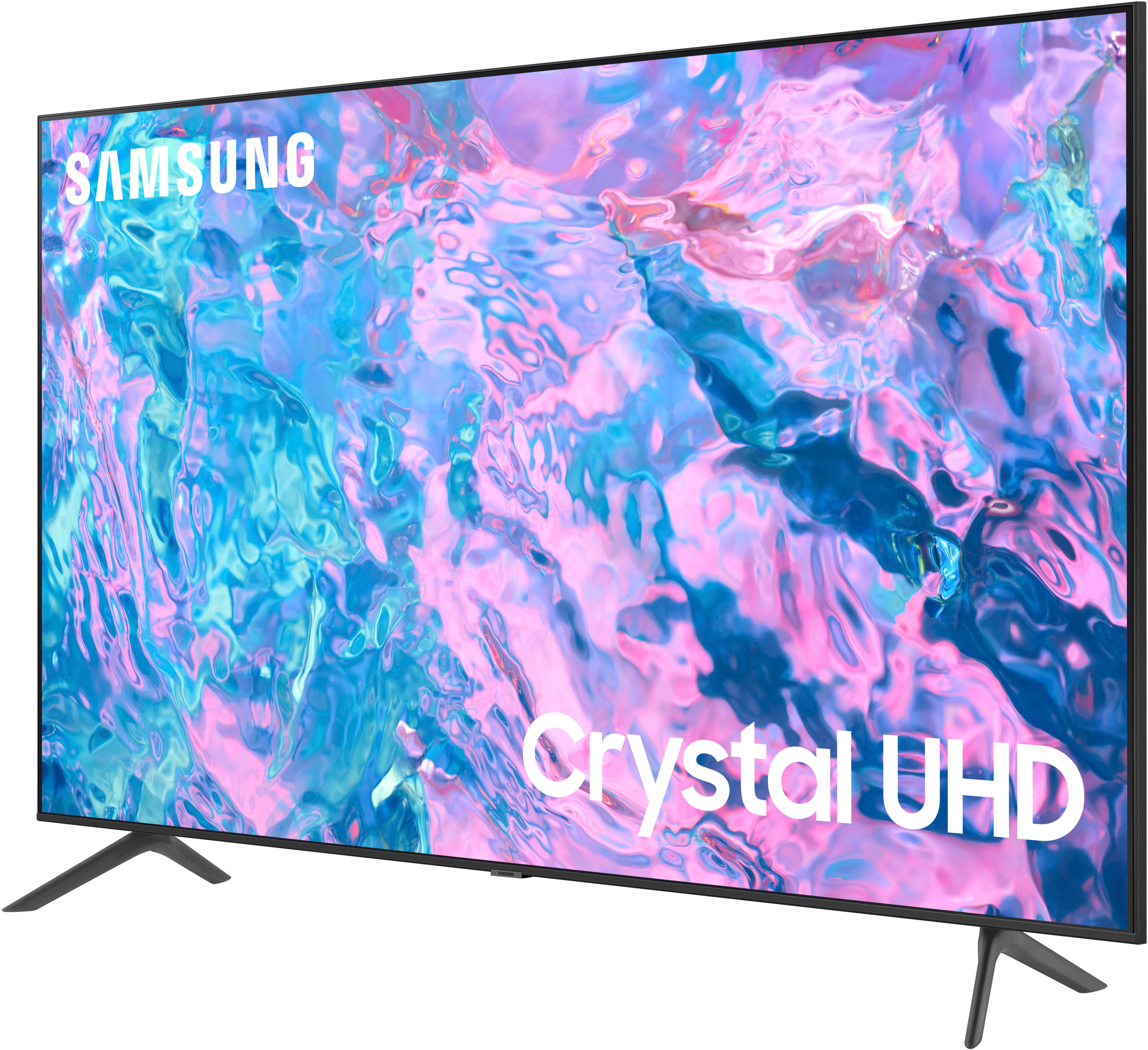
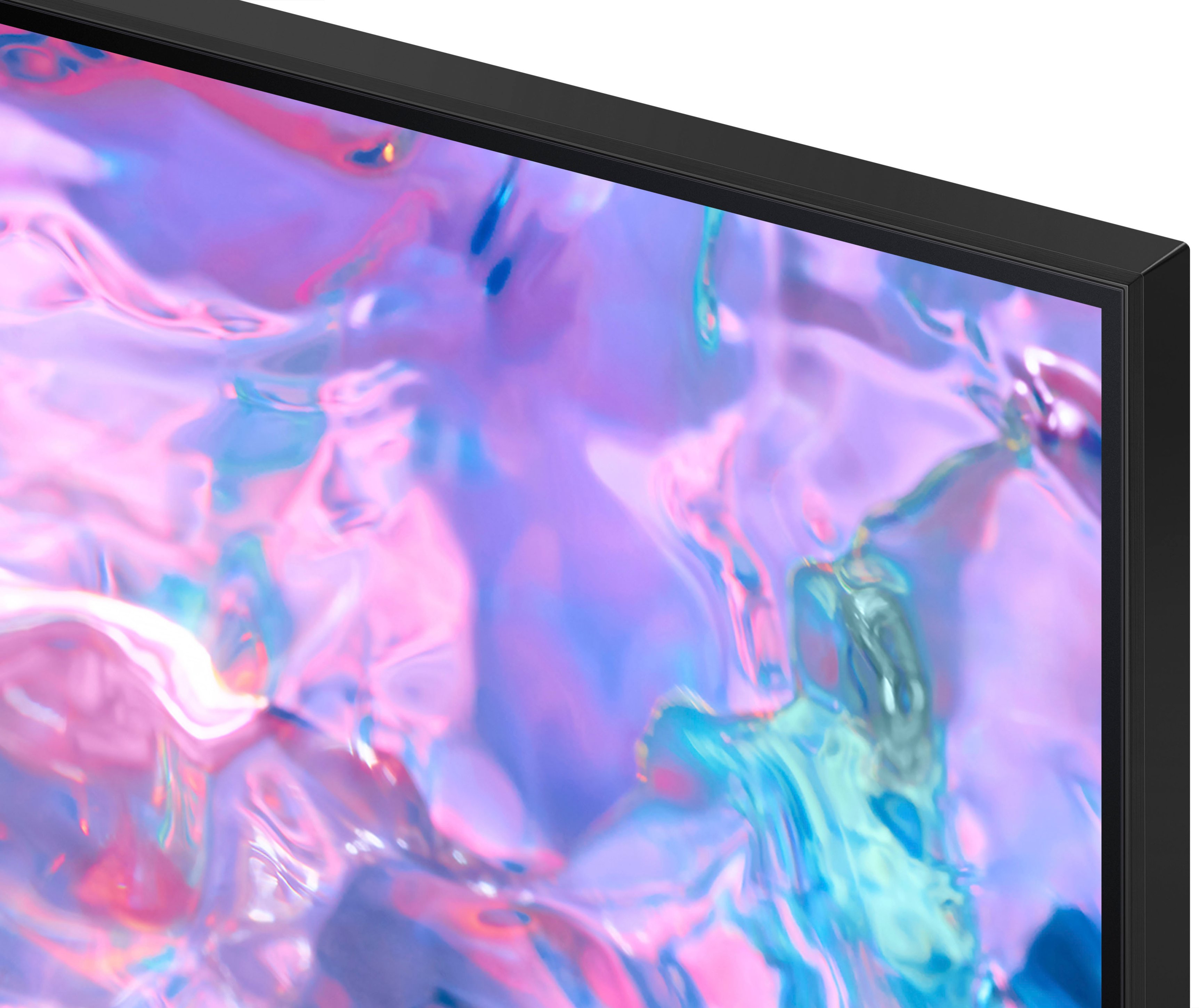



- Model:
- UN58CU7000FXZA
- SKU:
- 6537362
Rating by feature
- Picture Quality
Rating 4.7 out of 5 stars
- Sound Quality
Rating 4.4 out of 5 stars
- Brightness
Rating 4.7 out of 5 stars
Customers are saying
Customers often highlight the outstanding picture quality and ease of use of the 58” Class CU7000 Crystal UHD 4K Smart Tizen TV (2023). Many also appreciate the value for the price and vibrant colors. However, some users express dissatisfaction with the remote control's responsiveness and the lower volume levels. The smart features and ease of setup are also frequently praised.
This summary was generated by AI based on customer reviews.
- Pros mentioned:Picture quality
Doesn't play well withbothers
||Posted . Owned for 1 month when reviewed.This reviewer received promo considerations or sweepstakes entry for writing a review.The TV has high quality picture however it has not worked well with our xfinity. I have used 3 sets of high-speed hdmi cables. This may have fixed it. Time will tell.
No, I would not recommend this to a friendBrand response from Samsung
Posted .Hi RobertleeM,
Thank you for letting us know you are experiencing issues connecting your CU7000 TV to your Xfinity cable box. If you have an analog cable box or satellite box, upgrade to a digital cable box or satellite box. You may also want to change the output resolution of your devices, such as digital broadcast receivers, IPTV, and set-top boxes, to UHD or HD.
If you continue to have issues, please call us at 1-800-SAMSUNG, 8 AM - 12 AM EST, seven days a week. LiveChat with an agent, as well as manuals, software, and warranty info, can be found at the ‘Support’ link on our Samsung website.
~ Samsung Advisor
Work great
||Posted . Owned for 1 month when reviewed.This reviewer received promo considerations or sweepstakes entry for writing a review.Nothing fancy but it dose the job but recommend a sound bar
I would recommend this to a friendPower button must be pressed 4-5 times for program
||Posted . Owned for 1 month when reviewed.This reviewer received promo considerations or sweepstakes entry for writing a review.TV power button has to be pressed down for 4 or 5 minutes- sometimes have to reboot by turning on and off several times before program will actually start-this has to be done each time the tv is turned off and back on
No, I would not recommend this to a friendBrand response from Samsung
Posted .Hi CoraC,
I'm sorry to hear you are experiencing issues with your CU7000 TV. Please give us a call so we can better troubleshoot the issue with you or schedule service if necessary. You can call us at 1-800-SAMSUNG, 8 AM - 12 AM EST, seven days a week. Our LiveChat agents are also available by clicking on the ‘Support’ link on our website.
~ Samsung Advisor
- Pros mentioned:Picture quality
Only work 2 month's
||Posted . Owned for 1 month when reviewed.This reviewer received promo considerations or sweepstakes entry for writing a review.Bought in August and broke in September. Had a great picture then started blinking gray to dark screen no picture and no sound and wont shut off even with remote. Have to unplug from outlet to turn off. Of course have to wait over a week for Best Buy to come out and look at it.
No, I would not recommend this to a friendBrand response from Samsung
Posted .Hi Danny,
I'm sorry to hear that you are experiencing issues with your CU7000 TV. We appreciate your patience while waiting for Best Buy to come to look at it. If you need any help, Samsung is here for you. Please call us at 1-800-SAMSUNG, 8 AM - 12 AM EST, seven days a week. Our LiveChat agents are also available by clicking on the ‘Support’ link on our website.
~ Samsung Advisor
Average tv
||Posted . Owned for 3 weeks when reviewed.This reviewer received promo considerations or sweepstakes entry for writing a review.We are disappointed in the quality of the picture but I guess it’s not like our plasma tv which isn’t made anymore. Also, the sound changes from live tv to recorded tv. Recorded goes to 30-35 on the settings where live is ok at 16-17.
No, I would not recommend this to a friendBrand response from Samsung
Posted .Hi Karen,
We appreciate your feedback on the picture and sound quality of the CU7000 TV. Please know we are here to help and have a few recommendations that may improve your experience.
First, please know that the Auto Volume function automatically adjusts the sound to a certain level when changing channels or switching to another external input. To adjust it, go to Settings > All Settings> Sound > Expert Settings > Auto Volume = On.
You may also want to perform a Sound Test under Support > Self Diagnosis > Start Sound Test.
Next, if the picture you are seeing is not to your liking, you can change the below Settings.
Go to Home > Settings > All Settings > Picture > Picture Mode and select the mode that best fits your usage:
1) Standard: Default mode suitable for general viewing environments.
2) Natural: Reduces eye strain for a comfortable viewing experience.
3) Movie: Most suitable for watching TV or movies in a dark room.
4) Dynamic: Makes the picture brighter and clearer in bright viewing environments.
5) Filmmaker Mode: You can watch the source content (e.g., movie) as it is. If the image is defined as Filmmaker Mode, it will automatically switch to Filmmaker Mode while watching.
You can also go to Settings > All Settings> Picture > Expert Settings > to manually fine-tune your image.
If you’d like more help with settings, please know we’re here to help! Call us at 1-800-SAMSUNG, 8 AM - 12 AM EST, seven days a week. Or visit us on the Samsung website and click on the ‘Support’ link for:
1) LiveChat
2) Manuals, Software, & Warranty Info
~ Samsung Advisor
Was great while ut lasted
||Posted . Owned for 1 year when reviewed.This reviewer received promo considerations or sweepstakes entry for writing a review.Purchased this TV on 2/28/2024 and on 3/07/2025 i noticed a line of distorted pixels in the middle of screen. Its past the one year warranty and i didnt purchase the extended warranty. So it seems im stuck with a beautiful Tv with a defect that started about a year from purchase so be aware
No, I would not recommend this to a friendShould have spent a few more bucks
||Posted . Owned for 3 weeks when reviewed.This reviewer received promo considerations or sweepstakes entry for writing a review.My wife doesn’t like this TV very much. I should’ve spent more money and got a better picture. Samsung as a whole are awesome TVs but if mama isn’t happy, ain’t nobody happy
No, I would not recommend this to a friendBrand response from Samsung
Posted .Hi JohnnyHolmes,
We appreciate your purchase and are sorry to hear that your wife is not satisfied with the Samsung CU7000 TV picture. There are multiple settings available that may improve the picture, depending on what you are watching.
Go to Home > Settings > All Settings > Picture > Picture Mode and select the mode that best fits your usage:
1) Standard: Default mode suitable for general viewing environments.
2) Natural: Reduces eye strain for a comfortable viewing experience.
3) Movie: Most suitable for watching TV or movies in a dark room.
4) Dynamic: Makes the picture brighter and clearer in bright viewing environments.
5) Filmmaker Mode: You can watch the source content (e.g., movie) as it is. If the image is defined as Filmmaker Mode, it will automatically switch to Filmmaker Mode while watching.
You can also go to Settings > All Settings> Picture > Expert Settings > to manually fine-tune your image.
If you need more help, Samsung is here for you. Call us at 1-800-SAMSUNG, 8 AM - 12 AM EST, seven days a week. Our LiveChat agents are also available by clicking on the ‘Support’ link on our website.
~Samsung Advisor
Spare tv
||Posted . Owned for 1 month when reviewed.This reviewer received promo considerations or sweepstakes entry for writing a review.Listed as a 55 in ,but is actually a 58.5 inch. Picture quality is ok , but sometimes has issues with connecting wireless. But, the price was worth it for a bedroom tv.
I would recommend this to a friendBrand response from Samsung
Posted .Hi BrianB,
Thank you for your feedback on the CU7000 TV. To rectify any issues with internet issues, I recommend ensuring you are running the latest Firmware. Go to Settings> Support> Software Update. To ensure you do not miss any Firmware Updates, I recommend enabling Auto Updates. Go to Settings> Support> Software Update> then select Auto Update.
Next, let's try running a cold boot on your TV. To do so, hold down the Power button on the Samsung TV remote until the TV turns off and then on again. This should take about 5 seconds.
I hope these tips help resolve your concerns.
If you need more help, Samsung is here for you. Please call us at 1-800-SAMSUNG, 8 AM - 12 AM EST, seven days a week. Our LiveChat agents are also available by clicking on the ‘Support’ link on our website.
~ Samsung Advisor
Good tv otherwise
||Posted . Owned for 3 weeks when reviewed.This reviewer received promo considerations or sweepstakes entry for writing a review.Decent Tv but sucks that you can't download apps. There was few apps i was trying to download and unlike other TVs you cant download other streaming apps it doesnt come with
I would recommend this to a friendBrand response from Samsung
Posted .Hi Jmarie,
We appreciate your feedback on the Samsung CU7000 TV app selection. Please know that your TV has a built-in App Store, which allows you to choose from and download hundreds of apps.
To access the app store, please go to Home> Scroll over to Apps> Search for the app desired. If you need more help, Samsung is here for you. Please call us at 1-800-SAMSUNG, 8 AM - 12 AM EST, seven days a week. Our LiveChat agents are also available by clicking on the ‘Support’ link on our website.
~ Samsung Advisor
Average TV
||Posted . Owned for 3 weeks when reviewed.This reviewer received promo considerations or sweepstakes entry for writing a review.User interface isn’t that great to manage and the clarity of the picture color isn’t phenomenal. However, TV does what it needs to do.
No, I would not recommend this to a friendBrand response from Samsung
Posted .Hi CathyB,
We appreciate your feedback on the user interface and image quality of your CU7000 TV. Please know your review will be shared with our internal teams. There are several settings available that may improve your experience with picture clarity.
First, let's ensure you are running the latest Firmware. Go to Settings> Support> Software Update.
For optimal motion image performance, you may want to adjust the picture clarity setting by going to Settings > All Settings> Picture > Expert Settings > Picture Clarity Settings.
- Off: Picture Clarity Settings will always be off
- Auto: Picture Clarity Settings will automatically activate and deactivate based on the type of program being watched
- Custom: Allows custom adjustments and settings to be used. By selecting the Custom option, you can access these advanced settings for Judder Reduction, LED Clear Motion, and Noise Reduction.
Finally, there are several picture and sound settings that you can adjust to best fit what you are watching. Go to Home > Settings > All Settings > Picture > Picture Mode and select the mode that best fits your usage.
If you ever have questions or need help, Samsung is here for you! Give us a call at 1-800-SAMSUNG, 8 AM - 12 AM EST, seven days a week. Our LiveChat agents are also available by clicking on the ‘Support’ link on our website.
Thanks for being a part of the Samsung family!
~ Samsung Advisor
Replacement
||Posted . Owned for 1 month when reviewed.This reviewer received promo considerations or sweepstakes entry for writing a review.Not the best replacement as my previous Samsung tv. Should have received a voucher and purchased another brand
No, I would not recommend this to a friendBrand response from Samsung
Posted .Hi BonnieP,
Thank you for your purchase and feedback on the Samsung CU7000 TV. Please know there are several settings available allowing you to adjust your picture and sound.
Go to Home > Settings > All Settings > Picture > Picture Mode and select the mode that best fits your usage. For Sound adjustments, go to Settings> All Settings> Sound.If you’d like more help with settings, we are always happy to help! Call us at 1-800-SAMSUNG, 8 AM - 12 AM EST, seven days a week. Or visit us on the Samsung website and click on the ‘Support’ link for:
1) LiveChat
2) Manuals, Software, & Warranty Info
~ Samsung Advisor
Great picture quality; poor audio
||Posted . Owned for 1 month when reviewed.This reviewer received promo considerations or sweepstakes entry for writing a review.Really impressed with visualls. Not a fan on the samsung platform, but that’s a personal issue not a functional one. The sound quality however is pretty bad.
No, I would not recommend this to a friendBrand response from Samsung
Posted .Hi Bree,
Thank you for sharing your thoughts regarding the CU7000 TV’s sound quality. We recommend adjusting the Sound Settings to improve your experience. You can change the Sound Mode by going to Settings > All Settings> Sound > Sound Mode.
You can also customize the sound with Expert Settings by going to Settings > All Settings> Sound > Expert Settings.
To assist you with possible sound settings adjustments for a better audio experience or choosing a Samsung Soundbar to complement your viewing enjoyment, please reach out to us at -800-SAMSUNG, 8 AM - 12 AM EST, seven days a week. Our LiveChat agents are also available by clicking on the ‘Support’ link on our website.
~ Samsung Advisor
Samsung TV
||Posted . Owned for 2 months when reviewed.This reviewer received promo considerations or sweepstakes entry for writing a review.Very disappointed with this Samsung. Been purchasing Samsung’s for year and none have been this poor quality as this model.
No, I would not recommend this to a friendBrand response from Samsung
Posted .Hi KenL,
It's unfortunate to hear that the quality of the CU7000 TV did not live up to your expectations. Please give us a call so we can better support you. You can call us at 1-800-SAMSUNG, 8 AM - 12 AM EST, seven days a week. Our LiveChat agents are also available by clicking on the ‘Support’ link on our website.
~ Samsung Advisor
Samsung - 58” Class CU7000 Crystal UHD
||Posted . Owned for 2 weeks when reviewed.This reviewer received promo considerations or sweepstakes entry for writing a review.Not what I expected from a UHD TV. The sound is terrible and needs to be super improved. The picture quality in my opinion is bad.
No, I would not recommend this to a friendBrand response from Samsung
Posted .Hi John101,
Thank you for your feedback on the CU7000 TV's image and sound quality. Please know we are here to help!
First, let's ensure you are running the latest Firmware update. Go to Settings> Support> Software Update.
Next, to adjust your picture, go to Home > Settings > All Settings > Picture > Picture Mode and select the mode that best fits your usage:
1) Standard: Default mode suitable for general viewing environments.
2) Natural: Reduces eye strain for a comfortable viewing experience.
3) Movie: Most suitable for watching TV or movies in a dark room.
4) Dynamic: Makes the picture brighter and clearer in bright viewing environments.
5) Filmmaker Mode: You can watch the source content (e.g., movie) as it is. If the image is defined as Filmmaker Mode, it will automatically switch to Filmmaker Mode while watching.
You can also go to Settings > All Settings> Picture > Expert Settings > to manually fine-tune your image.
To adjust your sound, go to Settings > All Settings> Sound > Sound Mode.
I hope these tips help you enjoy your new product. You can contact us for further help at 1-800-SAMSUNG, 8 AM - 12 AM EST, seven days a week. Our LiveChat agents are also available by clicking on the ‘Support’ link on our website.
~ Samsung Advisor
- Pros mentioned:Picture quality
So slow!!!
||Posted . Owned for 9 months when reviewed.This reviewer received promo considerations or sweepstakes entry for writing a review.I really enjoy the picture qaulity. Thats the only positive note I have. The TV operates super slow overall and glitches constantly. My Tv will shut it self down, close my apps down, or when im watching a show live the tv becomes completely unresponsive. I will never buy another samsung tv.
No, I would not recommend this to a friendBrand response from Samsung
Posted .Hi BryceB,
I’m sorry to hear about the issues you’re experiencing with a slow operating system and TV glitches. Please know we are here to help.
To ensure performance is fully optimized, please make sure your TV is running the latest firmware. To do so, go to Settings> Support> Software Update. You can easily update from there if necessary.
Next, I recommend utilizing the self-diagnostic tool, which checks memory, frees unused cached memory, and closes background apps. Go to Settings > Support > Device Care > Start Device Care.
Finally, if your TV is freezing, please try running a cold boot. To do so, hold down the Power button on the Samsung TV remote until the TV turns off and then on again. This should take about 5 seconds.
If you need more help, Samsung is here for you. Please call us at 1-800-SAMSUNG, 8 AM - 12 AM EST, seven days a week. Our LiveChat agents are also available by clicking on the ‘Support’ link on our website.
~ Samsung Advisor
Samsung 58 inch tv
||Posted . Owned for 2 weeks when reviewed.This reviewer received promo considerations or sweepstakes entry for writing a review.Well… I just started using the new tv and there is a tiny blue line across the whole screen . So I guess two days ago was the last day it was “returnable “ . I’m not sure if that means they won’t help me with this issue now or not since I just unboxed it and hung it on our wall . I may give a better review if they do help me out with this issue . I love Samsung tvs so I have never had an issue before now .
No, I would not recommend this to a friendBrand response from Samsung
Posted .Hi JohannaC,
Thank you for purchasing the Samsung xxx TV and for sharing your experience with your TV not displaying properly. Please try the following troubleshooting steps:
1. If any external devices are connected, check all input cable connections
2. If the issue persists, define precisely what is wrong with the display. For example, mosaics and blocks, multiple lines or white dots, and fixed horizontal or vertical lines.
3. Try changing channels using the remote control. Is the issue the same on all channels?
4. Press the Home button (looks like a house), select Source, and choose another input source. Is the issue the same on all sources?
5. If the same problem persists, run a diagnostic test. (Home > Settings > Support > Device Care > Self Diagnosis > Picture Test)
6. If the problem disappears during the test, check your TV signal (Home > Settings > Support > Device Care > Self Diagnosis > Signal Information) to check the signal strength. The signal strength must be more than 20 dB (more than 4 bars on the icon) for stable signal reception
Should your issue persist, please contact Samsung Customer Support at 1-800-SAMSUNG, 8 AM - 12 AM EST, seven days a week. Or visit us on the Samsung website and click on the ‘Support’ link for:
1) LiveChat
2) Manuals, Software, & Warranty Info
~ Samsung Advisor
- Pros mentioned:Picture quality
Home
||Posted . Owned for 2 months when reviewed.This reviewer received promo considerations or sweepstakes entry for writing a review.Good quality picture TV easy to understand on the menu
I would recommend this to a friendBrand response from Samsung
Posted .Hi SantosF,
Thanks for taking a moment to review Samsung’s CU7000 TV. If you’re experiencing specific issues that caused you to give this a 2-star rating, please know that Samsung Customer Support is here to help. You can call us at 1-800-SAMSUNG, 8 AM - 12 AM EST, seven days a week. Our LiveChat agents are also available by clicking on the ‘Support’ link on our website.
~ Samsung Advisor
Average Smart TV
||Posted . Owned for 1 month when reviewed.This reviewer received promo considerations or sweepstakes entry for writing a review.Was a little hard to setup. Not as good as my last 4k TV, but it is good for the money.
No, I would not recommend this to a friendBrand response from Samsung
Posted .Hi RichardW,
We appreciate your feedback on the CU7000 TV being difficult to set up. We are sorry you did not initially have a good user experience.
Please know you can learn how to use your Samsung Remote by going to Home> (left directional button) Settings> Support> Remote Control Guide.
To download the user manual and quick start guide, please follow this link: https://www.samsung.com/us/support/downloads/?model=N0060577&modelCode=UN58CU7000BXZA or by going to our website and clicking Support.
If there’s anything we can ever help with, please call us at 1-800-SAMSUNG, 8 AM - 12 AM EST, seven days a week. Or visit us on the Samsung website and click on the ‘Support’ link for:
1) LiveChat
2) Manuals, Software, & Warranty Info
~ Samsung Advisor
Takes some time to process and lags on speakers
||Posted . Owned for 1 month when reviewed.This reviewer received promo considerations or sweepstakes entry for writing a review.The TV is a little slow, lags on good quality speakers but it can be easily solved with a Soundbar.
No, I would not recommend this to a friendBrand response from Samsung
Posted .Hi Pablo,
Thank you for your feedback on the CU7000 TV's user interface and sound quality. Please know we are here to help you and have a few suggestions that may improve your experience.
First, to ensure performance is fully optimized, please make sure your TV is running the latest firmware. To do so, go to Settings> Support> Software Update. You can easily update from there if necessary.
Next, I recommend utilizing the self-diagnostic tool, which checks memory, frees unused cached memory, and closes background apps. Go to Settings > Support > Device Care > Start Device Care.
If you are not happy with the sound quality of your TV, we recommend adjusting the Sound Settings to improve your experience. You can change the Sound Mode by going to Settings > All Settings> Sound > Sound Mode.
You can also customize the sound with Expert Settings by going to Settings > All Settings> Sound > Expert Settings.
I hope these tips help you enjoy your new product.
You can contact us for further help at 1-800-SAMSUNG, 8 AM - 12 AM EST, seven days a week. Our LiveChat agents are also available by clicking on the ‘Support’ link on our website.
~ Samsung Advisor
- Pros mentioned:Picture quality
Poor sound quality
||Posted . Owned for 1 month when reviewed.This reviewer received promo considerations or sweepstakes entry for writing a review.Picture quality is good but the sound is not good would not recommend
No, I would not recommend this to a friendBrand response from Samsung
Posted .Hi Kari,
Thank you for sharing your thoughts regarding the CU7000 TV’s sound quality. We recommend adjusting the Sound Settings to improve your experience. You can change the Sound Mode by going to Settings > All Settings> Sound > Sound Mode.
You can also customize the sound with Expert Settings by going to Settings > All Settings> Sound > Expert Settings.
To assist you with possible sound settings adjustments for a better audio experience or choosing a Samsung Soundbar to complement your viewing enjoyment, please reach out to us at 1-800-SAMSUNG, 8 AM - 12 AM EST, seven days a week. Our LiveChat agents are also available by clicking on the ‘Support’ link on our website.
~ Samsung Advisor