Customer Ratings & Reviews
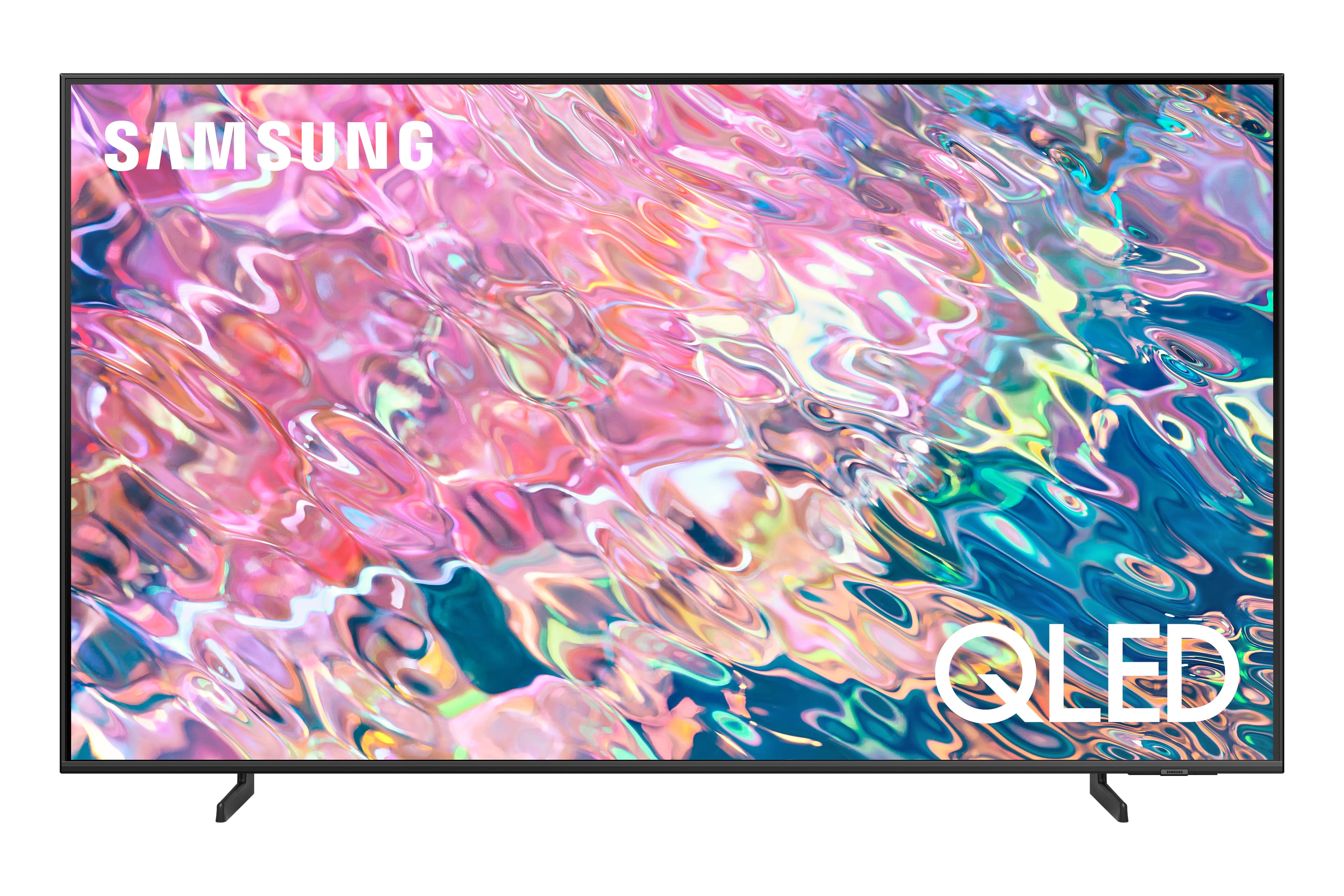
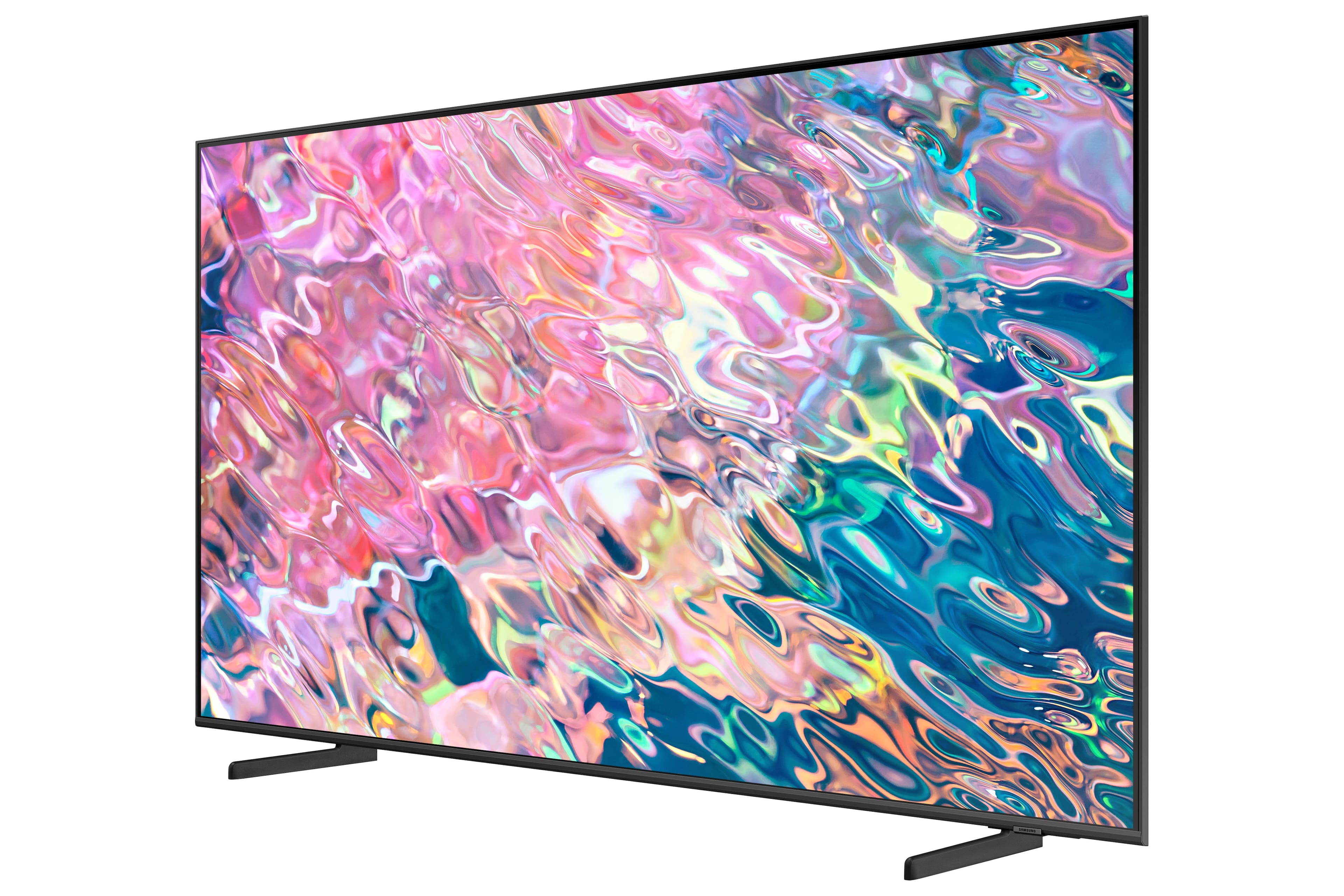
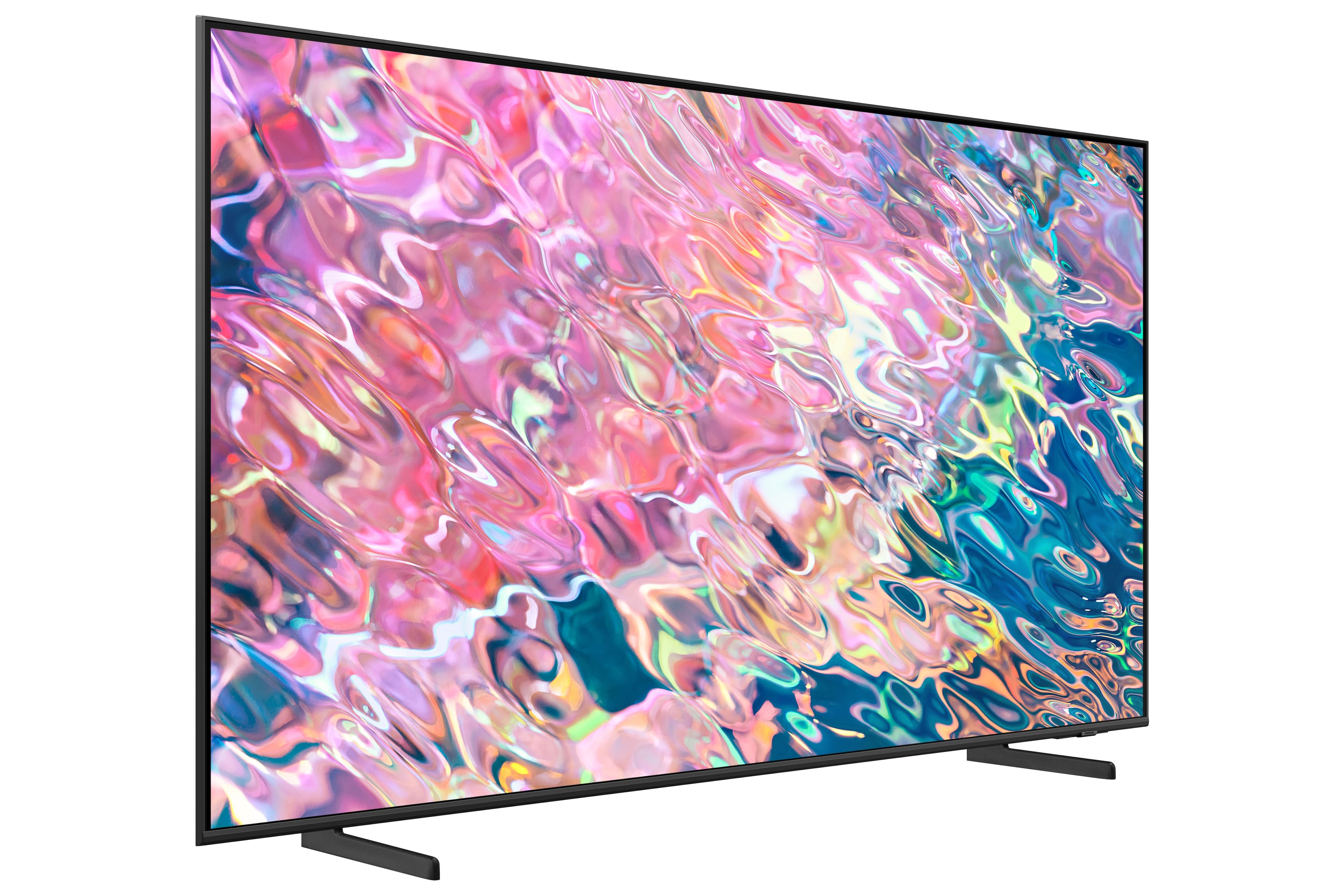
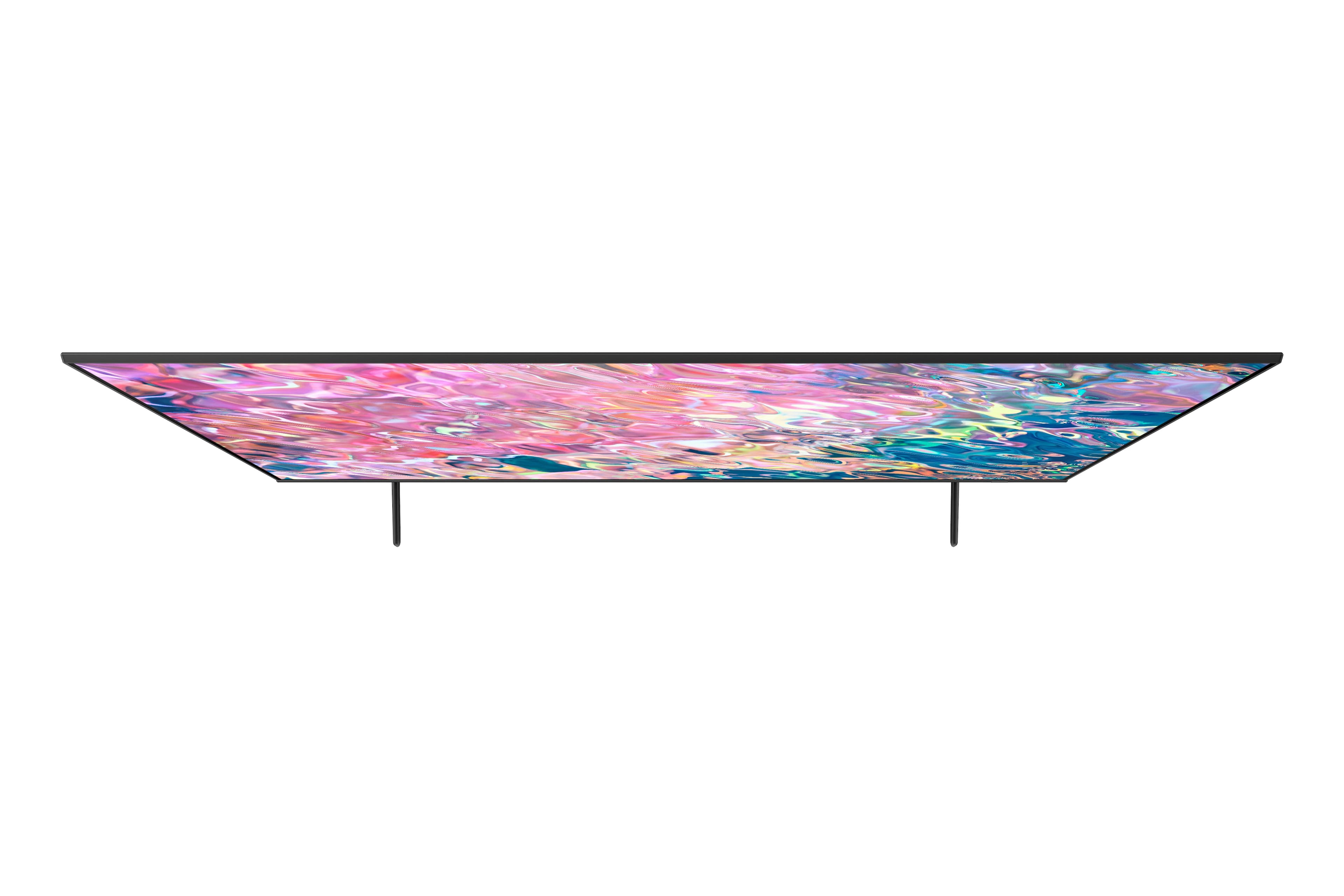








- Model:
- QN60Q60BAFXZA
- SKU:
- 6502242
Rating by feature
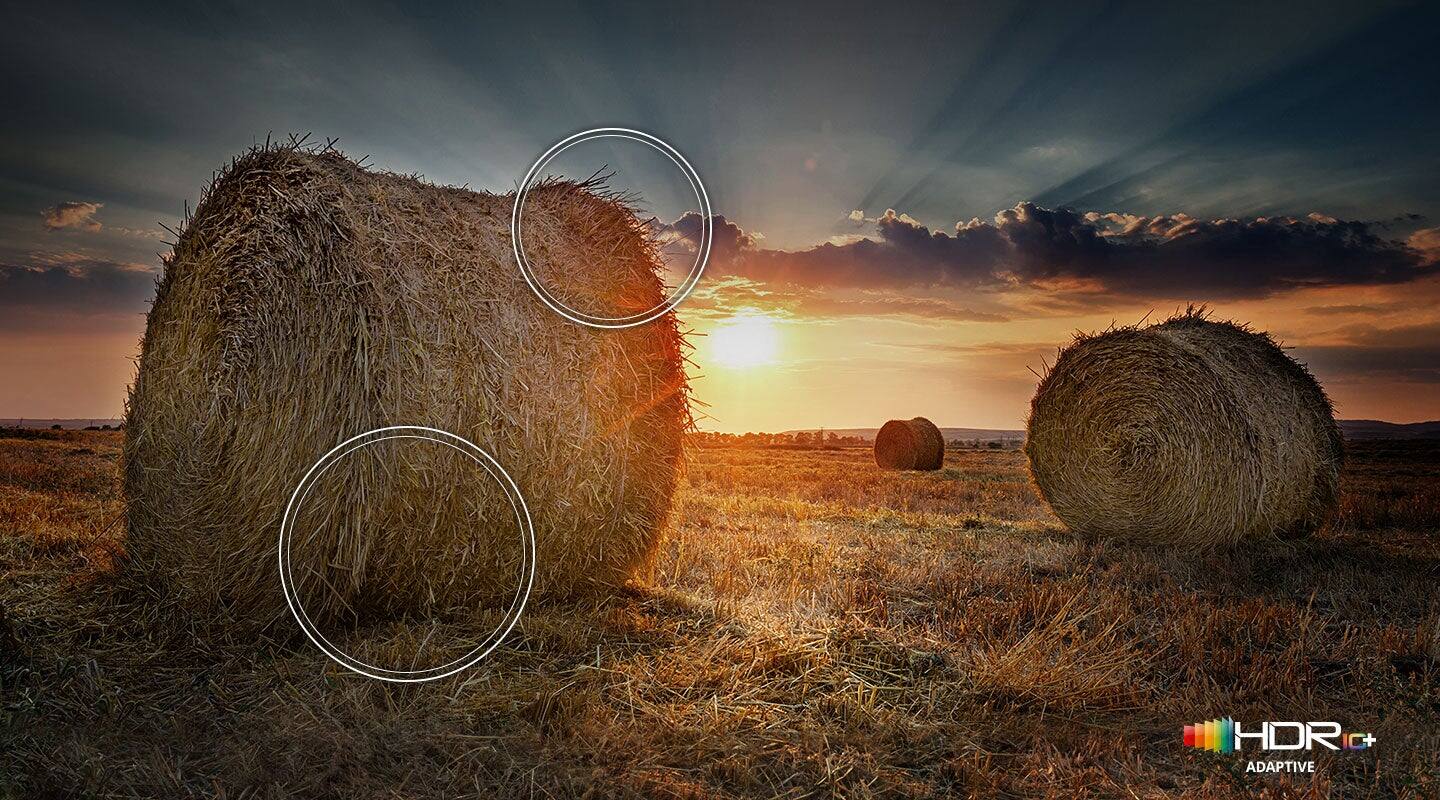
- Picture Quality
Rating 4.7 out of 5 stars
- Sound Quality
Rating 4.4 out of 5 stars
- Brightness
Rating 4.7 out of 5 stars
Customers are saying
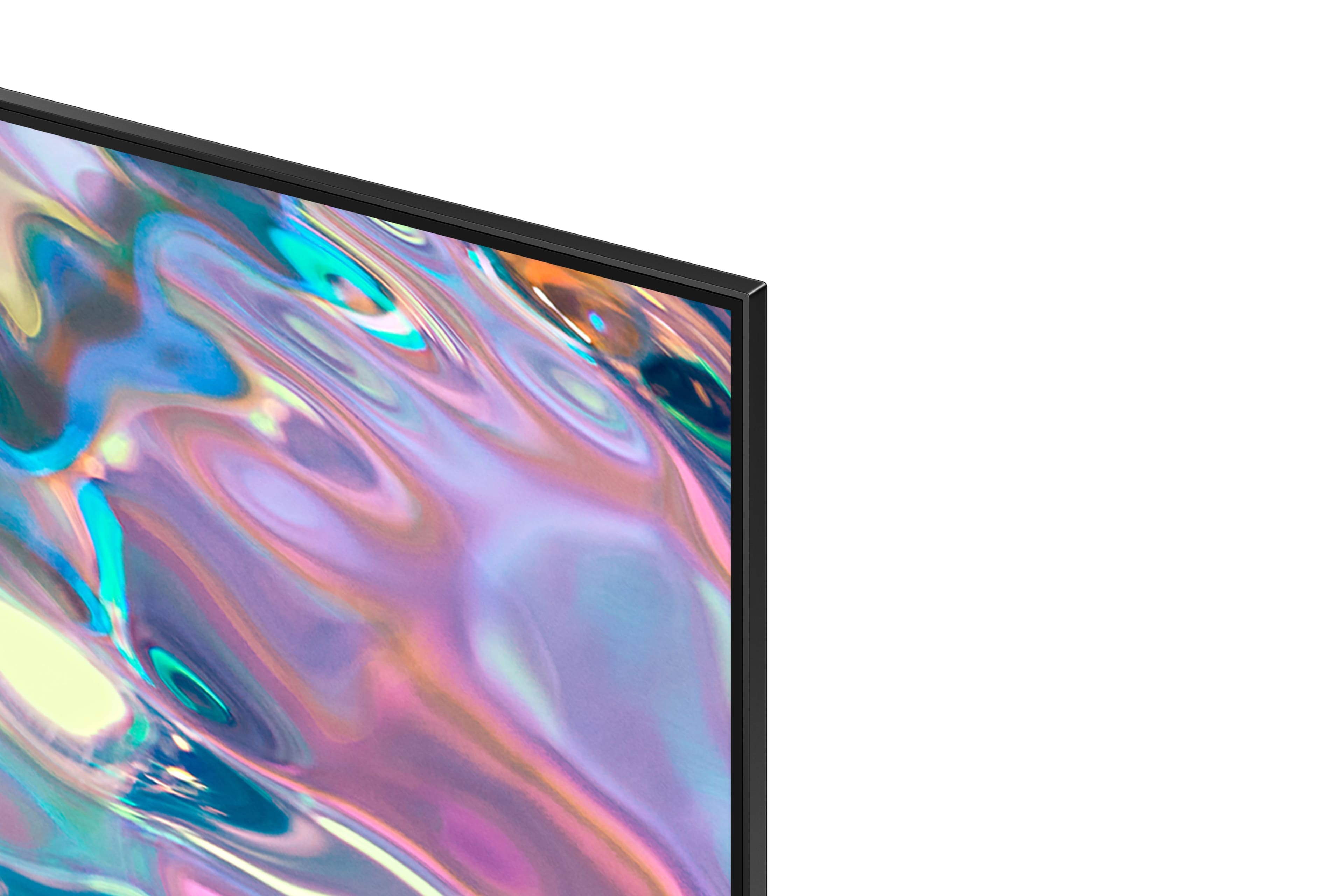
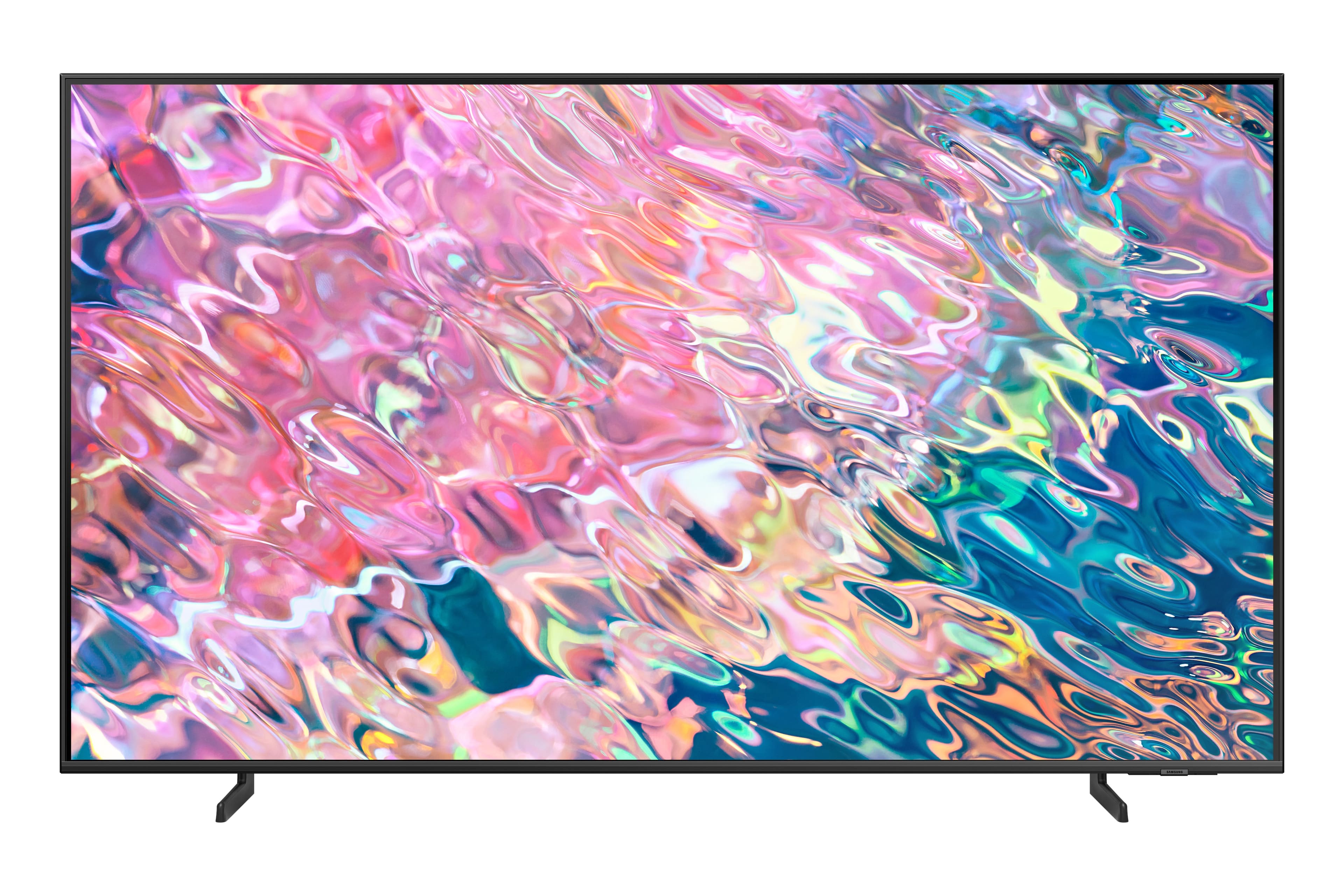
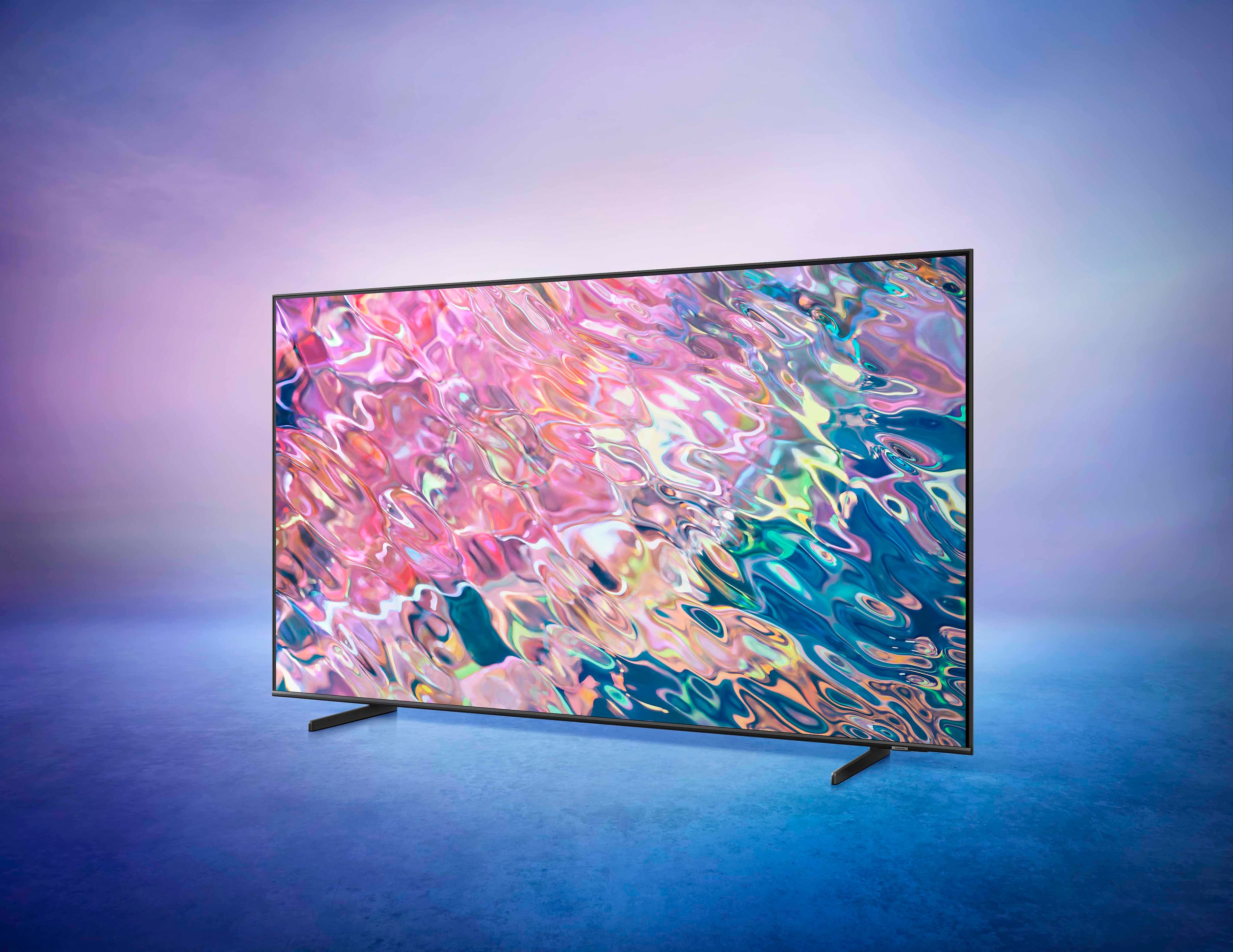
Customers commend the 60” Class Q60B QLED 4K Smart Tizen TV for its exceptional picture quality, describing it as fantastic, outstanding, and clear. The TV's easy setup, reasonable price, and sleek design are also well-received. While the sound quality is generally praised, some customers find the remote control to be fragile.
This summary was generated by AI based on customer reviews.
Ok for the price range.
||Posted . Owned for 5 months when reviewed.This reviewer received promo considerations or sweepstakes entry for writing a review.Ok value for the price, don’t expect to be blown away.
No, I would not recommend this to a friendGreat picture
||Posted . Owned for 2 weeks when reviewed.This reviewer received promo considerations or sweepstakes entry for writing a review.This tv is amazing compsref to the other ones on the market the meun is easier to use compared to last gen samsung there is even gaming services on it. I dont need them because i use my 4090 and Ryzen 9 7950x on it for gaming.
I would recommend this to a friendSamsung TV
||Posted . Owned for 3 weeks when reviewed.This reviewer received promo considerations or sweepstakes entry for writing a review.works fine, but turns on by itself during the night...
I would recommend this to a friendYup
||Posted . Owned for 1 month when reviewed.This reviewer received promo considerations or sweepstakes entry for writing a review.Its ai ite........................................
No, I would not recommend this to a friendBrand response from Samsung
Posted .CRGN,
Thank you for your review. If you’re experiencing specific issues which caused you to give this a 3-star rating, please know Samsung Customer Support is here to help.
Please reach us at 1-800-SAMSUNG, 8AM - 12AM EST, 7 days a week. Our LiveChat agents are also available by clicking on the ‘Support’ link on our website.
We look forward to hearing from you.
~ Samsung Specialist
Great TV and Best Buy Service
||Posted . Owned for 3 weeks when reviewed.This reviewer received promo considerations or sweepstakes entry for writing a review.The service was fantastic and I appreciate the selection. The TV fits our room and has a wonderful picture. Still learning all the features this TV has to offer.
I would recommend this to a friendMain screen (home screen)
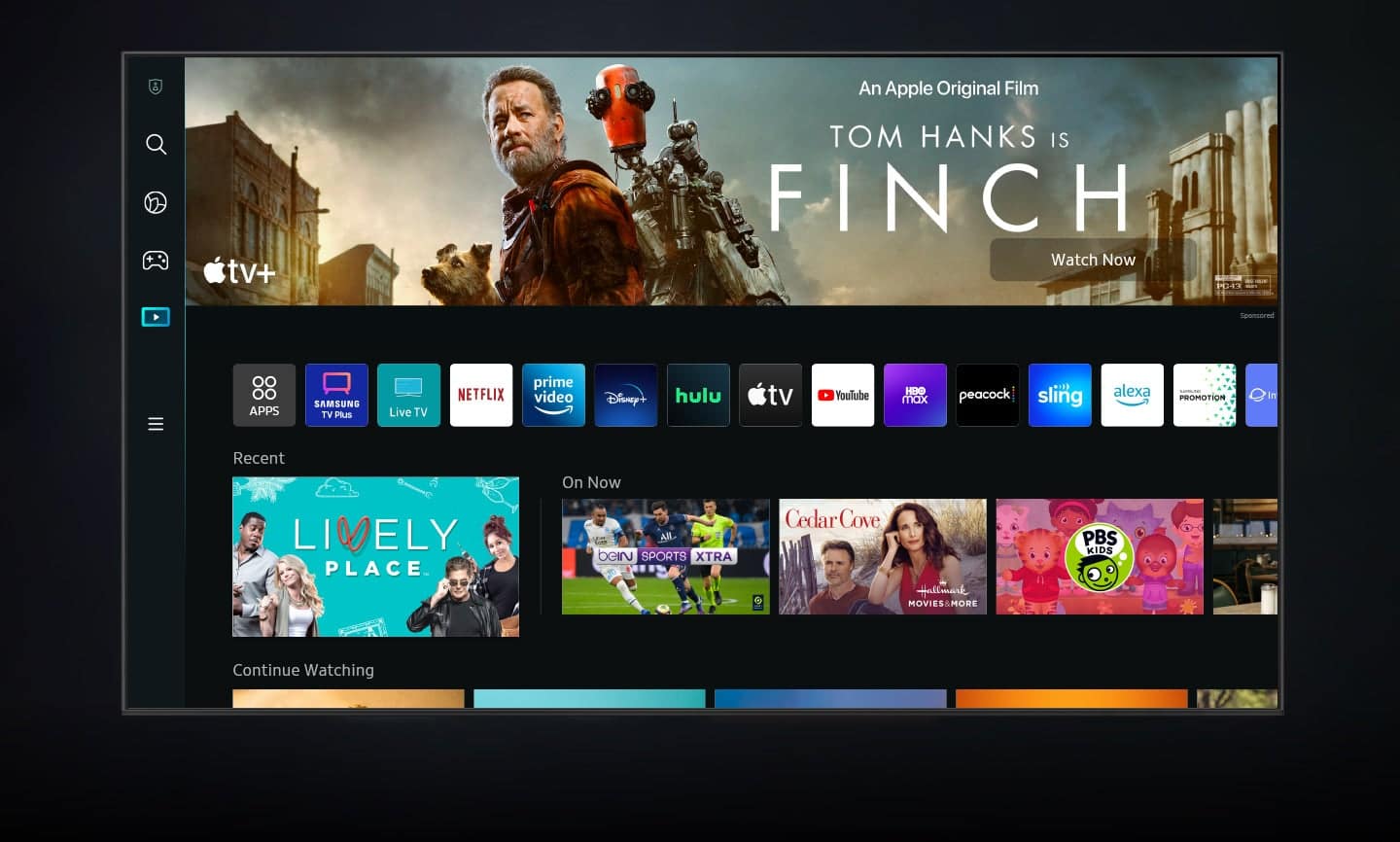
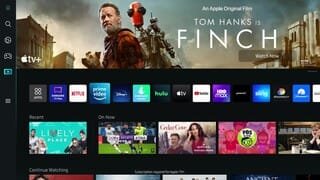
||Posted . Owned for 1 month when reviewed.This reviewer received promo considerations or sweepstakes entry for writing a review.Good TV, I was hoping to be able to customize the home screen more and get rid of the ads. The apps are smaller than the ads and I wished I could have seen the TV on and used the remote before I purchased it
I would recommend this to a friendGood value
||Posted . Owned for 1 month when reviewed.This reviewer received promo considerations or sweepstakes entry for writing a review.Good value for price. Not as bright as expected. Some jitter on fast moving scenes especially while streaming. Smart TV functions work well. Needed a 60” TV for built in area so not many other choices.
I would recommend this to a friendBrand response from Samsung
Posted .Jason,
We appreciate your feedback on the Q60B TV’s picture quality. If the image is too dim, please try disabling some of the TV's energy efficiency functions, as these will automatically adjust your picture and may cause your screen to appear brighter or darker than preferred. Go to: Home > Menu > Settings > All Settings > General & Privacy > Power and Energy Saving > turn off Brightness Optimization, Brightness Reduction, and Motion Lighting
You may also want to try adjusting image settings to improve your picture. Go to Home > Menu > Settings > All Settings > Picture > Picture Mode
1) Standard: Is the default mode suitable for general viewing environments.
2) Movie: Is suitable for watching TV or movies in a dark room.
3) Dynamic: Makes the picture brighter and clearer in bright viewing environments.
4) Filmmaker Mode: You can watch the source content (e.g., movie) as it is. If the image is defined as Filmmaker Mode, it will automatically switch to Filmmaker Mode while watching.
You can also customize the brightness level of your screen between 0 – 50 to your preference. Go to: Home > Menu > Settings > All Settings > Picture > Expert Settings
Please also make sure you’ve got the latest firmware version installed on your TV. You can check this by going to: Home > Menu > Settings > Support > Software Update > Update Now
For optimal motion image performance, you may also want to adjust the picture clarity setting by going to: Menu > Settings > All Settings > Picture > Expert Settings > Picture Clarity Settings
- Off: Picture Clarity Settings will always be off
- Auto: Picture Clarity Settings will automatically activate and deactivate based on the type of program being watched
- Custom: Allows custom adjustments and settings to be used. By selecting the Custom option, you can access these advanced settings for Judder Reduction, LED Clear Motion, and Noise Reduction.
Should you need further assistance with features or other product usage, please reach out to Samsung Support at 1-800-SAMSUNG, 8AM - 12AM EST, 7 days a week. Or visit us on the Samsung website and click on the ‘Support’ link for:
• LiveChat
• Manuals, Software, & Warranty Info
~ Samsung Specialist
Help Smart Things
||Posted . Owned for 1 month when reviewed.This reviewer received promo considerations or sweepstakes entry for writing a review.I bought this TV on July 27th. I have been trying to get it connected to the smart things app. I have tried several different time it just will not connect. Can someone help me with this>
I would recommend this to a friendBrand response from Samsung
Posted .Mike,
I'm sorry to hear of the difficulties you're having with SmartThings. From your TV, you can monitor and configure smart devices you connected to the SmartThings service via the SmartThings app. You can receive notifications about the statuses of your connected devices. You must first be logged into your Samsung account.
1) Turn on your TV. Then, on your phone, open the SmartThings app.
2) Tap the Device tab, tap the Home icon, and then select the location where you'd like to add the TV. Tap Add (the plus sign), and then tap Add device.
3) Under the "By device type" tab, tap TV, and then tap Samsung.
4) Tap TV again, and then tap Start. Select a location and room, and then tap Next.
5) From here, select your desired TV from the list of available devices.
6) Use the remote to select OK on the TV screen.
7) Once the TV has been added, use the SmartThings app on your phone to rename it, and then tap Done.
If you've already logged into your Samsung account and your TV status is stuck in a particular state or does not respond to an action in your SmartThings app, you might also want to try the following steps:
1) Please make sure both devices are connected to the same local network. The phone and TV must be connected to the same network as your router to be discovered by the app.
2) Refresh the device using the SmartThings app. From the Devices tab, swipe down to refresh the device list.
3) Delete and re-add the device on the SmartThings app.
If you need further help with the SmartThings app, please contact Samsung Customer Support at 1-800-SAMSUNG, 8AM - 12AM EST, 7 days a week. Or visit us on the Samsung website and click on the ‘Support’ link for:
• LiveChat
• Manuals, Software, & Warranty Info
~ Samsung Specialist
Our new 60" TV
||Posted . Owned for 2 weeks when reviewed.This reviewer received promo considerations or sweepstakes entry for writing a review.We love our new TV and the men that installed it did a great job. The man that sold it to us was polite, efficient and knowledgeable.
I would recommend this to a friendgreat
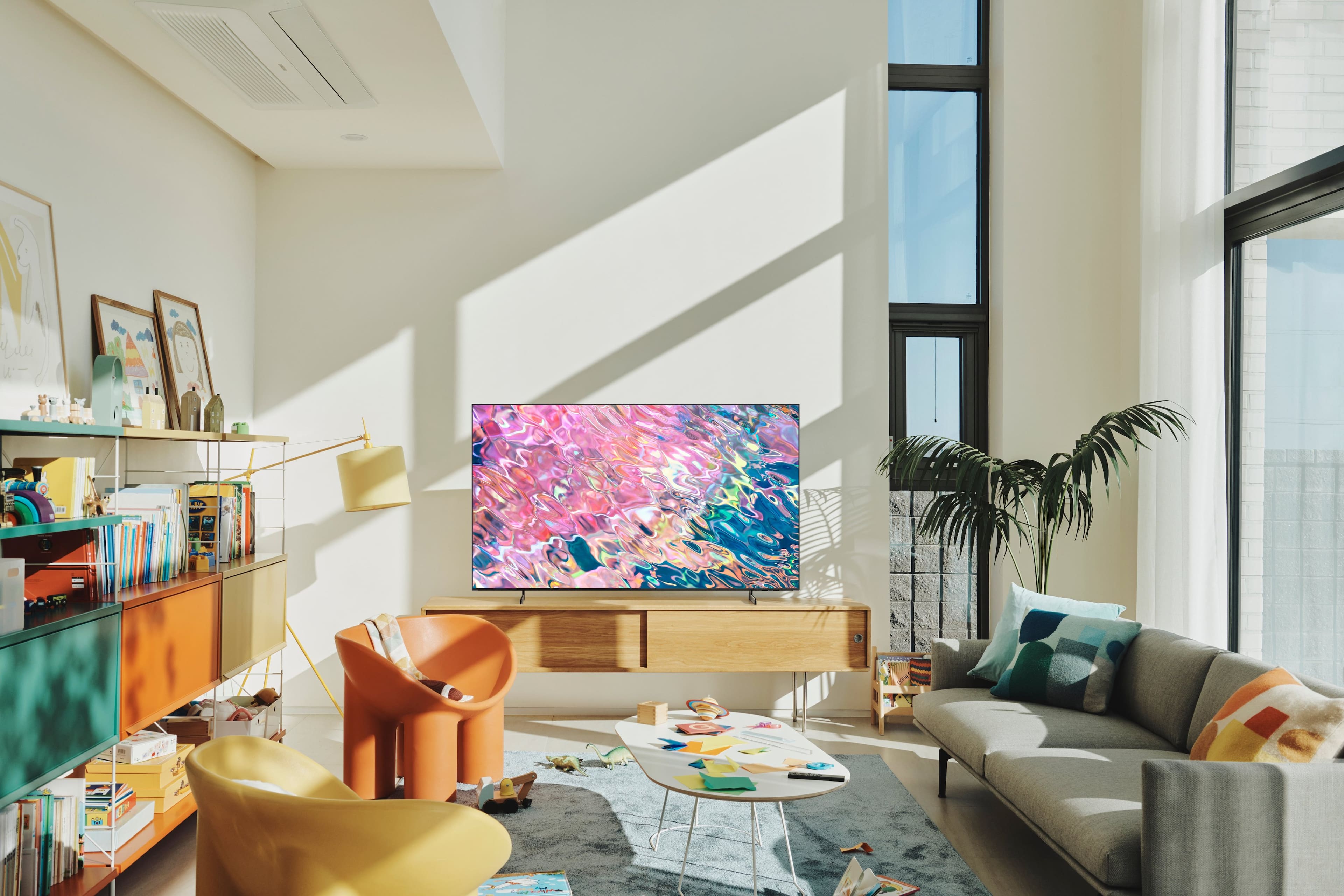
||Posted . Owned for 1 month when reviewed.This reviewer received promo considerations or sweepstakes entry for writing a review.Hubby likes it. Perfect size for our living room. Wish more companies would make a 60 inch. set up was a breeze.
I would recommend this to a friendNew Tv
||Posted . Owned for 3 weeks when reviewed.This reviewer received promo considerations or sweepstakes entry for writing a review.Love my new tv! Best Buy was prompt in delivery and the installing team were very professional explaining everything!
No, I would not recommend this to a friendImpressive Samsung TV!
||Posted . Owned for 3 weeks when reviewed.This reviewer received promo considerations or sweepstakes entry for writing a review.So far, very impressed with the extra features. User friendly remote and Samsung Plus features-live TV, etc.
I would recommend this to a friendMy TV.
||Posted . Owned for 3 weeks when reviewed.This reviewer received promo considerations or sweepstakes entry for writing a review.tv is wonderful so far! I love Best Buy for their products! Would recommend it ! to my friends!
I would recommend this to a friendSamsung Swag!
||Posted . Owned for 1 month when reviewed.This reviewer received promo considerations or sweepstakes entry for writing a review.Samsung TV’s are awesome! The quality and resolution are kind-blowing! Definitely a great buy!
I would recommend this to a friendSamsung the one
||Posted . Owned for 1 week when reviewed.This reviewer received promo considerations or sweepstakes entry for writing a review.Samsung tv my opinion is one of the best tvs out there this unit is nice the colors are brilliant my 3rd one in each room.
I would recommend this to a friendAWESOME TV
||Posted . Owned for 1 month when reviewed.This reviewer received promo considerations or sweepstakes entry for writing a review.Awesome Tv and set up was great by geek squad. They came in and were very patient!
I would recommend this to a friendgreat TV
||Posted .This reviewer received promo considerations or sweepstakes entry for writing a review.very good TV, sharp screen , only issue seems to be is the remote
I would recommend this to a friendGreat product and quality and great price great to
||Posted .This reviewer received promo considerations or sweepstakes entry for writing a review.Great product great price and quality great place to buy products
I would recommend this to a friendGreat TV
||Posted . Owned for 3 weeks when reviewed.This reviewer received promo considerations or sweepstakes entry for writing a review.Great TV. I Always go with Samsung and very happy with this one.
I would recommend this to a friendAlex
||Posted . Owned for 3 weeks when reviewed.This reviewer received promo considerations or sweepstakes entry for writing a review.Excelente perfect fit for my Living room Really happy with my purchase …..
No, I would not recommend this to a friend