Customer Ratings & Reviews
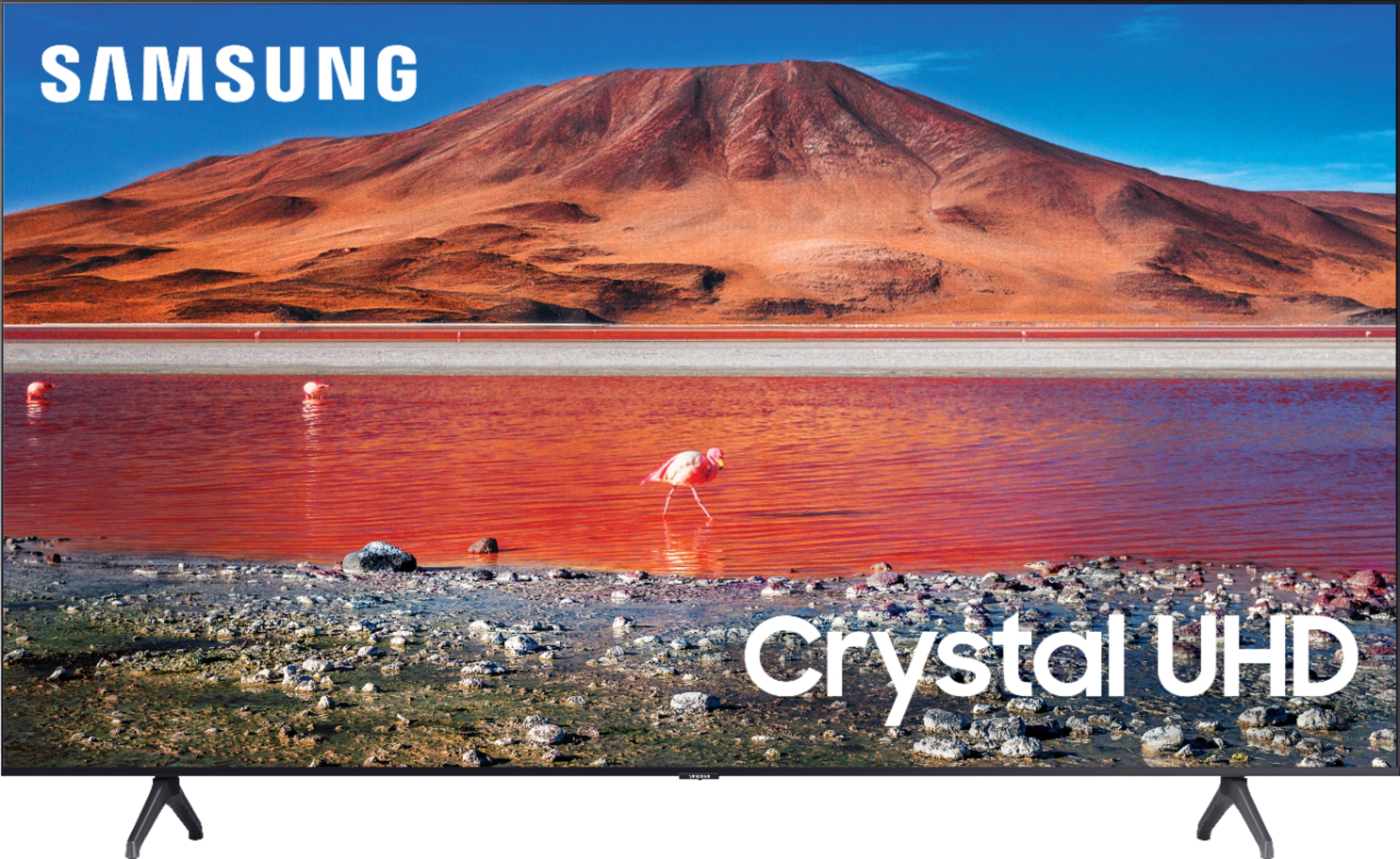
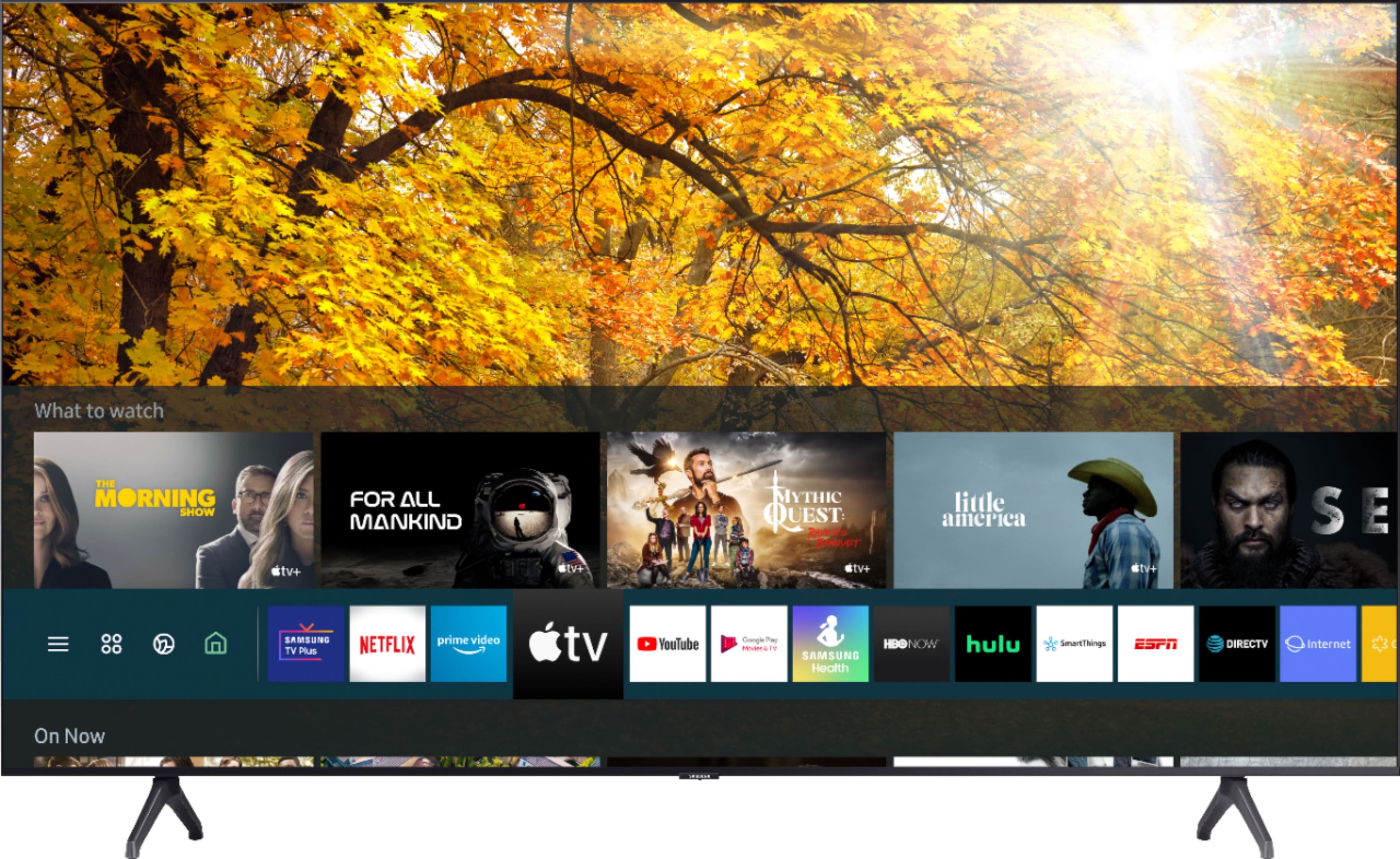
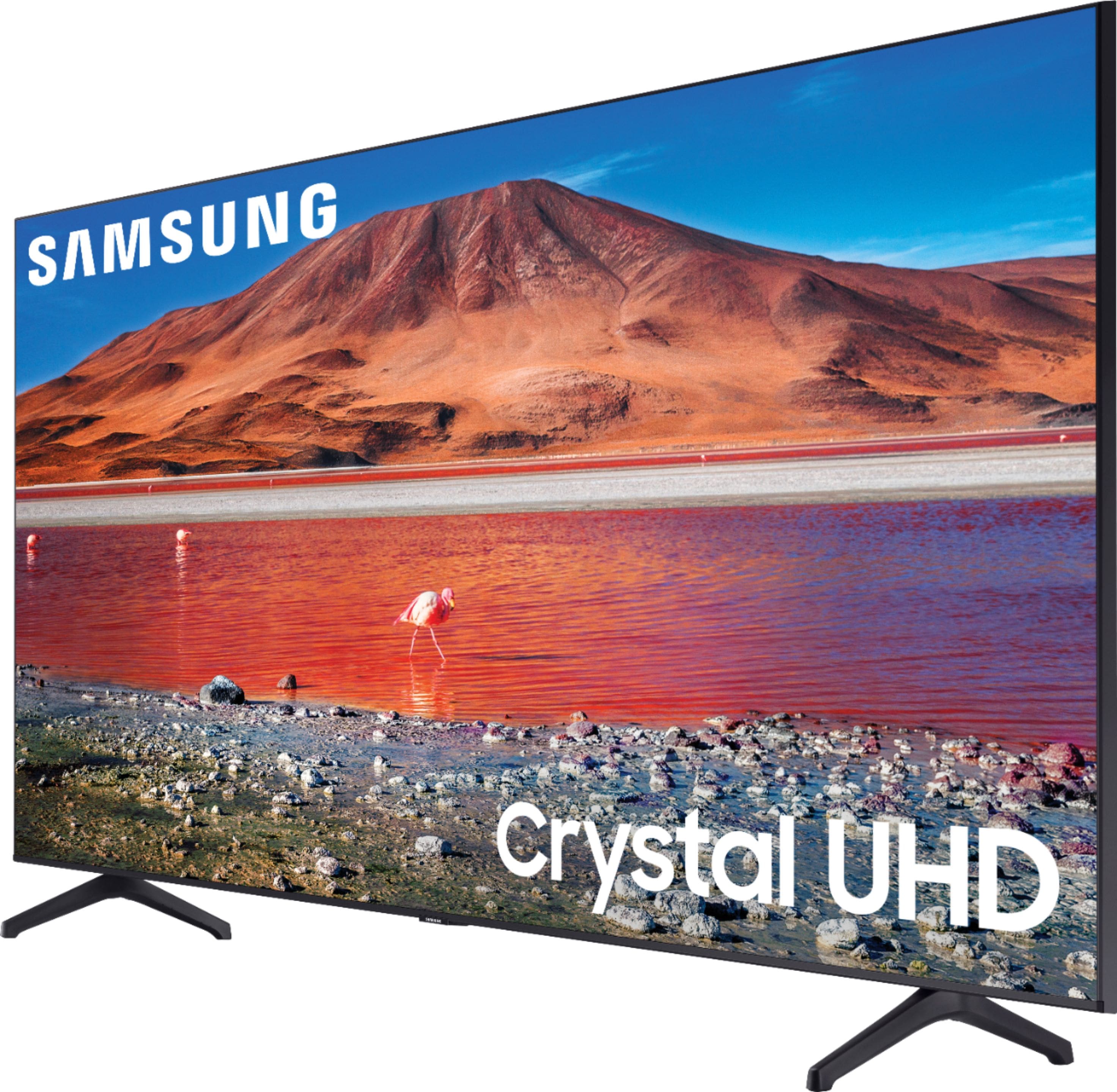
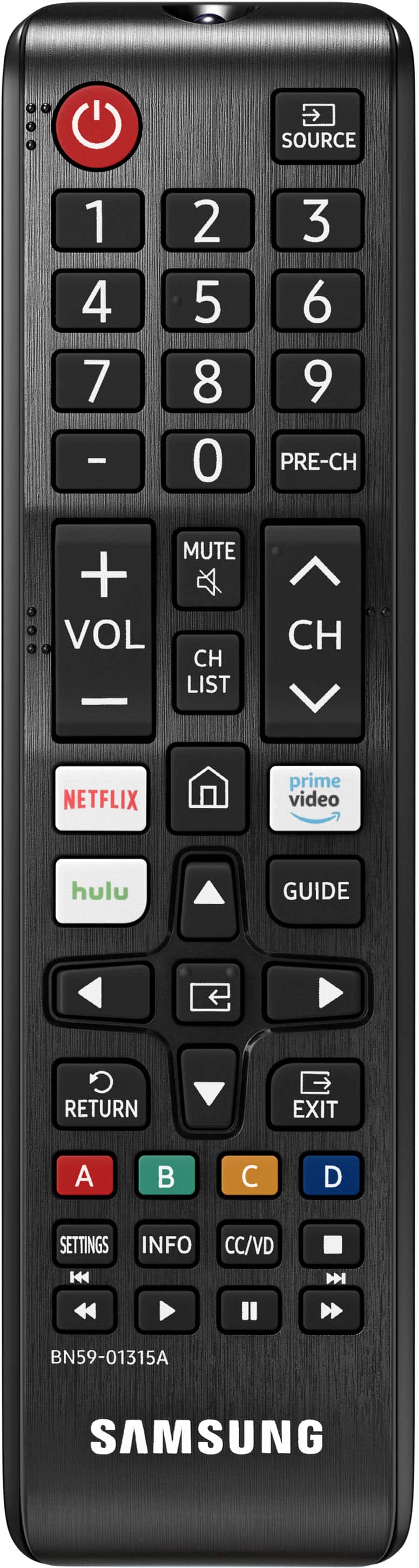





- Model:
- UN65TU7000FXZA
- SKU:
- 6401722
Rating by feature
- Picture Quality
Rating 4.7 out of 5 stars
- Sound Quality
Rating 4.5 out of 5 stars
- Brightness
Rating 4.7 out of 5 stars
Customers are saying
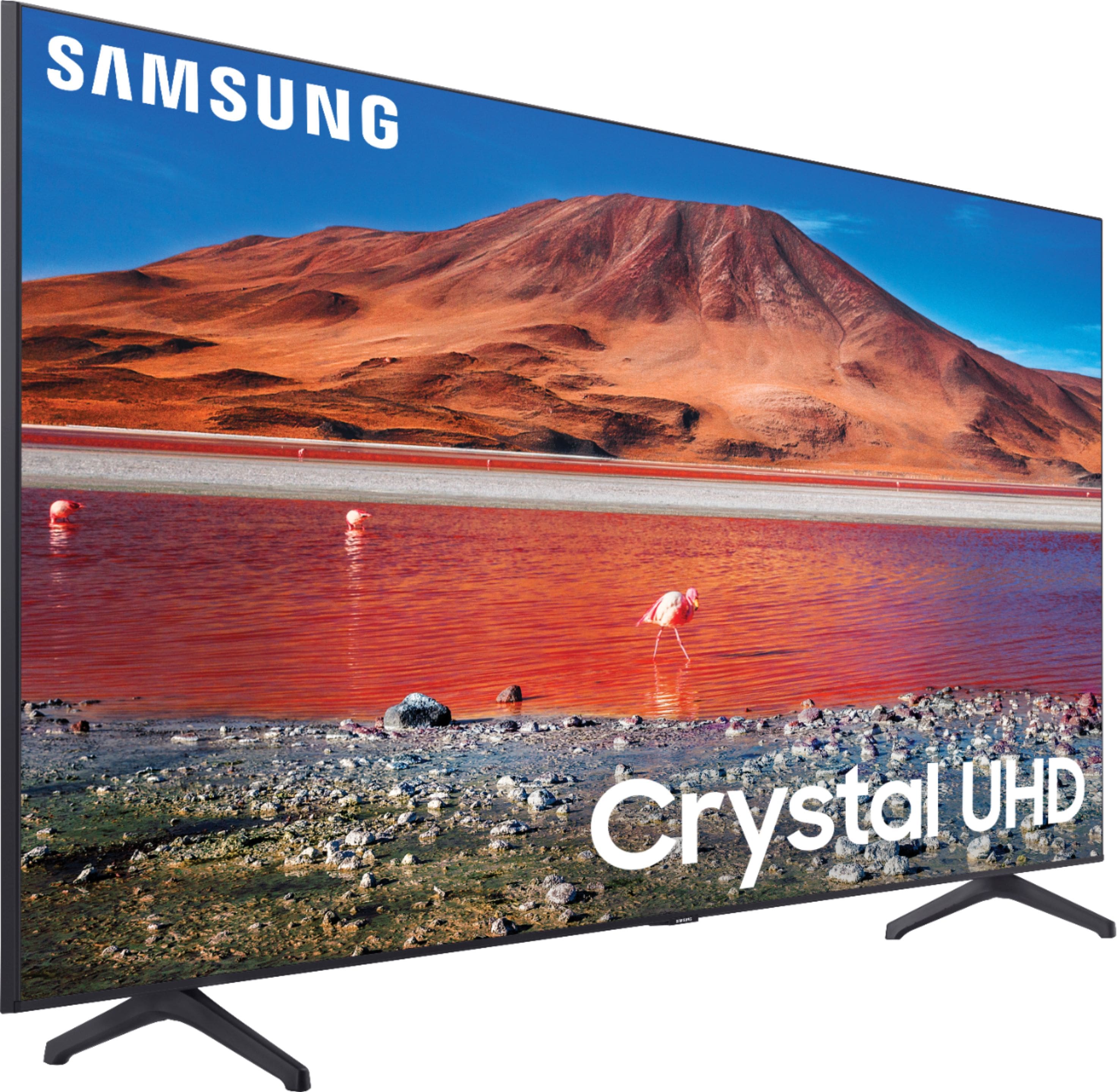
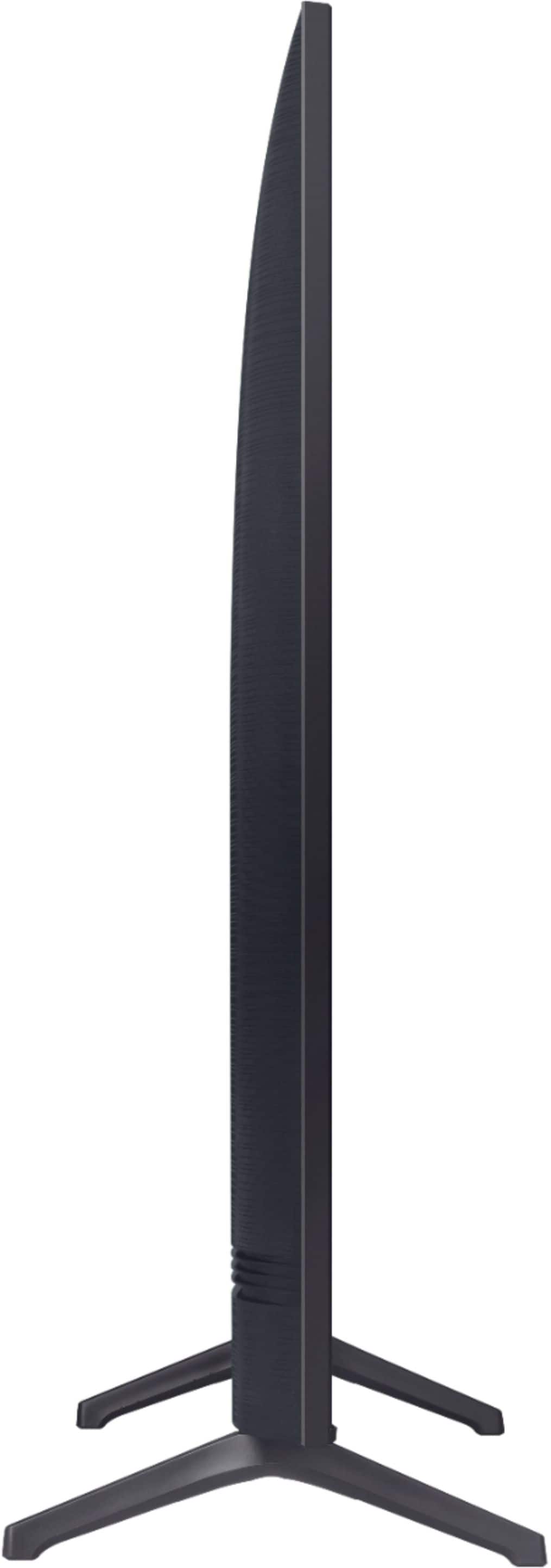
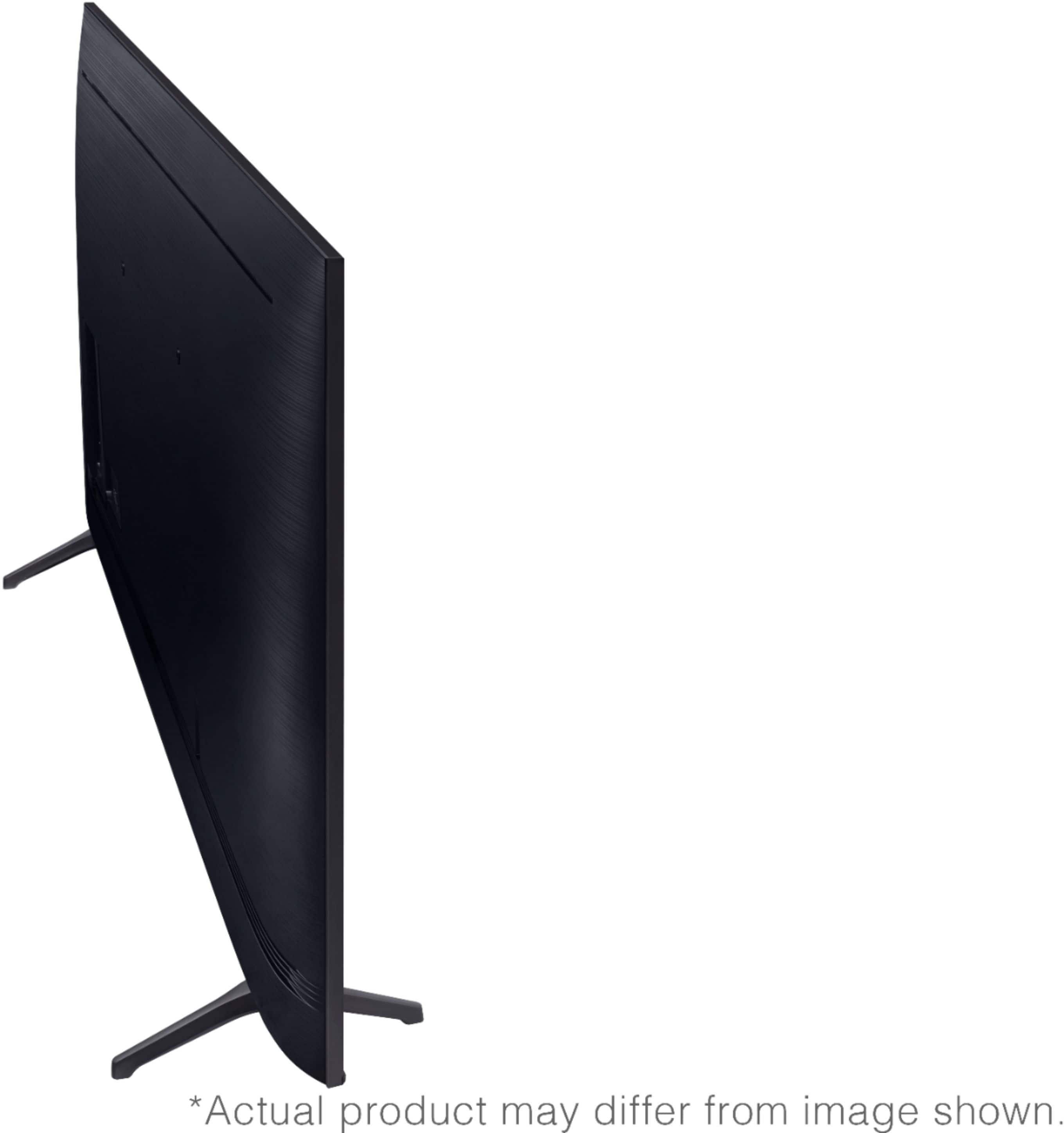
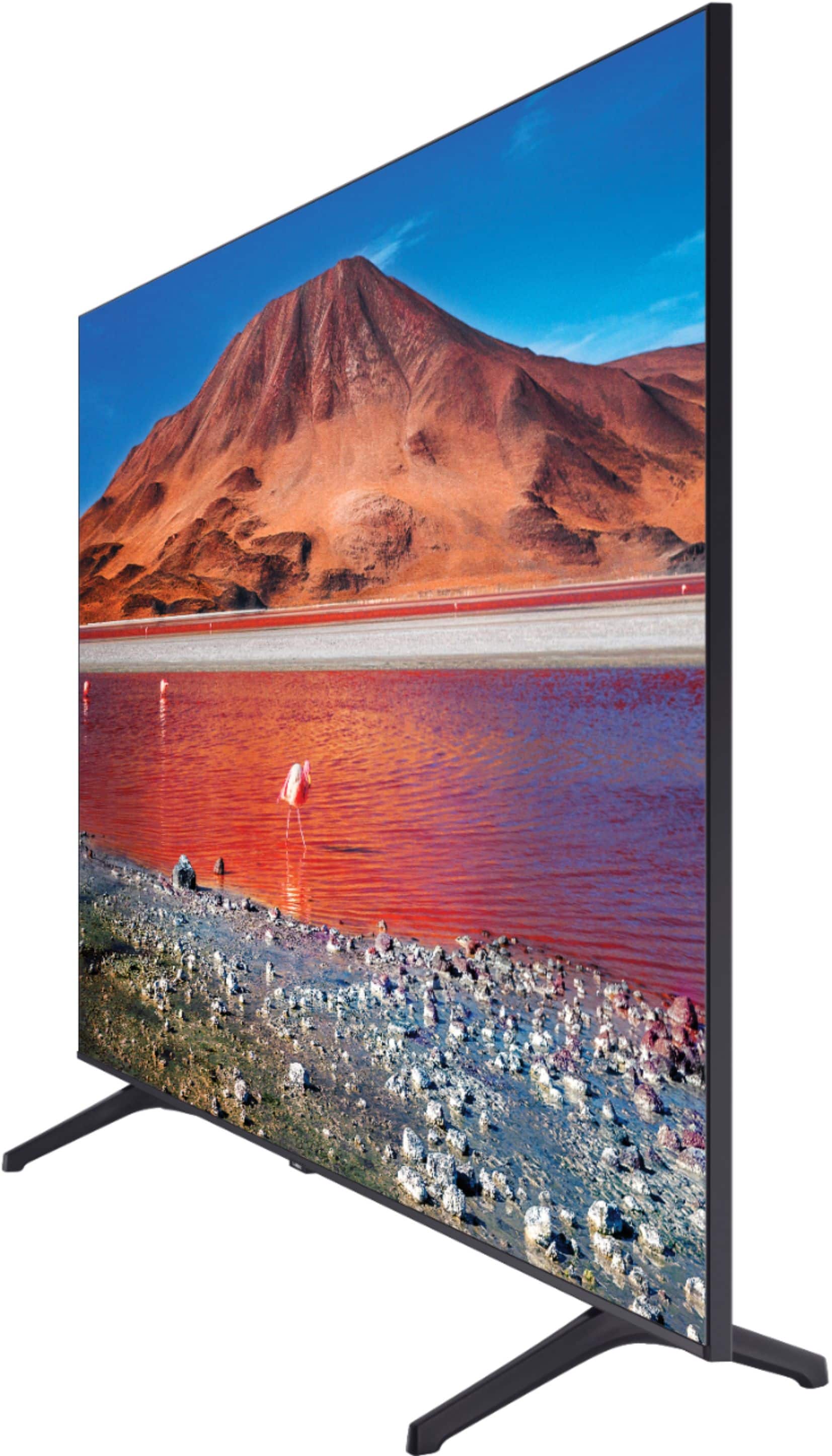
Customers find value in the 65" Class 7 Series LED 4K UHD Smart Tizen TV (2019)'s picture quality, ease of use, and price. Many appreciate the TV's color accuracy and relatively easy setup process. However, some users have expressed dissatisfaction with the remote control and reported occasional issues with internet connectivity and the operating system's responsiveness. A few customers also mentioned concerns about the TV's volume and long-term reliability.
This summary was generated by AI based on customer reviews.
Its alright.
||Posted . Owned for 3 weeks when reviewed.This reviewer received promo considerations or sweepstakes entry for writing a review.Panel itself is mostly fine with the HDR being its hugest letdown in terms of quality. The onboard OS for the smart function is more laggy than a 8 year old smart phone full of malware.
I would recommend this to a friendBrand response from Samsung
Posted .zach:
Thank you for sharing your experience with the TU7000 TV. I am sorry that you are experiencing some lag with your unit. To optimize the smart TV performance, please try Device Care option under the Support Menu. Go to Settings > Support> Device Care > Start Device Care
This service checks memory and frees up unused cached memory and closes background apps.
Your TV detects HDR automatically. While an HDR source (HDMI, Netflix, USB etc) is playing, it will display an HDR logo next to the picture mode icon of the picture mode you are currently in. There are several image settings you may want to adjust to your liking such as Picture Mode and Expert Settings.
Choose a Picture Mode by going to Settings > Picture > Picture Mode and choose from Dynamic, Standard, Natural, Movie, or Filmmaker Mode.
You can further adjust your sharpness, brightness, contrast, color, tint, contrast, white balance, and more by going to Settings > Picture > Expert Settings
Please also give us the opportunity to assist you with image quality adjustments tailored to your preferred viewing experience. You can reach us via any of the following options:
1) Phone: 1-800-SAMSUNG (ask for TVs), available 8AM – 12AM EST 7 days a week
2) LiveChat: https://www.samsung.com/us/support/#contact_us_for_support
3) Facebook Messenger: https://www.facebook.com/samsungsupport
4) Twitter: https://twitter.com/SamsungSupport
5) The Samsung Members Community is also a great resource for getting help from Samsung moderators and customers: https://us.community.samsung.com
If you have not already done so, we invite you to register your new Samsung product at: https://www.samsung.com/us/account/signin/?redirect=https%3A%2F%2Fwww.samsung.com%2Fus%2Fsupport%2Fregister%2F
Registering your product gives you access to easy warranty support, convenient opt-in to special promos and offers, faster troubleshooting and service, and quick notification of system updates.
~ Samsung Solutions
Average 4k television
||Posted . Owned for 1 week when reviewed.This reviewer received promo considerations or sweepstakes entry for writing a review.Bought this for an upstairs bonus area so i wasn’t looking for the best. Its ok for the price but my 9 series from 2015 is still better quality.
I would recommend this to a friendBrand response from Samsung
Posted .Jdk5504:
Thank you for purchasing the Samsung TU7000 4K Smart TV and for your review. You may want to adjust the settings for picture and sound according to your preferences.
Choose a Picture Mode by going to Settings > Picture > Picture Mode and choose from Dynamic, Standard, Natural, Movie, or Filmmaker Mode.
You can further adjust your brightness, contrast, color, and more by going to Settings > Picture > Expert Settings
To adjust your sound preferences, go to Settings > Sound > Sound Mode and Settings > Sound > Expert Settings
Should you need further assistance with settings, features, or functions, please contact Samsung Customer Support.
1) Phone: 1-800-SAMSUNG (available 8AM -12AM EST, 7 days a week)
2) LiveChat: https://www.samsung.com/us/support/#contact_us_for_support
3) Facebook Messenger: https://www.facebook.com/samsungsupport
4) Twitter: https://twitter.com/SamsungSupport
5) The Samsung Members Community is also a great resource for getting help from Samsung moderators and customers: https://us.community.samsung.com
If you have not already done so, we invite you to register your new Samsung product at: https://www.samsung.com/us/account/signin/?redirect=https%3A%2F%2Fwww.samsung.com%2Fus%2Fsupport%2Fregister%2F
Registering your product gives you access to easy warranty support, convenient opt-in to special promos and offers, faster troubleshooting and service, and quick notification of system updates.
~ Samsung Solutions
Tv
||Posted . Owned for 3 weeks when reviewed.This reviewer received promo considerations or sweepstakes entry for writing a review.It's an ok purchase great price though. I already have to get it fix after a storm we had and surged my HDMI ports. But other than that cool tv
No, I would not recommend this to a friendBrand response from Samsung
Posted .Leelee:
I am sorry to hear that a storm cause your HDMI ports to surge which cause issues with your TV.
If you should have any questions or concerns with usage, features, or how to best optimize your settings, Samsung Customer Support is here to help.
1) Phone: 1-800-SAMSUNG (available 8AM -12AM EST, 7 days a week)
2) LiveChat: https://www.samsung.com/us/support/#contact_us_for_support
3) Facebook Messenger: https://www.facebook.com/samsungsupport
4) Twitter: https://twitter.com/SamsungSupport
5) The Samsung Members Community is also a great resource for getting help from Samsung moderators and customers: https://us.community.samsung.com
If you have not already done so, we invite you to register your new Samsung product at: https://www.samsung.com/us/account/signin/?redirect=https%3A%2F%2Fwww.samsung.com%2Fus%2Fsupport%2Fregister%2F
Registering your product gives you access to easy warranty support, convenient opt-in to special promos and offers, faster troubleshooting and service, and quick notification of system updates.
~ Samsung Solutions
Not great.
||Posted . Owned for 1 month when reviewed.This reviewer received promo considerations or sweepstakes entry for writing a review.The channels tend to lock up when others in the same room on the same channel do not. The audio interface will not allow you to mute or change volume on a speaker system connected by cable, so 2 remotes are required. The channel selection system is not great. You cannot input channels with a fraction . When you select a channel from the guide or channel list, the list disappears and you have to start the procedure over again to program an alternate channel.
No, I would not recommend this to a friendBrand response from Samsung
Posted .theoldman:
I’m sorry to hear that your Samsung TU7000 TV did not meet your expectations. This is not the quality we expect from our products. Please give us the chance to gather additional information from you so we can troubleshoot this issue.
Call us at 1-800-SAMSUNG (ask for TVs), available 8AM - 12AM EST, 7 days a week.
For additional support resources, visit us on the Samsung website and click on the ‘Support’ link in the upper right corner of the homepage for:
1) Chat with Us/Product Help: To begin a chat or find solutions, choose ‘TVs & Home Theater’ and select your model & topic.
2) Register a Product: For access to easy warranty support, convenient opt-in to special promos and offers, faster troubleshooting and service, and quick notification of system updates.
3) Manuals & Software
4) Warranty Info
5) Contact Us
We hope to hear from you soon.
- Samsung Advisor
Dissatisfied
||Posted . Owned for 1 year when reviewed.This reviewer received promo considerations or sweepstakes entry for writing a review.Just 3yrs an the tv wont turn on. Barely used this tv.
No, I would not recommend this to a friendSo So happy
||Posted . Owned for 1 month when reviewed.This reviewer received promo considerations or sweepstakes entry for writing a review.The overall professionalism of your employees was top notch. I wish I had bought a better quality TV. I don't think the colors are what I was expecting
No, I would not recommend this to a friendBrand response from Samsung
Posted .Notsohappycustomer:
Our TU7000 Series features Crystal UHD processor, 4K AI upscaling, HDR, Game Enhancer and more, all designed to give you the best in dazzling, crystal-clear images and rich digital experience.
There are several preset picture modes and many custom settings that can optimize image quality for your viewing scenario.
Go to HOME > SETTINGS > PICTURE > PICTURE MODE and choose:
Dynamic: Makes the picture brighter and clearer in bright viewing environments.
Standard: This is the default mode suitable for general viewing environments.
Natural: Reduces eye strain for a comfortable viewing experience.
Movie: Suitable for watching TV or movies in a dark room.
Filmmaker: Watch the source content (e.g., movie) as it is.
In addition, the image quality on your screen depends on the source and the connection. HDMI cables are recommended for optimal HD viewing; and when possible, 4K content will provide the best picture quality. The TV will upscale as best as possible any content sent to it. The closer the signal is to 4K, the better it will look coming out.
The quality of the streaming content depends largely on the speed of your internet, as most content providers have adaptive streaming that will automatically adjust the image quality based on the network bandwidth.
Please also give us the opportunity to assist you with image quality adjustments tailored to your preferred viewing experience.
Call us at 1-800-SAMSUNG (ask for TVs), available 8AM - 12AM EST, 7 days a week.
For additional support resources, visit us on the Samsung website and click on the ‘Support’ link in the upper right corner of the homepage for:
1) Chat with Us/Product Help: To begin a chat or find solutions, choose ‘TVs & Home Theater’ and select your model & topic.
2) Manuals, Software, & Warranty Info
Samsung is committed to providing the best possible product experience, quality, and value, and we are always here to help with any of your questions or concerns.
- Samsung Advisor
Not “smart” at all
||Posted . Owned for 9 months when reviewed.This reviewer received promo considerations or sweepstakes entry for writing a review.Everything would be great except it is not a “smart” tv at all. It disconnect from wifi constantly so every time you turn it on you either have to unplug it and plug it in again or reset it just to get the wifi to work. It seems to be a common problem with this tv and constant calls to Samsung doesn’t fix it. If you’re going to use the wifi feature on it a lot (Netflix, hulu etc) just don’t get it trust me.
No, I would not recommend this to a friend2 hdmi inputs only?
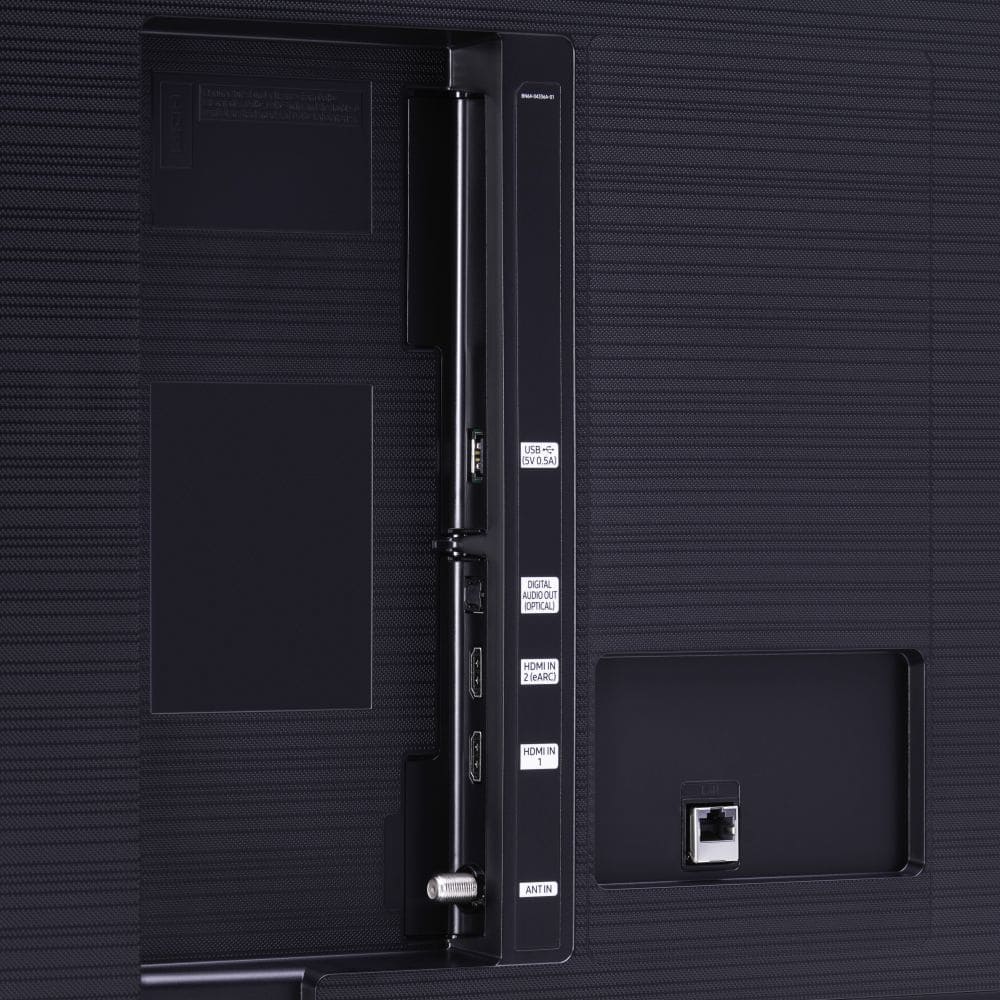
||Posted . Owned for 1 week when reviewed.This reviewer received promo considerations or sweepstakes entry for writing a review.Doesnt show as clear as i thought, and it only has 2 hdmi inputs, thats not enough, i only paid 150.00 so i cant really complain
I would recommend this to a friendBrand response from Samsung
Posted .Hi Frank,
Thank you for your purchase and review of the TU7000 TV. Please know we are here to help you.
If your TV picture is distorted or unclear, the issue may be due to not connecting correctly with an external device. Please check your connection with these steps:
1. Disconnecting and reconnect the power cables and HDMI cables on the back of your TV, then unplug the power cord and plug it back into the wall outlet
2. If the external device supports UHD video, use a dedicated HDMI cable (4K) for HDMI video playback.
3. If a component cable is used, make sure that the colored connectors are connected to the matching connectors on the external device and the TV.
4. Check the cable connection if you use a set-top box. The cable you need to check depends on the type of set-top box.
5. Make sure that your access point is connected to the Internet. If not, disconnecting and reconnecting its power cable may be required.
6. If the problem persists, check the video output settings in the settings menu of the external device, and ensure that your TV supports the video output mode.
Also, we recommend checking to ensure your TV's Firmware is up to date. Please go to Settings> Support> Software Update.
Next, please try Dynamic Picture Mode, which makes pictures brighter and clearer in bright viewing environments. Go to: Settings > Picture > Picture Mode > Dynamic.
I hope this tip helps improve your enjoyment. For more help, please call us at 1-800-SAMSUNG, 8 AM - 12 AM EST, seven days a week. LiveChat with an agent, as well as manuals, software, and warranty info, can be found at the ‘Support’ link on our Samsung website.
~ Samsung Advisor
Average
||Posted . Owned for 3 weeks when reviewed.This reviewer received promo considerations or sweepstakes entry for writing a review.I purchased this TV because it was well priced. However, it's just an average TV for the value. Not a very bright screen for being a Crystal UHD.
No, I would not recommend this to a friendBrand response from Samsung
Posted .UHDTV:
Thank you for purchasing the TU7000 TV and for your review. I am sorry to hear that you are not happy with the brightness levels of your picture. If the colors on your TV are correct but just a little too dark or bright you can try the different Picture Modes or manually adjust the Brightness settings to your liking.
Dynamic Picture Mode will make pictures brighter and clearer in bright viewing environments. Go to: Settings > Picture > Picture Mode > Dynamic
Or manually adjust the Brightness and other settings to your liking. Press the HOME button on your remote, then navigate to: Settings > Picture > Expert Settings
You may also want to disable Power Saving Mode which automatically adjusts the brightness to reduce the TV’s power consumption.
Go to Settings> General> Eco Solution> Power Saving Mode.
Ambient Light Detection will also automatically adjust the brightness level of the TV, according to the ambient light level, to reduce power consumption. If Ambient Light Detection has adjusted the screen brightness to a too bright or dark level, you can select Minimum Brightness to manually adjust the minimum screen brightness.
Go to Settings> General> Eco Solution> Ambient Light Detection
Please also be sure you are running the latest firmware. You can check to see what software version your TV is using and if there is an available update through the settings on your TV. Go to: Settings>Support>Software Update.
You may want to enable automatic updates for convenience. Select Settings > Support > Software Update, then select Auto Update.
I hope this helps to improve your picture. Should you need further assistance, please contact Samsung Customer Support.
Call us at 1-800-SAMSUNG (ask for TVs), available 8AM - 12AM EST, 7 days a week.
For additional support resources, visit us on the Samsung website and click on the ‘Support’ link in the upper right corner of the homepage for:
1) Chat with Us/Product Help: To begin a chat or find solutions, choose ‘TVs & Home Theater’ and select your model & topic.
2) Manuals, Software, & Warranty Info
Samsung is committed to providing the best possible product experience, quality, and value, and we are always here to help with any of your questions or concerns.
- Samsung Advisor
Tv was ok installers were top notch
||Posted . Owned for 1 month when reviewed.This reviewer received promo considerations or sweepstakes entry for writing a review.The tv is a pain! The color goes from pink to purple! I googled it they say it’s the HDMI cord. I’ve changed it unplugged then back in again. It works for awhile and back to pink. Ughh
No, I would not recommend this to a friendBrand response from Samsung
Posted .Hulagirl360:
Thank you for purchasing the TU7000 TV. You may be encountering a color glitch issue. Please check that your TV has the latest firmware update, which should resolve this specific issue.
To update directly from your TV, press the HOME button on your remote.
- Go to SETTINGS (gear icon) > Support > Software Update > Update Now
- Your TV will check for the update and should start downloading the update. After the update is installed the TV will shut down and restart. Once the TV restarts, press and hold the Power button until the TV turns off and back on.
If your TV is not connected to the internet, follow these steps to update the firmware.
- You can find the update (version 1301.5) at: samsung.com/us/support/owners/product/crystal-uhd-tvs-tu7000-2020
- Extract the firmware to the root of a USB thumb drive. (Do not put it in any folders on the thumb drive.)
- Connect the USB thumb drive to a USB port on your TV.
- Navigate to Settings > Support > Software Update, select Update Now, and then select Yes.
- The TV will install the update and then restart.
- Once the TV restarts, press and hold the Power button on your remote until the TV turns off and back on.
If the abnormal colors, double images, or ghosting continues after the firmware update, please contact Samsung Customer Support.
1) Phone: 1-800-SAMSUNG (available 8AM -12AM EST, 7 days a week)
2) LiveChat: https://www.samsung.com/us/support/#contact_us_for_support
3) Facebook Messenger: https://www.facebook.com/samsungsupport
4) Twitter: https://twitter.com/SamsungSupport
5) The Samsung Members Community is also a great resource for getting help from Samsung moderators and customers: https://us.community.samsung.com
If you have not already done so, we invite you to register your new Samsung product at: https://www.samsung.com/us/account/signin/?redirect=https%3A%2F%2Fwww.samsung.com%2Fus%2Fsupport%2Fregister%2F
Registering your product gives you access to easy warranty support, convenient opt-in to special promos and offers, faster troubleshooting and service, and quick notification of system updates.
~ Samsung Solutions
Tv purchase review
||Posted . Owned for 1 month when reviewed.This reviewer received promo considerations or sweepstakes entry for writing a review.Horrible purchase. Best Buy employees don’t want to help you. Definitely not on your side.
No, I would not recommend this to a friendIt’s OK for the price
||Posted . Owned for 2 months when reviewed.This reviewer received promo considerations or sweepstakes entry for writing a review.It is ok for the price. Sometimes the tv gets stuck so I had to leave it like that for sometime and restart the tv. It’s a new tv and I noticed these issues was disappointing.
No, I would not recommend this to a friendBrand response from Samsung
Posted .Shri:
I am sorry that you are experiencing issues with your TU7000 4K Smart TV.
Your TV has several self-diagnosis tools built in that can help solve problems with signal, network, picture, or sound.
Go to Settings > Support> Device Care > Start Device Care
You may also want to clear out your TV's temporary storage space by pressing and holding the Power button for 6 seconds until your TV turns off and back on again.
I hope this helps to solve your concerns. Should you need further assistance, please contact Samsung Customer Support.
1) Phone: 1-800-SAMSUNG (ask for TVs), available 8AM – 12AM EST 7 days a week
2) LiveChat: https://www.samsung.com/us/support/#contact_us_for_support
3) Facebook Messenger: https://www.facebook.com/samsungsupport
4) Twitter: https://twitter.com/SamsungSupport
5) The Samsung Members Community is also a great resource for getting help from Samsung moderators and customers: https://us.community.samsung.com
If you have not already done so, we invite you to register your new Samsung product at: https://www.samsung.com/us/account/signin/?redirect=https%3A%2F%2Fwww.samsung.com%2Fus%2Fsupport%2Fregister%2F
Registering your product gives you access to easy warranty support, convenient opt-in to special promos and offers, faster troubleshooting and service, and quick notification of system updates.
~ Samsung Solutions
- Cons mentioned:Volume
false advertisement
||Posted . Owned for 2 months when reviewed.This reviewer received promo considerations or sweepstakes entry for writing a review.i bought this TV because it said it was blue tooth compatible unfortunately when i connect the tv to my speakers the volume comes out extremely low barely auditable. I had an electrician look at it who said another tenant has a samsung TV and it connects fine. when i press the volume button the plus time just moves but no numbers come up. The bluetooth speakers connect fine to my ipad, iphone, and laptop loudly no issues.
No, I would not recommend this to a friendBrand response from Samsung
Posted .alya:
Thank you for purchasing the TU7000 and for your review. I am sorry you are experiencing issues connecting your speakers to the TV. You can connect Bluetooth audio devices to the TV. They must be paired using the TV's Bluetooth function. Go to: Settings > Sound > Sound Output > Bluetooth Speaker List
- If the TV fails to fi͝ʒ a Bluetooth audio device, place the device closer to the TV, and then select Refresh.
- When you turn on a paired Bluetooth audio device, the TV detects it automatically, and then displays a pop-up window. Use this pop-up window to activate or deactivate the Bluetooth audio device.
-
You may want to check the Connection Guide for detailed information regarding connecting your speakers. Go to Source > Connection Guide > Audio Device.
For further assistance, please contact Samsung TV Support.
1) Phone: 1-800-SAMSUNG (ask for TVs), available 8AM – 12AM EST 7 days a week
2) LiveChat: https://www.samsung.com/us/support/#contact_us_for_support
3) Facebook Messenger: https://www.facebook.com/samsungsupport
4) Twitter: https://twitter.com/SamsungSupport
5) The Samsung Members Community is also a great resource for getting help from Samsung moderators and customers: https://us.community.samsung.com
If you have not already done so, we invite you to register your new Samsung product at: https://www.samsung.com/us/account/signin/?redirect=https%3A%2F%2Fwww.samsung.com%2Fus%2Fsupport%2Fregister%2F
Registering your product gives you access to easy warranty support, convenient opt-in to special promos and offers, faster troubleshooting and service, and quick notification of system updates.
~ Samsung Solutions
Dissatisfied customer
||Posted . Owned for 11 months when reviewed.This reviewer received promo considerations or sweepstakes entry for writing a review.I have had several issues with this Tv for only to be purchased 2020 to present. TV not even a year old . Present issue, picture fades out repeatedly. Calling customer barely helps, then I HAVE TO CALL REPAIR SERVICES to only be not responsive because no one answers. Now I’m stuck waiting, unplugging, replugging, and/or waiting for picture to reappear clearly. SO IRKED!
No, I would not recommend this to a friendNot worth it. Bad memory capacity.
||Posted . Owned for more than 2 years when reviewed.This reviewer received promo considerations or sweepstakes entry for writing a review.The image is decent, but horrible on adapting to 4K content based on the streaming platform. Meaning, lots of times you’ll end up seeing a very dark 4K. And the worst con - the processor/memory capacity for cache is awful. You’ll have lots of issues when launching certain platforms, specially live tv (YouTube tv, Hulu, etc). Bottom line - buy a tv that has a better memory capacity and processor.
No, I would not recommend this to a friendBrand response from Samsung
Posted .Hi FelipeR,
We appreciate your review of the TU7000 TV's image quality and processor. Please know we are here to help and have a few troubleshooting tips for you to try.
First, let's ensure your Firmware is up to date. Go to Settings> Support> Software Update.
Next, I recommend utilizing the self-diagnostic tool, which checks memory, frees unused cached memory, and closes background apps. Go to Settings > Support > Device Care > Start Device Care.
Regarding 4K upscaling: The TV will upscale any content sent to it as best as possible. The closer your content is to 4K, the better the image will look on the screen.
Here are some tips to help improve picture clarity:
1) HDMI cables are recommended for optimal HD viewing.
2) If you have an analog cable box or satellite box, upgrade to a digital cable box or satellite box.
3) Change the output resolution of your devices, such as digital broadcast receivers, IPTV, and set-top boxes, to UHD or HD.
4) You can further adjust your sharpness, brightness, contrast, color, and more by going to Settings > Picture > Expert Settings
5) Choose a Picture Mode by going to Settings > Picture > Picture Mode and choose from Dynamic, Standard, Natural, Movie, or Filmmaker Mode.
Should you ever have questions or need help with TV features, specs, or operations, we are here to help. Just call us at 1-800-SAMSUNG, 8 AM - 12 AM EST, seven days a week. Our LiveChat agents are also available by clicking on the ‘Support’ link on our website.
~ Samsung Advisor
not upto thr mark
||Posted . Owned for 1 year when reviewed.This reviewer received promo considerations or sweepstakes entry for writing a review.Not up to the mark, i have always having trouble with this product, when watching YouTube it automatically goes to different video
No, I would not recommend this to a friendBrand response from Samsung
Posted .Hi redd,
Thank you for your feedback on the Samsung TU7000 TV's issues. Your feedback is important to us and we would love to help you troubleshoot your TV.
First, let's ensure your TV is running the latest firmware. To do so, go to Settings>Support>Software Update and easily update from there if needed.
Next, please give us a chance to troubleshoot with you. Call us at 1-800-SAMSUNG, 8 AM - 12 AM EST, seven days a week. Or visit us on the Samsung website and click on the ‘Support’ link for:
1) LiveChat with an agent
2) Manuals, Software, & Warranty Info
~ Samsung Advisor
Not a good experience
||Posted . Owned for 1 year when reviewed.This reviewer received promo considerations or sweepstakes entry for writing a review.Tv lasted 1 year 3 months and stopped working, had to buy a whole new tv.
No, I would not recommend this to a friendSamsung tv
||Posted . Owned for 3 weeks when reviewed.This reviewer received promo considerations or sweepstakes entry for writing a review.Great delivery and set up…waiting on service for picture distortions in the middle of the screen..Set up great tv iffy
No, I would not recommend this to a friendBrand response from Samsung
Posted .Hi sweetcooktopheat,
We appreciate your purchase and feedback on the TU7000 TV, as well as your patience while you wait for your TV to be serviced.
Should you ever have questions or need help, Samsung is here for you! Call us at 1-800-SAMSUNG, 8 AM - 12 AM EST, seven days a week. Our LiveChat agents are also available by clicking on the ‘Support’ link on our website.
~ Samsung Advisor
Fine
||Posted . Owned for 3 weeks when reviewed.This reviewer received promo considerations or sweepstakes entry for writing a review.Pretty upset. The salesmen I was talking to told me this was the best price I could find on the tv. I went to Costco a week after and found it for 479 when I got it for 529
No, I would not recommend this to a friendWaste of money
||Posted . Owned for 1 year when reviewed.This reviewer received promo considerations or sweepstakes entry for writing a review.Horrible tv don’t waste your money. It doesn’t support modern WiFi
No, I would not recommend this to a friend