Customer Ratings & Reviews
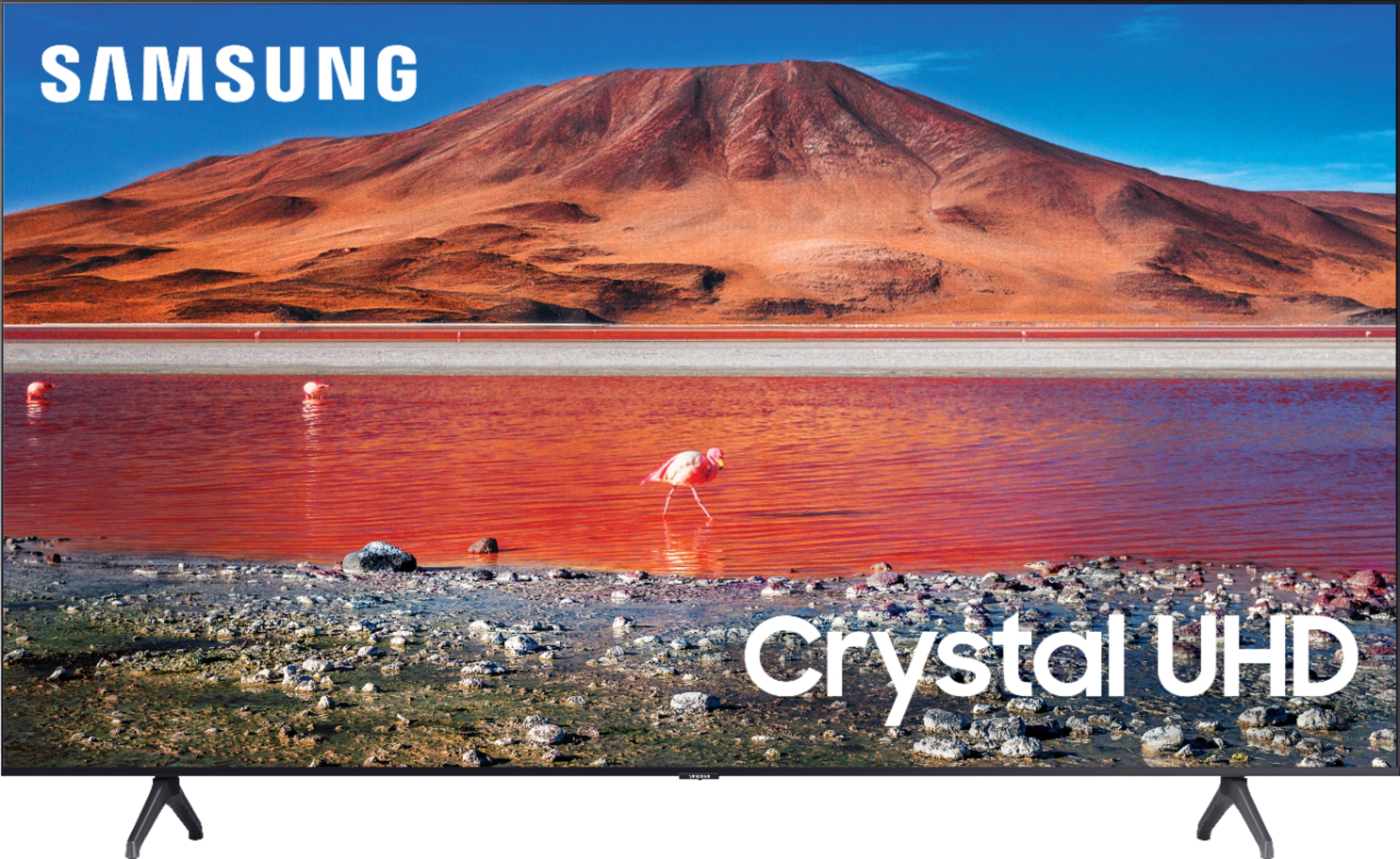
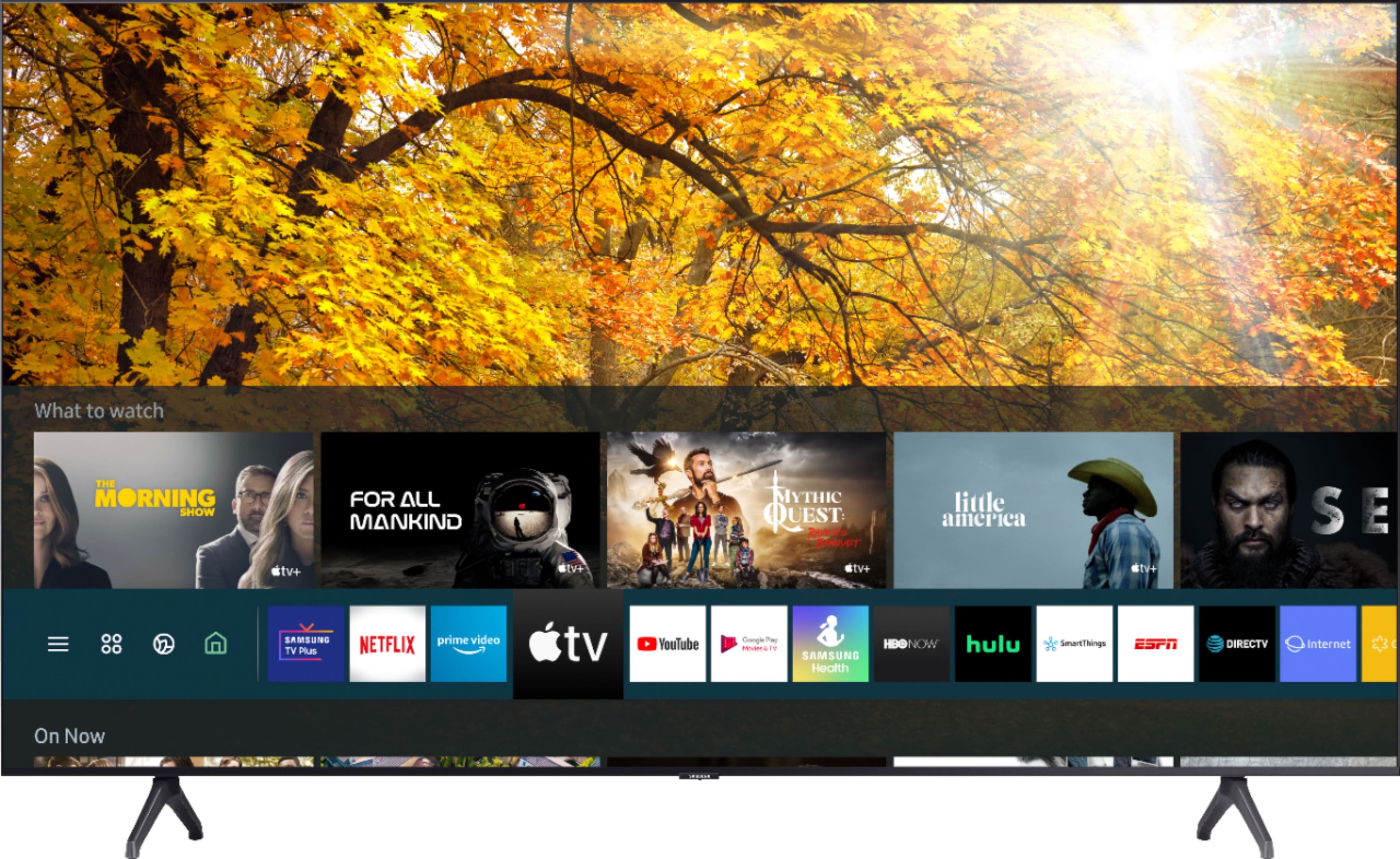
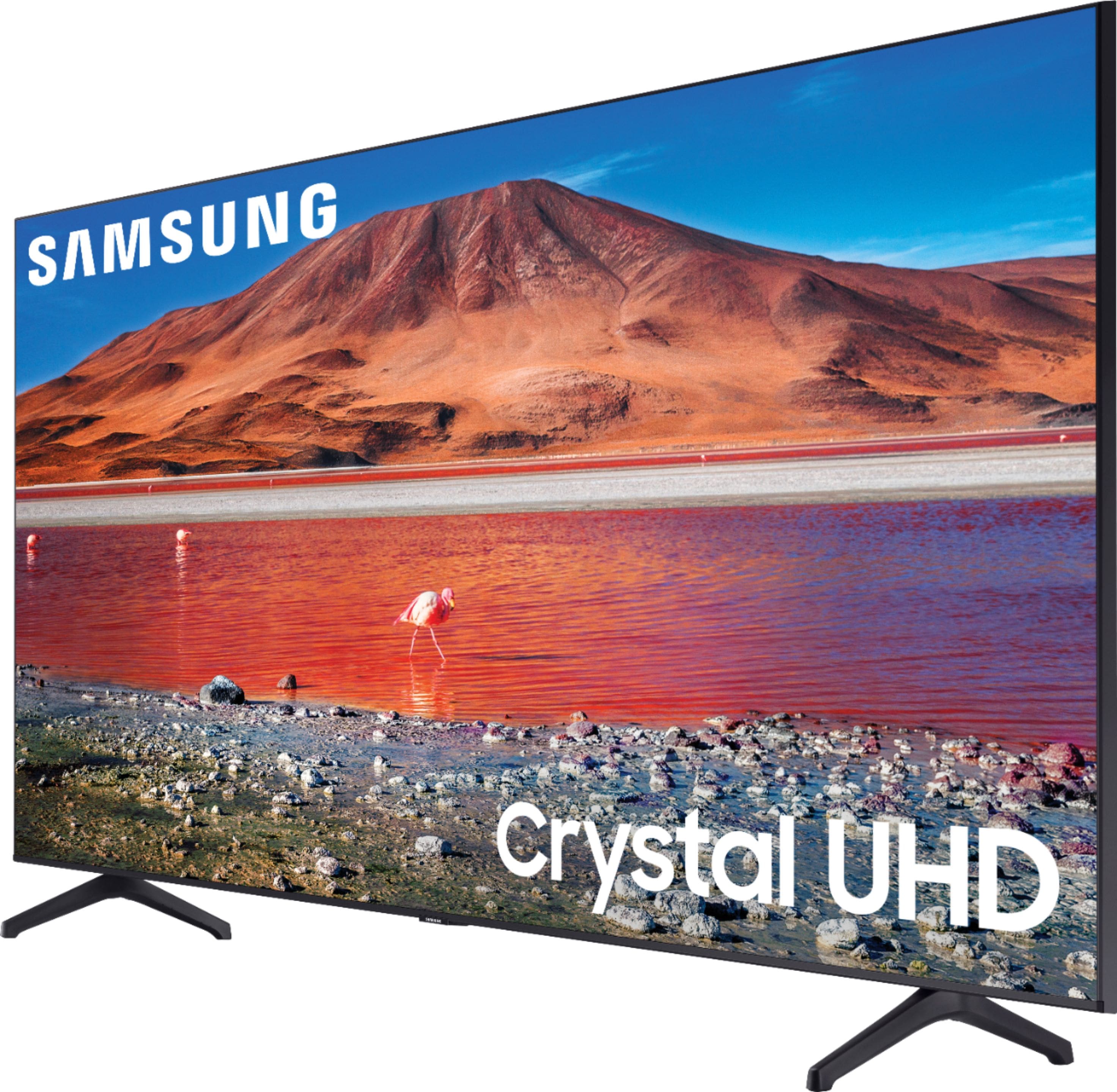
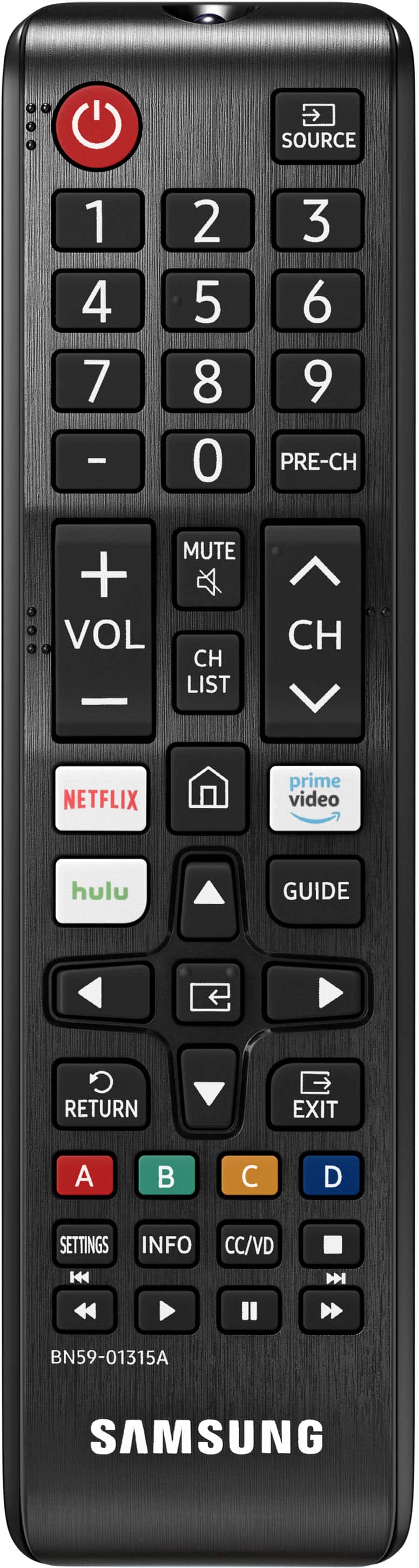
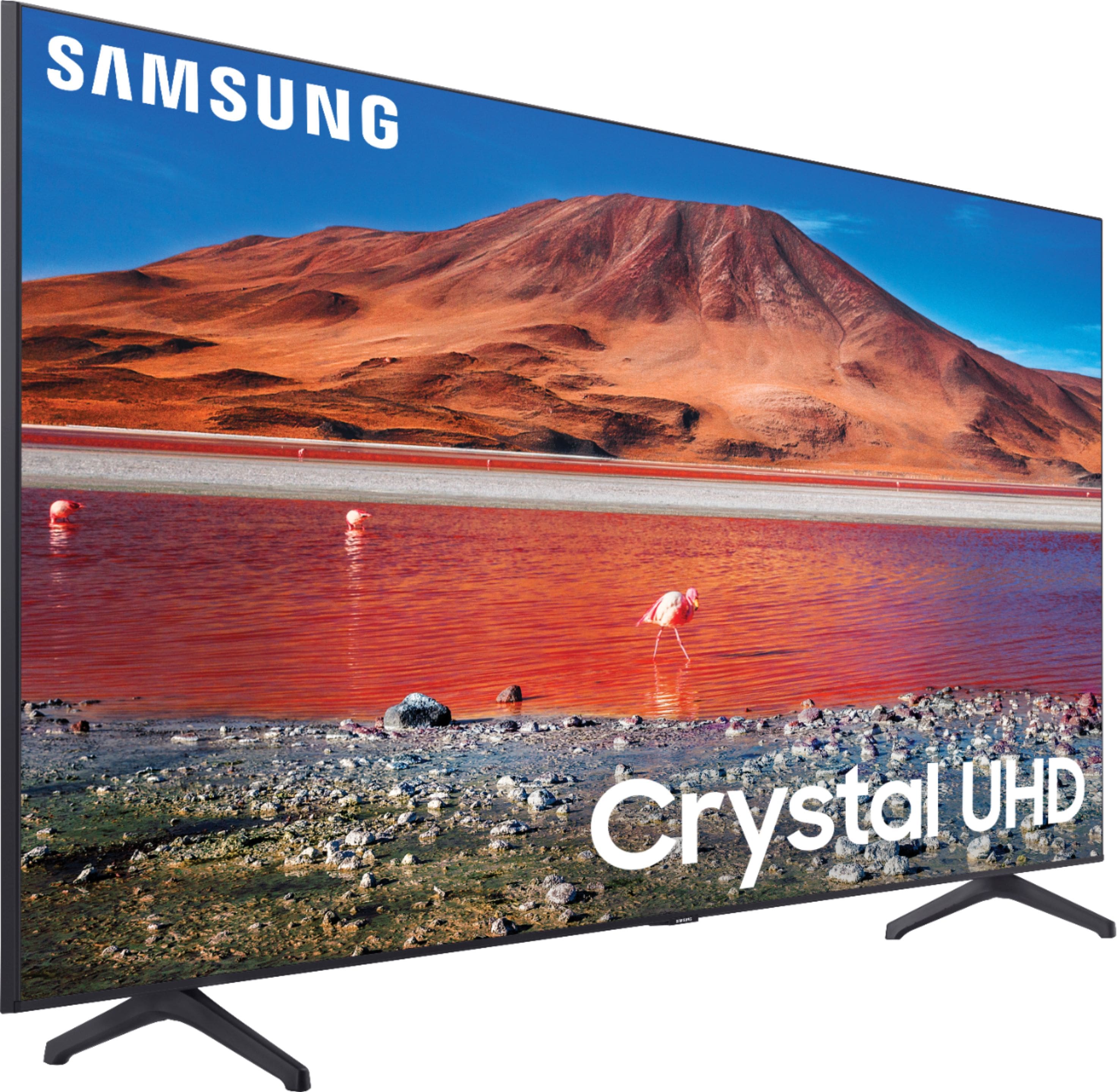
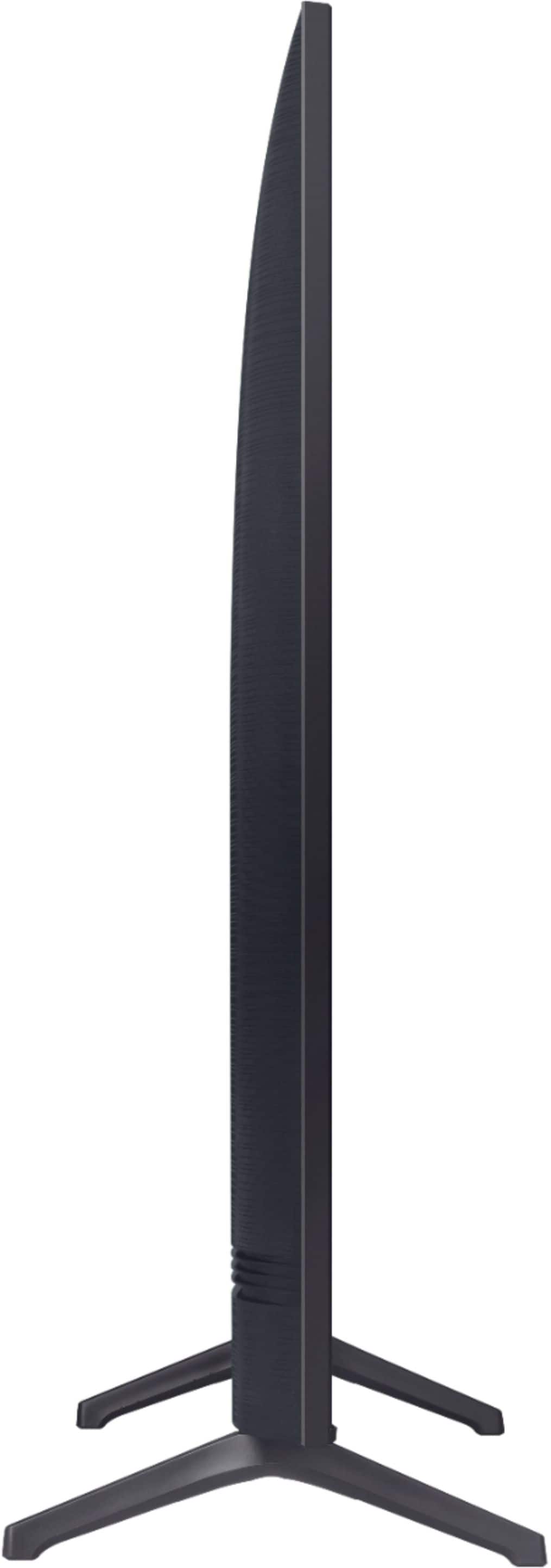
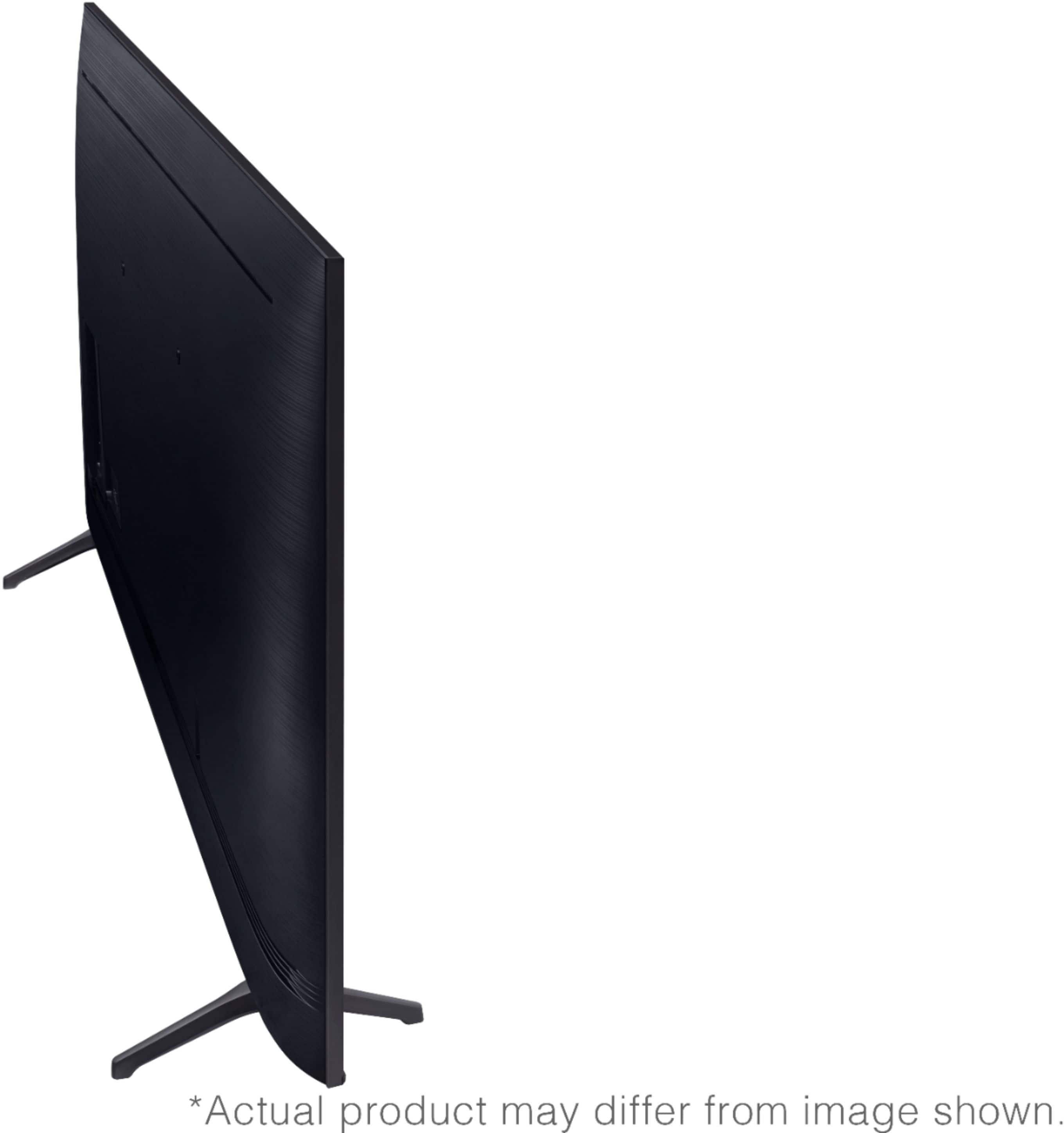
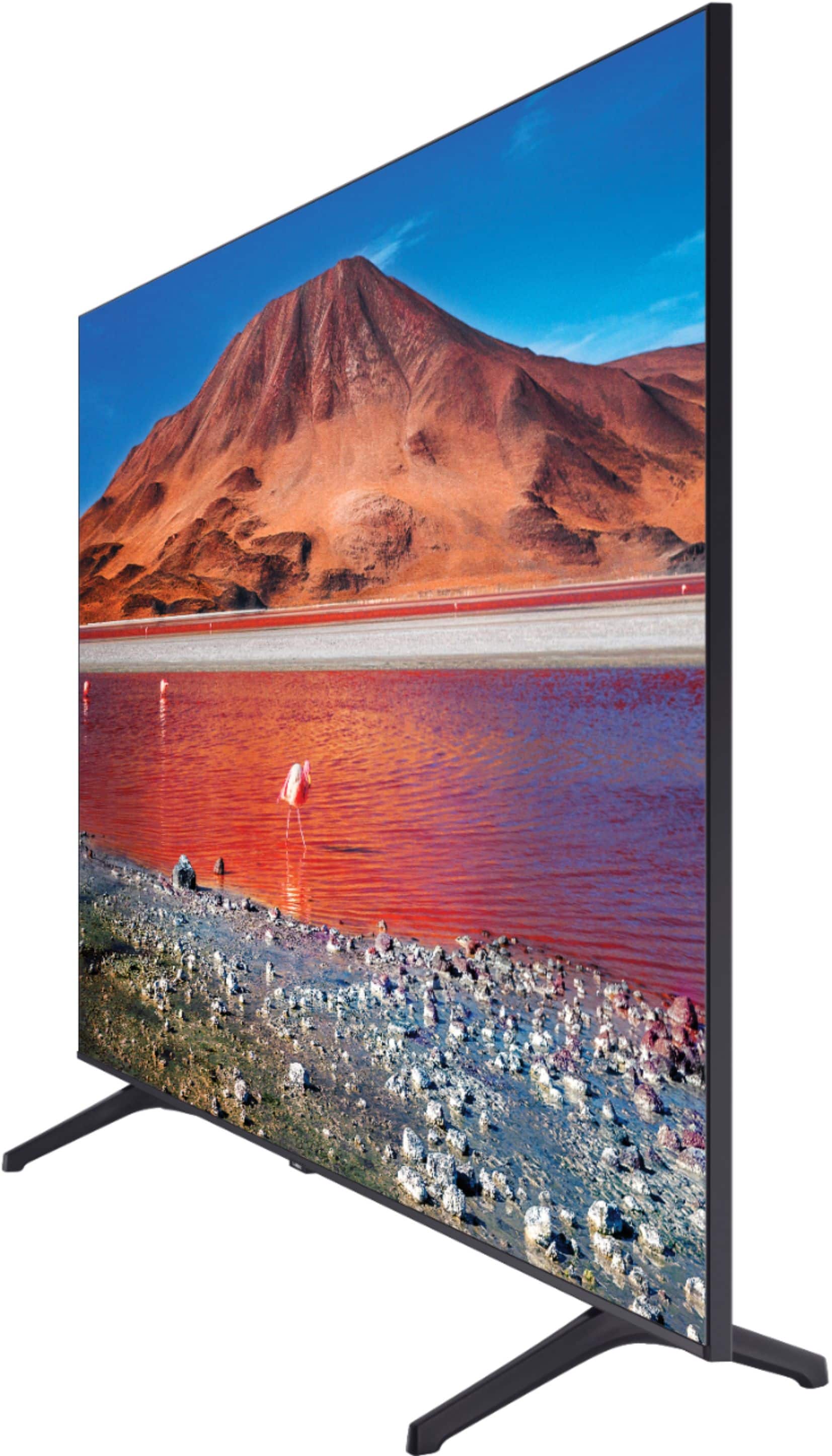


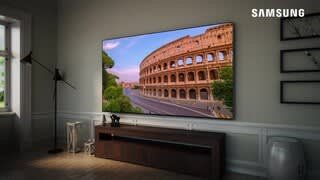



- Model:
- UN65TU7000FXZA
- SKU:
- 6401722
Rating by feature
- Picture Quality
Rating 4.7 out of 5 stars
- Sound Quality
Rating 4.5 out of 5 stars
- Brightness
Rating 4.7 out of 5 stars
Customers are saying
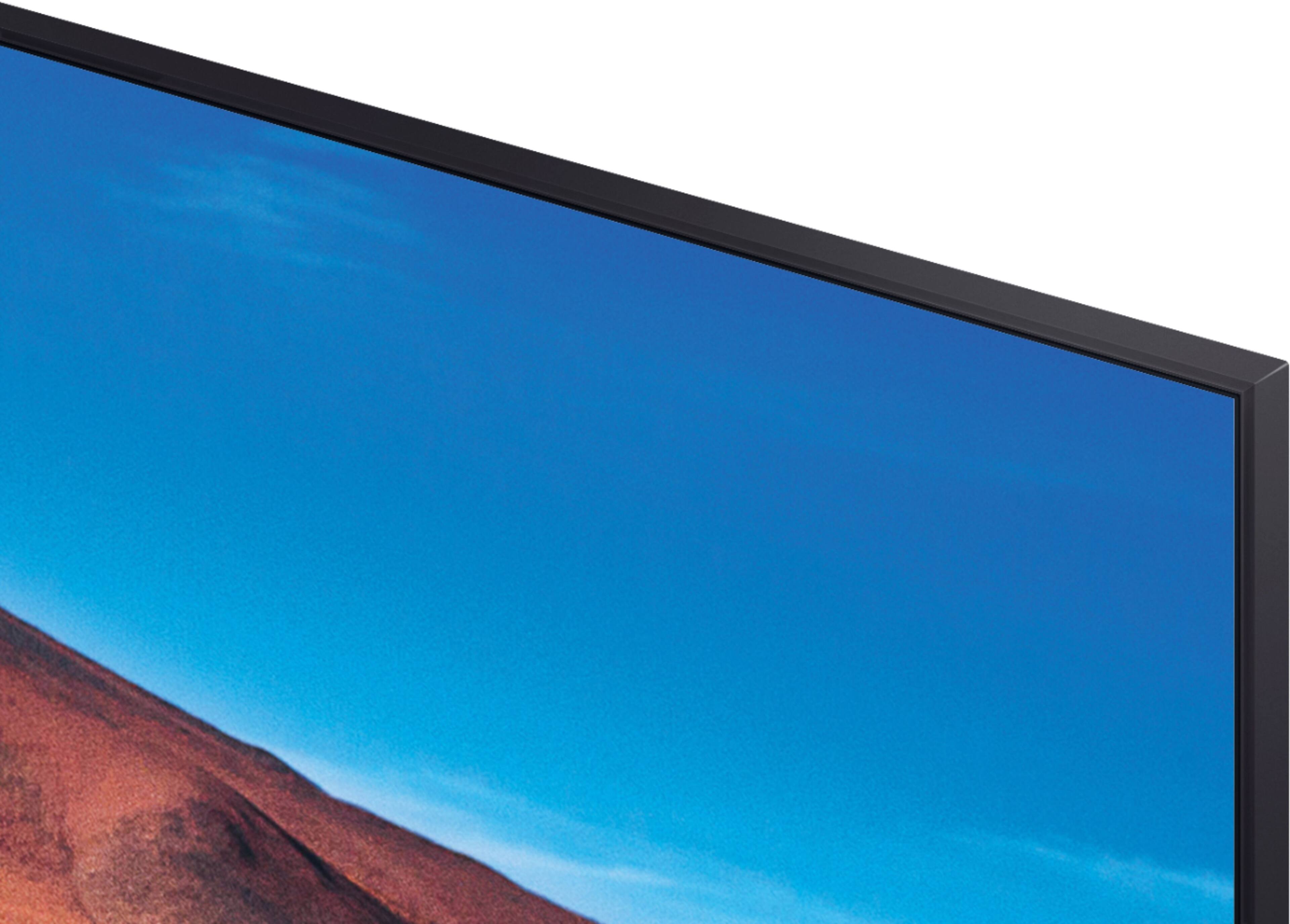
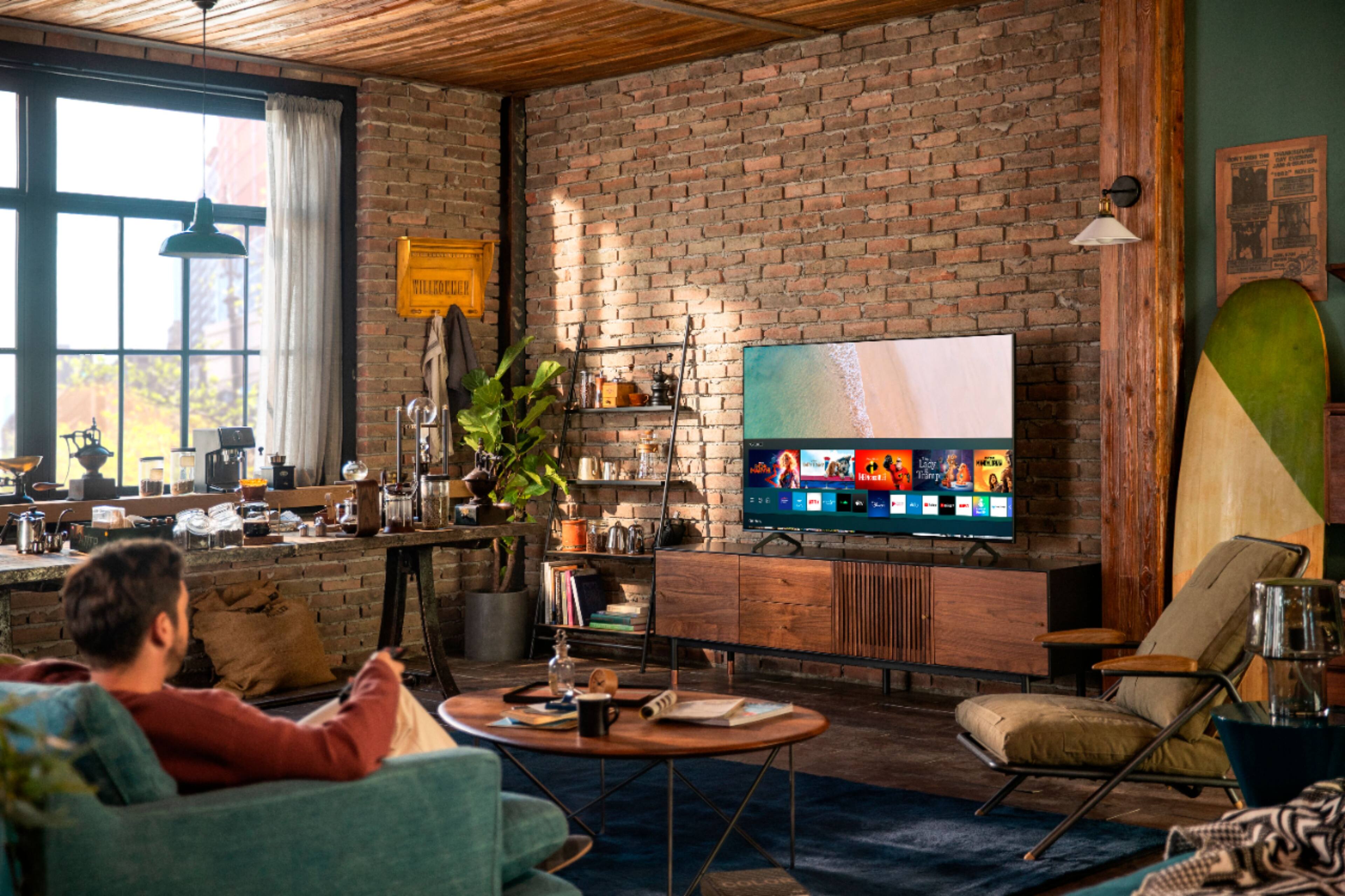
Customers find value in the 65" Class 7 Series LED 4K UHD Smart Tizen TV (2019)'s picture quality, ease of use, and price. Many appreciate the TV's color accuracy and relatively easy setup process. However, some users have expressed dissatisfaction with the remote control and reported occasional issues with internet connectivity and the operating system's responsiveness. A few customers also mentioned concerns about the TV's volume and long-term reliability.
This summary was generated by AI based on customer reviews.
Thought it was a good deal.....
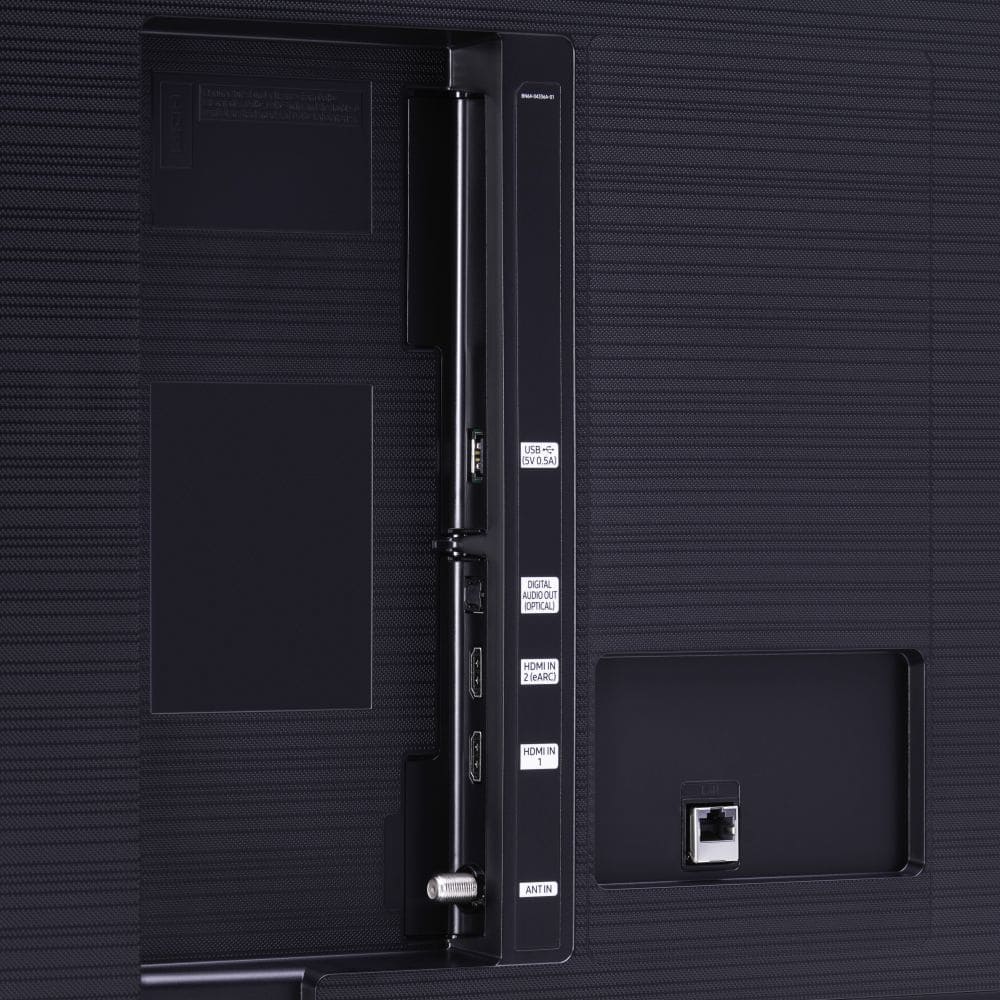
||Posted . Owned for 3 weeks when reviewed.This reviewer received promo considerations or sweepstakes entry for writing a review.Till I got it home. A few days after setting up, 1 of the 2 hdmi ports stopped supporting 4K content. The picture would flash in and out also. I just upgraded from a 2010 8 series that has worked for my family with no issues since first buying it 02/2011. I thought it important to upgrade now when I saw the deals on my favorite brand (samsung) but unfortunately I will be returning this TV.
No, I would not recommend this to a friendBrand response from Samsung
Posted .Michael:
Thank you for purchasing this Samsung TV. I am sorry to hear that you are experiencing issues.
Please give us the opportunity to assist you by contacting Samsung Customer Support via any of the following options:
1) Phone: 1-800-SAMSUNG, available 8AM - 9PM EST, Mon - Fri
2) LiveChat: https://www.samsung.com/us/support/#contact_us_for_support
3) Facebook Messenger: https://www.facebook.com/samsungsupport
4) Twitter: https://twitter.com/SamsungSupport
5) The Samsung Members Community is also a great resource for getting help from Samsung moderators and customers: https://us.community.samsung.com
If you have not already done so, we invite you to register your new Samsung product at: https://www.samsung.com/us/account/signin/?redirect=https%3A%2F%2Fwww.samsung.com%2Fus%2Fsupport%2Fregister%2F
Registering your product gives you access to easy warranty support, convenient opt-in to special promos and offers, faster troubleshooting and service, and quick notification of system updates.
~ Samsung Solutions
- Cons mentioned:Remote control
15 day return policy - very cheap policy
||Posted . Owned for 3 weeks when reviewed.This reviewer received promo considerations or sweepstakes entry for writing a review.If you are confident that you will not have trouble after 15 days. Good for you. My advice is dont! Tv flickers. I said maybe its where it's plugged. So i moved it. Same thing happened after 23 days. Called best buy. They are closed. They only have curbside by the way. Good luck buying this. The remote sucks!
No, I would not recommend this to a friendBrand response from Samsung
Posted .Peejay:
Thank you for your review of the TU7000 TV. We appreciate your feedback, and will share you dissatisfaction regarding the remote with our teams.
If your TV is flickering or dimming sporadically, you may need to disable some of the energy efficiency features.
Disable Ambient Light Detection, Power Saving Mode, Motion Lighting, or Contrast Enhancer.
Settings > General> Eco Solution> Ambient Light Detection
Settings > General> Eco Solution> Power Saving Mode
Settings > General> Eco Solution> Motion Lighting
Settings > Picture > Expert Settings > Contrast Enhancer
Run Picture Test. When the tested image quality is normal, check the signal of the connected device.
Settings > Support > Device Care > Self Diagnosis > Picture Test
I hope this helps. If your issue persists, please reach out to Samsung Customer Support, and a representative will gladly assist you.
1) Phone: 1-800-SAMSUNG, Available 8AM -12AM EST (7 Days a Week)
2) LiveChat: https://www.samsung.com/us/support/#contact_us_for_support
3) Facebook Messenger: https://www.facebook.com/samsungsupport
4) Twitter: https://twitter.com/SamsungSupport
5) The Samsung Members Community is also a great resource for getting help from Samsung moderators and customers: https://us.community.samsung.com
If you have not already done so, we invite you to register your new Samsung product at: https://www.samsung.com/us/account/signin/?redirect=https%3A%2F%2Fwww.samsung.com%2Fus%2Fsupport%2Fregister%2F
Registering your product gives you access to easy warranty support, convenient opt-in to special promos and offers, faster troubleshooting and service, and quick notification of system updates.
~ Samsung Solutions
Meh
||Posted . Owned for 10 months when reviewed.This reviewer received promo considerations or sweepstakes entry for writing a review.Great TV but it disconnects from the WiFi after awhile and won’t reconnect unless I unplug it and plug it back up. Other than that it’s a cool tv.
I would recommend this to a friendBrand response from Samsung
Posted .Momma:
Thank you for your review of the Samsung TU7000 TV and sharing the issues you are experiencing with your Wi-Fi connection. You may want to go through these steps to check your connection:
1) Check the distance between the TV and your modem or access point. The distance should not exceed 50 ft. (15.2 m).
2) Minimize interference by not using or turning off wireless devices. Also, verify that there are no obstacles between the TV and the modem or access point. (Wi-Fi strength can be decreased by appliances, cordless phones, stone walls/fireplaces, etc.)
3) Perform a network test to check if there is a network problem. Press the Home button on your remote. Navigate to Settings > Support > Device Care > Self Diagnosis> Smart Hub Connection Test
4) Try a cold reboot of your TV by pressing and holding the power button for 5+ seconds until the TV turns off and on again.
5) Please also be sure you have the latest firmware update. You may want to enable automatic updates for convenience. Select Settings > Support > Software Update, then select Auto Update.
For further assistance or service, please contact us via any of the following options:
1) Phone: 1-800-SAMSUNG (ask for TVs), available 8AM – 12AM EST 7 days a week
2) LiveChat: https://www.samsung.com/us/support/#contact_us_for_support
3) Facebook Messenger: https://www.facebook.com/samsungsupport
4) Twitter: https://twitter.com/SamsungSupport
5) The Samsung Members Community is also a great resource for getting help from Samsung moderators and customers: https://us.community.samsung.com
If you have not already done so, we invite you to register your new Samsung product at: https://www.samsung.com/us/account/signin/?redirect=https%3A%2F%2Fwww.samsung.com%2Fus%2Fsupport%2Fregister%2F
Registering your product gives you access to easy warranty support, convenient opt-in to special promos and offers, faster troubleshooting and service, and quick notification of system updates.
~ Samsung Solutions
Good TV
||Posted . Owned for 1 month when reviewed.This reviewer received promo considerations or sweepstakes entry for writing a review.The only issue I'm having with it is when whites pop up on screen it will occasionally starts "pulsing" but when I shut it off then back on it fixes it.
I would recommend this to a friendBrand response from Samsung
Posted .Sodapop:
Thank you for your review of this Samsung TV. I am sorry to hear that you are experiencing issue with the fluctuating brightness. It may be due to the ECO Sensor or Motion Lighting features. ECO Sensor automatically adjusts the brightness level of the TV according to ambient light level, reducing power consumption. If the ECO Sensor has adjusted the screen’s brightness level, you can select Min. Backlight to manually adjust the minimum screen brightness.
If it happens again, you may try the following steps:
Go to Settings and select General settings then ECO Solution. You will see option of de-select the Ambient Light Detection.
I hope this helps. Should your issue persist, please contact Samsung Customer Support.
1) Phone: 1-800-SAMSUNG (ask for TVs), available 8AM – 12AM EST 7 days a week
2) LiveChat: https://www.samsung.com/us/support/#contact_us_for_support
3) Facebook Messenger: https://www.facebook.com/samsungsupport
4) Twitter: https://twitter.com/SamsungSupport
5) The Samsung Members Community is also a great resource for getting help from Samsung moderators and customers: https://us.community.samsung.com
If you have not already done so, we invite you to register your new Samsung product at: https://www.samsung.com/us/account/signin/?redirect=https%3A%2F%2Fwww.samsung.com%2Fus%2Fsupport%2Fregister%2F
Registering your product gives you access to easy warranty support, convenient opt-in to special promos and offers, faster troubleshooting and service, and quick notification of system updates.
~ Samsung Solutions
Samsung tv
||Posted . Owned for 1 year when reviewed.This reviewer received promo considerations or sweepstakes entry for writing a review.This TV is okay. The service is slow at times to load up the apps and getting into the apps as.
I would recommend this to a friendBrand response from Samsung
Posted .Hi Meli,
I’m sorry to hear about the issues you’re experiencing with slow apps. To ensure performance is fully optimized, please make sure your TV is running the latest firmware. To do so, go to Settings> Support> Software Update. You can easily update from there if necessary.
Next, I recommend utilizing the self-diagnostic tool, which checks memory, frees unused cached memory, and closes background apps. Go to Settings > Support > Device Care > Start Device Care.
If you need more help, Samsung is here for you. Please call us at 1-800-SAMSUNG, 8 AM - 12 AM EST, seven days a week. Our LiveChat agents are also available by clicking on the ‘Support’ link on our website.
~ Samsung Advisor
SLOW!! Spend a little more for an LG
||Posted . Owned for 1 month when reviewed.This reviewer received promo considerations or sweepstakes entry for writing a review.I currently have an LG and this Samsung. I wish I spent a little more for an LG as this Samsung is extremely slow. LG is solid and highly recommend
No, I would not recommend this to a friendBrand response from Samsung
Posted .Andrea:
Thank you for purchasing the TU7000 TV and for your review. I am sorry that you are finding your unit to be slow.
To optimize the smart TV performance, please try Device Care option under the Support Menu. Go to Settings > Support> Device Care > Start Device Care
This service checks memory and frees up unused cached memory and closes background apps.
1) Phone: 1-800-SAMSUNG (ask for TVs), available 8AM – 12AM EST 7 days a week
2) LiveChat: https://www.samsung.com/us/support/#contact_us_for_support
3) Facebook Messenger: https://www.facebook.com/samsungsupport
4) Twitter: https://twitter.com/SamsungSupport
5) The Samsung Members Community is also a great resource for getting help from Samsung moderators and customers: https://us.community.samsung.com
If you have not already done so, we invite you to register your new Samsung product at: https://www.samsung.com/us/account/signin/?redirect=https%3A%2F%2Fwww.samsung.com%2Fus%2Fsupport%2Fregister%2F
Registering your product gives you access to easy warranty support, convenient opt-in to special promos and offers, faster troubleshooting and service, and quick notification of system updates.
~ Samsung Solutions
Nice tv
||Posted . Owned for 2 weeks when reviewed.This reviewer received promo considerations or sweepstakes entry for writing a review.Received broken had to exchange, easy process tho only because it was delivered
I would recommend this to a friendVery slow
||Posted . Owned for 1 month when reviewed.This reviewer received promo considerations or sweepstakes entry for writing a review.Response is very very slow. Every time you use the remote it takes 30 seconds to catch up
No, I would not recommend this to a friendBrand response from Samsung
Posted .Hi Devon,
It’s unfortunate to hear you’re experiencing issues with delays in remote response time with your TU7000 TV.
Please try these troubleshooting tips, which should help with the issues you are experiencing.
First, let's ensure your TV’s firmware is up to date. You can check this by going to Settings > Support > Software Update and then easily update from there if needed.
You may also want to further optimize performance with the self-diagnostic tool, which checks memory, frees up unused cached memory, and closes background apps. Go to Settings > Support > Device Care > Start Device Care.
For more help, please call us at 1-800-SAMSUNG, 8 AM – 12 AM EST, seven days a week. LiveChat with an agent as well as manuals, software, and warranty info, can be found at the ‘Support’ link on our Samsung website.
~ Samsung Advisor
Tv crap
||Posted . Owned for 1.5 years when reviewed.This reviewer received promo considerations or sweepstakes entry for writing a review.The picture is horrible very blurry for what I paid
No, I would not recommend this to a friendBrand response from Samsung
Posted .Hi StaceyBorders,
We appreciate your feedback on your TU7000 TV picture. I have a few troubleshooting recommendations to improve your experience.
If your TV picture is blurry, you may want to adjust the picture clarity setting by going to Settings > Picture > Expert Settings > Picture Clarity Settings.
- Off: Picture Clarity Settings will always be off
- Auto: Picture Clarity Settings will automatically activate and deactivate based on the type of program being watched
- Custom: Allows custom adjustments and settings to be used. By selecting the Custom option, you can access these advanced settings for Judder Reduction, LED Clear Motion, and Noise Reduction.
Next, go to Home > Settings > Picture > Picture Mode and select the picture mode that works best for what you are watching.
Or you can manually adjust the picture you are seeing by pressing the HOME button on your remote, then navigating to Settings > Picture > Expert Settings.
Should you need further assistance with features or other product usages, please reach out to Samsung Support at 1-800-SAMSUNG, 8 AM - 12 AM EST, seven days a week. Our LiveChat agents are also available by clicking on the ‘Support’ link on our website.
~ Samsung Advisor
The picture quality
||Posted . Owned for 2 weeks when reviewed.This reviewer received promo considerations or sweepstakes entry for writing a review.Ive had this tv for a little over 2 weeks now. I upgraded my room from my 55” samsung. The first day this tv was amazing. Then,After a day or so, the picture quality seemed to take a drastic dive… its patchy in the dark areas… some shows when people are walking it looks like there is a force field around them. Definitely starting to regret this purchase.
No, I would not recommend this to a friendBrand response from Samsung
Posted .Hi Kamarilamar87,
We appreciate your feedback on the Samsung TU7000 TV picture quality. We have a few recommendations to improve the image you are seeing out of the box.
First, let's ensure you are running the latest Firmware. Go to Settings> Support> Software Update.
Next, if your TV's colors are correct but just a little too dark or bright, you can try adjusting Picture Modes, Contrast, Brightness, or Sharpness settings.
For darker scenes, I recommend Dynamic Picture Mode, which makes pictures brighter and clearer in bright viewing environments. Go to Settings > Picture > Picture Mode > Dynamic.
Or you can manually adjust the Brightness by pressing the HOME button on your remote, then navigating to Settings > Picture > Expert Settings.
You may also want to disable Power Saving Mode, which automatically adjusts the brightness to reduce the TV’s power consumption. Go to Settings > General > Eco Solution> Power Saving Mode.
Finally, I recommend using the Picture Test to ensure that it is not an external device causing the issue. Go to Settings > Support > Device Care > Self Diagnosis > Picture Test.
If you need more help, Samsung is here for you. Please call us at 1-800-SAMSUNG, 8 AM - 12 AM EST, seven days a week. Our LiveChat agents are also available by clicking on the ‘Support’ link on our website.
~ Samsung Advisor
Bad Direct TV streaming app
||Posted . Owned for 2 months when reviewed.This reviewer received promo considerations or sweepstakes entry for writing a review.Nice tv. I bought this brand because it had the Direct TV streaming app. The app stinks. I ended up buying a box from Direct TV.
No, I would not recommend this to a friendPicture flickers at times
||Posted . Owned for 1 month when reviewed.This reviewer received promo considerations or sweepstakes entry for writing a review.Not too happy with the tv, does not read avi files from a usb. Picture flickered a couple of times. Had to turn it off and turn on again to rectify it
No, I would not recommend this to a friendBrand response from Samsung
Posted .Anon:
Thank you for purchasing the TU7000 TV and for your review. Please know that this model does support the .avi file format.
If your TV is flickering or dimming sporadically, you may need to disable some of the energy efficiency features.
Disable Ambient Light Detection, Power Saving Mode, Motion Lighting, or Contrast Enhancer.
Settings > General> Eco Solution> Ambient Light Detection
Settings > General> Eco Solution> Power Saving Mode
Settings > General> Eco Solution> Motion Lighting
Settings > Picture > Expert Settings > Contrast Enhancer
Run Picture Test. When the tested image quality is normal, check the signal of the connected device.
Settings > Support > Device Care > Self Diagnosis > Picture Test
I hope this helps. If your issue persists, please reach out to Samsung Customer Support, and a representative will gladly assist you.
1) Phone: 1-800-SAMSUNG (available 8AM -12AM EST, 7 days a week)
2) LiveChat: https://www.samsung.com/us/support/#contact_us_for_support
3) Facebook Messenger: https://www.facebook.com/samsungsupport
4) Twitter: https://twitter.com/SamsungSupport
5) The Samsung Members Community is also a great resource for getting help from Samsung moderators and customers: https://us.community.samsung.com
If you have not already done so, we invite you to register your new Samsung product at: https://www.samsung.com/us/account/signin/?redirect=https%3A%2F%2Fwww.samsung.com%2Fus%2Fsupport%2Fregister%2F
Registering your product gives you access to easy warranty support, convenient opt-in to special promos and offers, faster troubleshooting and service, and quick notification of system updates.
~ Samsung Solutions
Not worth of those dollars! Bulky and problematic!
||Posted . Owned for 10 months when reviewed.This reviewer received promo considerations or sweepstakes entry for writing a review.6 months and the TV started showing issues. Automatically restarting in every 2 mins. Did a hard reset but no luck. Gotta call the geek squad! It’s heavy and one of the stand is tilted. I am really struggling with this TV. The Samsung App Store and free online TV doesn’t work anymore. Total waste of money and time. Not recommended.
No, I would not recommend this to a friend- Cons mentioned:Remote control
Defective model
||Posted . Owned for 2 months when reviewed.This reviewer received promo considerations or sweepstakes entry for writing a review.The TV disconnects from the WiFi everytime you turn it off. I have had to hard reset my tv everytime I turn it on for the last month I have only had it since November 1st. Very annoying because you have to log in to apps everytime. Will be returning, I have read articles of people having the same problem with this exact TV. Also the buttons on the remote suck.
No, I would not recommend this to a friendBrand response from Samsung
Posted .Briana:
Thank you for purchasing the Samsung TU7000 TV and for your review. I am very sorry you are experiencing WiFi connection issues. A recent firmware update is available which may help improve your connection. (1420.0 released on 1/5/21)
Using your TV's remote, navigate to Settings, and select Support. Select Software Update, and then select Update Now. New updates will be downloaded and installed on your TV. Updates usually take a few minutes; please do not turn off the TV until the update is complete. When the update is finished, the TV will restart automatically.
You may also want to enable automatic updates for future convenience.
Select Settings > Support > Software Update, then select Auto Update.
Should your problem persist, please contact Samsung Customer Support:
1) Phone: 1-800-SAMSUNG (ask for TVs), available 8AM – 12AM EST 7 days a week
2) LiveChat: https://www.samsung.com/us/support/#contact_us_for_support
3) Facebook Messenger: https://www.facebook.com/samsungsupport
4) Twitter: https://twitter.com/SamsungSupport
5) The Samsung Members Community is also a great resource for getting help from Samsung moderators and customers: https://us.community.samsung.com
If you have not already done so, we invite you to register your new Samsung product at: https://www.samsung.com/us/account/signin/?redirect=https%3A%2F%2Fwww.samsung.com%2Fus%2Fsupport%2Fregister%2F
Registering your product gives you access to easy warranty support, convenient opt-in to special promos and offers, faster troubleshooting and service, and quick notification of system updates.
~ Samsung Solutions
TV
||Posted . Owned for 3 weeks when reviewed.This reviewer received promo considerations or sweepstakes entry for writing a review.Waited over an 1 Hr for this item. Make no sense to use curve side pick up when I only got helped when I went inside 45 mins after the fact. Then 25 mins in a line. First experience like this with Best Buy so I’m willing to give the benefit of the doubt. Came for the convenience not the product which is available everywhere staff should know that.
I would recommend this to a friendBrand response from Samsung
Posted .Jahmali:
I am very sorry to see that you had an unfortunate experience with picking up your TV.
You may want to consider providing feedback directly to the Best Buy store where you made your purchase.
Should you ever need assistance or have questions about using your TV, please know we are here to help. You can reach Samsung Support at:
1) Phone: 1-800-SAMSUNG (ask for TVs), available 8AM – 12AM EST 7 days a week
2) LiveChat: https://www.samsung.com/us/support/#contact_us_for_support
3) Facebook Messenger: https://www.facebook.com/samsungsupport
4) Twitter: https://twitter.com/SamsungSupport
5) The Samsung Members Community is also a great resource for getting help from Samsung moderators and customers: https://us.community.samsung.com
If you have not already done so, we invite you to register your new Samsung product at: https://www.samsung.com/us/account/signin/?redirect=https%3A%2F%2Fwww.samsung.com%2Fus%2Fsupport%2Fregister%2F
Registering your product gives you access to easy warranty support, convenient opt-in to special promos and offers, faster troubleshooting and service, and quick notification of system updates.
~ Samsung Solutions
TV does not support Netflix
||Posted . Owned for less than 1 week when reviewed.This reviewer received promo considerations or sweepstakes entry for writing a review.Despite advertising it on the box, in the specs, on the remote and having the app pre-installed, the TV does not yet work with Netflix. As of March 1, 2020, Samsung reports that the model is too new to support streaming Netflix. You can launch, login and view menu but once you select something to watch, it errors out. Samsung is aware of this but still falsely advertises this in Best Buy stores.
No, I would not recommend this to a friendBrand response from Samsung
Posted .Scott:
I am very sorry that Netflix was not working. Please know that the issue has been resolved and the app should be functioning now.
We also recommend that you make sure your TV has the latest firmware update, which can be found at: www.samsung.com/us/support/owners/product/crystal-uhd-tvs-tu7000-2020
For instructions on how to update your firmware, please visit: www.samsung.com/us/support/answer/ANS00062224/
If you need further help, please know we are here to assist you and can be reached at 1-800-SAMSUNG, available 8AM - 12AM EST (Mon-Fri) / 9AM - 11PM EST (Sat-Sun)
If you have not already done so, we invite you to register your new Samsung product at: www.samsung.com/us/account/signin/?redirect=https%3A%2F%2Fwww.samsung.com%2Fus%2Fsupport%2Fregister%2F
Registering your product gives you access to easy warranty support, convenient opt-in to special promos and offers, faster troubleshooting and service, and quick notification of system updates.
Thank you for choosing Samsung.
- Pros mentioned:Picture quality
Major disappointment
||Posted . Owned for 3 weeks when reviewed.This reviewer received promo considerations or sweepstakes entry for writing a review.Major disappointment backlight 50% of the screen went black after one year of usage and even then usage was from 4 p.m. till 10 p.m. 6 hours per day cant find anybody to repair it forced to purchase a new one upgrade of the model even though these were on sale again did not want to take the chance I went with the next stage performance
No, I would not recommend this to a friend - Cons mentioned:Remote control
Samsung and this TV is the absolute worst product
||Posted .This reviewer received promo considerations or sweepstakes entry for writing a review.I am still deciding weather or not to return this product or not. The remote setting and terminology used is nothing I have seen in 40 years of being in the AV industry. The picture quality is poor. The remote is difficult and there is no documentation provided. I hate this TV! I know that this is a very strong statement. I just could note find a stronger statement.
No, I would not recommend this to a friendBrand response from Samsung
Posted .Cary:
Thank you for purchasing this Samsung TV. I am sorry that you are not happy with your experience with the TV and remote. We appreciate your feedback and will share it with our teams.
The E-Manual is available online at: https://downloadcenter.samsung.com/content/UM/202004/20200402125724749/KT2ATSCT-2.0.0_EM_KANTS_USA_ENG-US_200309.1.pdf
Should you need assistance with features or usage, please contact Samsung Customer Support via any of the below options:
1) Phone: 1-800-SAMSUNG, available 8AM - 9PM EST, Mon - Fri
2) LiveChat: https://www.samsung.com/us/support/#contact_us_for_support
3) Facebook Messenger: https://www.facebook.com/samsungsupport
4) Twitter: https://twitter.com/SamsungSupport
5) The Samsung Members Community is also a great resource for getting help from Samsung moderators and customers: https://us.community.samsung.com
If you have not already done so, we invite you to register your new Samsung product at: https://www.samsung.com/us/account/signin/?redirect=https%3A%2F%2Fwww.samsung.com%2Fus%2Fsupport%2Fregister%2F
Registering your product gives you access to easy warranty support, convenient opt-in to special promos and offers, faster troubleshooting and service, and quick notification of system updates.
~ Samsung Solutions
Bad picture quality
||Posted . Owned for 1 month when reviewed.This reviewer received promo considerations or sweepstakes entry for writing a review.The picture is out of contrast in dynamic mode, and way too dim in all the others. Sports do not look good.
No, I would not recommend this to a friendBrand response from Samsung
Posted .ThisGuy38:
Thank you for choosing the Samsung TU7000 TV and for sharing your feedback regarding your picture when watching fast motion. For optimal motion image performance, you may want to adjust the picture clarity setting by going to: Settings > Picture > Expert Settings > Picture Clarity Settings
- Off: Picture Clarity Settings will always be off
- Auto: Picture Clarity Settings will automatically activate and deactivate based on the type of program being watched
- Custom: Allows custom adjustments and settings to be used. By selecting the Custom option, you can access these advanced settings for Judder Reduction, LED Clear Motion, and Noise Reduction.
Should you need further assistance with features or other product usage, please reach out to Samsung Support at 1-800-SAMSUNG (ask for TVs), available 8AM - 12AM EST, 7 days a week.
For additional support resources, visit us on the Samsung website and click on the ‘Support’ link in the upper right corner of the homepage for:
1) Chat with Us/Product Help: To begin a chat or find solutions, choose ‘TVs & Home Theater’ and select your model & topic.
2) Manuals, Software, & Warranty Info
Samsung is committed to providing the best possible product experience, quality, and value, and we are always here to help with any of your questions or concerns.
- Samsung Advisor
great
||Posted . Owned for 3 weeks when reviewed.This reviewer received promo considerations or sweepstakes entry for writing a review.The second day the screen show a yellow color, I turn off and now it is ok, I hope it never happen.
I would recommend this to a friendBrand response from Samsung
Posted .BWTC:
Thank you for purchasing the TU7000 TV. I am very sorry for the color glitch issue you encountered. Please check that your TV has the latest firmware update, which should resolve this specific issue.
To update directly from your TV, press the HOME button on your remote.
- Go to SETTINGS (gear icon) > Support > Software Update > Update Now
- Your TV will check for the update and should start downloading the update. After the update is installed the TV will shut down and restart. Once the TV restarts, press and hold the Power button until the TV turns off and back on.
If your TV is not connected to the internet, follow these steps to update the firmware.
- You can find the update (version 1301.5) at: samsung.com/us/support/owners/product/crystal-uhd-tvs-tu7000-2020
- Extract the firmware to the root of a USB thumb drive. (Do not put it in any folders on the thumb drive.)
- Connect the USB thumb drive to a USB port on your TV.
- Navigate to Settings > Support > Software Update, select Update Now, and then select Yes.
- The TV will install the update and then restart.
- Once the TV restarts, press and hold the Power button on your remote until the TV turns off and back on.
If the abnormal colors, double images, or ghosting continues after the firmware update, please contact Samsung Customer Support.
1) Phone: 1-800-SAMSUNG (available 8AM -12AM EST, 7 days a week)
2) LiveChat: https://www.samsung.com/us/support/#contact_us_for_support
3) Facebook Messenger: https://www.facebook.com/samsungsupport
4) Twitter: https://twitter.com/SamsungSupport
5) The Samsung Members Community is also a great resource for getting help from Samsung moderators and customers: https://us.community.samsung.com
If you have not already done so, we invite you to register your new Samsung product at: https://www.samsung.com/us/account/signin/?redirect=https%3A%2F%2Fwww.samsung.com%2Fus%2Fsupport%2Fregister%2F
Registering your product gives you access to easy warranty support, convenient opt-in to special promos and offers, faster troubleshooting and service, and quick notification of system updates.
~ Samsung Solutions