Customer Ratings & Reviews
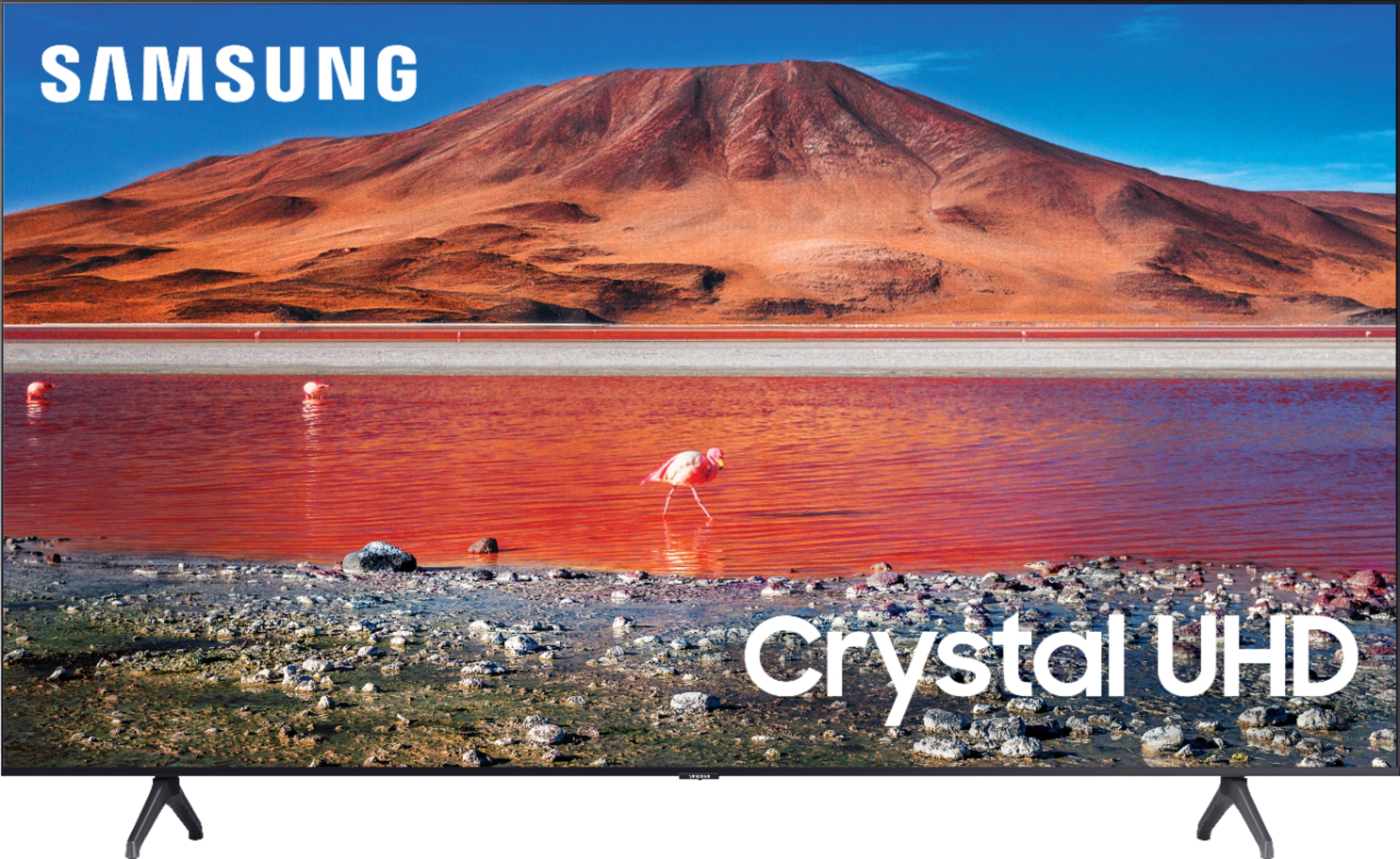
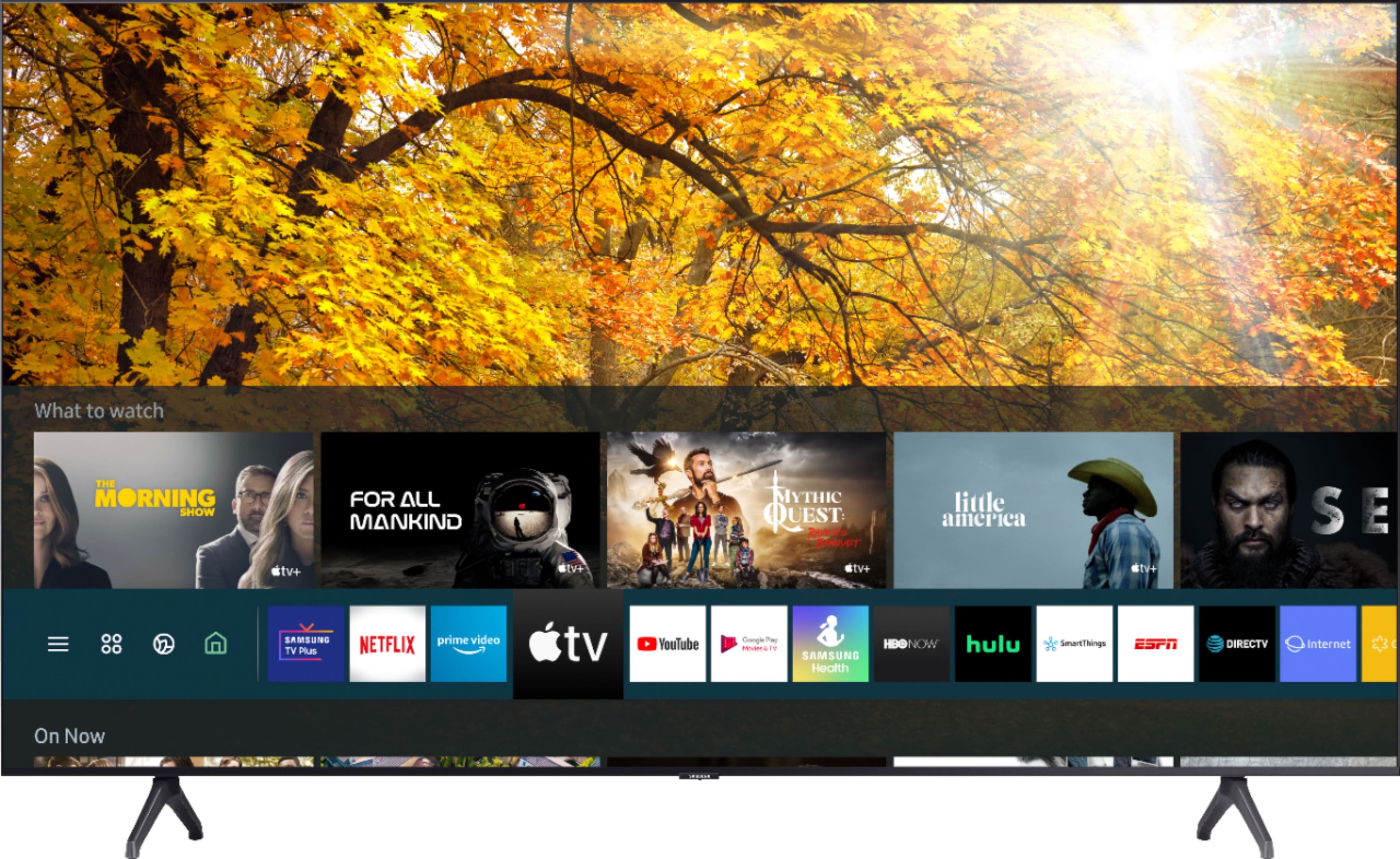
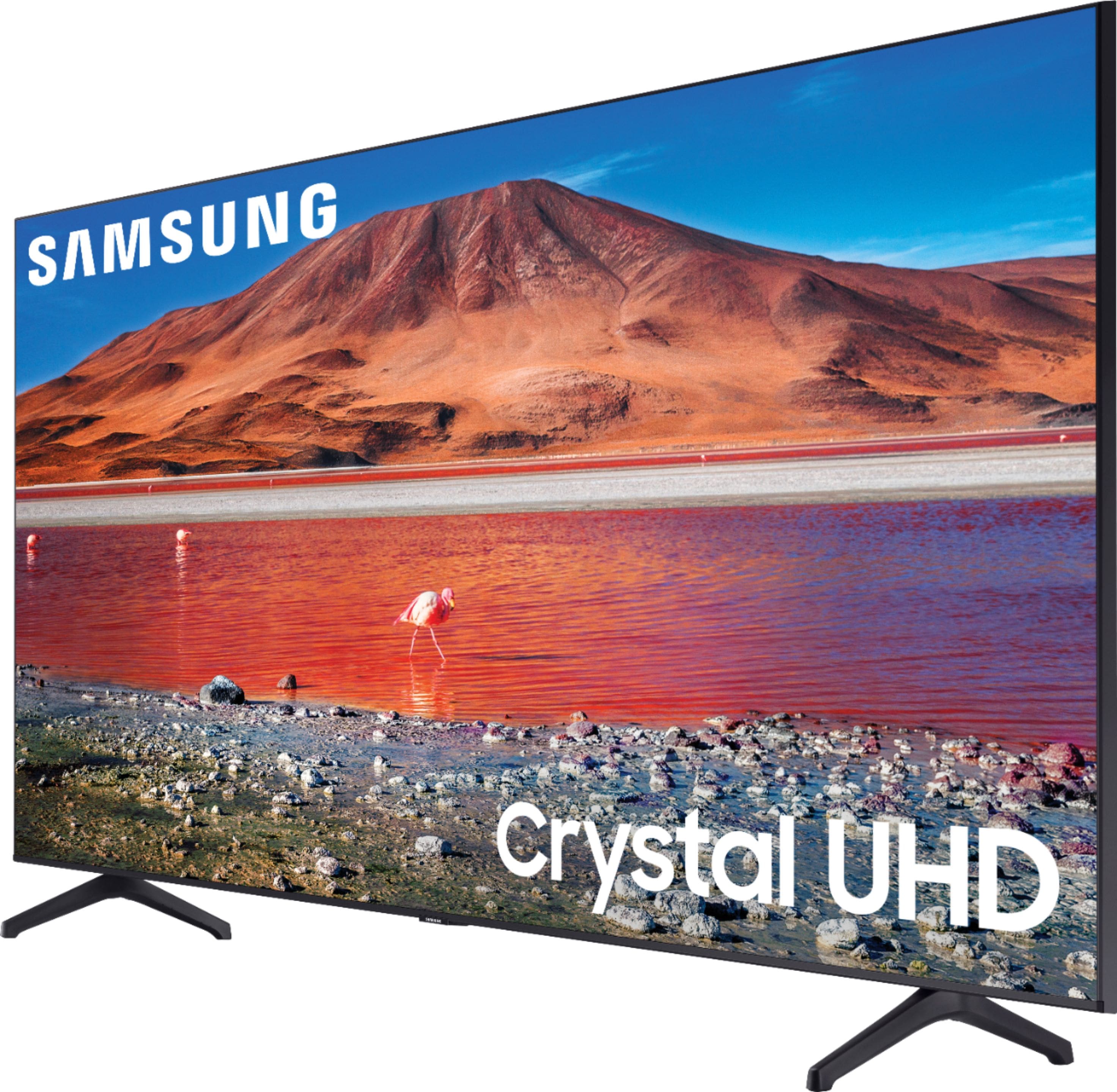
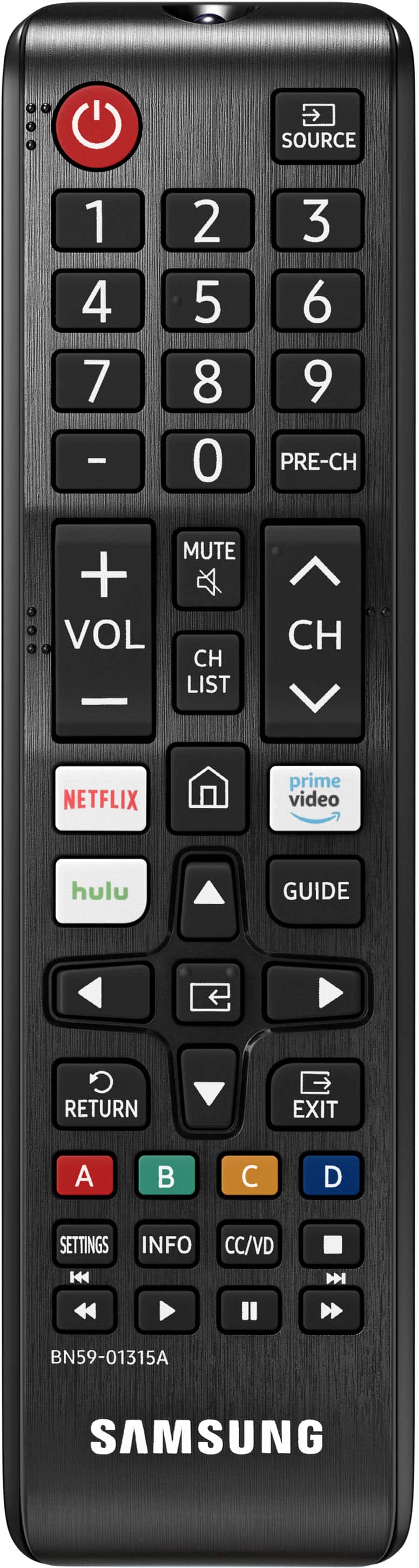
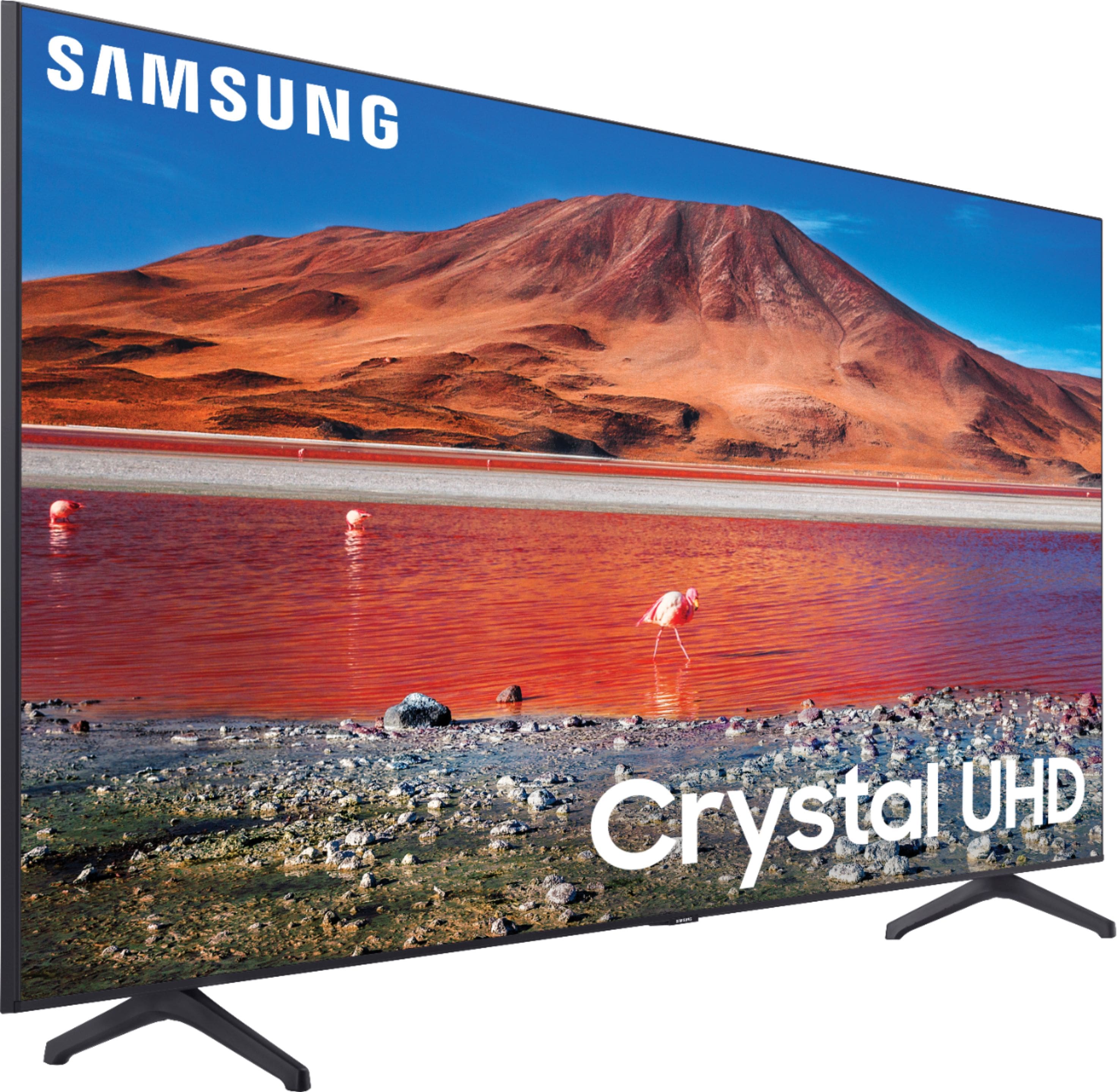
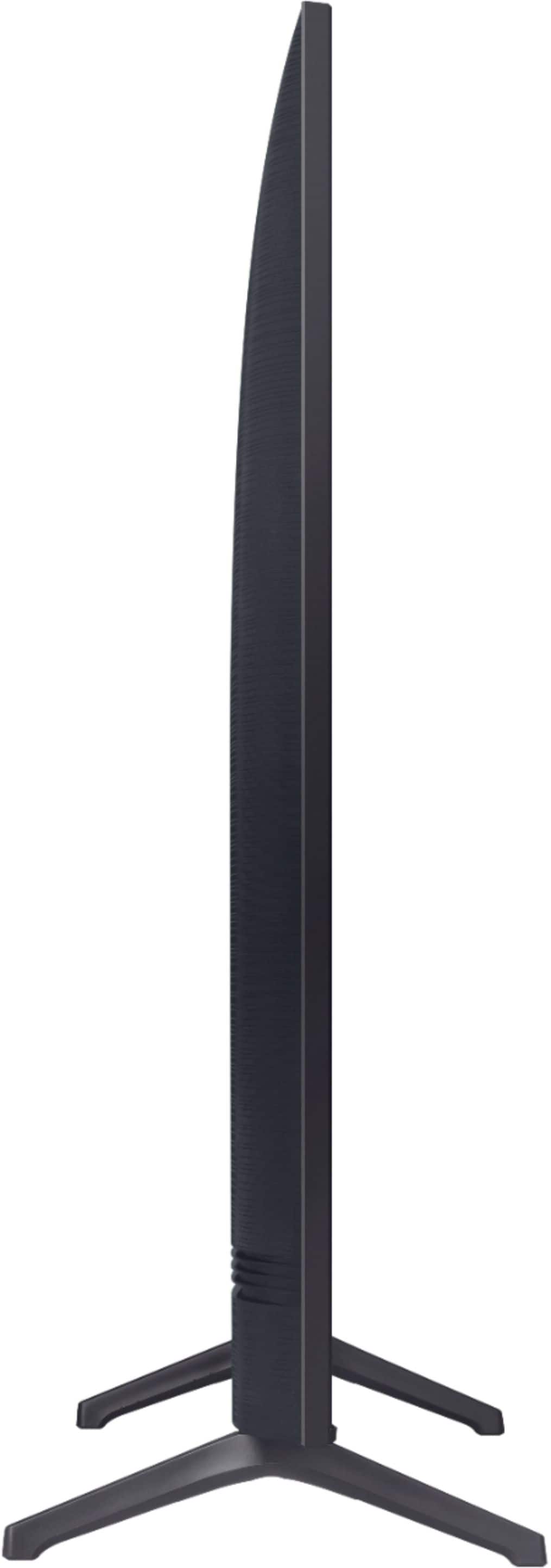
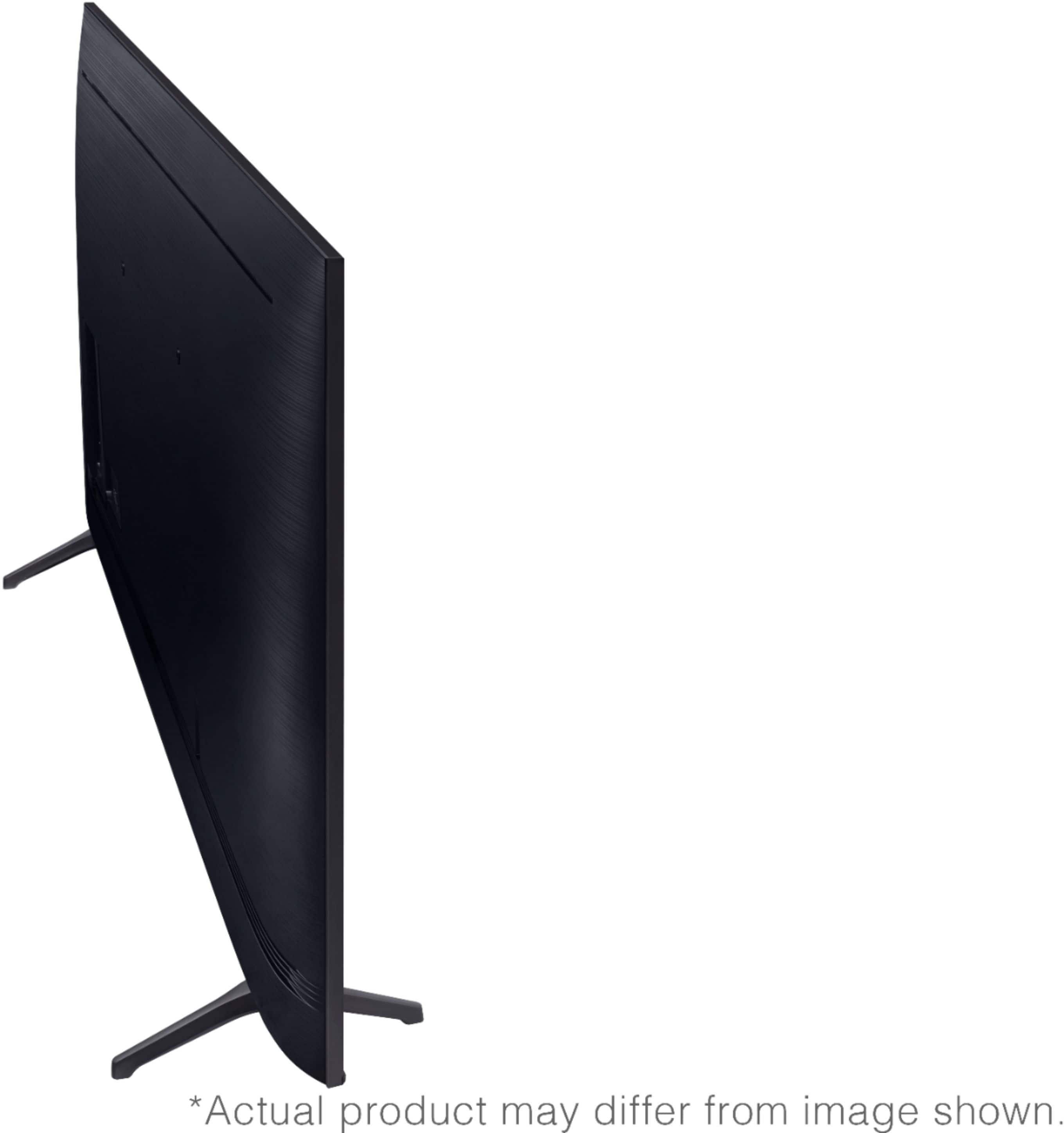
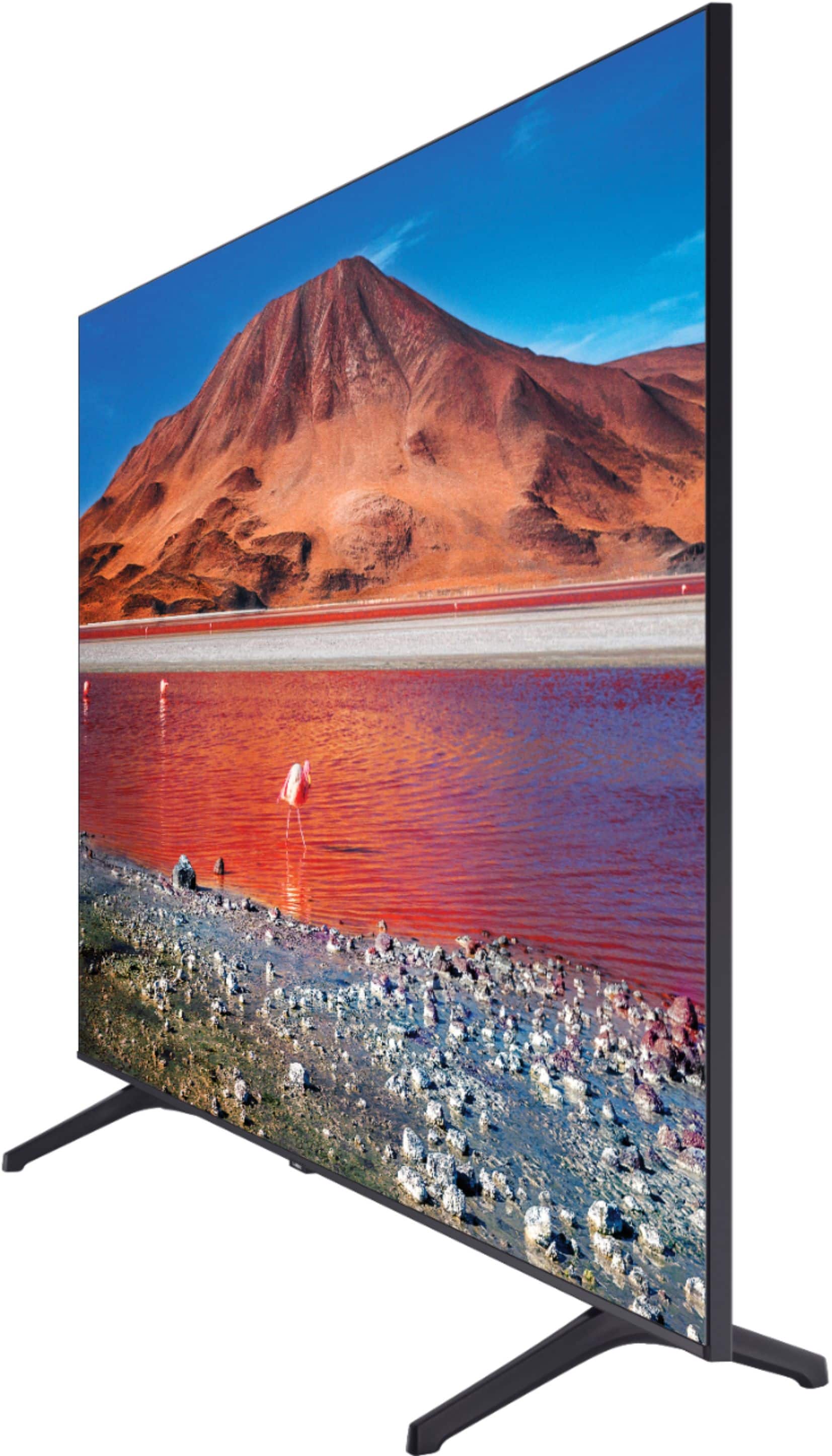





- Model:
- UN65TU7000FXZA
- SKU:
- 6401722
Rating by feature
- Picture Quality
Rating 4.7 out of 5 stars
- Sound Quality
Rating 4.5 out of 5 stars
- Brightness
Rating 4.7 out of 5 stars
Customers are saying
Customers find value in the 65" Class 7 Series LED 4K UHD Smart Tizen TV (2019)'s picture quality, ease of use, and price. Many appreciate the TV's color accuracy and relatively easy setup process. However, some users have expressed dissatisfaction with the remote control and reported occasional issues with internet connectivity and the operating system's responsiveness. A few customers also mentioned concerns about the TV's volume and long-term reliability.
This summary was generated by AI based on customer reviews.
Tv
||Posted . Owned for 9 months when reviewed.This reviewer received promo considerations or sweepstakes entry for writing a review.A great product, for the price and for the functionality, I think this works best for me.
No, I would not recommend this to a friendNot bad for the price but not great either
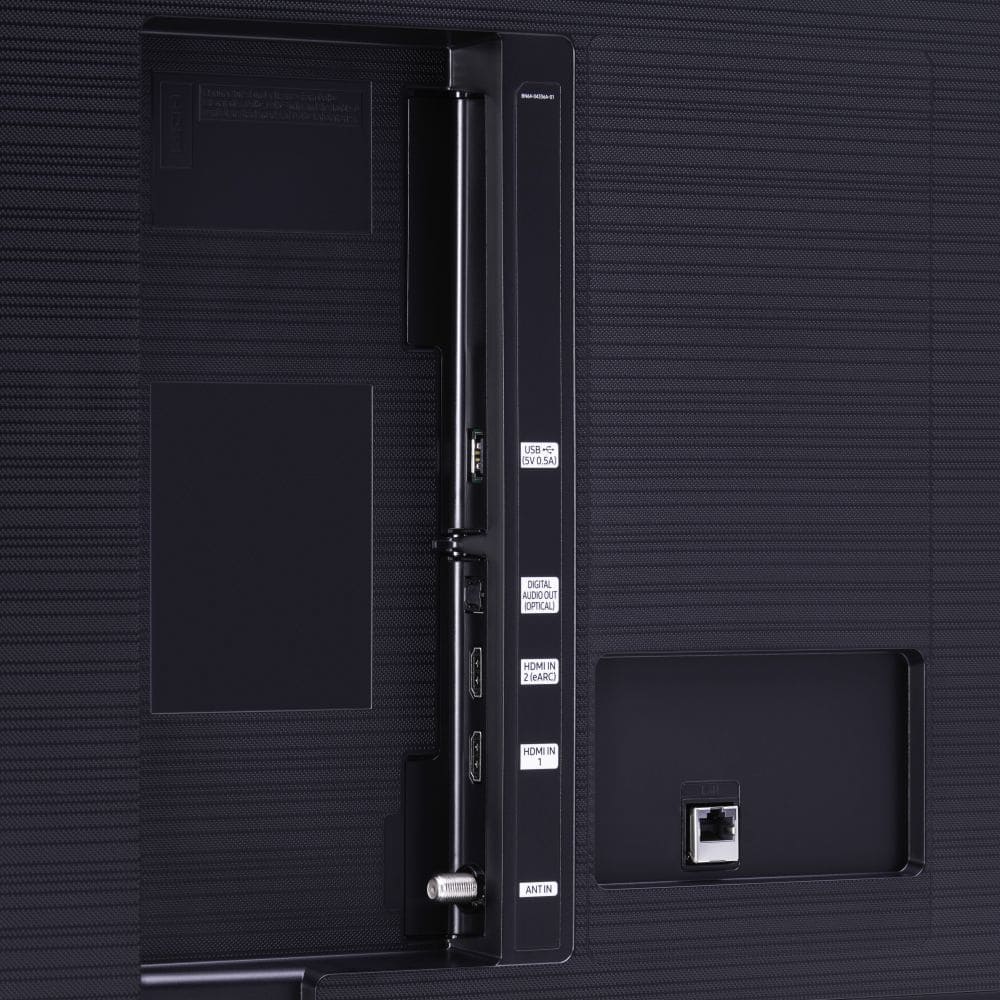
||Posted . Owned for 3 weeks when reviewed.This reviewer received promo considerations or sweepstakes entry for writing a review.Picture not as clear as hoped nor is the audio. Not happy there are only two hdmi ports nor many audio input jacks
No, I would not recommend this to a friendBrand response from Samsung
Posted .momthebomb:
Thank you for purchasing the TU7000 TV and for your review. Your thoughts regarding thenumber of HDMI ports is important to us and will be shared with our internal teams.
There are several image settings you can adjust to your liking such as Picture Mode and Expert Settings.
Choose a Picture Mode by going to Settings > Picture > Picture Mode and choose from Dynamic, Standard, Natural, Movie, or Filmmaker Mode.
You can further adjust your sharpness, brightness, contrast, color, and more by going to Settings > Picture > Expert Settings
For further information regarding Image Settings, please see this article:
https://www.samsung.com/us/support/answer/ANS00079295/
To adjust your sound preferences, go to Settings > Sound > Sound Mode and Settings > Sound > Expert Settings
Should you need further assistance with settings, features, or functions, please contact Samsung Customer Support.
1) Phone: 1-800-SAMSUNG (ask for TVs), available 8AM – 12AM EST 7 days a week
2) LiveChat: https://www.samsung.com/us/support/#contact_us_for_support
3) Facebook Messenger: https://www.facebook.com/samsungsupport
4) Twitter: https://twitter.com/SamsungSupport
5) The Samsung Members Community is also a great resource for getting help from Samsung moderators and customers: https://us.community.samsung.com
If you have not already done so, we invite you to register your new Samsung product at: https://www.samsung.com/us/account/signin/?redirect=https%3A%2F%2Fwww.samsung.com%2Fus%2Fsupport%2Fregister%2F
Registering your product gives you access to easy warranty support, convenient opt-in to special promos and offers, faster troubleshooting and service, and quick notification of system updates.
~ Samsung Solutions
Worst
||Posted . Owned for 1.5 years when reviewed.This reviewer received promo considerations or sweepstakes entry for writing a review.Worst ever…… less than 2 year and got damaged!!!!!!
No, I would not recommend this to a friendOnly 60hz
||Posted . Owned for 1 week when reviewed.This reviewer received promo considerations or sweepstakes entry for writing a review.Major motion blur with over the air and some content. Otherwise good tv. Took back to later get a better model.
No, I would not recommend this to a friendBrand response from Samsung
Posted .ShupDogg:
Thank you for sharing your review of the Samsung TU7000. I am very sorry that your experience with this TV was less than perfect, and you have decided to replace it with a different model. Thank you for being a loyal Samsung customer.
Your feedback regarding this model is important to us and will be shared with our internal teams.
Should you have questions or need assistance with settings, setup, or features with your new Samsung TV, please know we are always here to help.
1) Phone: 1-800-SAMSUNG (ask for TVs), available 8AM – 12AM EST 7 days a week
2) LiveChat: https://www.samsung.com/us/support/#contact_us_for_support
3) Facebook Messenger: https://www.facebook.com/samsungsupport
4) Twitter: https://twitter.com/SamsungSupport
5) The Samsung Members Community is also a great resource for getting help from Samsung moderators and customers: https://us.community.samsung.com
If you have not already done so, we invite you to register your new Samsung product at: https://www.samsung.com/us/account/signin/?redirect=https%3A%2F%2Fwww.samsung.com%2Fus%2Fsupport%2Fregister%2F
Registering your product gives you access to easy warranty support, convenient opt-in to special promos and offers, faster troubleshooting and service, and quick notification of system updates.
~ Samsung Solutions
Great for beginners
||Posted . Owned for 1 week when reviewed.This reviewer received promo considerations or sweepstakes entry for writing a review.Expected a lil more quality out of this Samsung brand , to me the lg is a better picture even the Tcl brand for the price
No, I would not recommend this to a friendBrand response from Samsung
Posted .DSJJBrown,
Thank you for sharing your thoughts.
The TV will upscale as best as possible any content sent to it. The closer your content is to 4K, the better the image will look on the screen.
There are several preset picture modes and many custom settings that can optimize image quality to your viewing scenario.
Go to HOME > SETTINGS > PICTURE > PICTURE MODE and choose:
1) Dynamic: Makes the picture brighter and clearer in bright viewing environments.
2) Standard: This is the default mode suitable for general viewing environments.
3) Natural: Reduces eye strain for a comfortable viewing experience.
4) Movie: Suitable for watching TV or movies in a dark room.
5) Filmmaker: Watch the source content (e.g., movie) as it is.
Here is a link to the downloadable eManual, where you can find a detailed guide to configuring advanced picture setting (pages 92-93):
http://downloadcenter.samsung.com/content/UM/202004/20200403095308351/NIKATSCT-3.0.1_EM_NIKE_USA_ENG_200323.0.pdf
Should you need further assistance with image quality adjustments, feel free to contact us via:
1) Phone: 1-800-SAMSUNG (ask for TVs)
Available 8AM – 9PM EST (Mon-Fri)
2) LiveChat: https://www.samsung.com/us/support/#contact_us_for_support
3) Facebook Messenger: https://www.facebook.com/samsungsupport
4) Twitter: https://twitter.com/SamsungSupport
If you have not already done so, we invite you to register your new Samsung product at: https://www.samsung.com/us/account/signin/?redirect=https%3A%2F%2Fwww.samsung.com%2Fus%2Fsupport%2Fregister%2F
Registering your product gives you access to easy warranty support, convenient opt-in to special promos and offers, faster troubleshooting and service, and quick notification of system updates
-Samsung Ambassador
out of the box defective
||Posted . Owned for 1 month when reviewed.This reviewer received promo considerations or sweepstakes entry for writing a review.I always buy samsung TV's But was disappointed not just with features but it was defective it kept losing the hdmi port
No, I would not recommend this to a friendBrand response from Samsung
Posted .Blizz:
I am very sorry you are experiencing issues with the HDMI port.
Samsung is committed to providing the best possible product experience, quality, and value. We back this TV with a 1-year limited manufacturer's warranty if purchased brand-new directly from an authorized seller. Please reach out to us via any of the following so that we can provide troubleshooting or begin warranty service.
1) Phone: 1-800-SAMSUNG, available 8AM - 9PM EST, Mon - Fri
2) LiveChat: https://www.samsung.com/us/support/#contact_us_for_support
3) Facebook Messenger: https://www.facebook.com/samsungsupport
4) Twitter: https://twitter.com/SamsungSupport
5) The Samsung Members Community is also a great resource for getting help from Samsung moderators and customers: https://us.community.samsung.com
~ Samsung Solutions
Kept freezing so I returned it
||Posted . Owned for 1 week when reviewed.This reviewer received promo considerations or sweepstakes entry for writing a review.I bought this tv on black Friday and had it for two weeks, but I had to return it in the end. Everything was good with this TV except it kept freezing (10-20 mins) once in a while. I could fix this problem by manually unplugging the tv, but this was not clearly a long-term solution. I think the cause of the issue was that this TV came with so many pre-installed apps that take up all of the memory. I tried uninstalling some apps but it was not an option. I also tried troubleshooting the tv through Support> Device Care > Start Device Care but its buttons were not selectable (grey) and I could not do this as well.
No, I would not recommend this to a friendBrand response from Samsung
Posted .Hi RezB,
Thank you for your review of the Samsung TU7000 TV and for sharing the issues that have caused you to return your unit. Your experience is very important to us and will be shared with our product team.
Should you ever decide to give Samsung TVs another try and have questions or need assistance with settings, setup, or features, please know we are always here to help. Call us at 1-800-SAMSUNG (ask for TVs), available 8AM - 12AM EST, 7 days a week.
For additional support resources, visit us on the Samsung website and click on the ‘Support’ link in the upper right corner of the homepage for:
1) Chat with Us/Product Help: To begin a chat or find solutions, choose ‘TVs & Home Theater’ and select your model & topic.
2) Manuals, Software, & Warranty Info
We hope to regain you as a customer in the future.
~ Samsung Solutions
VERY SLOW
||Posted . Owned for 3 weeks when reviewed.This reviewer received promo considerations or sweepstakes entry for writing a review.The TV is very slow turning on, accessing to menus and changing channels
No, I would not recommend this to a friendBrand response from Samsung
Posted .Hi there,
Thank you for sharing details of the menu/interface lag you’ve experienced on your TU7000 TV. Please know we are here to help you!
Please ensure your TV’s firmware is up to date; you can check this by going to Settings > Support > Software Update.
You may also want to optimize performance further and address this issue with the self-diagnostic tool. This service checks memory frees unused cached memory, and closes background apps. Go to Settings > Support > Device Care > Start Device Care.
If you need more help, Samsung is here for you. Please call us at 1-800-SAMSUNG, 8 AM - 12 AM EST, seven days a week. Our LiveChat agents are also available by clicking on the ‘Support’ link on our website.
~ Samsung Advisor
TV
||Posted .This reviewer received promo considerations or sweepstakes entry for writing a review.Bougjy it, had to return it though. Too big, bought a 50 inch
I would recommend this to a friendBrand response from Samsung
Posted .Hi JasonNeal,
Thank you for your purchase and feedback on the TU7000 TV. Should you need any help, or have any questions, please give us a call at 1-800-SAMSUNG, 8 AM - 12 AM EST, seven days a week. Or visit us on the Samsung website and click on the ‘Support’ link for:
1) LiveChat
2) Manuals, Software, & Warranty Info
~ Samsung Advisor
Poor picture quality
||Posted . Owned for 3 weeks when reviewed.This reviewer received promo considerations or sweepstakes entry for writing a review.I need to reach out to support, but I expect there is nothing going to happen. The picture of this tv has issues when the images on the screen are set with a dark background. I don't know exactly how to describe the issue, but I will tell you none of my others TVs have this issue.
No, I would not recommend this to a friendBrand response from Samsung
Posted .Hi RobertHill,
Thank you for your feedback on the TU7000 TV picture quality. Please know we are here to help.
First, let’s ensure you are running the latest Firmware Update. Go to Settings> Support> Software Update.
Next, If the colors on your TV are correct but just a little too dark or bright, you can try adjusting Picture Modes, Contrast, Brightness, or Sharpness settings.
For darker scenes, I recommend Dynamic Picture Mode, which makes pictures brighter and clearer in bright viewing environments. Go to Settings > Picture > Picture Mode > Dynamic.
Or you can manually adjust the Brightness by pressing the HOME button on your remote, then navigating to Settings > Picture > Expert Settings.
You may also want to disable Power Saving Mode, which automatically adjusts the brightness to reduce the TV’s power consumption. Go to: Settings > General > Eco Solution> Power Saving Mode.
If you continue to have issues, please give us a call or reach out to us via chat. Call us at 1-800-SAMSUNG, 8 AM - 12 AM EST, seven days a week. Or visit us on the Samsung website and click on the ‘Support’ link for:
1) LiveChat
2) Manuals, Software, & Warranty Info
~ Samsung Advisor
Green Image
||Posted . Owned for 7 months when reviewed.This reviewer received promo considerations or sweepstakes entry for writing a review.Purchased first with same defect as the second, screen would go green after a week of use. Do not recommend.
No, I would not recommend this to a friendBrand response from Samsung
Posted .jlozano415:
Thank you for purchasing the TU7000 TV. I am very sorry for the color glitch issue you encountered. Please check that your TV has the latest firmware update.
To update directly from your TV, press the HOME button on your remote.
- Go to SETTINGS (gear icon) > Support > Software Update > Update Now
- Your TV will check for the update and should start downloading the update. After the update is installed the TV will shut down and restart. Once the TV restarts, press and hold the Power button until the TV turns off and back on.
If your issue persists after the firmware update, please contact Samsung Customer Support.
1) Phone: 1-800-SAMSUNG (ask for TVs), available 8AM – 12AM EST 7 days a week
2) LiveChat: https://www.samsung.com/us/support/#contact_us_for_support
3) Facebook Messenger: https://www.facebook.com/samsungsupport
4) Twitter: https://twitter.com/SamsungSupport
5) The Samsung Members Community is also a great resource for getting help from Samsung moderators and customers: https://us.community.samsung.com
If you have not already done so, we invite you to register your new Samsung product at: https://www.samsung.com/us/account/signin/?redirect=https%3A%2F%2Fwww.samsung.com%2Fus%2Fsupport%2Fregister%2F
Registering your product gives you access to easy warranty support, convenient opt-in to special promos and offers, faster troubleshooting and service, and quick notification of system updates.
~ Samsung Solutions
Don’t Do It
||Posted . Owned for 2 weeks when reviewed.This reviewer received promo considerations or sweepstakes entry for writing a review.Definitely not worth the hype. I played around with the picture color settings and auto settings for about 2 weeks. I never could get it right. Everything was either completely white washed and too bright or I found myself staring into a black picture due to darkness/cloudy. The WiFi setup on your phone is a joke. I couldn’t get it to stay connected. Returned for a VIZIO.
No, I would not recommend this to a friendBrand response from Samsung
Posted .Dakota:
Thank you for sharing your review of the Samsung TU7000 TV. I am very sorry that you were not completely happy with your picture quality and have decided to return it.
Should you ever decide to give Samsung TVs another try and have questions or need assistance with settings, setup, or features, please know we are always here to help.
Again, my sincerest apologies. We hope to regain you as a customer in the future.
1) Phone: 1-800-SAMSUNG (available 8AM -12AM EST, 7 days a week)
2) LiveChat: https://www.samsung.com/us/support/#contact_us_for_support
3) Facebook Messenger: https://www.facebook.com/samsungsupport
4) Twitter: https://twitter.com/SamsungSupport
5) The Samsung Members Community is also a great resource for getting help from Samsung moderators and customers: https://us.community.samsung.com
~ Samsung Solutions
- Pros mentioned:Picture quality
Horrible TV
||Posted . Owned for less than 1 week when reviewed.This reviewer received promo considerations or sweepstakes entry for writing a review.Tv picture quality is great, the problem is how unresponsive and laggy the interface is. Has less than 2 GB of internal memory and it’s almost completely full of apps you cannot delete. Not worth your time.
No, I would not recommend this to a friend Tv
||Posted . Owned for 1 month when reviewed.This reviewer received promo considerations or sweepstakes entry for writing a review.Good price but not good quality The sound it’s not too good We have to buy a sound box for get batter it
No, I would not recommend this to a friendBrand response from Samsung
Posted .Fablmala:
Thank you for purchasing the Samsung TU7000 TV and for your review. You can adjust the settings for picture and sound according to your preferences.
Choose a Picture Mode by going to Settings > Picture > Picture Mode and choose from Dynamic, Standard, Natural, Movie, or Filmmaker Mode.
You can further adjust your brightness, contrast, color, and more by going to Settings > Picture > Expert Settings
To adjust your sound preferences, go to Settings > Sound > Sound Mode and Settings > Sound > Expert Settings
Please also give us the opportunity to assist you with quality adjustments tailored to your preferred viewing and listening experience. You can reach us via any of the following options:
1) Phone: 1-800-SAMSUNG (ask for TVs), available 8AM – 12AM EST 7 days a week
2) LiveChat: https://www.samsung.com/us/support/#contact_us_for_support
3) Facebook Messenger: https://www.facebook.com/samsungsupport
4) Twitter: https://twitter.com/SamsungSupport
5) The Samsung Members Community is also a great resource for getting help from Samsung moderators and customers: https://us.community.samsung.com
If you have not already done so, we invite you to register your new Samsung product at: https://www.samsung.com/us/account/signin/?redirect=https%3A%2F%2Fwww.samsung.com%2Fus%2Fsupport%2Fregister%2F
Registering your product gives you access to easy warranty support, convenient opt-in to special promos and offers, faster troubleshooting and service, and quick notification of system updates.
~ Samsung Solutions
Good for price
||Posted . Owned for 2 months when reviewed.This reviewer received promo considerations or sweepstakes entry for writing a review.Standard tv that came at a good price point. You get what you pay for
No, I would not recommend this to a friendBrand response from Samsung
Posted .Hi Bizle,
Thanks for taking a moment to review Samsung’s TU7000 TV. If you’re experiencing specific issues which caused you to give this a 3-star rating, please know Samsung Customer Support is here to help.
If there is anything we can do to improve your experience, please call us at 1-800-SAMSUNG, 8 AM - 12 AM EST, seven days a week. Our LiveChat agents are also available by clicking on the ‘Support’ link on our website.
~ Samsung Advisor
Tv
||Posted . Owned for 3 weeks when reviewed.This reviewer received promo considerations or sweepstakes entry for writing a review.Quality on the tv is trash. Very low quality…….,,,
No, I would not recommend this to a friendnot bright enough
||Posted . Owned for 10 months when reviewed.This reviewer received promo considerations or sweepstakes entry for writing a review.It is not bright enough. Contrast is horrible. Not worth it.
No, I would not recommend this to a friendBrand response from Samsung
Posted .Hi Handsonreview,
It’s unfortunate to hear you’re not fully satisfied with the brightness of your TU7000 TV’s picture. If the colors on your TV are correct but just a little too dark or bright, you can try adjusting Picture Modes, Contrast, Brightness, or Sharpness settings.
I recommend using Dynamic Picture Mode, which makes pictures brighter and clearer in bright viewing environments. Go to Settings > Picture > Picture Mode > Dynamic.
Or you can manually adjust the Brightness, Contrast, and more. Press the HOME button on your remote, then navigate to Settings > Picture > Expert Settings.
You may also want to disable Power Saving Mode, which automatically adjusts the brightness to reduce the TV’s power consumption. Go to: Settings > General > Eco Solution> Power Saving Mode
Please also be sure you are running the latest firmware. You can check to see what software version your TV is using and if there is an available update through the settings on your TV: Settings > Support > Software Update.
I hope this helps to improve your picture. Should you need further assistance, please contact us at 1-800-SAMSUNG, 8 AM - 12 AM EST, seven days a week. Our LiveChat agents are also available by clicking on the ‘Support’ link on our website.
~ Samsung Advisor
Samsung TV
||Posted . Owned for 1 month when reviewed.This reviewer received promo considerations or sweepstakes entry for writing a review.Good TV for the price not real good for sports because gets a little blurry on fast movement
I would recommend this to a friendGreat quality but apps don’t always work
||Posted .This reviewer received promo considerations or sweepstakes entry for writing a review.Was pretty bad when I first got it with the apps not working. But after a week it started to work really well.
No, I would not recommend this to a friendBrand response from Samsung
Posted .Peace:
Thank you for choosing the TU7000 Crystal UHD Smart TV and taking the time to share your experience. I apologize for the inconveniences you have had with your apps not working properly. You can try cold booting your TV, updating your TV's software, deleting, and downloading the app again, and a completing full reset of Smart Hub to correct the issue with the app.
Here is a link to a step-by-step trouble shooting guide to get you started: https://www.samsung.com/us/support/troubleshooting/TSG01003027/
If you need further assistance, please know that Samsung Customer Support is here to help, and can be reached via any of the below options:
1) Phone: 1-800-SAMSUNG (available 8AM -12AM EST, 7 days a week)
2) LiveChat: https://www.samsung.com/us/support/#contact_us_for_support
3) Facebook Messenger: https://www.facebook.com/samsungsupport
4) Twitter: https://twitter.com/SamsungSupport
5) The Samsung Members Community is also a great resource for getting help from Samsung moderators and customers: https://us.community.samsung.com
If you have not already done so, we invite you to register your new Samsung product at: https://www.samsung.com/us/account/signin/?redirect=https%3A%2F%2Fwww.samsung.com%2Fus%2Fsupport%2Fregister%2F
Registering your product gives you access to easy warranty support, convenient opt-in to special promos and offers, faster troubleshooting and service, and quick notification of system updates.
~ Samsung Solutions
My Samsung
||Posted . Owned for 3 weeks when reviewed.This reviewer received promo considerations or sweepstakes entry for writing a review.Not a very good definition. Bother my eyes, sound is terrible
No, I would not recommend this to a friendBrand response from Samsung
Posted .Hi SandraR,
Your details regarding the image and sound quality of your TU7000 TV are important to us and will be shared with our internal teams. I have a few recommendations that may improve your experience.
Go to Home > Settings > Picture > Picture Mode and select the mode that best fits your usage:
1) Standard: Default mode suitable for general viewing environments.
2) Natural: Reduces eye strain for a comfortable viewing experience.
3) Movie: This is suitable for watching TV or movies in a dark room.
4) Dynamic: Makes the picture brighter and clearer in bright viewing environments.
5) Filmmaker Mode: You can watch the source content (e.g., movie) as it is. If the image is defined as Filmmaker Mode, it will automatically switch to Filmmaker Mode while watching.
You can also go to Settings > Picture > Expert Settings and configure the image settings to your taste with additional functions.
Additionally, there are several sound settings you can adjust to suit your personal sound preferences. Change the Sound Mode by going to Settings > Sound > Sound Mode
You can also customize the sound with Expert Settings by going to Settings > Sound > Expert Settings
I hope this helps you enjoy your experience. For more help, please call us at 1-800-SAMSUNG, 8 AM - 12 AM EST, seven days a week. LiveChat with an agent, as well as manuals, software, and warranty info, can be found at the ‘Support’ link on our Samsung website.
~ Samsung Advisor