Customer Ratings & Reviews
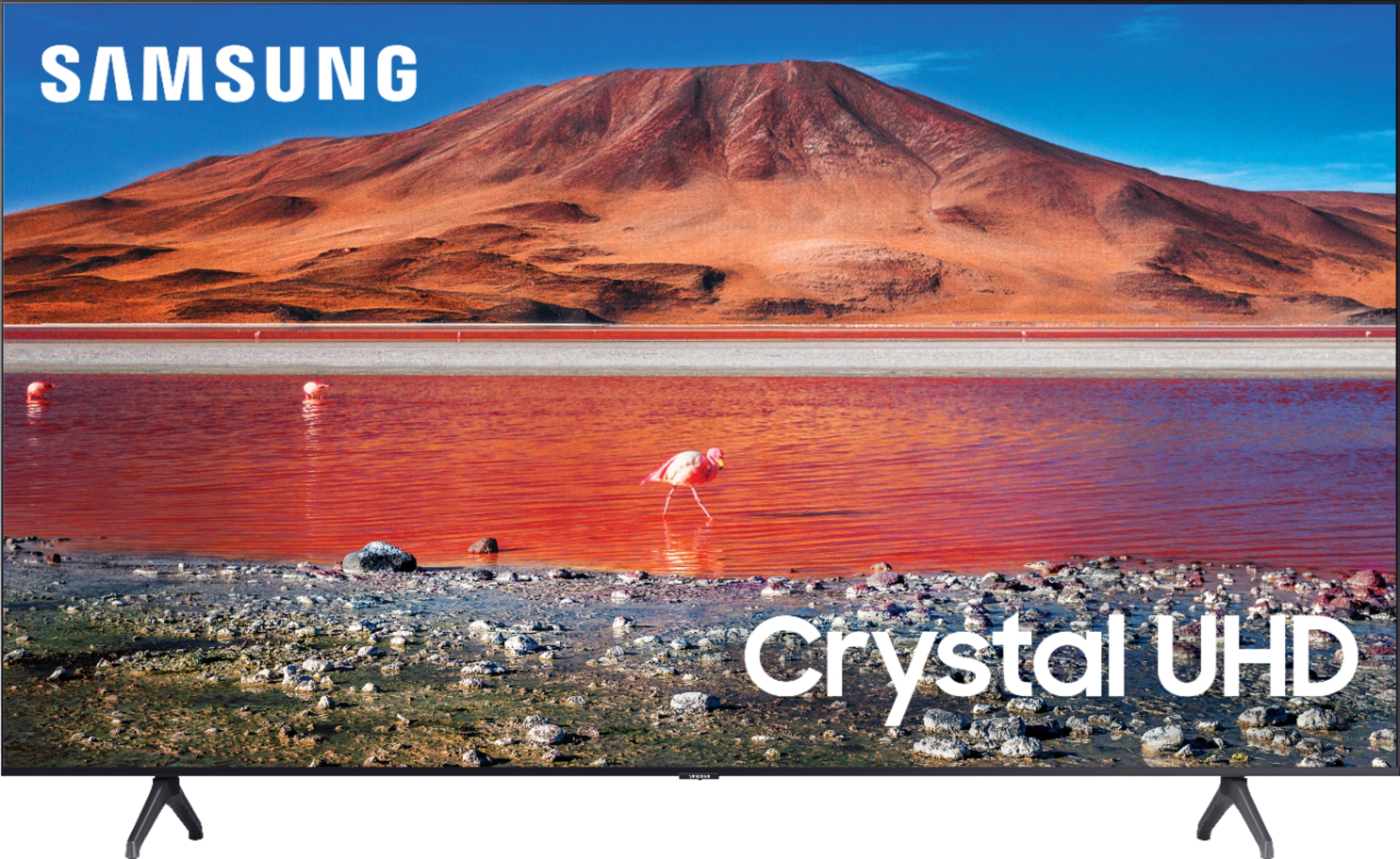
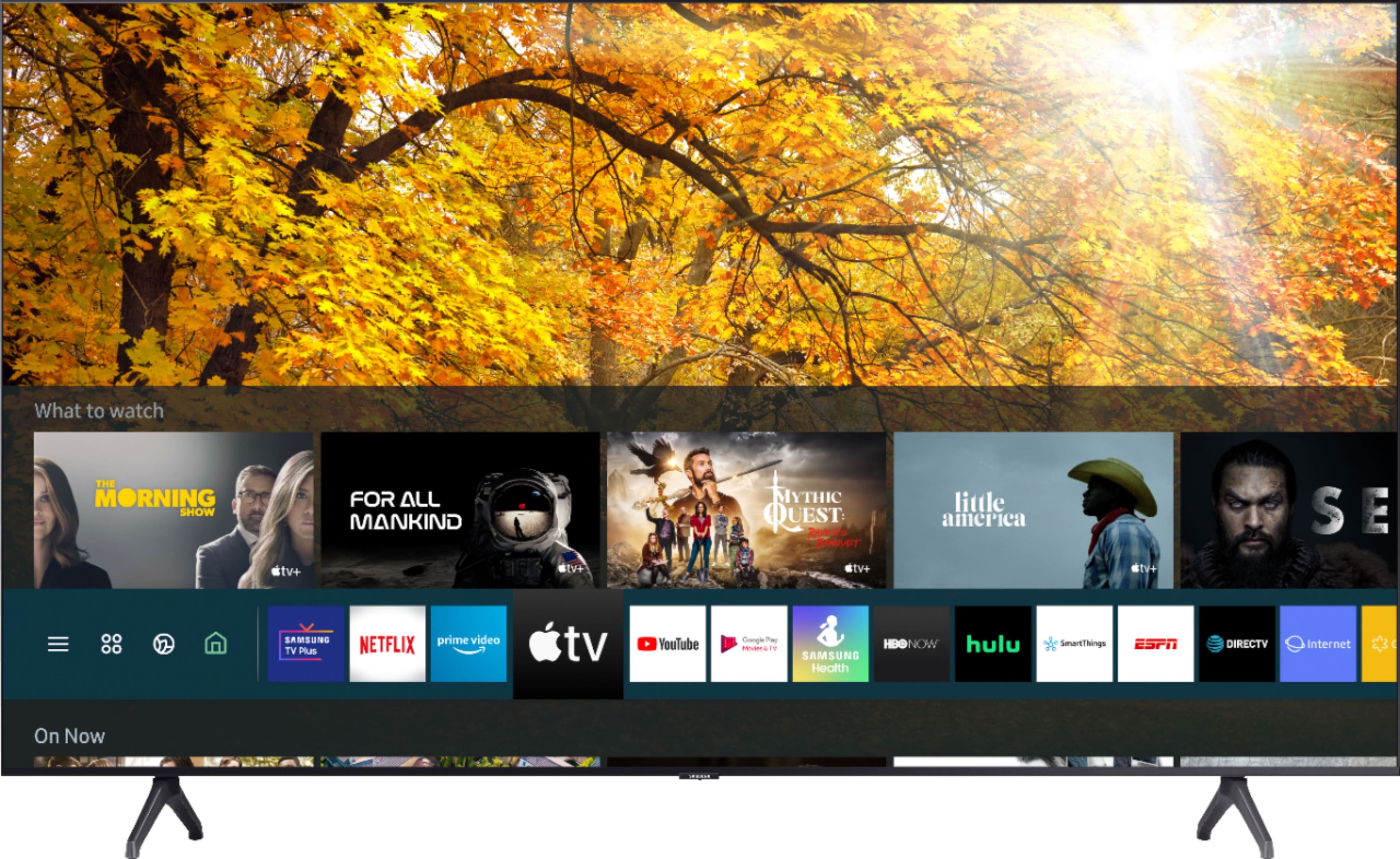
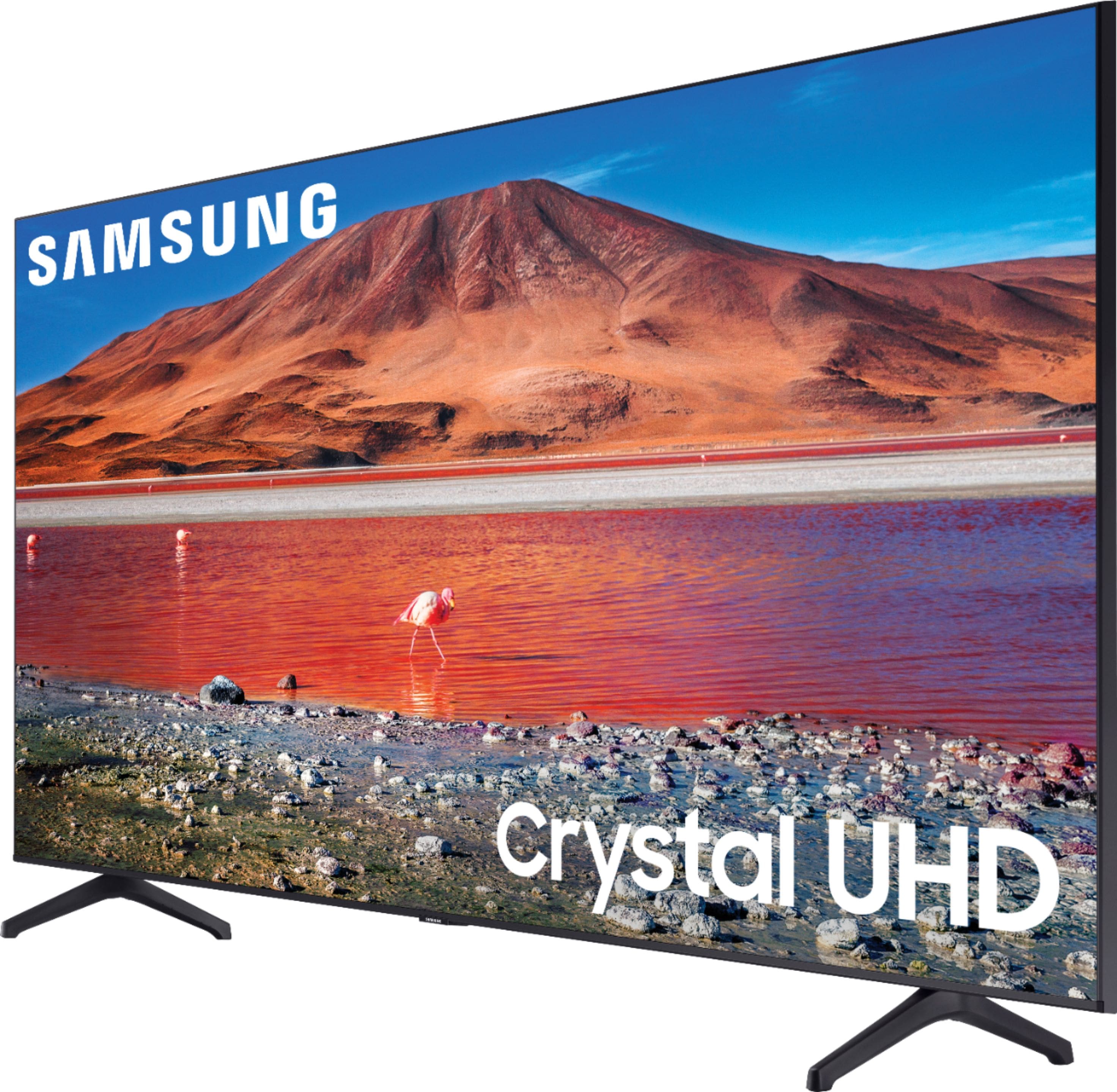
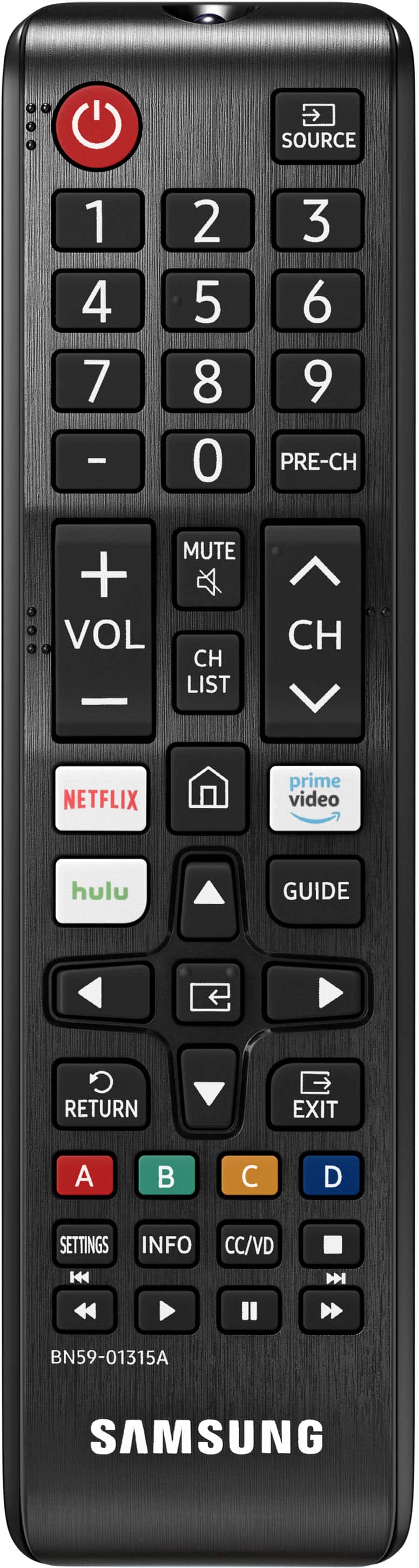





- Model:
- UN65TU7000FXZA
- SKU:
- 6401722
Rating by feature
- Picture Quality
Rating 4.7 out of 5 stars
- Sound Quality
Rating 4.5 out of 5 stars
- Brightness
Rating 4.7 out of 5 stars
Customers are saying
Customers find value in the 65" Class 7 Series LED 4K UHD Smart Tizen TV (2019)'s picture quality, ease of use, and price. Many appreciate the TV's color accuracy and relatively easy setup process. However, some users have expressed dissatisfaction with the remote control and reported occasional issues with internet connectivity and the operating system's responsiveness. A few customers also mentioned concerns about the TV's volume and long-term reliability.
This summary was generated by AI based on customer reviews.
Horrible. Sreen shakes periodically
||Posted . Owned for 1 month when reviewed.This reviewer received promo considerations or sweepstakes entry for writing a review.I need to learn how to return this purchase. The screen shakes, and I keep getting computer when I call the store where I originally purchased it. Someone please help.
No, I would not recommend this to a friendBrand response from Samsung
Posted .helpmereturnitplease:
Thank you for purchasing the TU7000 TV. I am very sorry that you are experiencing some image issues. You can try to use Picture Clarity Settings to improve you experience.
Go to Settings > Picture > Expert Settings > Picture Clarity Settings
Change Picture Clarity from Auto to Custom and adjust Judder Reduction & LED Clear Motion to get the best results.
Should your issue persist, please contact Samsung Customer Support for further assistance.
1) Phone: 1-800-SAMSUNG, available 8AM - 9PM EST, Mon - Fri
2) LiveChat: https://www.samsung.com/us/support/#contact_us_for_support
3) Facebook Messenger: https://www.facebook.com/samsungsupport
4) Twitter: https://twitter.com/SamsungSupport
5) The Samsung Members Community is also a great resource for getting help from Samsung moderators and customers: https://us.community.samsung.com
If you have not already done so, we invite you to register your new Samsung product at: https://www.samsung.com/us/account/signin/?redirect=https%3A%2F%2Fwww.samsung.com%2Fus%2Fsupport%2Fregister%2F
Registering your product gives you access to easy warranty support, convenient opt-in to special promos and offers, faster troubleshooting and service, and quick notification of system updates.
~ Samsung Solutions
Disappointed
||Posted . Owned for 7 months when reviewed.This reviewer received promo considerations or sweepstakes entry for writing a review.So disappointed in this product. Expect so much more from Samsung than all the issues we have experienced with this tv. Will not be buying a Samsung again.
No, I would not recommend this to a friendBrand response from Samsung
Posted .Disappointed:
Thank you for purchasing the Samsung TU7000 TV. I am sorry to hear that you are experiencing issues with your TV. So we can better understand the problems you are experiencing and provide you with troubleshooting assistance or warranty service, please contact Samsung Customer Support.
1) Phone: 1-800-SAMSUNG (ask for TVs), available 8AM – 12AM EST 7 days a week
2) LiveChat: https://www.samsung.com/us/support/#contact_us_for_support
3) Facebook Messenger: https://www.facebook.com/samsungsupport
4) Twitter: https://twitter.com/SamsungSupport
5) The Samsung Members Community is also a great resource for getting help from Samsung moderators and customers: https://us.community.samsung.com
If you have not already done so, we invite you to register your new Samsung product at: https://www.samsung.com/us/account/signin/?redirect=https%3A%2F%2Fwww.samsung.com%2Fus%2Fsupport%2Fregister%2F
Registering your product gives you access to easy warranty support, convenient opt-in to special promos and offers, faster troubleshooting and service, and quick notification of system updates.
~ Samsung Solutions
not worth amount
||Posted . Owned for less than 1 week when reviewed.This reviewer received promo considerations or sweepstakes entry for writing a review.looks and feel is good but the functionality of the TV and apps are garbage. you’ll need youtube TV or apple TV forsure. go sony, avoid samsung.
No, I would not recommend this to a friendBEST BUY IS DOWNHILL
||Posted . Owned for less than 1 week when reviewed.This reviewer received promo considerations or sweepstakes entry for writing a review.TV came damage, has red spots on dark images, I bought 4 itens, 3 came demage, avoid best buy at all costs
No, I would not recommend this to a friendBrand response from Samsung
Posted .Hi EnricoP,
It’s unfortunate that your TU7000 TV screen exhibited damage upon unboxing and setup. Even if a TV is double-boxed and the packaging shows no evidence of harm, a TV can still be damaged during transit if proper care is not taken. For example, the damage could have been done if the TV were sitting in an incorrect orientation – laid on its side or tilted – during transit.
We recommend you contact Best Buy directly for assistance.
Please get in touch with Samsung Customer Support if you need assistance with a replacement TV. You can contact us at 1-800-SAMSUNG, 8 AM - 12 AM EST, seven days a week. LiveChat with an agent, as well as manuals, software, and warranty info, can be found at the ‘Support’ link on our Samsung website.
~ Samsung Advisor
NO BLUE TOOTH ON THIS TV
||Posted . Owned for 1 year when reviewed.This reviewer received promo considerations or sweepstakes entry for writing a review.This TV DOES NOT ACCOMODATE BLUE TOOTH. This is a majot problem
No, I would not recommend this to a friendBrand response from Samsung
Posted .Hi GlennE,
We appreciate you sharing your experience when connecting your external Bluetooth device to the TU7000 TV. Please know that the TU7000 TV is Bluetooth-capable.
You can connect Bluetooth audio devices to the TV. They must be paired using the TV's Bluetooth function. Go to Settings > Sound > Sound Output > Bluetooth Speaker List.
- If the TV fails to find a Bluetooth audio device, place the device closer to the TV and select Refresh.
- When you turn on a paired Bluetooth audio device, the TV detects it automatically and then displays a pop-up window. Use this pop-up window to activate or deactivate the Bluetooth audio device.
You may want to check the Connection Guide for detailed information regarding connecting your speakers. Go to Source > Connection Guide > Audio Device > Bluetooth.
When connecting via Bluetooth, there are a few things to keep in mind.
1) You can't use Bluetooth devices and the Wi-Fi Speaker Surround Setup feature simultaneously.
2) Compatibility issues may occur, depending on the Bluetooth device (Mobile exclusive headphones may not be available, depending on the environment).
3) Lip-sync errors may occur.
4) The TV and Bluetooth device may disconnect, depending on the distance between them
5) A Bluetooth device may hum or malfunction: a) When a part of your body is in contact with the receiving/transmitting system of the Bluetooth device or the TV. b) When the device is subject to electrical variation from obstructions caused by a wall, corner, or office partitioning. c) When the device is exposed to electrical interference from the same frequency-band devices, including medical equipment, microwave ovens, and wireless LANs.
~Samsung Advisor
Garbage
||Posted . Owned for 2 months when reviewed.This reviewer received promo considerations or sweepstakes entry for writing a review.Do not buy this TV. Horrible picture quality. Blurry when watching sports. Can't see sh,, during dark scene in movies. AGAIN DO NOT BUY THAT TV.
No, I would not recommend this to a friendBrand response from Samsung
Posted .Hi ANXSAMSUNGCOSTUMER,
Thank you for your review of the Samsung TU7000. We appreciate your feedback regarding picture quality on your unit.
If the colors on your TV are correct but just a little too dark or bright you can try the different Picture Modes or manually adjust the Brightness settings to your liking.
Dynamic Picture Mode will make pictures brighter and clearer in bright viewing environments. Go to: Settings > Picture > Picture Mode > Dynamic
Or manually adjust the Brightness and other settings to your liking. Press the HOME button on your remote, then navigate to: Settings > Picture > Expert Settings
You may also want to disable Power Saving Mode which automatically adjusts the brightness to reduce the TV’s power consumption.
Go to Settings> General> Eco Solution> Power Saving Mode.
Ambient Light Detection will also automatically adjust the brightness level of the TV, according to the ambient light level, to reduce power consumption. If Ambient Light Detection has adjusted the screen brightness to a too bright or dark level, you can select Minimum Brightness to manually adjust the minimum screen brightness.
Go to Settings> General> Eco Solution> Ambient Light Detection
Please also be sure you are running the latest firmware. You can check to see what software version your TV is using and if there is an available update through the settings on your TV. Go to: Settings>Support>Software Update.
You may want to enable automatic updates for convenience. Select Settings > Support > Software Update, then select Auto Update.
Here are some additional tips to help improve the picture clarity:
1) HDMI cables are recommended for optimal HD viewing.
2) If you have an analog cable box or satellite box, upgrade to a digital cable box or satellite box.
3) Change the output resolution of your devices, such as digital broadcast receiver, IPTV, and set-top box to UHD or HD.
I hope this helps to improve your picture. Should you need further assistance, please contact Samsung Customer Support.
1) Phone: 1-800-SAMSUNG (ask for TVs), available 8AM – 12AM EST 7 days a week
2) LiveChat: https://www.samsung.com/us/support/#contact_us_for_support
3) Facebook Messenger: https://www.facebook.com/samsungsupport
4) Twitter: https://twitter.com/SamsungSupport
5) The Samsung Members Community is also a great resource for getting help from Samsung moderators and customers: https://us.community.samsung.com
We look forward to hearing from you.
~ Samsung Specialist
Not the best,but good price
||Posted . Owned for 2 months when reviewed.This reviewer received promo considerations or sweepstakes entry for writing a review.Really "laggy" when navigating through menu options. Visual quality is not always great specially in dark scenes, in dark scenes motion blur is really bad.
No, I would not recommend this to a friendBrand response from Samsung
Posted .Ienzo:
Thank you for sharing your experience with the TU7000 TV. I am sorry that you are experiencing some delayed response when navigating through the menu.
To optimize the smart TV performance, please try Device Care option under the Support Menu. Go to Settings > Support> Device Care > Start Device Care
This service checks memory and frees up unused cached memory and closes background apps.
If the colors on your TV are correct but just a little too dark or bright, try adjusting the following settings
You can try Dynamic Picture Mode by going to Settings > Picture > Picture Mode > Dynamic
Or manually adjust the Brightness settings to your liking.
Go to Home> Settings> Picture> Expert Settings> Brightness
You may also want to adjust the Contrast, Sharpness, Color, or Tint (G/R) in the Expert Settings.
I hope this helps to solve your concerns. Should you need further assistance, please contact Samsung Customer Support.
1) Phone: 1-800-SAMSUNG (available 8AM -12AM EST, 7 days a week)
2) LiveChat: https://www.samsung.com/us/support/#contact_us_for_support
3) Facebook Messenger: https://www.facebook.com/samsungsupport
4) Twitter: https://twitter.com/SamsungSupport
5) The Samsung Members Community is also a great resource for getting help from Samsung moderators and customers: https://us.community.samsung.com
If you have not already done so, we invite you to register your new Samsung product at: https://www.samsung.com/us/account/signin/?redirect=https%3A%2F%2Fwww.samsung.com%2Fus%2Fsupport%2Fregister%2F
Registering your product gives you access to easy warranty support, convenient opt-in to special promos and offers, faster troubleshooting and service, and quick notification of system updates.
~ Samsung Solutions
Complicate
||Posted . Owned for 1 month when reviewed.This reviewer received promo considerations or sweepstakes entry for writing a review.I keep for one week, but set up the channels is night mare, I believed the way been set up by the factory, only then can use, but not a regular person.
No, I would not recommend this to a friendBrand response from Samsung
Posted .Mauro:
Thank you for purchasing the 2020 TU7000 4K Smart TV. The Crystal Processor 4K transforms everything you watch to 4K. Its crisp, clear picture is 4x the resolution of Full HD. I am very sorry you experienced issues setting up your channels.
If you need assistance with setup or have any questions regarding functions, operation, or settings please contact Samsung Customer Support.
1) Phone: 1-800-SAMSUNG (ask for TVs), available 8AM – 12AM EST 7 days a week
2) LiveChat: https://www.samsung.com/us/support/#contact_us_for_support
3) Facebook Messenger: https://www.facebook.com/samsungsupport
4) Twitter: https://twitter.com/SamsungSupport
5) The Samsung Members Community is also a great resource for getting help from Samsung moderators and customers: https://us.community.samsung.com
If you have not already done so, we invite you to register your new Samsung product at: https://www.samsung.com/us/account/signin/?redirect=https%3A%2F%2Fwww.samsung.com%2Fus%2Fsupport%2Fregister%2F
Registering your product gives you access to easy warranty support, convenient opt-in to special promos and offers, faster troubleshooting and service, and quick notification of system updates.
~ Samsung Solutions
Dead on arrival
||Posted .This reviewer received promo considerations or sweepstakes entry for writing a review.Spend an hour trying to turn the tv on without success. Going to return this as soon as I get a chance. Hopefully the next tv won’t come out defective.
No, I would not recommend this to a friendBrand response from Samsung
Posted .Krod619:
Thank you for purchasing the Samsung TU7000 TV. I am very sorry that you are experiencing issues turning your TV on. You may want to try the following troubleshooting steps:
(1) Make sure that the AC power cord is securely plugged in to the TV and the wall outlet.
(2) Make sure that the wall outlet is working and the power indicator at the bottom of the TV is lit and glowing a solid red. If it is off, the TV either does not have power, or it is on and the screen is black. If it is blinking, your TV may need service.
(3) Try pressing the TV Controller button at the bottom of the TV to make sure that the problem is not with the remote control.
(4) If the TV turns on, your issue may be with the remote control
Please visit our set-by-step troubleshooting guide online at: https://www.samsung.com/us/support/troubleshooting/TSG01001086/
I hope these steps help you. If you need further assistance, please contact Samsung Customer Support.
1) Phone: 1-800-SAMSUNG (ask for TVs), available 8AM – 12AM EST 7 days a week
2) LiveChat: https://www.samsung.com/us/support/#contact_us_for_support
3) Facebook Messenger: https://www.facebook.com/samsungsupport
4) Twitter: https://twitter.com/SamsungSupport
5) The Samsung Members Community is also a great resource for getting help from Samsung moderators and customers: https://us.community.samsung.com
If you have not already done so, we invite you to register your new Samsung product at: https://www.samsung.com/us/account/signin/?redirect=https%3A%2F%2Fwww.samsung.com%2Fus%2Fsupport%2Fregister%2F
Registering your product gives you access to easy warranty support, convenient opt-in to special promos and offers, faster troubleshooting and service, and quick notification of system updates.
~ Samsung Solutions
Not that great
||Posted . Owned for 1 month when reviewed.This reviewer received promo considerations or sweepstakes entry for writing a review.I ordered this TV not even 6 months ago & the screen turns dark when ever the picture starts to get blurry very dark just overall been a pain since we got it
No, I would not recommend this to a friendBrand response from Samsung
Posted .EdwardoValentin:
Thank you for purchasing the Samsung TU7000 4K Smart TV and for your review. You can adjust the settings for picture and sound according to your preferences.
Choose a Picture Mode by going to Settings > Picture > Picture Mode and choose from Dynamic, Standard, Natural, Movie, or Filmmaker Mode.
You can further adjust your brightness, contrast, color, and more by going to Settings > Picture > Expert Settings
Should you need further assistance with settings, features, or functions, please contact Samsung Customer Support.
1) Phone: 1-800-SAMSUNG, available 8AM - 9PM EST, Mon - Fri
2) LiveChat: https://www.samsung.com/us/support/#contact_us_for_support
3) Facebook Messenger: https://www.facebook.com/samsungsupport
4) Twitter: https://twitter.com/SamsungSupport
5) The Samsung Members Community is also a great resource for getting help from Samsung moderators and customers: https://us.community.samsung.com
If you have not already done so, we invite you to register your new Samsung product at: https://www.samsung.com/us/account/signin/?redirect=https%3A%2F%2Fwww.samsung.com%2Fus%2Fsupport%2Fregister%2F
Registering your product gives you access to easy warranty support, convenient opt-in to special promos and offers, faster troubleshooting and service, and quick notification of system updates.
~ Samsung Solutions
Horrible
||Posted . Owned for 1 month when reviewed.This reviewer received promo considerations or sweepstakes entry for writing a review.Wouldn’t even turn on. They delivered and I tried to turn it on and no picture. Had to wait for another to be delivered. Got an LG this time and love it.
No, I would not recommend this to a friendBrand response from Samsung
Posted .Petey:
Thank you for sharing your review of the Samsung TU7000. I am very sorry that your experience with this TV was less than perfect, and you have returned it.
Should you ever decide to give Samsung TVs another try and have questions or need assistance with settings, setup, or features, please know we are always here to help.
Again, my sincerest apologies. We hope to regain you as a customer in the future.
1) Phone: 1-800-SAMSUNG (available 8AM -12AM EST, 7 days a week)
2) LiveChat: https://www.samsung.com/us/support/#contact_us_for_support
3) Facebook Messenger: https://www.facebook.com/samsungsupport
4) Twitter: https://twitter.com/SamsungSupport
5) The Samsung Members Community is also a great resource for getting help from Samsung moderators and customers: https://us.community.samsung.com
~ Samsung Solutions
Slowest TV
||Posted . Owned for 1 month when reviewed.This reviewer received promo considerations or sweepstakes entry for writing a review.Its very slow in navigating around apps and features. it keeps dropping wifi. Even with the network cable there is no improvement at all.
No, I would not recommend this to a friendBrand response from Samsung
Posted .Hi Mahi,
Thank you for purchasing the Samsung TU7000 and for your review. We appreciate your feedback regarding the connectivity issues you are experiencing, as well as your apps not functioning as expected.
To optimize the smart TV performance, please try Device Care option under the Support Menu.
Go to Settings > Support> Device Care > Start Device Care.
This improves your apps performance as it frees up unused cached memory and closes background apps.
The interface issue you are describing may also be related to your network connection and quality.
We suggest you try the following:
1. Use 5G Wi-Fi if possible
2. Try wired LAN if available
3. Try repositioning the router so there are no obstacles between your TV and the router
A firmware update is available which may help improve your connection. (1420.0 released on 2/19/21)
Using your TV's remote, navigate to Settings, and select Support. Select Software Update, and then select Update Now. New updates will be downloaded and installed on your TV. Updates usually take a few minutes; please do not turn off the TV until the update is complete. When the update is finished, the TV will restart automatically. If there aren't any new updates, select OK to exit.
You may want to enable automatic updates for conveniences.
Select Settings > Support > Software Update, then select Auto Update.
I hope these tips help. Should you need further assistance, please contact Samsung Customer Support at 1-800-SAMSUNG (ask for TVs), available 8AM -12AM EST, 7 days a week. Or text HELP to 62913.
For additional support resources, visit us on the Samsung website and click on the ‘Support’ link in the upper right corner of the homepage for:
1) More ‘Contact Us’ options – LiveChat, Facebook, Twitter, Samsung Community, Samsung Members app
2) Manuals & Software
3) Warranty Info
4) Product Registration: For access to easy warranty support, convenient opt-in to special promos and offers, faster troubleshooting and service, and quick notification of system updates.
We look forward to hearing from you.
~ Samsung Specialist
DO NOT PURCHASE
||Posted . Owned for 4 months when reviewed.This reviewer received promo considerations or sweepstakes entry for writing a review.Terrible for live events, especially Sports, stay away. And of course the return period is less then two months!
No, I would not recommend this to a friendBrand response from Samsung
Posted .SMCMA01:
Thank you for choosing the Samsung TU7000 TV and for sharing your feedback regarding your picture when watching fast motion. For optimal motion image performance, you may want to adjust the picture clarity setting by going to: Settings > Picture > Expert Settings > Picture Clarity Settings
- Off: Picture Clarity Settings will always be off
- Auto: Picture Clarity Settings will automatically activate and deactivate based on the type of program being watched
- Custom: Allows custom adjustments and settings to be used. By selecting the Custom option, you can access these advanced settings for Judder Reduction, LED Clear Motion, and Noise Reduction.
Should you need further assistance with features or other product usage, please reach out to Samsung Support at 1-800-SAMSUNG (ask for TVs), available 8AM - 12AM EST, 7 days a week.
For additional support resources, visit us on the Samsung website and click on the ‘Support’ link in the upper right corner of the homepage for:
1) Chat with Us/Product Help: To begin a chat or find solutions, choose ‘TVs & Home Theater’ and select your model & topic.
2) Manuals, Software, & Warranty Info
Samsung is committed to providing the best possible product experience, quality, and value, and we are always here to help with any of your questions or concerns.
~ Samsung Advisor
Dissatisfaction
||Posted . Owned for 9 months when reviewed.This reviewer received promo considerations or sweepstakes entry for writing a review.After 8 months of owning it TV no longer turns on. Everything was good one minute then the next black screen ,flickering stand by light.
No, I would not recommend this to a friendBrand response from Samsung
Posted .Hi Rams1,
Thank you for your review of the Samsung TU7000 TV. We appreciate your feedback regarding the issues you are experiencing with your TV turning on. You may want to try the following troubleshooting steps:
1) Make sure that the AC power cord is securely plugged in to the TV and the wall outlet.
2) Make sure that the wall outlet is working and the power indicator at the bottom of the TV is lit and glowing a solid red. If it is off, the TV either does not have power, or it is on and the screen is black. If it is blinking, your TV may need service.
3) Try pressing the TV Power button at the bottom of the TV behind the Samsung logo to make sure that the problem is not with the remote control. If the TV turns on, your issue may be with the remote control.
I hope this helps. Should you need further assistance, please contact Samsung Support at 1-800-SAMSUNG (ask for TVs), available 8AM -12AM EST, 7 days a week. Or text HELP to 62913.
For additional support resources, visit us on the Samsung website and click on the ‘Support’ link in the upper right corner of the homepage for:
1) More ‘Contact Us’ options – LiveChat, Facebook, Twitter, Samsung Community, Samsung Members app
2) Manuals & Software
3) Warranty Info
4) Product Registration: For access to easy warranty support, convenient opt-in to special promos and offers, faster troubleshooting and service, and quick notification of system updates.
We hope to hear from you soon.
~ Samsung Specialist
- Pros mentioned:Ease of use, Picture quality
Great tv
Posted .This reviewer received promo considerations or sweepstakes entry for writing a review.Excellent tv !! I would buy another one. The quality the amount of apps the easiness to navigate between apps. Fast internet.
I would recommend this to a friend Stopped working
||Posted . Owned for 1 month when reviewed.This reviewer received promo considerations or sweepstakes entry for writing a review.42 days from my purchase date and I now have a large dark useless rectangle hanging on my wall. It was nice for the month and a half that it work.
No, I would not recommend this to a friendBrand response from Samsung
Posted .Logan:
Thank you for purchasing the Samsung TU7000 TV. I am sorry to hear that you are experiencing issues with your TV now working. Please give us the opportunity to assist you by contacting Samsung Customer Support.
1) Phone: 1-800-SAMSUNG (available 8AM -12AM EST, 7 days a week)
2) LiveChat: https://www.samsung.com/us/support/#contact_us_for_support
3) Facebook Messenger: https://www.facebook.com/samsungsupport
4) Twitter: https://twitter.com/SamsungSupport
5) The Samsung Members Community is also a great resource for getting help from Samsung moderators and customers: https://us.community.samsung.com
If you have not already done so, we invite you to register your new Samsung product at: https://www.samsung.com/us/account/signin/?redirect=https%3A%2F%2Fwww.samsung.com%2Fus%2Fsupport%2Fregister%2F
Registering your product gives you access to easy warranty support, convenient opt-in to special promos and offers, faster troubleshooting and service, and quick notification of system updates.
Samsung is committed to providing the best possible product experience, quality, and value. We back this Samsung TV with a 1-year limited manufacturer's warranty, including authorized repair for manufacturer defect, if purchased brand-new directly from an authorized seller.
~ Samsung Solutions
Waste of money
||Posted . Owned for 2 months when reviewed.This reviewer received promo considerations or sweepstakes entry for writing a review.I was very excited about this tv and 2 months after buying I have been nothing but problems with it do not buy! Not worth the money
No, I would not recommend this to a friendBrand response from Samsung
Posted .Hi Samsuck,
Thank you for purchasing the Samsung TU7000 and for your review. We appreciate your feedback regarding the issues you are experiencing with your TV.
So we can better understand the problems you are experiencing and provide you with troubleshooting assistance or warranty service, please contact Samsung Customer Support at 1-800-SAMSUNG (ask for TVs), available 8AM -12AM EST, 7 days a week. Or text HELP to 62913.
For additional support resources, visit us on the Samsung website and click on the ‘Support’ link in the upper right corner of the homepage for:
1) More ‘Contact Us’ options – LiveChat, Facebook, Twitter, Samsung Community, Samsung Members app
2) Manuals & Software
3) Warranty Info
4) Product Registration: For access to easy warranty support, convenient opt-in to special promos and offers, faster troubleshooting and service, and quick notification of system updates.
We look forward to hearing from you.
~ Samsung Specialist
BAD QUALITY
||Posted . Owned for 2 months when reviewed.This reviewer received promo considerations or sweepstakes entry for writing a review.Only had this TV for 2 months and the color became blurred. I am outside of the return date and trying to get this thing fixed is a nightmare.
No, I would not recommend this to a friendBrand response from Samsung
Posted .973ang:
Thank you for purchasing the TU7000 TV. I am very sorry for the color issue you encountered. Please check that your TV has the latest firmware update, which may resolve your issue.
To update directly from your TV, press the HOME button on your remote.
- Go to SETTINGS (gear icon) > Support > Software Update > Update Now
- Your TV will check for the update and should start downloading the update. After the update is installed the TV will shut down and restart. Once the TV restarts, press and hold the Power button until the TV turns off and back on.
If your issue persists after the firmware update, please contact Samsung Customer Support.
1) Phone: 1-800-SAMSUNG (ask for TVs), available 8AM – 12AM EST 7 days a week
2) LiveChat: https://www.samsung.com/us/support/#contact_us_for_support
3) Facebook Messenger: https://www.facebook.com/samsungsupport
4) Twitter: https://twitter.com/SamsungSupport
5) The Samsung Members Community is also a great resource for getting help from Samsung moderators and customers: https://us.community.samsung.com
If you have not already done so, we invite you to register your new Samsung product at: https://www.samsung.com/us/account/signin/?redirect=https%3A%2F%2Fwww.samsung.com%2Fus%2Fsupport%2Fregister%2F
Registering your product gives you access to easy warranty support, convenient opt-in to special promos and offers, faster troubleshooting and service, and quick notification of system updates.
~ Samsung Solutions
Bad
||Posted . Owned for 1 month when reviewed.This reviewer received promo considerations or sweepstakes entry for writing a review.So aggravated I bouht this. Picture is bad and my return policy ended 2 weeks ago. Support should help.
No, I would not recommend this to a friendBrand response from Samsung
Posted .Brett:
I’m sorry to hear that your Samsung TU7000 TV did not meet your expectations. This is not the quality we expect from our products.
Samsung is committed to providing the best possible product experience, quality, and value. We back this Samsung TV with a 1-year limited manufacturer's warranty, including authorized repair for manufacturer defect, if purchased brand-new directly from an authorized seller. You can see the full details of your warranty here: https://www.samsung.com/us/support/service/warranty/UN43AU8000FXZA
Please give us the opportunity to assist you by contacting Samsung Customer Support. all us at 1-800-SAMSUNG (ask for TVs), available 8AM - 12AM EST, 7 days a week.
For additional support resources, visit us on the Samsung website and click on the ‘Support’ link in the upper right corner of the homepage for:
1) Chat with Us/Product Help: To begin a chat or find solutions, choose ‘TVs & Home Theater’ and select your model & topic.
2) Manuals, Software, & Warranty Info
We hope to hear from you soon.
~ Samsung Advisor
I can’t stand to watch anything on it
||Posted .This reviewer received promo considerations or sweepstakes entry for writing a review.Super grainy/choppy. Ruins everything you watch. Returning right away. Please don’t waste your money
No, I would not recommend this to a friendBrand response from Samsung
Posted .Uggh:
Thank you for your detailed review of Samsung’s TU7000 TV. Samsung is committed to providing the best possible product experience, quality, and value, and your feedback will be shared with our product teams. I am sorry to hear that your disappointment led you to return your TV.
Should you ever decide to give Samsung TVs another try and have questions or need assistance with settings, setup, or features, please know we are always here to help.
We hope to regain you as a customer in the future.
- Samsung Advisor