Customer Ratings & Reviews



- Model:
- UN65CU8000FXZA
- SKU:
- 6537372
Rating by feature
- Picture Quality
Rating 4.7 out of 5 stars
- Sound Quality
Rating 4.4 out of 5 stars
- Brightness
Rating 4.7 out of 5 stars
Customers are saying
Customers find value in the 65" Class CU8000 Crystal UHD 4K Smart Tizen TV's exceptional picture quality, ease of use, and vibrant colors. The user-friendly remote control and sleek design are also frequently praised. While some users reported occasional performance issues, the overall positive feedback highlights the TV's strong performance and features at a competitive price. Many appreciate the TV's lightweight design and the abundance of features.
This summary was generated by AI based on customer reviews.
Keep Looking
||Posted . Owned for 1 month when reviewed.This reviewer received promo considerations or sweepstakes entry for writing a review.Great TV but the Tizen interface is just ok, the NBA app is not supported, I wonder how many more apps are not supported. Too bad I missed the window to return it.
No, I would not recommend this to a friendBrand response from Samsung
Posted .Hi MichaelC,
Thank you for choosing Samsung and for providing us with feedback on your experience. Please know your review will be shared with our internal teams.
Please know that you can screen mirror from your Android or Apple device onto your TV to access the NBA App.
If there’s anything we can ever help with, please call us at 1-800-SAMSUNG, 8 AM - 12 AM EST, seven days a week. Or visit us on the Samsung website and click on the ‘Support’ link for:
1) LiveChat
2) Manuals, Software, & Warranty Info
~ Samsung Advisor
Problems
||Posted . Owned for 1 month when reviewed.This reviewer received promo considerations or sweepstakes entry for writing a review.Tv freezing since I got it. It now is playing sound from another show when I go to put something else on. It also changes the channel by itself.
No, I would not recommend this to a friendBrand response from Samsung
Posted .Hi Chrissy,
I'm sorry you are experiencing issues with your TV playing sound from other shows and the TV changing the channel on its own. Please give us a chance to assist you by calling us at 1-800-SAMSUNG, 8 AM - 12 AM EST, seven days a week. Our LiveChat agents are also available by clicking on the ‘Support’ link on our website.
~ Samsung Advisor
Dropped connection
||Posted . Owned for 3 weeks when reviewed.This reviewer received promo considerations or sweepstakes entry for writing a review.Tv keeps dropping wireless connection and has to be reconnected. On line reviews indicate this is a common issue with this model. Not an issue with other brands I have.
No, I would not recommend this to a friendBrand response from Samsung
Posted .Hi PhilipA,
We appreciate your feedback on the Samsung CU7000 TV. I'm sorry to hear you are experiencing issues with your Wi-Fi disconnecting from the TV.
Please ensure you are running the latest Firmware, as it includes important updates. Go to Settings> Support> Software Update. To ensure you do not miss any Firmware Updates, I recommend enabling Auto Updates. Go to Settings> Support> Software Update> then select Auto Update.
Next, let's try running a cold boot on your TV. To do so, hold down the Power button on the Samsung TV remote until the TV turns off and then on again. This should take about 5 seconds.
I hope these tips help resolve your concerns. If you continue to have issues, please call us at 1-800-SAMSUNG, 8 AM - 12 AM EST, seven days a week. LiveChat with an agent, as well as manuals, software, and warranty info, can be found at the ‘Support’ link on our Samsung website.
~ Samsung Advisor
Samsung 65 inch tv
||Posted . Owned for 1 week when reviewed.This reviewer received promo considerations or sweepstakes entry for writing a review.Tv didnt have all the accessories including the power cord, even not coverd by box
I would recommend this to a friendTV Review
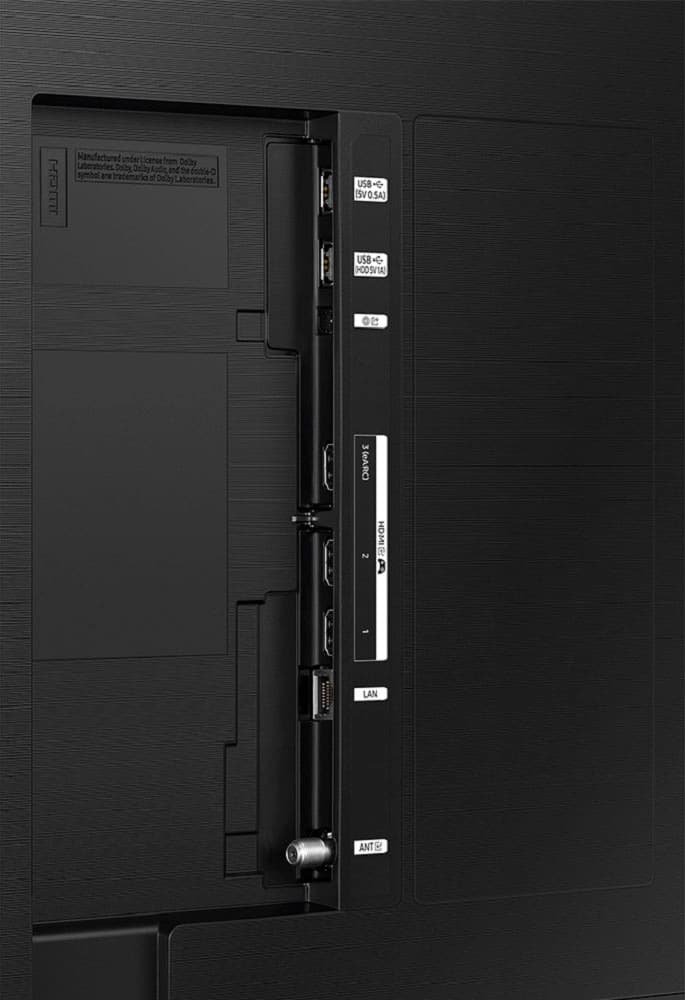
||Posted . Owned for 1 month when reviewed.This reviewer received promo considerations or sweepstakes entry for writing a review.Not enough HDMI ports. Picture is dark. (even when settings on high end. Sound is poor without a soundbar
No, I would not recommend this to a friendBrand response from Samsung
Posted .Hi RonaldO,
We appreciate your feedback on the CU8000 TV. Below are a few recommendations that should improve your experience.
First, let’s ensure you are running the latest Firmware Update. Go to Settings> Support> Software Update.
Next, If the colors on your TV are correct but just a little too dark or bright, you can try adjusting Picture Modes, Contrast, Brightness, or Sharpness settings.
For darker scenes, I recommend Dynamic Picture Mode, which makes pictures brighter and clearer in bright viewing environments. Go to Settings > All Settings> Picture > Picture Mode > Dynamic.
Or you can manually adjust the Brightness by pressing the HOME button on your remote, then navigating to Settings > All Settings> Picture > Expert Settings.
You may also want to disable Power Saving Mode, which automatically adjusts the brightness to reduce the TV’s power consumption. Go to Settings > All Settings> General > Eco Solution> Power Saving Mode.
To adjust the sound on your TV, go to Settings > All Settings> Sound > Sound Mode or customize the sound with Expert Settings by going to Settings > All Settings> Sound > Expert Settings.
If you need more HDMI ports, I recommend using an HDMI Switch box like this one at Best Buy: https://www.bestbuy.com/site/rocketfish-4-port-4k-60hz-hdmi-switch-box-black/5055100.p?skuId=5055100
I hope these tips help you enjoy your new product.
You can contact us for further help at 1-800-SAMSUNG, 8 AM - 12 AM EST, seven days a week. Our LiveChat agents are also available by clicking on the ‘Support’ link on our website.
~ Samsung Advisor
I like the tv but
||Posted . Owned for 2 weeks when reviewed.This reviewer received promo considerations or sweepstakes entry for writing a review.Worked for a month or two, then the hdmi went out. Replaced it for a new one, hoping it lasts this time.
No, I would not recommend this to a friendBrand response from Samsung
Posted .Hi GregoryH,
We appreciate your purchase and for your patience in having to deal with an exchange. If there’s anything we can ever help with, please call us at 1-800-SAMSUNG, 8 AM - 12 AM EST, seven days a week. Or visit us on the Samsung website and click on the ‘Support’ link for:
1) LiveChat
2) Manuals, Software, & Warranty Info
~ Samsung Advisor
Disappointing
||Posted . Owned for 3 weeks when reviewed.This reviewer received promo considerations or sweepstakes entry for writing a review.I've purchased many Samsung TVs for both work and home. This is the first time I've been disappointed. From the first day we set it up the picture keeps going black every few minutes. Streaming live TV using the Tizen Smart TV features is extremely choppy and no amount of adjustments have helped. I would not recommend this TV to anyone at any price. Samsung support is a nightmare and geek squad support directed me to Samsung.
No, I would not recommend this to a friendBrand response from Samsung
Posted .KayBA,
We appreciate your review of the CU8000 TV; please know we are here to help you. I would recommend that you have the latest Firmware update on your TV.
The most recent Firmware Update is version 1120.1. If this firmware version is not yet available on your TV, you can download the update on a USB drive and manually update your TV:
1. On Samsung's website (upper right corner), go to Support > Manuals & Software > Find your TV model.
2. Download the update and extract it to the root of a USB thumb drive. (Do not put it in any folders on the thumb drive.)
3. Connect the USB thumb drive to a USB port on your TV.
4. Navigate to Settings > Support > Software Update, select Update Now, and then select Yes.
5. Follow the on-screen instructions to install the updated software.
If you continue to have issues, please give us a call at 1-800-SAMSUNG, 8 AM - 12 AM EST, seven days a week. Our LiveChat agents are also available by clicking on the ‘Support’ link on our website.
~ Samsung Advisor
It’s ok
||Posted . Owned for 1 month when reviewed.This reviewer received promo considerations or sweepstakes entry for writing a review.Picture quality could be better. Better off spending a few extra $100 and getting the updated version
No, I would not recommend this to a friendBrand response from Samsung
Posted .Hi Mario,
It’s unfortunate to hear you’re not fully satisfied with your CU8000 TV’s image quality. Below are a few settings that I recommend adjusting:
1) Standard: Default mode suitable for general viewing environments.
2) Natural: Reduces eye strain for a comfortable viewing experience.
3) Movie: Most suitable for watching TV or movies in a dark room.
4) Dynamic: Makes the picture brighter and clearer in bright viewing environments.
5) Filmmaker Mode: You can watch the source content (e.g., movie) as it is. If the image is defined as Filmmaker Mode, it will automatically switch to Filmmaker Mode while watching.
You can also go to Settings > All Settings> Picture > Expert Settings > to manually fine-tune your image.
If you need more help, Samsung is here for you. Call us at 1-800-SAMSUNG, 8 AM - 12 AM EST, seven days a week. Our LiveChat agents are also available by clicking on the ‘Support’ link on our website.
~ Samsung Advisor
Average
||Posted . Owned for 1 month when reviewed.This reviewer received promo considerations or sweepstakes entry for writing a review.Clarity not as good as expected. It's disappointing,
No, I would not recommend this to a friendDecent
||Posted . Owned for 2 weeks when reviewed.This reviewer received promo considerations or sweepstakes entry for writing a review.Tv is ok. As long as you are not up close. It gets very blurry
No, I would not recommend this to a friendBrand response from Samsung
Posted .Hi
We appreciate your feedback on your CU8000d TV’s picture. For optimal motion image performance, you may want to adjust the picture clarity setting by going to Settings > All Settings> Picture > Expert Settings > Picture Clarity Settings.
- Off: Picture Clarity Settings will always be off
- Auto: Picture Clarity Settings will automatically activate and deactivate based on the type of program being watched
- Custom: Allows custom adjustments and settings to be used. By selecting the Custom option, you can access these advanced settings for Judder Reduction, LED Clear Motion, and Noise Reduction.
Should you need further assistance with features or other product usages, please reach out to Samsung Support at 1-800-SAMSUNG, 8 AM - 12 AM EST, seven days a week. Our LiveChat agents are also available by clicking on the ‘Support’ link on our website.
~ Samsung Advisor
FAULTY LEG SOCKET
||Posted . Owned for 3 weeks when reviewed.This reviewer received promo considerations or sweepstakes entry for writing a review.THE SOCKET FOR THE RIGHT LEG WAS FAULTY SO TV IS LOWER ON RIGHT SIDE.
No, I would not recommend this to a friendBrand response from Samsung
Posted .Hi VirgilC,
Thank you for reaching out to us. Please be sure that your TV's legs are on correctly "R" on the right. "L" on the left. When the legs are inserted into the correct holes in the proper direction, you will hear a "click" when they are inserted all the way.
If you are still having issues, please give us a call so we can set up a service appointment. You can call us at 1-800-SAMSUNG, 8 AM - 12 AM EST, seven days a week. Our LiveChat agents are also available by clicking on the ‘Support’ link on our website.
~ Samsung Advisor
Review
||Posted . Owned for 1 month when reviewed.This reviewer received promo considerations or sweepstakes entry for writing a review.Needs more variety of picture quality. Mor app ad ons would be great
I would recommend this to a friendBrand response from Samsung
Posted .Hi RanceL,
We appreciate you sharing your experience with the CU8000 TV. Your feedback regarding image quality and the apps available is essential to us and will be shared with our internal teams. Please try adjusting the below image settings to improve your picture.
Go to Home > Settings > All Settings > Picture > Picture Mode and select the mode that best fits your usage:
1) Standard: Default mode suitable for general viewing environments.
2) Natural: Reduces eye strain for a comfortable viewing experience.
3) Movie: Most suitable for watching TV or movies in a dark room.
4) Dynamic: Makes the picture brighter and clearer in bright viewing environments.
5) Filmmaker Mode: You can watch the source content (e.g., movie) as it is. If the image is defined as Filmmaker Mode, it will automatically switch to Filmmaker Mode while watching.
You can also go to Settings > All Settings> Picture > Expert Settings > to manually fine-tune your image.
If you need more help, Samsung is here for you. Call us at 1-800-SAMSUNG, 8 AM - 12 AM EST, seven days a week. Our LiveChat agents are also available by clicking on the ‘Support’ link on our website.
~ Samsung Advisor
So so
||Posted . Owned for 1 month when reviewed.This reviewer received promo considerations or sweepstakes entry for writing a review.Not as clear of a picture as the smaller one I brought.
No, I would not recommend this to a friendBrand response from Samsung
Posted .Hi NLewis,
Thank you for sharing your thoughts on your CU7000 TV’s image quality. The TV will upscale any content sent to it as best as possible. The closer your content is to 4K, the better the image will look on the screen.
Here are some tips to help improve picture clarity:
1) HDMI cables are recommended for optimal HD viewing.
2) If you have an analog cable box or satellite box, upgrade to a digital cable box or satellite box.
3) Change the output resolution of your devices, such as digital broadcast receivers, IPTV, and set-top boxes, to UHD or HD.
4) You can further adjust your sharpness, brightness, contrast, color, and more by going to Settings > All Settings> Picture > Expert Settings
5) Choose a Picture Mode by going to Settings > All Settings> Picture > Picture Mode and choose from Dynamic, Standard, Natural, Movie, or Filmmaker Mode.
Should you ever have questions or need help with TV features, specs, or operations, we are here to help. You can call us at 1-800-SAMSUNG, 8 AM - 12 AM EST, seven days a week. Our LiveChat agents are also available by clicking on the ‘Support’ link on our website.
~ Samsung Advisor
Tv
||Posted . Owned for 3 weeks when reviewed.This reviewer received promo considerations or sweepstakes entry for writing a review.Feels cheap Overwll good tv but Black and white not so good
No, I would not recommend this to a friendBrand response from Samsung
Posted .AlexK,
We appreciate you sharing your thoughts on the build, as well as the image quality of your CU8000F. If the image you’re seeing isn’t to your liking, there are several picture settings you may want to adjust.
Go to Home > left direction button > Settings > All Settings > Picture > Picture Mode
...and select the mode that best fits your usage:
1. Standard: Is the default mode suitable for general viewing environments
2. Dynamic: Makes the picture brighter and clearer in bright viewing environments
3. Eco: Provided to save energy
4. Movie: Suitable for watching TV or movies in a dark room
5. Filmmaker Mode: Provides source content just as the creators intended. If the image is defined as Filmmaker Mode, it’ll automatically switch to Filmmaker Mode while watching.
You can also fine-tune your picture with expert settings such as brightness, contrast, sharpness and more (All Settings > Picture > Expert Settings).
For further assistance with settings adjustments, please contact Samsung Customer Support at 1-800-SAMSUNG, 8AM - 12AM EST, 7 days a week. Our LiveChat agents are also available by clicking on the ‘Support’ link on our website.
~ Samsung Specialist
Backlight dying after 2 yrs
||Posted . Owned for more than 2 years when reviewed.This reviewer received promo considerations or sweepstakes entry for writing a review.Literally after two years the backlight on the right side started to go out.
No, I would not recommend this to a friendLate syncer
||Posted . Owned for 1 month when reviewed.This reviewer received promo considerations or sweepstakes entry for writing a review.Quite nice take too long to sync each thing ie xbox ps4 dvd and so on
I would recommend this to a friendBrand response from Samsung
Posted .Hi London,
I’m sorry to hear about the issues you’re experiencing with slow response time. To ensure performance is fully optimized, please make sure your TV is running the latest firmware. To do so, go to Settings> Support> Software Update. You can easily update from there if necessary.
Next, I recommend utilizing the self-diagnostic tool, which checks memory, frees unused cached memory, and closes background apps. Go to Settings > Support > Device Care > Start Device Care.
If you ever have questions or need help, Samsung is here for you! Give us a call at 1-800-SAMSUNG, 8 AM - 12 AM EST, seven days a week. Our LiveChat agents are also available by clicking on the ‘Support’ link on our website.
Thanks for being a part of the Samsung family!
~ Samsung Advisor
Issue
||Posted . Owned for 3 weeks when reviewed.This reviewer received promo considerations or sweepstakes entry for writing a review.Screen has a red dot trying to get a hold of geek squad
I would recommend this to a friendBrand response from Samsung
Posted .Hi Dennis,
Thank you for purchasing the Samsung CU8000 TV and for sharing your experience with your TV not displaying properly. You may want to try the following troubleshooting steps:
1. If any external devices are connected, check all input cable connections
2. If the issue persists, define precisely what is wrong with the display. For example, mosaics and blocks, multiple lines or white dots, and fixed horizontal or vertical lines.
3. Try changing channels using the remote control. Is the issue the same on all channels?
4. Press the Home button (looks like a house), select Source, and choose another input source. Is the issue the same on all sources?
5. If the same problem persists, run a diagnostic test. (Home > Settings > Support > Device Care > Self Diagnosis > Picture Test)
6. If the problem disappears during the test, check your TV signal (Home > Settings > Support > Device Care > Self Diagnosis > Signal Information) to check the signal strength. The signal strength must be more than 20 dB (more than 4 bars on the icon) for stable signal reception
Should your issue persist, please contact Samsung Customer Support. You can call us at 1-800-SAMSUNG, 8 AM - 12 AM EST, seven days a week. Our LiveChat agents are also available by clicking on the ‘Support’ link on our website.
~ Samsung Advisor
Stay away unless the price point is your only driv
||Posted . Owned for 2 weeks when reviewed.This reviewer received promo considerations or sweepstakes entry for writing a review.Most annoying digital TV I've owned (and I go all the way back to 3 channel black and white with rabbit ears so I've owned a few digital TVs along the way). Does not handle data well (frame skips, mismatched audio to frames), horrible lighting (had to turn brightness way down to low 20s to get decent picture) and motion seems to be worse than 60. Tried to keep it since it was a great price point but finally had to return it on last eligible day - just couldn't do it anymore.
No, I would not recommend this to a friendBrand response from Samsung
Posted .Hi MarkV,
We are sorry to hear the CU8000 TV did not live up to your expectations. Please know your feedback will be shared with our internal product teams. Should you ever decide to give Samsung TVs another try and have questions or need help with settings, setup, or features, please know we’re here to help. Call us at 1-800-SAMSUNG, 8 AM – 12 AM EST, seven days a week. LiveChat with an agent, as well as manuals, software, and warranty info, can be found at the ‘Support’ link on our Samsung website.
We hope to regain you as a customer in the future.
~Samsung Advisor
Junk TV
||Posted . Owned for 1 month when reviewed.This reviewer received promo considerations or sweepstakes entry for writing a review.This TV is Horrible do not buy. It is very slow on every function and has a remote that constantly needs charged. Half the apps freeze the TV.
No, I would not recommend this to a friendBrand response from Samsung
Posted .Hi SteveS,
I’m sorry to hear about the issues you’re experiencing with slow lag time. To ensure performance is fully optimized, please make sure your TV is running the latest firmware. To do so, go to Settings> Support> Software Update. You can easily update from there if necessary.
Next, I recommend utilizing the self-diagnostic tool, which checks memory, frees unused cached memory, and closes background apps. Go to Settings > Support > Device Care > Start Device Care.
If you continue to have issues, please call us at 1-800-SAMSUNG, 8 AM - 12 AM EST, seven days a week. LiveChat with an agent, as well as manuals, software, and warranty info, can be found at the ‘Support’ link on our Samsung website.
~ Samsung Advisor
Bad video
||Posted . Owned for less than 1 week when reviewed.This reviewer received promo considerations or sweepstakes entry for writing a review.Hulu live. spectrum tv live, paramountplus have glitchy video/images, cant watch a show. No fix from app owners or Samsung itself. Very disappointing. Looks like someone else has experienced this too
No, I would not recommend this to a friendBrand response from Samsung
Posted .Hi theTVguy,
Thank you for reaching out and letting us know about the issue you are experiencing with the CU8000 TV, and we appreciate your patience. To resolve this issue, please update the Firmware on your TV.
The most recent Firmware Update is version 1120.1. If this firmware version is not yet available on your TV, you can download the update on a USB drive and manually update your TV:
1. On Samsung's website (upper right corner), go to Support > Manuals & Software > Find your TV model.
2. Download the update and extract it to the root of a USB thumb drive. (Do not put it in any folders on the thumb drive.)
3. Connect the USB thumb drive to a USB port on your TV.
4. Navigate to Settings > Support > Software Update, select Update Now, and then select Yes.
5. Follow the on-screen instructions to install the updated software.
If you continue to have issues, please give us a call at 1-800-SAMSUNG, 8 AM - 12 AM EST, seven days a week. Our LiveChat agents are also available by clicking on the ‘Support’ link on our website.
Thanks for being apart of the Samsung family!
~ Samsung Advisor