Customer Ratings & Reviews







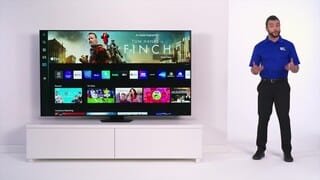


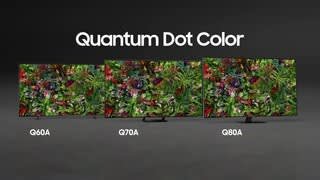




- Model:
- QN65Q70AAFXZA
- SKU:
- 6451476
Rating by feature
- Picture Quality
Rating 4.8 out of 5 stars
- Sound Quality
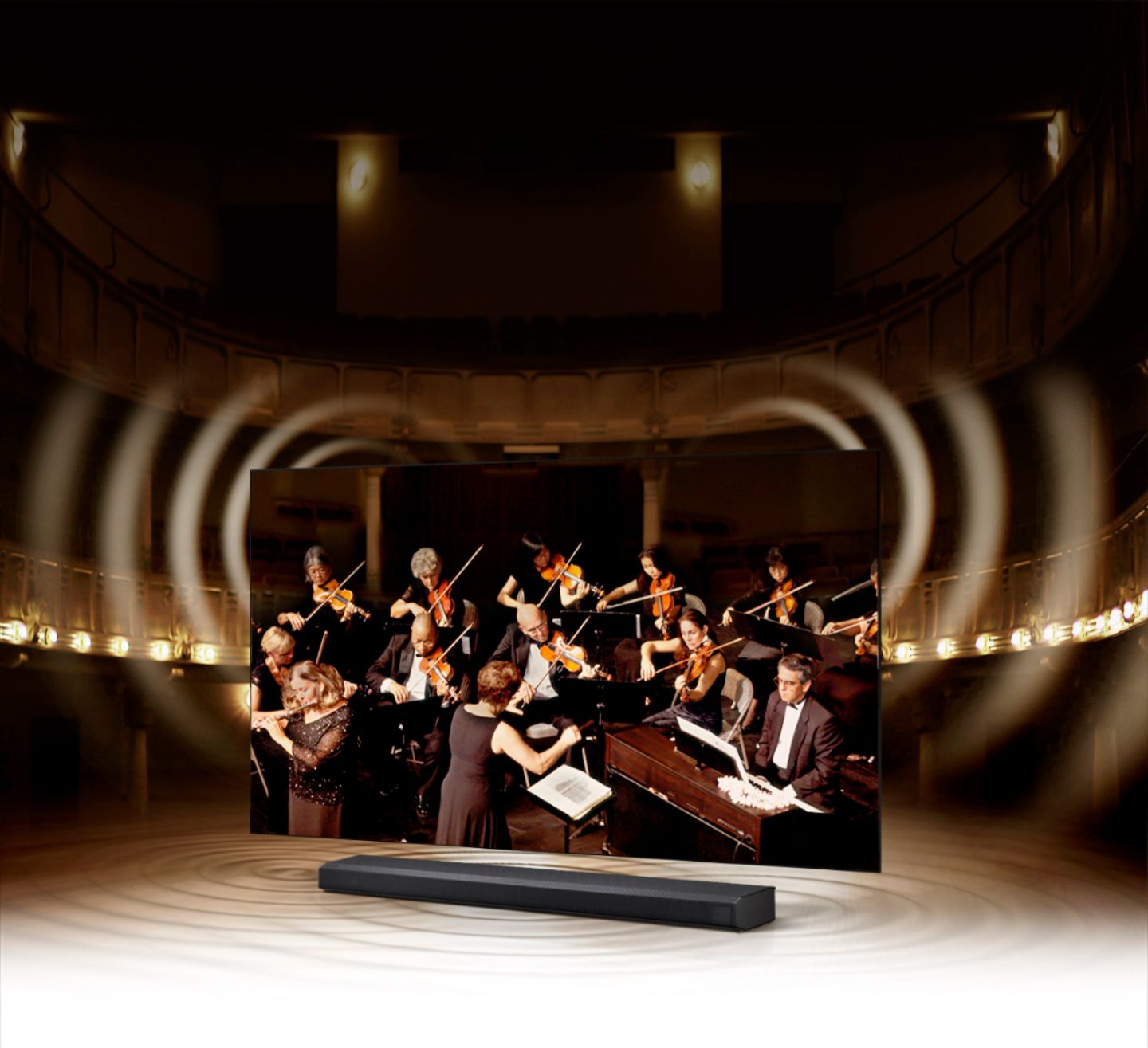
Rating 4.4 out of 5 stars
- Brightness
Rating 4.8 out of 5 stars
Customers are saying
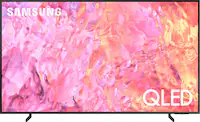
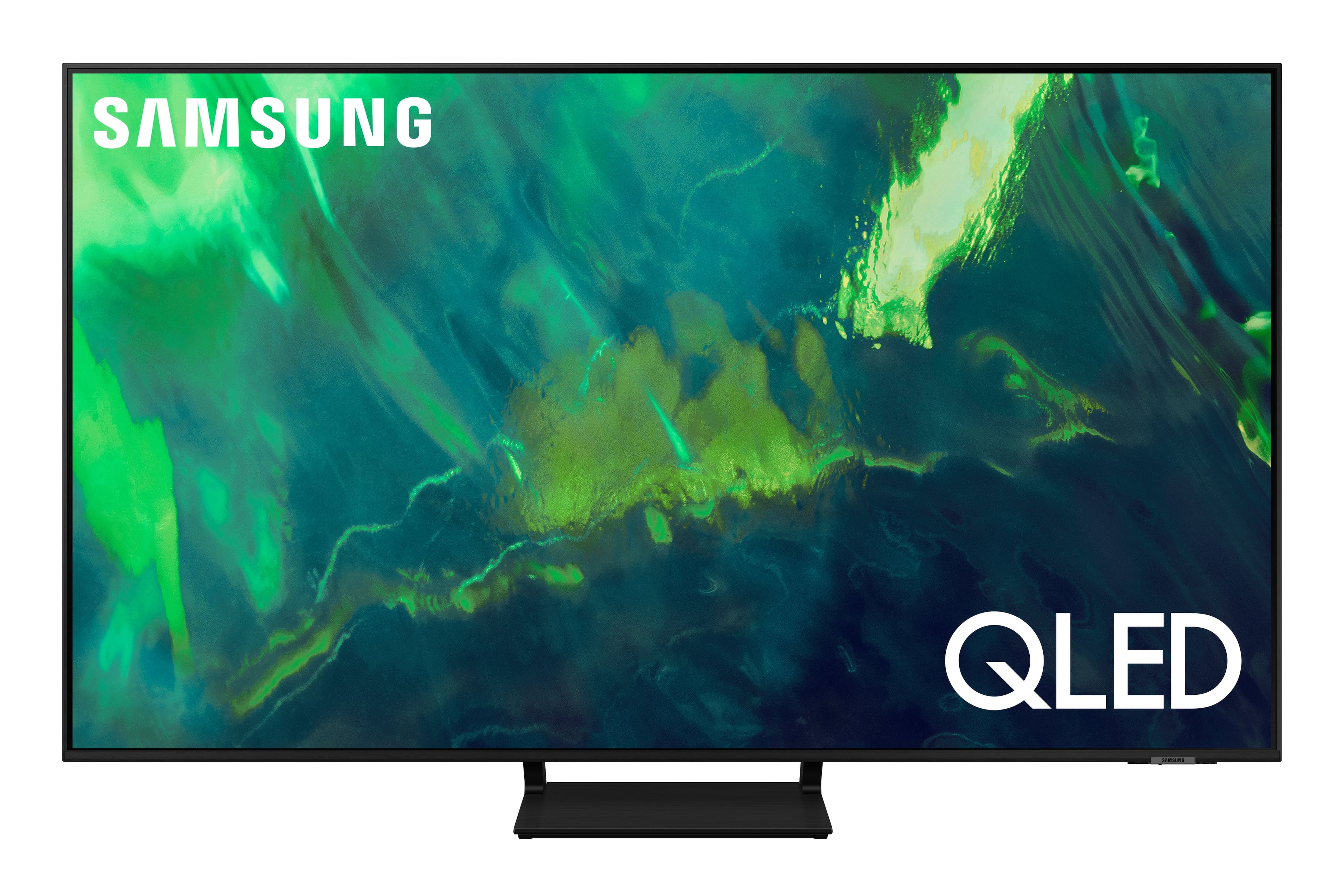
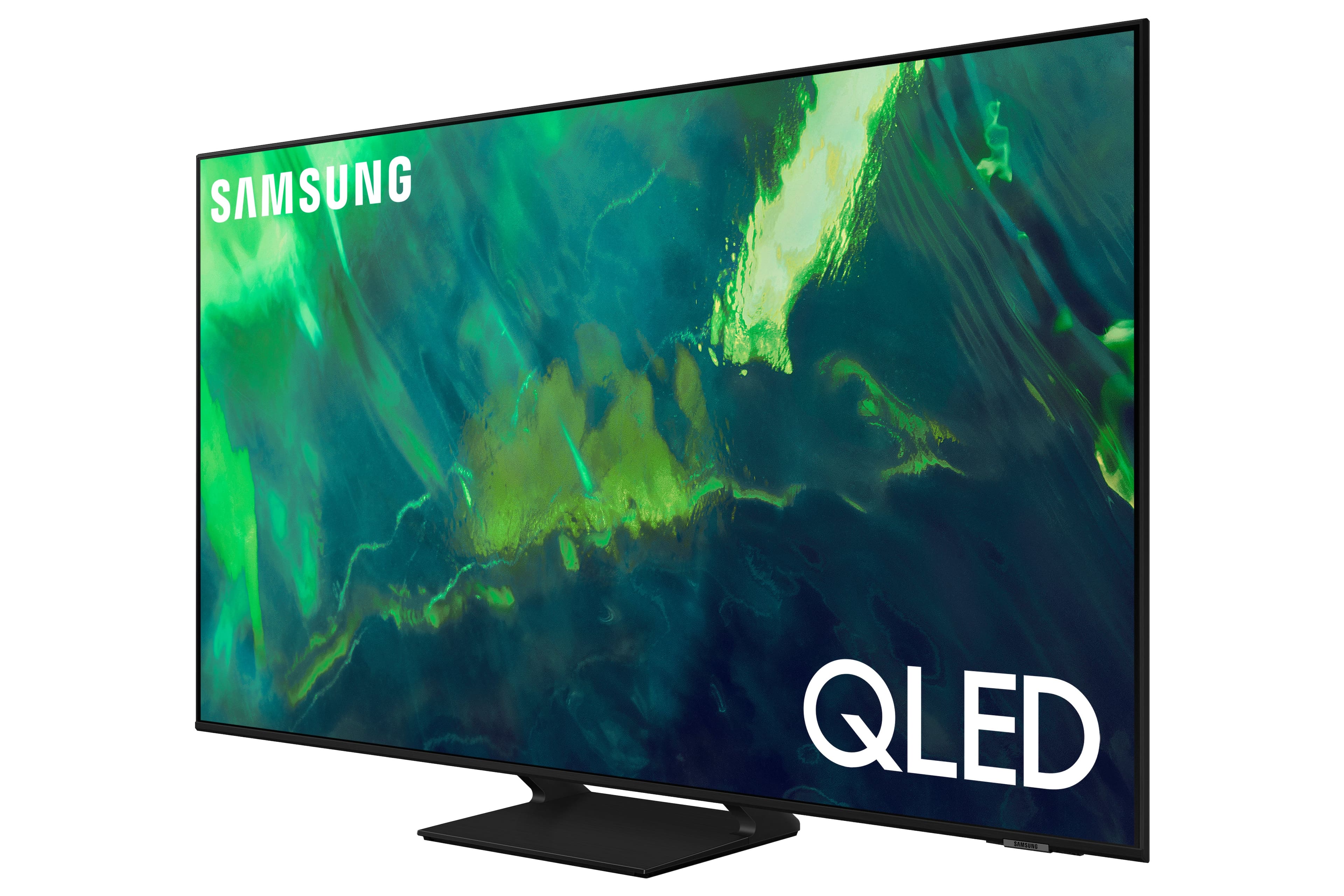
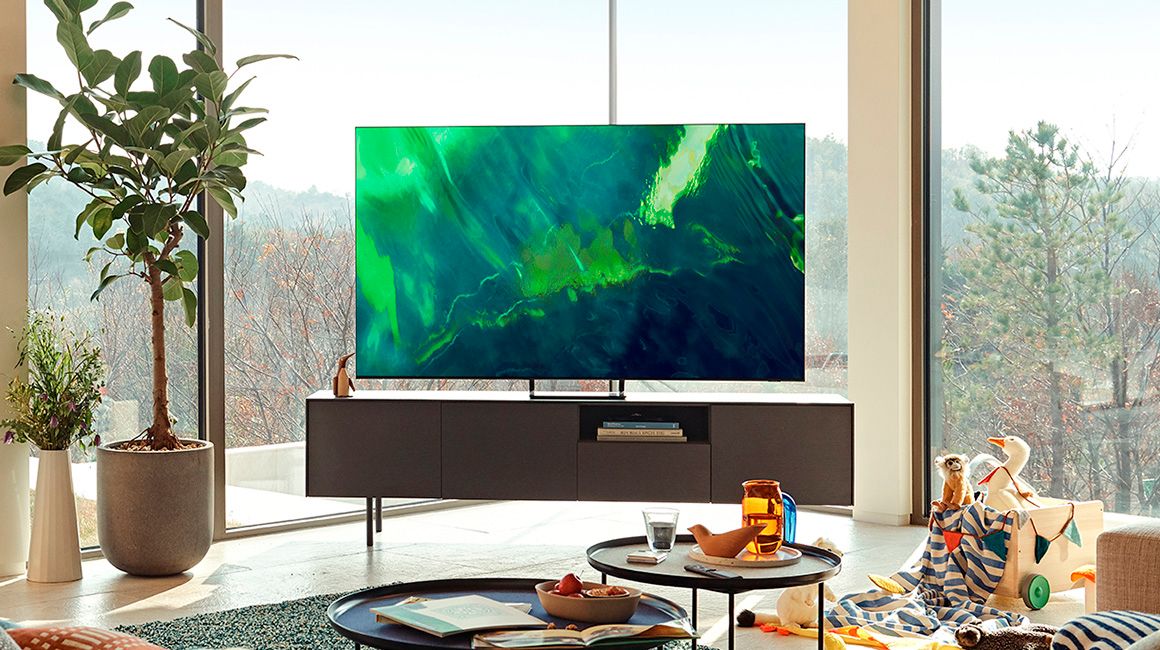
Customers enjoy the excellent picture quality, easy setup, and affordable price of the 65" Class Q70A Series QLED 4K UHD Smart Tizen TV. They appreciate the vibrant colors and find it to be a great TV for gaming. While some users have experienced minor issues like screen lines and clouding, overall, customers are pleased with their purchase.
This summary was generated by AI based on customer reviews.
Samsung Review
Posted .This reviewer received promo considerations or sweepstakes entry for writing a review.Still new. Finding it little hard to get the channels incl YouTube TV etc
I would recommend this to a friendBrand response from Samsung
Posted .Hi Samsung,
Thank you for purchasing the Samsung Q70A TV and for your review. Samsung offers hundreds of apps in our App Store that you can download, and we are continuously adding more premium content and new services to our Smart TV platform. To access the App Store, press the Home button to open up the TV's Home screen menu. If the app you are looking for isn't listed on the Home menu, use the directional pad to navigate to and select APPS. From here, you can select the app you want.
Should you ever have questions or need help with TV features, specs, or operation, we are here to help. You can reach us at 1-800-SAMSUNG (ask for TVs), available 8AM - 12AM EST, 7 days a week.
For additional support resources, visit us on the Samsung website and click on the ‘Support’ link in the upper right corner of the homepage for:
1) Chat with Us/Product Help: To begin a chat or find solutions, choose ‘TVs & Home Theater’ and select your model & topic.
2) Register a Product: For access to easy warranty support, convenient opt-in to special promos and offers, faster troubleshooting and service, and quick notification of system updates.
3) Manuals & Software
4) Warranty Info
5) Contact Us
~ Samsung Specialist
Ehh — 9 year old Samsung LED vs 2022 Samsung OLED
Posted .This reviewer received promo considerations or sweepstakes entry for writing a review.I have a 9 year old Samsung LED and see no difference between this one and my OLED new one beside it being a little slimmer and has 2 more hdmi ports. The picture is absolutely no different. Next time I’m jumping Samsung ship and buying an LG or Sony, better reviews from folks I know.
No, I would not recommend this to a friendBrand response from Samsung
Posted .Hi Horrible,
Thank you for sharing your thoughts on the picture quality of your Q70A TV. If the picture you are seeing out-of-the-box is not to your liking, there are several picture settings you may want to try adjusting.
You can select the Picture Mode that provides the best viewing experience. Go to Home > Settings > Picture > Picture Mode
1) Standard: Is the default mode suitable for general viewing environments.
2) Natural: Reduces eye strain for a comfortable viewing experience.
3) Movie: Is suitable for watching TV or movies in a dark room.
4) Dynamic: Makes the picture brighter and clearer in bright viewing environments.
5) Filmmaker Mode: You can watch the source content (e.g., movie) as it is. If the image is defined as Filmmaker Mode, it will automatically switch to Filmmaker Mode while watching.
You can also go to: Settings > Picture > Expert Settings > to manually fine tune your image.
Additionally, to ensure that your TV’s picture is fully optimized, be sure that you are always running the latest firmware update. You can check this by going to Settings > Support > Software Update or you can enable Auto Update for convenience.
Should you need further assistance with image quality adjustments, please give us the opportunity to assist you. Call us at 1-800-SAMSUNG (ask for TVs), available 8AM - 12AM EST, 7 days a week.
For additional support resources, visit us on the Samsung website and click on the ‘Support’ link in the upper right corner of the homepage for:
1) Chat with Us/Product Help: To begin a chat or find solutions, choose ‘TVs & Home Theater’ and select your model & topic.
2) Manuals, Software, & Warranty Info
We hope to hear from you!
~ Samsung Specialist
Samsung is the worst at everything...
Posted .This reviewer received promo considerations or sweepstakes entry for writing a review.What a waste of money, now waiting to see how long the other one lasts. Will never buy anything by Samsung again. First the oven, 10 months....stops working. Fridge, omg nightmare but that was already in the house we bought but it was only 2 years old. The day this TV stopped working at 14 months old was the same day my son's 2 week old Samsung S22+ phone stopped working (thankgoodness we have Verizon).... now we have 1 Samsung TV left we bought 3 months ago, wonder when that will go. Tomorrow we go pick up a new non samsung phone from Verizon and buying a Sony TV (we also bought a fabulous Whirlpool fridge & viking oven). Don't bother with Samsung, their stuff doesn't last & we are not hard on their stuff at all. Infact the TV that died today with the phone doesn't even go on everyday!!! Apparently Samsung is known for the black screen of death on their TVs for several different reasons. Spend the extra 500 or so and get a Sony. Lg has alot of issues as well I heard & terrible support to boot im told. Although TCL for low budget i hard was pretty decent. But that's just my opinion.
No, I would not recommend this to a friendBrand response from Samsung
Posted .Yetta411,
Thank you for your review of Samsung’s Q70A TV. If your TV is out of the 1-year Manufacturer's Warranty, you can locate a service center in your area by following this link: https://www.samsung.com/us/support/service/locations/
If we can help with anything else, please call us at 1-800-SAMSUNG, 8AM - 12AM EST, 7 days a week. LiveChat with an agent as well as manuals, software, and warranty info can be found at the ‘Support’ link on our Samsung website.
~ Samsung Specialist
Very disapointed, awful wifi reception
Posted .This reviewer received promo considerations or sweepstakes entry for writing a review.Very disappointed. The wifi reception is totally inconsistent. I consistently have to turn off the tv and/or reconnect to the wifi network in order to get the tv to function with my streaming services/apps and YouTubeTV. It is not an issue with my wifi network as the reception on my phone and computer right by the tv is never an issue. The operating system/interface is also very buggy. Will not be buying another Samsung.
No, I would not recommend this to a friendBrand response from Samsung
Posted .ArthurV,
Thank you for sharing your experience with Wi-Fi connectivity on your Q70A TV. You might want to go through these steps to check your network connection:
1) Minimize interference by not using or turning off wireless devices. Also, verify that there are no obstacles between the TV and the modem or access point. (Wi-Fi strength can be decreased by appliances, cordless phones, stone walls/fireplaces, etc.)
2) Check if the access point is turned on. If it is on, turn it off, wait 1 or 2 minutes, and then turn it on. Enter the correct password if required.
3) If the wireless connection fails, connect the TV to the access point via a LAN cable. If the TV can connect to the Internet normally via the wired connection, there might be a problem with the access point. In this case, try using a different access point.
4) Perform a network test to check if there is a network problem. Press the Home button on your remote. Navigate to Settings > Support > Device Care > Self Diagnosis> Smart Hub Connection Test
5) Try a cold reboot of your TV by pressing and holding the power button for 5+ seconds until the TV turns off and on again.
6) Please also be sure you have the latest firmware update. You may want to enable automatic updates for convenience. Select Settings > Support > Software Update, then select Auto Update.
For further assistance or service, please contact us at 1-800-SAMSUNG, 8AM - 12AM EST, 7 days a week. LiveChat with an agent as well as manuals, software, and warranty info can be found at the ‘Support’ link on our Samsung website.
~ Samsung Specialist