Customer Ratings & Reviews
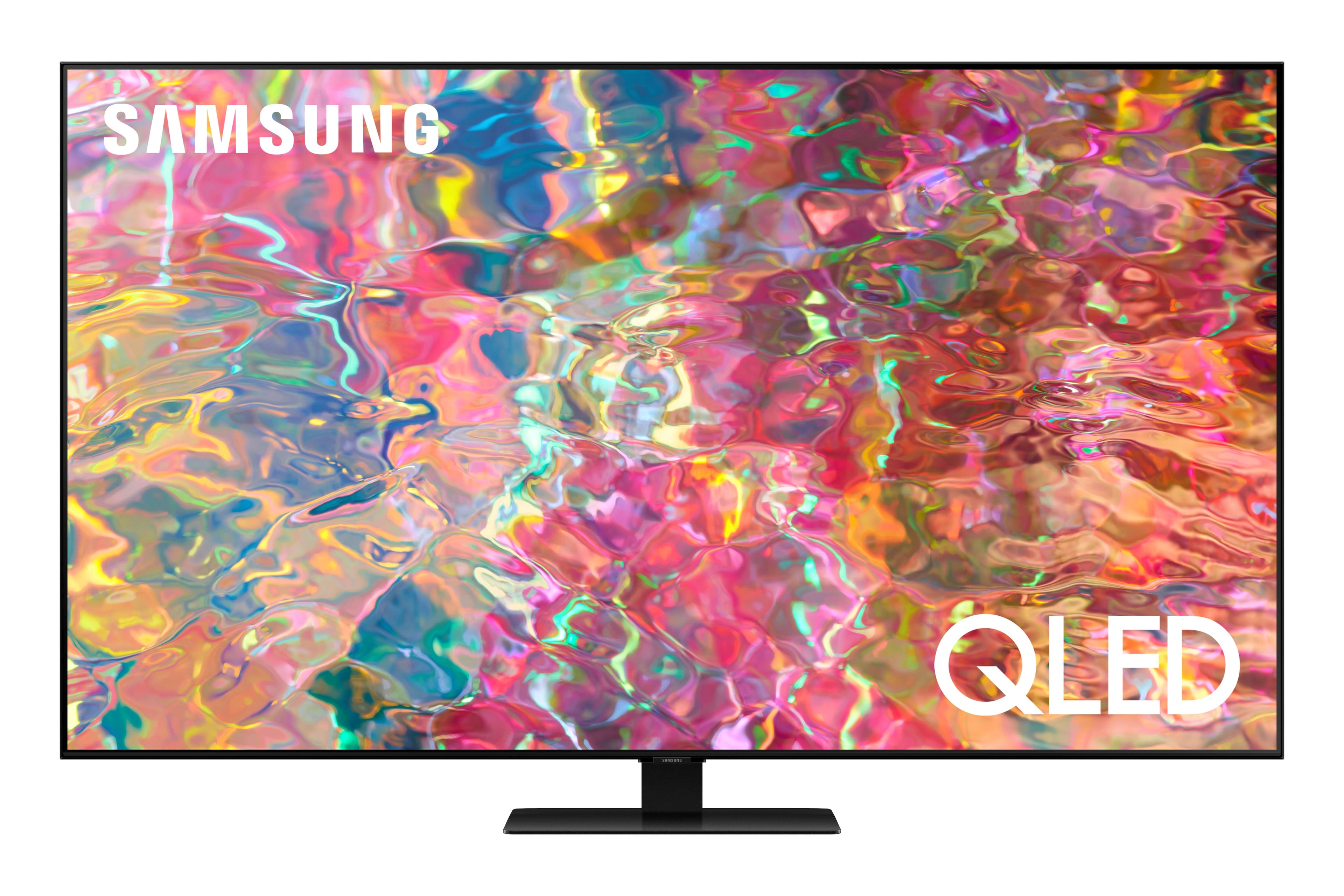
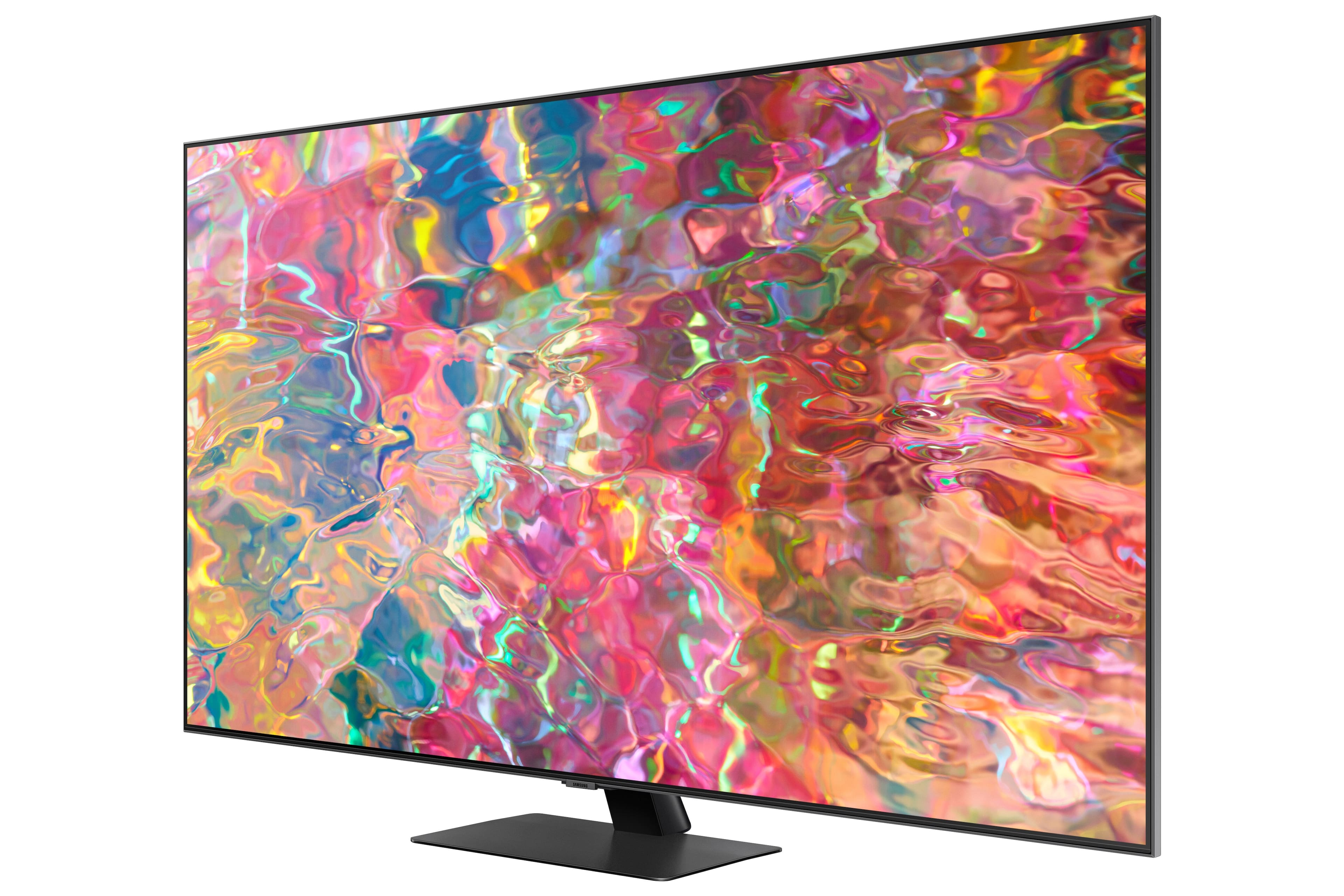
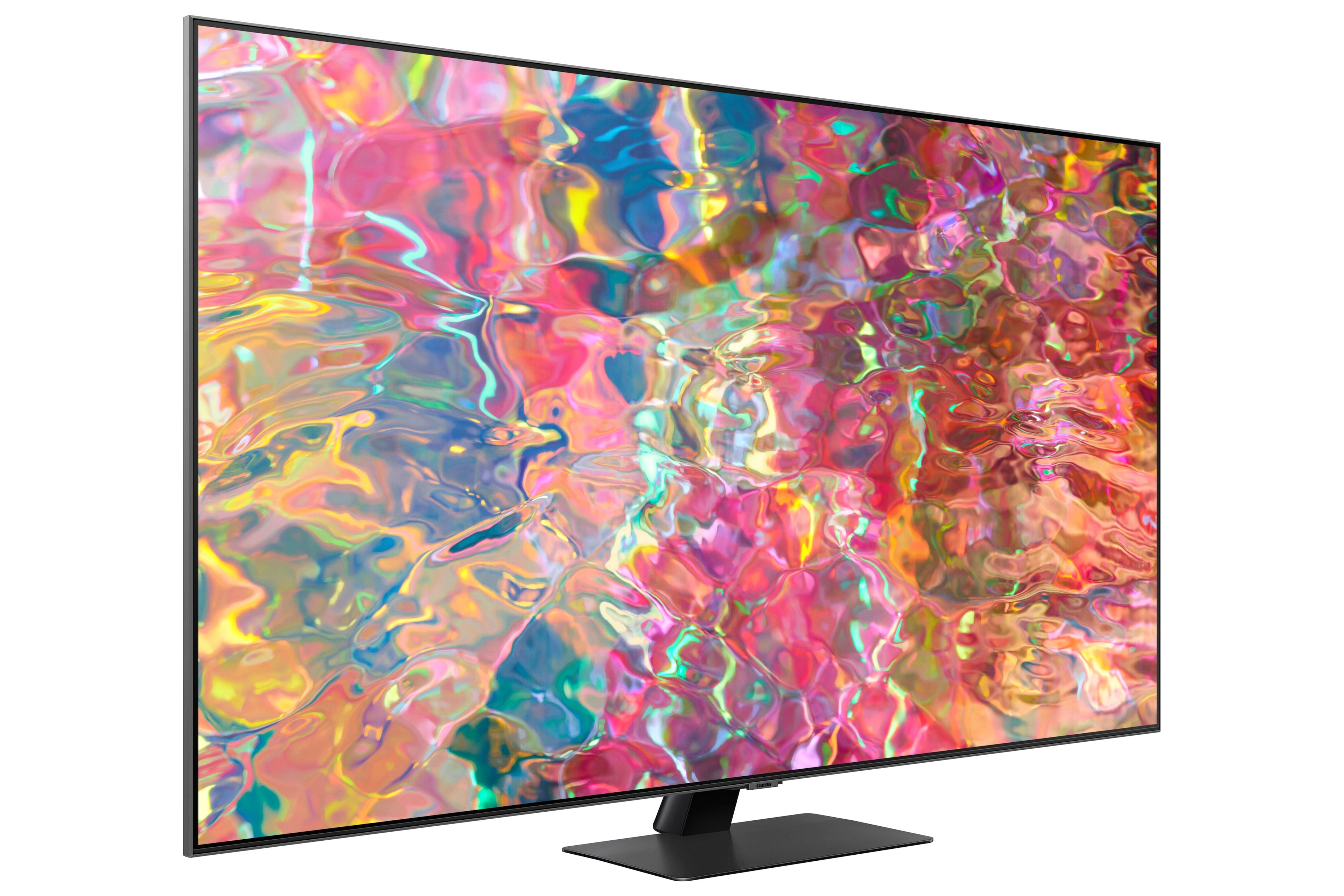
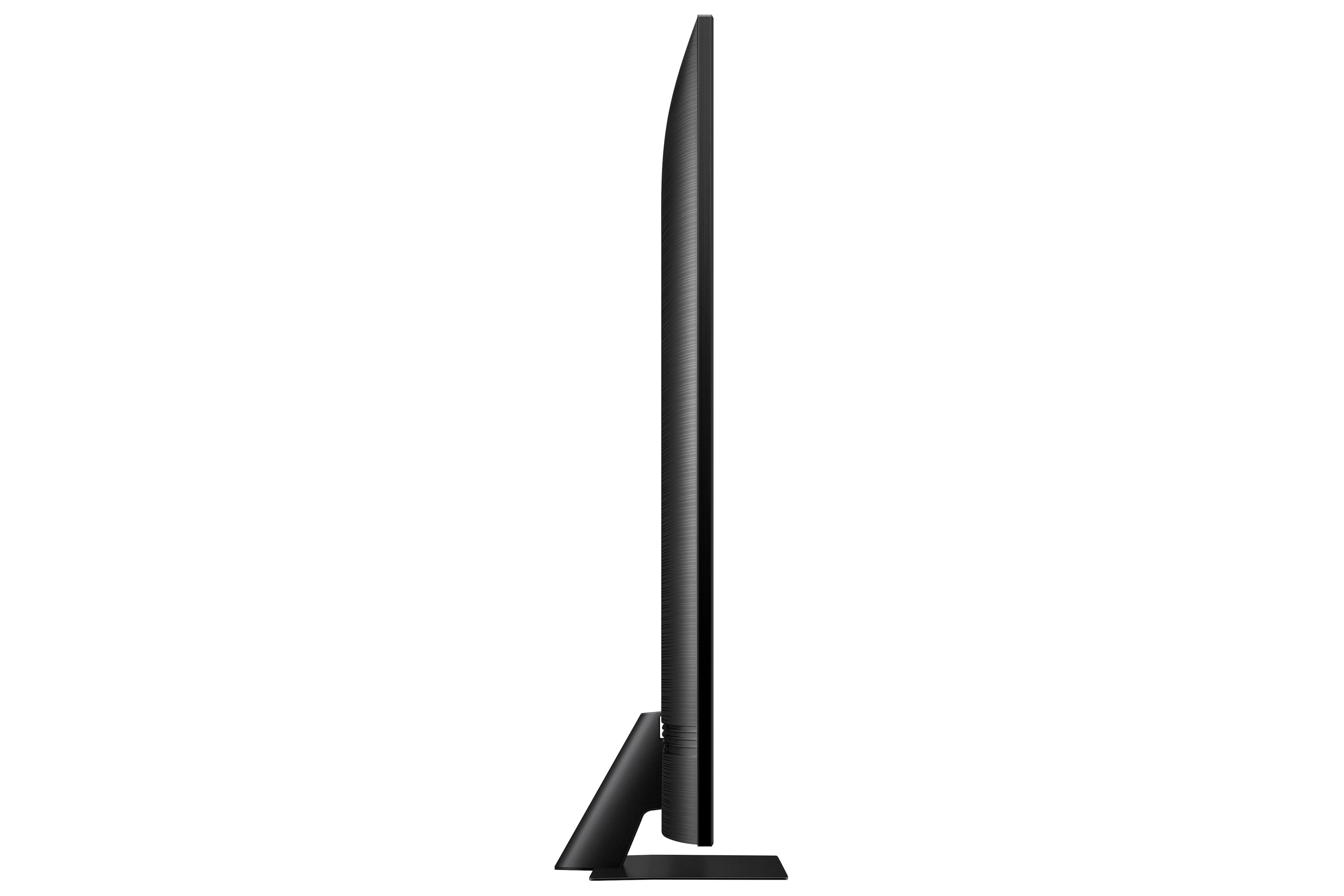

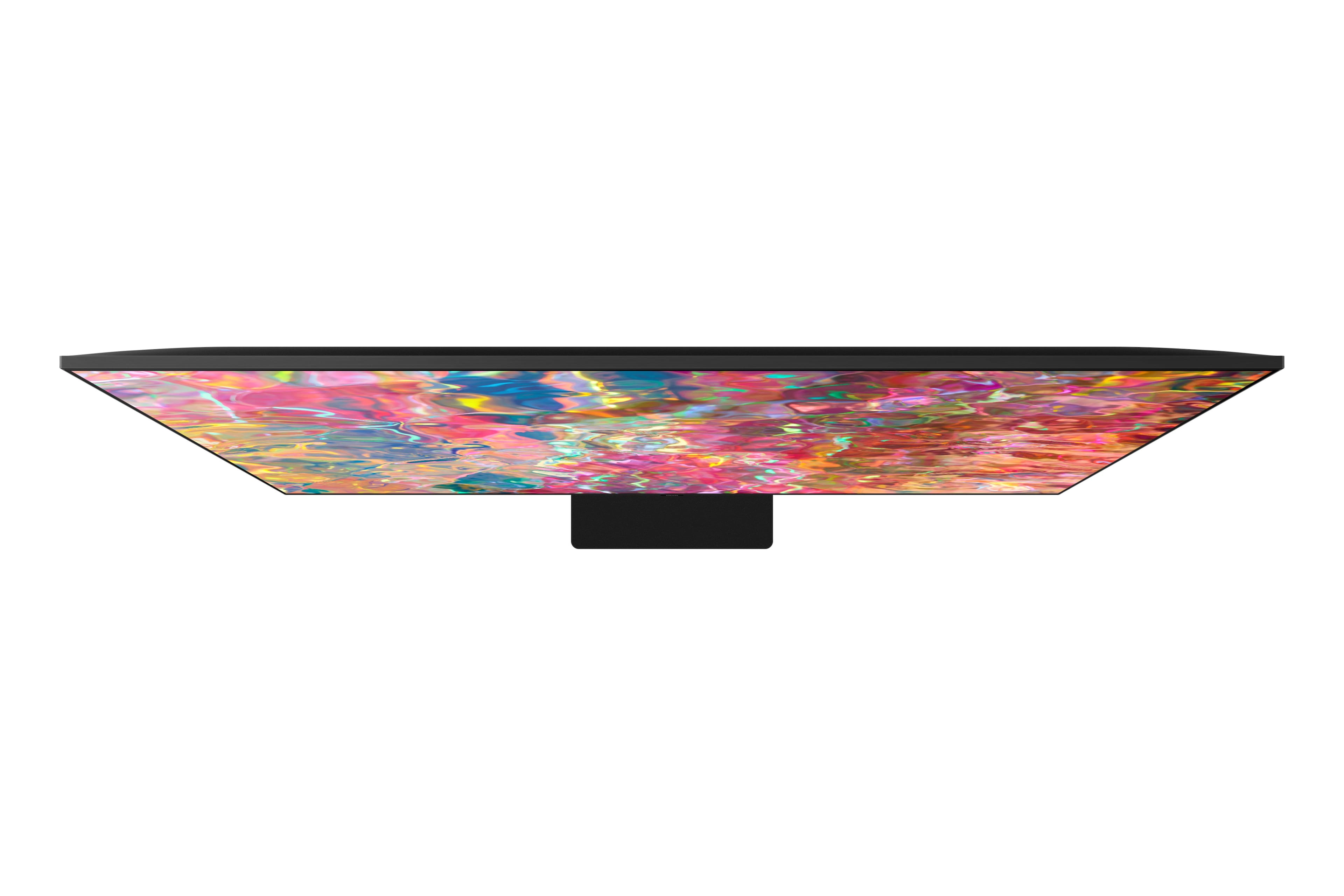
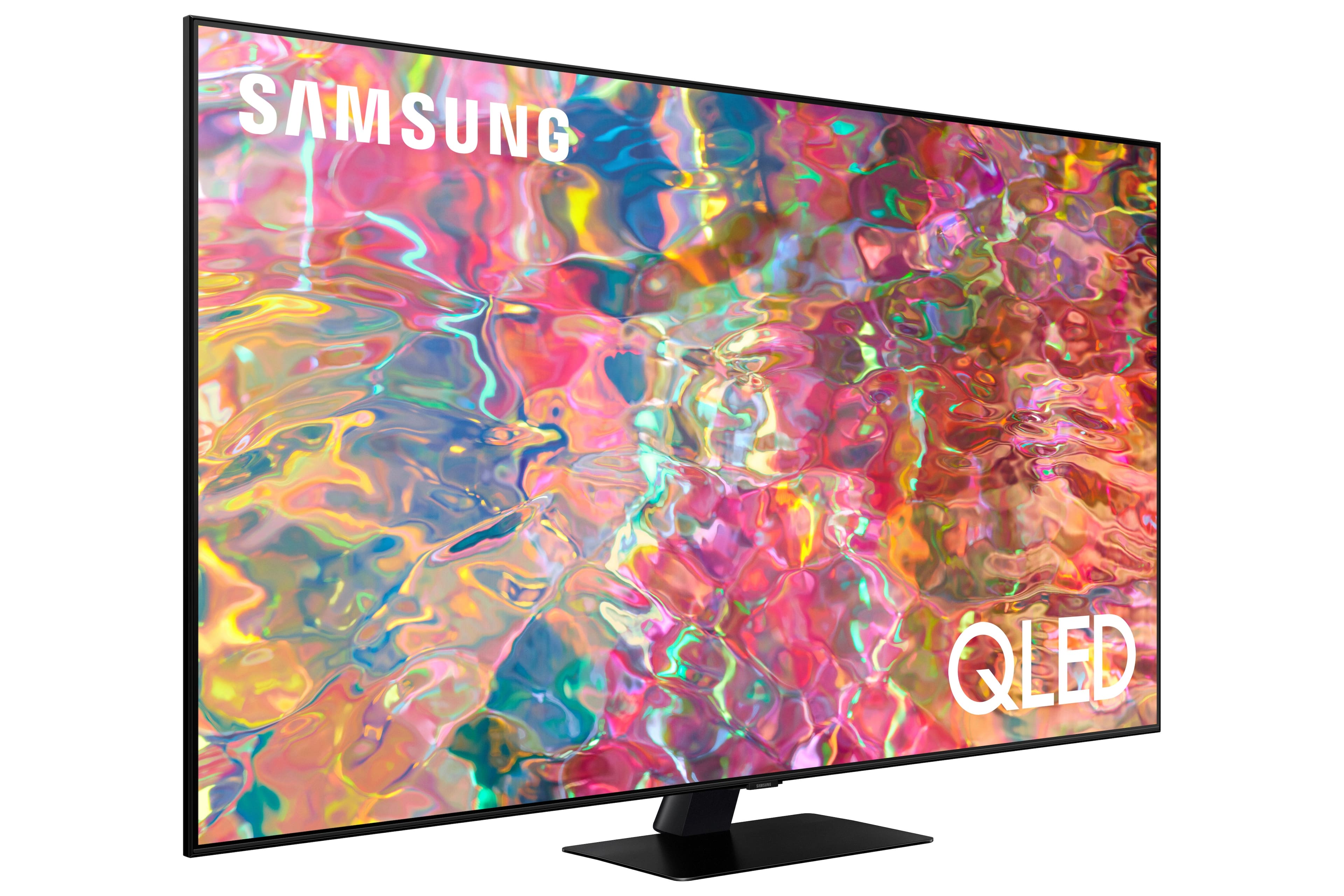
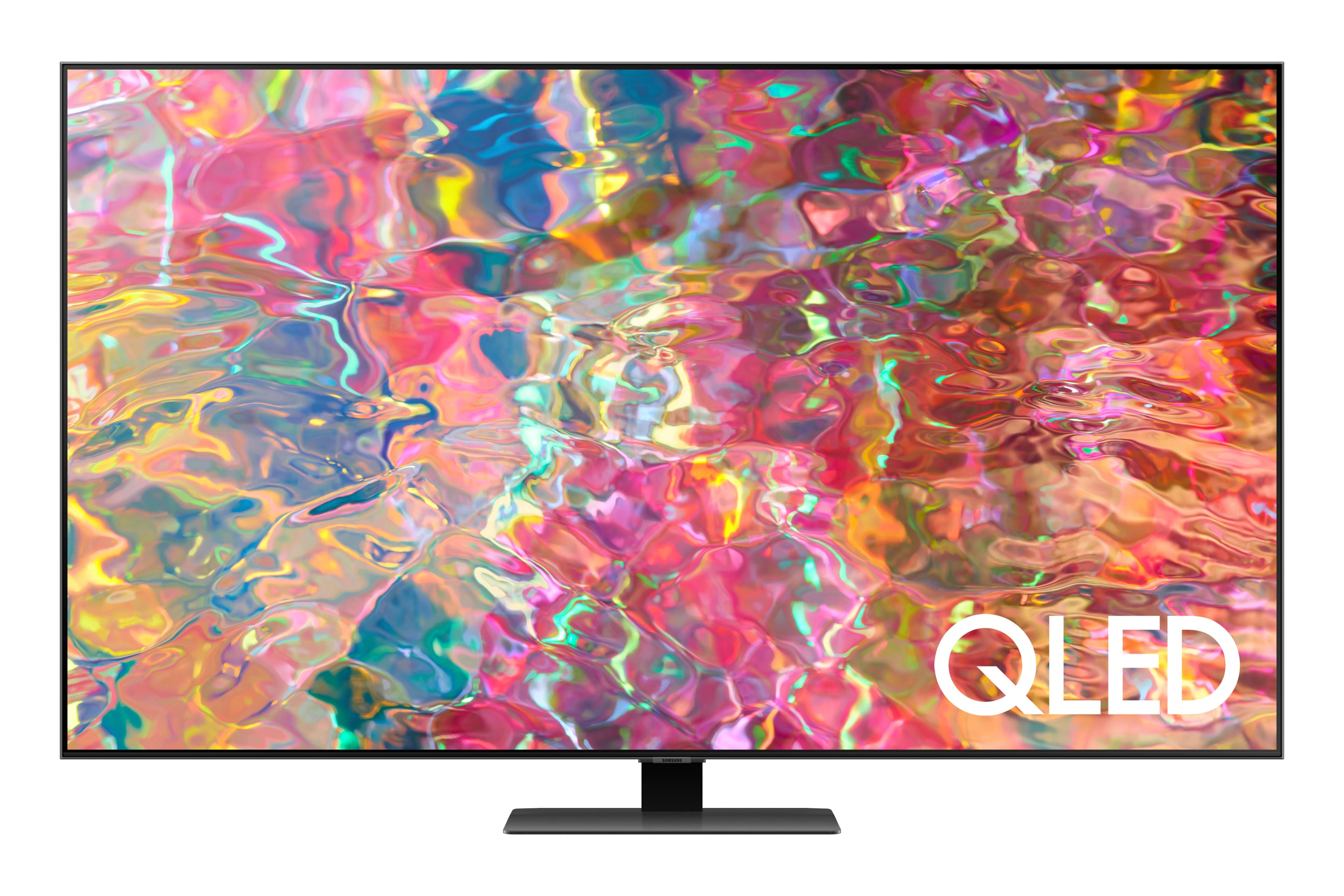
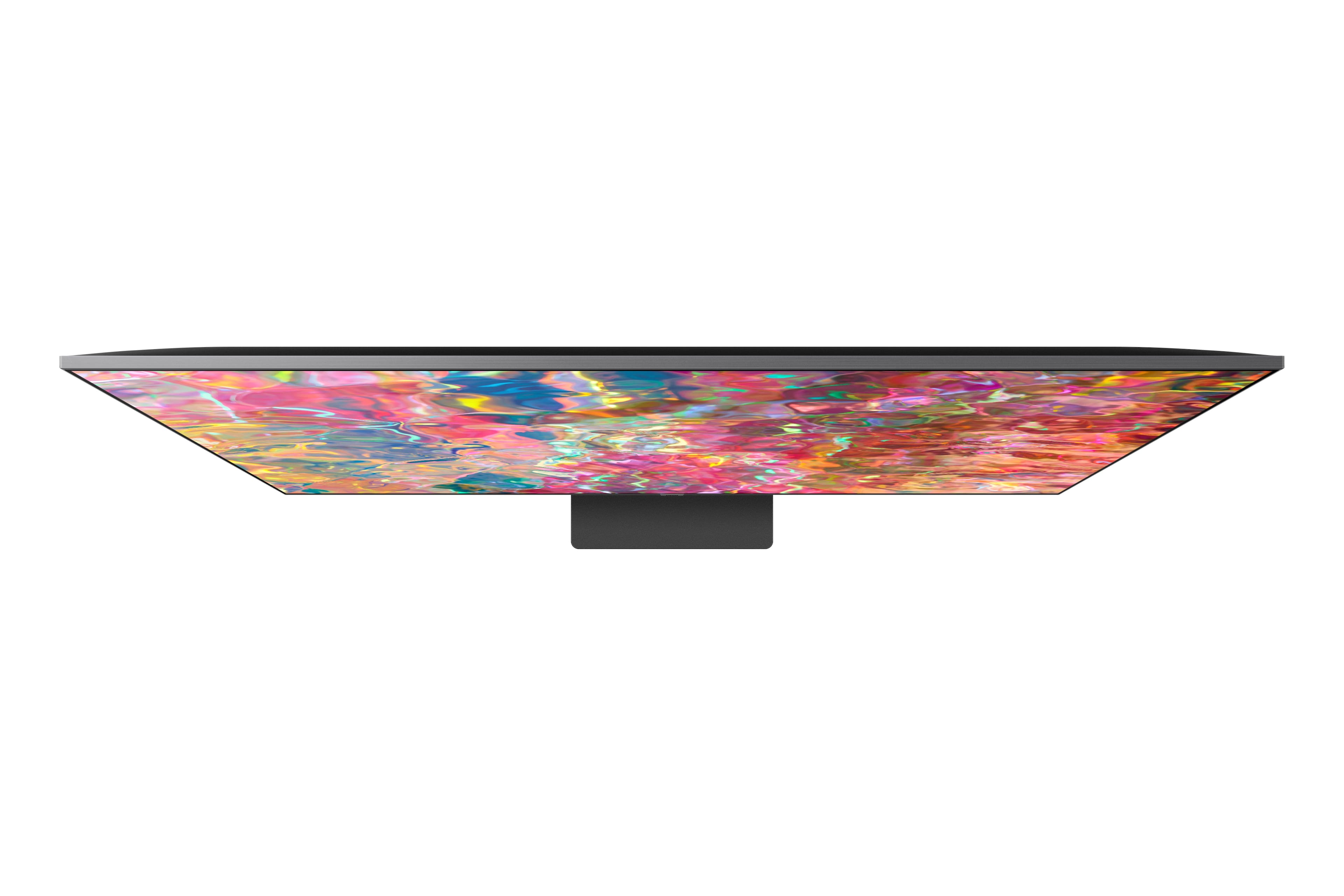
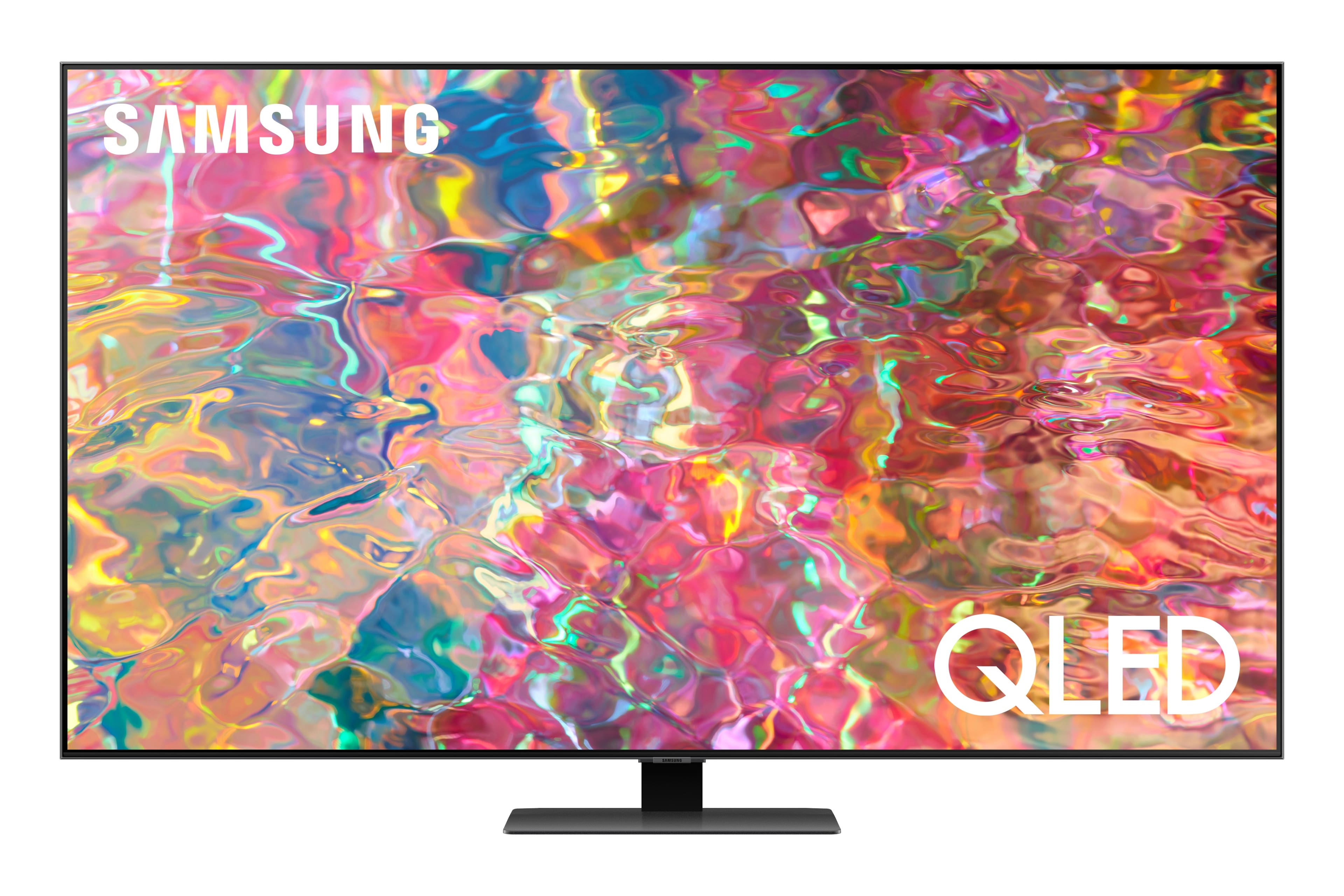
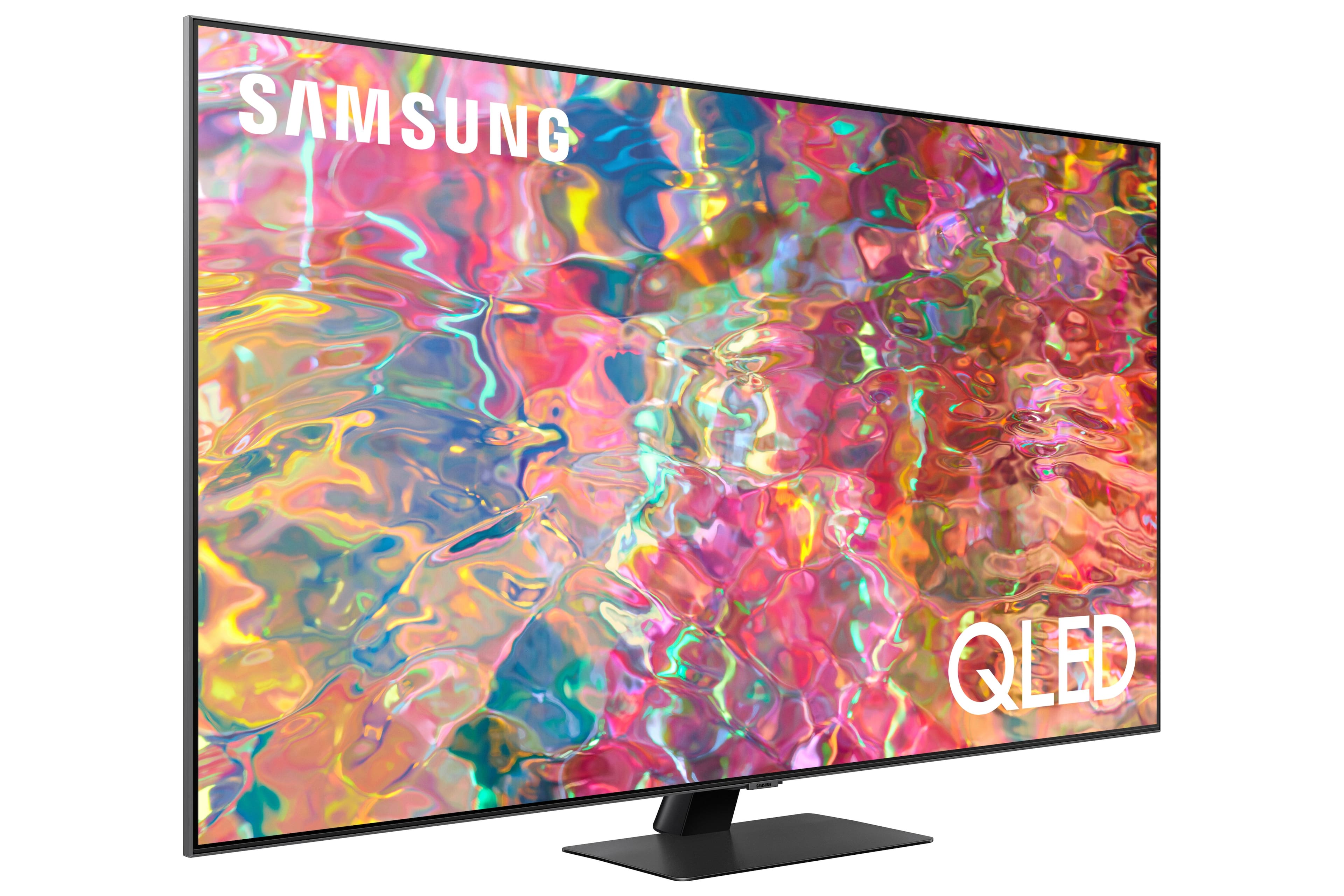






- Model:
- QN65Q80BAFXZA
- SKU:
- 6503080
Rating by feature
- Picture Quality
Rating 4.8 out of 5 stars
- Sound Quality
Rating 4.6 out of 5 stars
- Brightness
Rating 4.8 out of 5 stars
Customers are saying
Customers love the 65” Class Q80B QLED 4K Smart Tizen TV for its stunning picture quality, easy setup, and immersive sound. They rave about the vibrant colors, sharp clarity, and excellent gaming experience. While some find the remote control to be a bit tricky to use, the overall consensus is that this TV offers great value for its price.
This summary was generated by AI based on customer reviews.
Tv average, sound bar keep disconnecting
||Posted . Owned for 1 month when reviewed.This reviewer received promo considerations or sweepstakes entry for writing a review.Great tv for the price, easy to install. Connecting to the sound bar has not been fun. It keeps disconnecting it.
I would recommend this to a friendBrand response from Samsung
Posted .PaulaO,
We appreciate your review of Samsung’s Q80B TV. So we can better understand the problems you are experiencing and provide you with troubleshooting assistance or settings adjustments, please reach out to Samsung Customer Support at 1-800-SAMSUNG, 8AM - 12AM EST, 7 days a week.
LiveChat with an agent as well as manuals, software, and warranty info can be found at the ‘Support’ link on our Samsung website.
~ Samsung Specialist
Given up
||Posted . Owned for 1 month when reviewed.This reviewer received promo considerations or sweepstakes entry for writing a review.Pixels and Best Buy geeks can't get it right! I've given up and just have to live with it!
No, I would not recommend this to a friendBrand response from Samsung
Posted .CarlaM,
We appreciate your review of Samsung’s Q80B TV. So we can better understand the problems you are experiencing and provide you with troubleshooting assistance or warranty service, please reach out to Samsung Customer Support at 1-800-SAMSUNG, 8AM - 12AM EST, 7 days a week. Our LiveChat agents are also available by clicking on the ‘Support’ link on our website.
~ Samsung Specialist
Ok TV
||Posted . Owned for 1 month when reviewed.This reviewer received promo considerations or sweepstakes entry for writing a review.Good basic TV but we were looking for something with a better picture. The images were somewhat dark.
No, I would not recommend this to a friendBrand response from Samsung
Posted .GiGi,
I’m sorry to hear you’re not fully satisfied with the Q80B TV’s picture quality. If the image is too dim, please try disabling some of the TV's energy efficiency functions, as these will automatically adjust your picture and may cause your screen to appear brighter or darker than preferred.
Go to: Home > Menu > Settings > All Settings > General & Privacy > Power and Energy Saving > turn off Brightness Optimization, Brightness Reduction, and Motion Lighting
You may also want to try adjusting image settings to improve your picture. Go to Home > Menu > Settings > All Settings > Picture > Picture Mode
1) Standard: Is the default mode suitable for general viewing environments.
2) Movie: Is suitable for watching TV or movies in a dark room.
3) Dynamic: Makes the picture brighter and clearer in bright viewing environments.
4) Filmmaker Mode: You can watch the source content (e.g., movie) as it is. If the image is defined as Filmmaker Mode, it will automatically switch to Filmmaker Mode while watching.
You can also customize the brightness level of your screen between 0 – 50 to your preference. Go to: Home > Menu > Settings > All Settings > Picture > Expert Settings
Please also be sure your firmware is up to date with the latest version, as this includes various performance and picture quality updates. You can check this by going to: Home > Menu > Settings > Support > Software Update > Update Now
I hope these tips help. Should you need further assistance, please call us at 1-800-SAMSUNG, 8AM - 12AM EST, 7 days a week. Or visit us on the Samsung website and click on the ‘Support’ link for:
1) LiveChat
2) Manuals, Software, & Warranty Info
~ Samsung Specialist
TROUBLE
||Posted . Owned for 3 weeks when reviewed.This reviewer received promo considerations or sweepstakes entry for writing a review.I cannot get it setup.correctly Verizon doesn’t’t seem to know why.
No, I would not recommend this to a friendSamsung tv
||Posted . Owned for 1 month when reviewed.This reviewer received promo considerations or sweepstakes entry for writing a review.Picture quality is bad. Our older Samsung is better and it’s over 10 yrs old.
No, I would not recommend this to a friendBrand response from Samsung
Posted .Hellokittyfan,
Thank you for sharing your thoughts on the picture quality of your Q80B TV. To ensure you’ve got the latest image quality updates, please confirm that your TV is up to date with the latest firmware version. You can check by going to: Home > Menu > Settings > Support > Software Update.
If the picture you’re seeing is still not to your liking after updating firmware, there are several picture settings you may want to try adjusting.
Go to Home > Menu > Settings > All Settings > Picture > Picture Mode
...and select the mode that best fits your usage:
1) Standard: Is the default mode suitable for general viewing environments.
2) Movie: Is suitable for watching TV or movies in a dark room.
3) Dynamic: Makes the picture brighter and clearer in bright viewing environments.
4) Filmmaker Mode: You can watch the source content (e.g., movie) as it is. If the image is defined as Filmmaker Mode, it will automatically switch to Filmmaker Mode while watching.
You can also go to: Home > Menu > Settings > All Settings > Picture > Expert Settings to manually fine tune your image.
For further assistance with settings adjustments, please contact Samsung Customer Support at 1-800-SAMSUNG, 8AM - 12AM EST, 7 days a week. Or visit us on the Samsung website and click on the ‘Support’ link for:
• LiveChat
• Manuals, Software, & Warranty Info
~ Samsung Specialist
Frustrated!
||Posted .This reviewer received promo considerations or sweepstakes entry for writing a review.TV is seems okay. The sound system is lousy. The sound bar does not work.
No, I would not recommend this to a friendBrand response from Samsung
Posted .Frustratedcustomer,
I'm sorry to hear you're having issues connecting a soundbar to Samsung's Q80B TV. So we can better understand the problems you are experiencing and provide you with troubleshooting assistance, please reach out to Samsung Customer Support at 1-800-SAMSUNG, 8AM - 12AM EST, 7 days a week. Or visit us on the Samsung website and click on the ‘Support’ link for:
• LiveChat
• Manuals, Software, & Warranty Info
~ Samsung Specialist
Okay deal for what it is
||Posted . Owned for 1 month when reviewed.This reviewer received promo considerations or sweepstakes entry for writing a review.It’s alright I wish colors was brighter and picture quality was super choppy
No, I would not recommend this to a friendBrand response from Samsung
Posted .Hi,
Thank you for sharing your thoughts on the picture quality of your Q80B TV. To ensure you’ve got the latest image quality updates, please confirm that your TV is up to date with the latest firmware version. You can check by going to: Home > Menu > Settings > Support > Software Update.
If the picture you’re seeing is still not to your liking after updating firmware, there are several picture settings you may want to try adjusting.
Go to Home > Menu > Settings > All Settings > Picture > Picture Mode
...and select the mode that best fits your usage:
1) Standard: Is the default mode suitable for general viewing environments.
2) Movie: Is suitable for watching TV or movies in a dark room.
3) Dynamic: Makes the picture brighter and clearer in bright viewing environments.
4) Filmmaker Mode: You can watch the source content (e.g., movie) as it is. If the image is defined as Filmmaker Mode, it will automatically switch to Filmmaker Mode while watching.
You can also go to: Home > Menu > Settings > All Settings > Picture > Expert Settings to manually fine tune your image.
For optimal motion image performance, you may want to adjust the picture clarity setting by going to: Menu > Settings > All Settings > Picture > Expert Settings > Picture Clarity Settings
- Off: Picture Clarity Settings will always be off
- Auto: Picture Clarity Settings will automatically activate and deactivate based on the type of program being watched
- Custom: Allows custom adjustments and settings to be used. By selecting the Custom option, you can access these advanced settings for Judder Reduction, LED Clear Motion, and Noise Reduction.
Should you need further assistance with features or other product usage, please reach out to Samsung Support at 1-800-SAMSUNG, 8AM - 12AM EST, 7 days a week. Or visit us on the Samsung website and click on the ‘Support’ link for:
• LiveChat
• Manuals, Software, & Warranty Info
~ Samsung Specialist
Hmdi eAec
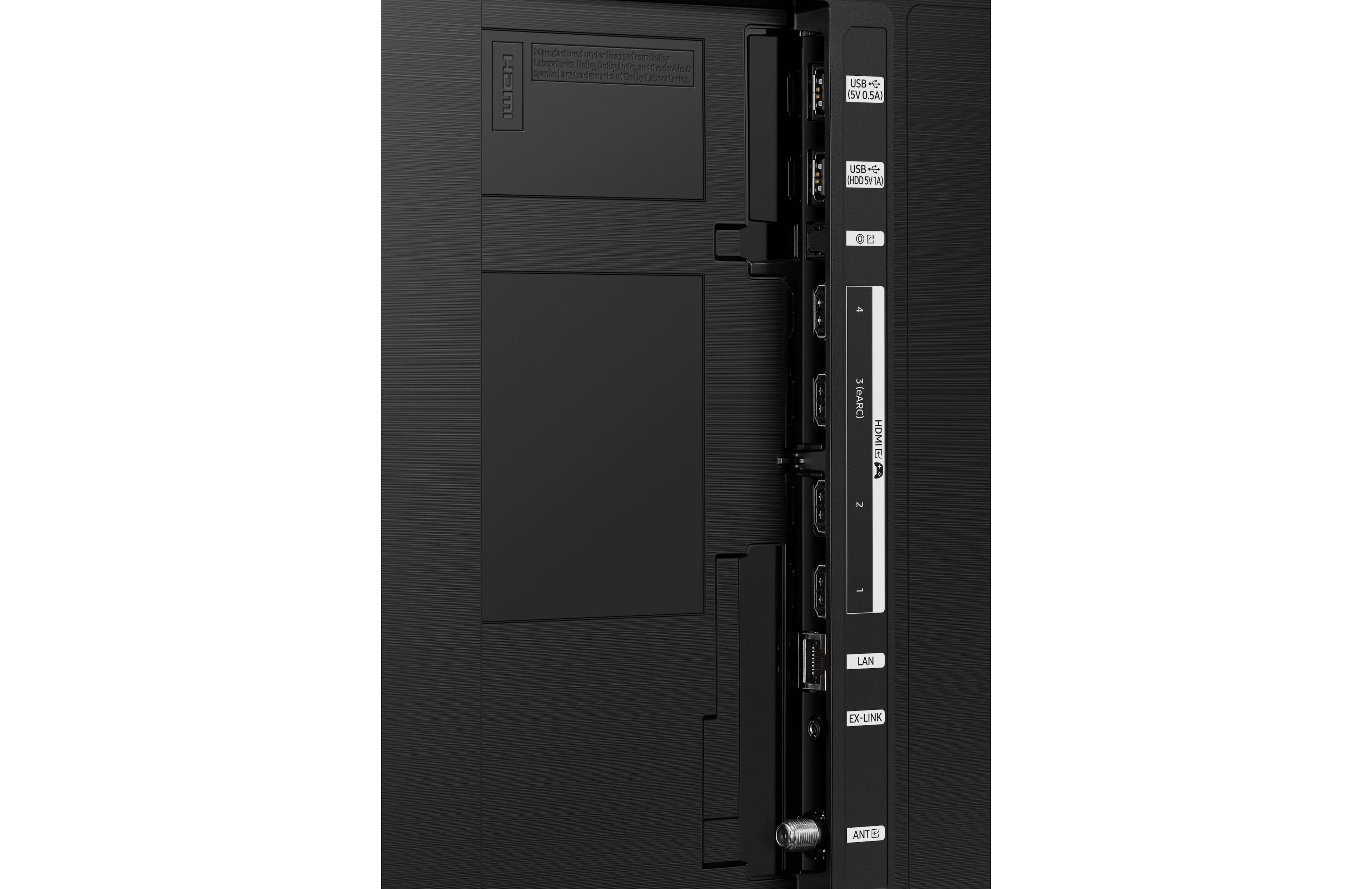
||Posted . Owned for 1 week when reviewed.This reviewer received promo considerations or sweepstakes entry for writing a review.Tv works great except for the eArc port. Cannot get it to connect to my receiver to play surround sound using an hdmi cable. It will identify it, but never give an option for sound to play through the receiver. Had the q89T before this one and don’t have any issues with connecting to my receiver.
No, I would not recommend this to a friendBrand response from Samsung
Posted .Hi,
I’m sorry you’re experiencing trouble connecting your Q80B to your receiver. Please be sure you are using a high-speed HDMI cable with Ethernet Channel (sometimes called HDMI HEC cable). Also be sure to enable HDMI-eARC in the Expert Settings menu. Lastly, please also verify that you are running the latest firmware. You can check to see what software version your TV is using and if there is an available update through the settings on your TV. Go to: Menu > Settings > Support > Software Update.
If you need more help, Samsung is here for you. Please call us at 1-800-SAMSUNG, 8AM - 12AM EST, 7 days a week. Our LiveChat agents are also available by clicking on the ‘Support’ link on our website.
~ Samsung Specialist
- Cons mentioned:Glare
Glare is horrible
||Posted . Owned for 1 week when reviewed.This reviewer received promo considerations or sweepstakes entry for writing a review.Who are these people writing reviews saying this TV has low glare??? It is like a ridiculous mirror, even in low light I see my reflection. The glare is terrible. I plan to return ASAP.
No, I would not recommend this to a friendBrand response from Samsung
Posted .MrSmart,
Thank you for purchasing the Q80B QLED TV and for sharing your feedback regarding screen reflection. The light conditions of each room environment are different. For optimal glare control, we recommend positioning the TV to minimize incident light falling on the screen or consulting a professional installer.
Anti-Reflection designed to minimize ambient light reflection is featured on our 55” QN90B series and higher.
Should you ever have questions or need help with TV features, specs, or operation, we are here to help. You can reach us at 1-800-SAMSUNG, 8AM - 12AM EST, 7 days a week. Or visit us on the Samsung website and click on the ‘Support’ link for:
• LiveChat
• Manuals, Software, & Warranty Info
~ Samsung Specialist
Eh
||Posted . Owned for less than 1 week when reviewed.This reviewer received promo considerations or sweepstakes entry for writing a review.Received it damaged out of the box with bleeding light on the bottom left. And overall the tv doesnt have great picture. Compared to my tcl 6 series.
No, I would not recommend this to a friendBrand response from Samsung
Posted .DanMan,
We appreciate you sharing your delivery experience and having received a damaged unit. We recommend you contact Best Buy directly for assistance in correcting this situation. We hope your issue is resolved in a timely manner.
Should you have questions or concerns on usage or setup of your TV once your issue has been resolved, please call us at 1-800-SAMSUNG, 8AM - 12AM EST, 7 days a week. Or visit us on the Samsung website and click on the ‘Support’ link for:
• LiveChat
• Manuals, Software, & Warranty Info
~ Samsung Specialist
Eh
||Posted . Owned for 1 month when reviewed.This reviewer received promo considerations or sweepstakes entry for writing a review.I did not want to replace my original LED TV but had to in order to have SONOS and other new components work. The picture the older set was better
No, I would not recommend this to a friendBrand response from Samsung
Posted .Frank,
Thank you for sharing your thoughts on the picture quality of your Q80B TV. To ensure you’ve got the latest image quality updates, please confirm that your TV is up to date with the latest firmware version. You can check by going to: Home > Menu > Settings > Support > Software Update.
If the picture you’re seeing is still not to your liking after updating firmware, there are several picture settings you may want to try adjusting.
Go to Home > Menu > Settings > All Settings > Picture > Picture Mode
...and select the mode that best fits your usage:
1) Standard: Is the default mode suitable for general viewing environments.
2) Movie: Is suitable for watching TV or movies in a dark room.
3) Dynamic: Makes the picture brighter and clearer in bright viewing environments.
4) Filmmaker Mode: You can watch the source content (e.g., movie) as it is. If the image is defined as Filmmaker Mode, it will automatically switch to Filmmaker Mode while watching.
You can also go to: Home > Menu > Settings > All Settings > Picture > Expert Settings to manually fine tune your image.
For further assistance with settings adjustments, please contact Samsung Customer Support at 1-800-SAMSUNG, 8AM - 12AM EST, 7 days a week. Or visit us on the Samsung website and click on the ‘Support’ link for:
• LiveChat
• Manuals, Software, & Warranty Info
~ Samsung Specialist
Quit working after one week
||Posted .This reviewer received promo considerations or sweepstakes entry for writing a review.The tech team set it up in our home and it worked for one week. All of a sudden, it would not turn back on. We contacted our “Best Buy guy” as he called himself with no response from two calls. We ended up contacting Best Buy through the website. They are replacing the tv. We hope the new one works, which I guess this review is for. It is tAmi g 12 days for it to be installed.
No, I would not recommend this to a friendBrand response from Samsung
Posted .Hi Jane,
It’s unfortunate to hear that your experience with Samsung’s Q80B TV fell short of expectations. I also want to thank you for giving us a chance to make things right, and we greatly appreciate your patience in having deal with the inconvenience of an exchange.
Should you need help with your new unit, please contact Samsung Customer Support at 1-800-SAMSUNG, 8AM - 12AM EST, 7 days a week. Or visit us on the Samsung website and click on the ‘Support’ link for:
1) LiveChat
2) Manuals, Software, & Warranty Info
~ Samsung Specialist
Samsung 4K review.
||Posted . Owned for 1 week when reviewed.This reviewer received promo considerations or sweepstakes entry for writing a review.Just purchased this TV and somewhat disappointed with the color quality. Not as good as my old Samsung Tv.
No, I would not recommend this to a friendBrand response from Samsung
Posted .dlaske,
Thank you for sharing your thoughts on the picture quality of your Q80B TV. If the picture you’re seeing out-of-the-box is not to your liking, there are several picture settings you may want to try adjusting.
You can select the Picture Mode that provides the best viewing experience. Go to Home > Menu > Settings > All Settings > Picture > Picture Mode
1) Standard: Is the default mode suitable for general viewing environments.
2) Movie: Is suitable for watching TV or movies in a dark room.
3) Dynamic: Makes the picture brighter and clearer in bright viewing environments.
4) Filmmaker Mode: You can watch the source content (e.g., movie) as it is. If the image is defined as Filmmaker Mode, it will automatically switch to Filmmaker Mode while watching.
You can also go to: Home > Menu > Settings > All Settings > Picture > Expert Settings to manually fine tune your image.
To ensure you've got the latest picture quality updates, please also make sure you’re running the latest firmware. You can check to see what software version your TV is using and if there is an update available by going to: Home > Menu > Settings > Support > Software Update > Update Now.
For further assistance with settings adjustments, please contact Samsung Customer Support at 1-800-SAMSUNG, 8AM - 12AM EST, 7 days a week. Or visit us on the Samsung website and click on the ‘Support’ link for:
1) LiveChat
2) Manuals, Software, & Warranty Info
~ Samsung Specialist
Samsung Tv
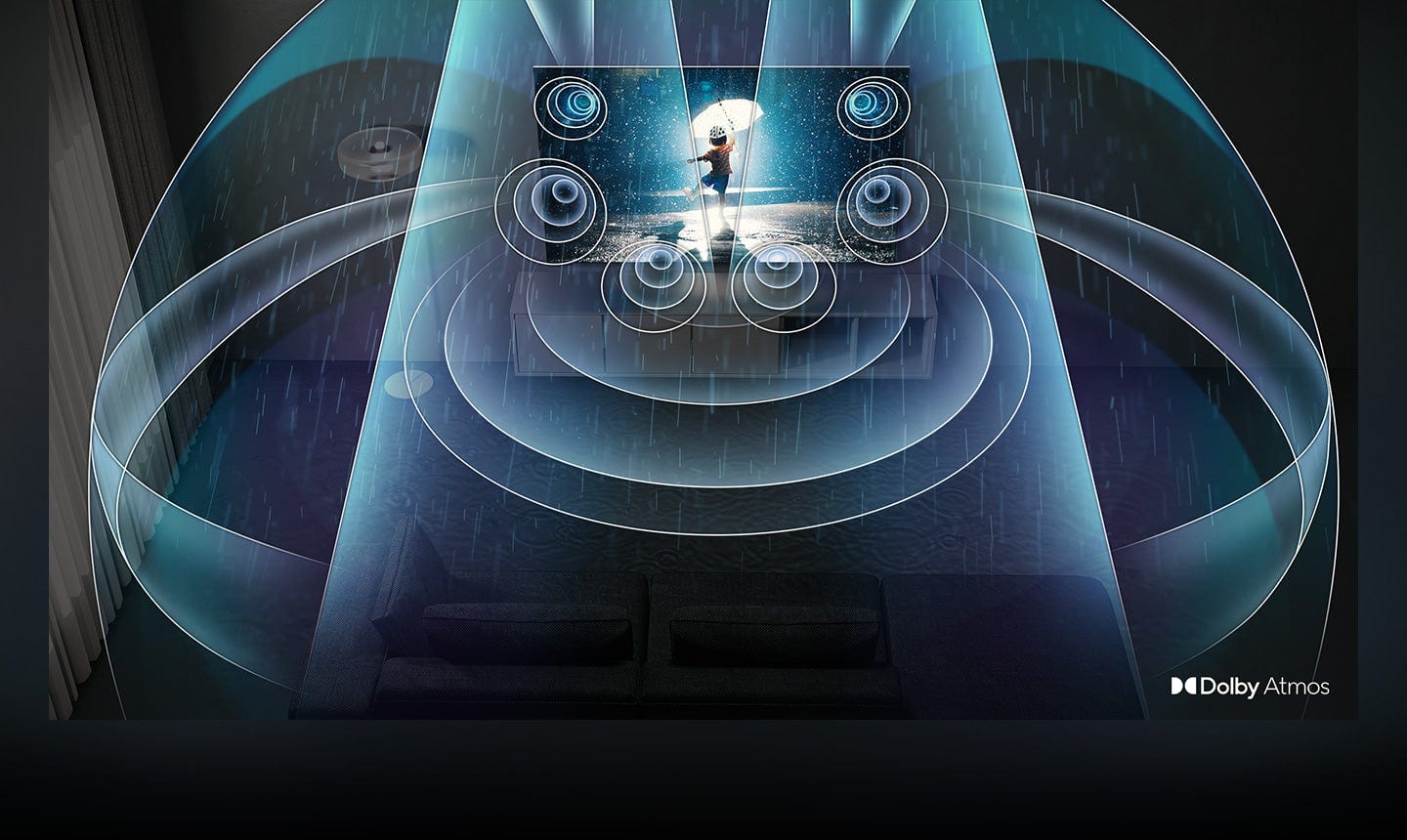
||Posted .This reviewer received promo considerations or sweepstakes entry for writing a review.Excellent Tv and viewing but the sound needs to be better
I would recommend this to a friendBrand response from Samsung
Posted .Robert,
Thank you for sharing your thoughts on sound quality. The Q80B features Intelligent Mode to optimize sound tailored to your environment, which includes features like Active Voice Amplifier (AVA) which further detects disturbances and enhances the on-screen voices for clear dialogue.
Go to Home > Menu > Settings > All Settings > General & Privacy > Intelligent Mode Settings. Turn the options on or off to meet your needs:
- Active Voice Amplifier is available only when the sound sensor of the TV is active and the sound output is set to TV Speaker, or a Samsung Soundbar interlinked with Adaptive Picture is connected.
- Adaptive Sound+ provides optimized sound quality by analyzing the viewing space and the acoustic components of the content.
- Adaptive Volume Automatically adjusts to a specific volume level while you are watching TV.
Several Sound Modes are likewise available to meet your personal preferences: Settings > All Settings > Sound > Sound Mode
You can also customize sound by going to: Settings > All Settings > Sound > Expert Settings
To assist you with possible sound settings adjustments for a better audio experience, or choosing a Samsung Soundbar to complement your viewing enjoyment, please reach out to us at 1-800-SAMSUNG, 8AM - 12AM EST, 7 days a week. Our LiveChat agents are also available by clicking on the ‘Support’ link on our website.
~ Samsung Specialist
Qled vs Oled
||Posted . Owned for 3 weeks when reviewed.This reviewer received promo considerations or sweepstakes entry for writing a review.I have owned a 55 inch LG Oled tv for serveral years and I wanted a larger tv that was comparable. So, I purchased a 65"Samsung Qled because it was cheaper, there was a big step down in the quality of picture.
No, I would not recommend this to a friendBrand response from Samsung
Posted .Hi,
Thank you for sharing your thoughts on the picture quality of your Q80B TV. To ensure you’ve got the latest image quality updates, please confirm that your TV is up to date with the latest firmware version. You can check by going to: Home > Menu > Settings > Support > Software Update.
If the picture you’re seeing is still not to your liking after updating firmware, there are several picture settings you may want to try adjusting.
Go to Home > Menu > Settings > All Settings > Picture > Picture Mode
...and select the mode that best fits your usage:
1) Standard: Is the default mode suitable for general viewing environments.
2) Movie: Is suitable for watching TV or movies in a dark room.
3) Dynamic: Makes the picture brighter and clearer in bright viewing environments.
4) Filmmaker Mode: You can watch the source content (e.g., movie) as it is. If the image is defined as Filmmaker Mode, it will automatically switch to Filmmaker Mode while watching.
You can also go to: Home > Menu > Settings > All Settings > Picture > Expert Settings to manually fine tune your image.
Intelligent Mode enables the TV to recognize and analyze the surroundings, noise, content, and your usage patterns to provide the best viewing experience. You can enable Intelligent Mode by going to Menu > Settings > All Settings > General & Privacy > Intelligent Mode Settings > Intelligent Mode.
If adjusting image settings does not improve your picture, please contact Samsung Customer Support at 1-800-SAMSUNG, 8AM - 12AM EST, 7 days a week. LiveChat with an agent as well as manuals, software, and warranty info can be found at the ‘Support’ link on our Samsung website.
~ Samsung Specialist
Terrible- do not purchase
||Posted . Owned for 3 weeks when reviewed.This reviewer received promo considerations or sweepstakes entry for writing a review.I very much dislike this tv. The apps are finicky, for some reason I only had a 10 day return window and was not notified of this. The tv will have a black screen when trying to turn on. Some apps will it exit.
No, I would not recommend this to a friendBrand response from Samsung
Posted .Hi there,
I'm sorry to hear of the issues you're experiencing with your Q80B TV. Please do ensure your TV's firmware is up to date with version 1303.2, as this includes various performance updates. You can check this by going to: Home > Menu > Settings > Support > Software Update.
If your app is still freezing, not loading, or crashing, you can try cold booting your TV by holding down the power button on your remote for 5+ sec until the TV turns off and on again, deleting and downloading the apps again, and completing full reset of Smart Hub to correct the issue.
If you've switched on your TV and the sound comes through fine, but you're not seeing any picture; there are 3 potential issues.
1) A connection issue; the most common problem. Where there is a bad connection, faulty cables or improper installation.
2) An issue with the device connected to the TV. There may be a video output setting on the device that you must set properly before it will output to the TV.
3) There is something wrong with the TV, which will require a technician to assess the TV and find a solution.
Please give us the opportunity to assist you by calling us at 1-800-SAMSUNG, 8AM - 12AM EST, 7 days a week. LiveChat with an agent as well as manuals, software, and warranty info can be found at the ‘Support’ link on our Samsung website.
~ Samsung Specialist
- Pros mentioned:Picture quality
Price for Quality.. worth it
Posted .This reviewer received promo considerations or sweepstakes entry for writing a review.Great TV, picture quality is Great from all angles. The sound was very impressive as well. Don't really use the sound bar anymore. Very easy to setup right out of the box as well
I would recommend this to a friend Doesntbwork
||Posted . Owned for 2 weeks when reviewed.This reviewer received promo considerations or sweepstakes entry for writing a review.After it was installed cable no longer works. More a comment on total tech than on the TV.
No, I would not recommend this to a friendBrand response from Samsung
Posted .James,
We appreciate your review of Samsung’s Q80B TV. So we can better understand the problems you are experiencing and provide you with troubleshooting assistance or warranty service, please reach out to Samsung Customer Support at 1-800-SAMSUNG, 8AM - 12AM EST, 7 days a week. Our LiveChat agents are also available by clicking on the ‘Support’ link on our website.
~ Samsung Specialist
- Pros mentioned:Picture quality
RW
Posted .This reviewer received promo considerations or sweepstakes entry for writing a review.Very happy with the tv. Picture colors are sharp. Setup was quick and easy.
I would recommend this to a friend - Pros mentioned:Ease of use, Picture quality
Samsung 65 qled
Posted .This reviewer received promo considerations or sweepstakes entry for writing a review.Really like this tv , very nice picture and ease of use
I would recommend this to a friend