Customer Ratings & Reviews
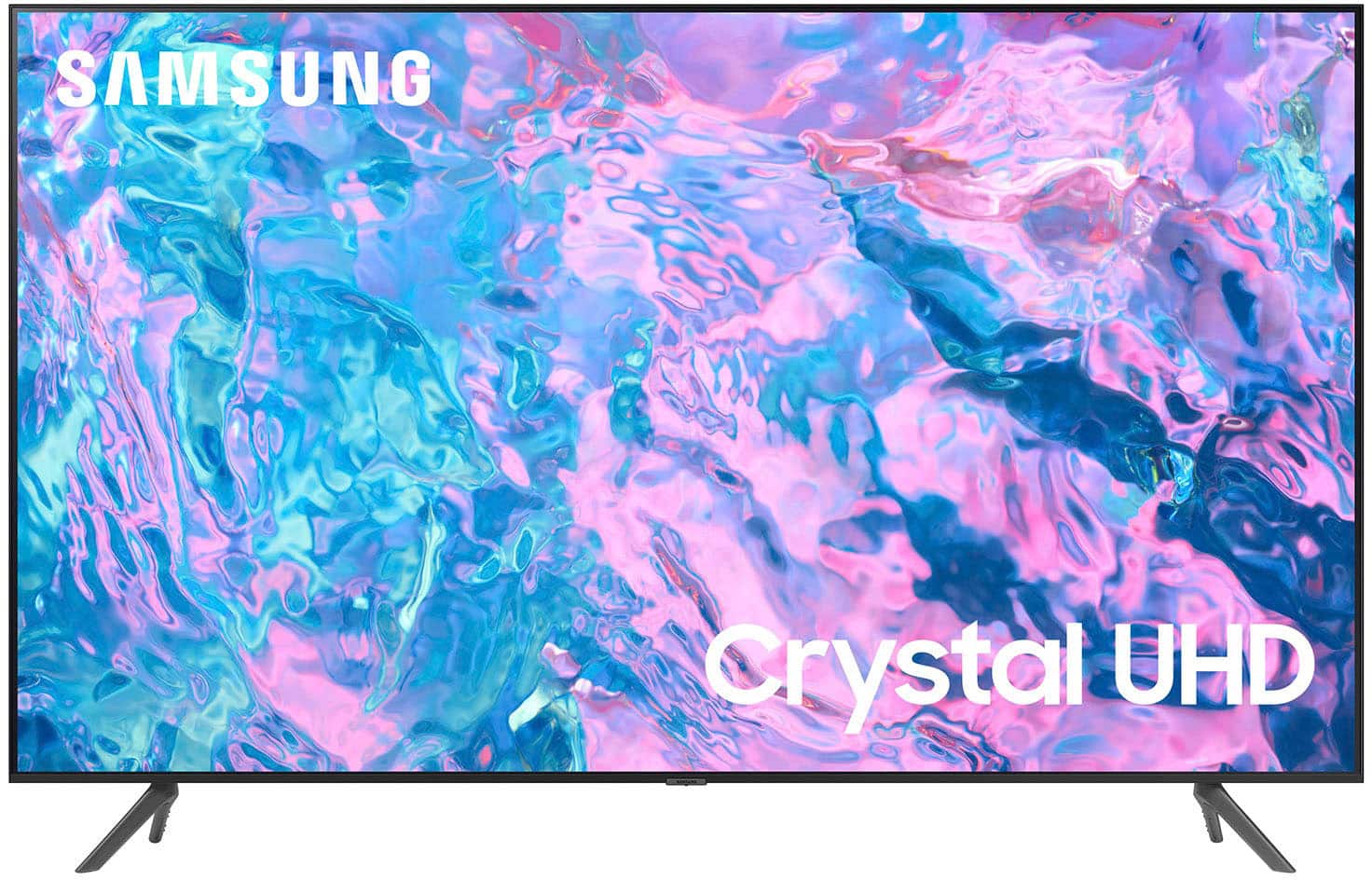
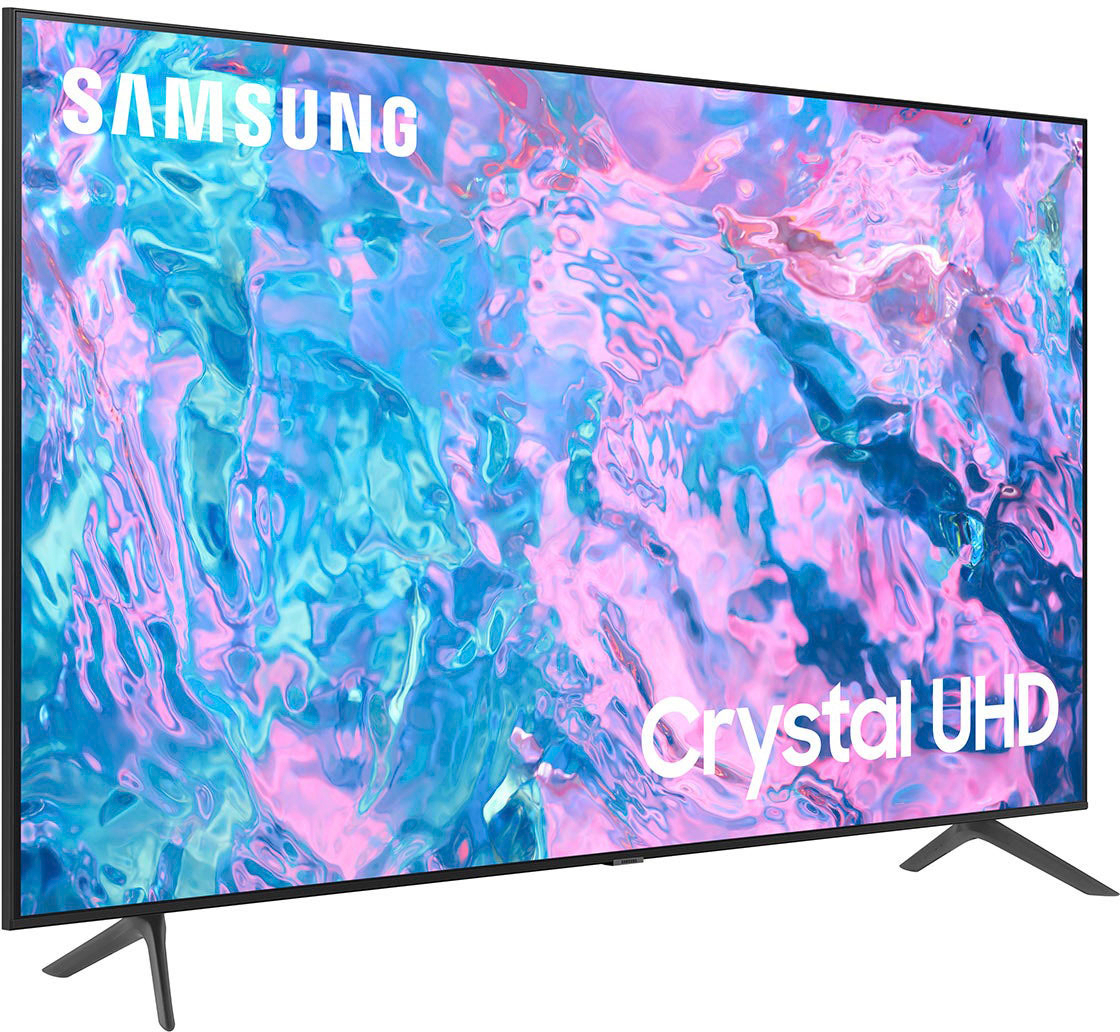
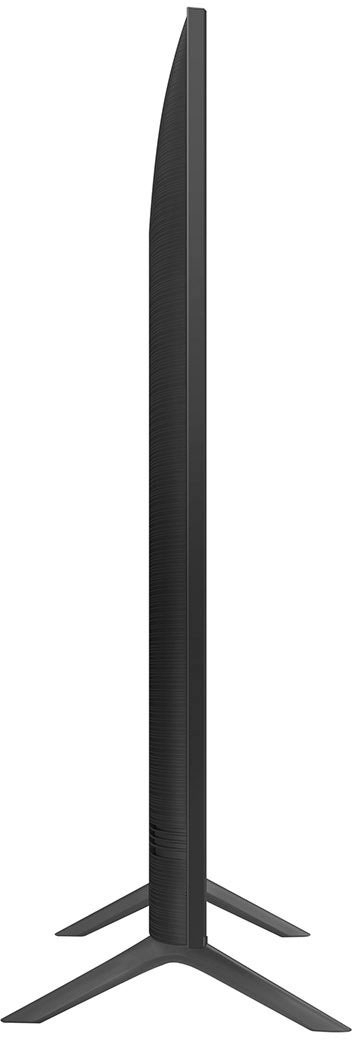
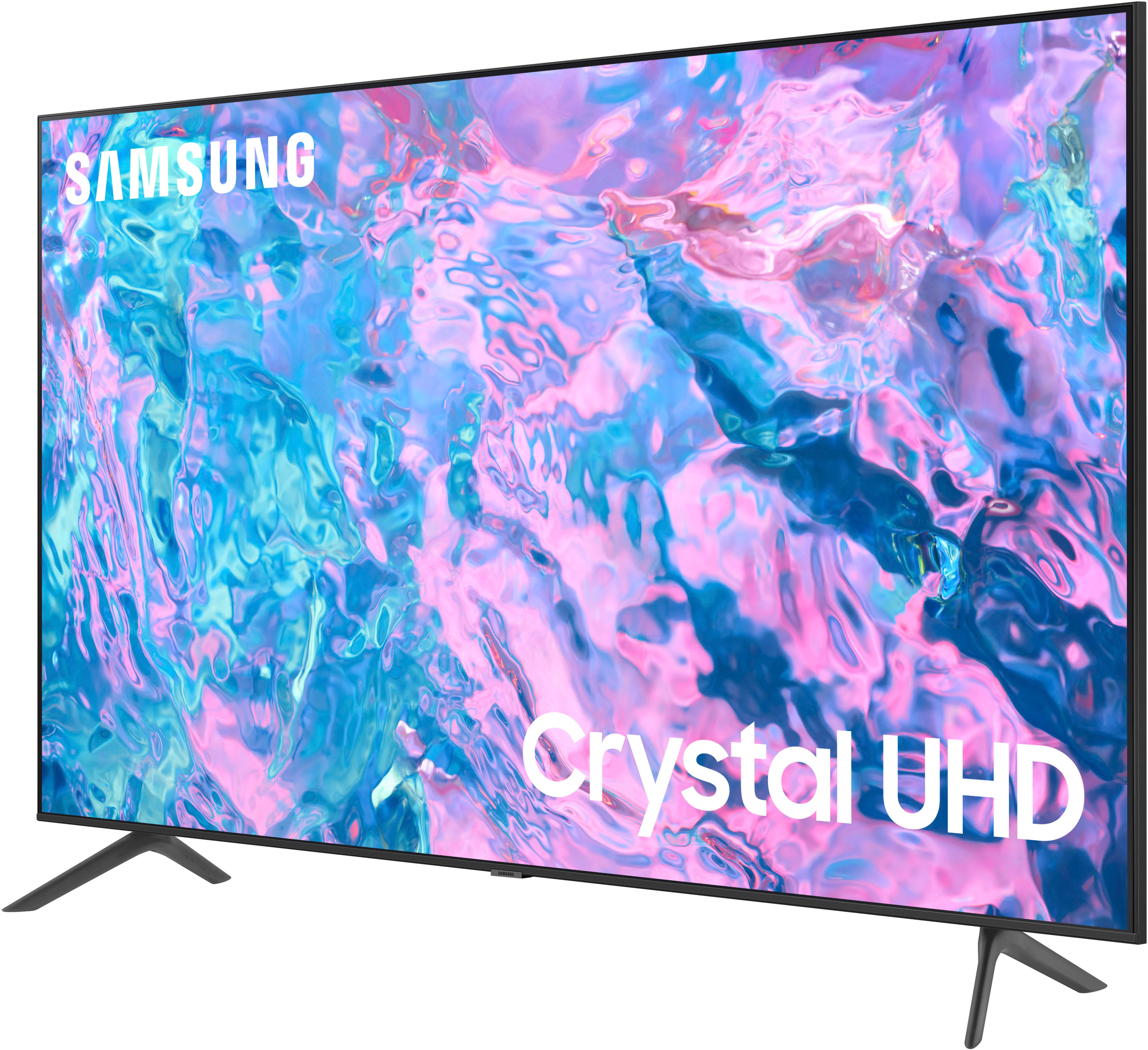


- Model:
- UN75CU7000FXZA
- SKU:
- 6537373
Rating by feature
- Picture Quality
Rating 4.8 out of 5 stars
- Sound Quality
Rating 4.6 out of 5 stars
- Brightness
Rating 4.8 out of 5 stars
Customers are saying
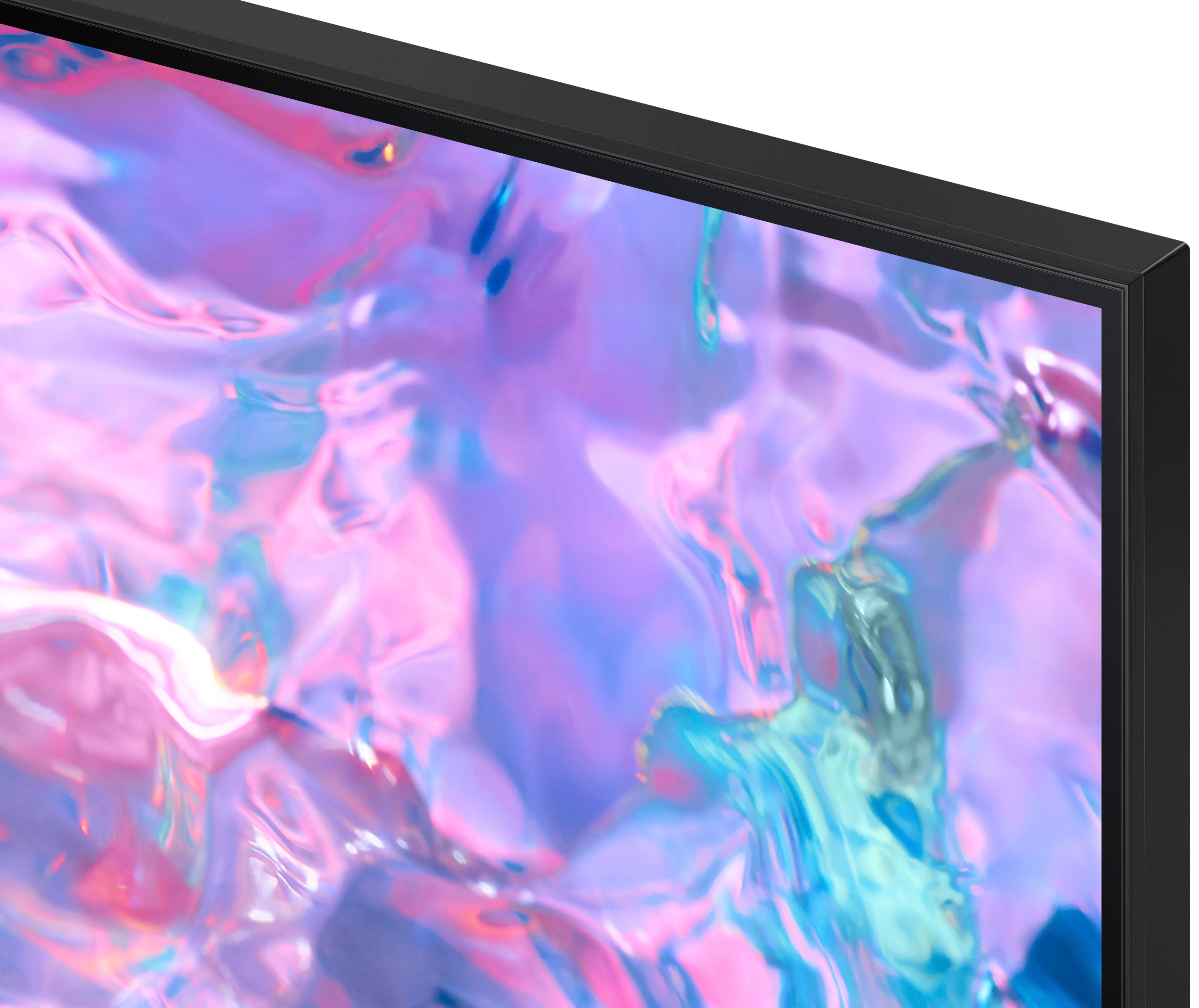
Customers value the 75” Class CU7000 Crystal UHD 4K Smart Tizen TV (2023) for its excellent picture quality, ease of use, and attractive price. Many appreciate the vibrant colors and large screen size, perfect for movie nights. However, some users find the remote control somewhat confusing and the volume could be improved. A few customers also noted that the refresh rate is not as high as some competing models.
This summary was generated by AI based on customer reviews.
- Pros mentioned:Picture quality
Great Picture Not So Great Processor
Posted .This reviewer received promo considerations or sweepstakes entry for writing a review.Picture is great but processing speed is frustratingly slow, especially when on web browser. I have had to restart the TV many times because it freezes up.
I would recommend this to a friendBrand response from Samsung
Posted .Hi NicholasG,
I’m sorry to hear about the issues you’re experiencing with slow response time. Please know we are here to help and have a few suggestions for you to try.
First, to ensure performance is fully optimized, please make sure your TV is running the latest firmware. To do so, go to Settings> Support> Software Update. You can easily update from there if necessary.
Next, I recommend utilizing the self-diagnostic tool, which checks memory, frees unused cached memory, and closes background apps. Go to Settings > Support > Device Care > Start Device Care.
Finally, please run a cold boot on your TV. To do so, hold down the Power button on the Samsung TV remote until the TV turns off and then on again. This should take about 5 seconds.
I hope these tips help resolve your concerns.
If you continue to have issues, please call us at 1-800-SAMSUNG, 8 AM - 12 AM EST, seven days a week. LiveChat with an agent, as well as manuals, software, and warranty info, can be found at the ‘Support’ link on our Samsung website.
~Samsung Advisor
Review
Posted .This reviewer received promo considerations or sweepstakes entry for writing a review.Great Product Great Delivery Service Verybting Went And Worked Out Well
I would recommend this to a friend75"
Posted .This reviewer received promo considerations or sweepstakes entry for writing a review.Great tv for the price and size. Definitely recommended.
I would recommend this to a friendOutstanding TV
Posted .This reviewer received promo considerations or sweepstakes entry for writing a review.Excellent TV -great viewing experience - so happy with my purchase
I would recommend this to a friendYes please!
Posted .This reviewer received promo considerations or sweepstakes entry for writing a review.Excellent TV. Samsungs are hard to beat! Easy set up.
I would recommend this to a friendGreat option for the price!!
Posted .This reviewer received promo considerations or sweepstakes entry for writing a review.Bought this TV about 3 weeks ago. Very happy with it!
I would recommend this to a friendTV
Posted .This reviewer received promo considerations or sweepstakes entry for writing a review.TV is great. Help at the store was great. Everyone was nice.
I would recommend this to a friendSamsung the best
Posted .This reviewer received promo considerations or sweepstakes entry for writing a review.Best tv I’ve ever bought the best value for your money
I would recommend this to a friendCool size and quick buy.
Posted .This reviewer received promo considerations or sweepstakes entry for writing a review.Cool television, most definitely recommend. Great price
I would recommend this to a friendTv is alright
Posted .This reviewer received promo considerations or sweepstakes entry for writing a review.Tv is alright nothing special nothing out of the ordinary but the price was great for what it is
I would recommend this to a friendSamsung
Posted .This reviewer received promo considerations or sweepstakes entry for writing a review.The tv is good, but it sometimes freezes and I had to unplug and re plug multiple times.
I would recommend this to a friendGood.
Posted .This reviewer received promo considerations or sweepstakes entry for writing a review.Pretty decent for the price, not the best tho. Sound quality a little poor in larger rooms.
I would recommend this to a friendIt is very good tv but it is not verlly user frien
Posted .This reviewer received promo considerations or sweepstakes entry for writing a review.It is very good tv but it is not verlly user friendly
No, I would not recommend this to a friendPoor Quality / Poor Service from Samsung
Posted .This reviewer received promo considerations or sweepstakes entry for writing a review.Samsung is not the company they used to be. At one time they were a high quality brand, but now they seemingly design their products to fail! After two years of owning this TV I was satisfied with the product. However, one day the screen shut of and the TV power cycled on its own without any way to trouble shoot. I called Samsung and they gave me a one time warranty which at the time I was told “no cost to me.” After taking a day off work and waiting 10+ hours for the service tech to arrive to my house I learned that I owed $250 for labor! I called Samsung because the phone call and emails indicated to me it was free. After 2 hours on the phone being transferred and disconnected all Samsung could say was oops. The $250 wasn’t what frustrated me though. It was the fact that through all those conversations it became clear Samsung knows this is a faulty product and they don’t care about their customers. Don’t do what I did! If you want to spend the money on a pretty TV from Samsung DON’T WAIVE the Best Buy/Geek Squad warranty! The TV will go bad much earlier than expected and you will be responsible! This problem is common across all Samsung TVs according to the service tech. The day of my service alone all 10 stops he had were the same issue! Every day he said he fixes this problem on Samsung TVs. That should tell you something about Samsung and the quality of their product if nothing else did. If you are not able to get warranty from Samsung this is a $850 part with $250 labor which is more than the TV itself.
No, I would not recommend this to a friendBrand response from Samsung
Posted .Hi StefanM,
Thank you for reaching out and letting us know about the issues you are experiencing with your CU7000 TV. Please know the CU7000 was released in 2023 and should be under our 1-year manufacturer's warranty. So we can better assist you, please reach out to us at 1-800-SAMSUNG, 8 AM - 12 AM EST, seven days a week. Or visit us on the Samsung website and click on the ‘Support’ link for:
1) LiveChat
2) Manuals, Software, & Warranty Info
~ Samsung Advisor
False Advertising!
Posted .This reviewer received promo considerations or sweepstakes entry for writing a review.I literally got this tv Saturday( yesterday) I have called Best Buy two times to ask why is the tv picture quality blurry. Asking for help to make the picture look better. I expected this tv to be what it says 4K crystal clear UHD instead I’m feeling like this advertisement and video on the tv is a scam to get people to purchase this tv! I’m very disappointed with this purchase. I’ve never experienced this with a tv AT ALL. Please don’t buy this tv. As the expert stated to me , the tv’s in store and online is optimized to look better so if you’re expecting that same right out the box. You won’t get it!
No, I would not recommend this to a friendBrand response from Samsung
Posted .Hi TiffanyP,
I'm sorry that you are experiencing issues with your CU7000 TV's picture quality. Please know we are here to help and have a few recommendations which should improve your experience.
It's possible the blur you are experiencing is due to Motion smoothing features which eliminate ghosting and blurring that occurs from fast-moving images. On Samsung TVs, these are known as Auto Motion Plus or Picture Clarity. These motion smoothing settings look great on live TVs, like sporting events or parades, which are filmed at 30 frames per second. Most movies, however, are filmed at 24 frames per second and are not intended to be viewed with these features. When turned on, this causes the dreaded soap opera effect.
To Change Motion smoothing settings on your TV:
Navigate to Settings > Picture > All Settings> Expert Settings > Auto Motion Plus Settings (Picture Clarity Settings).
1. The default setting is Auto. This means the feature automatically turns on and off based on the type of program being watched.
2. Select Auto Motion Plus (Picture Clarity) to change the setting to either Off or Custom.
If you select Custom, three additional options are available:
• Blur Reduction: Use the directional keys on the remote to adjust the Blur setting.
• Judder Reduction: Use the directional keys on the remote to adjust the Judder setting.
• LED Clear Motion: This option allows you to configure the LED backlight to sharpen fast-moving images. Select to turn On or Off.
I also recommend working through these troubleshooting steps as well:
1. Disconnect and reconnect the power cables and HDMI cables on the back of your TV, then unplug the power cord and plug it back into the wall outlet.
2. If the external device supports UHD video, use a dedicated HDMI cable (4K) for HDMI video playback.
3. If a component cable is used, make sure that the colored connectors are connected to the matching connectors on the external device and the TV.
4. If you are using a set-top box, check the cable connection. The cable you need to check depends on the type of set-top box.
5. Make sure that your access point is connected to the Internet. If not, disconnecting and reconnecting its power cable may be required.
6. If the problem persists, check the video output settings in the settings menu of the external device, and ensure that your TV supports the video output mode.
If you are still seeing a blurry picture, please give us a call so we can better support you. You can call us at 1-800-SAMSUNG, 8 AM - 12 AM EST, seven days a week. Our LiveChat agents are also available by clicking on the ‘Support’ link on our website.
~ Samsung Advisor
Not Compatible with 5G wifi.
Posted .This reviewer received promo considerations or sweepstakes entry for writing a review.Not Compatible With 5G Wifi. Extremely disappointed in this TV. Read about the many issues online. My main issue is connectivity. Brand new 75 inch TV constantly freezes. Needs to be unplugged several times a day to reset connection. Finally had to bypass the TVs glitchy setup with a Firestick. Now at least it stays connected to the wifi. Will never buy a Samsung product again.
No, I would not recommend this to a friendBrand response from Samsung
Posted .Hi JamesD,
Thank you for your purchase and for letting us know about the issues you are having connecting your CU7000 TV to Wi-Fi. Please know your TV features built-in 802.11ac Wi-Fi, allowing you to connect to both 2.5GHz and 5GHz Wi-Fi bands.
I do recommend a few troubleshooting steps to help resolve any Wi-Fi problems you are having. First, let's ensure you are running the latest Firmware. Go to Settings> Support> Software Update. To ensure you do not miss any Firmware Updates, I recommend enabling Auto Updates. Go to Settings> Support> Software Update> then select Auto Update.
Next, let's try running a cold boot on your TV. To do so, hold down the Power button on the Samsung TV remote until the TV turns off and then on again. This should take about 5 seconds.
I hope these tips help you enjoy your new product.
You can contact us for further help at 1-800-SAMSUNG, 8 AM - 12 AM EST, seven days a week. Our LiveChat agents are also available by clicking on the ‘Support’ link on our website.
~ Samsung Advisor
Bad Tv
Posted .This reviewer received promo considerations or sweepstakes entry for writing a review.Very bad tv. The contrast is terrible. When you view it’s all pixelated.
No, I would not recommend this to a friendBrand response from Samsung
Posted .Hi LUAS,
We appreciate your feedback on the CU7000 TV's image quality. I believe what you are describing is a feature called Auto Motion Plus, which eliminates ghosting and blurring that occurs from fast-moving images. These motion smoothing settings look great on live TVs, like sporting events or parades, which are filmed at 30 frames per second. Most movies, however, are filmed at 24 frames per second and are not intended to be viewed with these features. When turned on, this causes the dreaded soap opera effect.
To Change Motion smoothing settings on your TV:
Navigate to Settings > All Settings > Picture > Expert Settings > Auto Motion Plus Settings (Picture Clarity Settings).
1. The default setting is Auto. This means the feature automatically turns on and off based on the type of program being watched.
2. Select Auto Motion Plus (Picture Clarity) to change the setting to either Off or Custom.
You can also go to Settings > All Settings> Picture > Expert Settings > to manually fine-tune your image.
I hope these tips help you enjoy your new product.
You can contact us for further help at 1-800-SAMSUNG, 8 AM - 12 AM EST, seven days a week. Our LiveChat agents are also available by clicking on the ‘Support’ link on our website.
~ Samsung Advisor
Do not buy!!!
Posted .This reviewer received promo considerations or sweepstakes entry for writing a review.Horrible internet connection. Hardwired and wirless would only get 40 mbps download speed
No, I would not recommend this to a friendBrand response from Samsung
Posted .Hi JonathanD,
Thank you for sharing your experience with Internet connectivity. If you’re experiencing issues with the Wi-Fi connection, we suggest you try the following:
1. Use 5Ghz Wi-Fi if possible
2. Try wired LAN if available
3. Try repositioning the router, so there are no obstacles between your TV and the router
4. Try running a cold boot on your TV. To do so, hold down the Power button on the Samsung TV remote until the TV turns off and then on again. This should take about 5 seconds.
Please also be sure you are running the latest firmware. You can check to see what software version your TV is using and if there is an available update through the settings on your TV. Go to: Settings > Support > Software Update.
You can enable automatic updates for convenience.
Go to Settings > Support > Software Update, then select Auto Update.
I hope these tips help resolve your concerns. If you continue to have issues, please call us at 1-800-SAMSUNG, 8 AM - 12 AM EST, seven days a week. LiveChat with an agent, as well as manuals, software, and warranty info, can be found at the ‘Support’ link on our Samsung website.
~ Samsung Advisor