Customer Ratings & Reviews
- Model:
- QN75QN70FAFXZA
- |
- SKU:
- 6614338
Customer reviews
Rating 4.7 out of 5 stars with 240 reviews
(240 customer reviews)Rating by feature
- Picture Quality4.8
Rating 4.8 out of 5 stars
- Sound Quality4.7
Rating 4.7 out of 5 stars
- Brightness4.8
Rating 4.8 out of 5 stars
Customers are saying
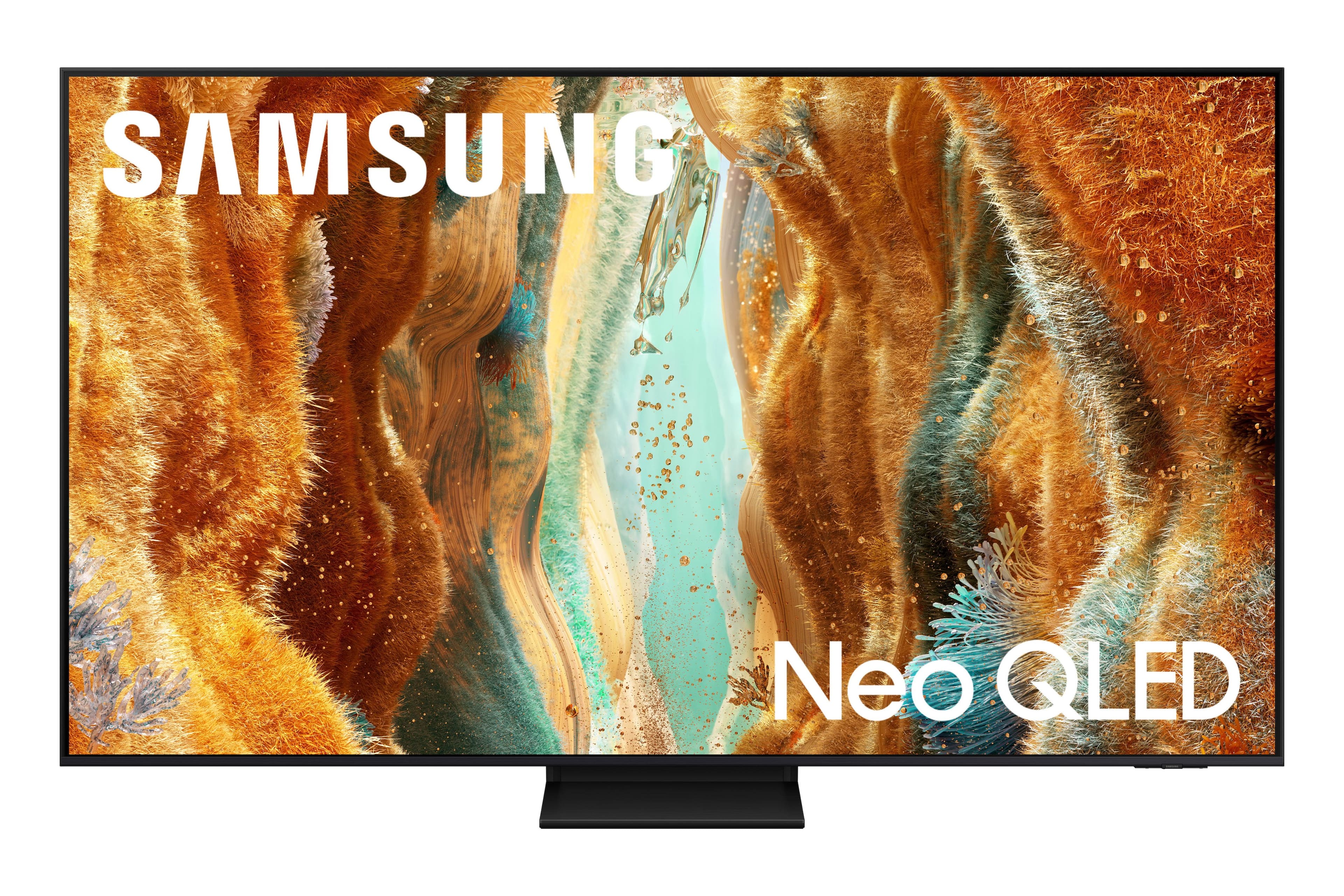
Customers appreciate the exceptional picture quality of the 75” Class QN70F Series Neo QLED Mini LED 4K UHD Samsung Vision AI Smart Tizen TV (2025). Many comments highlight the amazing and high-quality images produced by this television. There were no negative customer comments reported.
This summary was generated by AI based on customer reviews.
Rated 5 out of 5 stars
Samsung TV
||Posted . Owned for 3 weeks when reviewed.This reviewer received promo considerations or sweepstakes entry for writing a review.Everything went smooth. From the very knowledgeable sales person to the two men who did the delivery and installation.
I would recommend this to a friendRated 4 out of 5 stars
Samsung 75"
||Posted . Owned for 1 month when reviewed.This reviewer received promo considerations or sweepstakes entry for writing a review.Clear picture and good sound. Setup was a little daunting.
I would recommend this to a friendRated 5 out of 5 stars
Samsung 4k 75", AI assist, great PICTURE
||Posted . Owned for 3 weeks when reviewed.This reviewer received promo considerations or sweepstakes entry for writing a review.TV is great but couldn't hook up my old school surround sound system ths rattles
I would recommend this to a friendRated 4 out of 5 stars
Very good
||Posted . Owned for 1 month when reviewed.This reviewer received promo considerations or sweepstakes entry for writing a review.This item is a good and very nice and the technology is nice
I would recommend this to a friendRated 5 out of 5 stars
TV samgun 75
||Posted .This reviewer received promo considerations or sweepstakes entry for writing a review.It is a new tv with new technology. It looks good and I like it so far.
I would recommend this to a friendRated 4 out of 5 stars
Samsung tv
||Posted . Owned for 3 weeks when reviewed.This reviewer received promo considerations or sweepstakes entry for writing a review.My last tv was a Samsung QLED I think the picture was better on it, but hopefully this will last longer because after three years we started to see black shadow bars when the picture had a white background
I would recommend this to a friendRated 2 out of 5 stars
A total nightmare
||Posted . Owned for 2 months when reviewed.This reviewer received promo considerations or sweepstakes entry for writing a review.Purchased in October had an issue just 2 months later! Screen went out - what a mess trying to get it replaced- best buy said it was out of return window and referred us to Samsung because it was under manufactures warranty. Samsung CS asked for the same information and pictures repeatedly - a very frustrating experience! FINALLY got repaired but even scheduling and availability was difficult. Very disappointed that they repaired and did not replace a brand new TV. Horrible experience.
No, I would not recommend this to a friendBrand response from Samsung
Posted .Hi there,
We appreciate you sharing the experience you went through to have your Samsung QN70F TV serviced, and we hope your TV is now performing as expected.
Samsung is committed to delivering the best possible product experience, quality, and value. Your feedback will be shared with our product and customer care teams.
If there’s anything more we can do to improve your experience, please know we’re here to help. You can reach us at 1-800-SAMSUNG, available 8AM – 12AM EST, 7 days a week. You can also reach us via LiveChat by visiting the ‘Support’ link on our website.
~ Samsung Specialist
Rated 5 out of 5 stars
Satisfied
||Posted . Owned for 1 week when reviewed.This reviewer received promo considerations or sweepstakes entry for writing a review.I’m satisfied of my product and the customer service
I would recommend this to a friendRated 5 out of 5 stars
Samsung
||Posted . Owned for 1 month when reviewed.This reviewer received promo considerations or sweepstakes entry for writing a review.Great resolution. All around great tv and easy to use.
I would recommend this to a friendRated 1 out of 5 stars
Great image, but all other Samsung aspects - bad.
||Posted . Owned for 2 months when reviewed.This reviewer received promo considerations or sweepstakes entry for writing a review.This TV has solid image and sound for the price, however, everything else about this device (especially the UI) is extremely disappointing. The "smart" elements of these TV are poorly designed, user-hostile, privacy-infringing, etc. UI - Navigating this TV is ok, but there are several unwanted apps and behaviors that you cannot uninstall and/or turn off. iPhone App - Does not have a keyboard input function. If I install an app as a remote in 2025, it should have ascii keyboard functionality. Entering passwords with the physical remote arrow buttons is infuriating, yet that is still the only way to access different streaming services. This is beyond stupid, it must be intentional, user-hostile design. Samsung TV Plus - have you ever wanted to watch old moves that flopped and are not included in paid streaming services? Well, with this TV - you have to! Samsung TV Plus is annoying and intrusive. As soon as you turn this TV on, some movie you never wanted to watch (and often has inappropriate adult scenes) is automatically playing. Please stop this. Speed - Even after use of just 1 month, this TV is showing signs of slowing. Smart, but slow. Privacy settings - These are extremely hard to access, and often lag. Instructions online, and provided by Samsung phone reps, do not provide proper detail on how to turn off all invasive features that you are forced to opt in before you use this TV. This TV does listen to your conversations, provides this data to partners, and gives you targeted ads. It is near impossible to turn this setting off. Again, the image and sound of this TV are solid - but everything else about it is bad. I regret buying this TV, and will avoid Samsung for future purchases. Everything included in this TV is unnecessary, and ultimately makes the device almost unusable. I recommend getting a different brand.
No, I would not recommend this to a friendBrand response from Samsung
Posted .Walter,
Thanks for sharing your thoughts on the QN70F - we'll be sure to pass this along to our internal teams.
For optimal performance, please ensure your TV is running the latest firmware. You can check this by going to: Home > left directional key > Settings > Support > Software Update
To further optimize performance, try running Device Care, which checks memory, clears unused cached data, and closes background apps: Home > left directional key > Settings > Support > Device Care > Start Device Care
Please do also note that an on-screen keyboard can be used with iOS devices via the SmartThings app. If you missed the pop-up or it didn’t appear, please follow the below steps to set up SmartThings between your TV and Smartphone:
1. While your TV is turned on, open the SmartThings app on your phone.
2. Tap the Device tab > Home icon, then select the location where you'd like to add the TV. Tap Add (the plus sign), then tap Add device.
3. Under the "By device type" tab, tap TV, and then tap Samsung.
4. Tap TV again, and then tap Start. Select a location and room, and then tap Next.
5. From here, select your desired TV from the list of available devices.
6. Use the remote to select OK on the TV screen.
7. Once the TV has been added, use the SmartThings app on your phone to rename it, and then tap Done.
If you’d also prefer not to hear sound when previewing content, you can adjust the Autoplay Sound setting on your TV. To do this, scroll to the bottom of the For You Home Screen, then select and disable Autoplay Sound.
Lastly, to help you get the most from your TV, you can download the full e-Manual and more by visiting Samsung’s website, then navigating to: Support > Manual & Software > TVs & Home Theater. From there, you can search for and select your TV model to view or download the available guides.
The e-Manual & User Guide are also conveniently built into your TV: Settings > Support > Tips and User Guides.
Your TV includes Learn Menu Screen, an accessibility feature that provides audio guidance for on-screen menus (like app management). When enabled, your TV will announce the name and function of each menu item as you scroll, without making any changes. This feature is particularly helpful for users who are visually impaired or new to Smart TV menus. To enable, go to: Settings > All Settings > General & Privacy > Accessibility > Learn Menu Screen. To exit, press the Return key twice.
If you’d like more assistance with this feature, please reach Samsung Support at 1-800-SAMSUNG, available 8AM – 12AM EST, 7 days a week. LiveChat agents are also available through the ‘Support’ link on our website.
~ Samsung Specialist
Rated 4 out of 5 stars
Clarity
||Posted . Owned for 1 month when reviewed.This reviewer received promo considerations or sweepstakes entry for writing a review.The TV is nice and serves our purpose. We wish all channels/stations provided a full view screen.
I would recommend this to a friendRated 1 out of 5 stars
Worst customer service
||Posted .This reviewer received promo considerations or sweepstakes entry for writing a review.The tv is good however the best buy customer care service is very bed. After I got the tv, within a week the price went down by $200 and my purchase is still with in the return window. I called the customer care for price match, they agreed for $200 refund. After a week they refunded me only $100. I called them alsmot 7 to 8 times for the remaining $100 they said there was a mistake in the earlier submission and instead of $200 refund they mentioned only $100 and which is the reason why I did not get $200. And I asked for rest of the $100 and all the representatives that I spoke with are helpless and so rude. One of the worst customer service.
I would recommend this to a friendBrand response from Samsung
Posted .HarikrishnaN,
Please know that you're leaving a review and 1-star rating for the QN70F TV, but we’re sorry to hear of your experience with Best Buy, nonetheless. You may want to consider providing your feedback directly to the Best Buy store where the purchase was made.
If you have questions about the TV itself, Samsung is here to help. You can reach us at 1-800-SAMSUNG, 8AM – 12AM EST, 7 days a week. LiveChat agents are also available by clicking the ‘Support’ link on our website.
~ Samsung Specialist
- Cons mentioned:Brightness
Rated 1 out of 5 stars
Instead buy an OLED
||Posted . Owned for 1 month when reviewed.This reviewer received promo considerations or sweepstakes entry for writing a review.Performs poorly in dark rooms, white is too white on the screen. Please don’t buy edge lit LED. OS and user experience is decent, better than expected.
No, I would not recommend this to a friendBrand response from Samsung
Posted .Hi VARUN,
We’re sorry to hear that the picture on your Samsung QN70F TV appears too bright. If the image is harsher than expected –especially in darker rooms – there are several adjustments you can make to better suit your viewing environment.
Start by changing the Picture Mode: Settings > All Settings > Picture > Picture Mode. We recommend trying:
• Movie – Designed for dark room viewing with softer contrast and lower brightness
• Standard – Balanced for general use
• Filmmaker Mode – Offers a natural, accurate picture as intended by content creators
To further fine-tune, go to: Settings > All Settings > Picture > Expert Settings, where you can manually adjust Brightness, Contrast, Sharpness, and Contrast Enhancer (consider turning this off for a softer image)
You may also want to check if energy saving or AI settings are enabled. These can automatically adjust the brightness based on your room’s lighting, which some users find too aggressive.
• For energy settings, go to: Settings > All Settings > General & Privacy > Power and Energy Saving
• For AI settings, go to: Settings > All Settings > Advanced Features > AI Mode Settings
Lastly, make sure your TV is running the latest firmware, as updates may include improvements to picture handling:
Settings > Support > Software Update > Update Now
We hope these tips help create a more comfortable viewing experience. If you’d like help walking through these adjustments, Samsung Customer Support is always here for you at 1-800-SAMSUNG, 8AM – 12AM EST, 7 days a week. LiveChat is also available via the ‘Support’ link on our website.
~ Samsung Advisor
Rated 1 out of 5 stars
Disappointed/ burry imagine
||Posted . Owned for 2 weeks when reviewed.This reviewer received promo considerations or sweepstakes entry for writing a review.We bought the 77 inch tv, prior to having an LG and we ended up returning the Samsung and going back to and LG again… image is sharper and not blurry. We were very disappointed with the Samsung we got.
No, I would not recommend this to a friendBrand response from Samsung
Posted .andreaa17,
We regret that the picture quality of Samsung’s QN70F TV didn’t meet your expectations. In many cases, picture performance can be improved through settings adjustments or firmware updates. That said, we appreciate your feedback and will pass it along to the appropriate teams.
If you consider Samsung again in the future, we’d be glad to assist with any setup or calibration support you may need at 1-800-SAMSUNG (8AM – 12AM EST, 7 days a week), or visit the ‘Support’ section of our website for LiveChat, manuals, and more.
~ Samsung Specialist
Rated 1 out of 5 stars
Faint yellow streak in picture
||Posted .This reviewer received promo considerations or sweepstakes entry for writing a review.Tv developed a faint 2” wide yellow line after about 5 weeks. Called Samsung and it’s taken 3 weeks and 4 very frustrating calls to resolve. No service technician in our area and they are working to either replace or refund. Will never buy Samsung product again.
No, I would not recommend this to a friendBrand response from Samsung
Posted .EdwardM,
Thank you for bringing your concerns to our attention. We encourage you to reach out to us again so we can take a closer look, further diagnose the issue, and provide additional support.
At your earliest convenience, please call Samsung Support at 1-800-SAMSUNG, available 8AM – 12AM EST, 7 days a week. You can also reach us via LiveChat by visiting the ‘Support’ link on our website.
~ Samsung Specialist
Rated 1 out of 5 stars
Canceled Order
||Posted . Owned for 3 weeks when reviewed.This reviewer received promo considerations or sweepstakes entry for writing a review.Canceled order. No customer care! If you call the store to speak with a sales rep, you are transferred out of country.
I would recommend this to a friendBrand response from Samsung
Posted .BEES,
Please know that you're leaving a review and 1-star rating for the QN70F TV, but we’re sorry to hear of your experience with Best Buy, nonetheless. You may want to consider providing your feedback directly to the Best Buy store where the purchase was made.
If you have questions about the TV itself, Samsung is here to help. You can reach us at 1-800-SAMSUNG, 8AM – 12AM EST, 7 days a week. LiveChat agents are also available by clicking the ‘Support’ link on our website.
~ Samsung Specialist
Rated 1 out of 5 stars
Do Not Buy!
||Posted . Owned for 3 weeks when reviewed.This reviewer received promo considerations or sweepstakes entry for writing a review.Do not buy. It’s been 12 days and sound stopped working. Went to Geek Squad. The gave me a number . The number connected to Samsung. I’d give it a 0 if I could
No, I would not recommend this to a friendBrand response from Samsung
Posted .Hi CindyD,
Thank you for your review and for sharing your experience with your QN70F TV. If you’re not hearing any sound, whether using TV speakers or an external audio device, here are several steps that can help get things working again.
1. Start with Basic Checks
• Make sure the TV isn’t muted and the volume is turned up.
• If using an external audio device, ensure it’s powered on, set to the correct source, and the volume is turned up there as well.
• Unplug your TV for 30 seconds, then plug it back in and power it on.
2. HDMI ARC / eARC Connection
• Use a certified High-Speed HDMI cable with Ethernet. Connect it to the HDMI eARC ports on both the TV and the soundbar/receiver.
• Enable these settings:
o Settings > All Settings > Sound > Expert Settings > HDMI eARC Mode = Auto
o Settings > All Settings > General & Privacy > External Device Manager > Anynet+ (HDMI-CEC) = On
• Check the digital audio format: Settings > All Settings > Sound > Expert Settings > Digital Output Audio Format
o If you're not sure what your connected device supports, set it to Auto.
3. Optical Audio Connection
• Power on the soundbar/receiver before connecting the optical cable.
• Select the correct sound output: Settings > All Settings > Sound > Sound Output = Optical
• Try a different optical cable if no sound is coming through.
4. Bluetooth Audio Connection
• Pair your Bluetooth device: Settings > All Settings > Sound > Sound Output > Bluetooth Speaker List
• If your Bluetooth device doesn’t appear or won’t connect, move it closer to the TV, ensure it’s in pairing mode, and select Scan.
• If paired but no sound, unpair the device and try reconnecting.
5. Wi-Fi / Wireless Speakers
• Confirm the speakers and the TV are on the same Wi-Fi network. Use: Settings > All Settings > Sound > Sound Output > Wi-Fi Speaker Surround Setup
• Reboot both the TV and the Wi-Fi speakers, and check your router for connection strength.
6. Other Helpful Tips
• Run a Sound Test: Settings > Support > Device Care > Self Diagnosis > Sound Test
• Update TV firmware to rule out compatibility issues: Settings > Support > Software Update > Update Now
• If using a cable box or external streaming device, double-check that the device’s audio output settings are set to HDMI or the appropriate output.
If you still don’t hear sound after following these steps, please don’t hesitate to reach out so we can assist further. You can call Samsung Support at 1-800-SAMSUNG, 8AM – 12AM EST, 7 days a week. Our LiveChat agents are also available by clicking the ‘Support’ link at Samsung.com.
~ Samsung Advisor
- Pros mentioned:Picture quality
Rated 5 out of 5 stars
QN70F - 75”
Posted .This reviewer received promo considerations or sweepstakes entry for writing a review.Coming from an 11 year 70” Sharp this was quite an upgrade…Color, contrast and overall picture are excellent… Black levels are outstanding and better than some Oled models .. i have it wall mounted in a sunny room and no problem viewing.. picture setting is set to AI optimized and adjusts automatically to room lighting… it is edge lite but as good or better picture thanmany full array panels.. imo better picture compared to last years 75” QN80D ..Sound is good-have it in sync with my 900A soundbar and it sets a nice center channel and surround .. syncing does not affect atmos .. easy set up to my cable remote and atv 4k.. only con is the supplied infrared remote.. need to get a bullseye aim to operate cable and atv boxes but not enough of a down to lower the overall rating as i use both cable and atv supplied remotes.. i purchased at BB in Manalapan and the salesman, John, was very knowledgeable and helpful… i highly recommend this set.
I would recommend this to a friend - Pros mentioned:Picture quality
Rated 5 out of 5 stars
Great Tv!
Posted .This reviewer received promo considerations or sweepstakes entry for writing a review.Easy to set up, great picture, fast processing time
I would recommend this to a friend Rated 5 out of 5 stars
I Love My TV
Posted .This reviewer received promo considerations or sweepstakes entry for writing a review.Love my new TV. The picture and sound quality are superb. The set up was simple. Would buy again.
I would recommend this to a friend