Customer Ratings & Reviews
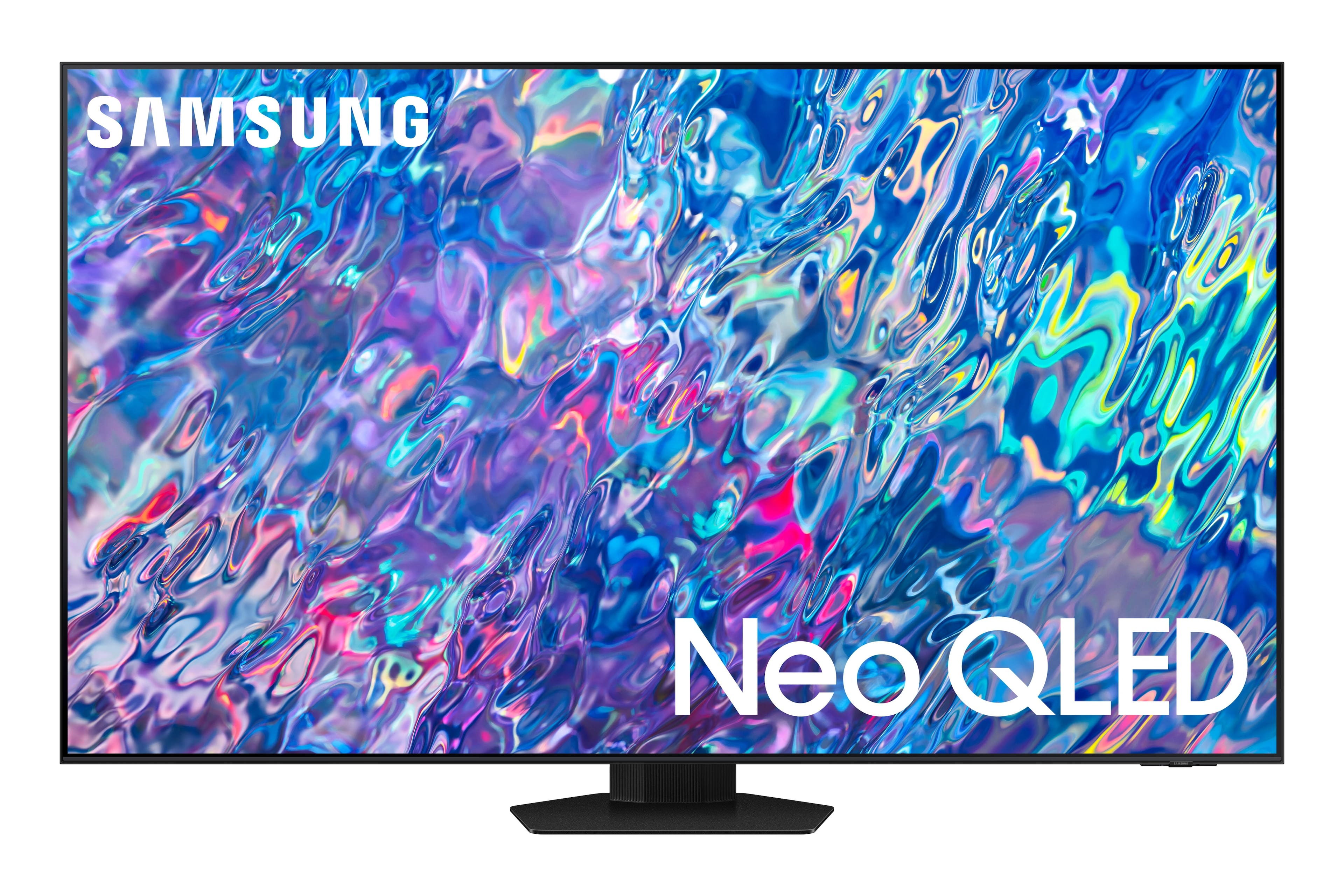
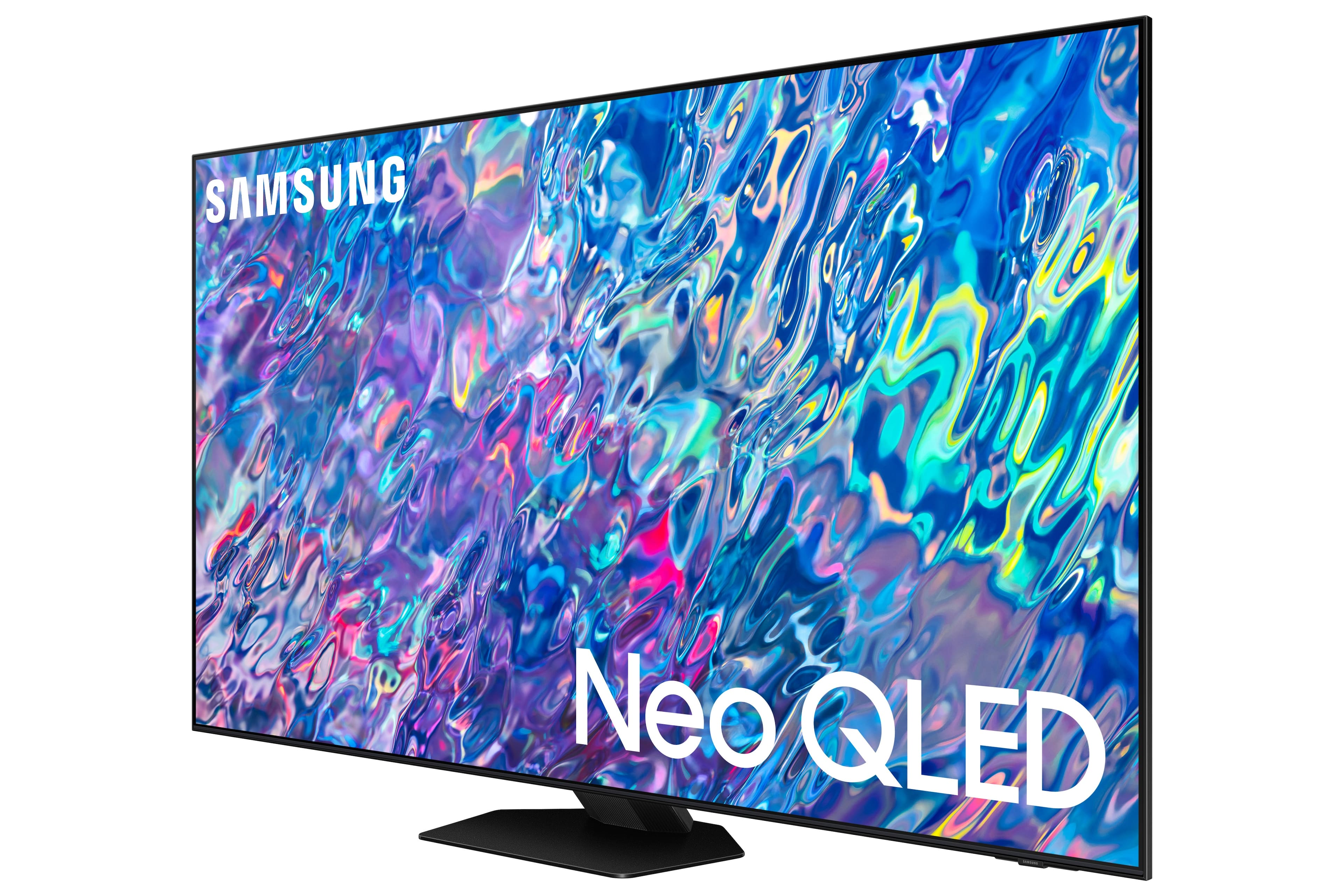
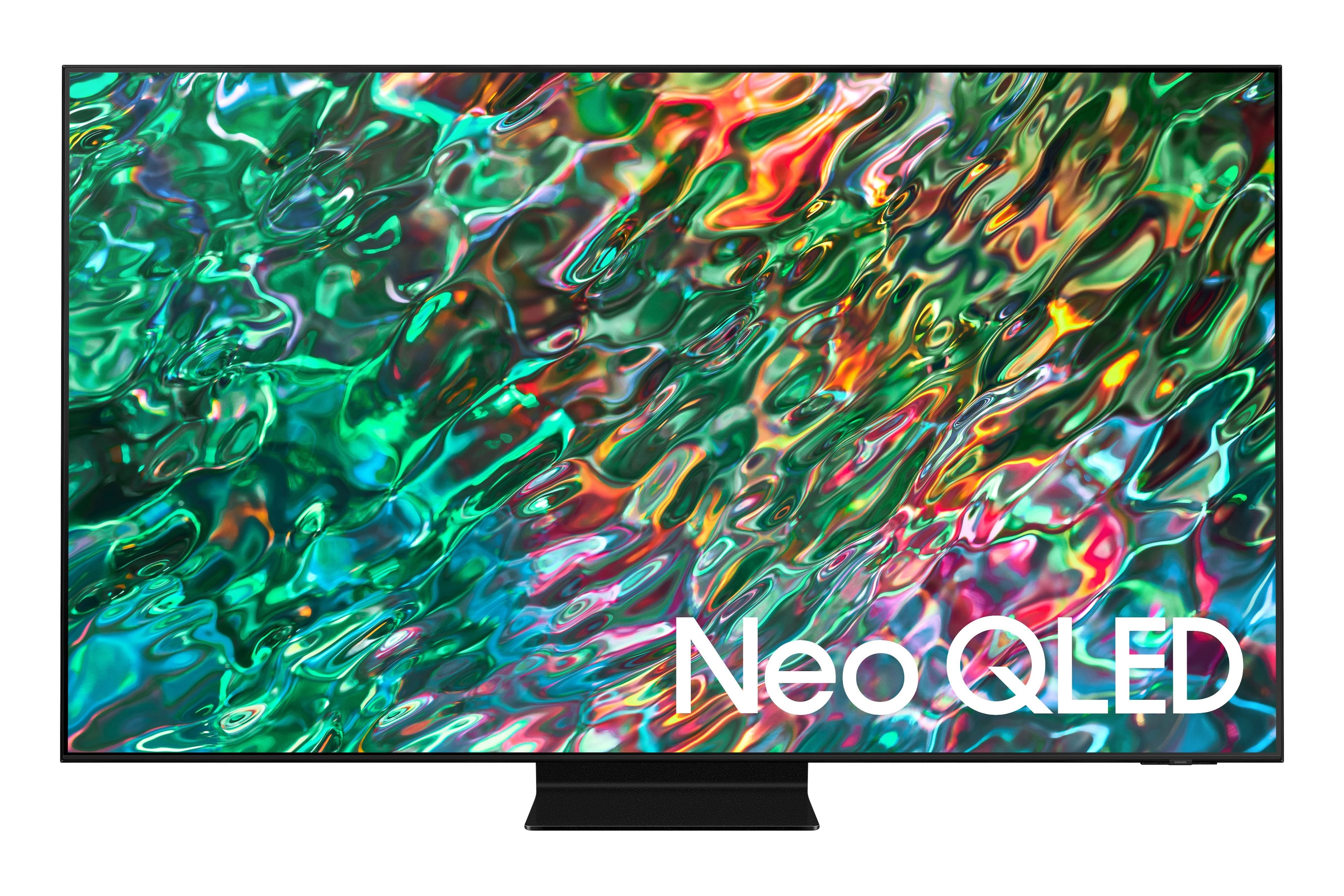
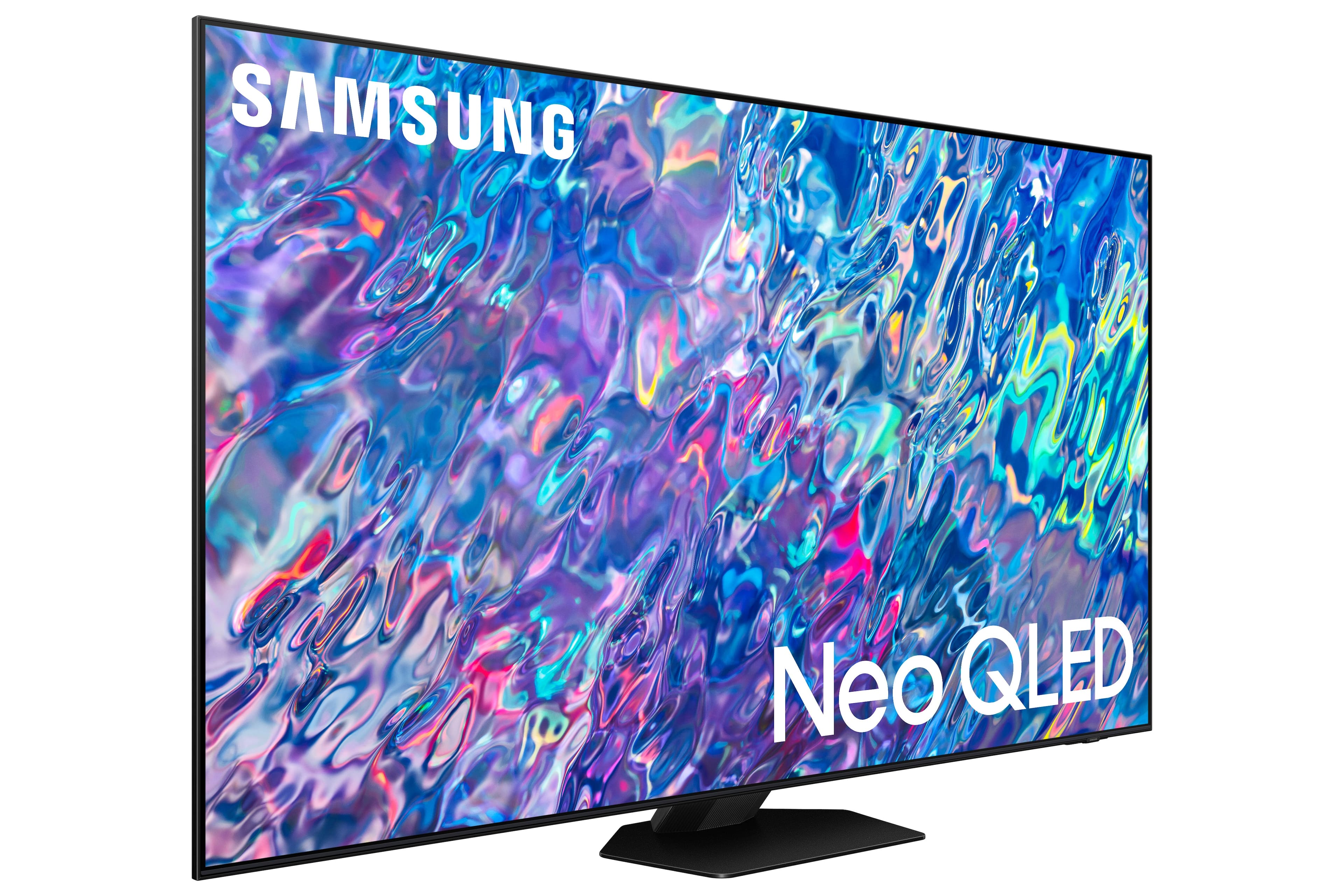
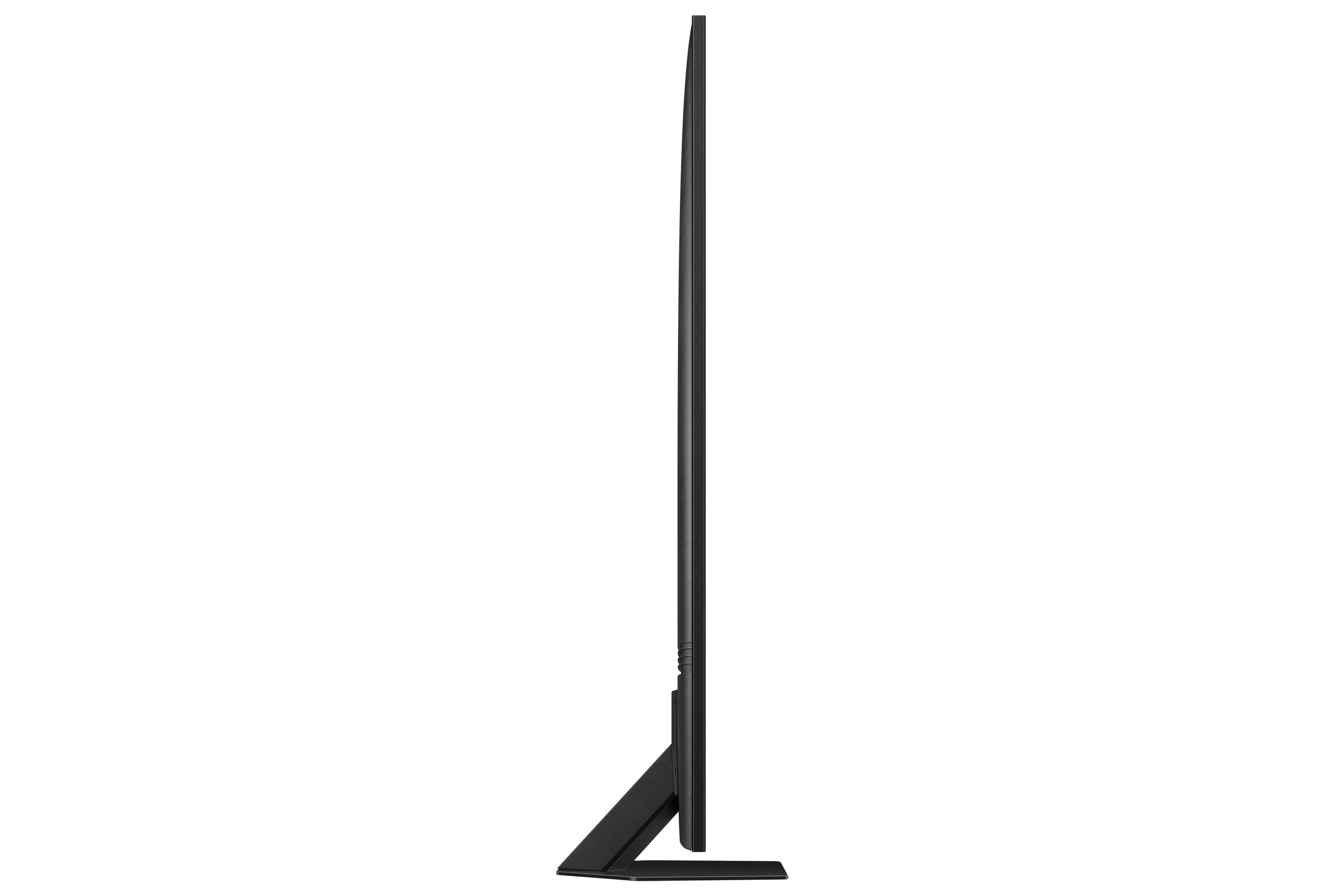
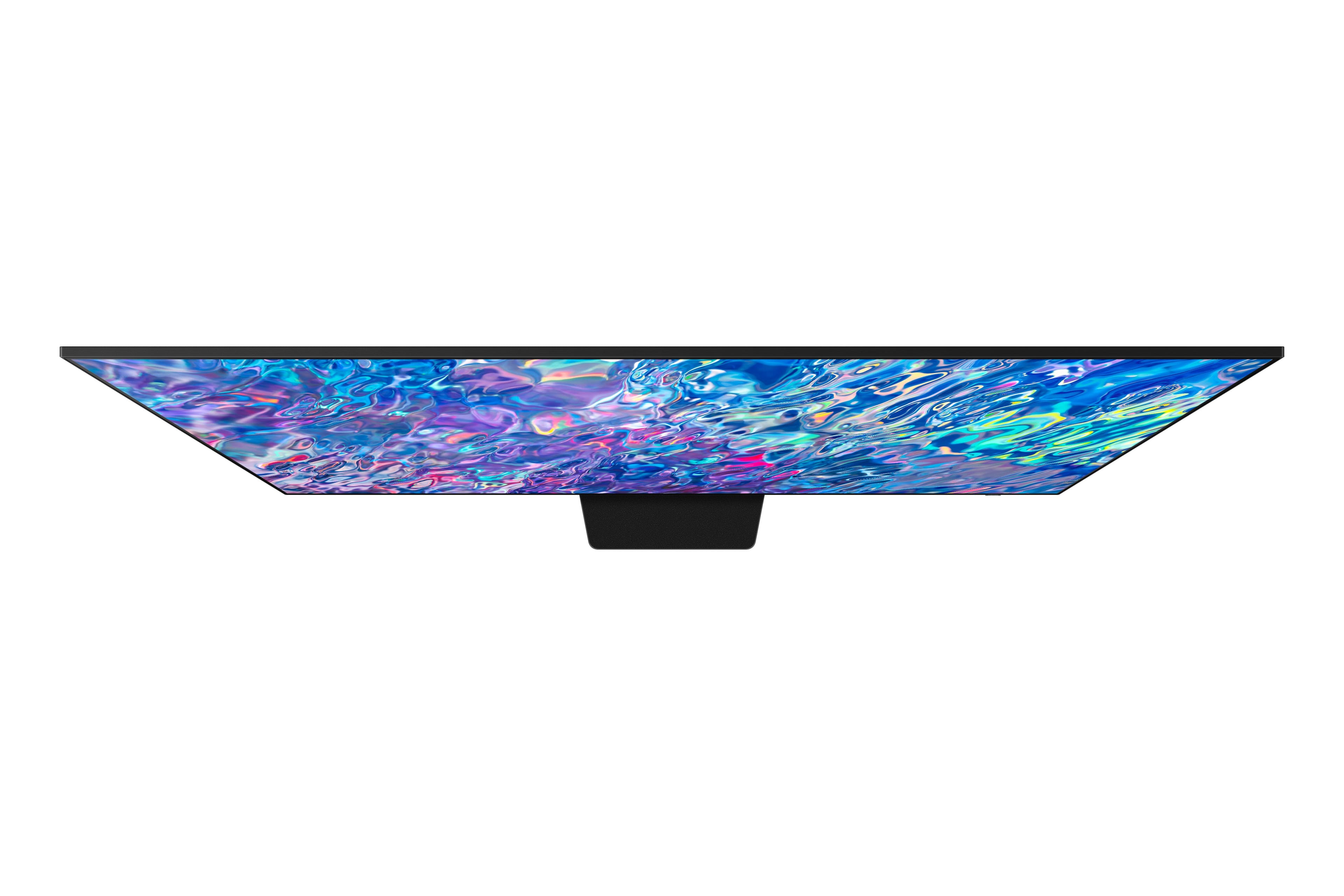
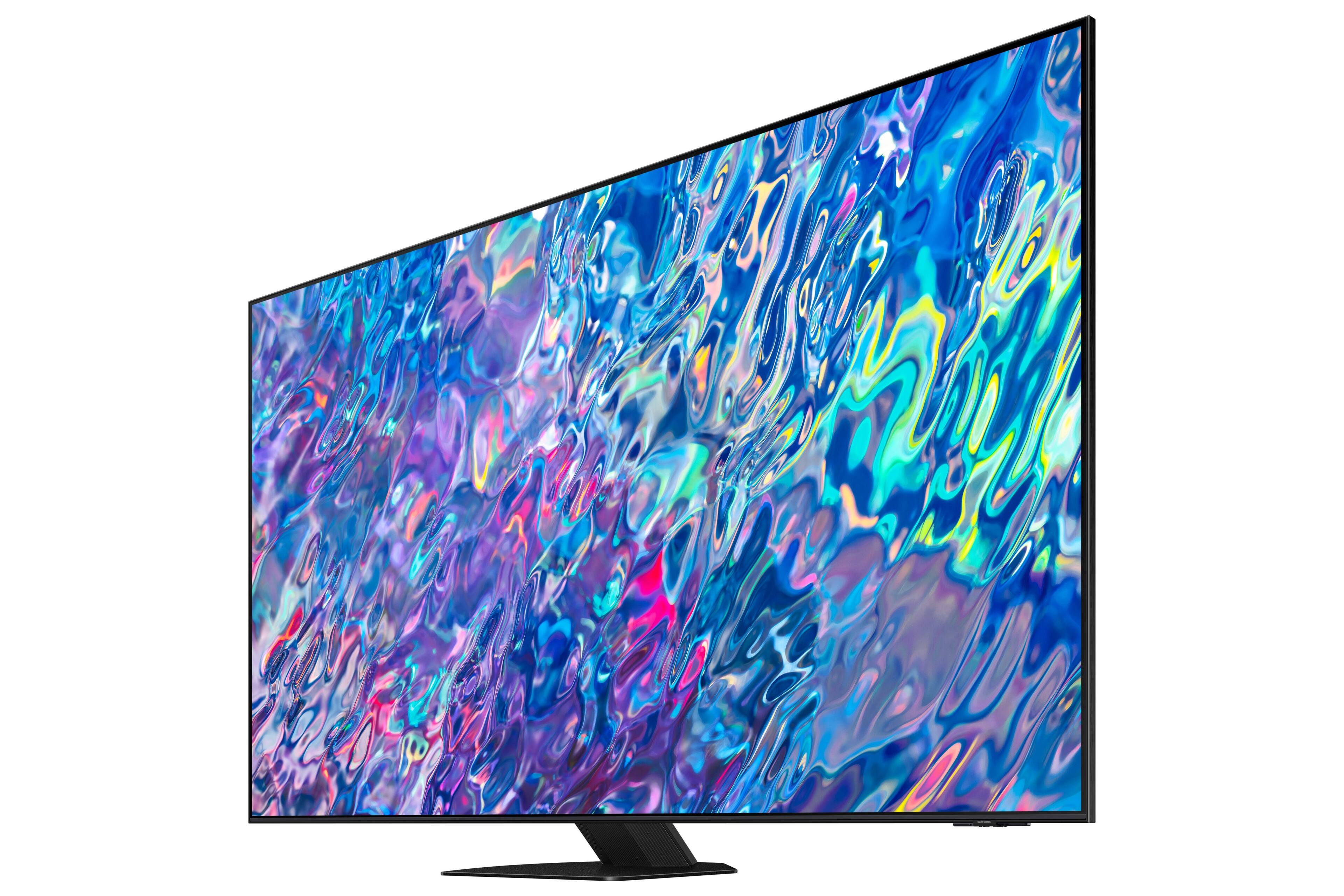
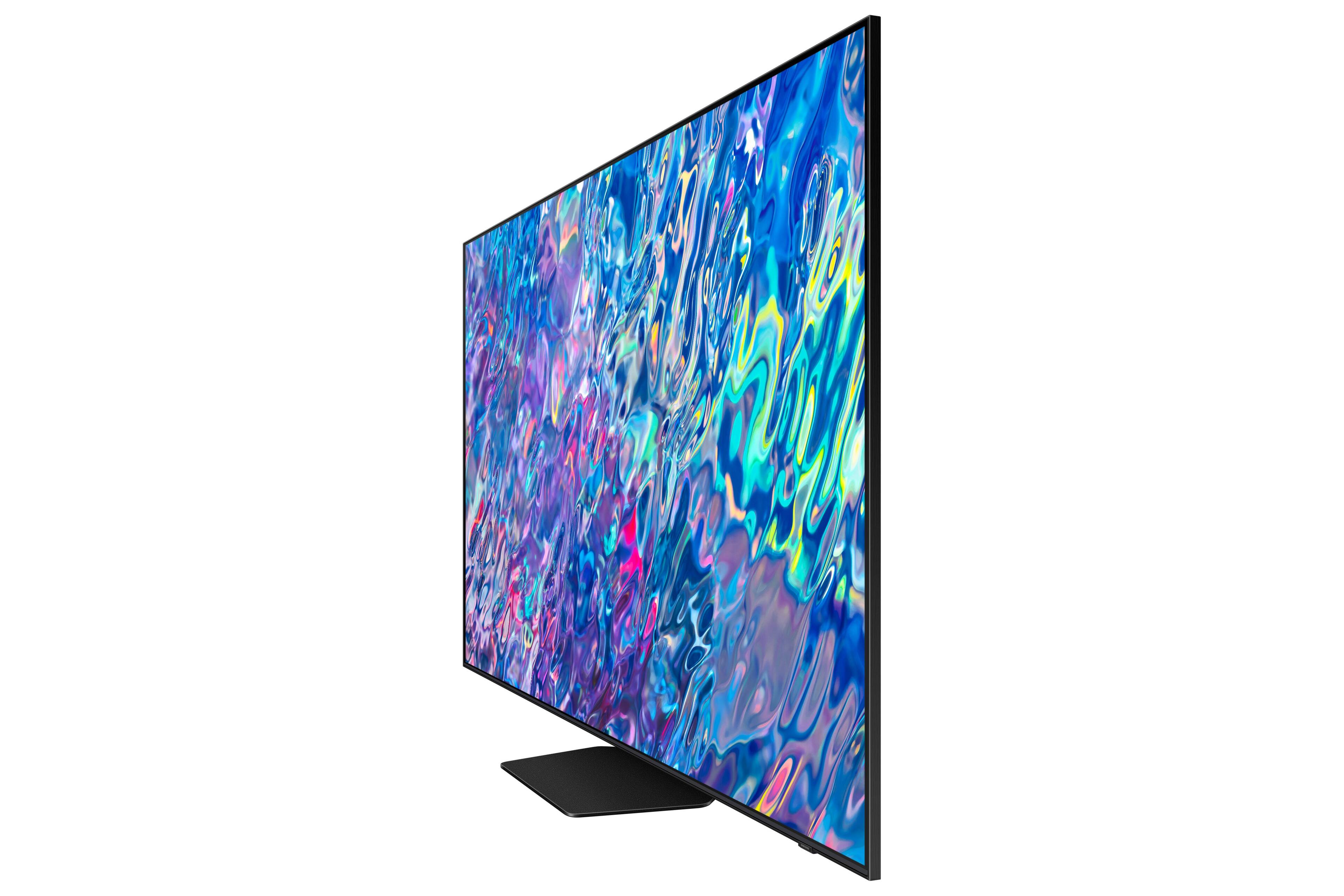
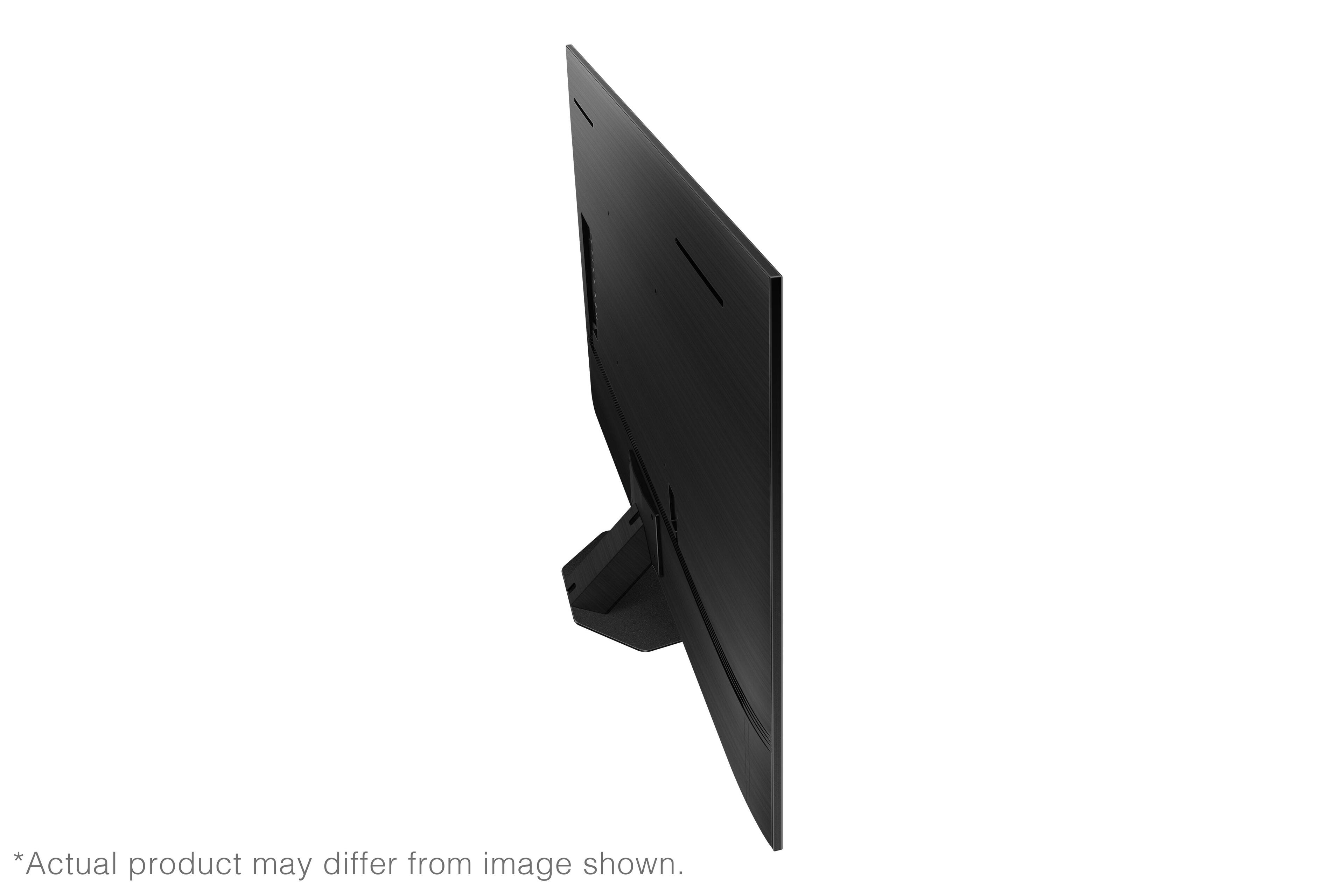
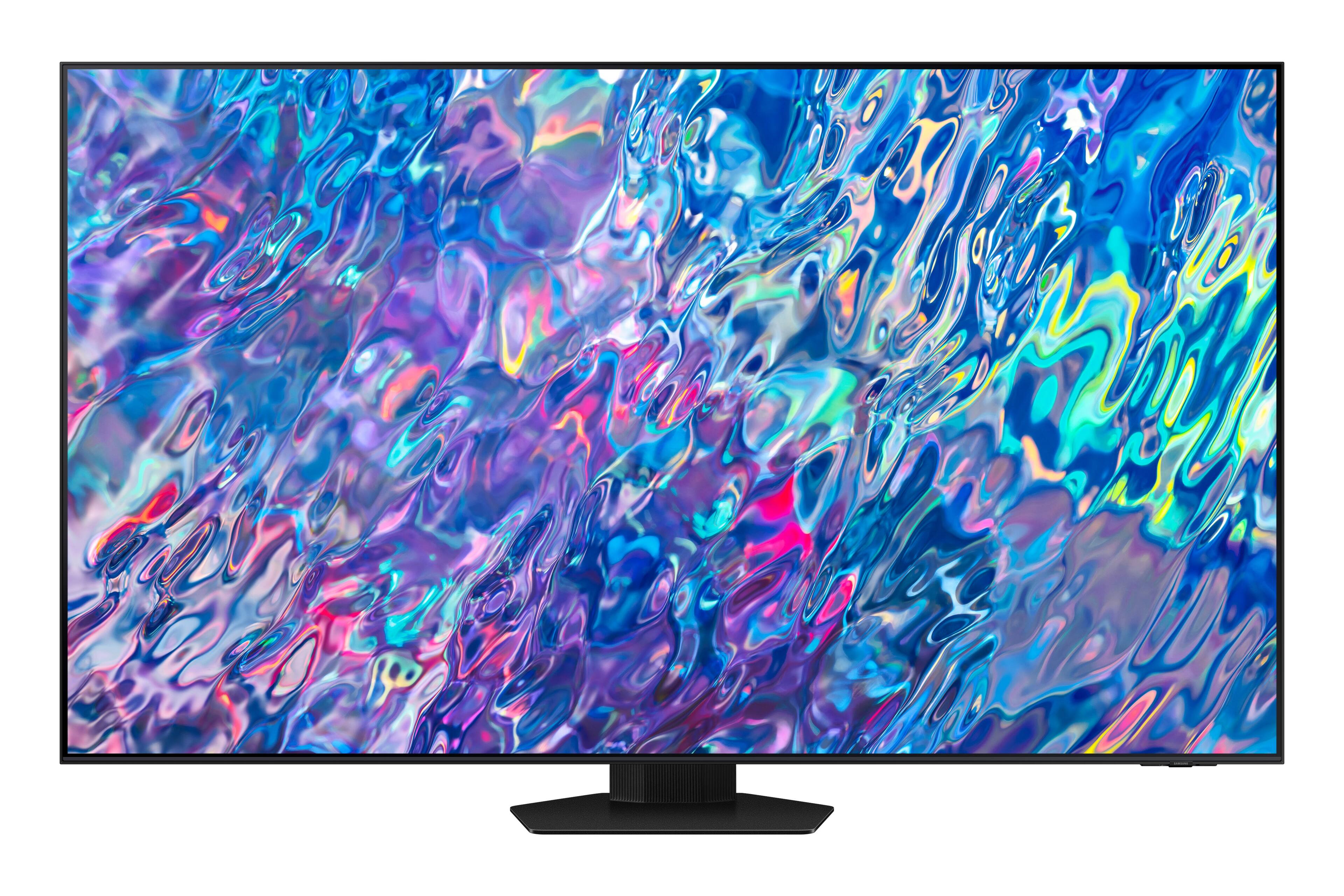
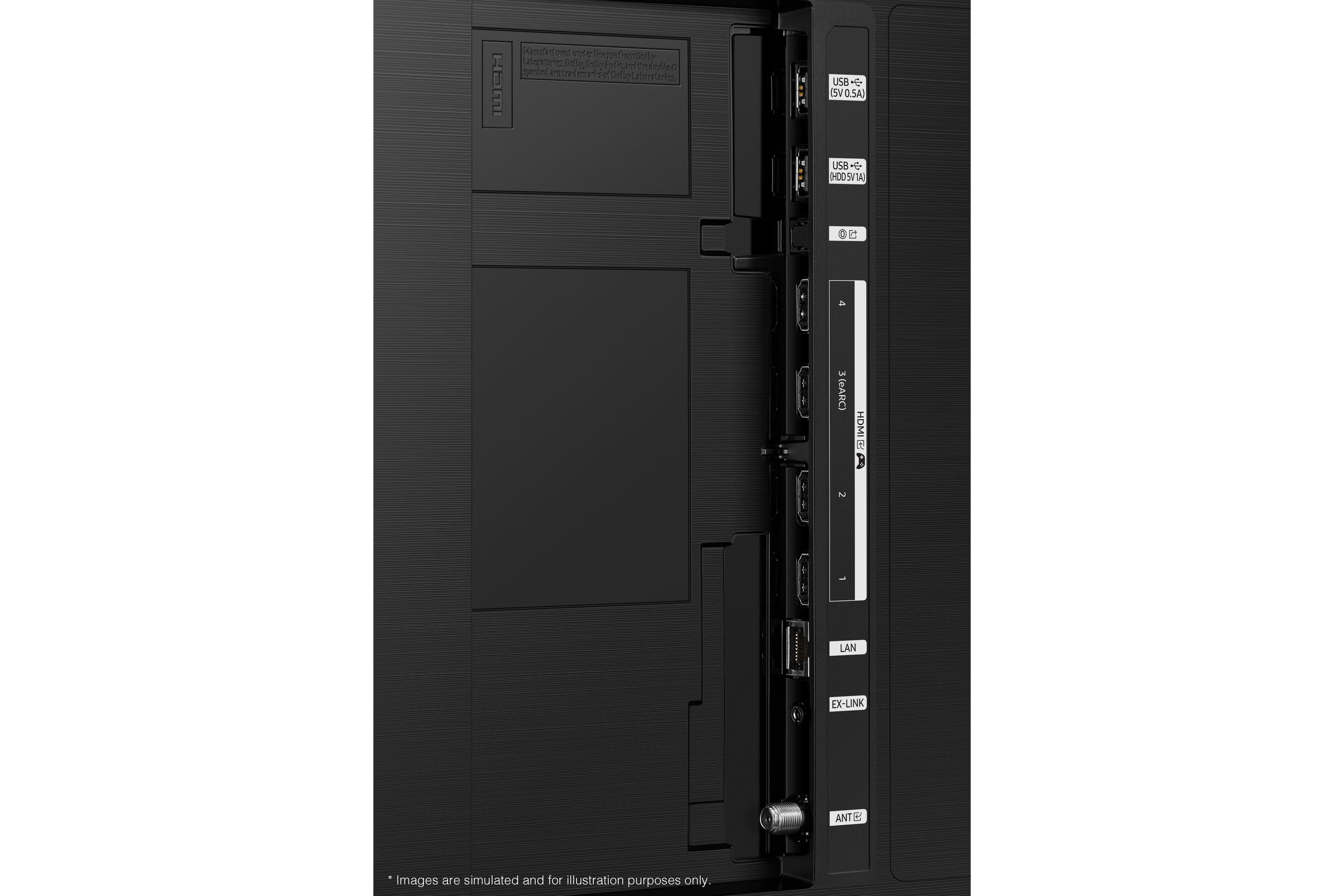






- Model:
- QN75QN85BAFXZA
- SKU:
- 6500302
Rating by feature
- Picture Quality
Rating 4.8 out of 5 stars
- Sound Quality
Rating 4.6 out of 5 stars
- Brightness
Rating 4.8 out of 5 stars
Customers are saying
Customers are delighted by the 75” Class QN85B Neo QLED 4K Smart Tizen TV’s stunning picture quality, vibrant colors, and reasonable price. They appreciate the easy setup process and find the remote control user-friendly. The TV’s large screen and good sound quality enhance the overall viewing experience, making it a great choice for gaming and movie nights.
This summary was generated by AI based on customer reviews.
Samsung TV
||Posted . Owned for 2 weeks when reviewed.This reviewer received promo considerations or sweepstakes entry for writing a review.Very impressed with our purchase. Highly recommend
I would recommend this to a friendGreat picture
||Posted . Owned for 1 month when reviewed.This reviewer received promo considerations or sweepstakes entry for writing a review.Great tv Cons remote won’t sync with sonos sound bar
I would recommend this to a friendTv and geek squad were great
||Posted . Owned for 2 weeks when reviewed.This reviewer received promo considerations or sweepstakes entry for writing a review.Love the picture xxxxxxxxxxxxxxxxxxxxxxxxxxxxxxxxx
I would recommend this to a friendNice tv
||Posted . Owned for less than 1 week when reviewed.This reviewer received promo considerations or sweepstakes entry for writing a review.Worth the price. Can’t go wrong with Samsung at sll
I would recommend this to a friendNice tv
||Posted .This reviewer received promo considerations or sweepstakes entry for writing a review.Its really nice tv , a little bit slow sometimes and it restarting by itself
I would recommend this to a friendBrand response from Samsung
Posted .MaherH,
We appreciate your feedback on the response time, and for optimal performance, we ask that you please ensure you've got the latest firmware version installed on your QN85B TV. You can check this by going to: Home > Menu > Settings > Support > Software Update.
You may also want to further optimize performance with the self-diagnostic tool, which checks memory, frees up unused cached memory, and closes background apps. Go to: Home > Menu > Settings > Support > Device Care > Start Device Care
Please also try a few troubleshooting steps that may help solve the power cycling issue you've mentioned:
1) Check the power cable for damage and proper connection. If the cable is bent, broken, kinked, pinched, pressed excessively (possibly by a heavy object on top of it) or damaged, this is likely the cause of the issue. Replace the cable.
2) Unplug the TV from the wall outlet for 30 seconds, and then plug it back in.
3) TVs which can connect to SmartThings can be turned on using compatible devices, sometimes automatically. However, if abnormal "power on" signals are sent through the wireless network, they will trigger this function and make the TV turn on. If you do not want this function, navigate to Menu > Settings > All Settings > Connection > Network > Expert Settings > Power On with Mobile, and turn the setting off.
If the issue persists after these steps, the TV may need service. Please call us so that we can better investigate your issue and assist with a solution or replacement. You can reach us at 1-800-SAMSUNG, 8AM - 12AM EST, 7 days a week. Or visit us on the Samsung website and click on the ‘Support’ link for:
• LiveChat
• Manuals, Software, & Warranty Info
~ Samsung Specialist
Samsung tv
||Posted . Owned for 3 weeks when reviewed.This reviewer received promo considerations or sweepstakes entry for writing a review.I still exploring the product but seems like is a good choice. I hope exceed my expectations
I would recommend this to a friendLike the concept of QLED
||Posted . Owned for less than 1 week when reviewed.This reviewer received promo considerations or sweepstakes entry for writing a review.I like the display and demo in the show room. Waiting to experience the same
I would recommend this to a friendGreat
||Posted . Owned for 1 month when reviewed.This reviewer received promo considerations or sweepstakes entry for writing a review.It's really great, works well and looks great in the room
I would recommend this to a friendDo not buy!
||Posted . Owned for 1 month when reviewed.This reviewer received promo considerations or sweepstakes entry for writing a review.Do not buy this TV! Regular folks that just want to watch a show movie or sports… you’ll be very disappointed. It’s slow and clumsy menu and poor remote connect feel like you’re back in 1992. Ugh, I regret this TV.
No, I would not recommend this to a friendBrand response from Samsung
Posted .RyanH,
We appreciate your feedback on the response time, and for optimal performance, we ask that you please ensure you've got the latest firmware version installed on your QN85B TV. You can check this by going to: Home > Menu > Settings > Support > Software Update.
You may also want to further optimize performance with the self-diagnostic tool, which checks memory, frees up unused cached memory, and closes background apps. Go to: Home > Menu > Settings > Support > Device Care > Start Device Care
I hope these tips help you enjoy your new product.
You can always contact us for further help at 1-800-SAMSUNG, 8AM - 12AM EST, 7 days a week. Our LiveChat agents are also available by clicking on the ‘Support’ link on our website.
~ Samsung Specialist
Samsung TV
||Posted . Owned for 1 year when reviewed.This reviewer received promo considerations or sweepstakes entry for writing a review.Peace of crap.. No picture after 1.5 years of use And Samsung says not covered Buy an LG, they lasy
No, I would not recommend this to a friendMark
||Posted . Owned for 1 month when reviewed.This reviewer received promo considerations or sweepstakes entry for writing a review.Even with soundbar sound is very inconsistent Lips never match the words and sound coming out need to have repaired very disappointed
No, I would not recommend this to a friendBrand response from Samsung
Posted .MarkM,
I'm sorry to hear of the audio delays you're experiencing with Samsung's QN85B TV. Please give us the opportunity to look into this for you so we can provide additional settings adjustments or troubleshooting assistance.
You can reach Samsung Support at 1-800-SAMSUNG, 8AM - 12AM EST, 7 days a week. Our LiveChat agents are also available by clicking on the ‘Support’ link on our website.
We hope to hear from you!
~ Samsung Specialist
junk
||Posted . Owned for more than 2 years when reviewed.This reviewer received promo considerations or sweepstakes entry for writing a review.didn't have it 2 years and it's dead, glad I got the extended warranty
No, I would not recommend this to a friendNot satisfied
||Posted . Owned for 3 weeks when reviewed.This reviewer received promo considerations or sweepstakes entry for writing a review.There are some apps that I can not download onto my TV and I wished I knew this before I purchased it. The Air play does not work properly either.
No, I would not recommend this to a friendBrand response from Samsung
Posted .MikeilaB,
We appreciate you taking a moment to review Samsung’s QN85B TV. Samsung offers hundreds of apps in our App Store that you can download, and we are continuously adding more premium content and new services to our Smart TV platform.
To address the issues you're experiencing with Apple AirPlay, you may want to check the Connection Guide for further information connecting your smartphone. Go to: Source > Connection Guide > Smartphone > Apple AirPlay
You can also adjust AirPlay settings by going to: Menu > Settings > All Settings > Connection > Apple AirPlay Settings
If you need further help or have questions, please call Samsung Customer Support at 1-800-SAMSUNG, 8AM - 12AM EST, 7 days a week. Our LiveChat agents are also available by clicking on the ‘Support’ link on our website.
~ Samsung Specialist
A Disaster
||Posted . Owned for less than 1 week when reviewed.This reviewer received promo considerations or sweepstakes entry for writing a review.A blurry mess. This TV has the worst motion blur/ghosting that I've ever seen. Even with every single setting, the pixels cannot keep up with the refresh rate, even at 60hz. This TV has a BFI feature but it's unusable as the flicker is so prominent. Stay away unless you are only watching content below 60hz and don't game. Just buy the LG OLED instead.
No, I would not recommend this to a friendBrand response from Samsung
Posted .Stewbot,
Thank you for sharing your thoughts on the picture quality of your QN85B TV. To ensure you’ve got the latest image quality updates, please confirm that your TV is up to date with the latest firmware version. You can check by going to: Home > Menu > Settings > Support > Software Update.
If the picture you’re seeing is still not to your liking after updating firmware, there are several picture settings you may want to try adjusting.
Go to Home > Menu > Settings > All Settings > Picture > Picture Mode
...and select the mode that best fits your usage:
1) Standard: Is the default mode suitable for general viewing environments.
2) Movie: Is suitable for watching TV or movies in a dark room.
3) Dynamic: Makes the picture brighter and clearer in bright viewing environments.
4) Filmmaker Mode: You can watch the source content (e.g., movie) as it is. If the image is defined as Filmmaker Mode, it will automatically switch to Filmmaker Mode while watching.
You can also go to: Home > Menu > Settings > All Settings > Picture > Expert Settings to manually fine tune your image.
Intelligent Mode enables the TV to recognize and analyze the surroundings, noise, content, and your usage patterns to provide the best viewing experience. You can enable Intelligent Mode by going to Menu > Settings > All Settings > General & Privacy > Intelligent Mode Settings > Intelligent Mode.
If adjusting image settings does not improve your picture, please contact Samsung Customer Support at 1-800-SAMSUNG, 8AM - 12AM EST, 7 days a week. Our LiveChat agents are also available by clicking on the ‘Support’ link on our website.
~ Samsung Specialist
Samsung TV
||Posted . Owned for 1 year when reviewed.This reviewer received promo considerations or sweepstakes entry for writing a review.We have had it for a year and a half and it broke.
No, I would not recommend this to a friendToo buggy
||Posted . Owned for 2 weeks when reviewed.This reviewer received promo considerations or sweepstakes entry for writing a review.I purchased this TV May 3, By May 7th I was calling to have it replaced due to it not staying connected to WIFI. 2nd received 5/10/22 TV is not having issues buffering. I have another Samsung TV 55” that cost me about $600 and stays connected and no issues with WIFI. Samsung has got to do better! This TV isn’t cheap! Well at least not in cost! Brand NEW 2022 model and issues already..
No, I would not recommend this to a friendBrand response from Samsung
Posted .richrodny,
I'm sorry to hear you're not fully satisfied with your QN85B TV. Please be sure your TV's firmware is up to date with version 1211.2, as this includes various performance and connectivity updates. You can check this by going to: Home > Menu > Settings > Support > Software Update.
Please also keep in mind that buffering when streaming content online is related to your internet connection speed. Buffering may occur on your Samsung Smart TV while streaming video content over the internet. Buffering usually occurs when your internet connection provided by your ISP cannot supply data fast enough for the playback device.
We suggest you try the following:
1) Use 5G Wi-Fi if possible
2) Try wired LAN if available
3) Try repositioning the router so there are no obstacles between your TV and the router
Should your issue persist, you may want to contact your ISP to check or increase your internet speed.
If there’s anything we can further help with, please call us at 1-800-SAMSUNG, 8AM - 12AM EST, 7 days a week. LiveChat with an agent as well as manuals, software, and warranty info can be found at the ‘Support’ link on our Samsung website.
~ Samsung Specialist
Just OK, not impressed.
||Posted . Owned for 3 weeks when reviewed.This reviewer received promo considerations or sweepstakes entry for writing a review.Honestly, for the price I was expecting so much more from this TV. All I can say is that it is OK. Picture quality is OK. Features are OK. The TV constantly vlinks to a black screen, still trying to fix that. If I could go back and do it again I'd order a LG like we wanted, but they didnt have them in stock. Super disappointed overall.
No, I would not recommend this to a friendBrand response from Samsung
Posted .JSmith,
We appreciate you sharing your experience with the QN85B TV. Your details and image will be shared with our internal teams. You may want to try adjusting image settings to improve your picture.
Go to Home > Menu > Settings > All Settings > Picture > Picture Mode
...and select the mode that best fits your usage:
1) Standard: Is the default mode suitable for general viewing environments.
2) Movie: Is suitable for watching TV or movies in a dark room.
3) Dynamic: Makes the picture brighter and clearer in bright viewing environments.
4) Filmmaker Mode: You can watch the source content (e.g., movie) as it is. If the image is defined as Filmmaker Mode, it will automatically switch to Filmmaker Mode while watching.
Intelligent Mode enables the TV to recognize and analyze the surroundings, noise, content, and your usage patterns to provide the best viewing experience. You can enable Intelligent Mode by going to Menu > Settings > All Settings > General & Privacy > Intelligent Mode Settings > Intelligent Mode.
If you've switched on your TV and the sound comes through fine, but you're picture intermittently disappears, there are 3 potential issues.
1) A connection issue; the most common problem. Where there is a bad connection, faulty cables or improper installation.
2) An issue with the device connected to the TV. There may be a video output setting on the device that you must set properly before it will output to the TV.
3) There is something wrong with the TV, which will require a technician to assess the TV and find a solution.
Please give us the opportunity to assist you by calling us at 1-800-SAMSUNG, 8AM - 12AM EST, 7 days a week. LiveChat with an agent as well as manuals, software, and warranty info can be found at the ‘Support’ link on our Samsung website.
~ Samsung Specialist
SamsungReview-75inch Q
||Posted . Owned for 3 weeks when reviewed.This reviewer received promo considerations or sweepstakes entry for writing a review.the colors were way "off". We had the Geek Squad + Cable service come up and try to balance the color. The overall cover is very hard to watch and the colors are too harsh.
No, I would not recommend this to a friendBrand response from Samsung
Posted .75inchSamsung,
Thank you for sharing your thoughts on the picture quality of your QN85B TV. To ensure you’ve got the latest image quality updates, please confirm that your TV is up to date with the latest firmware version. You can check by going to: Home > Menu > Settings > Support > Software Update.
If the picture you’re seeing is still not to your liking after updating firmware, there are several picture settings you may want to try adjusting.
Go to Home > Menu > Settings > All Settings > Picture > Picture Mode
...and select the mode that best fits your usage:
1) Standard: Is the default mode suitable for general viewing environments.
2) Movie: Is suitable for watching TV or movies in a dark room.
3) Dynamic: Makes the picture brighter and clearer in bright viewing environments.
4) Filmmaker Mode: You can watch the source content (e.g., movie) as it is. If the image is defined as Filmmaker Mode, it will automatically switch to Filmmaker Mode while watching.
You can also go to: Home > Menu > Settings > All Settings > Picture > Expert Settings to manually fine tune your image.
Intelligent Mode enables the TV to recognize and analyze the surroundings, noise, content, and your usage patterns to provide the best viewing experience. You can enable Intelligent Mode by going to Menu > Settings > All Settings > General & Privacy > Intelligent Mode Settings > Intelligent Mode.
If adjusting image settings does not improve your picture, please contact Samsung Customer Support at 1-800-SAMSUNG, 8AM - 12AM EST, 7 days a week. Or visit us on the Samsung website and click on the ‘Support’ link for:
• LiveChat
• Manuals, Software, & Warranty Info
~ Samsung Specialist
Good
||Posted . Owned for 2 weeks when reviewed.This reviewer received promo considerations or sweepstakes entry for writing a review.Good item i like it very much, i like to watc my favorite s sports and movies
I would recommend this to a friendBrand response from Samsung
Posted .Marcodzul51,
While it’s great to hear you’re enjoying the ability to watch your favorite content on your QN85B TV, please let us know if there’s a specific issue that you’re experiencing which has caused you to give this TV a 3-star rating.
You can reach Samsung Support at 1-800-SAMSUNG, 8AM - 12AM EST, 7 days a week. Our LiveChat agents are also available by clicking on the ‘Support’ link on our website.
We look forward to hearing from you.
~ Samsung Specialist
Sound
||Posted . Owned for 2 months when reviewed.This reviewer received promo considerations or sweepstakes entry for writing a review.Tv speaker doing a bad noise sound no good.......................
No, I would not recommend this to a friend