Customer Ratings & Reviews
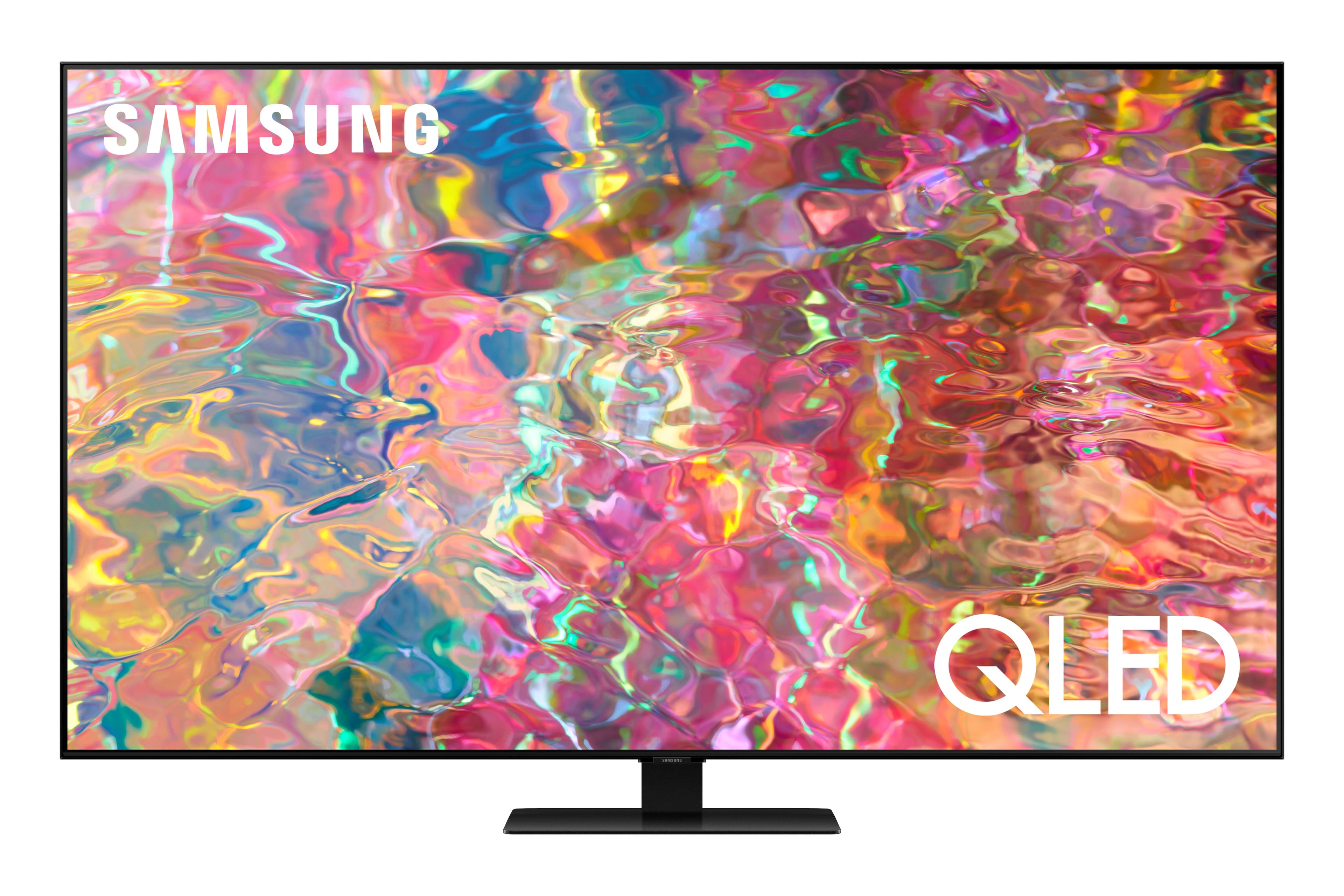
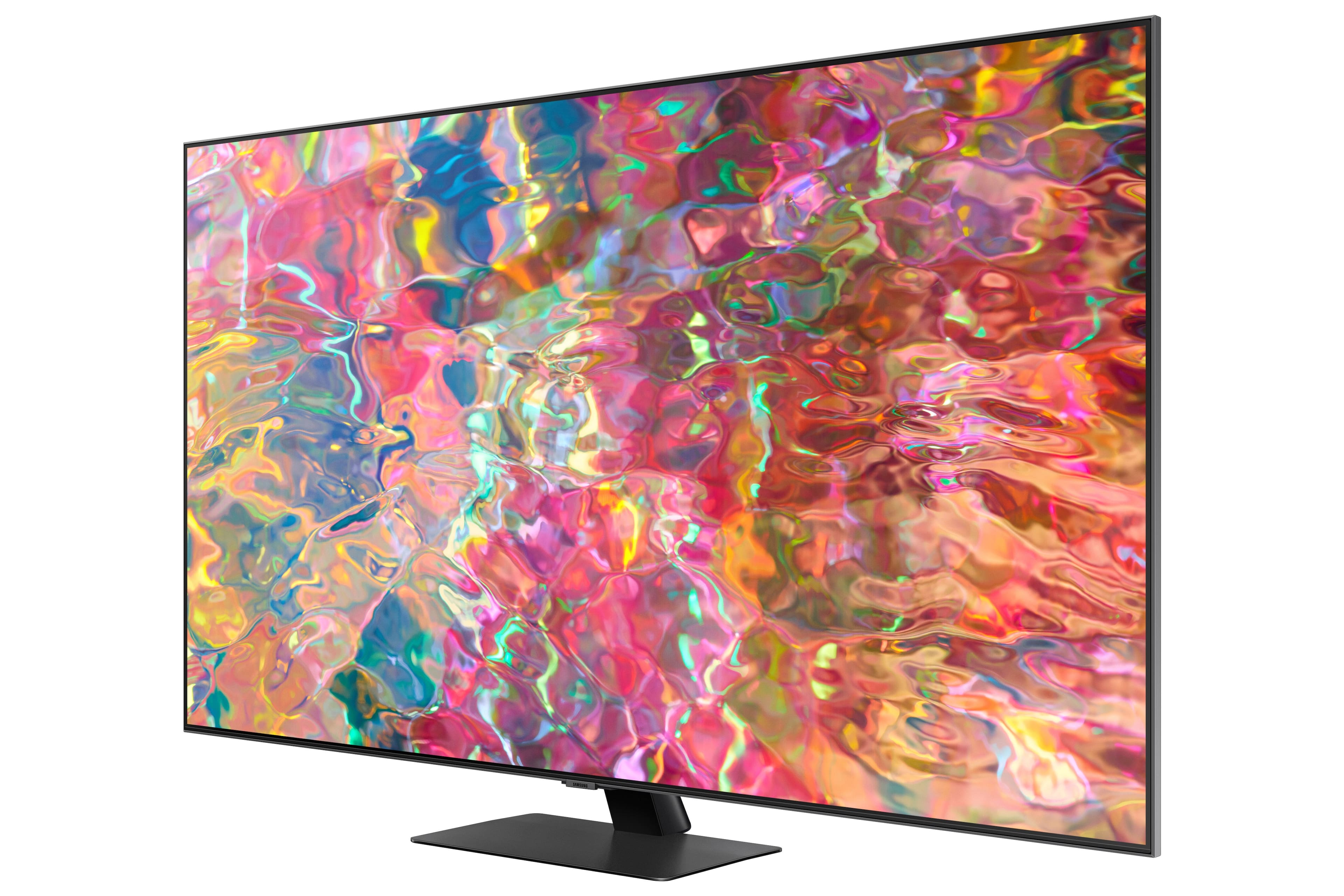
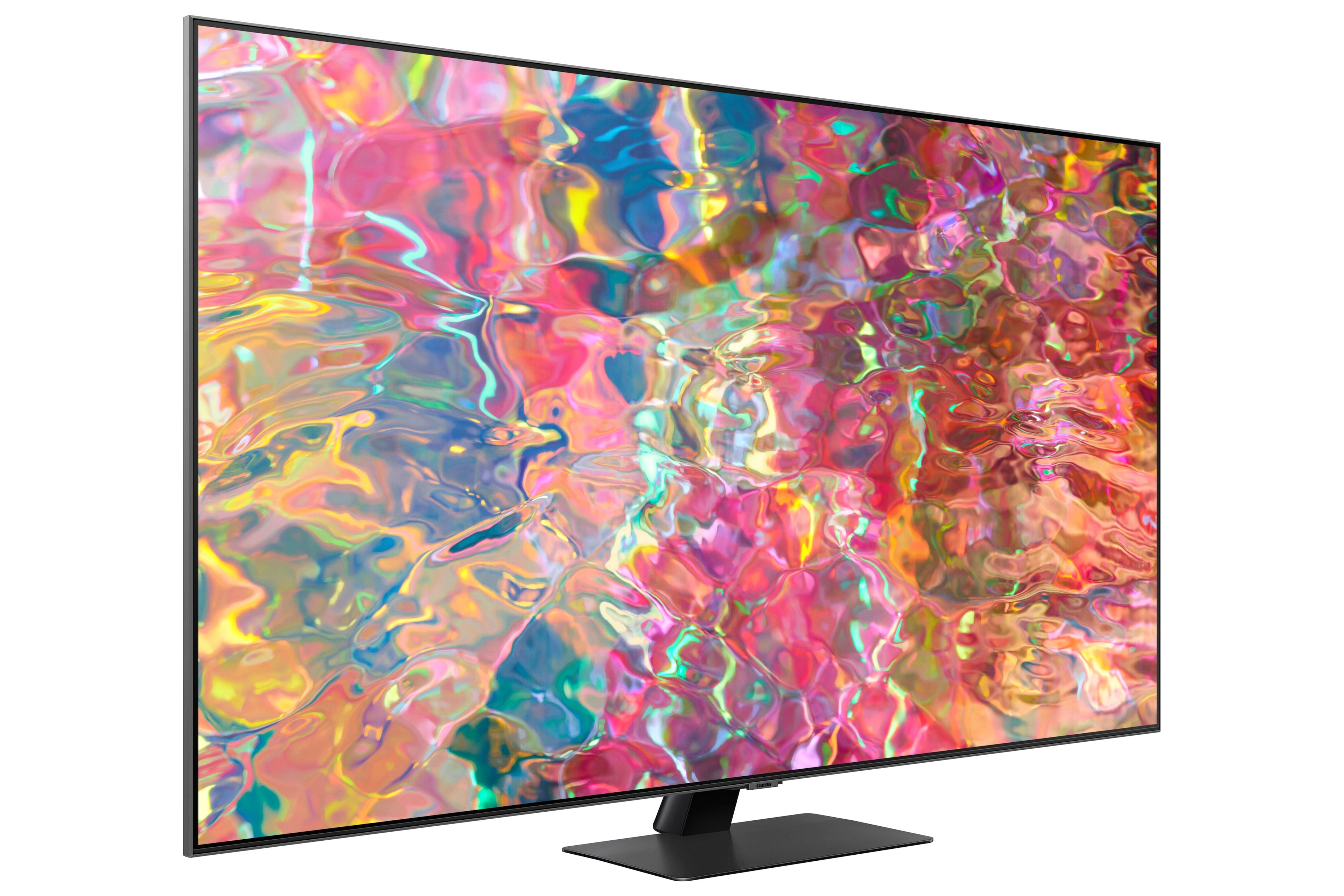
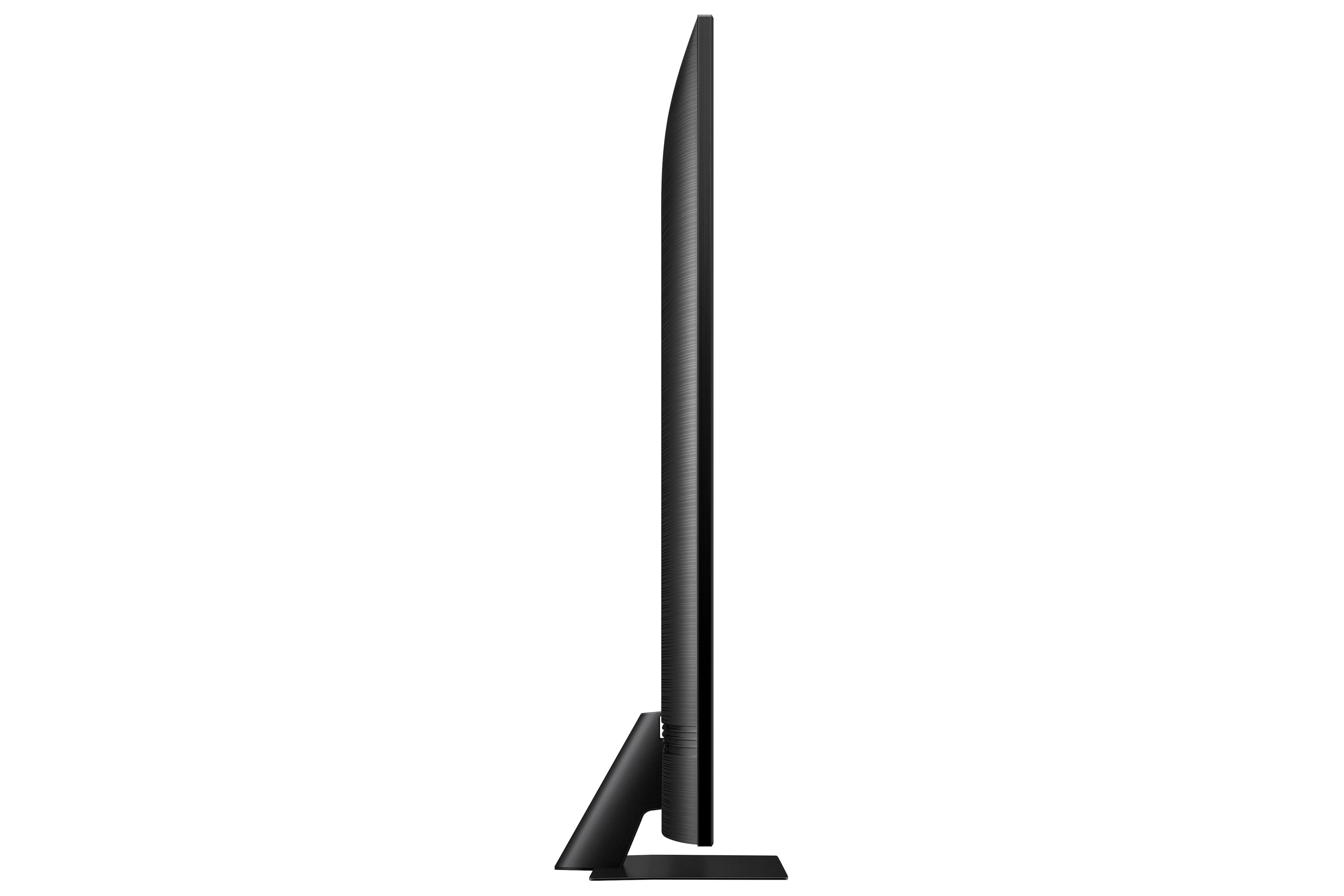

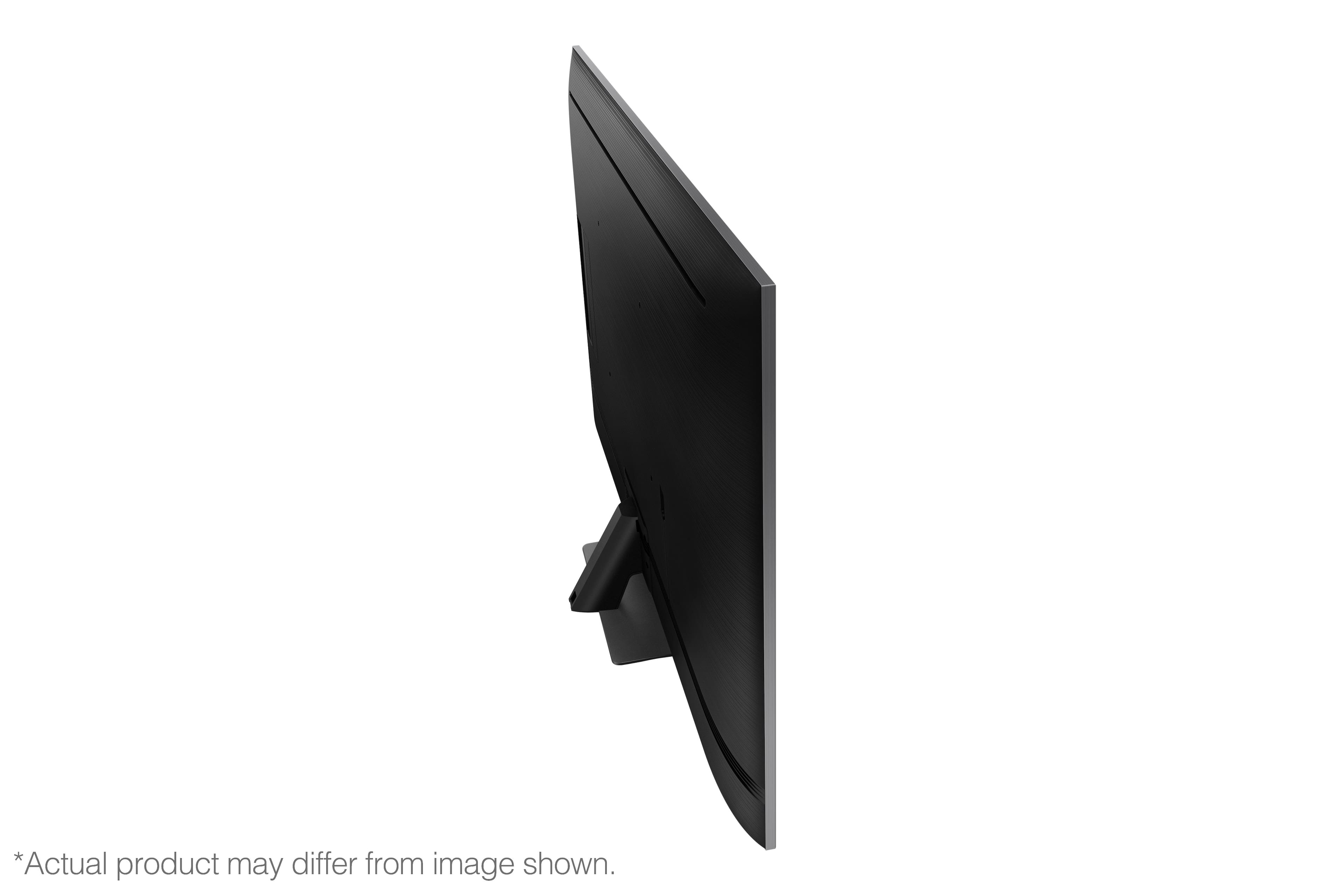
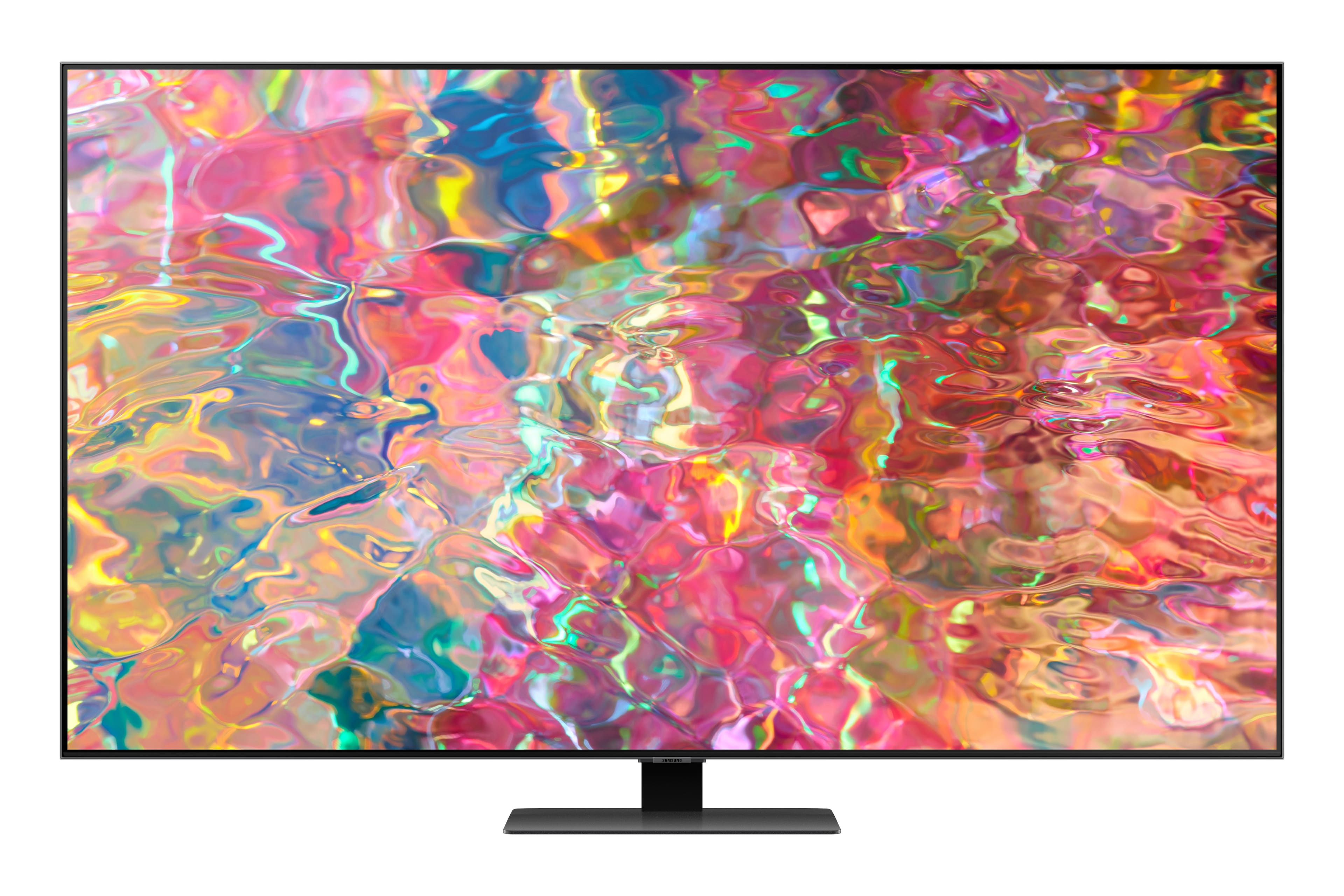
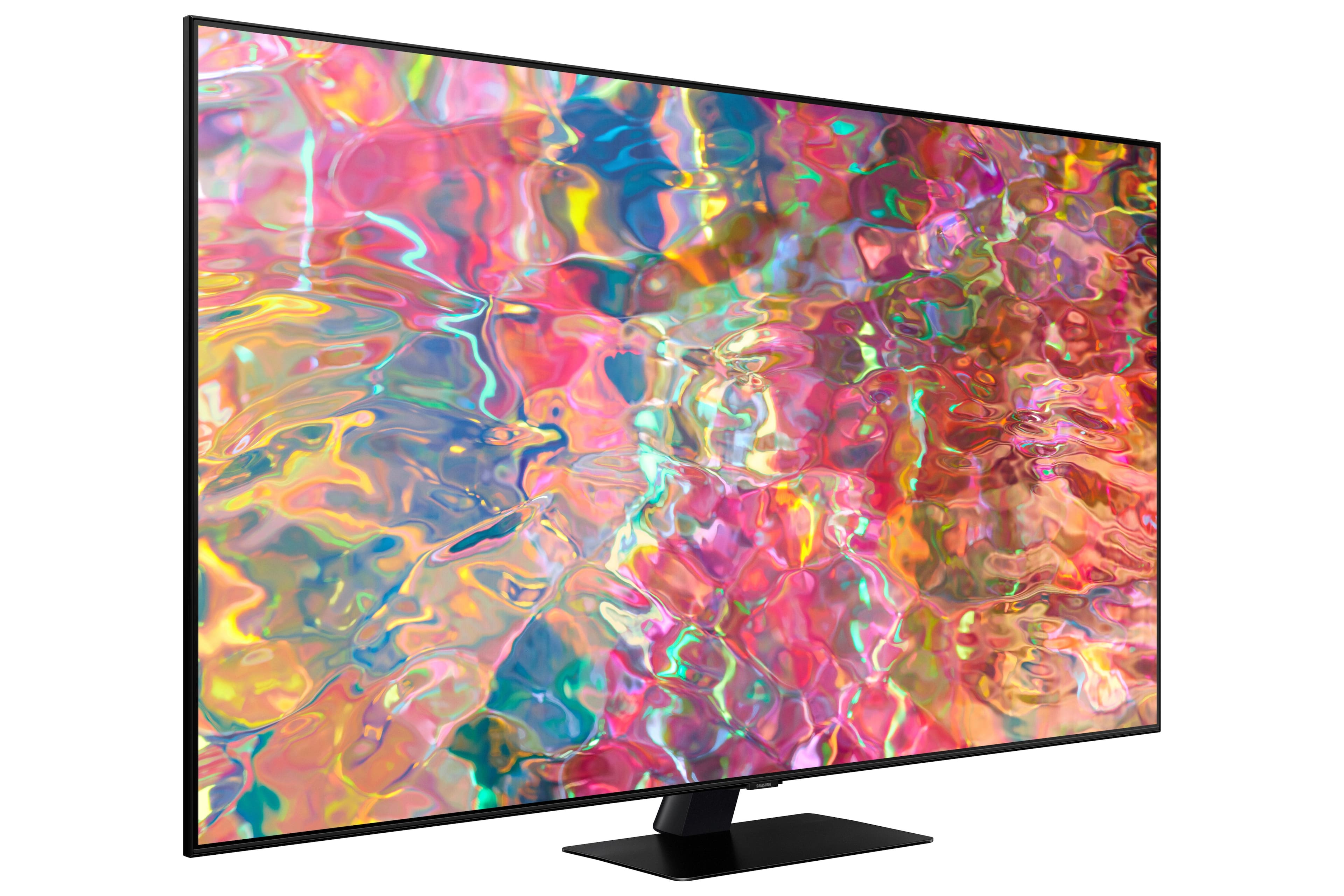
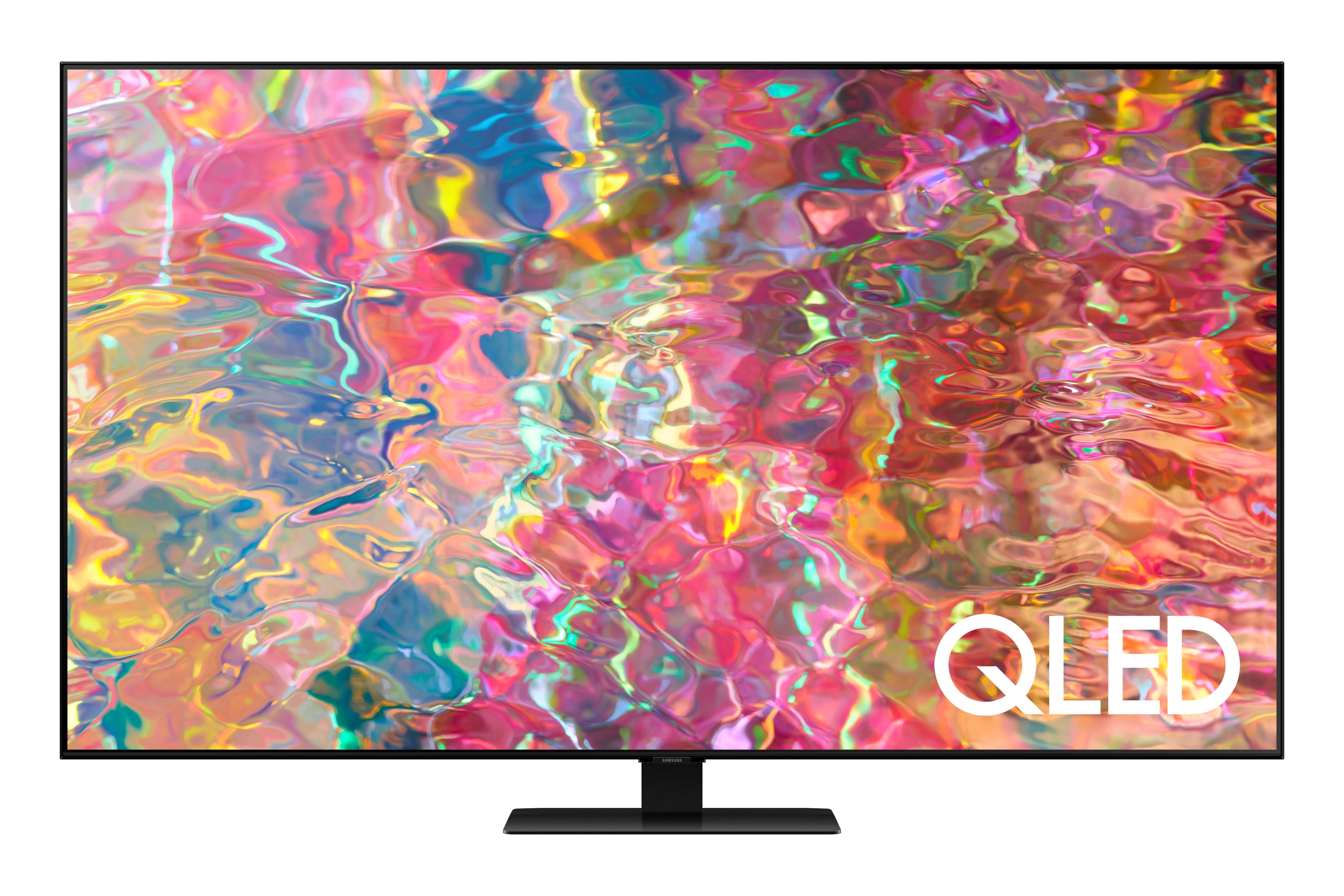
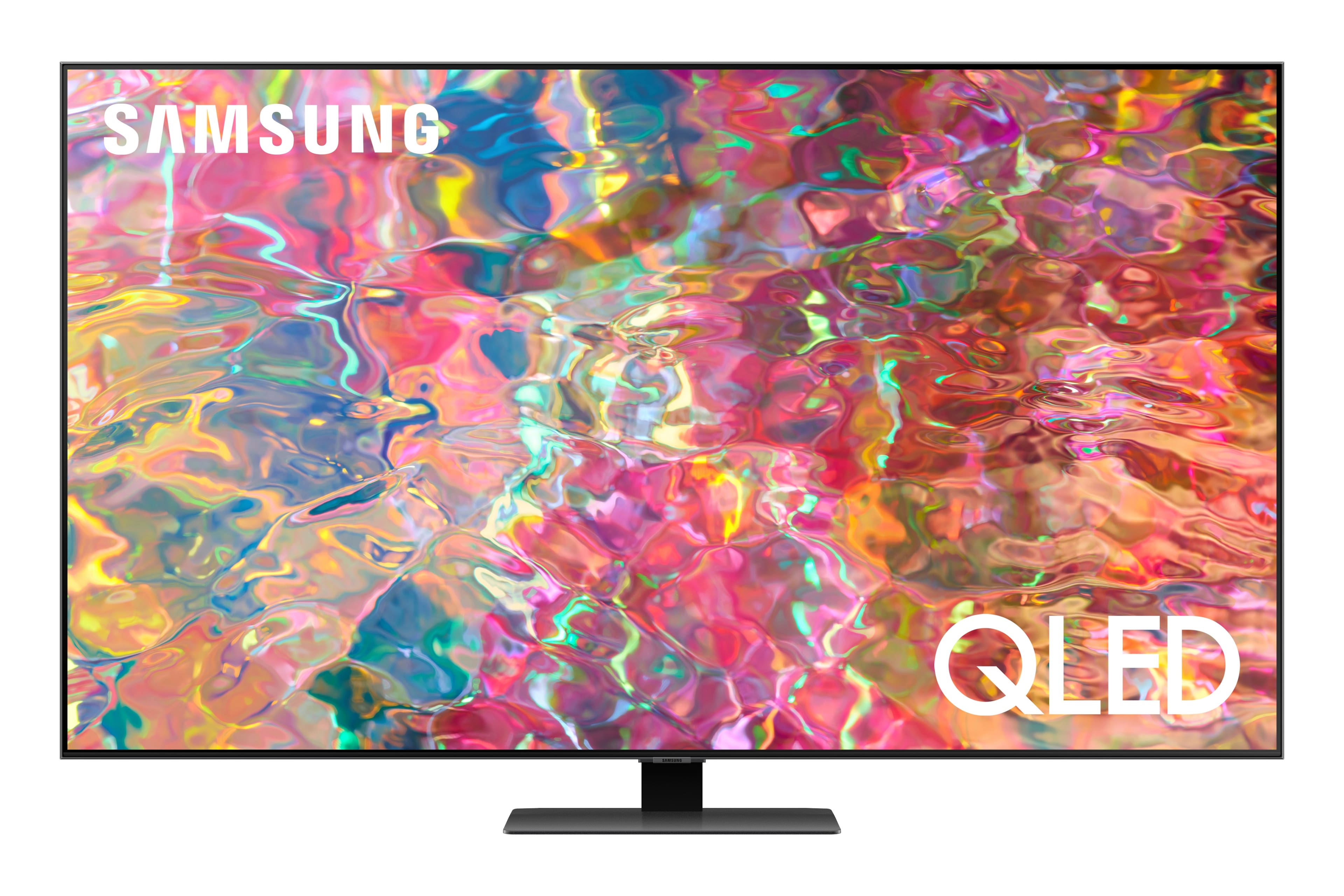
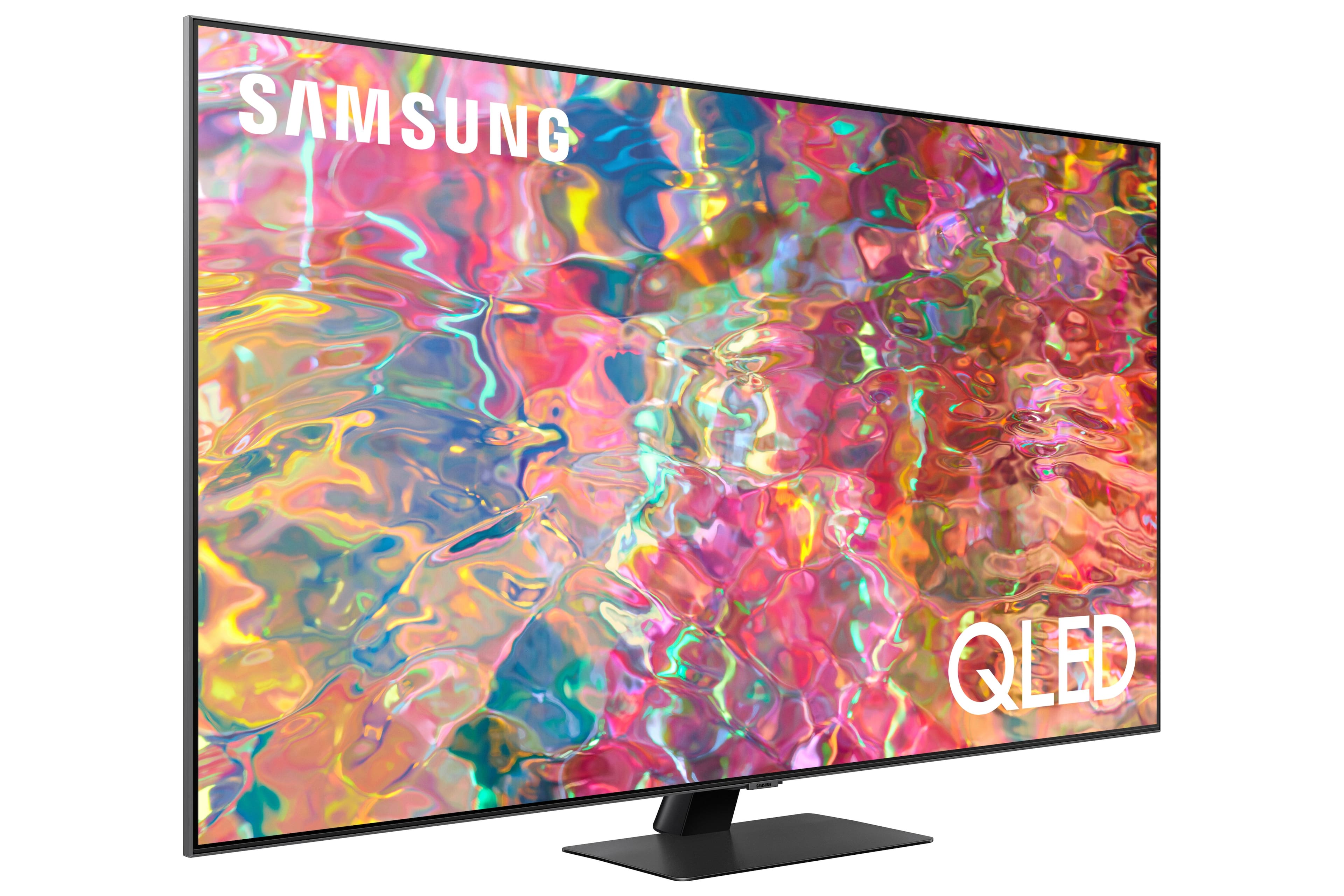





- Model:
- QN85Q80BAFXZA
- SKU:
- 6503077
Rating by feature
- Picture Quality
Rating 4.8 out of 5 stars
- Sound Quality
Rating 4.6 out of 5 stars
- Brightness
Rating 4.8 out of 5 stars
Customers are saying
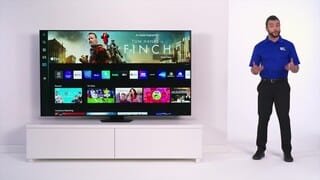
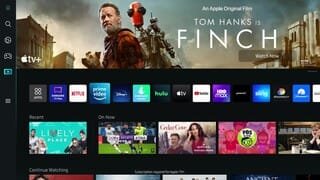
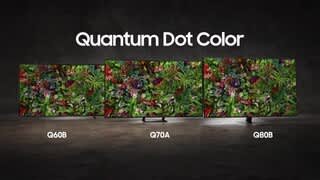
Customers commend the 85” Class Q80B QLED 4K Smart Tizen TV for its exceptional picture quality, saying it's great for watching movies. They also appreciate its large size, noting that it's bigger than the Q60 85”. Additionally, customers find the TV easy to set up and recommend it to others.
This summary was generated by AI based on customer reviews.
Bad T.V
||Posted . Owned for 1 month when reviewed.This reviewer received promo considerations or sweepstakes entry for writing a review.The picture quality is substandard. Very disappointed
No, I would not recommend this to a friendBrand response from Samsung
Posted .AshishH,
Thank you for sharing your thoughts on the picture quality of your Q80B TV. To ensure you’ve got the latest image quality updates, please confirm that your TV is up to date with the latest firmware version. You can check by going to: Home > Menu > Settings > Support > Software Update.
If the picture you’re seeing is still not to your liking after updating firmware, there are several picture settings you may want to try adjusting.
Go to Home > Menu > Settings > All Settings > Picture > Picture Mode
...and select the mode that best fits your usage:
1) Standard: Is the default mode suitable for general viewing environments.
2) Movie: Is suitable for watching TV or movies in a dark room.
3) Dynamic: Makes the picture brighter and clearer in bright viewing environments.
4) Filmmaker Mode: You can watch the source content (e.g., movie) as it is. If the image is defined as Filmmaker Mode, it will automatically switch to Filmmaker Mode while watching.
You can also go to: Home > Menu > Settings > All Settings > Picture > Expert Settings to manually fine tune your image.
For further assistance with settings adjustments, please contact Samsung Customer Support at 1-800-SAMSUNG, 8AM - 12AM EST, 7 days a week. Our LiveChat agents are also available by clicking on the ‘Support’ link on our website.
~ Samsung Specialist
- Pros mentioned:Picture quality
Absolutely, the best t vs in the world.
Posted .This reviewer received promo considerations or sweepstakes entry for writing a review.I purchased this item over two years ago. Just let me tell you. I'm enjoying every moment, watching this movie screen. Since I purchased this tv there has been absolutely no reason to go to the movies. I love this TV so much. I'm actually buying another one for the bedroom in the near future. Perhaps as early as this week. Samsung makes the best t v's as far as I'm concerned. My first purchase for samsung t v was about fifteen years ago. And it still works to this day.
I would recommend this to a friend - Pros mentioned:Picture quality
Very happy buyer
Posted .This reviewer received promo considerations or sweepstakes entry for writing a review.I'm very happy with my purchase. It's a great price for this size TV. It has a wonderful picture and the sound is just ok but that's not why I was buying it.
I would recommend this to a friend - Pros mentioned:Value
Large TV
Posted .This reviewer received promo considerations or sweepstakes entry for writing a review.Great product and value with timely delivery, Best Buy indeed
I would recommend this to a friend Excellent TV!!!
Posted .This reviewer received promo considerations or sweepstakes entry for writing a review.Beautiful TV enjoying watching my programs!!! Very happy. Thank You Jeff and Justin you guys rock!!! You both did a great job. Thanks again.
I would recommend this to a friend- Pros mentioned:Picture quality
Samsung
Posted .This reviewer received promo considerations or sweepstakes entry for writing a review.Great TV. I really enjoy Samsung, and tgis TV is an excellent choice. I was able to get the 85” for a great price also!
I would recommend this to a friend Black mirror
Posted .This reviewer received promo considerations or sweepstakes entry for writing a review.The TV itself is nice to look at, but it can't display regular TV well. The little quality is awful. Everything you read about how it might be bad is true. The desire to have it anti glare isn't real, sound is horrible and distorted, and the glare is fully washing out everything. But even you want a really big black mirror, it's great. Would highly recommend buying anything other than this TV.
No, I would not recommend this to a friendBrand response from Samsung
Posted .user292551,
Thank you for purchasing the Q80B QLED TV and for sharing your feedback regarding screen reflection. The light conditions of each room environment are different. For optimal glare control, we recommend positioning the TV to minimize incident light falling on the screen or consulting a professional installer. Anti-Reflection designed to minimize ambient light reflection is featured on our 55” QN90B series and higher.
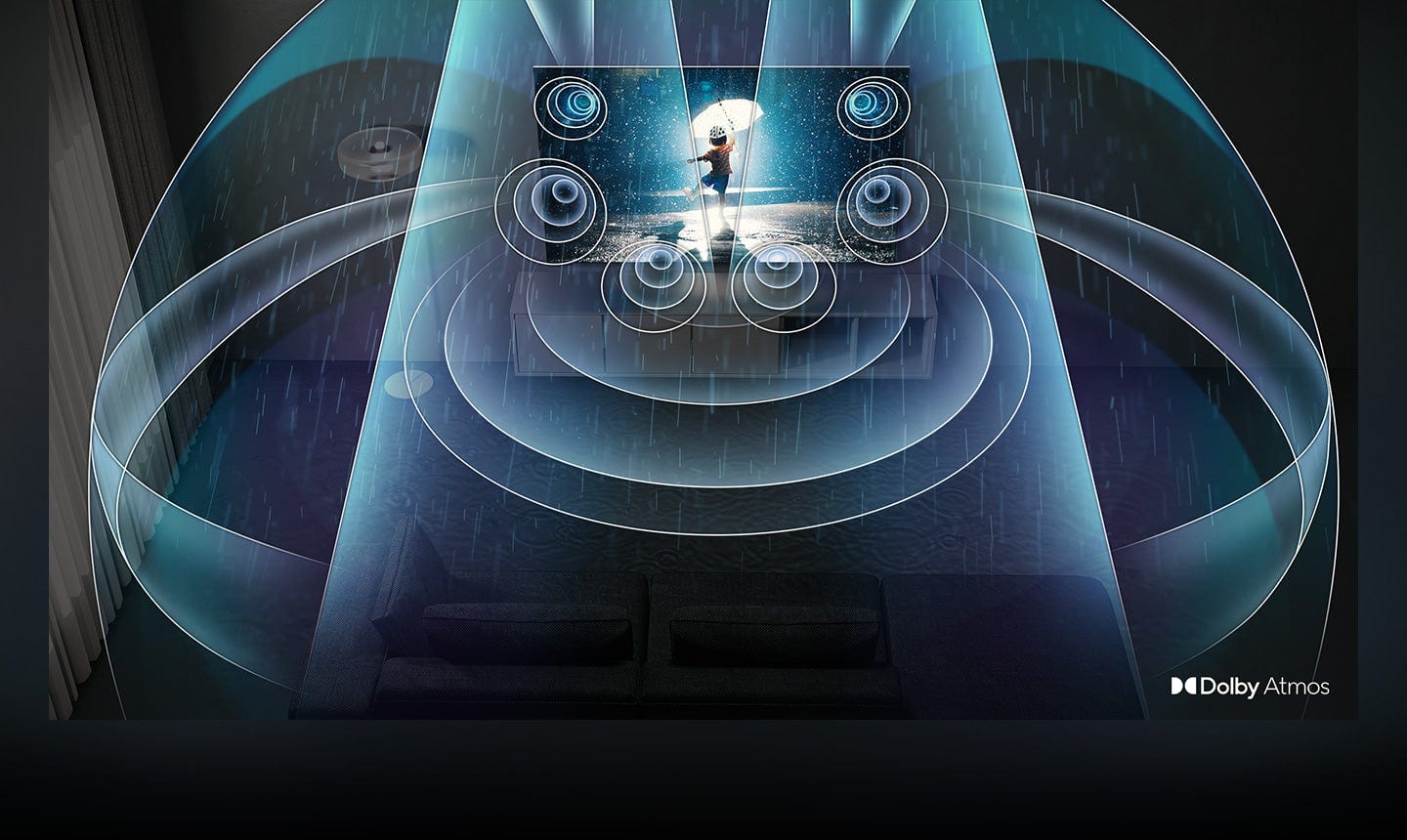
Your TV features Object Tracking Sound which tracks the action with strategically placed dynamic speakers and Adaptive Sound which automatically adjusts audio to enhance everything from dialogue to music and sports.
You can select a sound mode that you prefer for a content type or your listening environment. Go to: Home > Menu > Settings > All Settings > Sound > Sound Mode
You can also customize balance and equalizer settings by going to: Home > Menu > Settings > All Settings > Sound > Expert Settings
Additionally, there are image adjustments you can make to optimize your picture to suit your preferences. Your TV has several Picture Modes to choose from allowing you to enjoy content in optimal conditions. Go to Home > Menu > Settings > All Settings > Picture > Picture Mode
You can also go to: Menu > Settings > Picture > Expert Settings > Contrast Enhancer to manually fine tune your image.
Should you ever have questions or need help with TV features, specs, or operation, we are here to help. You can reach Samsung Support at 1-800-SAMSUNG, 8AM - 12AM EST, 7 days a week. Or visit us on the Samsung website and click on the ‘Support’ link for:
• LiveChat
• Manuals, Software, & Warranty Info
~ Samsung Specialist